Amazon started its Prime Day Sale yesterday and it runs through 11:59 p.m. Pacific Time on Tuesday, July 16. If you have been thinking about getting a new iPad Pro, you can save some money if you do so before the sale ends.
The iPad Pro is the best iPad for attorneys. I use the Wi-Fi model of the 12.9" iPad Pro with 256 GB and I love this device. I bought it for $1,149 and that is still the price if you buy from Apple, but you can save almost $200 if you buy it through Amazon during the Prime Day sale. That savings covers all of the cost of the $129 Apple Pencil (2nd Generation) and then some, a fantastic deal. Here are all of the iPad Pro savings that you can get on Prime Day:
There are rumors that Apple might come out with a new iPad Pro this Fall. I’m not sure that I believe those rumors because (1) the current version of the iPad Pro, the third generation, was announced in October 2018 and there was a 19 month gap between the announcement of the first and second generation iPad Pro and a 16 month gap between the announcement of the second and third generation iPad Pro, and (2) the third generation iPad Pro is truly incredible device so Apple doesn’t really need to update the hardware in 2019. Of course, Apple may do so anyway, but that doesn’t take away from the third generation iPad Pro being a really great device.
If you consider yourself a more casual iPad user and you don’t want all of the extra features of the iPad Pro but still want a good iPad, then the iPad Air may be for you. You won’t get the larger screen and thin bezel that makes the iPad Pro appear to have an almost edge-to-edge screen, you won’t be able to use the second generation of the Apple Pencil which is much better than the original one, the screen isn’t as nice, you have to use Touch ID instead of Face ID, it isn’t as fast, and you have to use Lightning instead of USB-C. But these are all “pro” features that nay not be worth it to you to spend the extra $300 or so. I don’t believe that the iPad Air has a Prime Day sale associated with it, but I do see that you can save $30 on two of the models on Amazon:
There is also one model of the iPad mini — the Wi-Fi 256 GB model — with $30 savings.
There are discounts on some related products that might interest you. For example, you can save $14.01 on a pair of AirPods with a normal charging case or $20 on AirPods with a wireless charging case.
Here in New Orleans, we are preparing for our first hurricane of the season, Hurricane Barry. Hopefully it will not cause much damage, but with risks of flooding and the loss of electricity, folks in this area are preparing for the worst, just in case. (As I’m typing this, I can hear the wind outside of my house starting to make a lot of noise. Ugh.) No matter where you live, there is always a risk of a power outage, so it is a good idea to be prepared by having items like backup batteries charged and ready to go. One option that I can recommend is the Weego Jump Starter 22, which I reviewed last year when it was about $95 on Amazon, but now I see that it is down to $60 on Amazon. You can keep it in your car to jump-start your car or a friend’s car if you ever have the need to do so, plus it has enough charge to keep your iPhone going for a long time if there is a power outage. The Weego is like an insurance policy; it’s an item that hopefully you will never need to use, but if you do need it, you are going to be so happy that you have it. I also recommend keeping one or more small, portable batteries charged and in your briefcase or purse. And now, as we continue to batten down the hatches in the Big Easy, here is the recent news of note:
California attorney David Sparks explains two reasons that an iPad will be much more useful with iPadOS: better file management and a better version of Safari, which can load many websites that have never before been able to work correctly on an iPad or iPhone.
Indeed, are so many upcoming changes to Shortcuts that California attorney David Sparks explained this week that he is going to need to start from scratch to create a new version of his Shortcuts Field Guide.
Karen Freeman of iMore reviews the Adonit Note stylus, a $50 alternative to the Apple Pencil that I reviewed earlier this week. She likes the stylus for the same reasons that I did, but when she discussed the drawbacks, she didn’t say anything about accidentally hitting the power button while using the stylus and having the stylus turn off, which was a problem that I had. So maybe that is less of an issue for others than it is for me.
And finally, here is a video from Apple showing a situation — a somewhat bizarre situation — in which it makes more sense to use FaceID to unlock an iPhone than TouchID:
A stylus is an incredibly useful iPad accessory for attorneys, making it easy to take handwritten notes and to annotate exhibits, drafts of your own briefs, briefs filed by your opponents, contracts, and other documents. Starting in 2010 when the iPad was introduced, I wrote dozens of reviews of styluses to help folks pick the stylus that was best for them. All of that changed in November 2015 when Apple starting selling the Apple Pencil, along with the first iPad with built-in support for that fine-tip device, the original version of the iPad Pro. The Apple Pencil was so much better than any third-party stylus that I didn’t really see the point in reviewing them anymore. Third-party styluses either had a large tip to simulate the size of a fingertip or they used tricks like Bluetooth or radio waves to simulate the touch of a finger on the screen, with varying degrees of success. While these solutions were creative, all of them were vastly inferior to the results you could get with an Apple Pencil.
In the Spring of 2018, Apple introduced a new iPad aimed at education and announced that it would support the Logitech Crayon, the first third-party stylus featuring a tip just as precise as the Apple Pencil. The Logitech Crayon achieved this by using Pencil technology licensed by Apple. The Crayon was aimed at the education market, and for a long time could only be purchased by schools in bulk, although today anyone can purchase one on Amazon or elsewhere for $60 to $70. Although the Crayon itself has an appearance that is more appropriate in a classroom than in a courtroom, at the time it was introduced I wrote that my hope was that it was setting the stage for a new generation of third-party styluses that would be just as precise as the Apple Pencil.
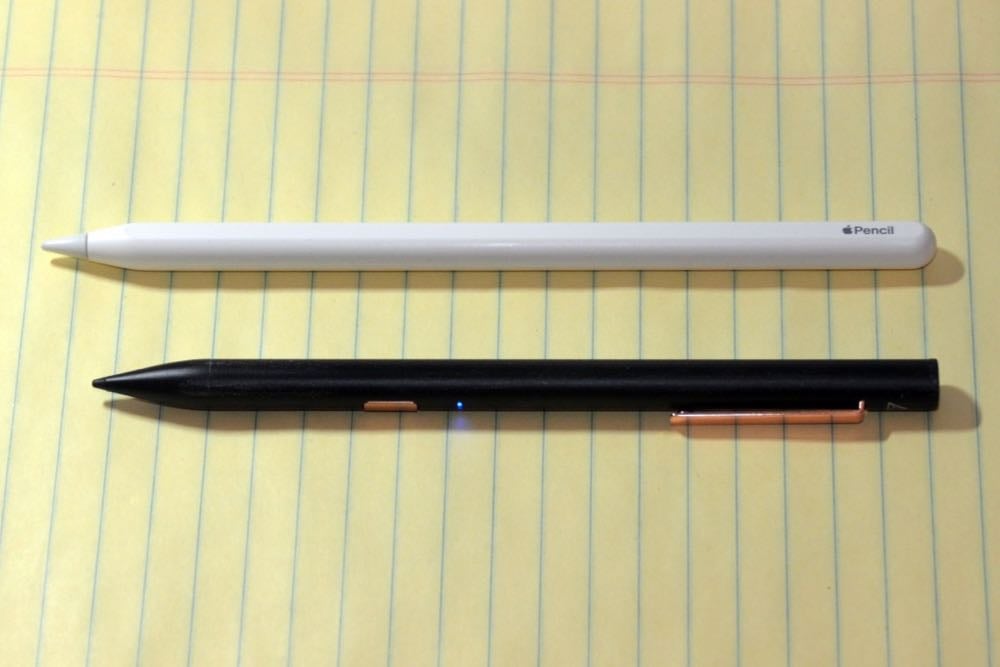
It has taken over a year, but Adnoit has finally done it, creating a stylus that is as precise as the Apple Pencil: the Adonit Note. I’ve long been a fan of Adonit’s products, and the Adonit Jot Pro was one of my all-time favorite styluses before the Apple Pencil (and it remains a great option for older iPads). Adonit sent me a free review unit of the Note almost two weeks ago. With a few minor exceptions, it has been the only stylus I’ve used since I received it, and I’m very impressed. There are two specific things I don’t like which I explain below, but for anyone who doesn’t want to spend $100 for an Apple Pencil or $130 for a second-generation Apple Pencil, the $50 Adonit Note is great alternative.
Precise, fine-point tip
The most important feature of the Apple Pencil is that it has a precise, fine-point tip, which instantly draws on the screen as you write, much like a pen on paper. The Adonit Note has this as well. The quality seems on par with the original Apple Pencil and the Logitech Crayon. The second-generation Apple Pencil seems to be just slightly more responsive, but it is not a big difference. The Adonit Note does a great job drawing on the iPad screen, and I’m incredibly impressed.
Year ago when I was last reviewing third-party styluses, I would sometimes find that my handwriting did not look quite as good with some of the lesser-quality styluses. (For an example of what I’m talking about, look at the “diagonal lines” section of of my review of the Adonit Jot Script 2 back in 2015.) That is certainly not a problem with the Adonit Note. When I am looking at something that I wrote using the Adonit Note, I cannot tell any difference from something that I wrote using an Apple Pencil.
The Logitech Crayon works this well because it uses technology provided by Apple to Logitech. How does the Adonit Note work this well? I’m not sure, and the company didn’t tell me when I asked. My guess is that Adonit found some way to reverse-engineer the Pencil technology so that it works the same way that the Crayon does. Indeed, the Adonit Note only works with the newest iPad models, and the iPads that it works with are the exact same iPads that work with the Logitech Crayon: the third-generation iPad Pro (both the 11" model and the 12.9" model), the third generation iPad Air, the sixth-generation iPad, and the fifth-generation iPad mini. In other words, both the Note and the Crayon work with every iPad that Apple first introduced in 2018 or later, but not with any of the iPads first introduced in 2017 or earlier.
No pairing necessary
An Apple Pencil needs to be paired to a specific iPad. Apple made this process essentially invisible with the second-generation Apple Pencil because all that you need to do is allow the Pencil to attach to the top of the iPad using the magnets, something you are going to do anyway to charge the Pencil. But with the Adonit Note, the process is even easier because no pairing is required at all. You start using the Note and it just works.
Having said that, the Adonit Note only works when it is turned on. Much like the Logitech Crayon, there is a power button on the Adonit Note. The Apple Pencil doesn’t have a power button, so after the initial pairing (which you only need to do once) it is slightly faster to pick up and start using a Pencil than it is to pick up and start using a Note.
Design
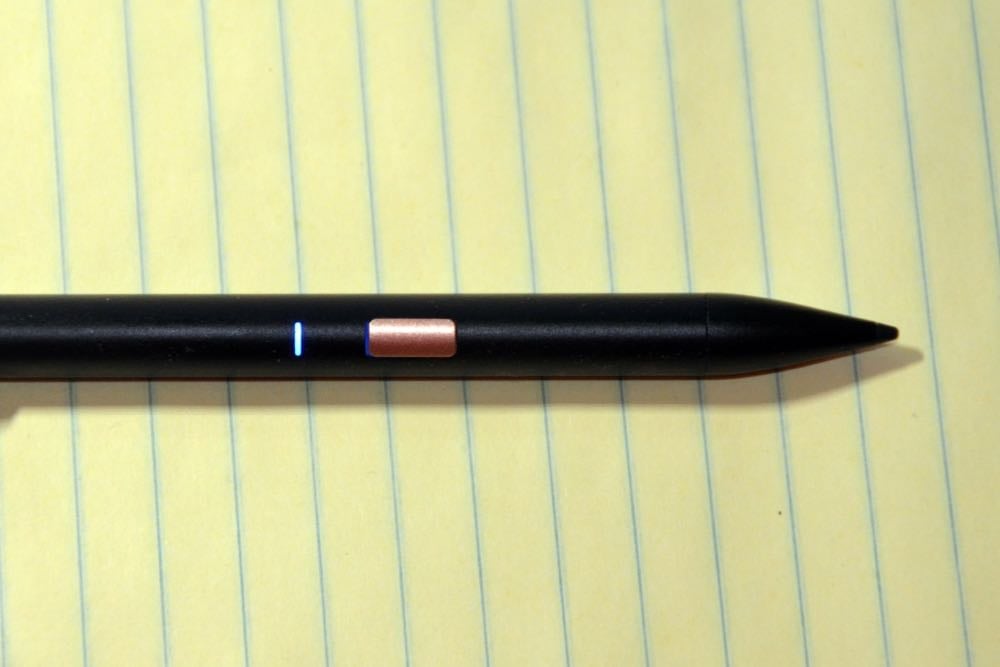
While the Crayon looks like it was designed for students with its bright orange colors, the Adonit Note looks much more like a typical pen that you would use in your office. You have a choice of black or gold for the barrel, and on both models the power button and the clip are gold/copper. If you have a Note sitting next to your iPad, I think that most folks would just assume that it is a regular pen, except that if it is powered on they most notice the small blue light next to the power button.
I like that, similar to most pens, the Note has a clip. This makes it easy to attach to a shirt pocket, and it also stops the otherwise round stylus from rolling around on a desk. Because the original Apple Pencil lacked a clip, I always used mine with an inexpensive Fisher Chrome Clip. With the second-generation Apple Pencil, I no longer keep the stylus in my pocket because it attaches with magnets to the iPad itself. The Note doesn’t have magnets to create a secure connection to an iPad, so it is very useful to have that clip on the side, and I’ve been using the clip every day.
However, there is another design feature of the Note which I dislike, and it is one of my two major complaints about the Note: the placement of the power button and the fact that it is so easy to press. Because of where it is located, I often hit the button with the side of my thumb or index finger while I am writing. I won’t even notice that I have touched the button; I’ll just notice that the Note has suddenly stopped working, and it is annoying to have to pause my writing to turn the Note on again. If the power button was located near the end of the Note (like it is on the Crayon), or if the power button was harder to press, than this wouldn’t happen. I had hoped that after a few days of using the Note I would find a different way to hold it to stop this from happening, but that hasn’t happened. Maybe this is less of an issue for folks with smaller hands or something like that, but I’m not sure how this didn’t bug the folks at Adonit while trying out the Note.
Power
There is a Micro USB opening on the back of the Note which you use to charge the internal battery. Adonit says that you with a full charge you can write with the Note for 12 hours (which is similar to the Apple Pencil), and says that you can plug in the Note for only four minutes to quickly get a charge that will last for one hour. If the Note is turned on and you haven’t used it for 20 minutes, it turns off automatically to save battery power.
My second major complaint about the Note is that, unlike the Apple Pencil, there is no way to tell how much charge you have left in the Note. Every time you attach a second-generation Apple Pencil to an iPad, your screen briefly shows you a percentage of how much charge you have. And with the original Apple Pencil, you can look at the Batteries widget to see how much power it has. The LED light on the side of the Adonit Note will display a red flickering light when the battery is low, but Adonit doesn’t reveal what this means — how much longer do you have when the light comes on?
Last week, I was using the Note in a settlement conference with opposing counsel and I noted that the light started to blink red. It was very annoying to not know how much power I had left, and at that point I had no idea how many hours I had been using the Note since I last charged it. And because a Micro USB cord isn’t something I normally have in my pocket, I did not have an easy way to charge the Note while I was in the conference. The Apple Pencil is far superior: you can see exactly how much power is left, and if the battery runs low you can attach it to the iPad itself to charge it. (When I was in that settlement conference, the next time that we had a break, I just grabbed my Apple Pencil out of my briefcase and started to use that instead. It was the only time that I made extensive use of my Pencil instead of the Note during the time that I was testing the Note, and I did so just because I didn’t want to be distracted by a concern about my stylus running out of power while I was trying to take important notes.)
No advanced writing features
The Adonit Note lacks some of the advanced features of the Apple Pencil. Some of these don’t matter to me, such as the ability to press harder to get a thicker ink. The Logitech Crayon also lacks pressure sensitivity, but it does something similar by adjusting the line weight based upon how much you tilt the Crayon. I’m sure that artists find these features useful, but when I’m taking notes, I don’t need for my ink size to vary depending upon how hard I press — indeed, that would be somewhat annoying. Thus, the absence of these features is irrelevant to me and I suspect won’t matter to attorneys and others who are writing, not drawing or sketching.
However, I do miss the double-tap feature of the second-generation Apple Pencil. You can double-tap near the front of the Pencil to switch between tools, a quick way to switch between a pen and an eraser. Because I have grown so used to that gesture, I double-tapped the front of the Note dozens of times, only to realize each time that this feature doesn’t exist and thus I would have to manually tap an eraser tool. Of course, I used a first-generation Apple Pencil for years without this feature, so you can certainly be productive with a Note without it. But it is one of the extra features that you get when you pay more for an Apple Pencil.
Conclusion
As someone who uses a stylus with my iPad almost every day, it is definitely worth it for me to use the more expensive second-generation Apple Pencil. The extra features like seeing how much battery power is left, easy charging by using the iPad itself, the magnetic connection to the iPad, and double-tap to switch pens are fantastic. But I have no doubt that there are many other folks with different priorities: folks who want to use a stylus occasionally but not every day and therefore $130 seems like too much to spend whereas $50 is easier to justify. If that describes you, the Adonit Note is a great alternative because of its fantastic tip which seems just about as precise as an Apple Pencil. If you are not going to use a stylus for extensive writing, battery power is going to be less of an issue for you so perhaps you won’t mind that you cannot tell precisely how much power the Note has remaining. And while I find the placement of the power button quite annoying, perhaps it won’t annoy you as much as it annoyed me.
Most importantly, I love that — at least for the most recent versions of the iPad — you have choices. You can spend more and get more with the Apple Pencil, you can spend less and use the Logitech Crayon if that design doesn’t seem too juvenile for you, or you can spend only $50 to get the Adonit Note. Any of those alternatives give you a precise, fine tip. The Adonit Note will be a great selection for many folks, and hopefully in the future Adonit and others will release even more great styluses choices for the iPad.
Apple’s chief design officer, Jony Ive, announced that after 30 years with the company, he is leaving Apple to run his own independent design company. This will be a major transition for Apple and is likely to result in some changes to the design of Apple products, although surely there are still many years of products in the pipeline that Ive worked on. John Gruber of Daring Fireball offers some interesting insight into what this means for Apple. And now, the news of note from the past week:
In a new episode of the Digital Detectives podcast, Virginia attorney Sharon Nelson and security expert John Simek interview legal consultant Brett Burney to discuss digital forensics on mobile devices.
Mophie cases have long been great options for folks who want to have lots of extra battery power and don’t mind some extra weight. Chance Miller of 9to5Mac reviews the new Mophie Juice Pack Air battery case.
Well, it was nice while it lasted. For a while now, the consensus seemed to be that if your iPhone was updated with the latest version of iOS, a third party should not be able to unlock your device without you entering the password or using FaceID/TouchID. However, Andy Greenberg of Wired reported this week that a tweet from the Israeli forensics company Cellebrite asserts the firm can now unlock any iOS device on any iPhone, including those running iOS 12.3. Cellebrite did not release any details on how this works or what the limitations might be, and Cellebrite only sells to law enforcement which should limit who can take advantage of this. But of course, if Cellebrite is telling the truth, one cannot help but wonder if there are malicious hackers out there who have also figured it out. Presumably, Apple will patch this flaw in iOS 13, and then the cat and mouse game will continue as smart folks will look for more workarounds. And now, the news of note from the past week:
CardHop is an app that lets you work with your address book entries on an iPhone or iPad and includes many features not available in the default Contacts app. I liked the idea of CardHop 1.0, but ultimately I decided just to go back to the regular Contacts app. However, there are some new features in CardHop 1.1, and California attorney David Sparks describes them and shows them off in a video.
When iOS 13 comes out later this year, CarPlay will be improved in numerous ways. One such improvement is that you will be able to see album art when you are playing music (or, I presume, listening to podcasts or audiobooks). CarPlay Life shares some pictures of what CarPlay will look like with album art.
My Apple TV sends the picture to my television but sends the audio to my receiver which is connected to my 5.1 speakers. I’ve never noticed the video and audio being out of sync, but I can imagine how this might happen when audio and video are not being managed by the same equipment. Benjamin Mayo of 9to5Mac explains that if this happens in the future, iOS 13 will include a feature which uses the microphone on your iPhone to help the Apple TV to resolve audio sync. Neat idea.
Small devices which turn one wall outlet into two outlets have been around for a very long time, but Satechi has come out with a HomeKit-enabled Dual Smart Outlet. As Zac Hall of 9to5Mac explains, the device can control two different devices, does not block the other outlet, and monitors energy usage.
Matthew Miller of ZDNet shared a horrible story. A crook convinced T-Mobile to reassign the SIM card in his iPhone, and then the hacker used the phone to serve as a second form of authorization and was able to take over his Twitter account, his Gmail account, and even tried to use his bank account to purchase $25,000 in Bitcoin. Ugh.
After that ugly story, here is an uplifting technology story from Steve King of WXII in North Carolina. A teenager had a car accident when her vehicle hydroplaned and then flipped into a ravine, pinning her under the vehicle. Although she could not reach her iPhone, she already used the Find My Friends app to share her location with family members. After she was missing for several hours, a family member used that app to determine her location and then rescue her. She then spent five days in the hospital, but according to the article is on the road to recovery. If she had been wearing an Apple Watch, she may have been able to call for help even faster.
Frederic Lardinois of TechCrunch reports that American Airlines is now offering fast satellite-based Wi-Fi connections on almost all of its planes. According to the airline’s website, the cost is “as little as $10" on most routes, or $50/month.
And finally, Luke Hutchings posted a video containing every iPhone ad from 2007 to 2018. It’s amazing how far the iPhone has come over the years:
Thank you to AgileBits, the developer of 1Password, for sponsoring iPhone J.D. again this month. 1Password is one of those rare apps / services that is always at the top of my list when someone asks me for app recommendations. This is especially true for lawyers because we have a heightened responsibility to preserve confidential information.
Last month, I discussed the primary reasons that I am such a big fan of 1Password: (1) it gives you a convenient and safe place to store all of your passwords and can enter them for you automatically; (2) the app works great with two-factor authentication; (3) the app makes it easy to share passwords for their rare instance when you need to do so, and (4) the app gives you a secure place to store other information such as notes, documents, or photographs. But that’s not all, and here are a few other features of the app that I really love.
Vaults
In 1Password you can create multiple vaults, each of which stores its own set of passwords, documents, and other secure information. You might want to use different vaults to distinguish passwords associated with a business from your personal passwords. I like vaults because you can have different sharing rights associated with each vault. I have my primary vault with most of my passwords, a vault that my wife and I share to store passwords that we may both want to use or modify (like utility companies, streaming video services, etc.), and a vault of passwords that my wife and I share with my son. I have 1Password configured so that by default I am seeing all vaults at once. I can move a password entry from my personal vault to another vault as a way of having the password automatically shared with another person, but I still see the entry because of my default view to see them all at once.
Tags
You can create a Tags field for any entry (a password, a note, etc.) and type any word to create a tag, or type the name of a tag that you used before. One of the four buttons at the bottom of the 1Password iPhone app is called Tags. Tap that button to see every tag you are using, and tap any tag to see all of the entries associated with that tag.
Sometimes I use tags for a person. For example, sometimes my mother shares a password with me so that I can help her with something on her computer. I store these in 1Password in case I need to help her again, and I tag all of them with my mother’s name so that with one tap I can see the 10 or so passwords I have associated with my mother. I also have other types of tags such as a Hotel tag that has all of my different hotel rewards entries.
1Password also uses tags to share entries with the 1Password Apple Watch app. I only have a few items with the Apple Watch tag, but those items are always available on my Apple Watch.
Favorites
The very first button at the bottom of 1Password shows those entries that you have starred as being a favorite. For example, I often need to look at my primary credit card information, my Apple iCloud password, and a few of my confidential notes. I can just tap the favorites button and see those items without having to search for them.
Also, at the top of favorites, 1Password shows me the last three items that I used. (You can adjust this number in the settings under General.) If I know I used an item recently and I need it again, it is faster to just jump to my favorites without doing a search for the item.
Format your notes
About a year ago, 1Password added the ability to use Markdown to format your notes. For example, if you type ##Sample## in a note then 1Password will display that word in bold: Sample. I wrote about this feature when it came out a year ago, and I’ve used it in most of my notes to make them look better.
Last year, my only complaint was that the font size was a little small. 1Password fixed that problem, so now everything is larger easier to see. For example, in my post from last year, I mentioned a note that I created to keep track of James Bond movies that I’ve been watching with my kids. I made a list of the ones that I wanted to see with them (omitting the movies in the franchise that are not quite as good) and I add a thumbs up emoji to each entry as we watch them. In my post from last year you can see that the font size for this list is pretty small, but the current version is larger and much easier to read:
Conclusion
If you are a lawyer and you are not currently using a password manager, I honestly don’t understand how you are not driving yourself crazy. You really should be using a password manager. When you first purchase a subscription to 1Password, it is going to take you a little while to enter all of your usernames and passwords, create secure notes, etc. But once you are up and running, you will quickly see the value. 1Password automatically enters your passwords on the iPhone, iPad, Mac, and PC, creates complex passwords, acts as a central place to store all of your password, and has so many other useful features.
If you are not yet using 1Password, AgileBits is offering iPhone J.D. readers a $100 credit when you click here and sign up for the business plan. Try out 1Password to see what you think, but I strongly suspect that once you start using the app, it will be one of those rare apps that you use every day.
Summer is a great time for reading a book on vacation. If you are interested in technology and looking for a good book to read, I just finished listening to the audiobook version of the new book from Daniel Suarez called Delta-v. I loved it, as I’ve loved all of Suarez’s books. He does a great job of writing thrilling stories involving technology that is only about 15 years in the future — close enough that it feels rooted in science fact as opposed to science fiction. The background for this book is space and the resources in space, such as asteroid mining, and the book follows the exciting adventures of a group of fascinating explorers. There’s much more to it than that, but I don’t want to give away any of the surprises. It’s a very fun read. I especially enjoyed listening to the audiobook version using my iPhone and AirPods because the book is read by Jeff Gurner, an actor who does a great job with different voices for different characters. And now, the news of note from the past week:
South Carolina attorney Justin Kahn discusses Flow by Moleskine, an iPad drawing app that won an Apple 2019 design award.
If your law firm uses Mobile Device Management (MDM) technology to protect iPhones owned by the attorneys at your law firm (as opposed to firm-issues iPhones), those iPhones surely have personal information on them and apps that you downloaded for personal use. Apple already has some restrictions on what MDM software can do, but Sarah Perez of TechCrunch explains that Apple will soon unveil ways to make MDM less invasive so that you have more control over your apps and your firm’s control can be limited to other apps. It’s unclear to me if this will be mandatory for MDM vendors. I’m glad that Apple is taking further steps to balance the need for business security versus the need for personal privacy.
Federico Viticci of MacStories offers an extensive overview of what what will be new in iPadOS, with lots of pictures to show off the new iPad operating system.
In iOS 13, you will be able to share your ETA with someone else so they know when you will arrive at a location, and that ETA will update if you are moving slower or faster than originally anticipated. Benjamin Mayo of 9to5Mac explains this new feature.
Zac Hall of 9to5Mac provides lots of details on the new features coming to CarPlay in iOS 13. This will be the biggest update to CarPlay since it was originally introduced.
AirPods are not marketed as being waterproof, but I’ve heard stories of them being dropped into water and still working and stories of them being washed while in the pocket of a pair of pants and still working. David Pierini of Cult of Mac shares the story of an Argentine swimmer who forgot they were in her ears (and under her swim cap) when she got second place during an international swim meet in France, and they still worked afterwards.
And finally, perhaps the best way to understand the large number of changes coming to iPadOS is to watch someone show them off in a video. Jeff Benjamin of 9to5Mac created an excellent video showing off 50 new features in iPadOS. It’s almost 25 minutes long, but if you take the time to watch this, you will have a great understanding of everything that is coming out this Fall for the iPad:
In the interview, Sewell talks about what it was like working as Apple’s GC, splitting his time between the C-Suite and the legal department. The legal department at Apple is in many ways like a large law firm. Sewell had 600 people in his law department, with a budget of almost $1 billion a year. Sewell discussed how to decide what legal matters would be handled in-house at Apple and how to decide what matters to refer to outside counsel. Major litigation matters definitely involved outside counsel, and Sewell managed some incredibly complex litigation. For example, for just one of the seven lawsuits between Apple and Samsung, he had 350 people billing time to the matter. But for many licensing issues, he explained that it made more sense to use inside counsel who had more knowledge about Apple’s technology.
He also discussed the need to start work early at Apple because Apple CEO Tim Cook starts work so early every day. And he discussed the core values of Apple and dedication to excellence, trying to produce the best thing possible and put it out in the world. Sewell felt that those values applied to the law culture at Apple as well.
The interview is not all about Apple. Sewell also talks about the decision to work at a private law firm versus working in-house. So whether you are interested in learning a little more about the legal department at Apple or just what it means to work as an in-house attorney in general, the interview with Sewell is worth watching. The full video is embedded below and of course is available at YouTube:
Apple’s WWDC developer conference was earlier this week, and Apple has released a ton of information about the upcoming iOS 13, iPadOS, and watchOS 6. These all look like substantial updates. No matter what Apple mobile technology you are using now, it is going to get much better in just a few months. Here is the news of note from the past week, most of which concerns these new announcements:
Shortcuts is going to get a big update in iOS 13. One big addition is a large list of events that can be used to automatically trigger an automated task such as time of day, when you arrive at a location, when you tap an NFC tag, etc. Ryan Christoffel of MacStories discusses many of the new Shortcuts triggers.
Another change in iOS 13 is that you will be able to swipe across the keyboard to type instead of taping each key. Put your finger on the letter T, move over to the H, and then move over to the E, and you can enter the word “the” without lifting your finger. Chance Miller of 9to5Mac explains how the new iOS 13 QuickPath swipe keyboard works.
One new feature in iOS 13, iPadOS, and MacOS will be the new Find My app, which includes the ability to locate your device even if the screen is off and it is not connected to a network. It does this by sensing the Bluetooth of another Apple device in the vicinity, such as another iPhone. There are a lot of potential security implications here — will someone else be able to figure out where I am located, or will Apple know where I am located — but it sounds like Apple has thought through all of the issues and come up with some clever solutions that maintain privacy. Andy Greenberg of Wired wrote a really fascinating analysis of the clever cryptography behind Apple’s new Find My feature.
One (of many) changes that I’m happy to see: you can now rename a file as you save it to the Files app.
Emily Sweeney of the Boston Globe shares the story of a woman who was paddle boarding when the wind blew her so far from the beach that she was unable to get back. But fortunately she was wearing an Apple Watch, so she was able to call for help and have her exact location provided to rescuers.
In addition to potentially saving your life, the Apple Watch will look more interesting when watchOS 6 comes out later this year thanks to some new watch faces, as shown off by Chance Miller of 9to5Mac.
Apple Park, the new corporate headquarters of Apple, is known for many things, including looking like a spaceship. Thomas Fuller of the New York Times reports that it is also one of a very small number of buildings in the United States to a special technology that allows the building to move so that it can stand up to earthquakes.
CarPlay is getting a major overhaul in iOS 13, with new apps like Calendar, big improvements to the interface of apps like Music, and new features such as a dashboard view which shows different information, such as a map and now playing screen, all on a single screen. Andrew O’Hara of AppleInsider writes about what is new in CarPlay and has a great video showing off all of the new features.
Last night, I watched part of The Late Show With Stephen Colbert. Colbert wears an Apple Watch almost every night, and apparently he normally puts it on do not disturb mode or airplane mode before taping each show. But he forgot to do so last night, and while he was interviewing Mindy Kaling and she was talking, his watch started to vibrate because a call was coming in. He immediately put his hand over the face of the Apple Watch to stop his watch from ringing (which should work), but he must not have put his hand flat against the watch because the watch instead thought that he pressed the button to answer the phone. Suddenly the entire audience could hear a recorded voice from a Marriott Rewards program starting to play an automated message using the speaker on Colbert’s Apple Watch. Mindy Kaling was able to turn that into a pretty funny comedy bit, but it made me realize that all of us who wear an Apple Watch need to be careful to avoid this happening in court or some other environment in which you need to be quiet. If a call comes in on your Apple Watch, you can place your hand over the face to silence the ringing (or stop the vibrating, if you have sound turned off on your Apple Watch), but you need to completely cup the face without tapping any of the on-screen buttons.
If you want your iPad Pro to look like a library book, the BookBook by Twelve South is what you need. Ed Hardy of Cult of Mac shows off the BookBook.
Yesterday, at Apple’s WWDC developer conference, Apple had a keynote presentation where it debuted new operating systems for the iPhone, Apple TV, Apple Watch, and Mac, a new high-end Mac Pro computer, and more. But my favorite part of this jam-packed presentation was a brand new version of the operating system for the iPad. Since 2010, the iPhone and iPad have both run iOS, although there were always some features that worked on the iPad and not the iPhone. But this Fall, Apple is adding so many new features to iOS for iPad that Apple has given the operating system a new name: iPadOS. There are a breathtaking number of new iPad features, and I have no doubt that I’ll be spending the rest of 2019 figuring them all out, especially once iPadOS is released later this year — probably in September if Apple takes the same approach it has in past years. Here are the major new features that I think will be of the most interest to attorneys, but I’m just scratching the surface of everything that is new.
New gestures for text editing
When you are using a computer, are you the type of person who always uses your mouse to go to the File menu to go down and select copy and then goes to the File menu to select paste? Or do you typically use keyboard shortcuts, such as Control-C / Control-V on the PC or Command-C / Command-V on the Mac? If you appreciate using shortcuts to work faster on a computer, you’ll like the new gestures for text editing on the iPad.
First, it is easier than ever to move the cursor around the screen. Second, you can quickly select a block of text by dragging your finger over it. Or you can double-tap a word to select it, triple-tap to select a sentence, or tap four times to select an entire paragraph.
Once you have text selected, you can quickly copy by pinching three fingers over the selected text. Move the cursor to another location and do a reverse three-finger pinch to paste. And perhaps best of all, if you want to undo, you no longer need to hunt for a tiny undo icon or shake the iPad; in iPadOS you swipe three fingers to the left to undo, and three fingers to the right to redo.
Mouse support
As excited as I am to use these new gestures, when my iPad is propped up and I’m using an external keyboard to type, I sometimes wish that I could use a mouse or trackpad instead of reaching up to touch the screen. iPadOS adds the ability to connect an external mouse, using either Bluetooth or a USB cable.
Improved Files app
This felt inevitable, but Apple redesigned the Files app to make it much more powerful. You can now connect an external hard drive or a USB thumb drive. The thumb drive support seems especially useful for attorneys. It allows you to trade large files more easily without having to rely on Wi-Fi or Bluetooth, making it so much easier to exchange a huge set of exhibits, a large Keynote or PowerPoint presentation, etc. And if your iPad does have enough internal storage to fit all of the files that you need when you are headed out of town or to court, just put the extra files on a thumb drive. (Note that a USB-C thumb drive will fit into an iPad Pro, but otherwise you may need an adapter of some sort to use a traditional USB thumb drive with the Lightning or USB-C connector on your iPad. Or better yet, if you own an iPad Pro, use a thumb drive that has both USB and USB-C, such as this Samsung Duo Plus flash drive.)
The Files app can also use a Column View, allowing you to see folders nested within folders. The Files app can also connect to a folder on a server or a folder on a PC using SMB. The Files app can zip and unzip files. And if you use iCloud Drive, you will be able to share a folder with someone else.
The Files app also has a Downloads folder. This is a central place to store documents downloaded from the web. Apple says that it is also a central place to access attachments from Mail, but I don’t yet have a sense of how it integrates with the Mail app.
Multitasking
There are a number of multitasking improvements, making it easier to use multiple apps at the same time — or multiple instances of the same app of the same time. For example, you could have Microsoft Word running on the left side of your screen while another instance of Microsoft Word runs on the right side of your screen, making it easy to view with two documents at once. There have been a number of times that I’ve had to open one document, copy something, close the document, open another document, paste, close the document, go back to the original document, etc. I can avoid all of that nonsense in iPadOS.
I’m going to also like being able to view two PDF files side-to-side without having to use a special app such as GoodReader which has a built-in split screen option. And you can drag a window to compose an email next to your inbox so you can see another message while you are typing your message, and copy and paste between messages without one message obscuring the other one.
In the current iOS 12, you can have one app slide over from the right side to appear on top of your other windows. In iPadOS, you can multiple apps open at the same time in Slide Over, and you can swipe across the bottom to switch between apps. It sort of looks like having a mini-iPhone running on top of your iPad apps.
I’m not a big user of the current spaces feature where you can two apps paired in a side-by-side mode, but if this is a feature you use now, you’ll like that the same app can now be active in multiple spaces at the same time.
Apple Pencil improvements
Before yesterday, I would have thought that Apple Pencil performance improvements would require buying a new Apple Pencil. But Apple said that it has reduced latency with the current Apple Pencil from 20 milliseconds to 9 milliseconds, reducing even further the already very tiny lag between when the Pencil touches the screen and when digital ink appears. As a result, the experience will feel even more like writing on paper.
iPad currently have the ability to take a screenshot by pressing buttons on the side of the iPad and you can already use an Apple Pencil to annotate the screenshot. This experience is improved in iPadOS. Just drag your Pencil from either bottom corner to take a screenshot and enter annotation mode. Better yet, instead of just capturing what is on the screen, you can instead choose to capture an entire document, an entire webpage, or an entire email. I already find it useful to use the Pencil to add handwritten annotations to a Word document using the Microsoft Word app, so I suspect it will be even more useful to have this feature built-in to the operating system and available to multiple apps.
New Home Screen
The Home Screen has been redesigned. Apps icons are closer together, and you have an option to move all of the apps to the right, resulting in extra space on the left where you can display widgets. This means that right there on your home screen you can see upcoming appointments, the time, weather, alerts, or anything else that you choose to place there.
Safari improvements
Safari on an iPhone does a good job of giving you a mobile version of a website, but on the iPad Safari sometimes feels limited as compared to the browser you would use on a computer. In iPadOS, Safari now automatically presents the desktop version of a website. When a website expects a mouse or trackpad input, Safari in iPadOS figures out how to substitute touch input.
Scrolling websites in iPadOS is faster and more fluid. New options make it easier to zoom in on text. A new download manager makes it easier to download multiple, large files. And you can now send a webpage as a PDF file without having to use clever workarounds.
Performance improvements
iPadOS should make your current iPad feel faster. Unlocking using Face ID on an iPad Pro is up to 30% faster. Apps launch up to twice as fast. App downloads and updates are faster because Apple will be packaging apps in a new way later this year to make them smaller.
The new features I listed above are either exclusive to the iPad or most useful on an iPad. (For example, you can also connect a mouse to an iPhone in iOS 13, but I’m don’t see a lot of need for that.) But there are some other features coming to both iPadOS and iOS 13 that I think are going to be fantastic on both the iPad and iPhone. Here are a few of those.
Photos
The Photos app gets some major new features this Fall. It will now be easier to browse your library because, in addition to scrolling through thumbnail versions of every single photo, there is now a mode in which your device picks what are likely to be the best, representative photos of each day, month, or year.
Photos will also provide intelligent titles for events when your device can figure that out, such as a location, a holiday, or a concert performer. This is technology that was previously in Memories and is now applied to other parts of Photos.
Photos will also gain the ability to edit video, removing the need to open another app such as iMovie to perform some simple edits such as turning a video from portrait to landscape orientation.
Find offline devices
If you misplace an iPad (or it is stolen or taken by mistake), you may be able to track it if it has built-in cellular, but if it isn’t connected to a cellular or Wi-Fi network, you may not be able to determine where it is located using the Find My iPhone feature. In iPadOS and iOS 13, once you mark your device as missing in the app (whose name is changing to “Find My”), if your missing iPad or iPhone gets close to anyone else using an Apple device with Bluetooth (such as an iPhone or iPad), your missing device will be able to alert you where it is located. It’s completely anonymous so you won’t know who else had an iPhone close to your missing iPad; you’ll just be told the location where your missing iPad or other device was discovered. If you ever need to use this, you will be incredibly grateful for this feature.
Maps
Maps look much better in iPadOS and iOS 13, with additional details. And Apple added its version of Google Street View so that you can see what it would be like to stand in a location and look around 360º with smooth transitions from one spot to another.
Messages
You can choose to have Messages share your name and photo when you send a text message to someone else. That way, the recipient can more easily see who you are, even if the recipient hasn’t already assigned a name and photo to you in their Contacts app. There are also improvements for searching past messages, and improvements to Animoji and Memoji.
Reminders
Reminders has long been a simple and useful app. Apple is now turning it into a more powerful app. You can add attachments like photos, documents, and web links to reminders, customize the appearance of your list, group reminders lists, and more.
Mail
In addition to Reply and Reply All, Mail gains the ability to notify you of all replies or mute all replies. You can change fonts, color, indenting, and you can add numbered and bulleted lists. The photo picker is now on the bottom of the screen so you can still see your email when selecting a photo to add as an attachment.
AirPods
Two people can use AirPods to listen to the same iPhone or iPad. And Siri improvements make it easier and faster to hear and respond to messages without touching your iPhone, which can be especially useful if you are exercising.
…and I could go on and on discussing other new features such as lyrics that follow along with music as it plays, an even more useful Shortcuts app, improved mobile device management, support for PlayStation and Xbox controllers for games, security improvements, new features in the Notes app, dark mode, new relationship labels in Contacts, the ability to purchase fonts from the App Store, share sheet improvements, and so much more.
Apple even showed a little love for lawyers who use iPads yesterday. At one point, Apple displayed a bunch of app icons on the screen, and two of the best legal-specific apps, TranscriptPad and TrialPad, were included. (To save you from a “Where’s Waldo” search, look at the first column on the left, and seventh column from the right.)
iPadOS and iOS 13 are going to be major updates that will make every iPad and iPhone much better. I can’t wait.