Review: Motif — create picture books on your iPad

For many years, I used my Mac’s built-in iPhoto, and more recently Photos, software to create hardcover books full of pictures that I had taken over the last year or some other period of time.  A book of pictures of my kids over the last year was always a perfect Christmas present for my parents.  Apple discontinued its photo printing service in September 2018, so last year I had to select a third-party service to create these books.  The ones that I looked at most closely were Motif and Mimeo, both of which worked within the Photos app on a Mac and did a pretty good job of recreating the experience that you used to get from Apple.  I ultimately decided to use Motif, and it worked great.  Over the past year or so I’ve created four books using Motif on my Mac, and every one came out great.

On October 1, 2019, Motif released an iOS app so that you can now create picture books completely on your iPad.  (You could also use an iPhone, but that screen is so small that I think it makes far more sense to use an iPad.)  The company offered to let me print a free book so that I could try out the service and prepare this review.  We are just a few months away from the beginning of Mardi Gras season in New Orleans, and for many decades I have enjoyed getting together with friends and family to celebrate so I have tons of pictures — especially from more recent years when I have had kids to take to parades.  Thus, to do a realistic test of Motif, I decided to create a book full of Mardi Gras pictures over the years.  With one exception that I’ll note at the end, the process went very well, and I actually found a lot to like about creating a picture book on an iPad.  Indeed, when it is time for me to create my annual end-of-the-year book with pictures of my kids, I’m now planning to use the Motif iPad app instead of my computer.

Creating a book

You start the process in the Motif app by selecting a product.  I selected Hardcover Photo Books, but you can also create softcover books, and soon you will also be able to create calendars and photo wall tiles.

Next, you select a size for your book.  Almost every time that I have created a book using the former Apple service or Motif, I’ve created a large 13" x 10" book.  The larger book size is more expensive but makes it easier to see pictures when you have multiple pictures on a single page, and when you have a single picture take up a full 13" x 10" page, it looks stunning.  But the other sizes are 11" x 8.5", 10" x 10", and 8" x 8". 

The next step is to select an image source.  Motif lets you select from Memories (automatically created by Photos) or from your Albums.  If you already have an album of photos to use, then you are ready to go.  For my project, before I even started using the Motif app, I used my iPad’s built-in Photos app to add pictures to an album created for this book.  Because I was selecting the best pictures from around two decades of pictures, this process actually took me a while to do, but it was fun to travel down memory lane as I curated the pictures.

Note that, for some of the picture selection process, I used Photos on my desktop iMac computer instead of my iPad.  I was going through a very large number of pictures, and that process was often easier with the big 27" screen of my iMac and a mouse.  But I also selected many of the pictures on my iPad, and I certainly could have selected them all that way.

Once you have selected an album of photos — whether it is an album that you already had or one that you created specifically for the book — Motif will then analyze the quality of the pictures, including looking for duplicates.  Motif will then select what it thinks are the best pictures to include in your book.  Using a slider at the bottom, you can tell Motif how many pictures to include in the book and it will adjust its recommendations accordingly.  And of course you can manually tap pictures to include or exclude them from the book.

Next, you select a theme for the book.  There are currently 14 themes in the app.  My favorite is called Image Conscious because it has no margins and allows each picture to be as large as possible within a thin frame on the page.

Next, you are presented with your book.  Motif automatically puts pictures on pages for yo.  Some pages have just one picture, some have multiple pictures.  The pictures are roughly in chronological order, but not completely.  You can view two pages of pictures at a time.

At this point, you could just tap the Checkout button and order the book.  But my guess is that you will want to rearrange the pictures and change the templates of individual pages (how many pictures are on each page, and whether you also have words next to the pictures).  You can also add more pages to the book.  When you are adding a page or changing a template, you first tell Motif how many pictures you want to have on the page, and then you select from a wide variety of templates that work for that many pictures.

I have one complaint about working with templates.  You cannot add just a single page within a book.  You have to add two pages at a time.  I understand the reasoning for this because it means that a picture that you selected to be closer to the outside edge of the book versus closer to the inside seam doesn’t change places when you add pages, but I still wish that the app let me make the decision to do this anyway.

Once you have your page template set, you can pick the pictures to place into the template.  Using the Images button at the bottom, you can see all of the pictures that were selected but not yet used in your book (to avoid you using the same picture twice), or you can view all images, or you can view all images already placed.  You can also add more images to the project from your Photos library.

This part of the process worked particularly well on the iPad.  It is easy to pinch your fingers to zoom individual pictures so that just the best part of the picture fills the frame, making that process better than using a zoom slider on a computer.  I also liked that the iPad is so portable.  I could get in a comfortable spot on my couch to edit my book, and when I wanted to get a second opinion, it was easy to take my iPad to wherever my wife was located to solicit advice.

For the hardcover book, in addition to the pages in the book and the cover, you also get a book jacket with inside flaps.  The cover of the book jacket is the same as the cover of the book, but you can add extra pictures and/or text to the inside flaps. 

Once you have all the pages in your book the way that you want them, tap the checkout button.  Motif will analyze your book and will give you a warning if you have individual pictures that are going to be a little blurry because the picture quality is low and you have them very large on a page.  I got quite a few of those warnings for the older pictures in my Mardi Gras book because some of those old pictures are just scans of old photographs.  But I decided to use those pictures anyway because of the memories that they contained, even if they were not very sharp, and that turned out to be the right decision.

Next you get to the payment page.  The book that I selected came with 20 pages for $49.99, and each additional page was an additional $1.49.  You can choose to ship economy (6-11 business days), standard (4-9 business days) or expedited (5 business days).

The final product

I placed my order on October 27, 2019, and it shipped just a few days later on October 30, 2019.  The quality of the book was just as good as other books that I have ordered from Motif in the past using my computer, and just as good as books that I previously ordered using the service that Apple used to provide.  (I’ve heard that this is not a coincidence and that the same printing service handled both, but whether that is true or not, all that matters to me is that the quality is the same.)  The pages are thick, the photo quality is fantastic, and the book looks incredibly professional.

The one printing error

Unfortunately, however, there was one printing error.  One of the pictures in the book was of my son wearing a fireman costume on Mardi Gras Day in 2009.  The picture looked fine in the Motif iPad app, as you can see above.  But in the book, the picture is rotated 90º counter-clockwise.

DSC_5484

I decided that this was a good thing because it gave me an opportunity to test Motif’s customer service.  I contacted Motif using their website on November 3, 2019.  I received a response the next day, asking me for more information about my order, which I provided.  Then on November 5, 2019, I received another email offering to reprint my book for free.

I then started a series of emails with customer service asking if I could do anything different this time since the picture was in the correct orientation in the app, just not in the printed book.  I ultimately decided to follow their instructions and printed the book a second time … and again, the photo was turned 90º.  After subsequent emails, Motif alerted me that there is a technical problem with my specific photo, and after some investigation I think that they are correct about there being some issue with my image file, even though the photo looks fine on my Mac, my iPad, my iPhone, and in the Motif app.  I should be able to create a new version of the photo, use it in the Motif app, and print the book again and I presume that will fix the problem, but I haven’t done this yet.  (And with the holidays right around the corner, I didn’t want to wait any longer before posting this review.)  [UPDATE 12/13/19:  After this review was posted, I did create a new version of the photo, used the coupon code Motif gave me to print the book again, and the version I received today is perfect.  Also, today I received a different book that I created using Motif (that I paid for) and it is also perfect.]

Having said that, throughout the customer service process, Motif was great to deal with.  The grammar used by their support staff is not perfect — clearly, English is not their native tongue — but I had no trouble understanding what they told me.  I almost always got responses within 24-48 hours, and while faster responses would have been better, that seemed reasonable.

Moreover, this is not the first time that I have had a problem with a printed book.  About 8 years ago, I printed a book using Apple’s former service and the colors on one of the pages were incorrect, as if too much blue was used (or not enough of some other color).  Apple ultimately sent me a new book, although it meant that I had to give the “bad” book as a Christmas present and then I swapped it out for the “good” book after New Year’s.

Suffice it to say that if you are planning to order a Motif book for Christmas, you should do so soon.

Conclusion

Because I have used Motif and the similar Apple product for many years, I understood how the Motif app on the iPad was going to work.  But even if this had been the first time that I had created a book, this app is easy enough to use that I would have had no trouble creating my first book.  Because I use Apple’s iCloud Photos feature, all of my photos are available on my iMac, iPad, or iPhone.  If you use this feature as well, then you already have access on your iPad to every photo that you might want to use in a book.  Because the iPad makes it so easy to get work done anyplace, I found it really nice to use Motif in an iPad app instead of on a desktop computer.  I did have that one problem with my printed book, and I do wish that Motif’s quality check in the iPad app could have discovered this issue before I printed the book.  Nevertheless, Motif was very quick to give me a promotional code to reprint the book for free, and I don’t believe that their customer support folks had any idea that I was writing a review for a website, so I presume that they would treat all customers the same way. 

If you are interested in turning your digital photos into a beautiful book that you can hold in your hands and easily share with friends and family, the Motif service is great.  And now that they have an iPad app, you can use a very portable device with a touchscreen interface, which works very well for this type of project.  If you are creating books to give as gifts for the holidays, you will want to act quickly to make sure that your book is printed in time.  But whenever you are ready to make a book, the Motif app is a great way to do it.

Click here to get Motif Photos (free):  Appstore sm 0fc8af054ef36729b6ef1ee711c8be883bbf7600b04a74ca69fb961dec5b4d41

Apple’s 2019 Holiday video – The Surprise

Thanksgiving is over, so now we can start to look forward to Christmas and other holidays.  For many years now, Apple has created a special video for the holidays.  Sometimes they are animated, like the great Share Your Gifts video from last year and the funny Get a Mac videos from 2007 and 2008.  Sometimes they are a little bizarre, like the Frankie’s Holiday video from 2016.  The oldest one I know of is this one from 1982 featuring Dick Cavett. 

My favorite ones are the ones that tug at the heart strings.  And until this week, I would have said that my all-time favorite Apple holiday video was Misunderstood, an iPhone-themed video from 2013.  It won the 2014 Emmy Award for Outstanding Commercial:

But this week, Apple released what I think may be its best holiday video ever.  If you haven’t seen it yet, I recommend that you grab a tissue before you hit play for this year’s video called The Surprise:

The song in this year’s video is Married Life from the Pixar movie Up, written by Michael Giacchino.  Near the beginning of that movie, there is a stretch of almost five minutes where that song plays and there is no dialogue, and it is one of my favorite segments of any movie.

Black Friday sales

This Friday is Black Friday, but the sales are already being announced, and some of them are available now.  Apple announced the same promotion that it has run for the past few years:  when you buy certain products starting this Friday through Monday, you can get an Apple Store Gift card for up to $200.  That can be a good deal, but make sure that you check other stores such as Apple products on Amazon because you can often find an even better deal on Apple products when you buy them elsewhere.

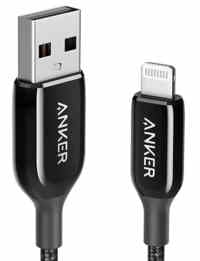
I’ve always been very impressed with iPhone and iPad accessories made by Anker.  I see that you can get up to 47% off of many Anker products being sold on Amazon, and this sale has already started.  For example:

  • Anker PowerCore+ 26800 PD with 30W Power Delivery Charger – a high-capacity external battery that can charge a phone up to seven times with support for both USB and USB-C, normally $129, now only $67.99.
  • Anker PowerCore Essential 20000 Portable Charger – a similar product but a little less capacity and only USB, normally $49.99, but only $39.79 when you click “apply coupon” on Amazon.
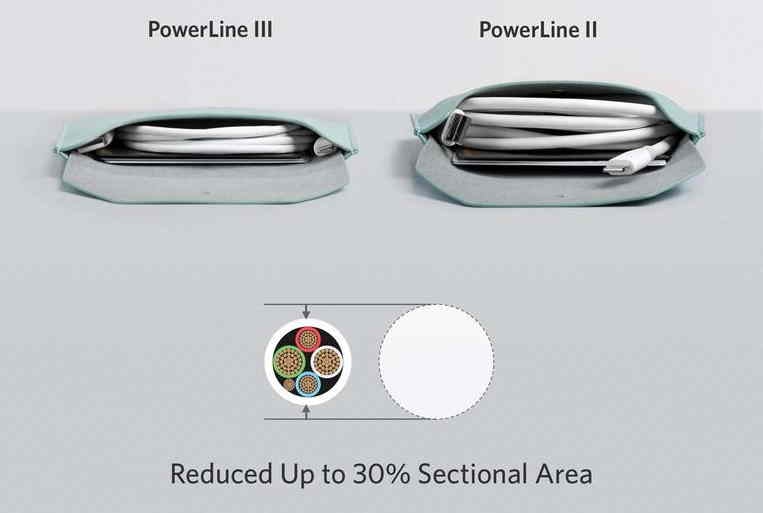
  • PowerLine II USB-C to Lightning Cable (3 ft) – you can use this cord to power an iPhone with a Lightning port from an iPad Pro with a USB-C port, or you can connect an iPhone with a Lightning port to a computer with USB-C.  Normally $17.99, now $11.46.
  • PowerLine+ USB-C to USB-A 2.0 Cable (2-Pack, 6 ft) – use this to charge an iPad Pro with USB-C using a normal USB port or to connect to a computer or other device with USB.  Normally $12.99, now $9.99.  And you get two cords.
  • PowerWave Pad 10W – wireless charging for an iPhone 8, X, Xs, XR, 11, AirPods, etc.  Normally $15.99, now $11.99
  • PowerWave Stand 10W – same idea as the PowerWave Pad, but this one holds your iPhone at a nice angle so that you can more easily see it and use it while it is charging.  Normally $15.99, now $11.55.

In the news

This week, Kevin O’Keefe of LexBlog tweeted a link to a court in Nevada that established the first virtual traffic court in Nevada.  You can “appear” in court by using the Zoom teleconference app, which means that a defendant can use his iPhone to “go” to court no matter where he is actually located.  Even if you don’t have a traffic ticket, you can use the app to be an observer of the proceedings.  Details are available on this page.  I’ve heard of other courts using a teleconference system so that a defendant could appear in court from another fixed location, but this is the first I’ve heard of a court letting folks use their own mobile device to appear in court.  And now, the news of note from the past week:

  • In a post on the MyCase blog, New York attorney Nicole Black reports on some of the mobile lawyer trends in the latest ABA Tech Report.
  • If you are a fan of Apple Music and want to spread the joy, this week Apple released Apple Music for Business, which lets you purchase a license to play Apple Music throughout a commercial establishment, as reported by Anne Steele of the Wall Street Journal.  Hello, Apple Music; goodbye, Muzak.
  • In an article for MacStories, Rosemary Orchard reviews the new Cycle Tracking feature on the Apple Watch and the iPhone’s Health app, which can be used to track a menstrual cycle (including optional fertility tracking and predictions).  As she notes, there are many third-party apps that have similar features but have questionable privacy protection, so it is nice that Apple itself now offers this capability.
  • Adam Engst of TidBITS discusses using the Delta Airlines app and Apple Business Chat during a snowstorm.
  • Michael Potuck of 9to5Mac reports that Apple is having an event in New York City on December 2 to honor some of the best apps and games of 2019.
  • As reported by Jason Cross of Macworld, this week Apple released iOS 13.2.3.  It fixes a number of bugs, but for me the biggest improvement is that the Mail app is now working much better, including doing a better job of fetching new messages.  I believe that makes eight versions of iOS 13 that Apple has released in two months, which seems like a record.
  • Taylor Tepper of Wirecutter says that while he wasn’t originally impressed by Apple’s credit card, after using it for a while now he understands the value of Apple Card.
  • Kaitlin Serio of PurseBlog reports on designer cases for the AirPods, including a $350 Dior case and a $560 Bottega case.
  • Lory Gil of iMore reports on options for changing the colors of your AirPods.
  • Jack Nicas of the New York Times reports on a somewhat surreal meeting between Apple CEO Tim Cook and President Trump at a factory in Austin, TX being used by Apple to manufacture the new Mac Pro.
  • And finally, I’ve been really enjoying the shows on Apple TV+, but my favorite is For All Mankind.  Apple posted a video this week showing how the world of the show was created — the wardrobe, the set design, etc.  It must be a lot of work, and a lot of fun, putting together these sets to look exactly like the late 1960s and early 1970s:

GoodNotes vs. PDF Expert / GoodReader

This year, I’ve posted formal reviews of GoodNotes, PDF Expert, and GoodReader.  I’ve also written numerous other times this year about all three apps, and because GoodNotes has been a sponsor of iPhone J.D. this year, I’ve mentioned that app even more.  Yesterday, I received a question from a Philadelphia attorney that I have been asked and have answered numerous times when I have talked to other attorneys in person but that I don’t remember addressing on iPhone J.D.:  why should attorneys consider using both GoodNotes and an app such as PDF Expert or GoodReader that is made for working with PDF files?  After all, any of these apps can be used to read and annotate a PDF file.  It’s a good question, but for me, the apps serve very different purposes.

GoodNotes is an app that I primarily use to replace a legal pad.  I want a blank page with lines so that I can write pages of handwritten notes.  Sometimes I will insert a PDF document into the notes, such as the agenda for a meeting, and I will annotate that document, but the document becomes part of a notebook.  The emphasis is on the handwriting.  When I get to the end of my notebook, I swipe from right to left to add another blank page to the notebook to do even more handwriting.

On the other hand, if my focus is on the document, I use an app like PDF Expert or GoodReader.  I use folders and sub-folders to organize documents.  I will often add some handwriting to annotate the document, and I will also highlight or underline text, but again the focus is on a document that already has words on it, such as a brief of my opponent.  Sometimes I will split up a larger PDF file into smaller segments, and sometimes I will merge smaller PDF files into a single larger document, but I never add a blank page to a document.

Every once in a while, I find myself between those two paradigms.  I am working with a document, which would normally mean that I want to use PDF Expert, but I know that I will be adding a lot of handwritten annotations to the document.  In these circumstances, I will often open up a PDF file in GoodNotes instead of an app like PDF Expert or GoodReader.  I do this because GoodNotes is a better app when I will be doing a lot of handwriting.  For example, it is faster to switch between a pen tool and an eraser tool in GoodNotes.  If I start writing and need more space, GoodNotes lets me select handwriting with the lasso tool and move it to a different location on the page.  Everything about handwriting is just a little better in GoodNotes.  Thus, for example, if an associate sends me a first draft of a document and I plan to make edits in handwriting instead of redline edits in Word, I will often open the draft of the document (in PDF format) in GoodNotes and make all of the edits in GoodNotes and then export the document to an email when I am finished.

On the other hand, even if I will be making lots of handwritten edits to a document, if that document is going to be stored and organized along with other documents, I will virtually always use PDF Expert.  Now that GoodNotes has extensive support for folders, I suppose that one could organize documents into folders within GoodNotes, but the paradigm of GoodNotes is primarily focused on a notebook with lots of different pages in it, not working with a series of documents.  Moreover, unlike GoodNotes, apps like PDF Expert and GoodReader can sync folders of documents to a cloud service like Dropbox, making it easy to share documents between your computer and your iPad.

As all of these apps have matured over time, there is enough crossover in features that I suppose it would be possible to just use one of these apps for all of your needs.  However, I prefer to use the best tool available for each task.  When my emphasis is going to be on writing, GoodNotes is the best tool for me.  When my emphasis is going to be on working with one or more documents, PDF Expert (or GoodReader) is the app that I want to use.

Click here to get PDF Expert by Readdle (free):  app

Click here to get GoodReader ($5.99):  app

Click here to get GoodNotes 5 ($7.99):  Disney Mobile Magic - Disney

Eleven years of iPhone J.D.

On November 17, 2008, I started iPhone J.D. and published my first post.  A milestone always seems like an appropriate time to step back and take a look at where you have been, so I do that every year here on iPhone J.D.  Over these past eleven years, I’ve written more than 1,800 posts and I’ve watched both the iPhone and iPad develop from being a useful tool for getting work done to, in many instances, being the best tool for getting work done.  Just this past weekend, I have been preparing for an appellate argument, and I’ve been using my iPad extensively to do so — to review briefs and cases, to double-check my legal research, and to handwrite my oral argument outline, pasting in the key quotes from cases that I will want to use.  The iPad lets me get work done in lots of different spaces in my house and my backyard, and while I wouldn’t want to bring a laptop computer up to the podium, I guarantee you that my iPad will be there when I am arguing.

Popular posts this year.  Every year on the birthday of iPhone J.D. (1, 2, 3, 4, 5, 6, 7, 8, 9, 10), I find it interesting to look back and see which posts over the prior 12 months were the most popular.  The fact that these posts were so popular often sheds some light into what has been on the minds of attorneys and other folks using an iPhone or iPad.  Here, in order, are the top ten most viewed posts published in the last 12 months:

  1. Fixing “This app is no longer shared with you”.  Thanks to the Family Sharing feature, one family member can purchase an app and then other family members can use the app.  At least, that is how it is supposed to work.  Sometimes, your iPhone forgets that another member of your family has purchased the app and tells you that the app is no longer shared with you — which means that you cannot use it.  Fortunately, there is an easy fix, which I outlined in this post from April of this year.  Since that time, I’ve had many people email me or add comments to this post noting that the fix worked great for them.  Hopefully, it won’t be long before Apple figures out a way to prevent this error message from ever popping up, but until it does so, I suspect that this post will remain popular.
  2. Review: GoodReader version 5 — new features for an old favorite.  GoodReader was a favorite app for many attorneys and other iPad users looking for a great way to work with PDF files.  When GoodReader version 4 was released in 2014, it was a fantastic app.  Before long, the developer promised great new features in GoodReader 5, but then we never saw an update and many wondered if the app would have a future.  During the five-year delay, many users — including me — abandoned GoodReader for another app with more modern features.  (I opted for PDF Expert by Readdle.)  But then finally, GoodReader version 5 was introduced earlier this year, and it has some nice features in it that are not found in other apps.  Although GoodReader is no longer my primary app for working with PDF files, I do still use the app from time to time, and I’m glad to have this tool on my iPad.
  3. GoodNotes — take handwritten notes on an iPad.  I first reviewed GoodNotes in 2012, and the app has seen numerous updates over the years.  But a major new version of GoodNotes came out during the past year, making the app better than ever.  GoodNotes lets your iPad replace your legal pad, giving you an easy-to-use but also powerful way to take handwritten notes.  The feature list is rich, and I use this app almost every day in my law practice.
  4. Review: PDF Expert by Readdle — manage and annotate your documents.  PDF Expert has been around for a while, but I didn’t spend much time with it until I started to look for a replacement for GoodReader.  Once I started using the app, I really liked it.  When attorneys ask me what app I recommend for working with PDF files on an iPad, PDF Expert is now my #1 recommendation.
  5. Transcript of Apple CEO Tim Cook’s commencement address at Tulane University.  Tim Cook came to New Orleans earlier this year to speak at the Tulane graduation.  I didn’t attend in person, but I did watch the video, and I thought he did a great job.  Thus, I decided to prepare a transcript to give others a quick-and-easy way to see what he had to say without having to watch the full twenty-minute video.  This was a popular post this year, so hopefully that means that others found it helpful to read a transcript.
  6. Using the Studio Neat Canopy with the new 12.9" iPad Pro (2018 version).  The Studio Neat Canopy is a case for the Apple Magic Keyboard that protects the keyboard when you are carrying it around and also provides a stand for your iPad so that you can use an iPad + keyboard in an orientation similar to using a laptop computer.  I use this combination frequently, especially when I travel.  In this post from last November, I explained how to get the Canopy to work with the new version of the iPad Pro released by Apple late last year.  (Technically, that post was released shortly before the 10th anniversary of iPhone J.D., but most folks read it during the past twelve months, so I’m including it in this year’s list.)
  7. iPhone tip: I’m on my way.  This is a quick tip for letting someone know how long it will be before you arrive at a destination.  This tip still works in iOS 13.
  8. Extend the range of your Lutron Caséta Wireless system.  I have lots of HomeKit devices in my house, but my favorite way to turn a normal house into a smart house is by using devices made by Lutron in its Caséta line.  If you have a larger house, you may need to extend the range so that you can control all of your devices from all parts of your house.  This post explained how to do that by using one of the Lutron lamp dimmers placed in a strategic location.  This tip made a huge difference in my own house, and hopefully others found it to be just as useful.
  9. GoodNotes update adds gesture control for undo and redo.  I already mentioned that GoodNotes got a major update in the last 12 months, but it also got some great minor updates too.  In this post, I discussed an update that lets you use two fingers to double-tap to undo the last edit.  After I wrote this post, Apple released iOS 13 and GoodNotes was updated again to add yet another shortcut for undo:  use three fingers to tap once on the screen to bring up the undo/redo toolbar at the top of the screen.  Or, you can swipe to the left with three fingers to undo, but I find it easier to tap once, then swipe with three fingers.
  10. The use of iPads by U.S. Fifth Circuit judges and law clerks.  I wrote this post after seeing a presentation given by three U.S. Fifth Circuit judges in which they talked about how judges and law clerks were using iPads.  Just last week, I attended a CLE in which another U.S. Fifth Circuit judge — the incredibly smart Judge Stephen Higginson — explained that he loves to read briefs on his iPad, using the Fifth Circuit’s hyperlink system to quickly jump between the brief and the record.  Another interesting tidbit:  he also said that he often reads the Reply Brief first (helping him to focus on the key issues in an appeal) before he reads the Appellant and Appellee Briefs.

Visitors to iPhone J.D.  Every year, I use this post to share some statistical information on iPhone J.D. visitors, to the extent that I can figure it out using the tools at my disposal — specifically, the Google Analytics service.

During the past 12 months, about 63% of readers visited iPhone J.D. from an iOS device, which is a record high.  About 18% used a Windows PC, about 11% used a Mac, and almost 7% used Android.  It’s always interesting to see lots of Android users reading iPhone J.D.

About 64% of iPhone J.D. visitors during the past year were in the U.S., which is consistent with the last few years.  iPhone J.D. also gets a large number of visitors from the U.K., Canada, and Australia.  Looking at the cities of iPhone J.D. readers, New York is #1 this year, as it has been every other year except for 2015 (when there were a few hundred more visitors from London):

  1. New York
  2. Chicago
  3. London
  4. Los Angeles
  5. Dallas
  6. Atlanta
  7. Houston
  8. Sydney
  9. Washington, D.C.
  10. San Francisco

Those are the same cities that made the Top 10 list last year; the only difference is that Chicago jumped up from #4 to #2, and Houston dropped from #5 to #7.  Melbourne and Toronto just barely missed the Top 10.  New Orleans, where I live, is at #33 this year, just barely ahead of #34 Montreal.  #1,000 on the list is Haifa, Israel.  #2,000 is Panama City Beach, Florida.  And at the very bottom of the list, around #5,000, with only six visitors in the past year, is Waga Waga, Australia.

Thank you to all of you who have posted a comment, sent me an email, stopped me to say hello, or just been a regular visitor of iPhone J.D. over the past year.  I look forward to all of the interesting things in the world of iPhone and iPad that will be worth talking about in the next twelve months!

In the news

The AirPods are one of Apple’s most beloved products, so I suppose it isn’t surprising that the AirPods Pro have also been getting great reviews.  Just this week, I saw such reviews from M.G. Siegler of 500ish and from Jason Snell of Six Colors.  I think that the only negative review I’ve seen is from Dan Moren, also of Six Colors, who also finds the original AirPods uncomfortable for his ear shape.  Earlier this month on my birthday, my wife surprised me with a pair of AirPods Pro … but due to the high demand, they are on back order until December.  I look forward to trying them out myself.  And now, the news of note from the past week:

  • In the latest episode of Brett Burney’s Apps in Law podcast, he interviews Pennsylvania Judge Joseph Adams to talk about how the judge runs his courtroom from an iPad.  (I’ve met Judge Adams several times at ABA TECHSHOW and he really knows how to use technology.)
  • Because of the iPod and then iPhone, I haven’t spent much time listening to music on the radio since the 1990s.  Nevertheless, I know that it can be a good way to discover music.  This week, Illinois attorney John Voorhees of MacStories reviewed Triode, an app that you can use to listen to Internet Radio stations.  The app is free, but there is a subscription for extra features.  I checked it out, and it looks like a nice app.  For example, you can stream WWOZ, the non-profit radio station here in New Orleans that specializes in music from this area and is associated with New Orleans Jazz Fest, and I see lots of other stations on there that look interesting.
  • Jon Brodkin of Ars Technica reports on a federal district court ruling this week that it violates the Fourth Amendment for a customs agent to search the phone or computer of someone entering the country unless there is reasonable suspicion that the device contains contraband.  As I’ve noted in the past, these searches are particularly problematic for attorneys with privileged information on electronic devices.
  • If you use an Apple Watch and want to help with medical research, this week Apple debuted a new Research app.  Ryan Christoffel of MacStories explains how it works.
  • In an article for TidBITS, Glenn Fleishman wrote an excellent and detailed guide to the new Night Mode feature on the iPhone 11.
  • If you use an Apple Watch and also use HomeKit to control devices at your home, HomeRun is a nice app for creating a HomeKit dashboard on your Apple Watch, making it easy to tap buttons to turn lights or other devices on or off or run scenes.  Chance Miller of 9to5Mac notes that the HomeRun app was updated this week to add thousands of addition icons that you can place on the buttons.
  • If you consider yourself a more advanced user of the Shortcuts app, you’ll want to read the review by Federico Viticci of MacStories of Toolbox Pro, an app that adds additional features to Shortcuts.
  • Last year, I reviewed the AirFly by TwelveSouth, which you can plug into any headphone jack (like the one on an airplane) and listen with your AirPods.  Benjamin Mayo of 9to5Mac reviews the AirFly Pro, which adds the feature to transmit audio from your iPhone to an AUX IN port.  For example, you can use the AirFly Pro while you are on the plane, and then connect it to the AUX port of a rental car so that you can stream music from your iPhone to the car without having to connect to the car via Bluetooth.  Or you can use it to add Bluetooth to an older speaker that lacks it.
  • While we are all getting used to iOS 13, Jason Snell in an article for Tom’s Guide is thinking about what he would like to see in iOS 14.
  • In an article for Runner’s World, Andrew Dawon explains how Liza Donnelly not only ran the New York City Marathon but also drew sketches on an iPad mini while she was running to show what she saw.
  • And finally, EMKWAN on YouTube used the Ultra Wide lens on an iPhone 11 Pro Max to create a beautiful video showing off Abu Dhabi, United Arab Emirates:

In the news

There were lots of reviews of the new AirPods Pro this week, and the ones that I saw were unanimous in really liking them.  David Johnson of Apple News Net says that it is hard to explain why, but they are easy to love.  Jeff Benjamin of 9to5 considers them almost perfect.  Lory Gill of iMore finds them much more comfortable than AirPods.  And Zac Hall of 9to5Mac explains what it was like to run with AirPods Pro in a Half Marathon at Disney World.  And if you have both AirPods and AirPods Pro, Marques Brownlee shows that you can do this.  And now, the news of note from the past week:

  • Illinois attorney John Voorhees discusses a major update to Apple’s privacy webpage in an article for MacStories.
  • Voorhees also reported that you can now get Photoshop on an iPad.  I’ve been trying it out this week, and so far I like it.
  • A post on the Lit Software blog explains how Illinois attorney Tricia Gifford used TrialPad on her iPad in a medical malpractice trial.
  • Ryan Christoffel of MacStories explains that Adobe is providing 17,000 fonts for the iPad and iPhone, and 1,300 of them are free.  The rest require a Create Cloud subscription.
  • Sebastian de With explains and shows on the Halide blog why “the iPhone 11 is the first iPhone that legitimately challenges a dedicated camera.”
  • John Gruber of Daring Fireball recently noted that iOS 13.2 was killing apps when they were in the background, meaning that when you switched to a second app and then returned to the first one, everything was not as you had left it.  I noticed this on my iPad, and it was really annoying.  Fortunately, yesterday Apple released iOS 13.2.2 and iPadOS 13.2.2 to fix this and other bugs.
  • In an article for Macworld, Jason Snell explains what he did when he lost power for 72 hours due to the California fires and offers advice for dealing with this circumstance.  Unfortunately, losing power happens from time to time where I live in New Orleans, sometimes because of a hurricane or bad storm, other times for seemingly no reason at all.  Just yesterday, we lost power at my house for a while until the utility company fixed a wire in a transformer that had burnt out.  Ugh.
  • Neil Cybart of Above Avalon explains his theory that Apple’s success with the Apple Watch forced Fibit to be acquired by Google.
  • David Pierini of Cult of Mac reports that a man in England was in a car accident and knocked unconscious, but fortunately his Apple Watch automatically contacted emergency help.
  • Have you been watching Apple TV+?  I have, and so far I really liked the two shows I’ve seen.  I loved For All Mankind, and my wife and I both enjoyed The Morning Show.  For both shows, the third episodes were especially good, and I look forward to seeing more; it appears that new episodes come out on Fridays.  Jason Cross of Macworld put together a good list of the shows available now and all of the known shows coming in the future — and there are a ton of them.
  • And finally, Joanna Stern of the Wall Street Journal reviewed the AirPods Pro.  But she also created a video to test them on a mechanical bull to see how well they stay in your ears:

Professionaliam and Tech CLE — online CLE from the LADB

If you practice law in Louisiana and you are looking for an easy way to get your one hour of professionalism CLE credit (or just a regular credit hour), or if you practice elsewhere and can get CLE credit from your state bar for this, I recently participated in a panel discussion on professionalism and technology for an online CLE produced by the Louisiana Attorney Disciplinary Board.  The LADB only charges $20 to take the course, so this is a very cheap way to get an hour of CLE credit.  (Note that under the current Louisiana rules, you can get up to four of your 12.5 hours from an online course every year.) 

I thought that the content of our panel discussion was excellent.  Our moderator was Prof. Dane Ciolino of Loyola Law School in New Orleans.  The four participants were two attorneys who work for larger law firms (me and Jessica Engler of Kean Miller), one solo attorney (Al Robert), and Brandi McNeil, who recently joined The Justice Collaborative in Seattle but who at the time of our recording worked as a public defender in New Orleans.  We had an interesting discussion on a broad range of technology topics and we could have easily kept the conversation going for another hour if it wasn’t for the fact that attorneys don’t need more than one hour of professionalism credit each year so it was time for us to stop.

The LADB used a pretty sophisticated studio to produce the video, so the end result is professional.  (No, we were not sitting in a black room when we recorded; that was added later, even though it didn’t look to me like we were sitting in front of anything resembling a green screen.)

You can click here to sign up for the 2019 version of the course.  (The LADB website also still lists the 2017 version that I was also a part of, so make sure you click on the 2019 version.)  If you want to see a 60-second preview, click here or watch it embedded below:

Microsoft previews its new Office mobile app, and I don’t understand why

I will always remember being in Chicago on March 27, 2014, for ABA TECHSHOW.  Before that date, to work with a Microsoft Word file on an iPhone or iPad you had to use a third-party app, and while some were better than others, none offered the full features of Microsoft Word.  But on that date, Microsoft released Microsoft Word for iPad (along with Excel and PowerPoint for iPad), vastly increasing the usefulness of an iPad for attorneys.  Suddenly it was possible to edit documents using a real version of MS Word, including adding and reviewing redline edits.  Later that year, Microsoft updated the app to work on the iPhone as well as the iPad.  Since 2014, Microsoft has improved the app every year.  It’s still missing a few features that I would love to see, such as full support for Styles, but nevertheless, Microsoft Word is one of the most useful apps on my iPhone and iPad and I consider it an essential app for attorneys looking to get work done with a mobile device.

Yesterday, Microsoft made an announcement that baffles me. According to a post on the Microsoft Office Apps Blog, Microsoft will soon release a new mobile app called Office which combines Word, Excel, and PowerPoint into a single app.  Thus, if you open up a Word document in the app you will have all of the features of Word, open an Excel document in the app and you will get all of the features of Excel, etc.  The Office app will also incorporate features of the Microsoft Lens app, which is an app that you can use to scan documents to create a PDF file and/or a document that can be edited in Microsoft Word.  So the idea is that you could use the Office app to scan a document, and then you could edit that document in Microsoft Word.

I read the blog post multiple times, and yet I still don’t see an explanation for why it is better to have a single app instead of multiple apps.  It’s not like people look at a spreadsheet document and are confused about whether one needs to use Word, Excel, or PowerPoint to edit it.  If I’m working on a Word document, why would I want the same app to include Excel features?  If I’m working on a PowerPoint slide, how does it help me for the same app to also handle Word and Excel?  I just don’t get it.

The announcement of this app reminds me of mid-2013, when Microsoft released its first app for the iPhone.  It was called Microsoft Office Mobile for iPhone, and here is my review.  That app was just a viewer app, so you could use it to look at a Word or Excel file, but you couldn’t edit the file.  Nor could you see footnotes.  Nor could you see redline edits in a file when the track changes feature was activated.  While it was nice to see Microsoft doing something on iOS, my review concluded that the app was too limited to be of much use. 

The upcoming Office mobile app will not have those same limitations, but it is yet another attempt at a jack-of-all-trades app that leaves me confused.  Fortunately, for now, Microsoft says that the stand-alone mobile apps will remain:  “We know many people are probably wondering, what does this mean for the current mobile apps?  In short, we will continue to support and invest in the existing Word, Excel, and PowerPoint mobile apps.  We are proud that millions of people use and depend on these apps every day and we believe everyone should decide which experience works best for them on their phones.” 

As long as Microsoft continues to maintain its separate apps, then I suppose it doesn’t matter if Microsoft also has an Office app.  But I do worry about Microsoft devoting time and energy to this new Office app when Microsoft could instead have its engineers working on making improvements to the current apps, such as adding full support for Styles in the Word app.