Review: PDFpen Scan+ — scan and OCR documents on the iPhone

There are lots of apps that can work with PDF files on the iPad and iPhone, but PDFpen by Smile Software is one that I frequently recommend because it has a nice set of features and is easy to use.  I have reviewed both PDFpen for iPad and PDFpen for iPhone.  About two months ago, Smile Software came out with PDFpen Scan+, an app that can scan a document using the iPhone’s camera, create a PDF file, and perform OCR (Optical Character Recognition) to recognize the words in the document and thus create a readable PDF file.  Readable PDF files are far better than PDF files that simply contain an image of the document because you can search for words in readable PDF files and you can more easily highlight and otherwise annotate the text.

I bought PDFpen Scan+, a $4.99 app, and I have been using it whenever I have a need to scan a document on my iPhone — a need that I don’t have very often, but when I do it is nice to have a good app.  After using this app from time to time over the past two months, I’m not very impressed with the app as a scanner, but it I love the OCR feature, not only becuase it is usually quite accurate but also because the OCR occurs right on the iPhone itself without sending my document to some third party who I do not know or trust.

Scanning

You can always take a picture of a document using the iPhone with the built-in Camera app, and there are quite a few apps that go one step farther and let you save the scanned image(s) as a PDF document, making it easier to work with and share the file.  For over a year now, my favorite app for scanning a document has been Scanner Pro by Readdle.

PDFpen Scan+ works okay as a scanner, but it is not as good as Scanner Pro for two reasons.  First, an iPhone scanner program needs to have a good way to find the four corners of the document to straighten the image since you will rarely be lucky enough to hold your iPhone directly on top of a document 100% parallel to the document itself.  PDFpen Scan + automatically tries to find the edges and four corners of a document after it takes a picture, and it does a decent job, but if you want to make adjustments it is difficult to do so.  You make adjustments by dragging blue dots to each of the four corners of the document, but because your finger is on top of the dot when you are dragging, your finger makes it difficult to find the exact edges of the document, often resulting in frustrating experience.  [UPDATE 5/8/14:  The latest version of PDFpen Scan+ has completely changed how the app handles page edges, and addresses all of my concerns.  See this video from David Sparks to see the new version of the app in action.]

Scanner Pro has two solutions for the can’t-see-under-your-finger problem. First, when you are holding your iPhone over the document and before you even press the button to take the picture, the app already starts trying to find the edges of the document and shows you what it is doing on screen.  Thus, you can tilt your iPhone until the app best sees all edges and corners of the document before you take your picture.  Second, if you have to make further adjustments (and it is rare that you need to do so), Scanner Pro displays a circle with a zoomed image of what is under your finger and places the circle far from your finger so that your finger is not covering it up, making it easy to move the blue dot to the exact corner of the document.  The following two images show Scanner Plus in action, and I wish that PDFpen Scan+ worked the same way:


My second complaint about PDFpen Scan+ as a scanner is that the quality of the image is not great.  On the plus side, it gives you the option of converting your document to pure black-and-white, which typically results in a far better image and can often compensate for your any uneven lighting of your document.  But even in black and white mode, the quality of the image resembles something that you might expect from a fax machine.  In the following two images, I’m showing a close-up part of the same document, first scanned in PDFpen Scan+ and second scanned in Scanner Pro:

The difference in quality is obvious to the eye, but is confirmed by the file size (although a larger size is not always synonymous with a better image).  PDF files created by PDFpen Scan+ are about a third of the size of PDF files created by Scanner Pro.

So overall, PDFpen Scan+ does just an okay job with scanning a document, and I prefer to use Scanner Pro.

OCR’ing a document

What sets PDFpen Scan+ apart from Scanner Pro and most other iPhone document scanners is that PDFpen Scan+ can OCR the text in an image and create a readable PDF file.  And unlike some apps like ABBYY FineReader Touch that accomplish this by sending the document off to a service on the Internet and then downloading the document later, PDFpen Scan+ performs the OCR right on the iPhone itself.  I like this approach much better because it is faster and it is more secure.  If I am scanning a confidential document, I don’t want it sent off to some computer owned by a third party to have the text in the document read by a machine that isn’t under my control.

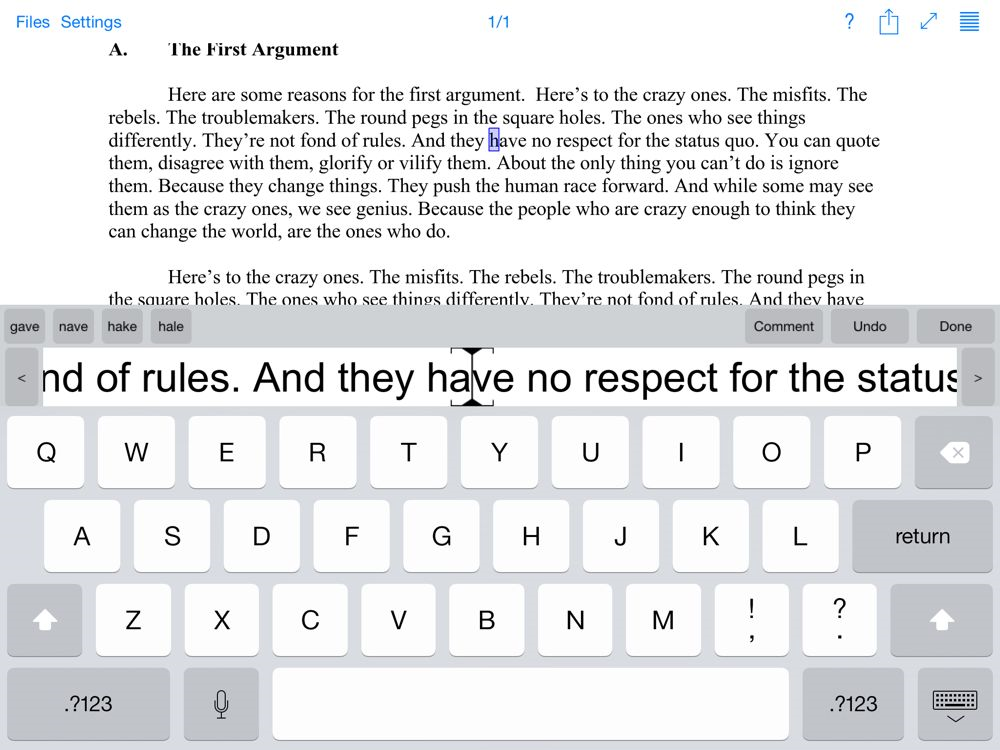
The process of creating an OCR version of a document is simple.  Just select the document and tap the OCR button.  You can actually “see” the app working because yellow lines go down the screen as it scans each line of text — a fun animation that is also useful keeping tabs on the process.


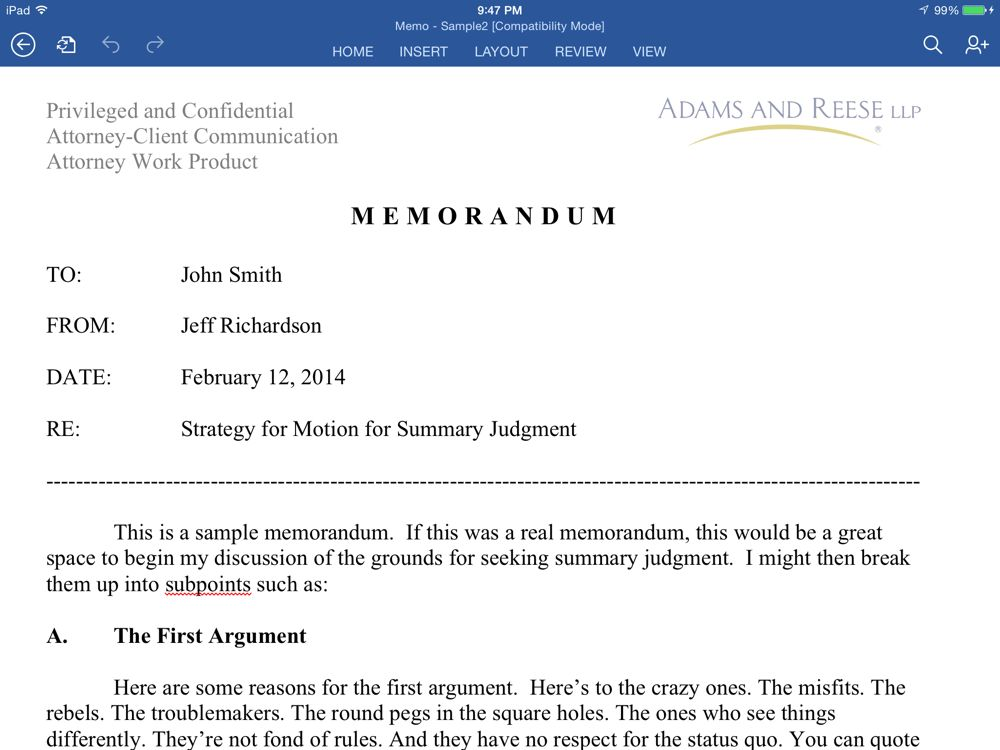
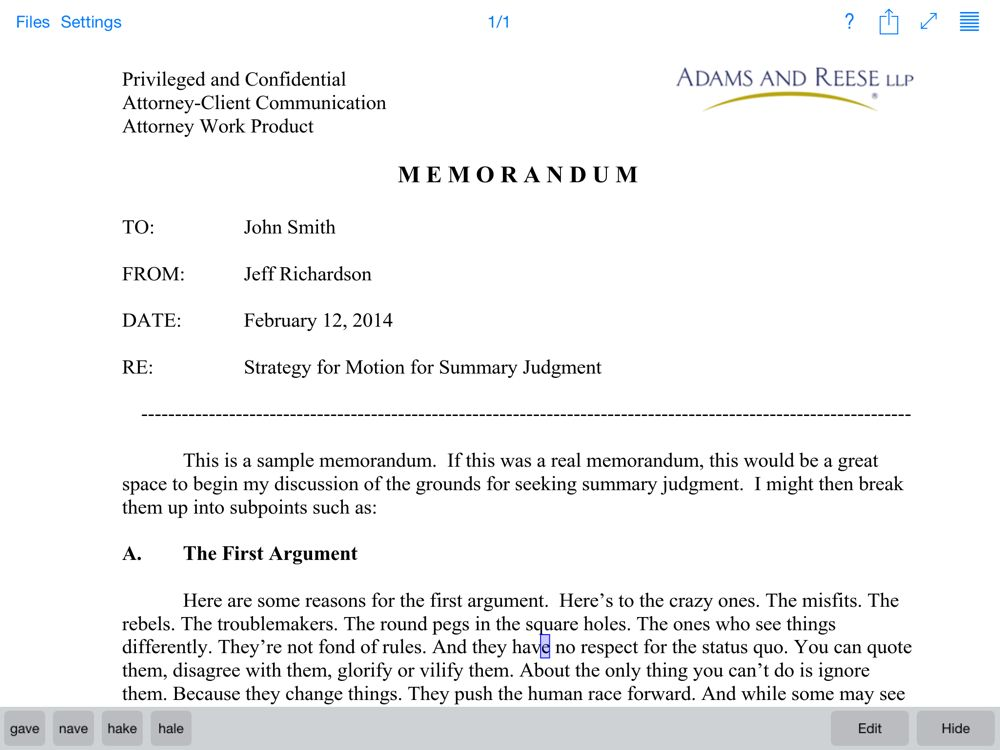
Once the OCR process is complete, you then have two options.  First, you can copy the text of the document to the clipboard, useful if you want to paste it into a word processing document or an email.  In the first image below, I pasted the text into the iPhone’s Notes app, which shows you that the quality of the OCR with a good original is excellent.  In this example, the only error in the entire document was on the RE: line of the correspondence; the original said “Doe v. Jones” and PDFpen instead read “|_)oe v” and didn’t see the “Jones” part at all.  It’s not perfect, but I never expect OCR to be perfect even on a computer, let alone on an iPhone.

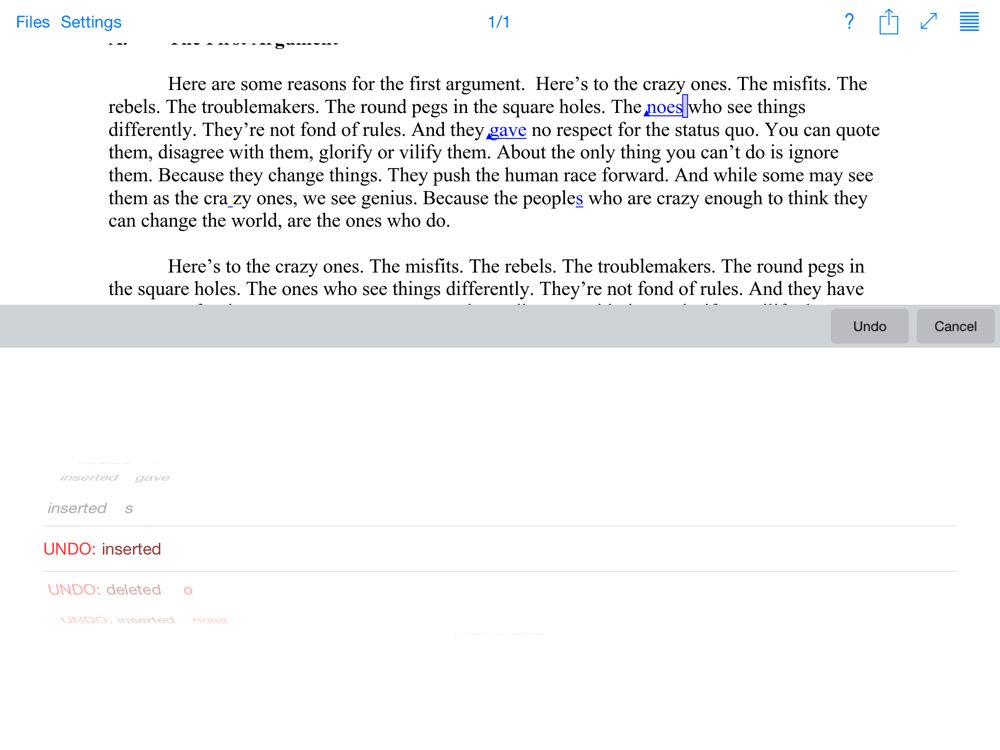
The second option is to share the readable PDF file.  You can email the document, open it in another app on your iPhone, or export it to a cloud storage service such as Dropbox.  Every option I would ever want is in there.

IMG_4183


The best part of the OCR function of PDFpen Scan+ is that you aren’t limited to using it with scans created by the app.  I noted above that Scanner Pro creates better scans then PDFpen Scan+, but Scanner Pro doesn’t have an OCR function.  What I’ve been doing over the last few months is scan the document with Scanner Pro, then send that PDF file to PDFpen Scan+, and then OCR the file using PDFpen Scan+.  The result is the best of both worlds — a higher quality document that is readable thanks to the OCR process.

Moreover, I’ve had other attorneys send me non-readable PDF documents — PDF files that simply contain an image of the document.  I use PDFpen Scan+ to create a readable version of the document so that I can search through the document to find the part of the document that uses a specific word.  And if I want to highlight a document, this is far easier to do when you are working with a readable PDF file. 

OCR works best with a simple document such as a letter with black text on a white background.  If the image quality is poor, or if you have a complicated document such as one with two columns of text, the app misses words or misreads words.  In my real world tests, the documents that I have worked with in my law practice have been of good enough quality for PDFpen Scan+ to give me great results, even though accuracy is not always 100%.

Do note that the results are not as good as what you can get on your computer using software that can perform OCR.  First, scanning documents on an iPhone or iPad is slower.  Second, when PDFpen Scan+ creates a readable PDF file, it vastly increases the file size.  I’ve seen 45 KB PDF files become 500 KB PDF files after this app performs OCR.  Third, although the quality of the OCR is quite good, I get better results using software on my computer such as Adobe Acrobat Pro or Nuance PDF Converter.  On the other hand, I love the convenience of performing a complicated task like OCR on an iPhone that I can slip in my pocket and that is always with me.

A few more points…

When I am using PDFpen Scan+ to scan a document, I use it on my iPhone, but the app also works on an iPad.  It is far easier to take a picture using the easy to hold iPhone, and unless you have an old iPhone and a new iPad you probably have a better camera on your iPhone, so I recommend using this app as a scanner with your iPhone, not your iPad.  But if you are working with a document scanned by another app or sent to you as a PDF file and you just want to use this app to do OCR, then PDFpen Scan+ is useful on the iPad.

Also, if you want to see PDFpen Scan+ in action, California attorney David Sparks prepared a video that you can see here on his MacSparky website.

Conclusion

PDFpen Scan+ is a decent scanner, but I cannot recommend it over Readdle’s Scanner Pro.  But the + in the name of this app refers to the OCR capabilities, and Smile Software gets an A+ for that + feature.  If you are looking for a way to take a non-readable PDF file and turn it into a readable PDF file, PDFpen Scan+ is an excellent and useful app.  Perhaps one day PDFpen Scan+ will get improved scanner capabilities, or perhaps one day Scanner Pro will gain the ability to OCR a document, and then we will have one app that does everything well.  For now, if you do what I do and use PDFpen Scan+ in conjunction with Scanner Pro, you have a powerful combination. 

Click here to get PDFpen Scan+ ($4.99): AppStore

Five years of iPhone J.D.

On November 17, 2008, I wrote the first post on iPhone J.D., explaining why I had been using an iPhone for a few months.  The subject seemed appropriate for starting a new website, but it was also quite topical at the time.  According to a 2008 Am Law Tech Survey, only 5% of law firms reported that they had any lawyers using an iPhone.  Instead, most attorneys who used a smartphone at the time used a BlackBerry, Palm Treo or Windows Mobile device.  A lot of folks wondered if a device with an all-glass front and without a miniature keyboard could ever appeal to more than a small percentage of attorneys.  Many thought it would be a repeat of the Windows-versus-Mac world in which a single digit percentage of lawyers used and loved their Macs but the overwhelming majority used PCs.  So when I started a website in 2008 aimed at attorneys who used iPhones, the market seemed about as much of a niche as architects who played the banjo.  But it was the niche I was in, and you write about what you know.

Five years later, the world has changed quite a bit.  Almost all attorneys now use a smartphone, over half of them use an iPhone, and 100% of AmLaw 200 law firms now have attorneys using iPhones.  The tablet market is still in its growing stage — about half of all attorneys now use one — but of that half, over 90% use an iPad.  We used to live in a world where you would have to visit graphic design firms or college campuses to see Apple logos everywhere.  It astounds me that you can now say the same thing about law firms.

And iPhone J.D. has grown too.  Back in 2008, I was tickled whenever I saw that a few dozen folks had visited the site in a day.  Over the last five years, the site has had well over 3.5 million page views, and more than a million of those occurred in 2013.  The site now includes over 1,000 posts and you have written over 2,000 comments.

Popular posts this year.  It’s a tradition on iPhone J.D.’s anniversary (1, 2, 3, 4) to identify the most popular posts over the prior 12 months because it reveals something about the topics that iPhone and iPad owners have been thinking about lately.  Here they are.

1. The iPhone’s Do Not Disturb Feature.  I love my iPhone for being such a helpful assistant, but sometimes you don’t want to be bothered by that assistant because you are in an important meeting or in court.  My post on the iPhone’s do not disturb feature was the most popular article I wrote this year.  I suspect that was in part because so many of us started to receive Wireless Emergency Alerts this year (my post on those was also a popular post in the past year) and a lot of folks were looking for ways to manage all of the alerts that you can receive on an iPhone.

2. Strategies for reading and editing Microsoft Word files on the iPhone and iPad remains a popular topic.  The post I wrote this year on using Polaris Office to do so was very popular, as were older posts on using similar apps such as Documents to Go.

3. Security is always an important topic for attorneys, and my review of 1Password was one of the most popular posts this year.  It is rare for a new app to so quickly become a part of my daily life, but 1Password has certainly done so, both on my iPhone/iPad and on my PC at work and my Mac at home.  I used to hate managing passwords, and I’ll admit that my distaste for doing so led me into some unsafe practices such as using easy-to-remember (and thus easy-to-guess) passwords and using the same password in different places.  Now, my passwords are very secure, and managing them is almost fun, something I never would have thought possible.

4. Sometimes I encounter something that annoys me on the iPhone, so I research the topic and then write about it here.  I did that earlier this year when I noticed that the AirPlay icon was missing from my iPhone and then I found a bizarre solution, and that was one of the most popular posts this year.  I guess I wasn’t the only one to have the problem.  Now that we have iOS 7, AirPlay works better and is easier to manage thanks to the Control Center that you can quickly access just by swiping up from the bottom.  Another example: I must not have been the only one to develop a spot on the lens of my iPhone 5 camera considering how popular that post was this year.

5. About a year ago, Apple replaced the 30-pin connector that had been in use since it debuted on the iPod in 2003 with the new Lightning connector.  As a result, a lot of iPhone and iPad users had to purchase new accessories, and my review of Apple’s Lightning-to-VGA connector was very popular this year.  I give a lot of presentations from my iPad and I far prefer the Lightning-to-VGA connector over the older 30 pin-to-VGA connector because it does a better job of staying in place, it is faster, and I like that you can charge your iPad at the same time that you are using it.

6. I love that the iPhone is so easy to use, but it also has a lot of powerful features if you just know where to look for them.  Thus, I try to post tips and tricks for using the iPhone and iPad whenever I come across a good one.  I posted a tip earlier this year on keeping track of birthdays of your Contacts, and it was one of the most popular posts this year.  My tip on saving a draft of an email was read by almost as many people.

7. I know that a lot of attorneys like to use a stylus with an iPad when highlighting a document or taking notes.  There are hundreds of models available, but the Wacom Bamboo Stylus duo is one of the very best.  The post I wrote this year on buying replacement nibs was very popular.

8. There are lots of great apps that you can use to read and annotate PDF files on an iPad, but one of the very best is iAnnotate, and my review of iAnnotate was a very popular post.  One of the features that I love in that app is that you can send a Word document to iAnnotate and the app saves your annotations in PDF format.  That way, you can easily send someone a marked-up version of a document that shows your handwritten edits.  I use that feature all the time in my law practice.

The iPhone J.D. Hall of Fame.  Those were the most popular posts written this past year, but here are the most popular iPhone J.D. posts of all time:

1. iPhone “No SIM card installed” message.  When I first had this problem with my iPhone 4, it didn’t seem like many other people were talking about it.  However, this post from July of 2010 was viewed well over 100,000 times and is the most-read iPhone J.D. post of all time, so clearly I was not alone.  As I noted in a follow up, the only real solution was to have the Apple Store replace my iPhone 4.

2. My favorite iPhone shortcuts.  iPhone J.D. was only a week old when I wrote this post in November of 2008, and over the past five years, it has also been read well over 100,000 times.  Most of the tips are just as useful today as they were when iPhone J.D. was in its infancy.

3. A look at the iPhone passcode lock feature.  This post from September of 2009 continues to be popular, and I hope that means that lots of people — especially attorneys — are using the passcode lock feature on the iPhone.  You never know when someone else might pick up your iPhone.

4. The iPhone’s do not disturb feature.  I mentioned this one above, and it was my only post from 2013 to break into the all-time top 10.

5. iPhone Tip: create an Apple folder.  I wrote this tip in June of 2010, and I continue to use an “Apple folder” on my iPads and iPhones.

6. Email improvements in iOS 5.  When Apple released iOS 5 in 2001, one of the best parts of the updates for lawyers and others who use email all the time were the improvements to the Mail app such as better notifications, rich text formatting and the ability to dictate an email via Siri.

7. Review: Dragon Dictation.  You no longer need to use the Dragon Dictation app unless you use an older iPhone or iPad because dictation is built-in thanks to Siri, but before Siri, the Dragon Dictation app was very popular for lawyers and others, and so was this post.

8. Review: Notes Plus and Review: GoodNotes.  These are both excellent apps for taking notes on an iPad using a stylus, and my reviews of those apps are among the all-time most popular reviews on iPhone J.D.

9. Review: Lightning to 30-pin adapters.  As noted above, the change to the Lightning adapter was a huge transition for the iPhone and iPad, and these adapters are great for using your new device with your older accessories.

10. Why the “i” in iPhone?  I had a lot of fun researching and writing this post back in 2009, so I’m glad to see that so many folks have read it and still do so today.  If you were ever curious about the origin of the name of the iPhone, this is the post for you.

Visitors to iPhone J.D.  It’s an annual tradition to use this opportunity to share a little about what I know about those of you who read this website besides the obvious — you have impeccable taste.

About 33% of iPhone J.D. readers during the past year accessed this site using Windows, about 28% used an iPhone, about 18% used an iPad, about 16% used a Mac, about 3% used Android and about 1% used a BlackBerry.

About two-thirds of iPhone J.D. visitors are in the U.S., but the site also gets a huge number of visitors from the U.K., Canada and Australia, and for the first time ever, five of the top 10 cities were not in the U.S.  For the fifth year in a row, there were more visitors from New York than any other city.  London moved up from #3 to #2, and for the first time ever, two cities in Australia — Sydney and Melbourne — were in the top 10.

  1. New York
  2. London
  3. Los Angeles
  4. Chicago
  5. Sydney
  6. Melbourne
  7. Houston
  8. San Francisco
  9. Toronto
  10. Singapore

I enjoy taking this opportunity every year to talk about iPhone J.D. readers because without a doubt, my favorite part of publishing iPhone J.D. is that it has given me a reason to meet so many other interesting attorneys.  Whether we met a conference or we first corresponded via email when you shared an iPhone tip with me, I have really enjoyed getting to know and hearing from so many of you.  The niche of attorneys using an iOS device may be a lot larger than it was five years ago, but I still think of us as a select group of intelligent and friendly folks who enjoy using elegant technology to help us to get our work done.  Not a bad group of folks to get to know.

In the news

The new iPads were the big news this week.  The iPad mini with Retina Display made a surprise appearance on Tuesday, and people continue to talk about the new iPad Air.  I hear from many attorneys who are struggling with the decision of which one to get.  Both are powerful and light, so you need to decide whether you prefer a bigger screen — great for reading documents — or a smaller and even lighter design that makes it even more portable.  I understand the appeal of the new iPad mini, especially if you already carry around a laptop like the MacBook Air that you can use when you want a larger screen.  But my laptop never leaves my office desk, so the iPad Air is the best choice for me.

  • Most folks read iPhone J.D. using a computer or an iPad, but if you read the website from an iPhone, you may have noticed that the site now has new, clean mobile design.  A big thanks to Vincent DePalma, a recent graduate of University of San Diego School of Law, for doing all of the hard work and being patient with me as I tweaked it.  Hopefully, the project gave Vincent something else to focus his mind on while he waits for bar results to come back next week — a feeling that I can still recall as if it was yesterday.  By the way, some of you may have noticed that, for a short time Wednesday night, some of the words on iPhone J.D. were about 10 feet tall.  That was my fault, and Vincent helped me to fix my error.  If you have any web design needs for your own law firm or personal website, Vincent’s company is Invincible Creative, and I recommend that you get in touch with him.
  • New York attorney and TechnoLawyer publisher Neil Squillante reviews the new Livescribe 3, a pen that records what you write and also doubles as an iPad stylus.
  • Indiana attorney Bill Wilson, publisher of the Third Apple website, reviews the new Adonit Jot Script Evernote Edition stylus, a stylus that uses Bluetooth so that it can have a tiny tip unlike most traditional styluses.
  • Phil Schiller, the head of Apple marketing, is currently testifying in a trial between Apple and Samsung.  He started his testimony yesterday, but according to Shara Tibken of CNet only went for 11 minutes.  I suspect he’ll have some interesting things to say about the iPhone when he returns to the stand.  Yesterday, he noted that Apple took “huge risks” when it started working on the iPhone and that it was viewed as a “bet-the-company product.”  He also noted that Apple was already working on the iPad when it started on the iPhone, even though the iPhone hit the market in 2007 and the iPad didn’t go on sale until 2010.
  • South Carolina attorney Justin Kahn, publisher of the website iPad Notebook, reviews the latest version of Notes Plus, a powerful app that you can use to take notes on an iPad.
  • California attorney David Sparks provides his first impressions of the new iPad mini.
  • Jason Snell of Macworld wrote a great review of the new Retina iPad mini.
  • Damon Darlin of the New York Times compares the iPad Air and the new iPad mini.
  • Jim Dalrymple of The Loop provides his thoughts on the new iPad mini.
  • If you are trying to find a new iPad mini, supplies are very limited right now.  Richard Padilla of MacRumors links to a website that shows the current inventory of every iPad mini model at every U.S. Apple Store.  Apple typically frowns on websites like these so it may not last long before Apple shuts this one down, but even if you just look at the graphic in the MacRumors article you can see that it is relatively easy to find a WiFI-only model of the new iPad mini, but if you want a model with built-in cellular, they are much harder to find right now.
  • John Gruber of Daring Fireball notes that it was because iPad mini supplies are so limited that Apple was relatively quiet when it started to sell the new iPad mini this week.
  • Rene Ritchie of iMore published a good review of the iPad Air.
  • MobileCloth recently became an advertiser on iPhone J.D., but for a long time now, the company has made my favorite cloths for cleaning smudges off of the screens of my iPads and iPhones.  This week, the company debuted a new Z5 pack consisting of 5 cloths with colors on the edges for $17.95.  Looks like a great Christmas gift for anyone who uses an iOS device.
  • Dana Wollman of Endgadget reports that Gogo is working on a service that will let you send and receive text messages while you are in flight.  Of course you can already send and receive iMessages using the Gogo WiFi service, but this service will work with a regular text message sent to your mobile phone number.
  • Apple released iOS 7.0.4 yesterday to fix some bugs.
  • I enjoyed watching this video of Steve Jobs being posthumously inducted into the Bay Area Council Business Hall of Fame.  The ceremony includes a nice video compilation of the accomplishments of Steve Jobs.
  • And finally, if you are wondering why the new iPad Air doesn’t come in gold like the new iPhone 5s does, you can wonder no longer.  The folks at Goldgenie are are happy to sell you an iPad Air covered in 24 ct. gold for around $2000.   Cue the James Bond Goldfinger song.  (via iMore)

Reivew: Email by David Sparks — information and tips for getting the most out of email

David Sparks is an attorney in Orange County, CA.  He is well known for his MacSparky website and the Mac Power Users podcast that he does with Florida attorney Katie Floyd.  He has also published many books, including two that I have reviewed on iPhone J.D.: Paperless and iPad at Work.  And he is also one of the most talented folks out there when it comes to self-publishing books for the iPad in the iBookstore — titles that stretch the definition of what it means to be a “book” becuase they are full of graphics, videos and audio.  Yesterday, Sparks released his latest book called Email, which Sparks says is all about “the best methods, technologies, services, apps, and workflows to make email work for you.”  Sparks sent me a free review copy of the book yesterday, and I made my way through just about all of it last night.  It is a great book that offers wonderful information and tips for anyone who uses email on the Mac, iPhone or iPad.

The book includes general tips for working with emails, great strategies for reading, replying to and storing emails, an informative chapter on how email works and tips on fighting spam and email security.  No matter what device you use for your email, all of that content is useful. 

Sparks then goes deep into the Apple Mail app for the Mac, and this book will be most useful for folks who use a Mac and the built-in mail app.  He also reviews many of the best programs for the Mac and apps for the iPhone/iPad that you can use to work with email, and devotes a chapter to Gmail.

The last part of the book is the part that I have only just started to get through.  It is called Email workflows, and starts with a long description of how Sparks handles his own email.  The book then has audio interviews with a number of folks (a writer, a doctor, an actor, an IT specialist, an educator, etc.) who use email in many different ways in which they share their strategies and tips.  The interviews that I have listened to so far were great, and I look forward to hearing them all over the next week.

As good as the content is, Sparks is famous for making his books full of rich audio and video.  Email is no exception.  The book is full of colorful graphics, video screencasts, sidebars with additional pop-up information, etc.  Although I’ve now been through the book once, I look forward to going back through it again take advantage of all of the media and extra information that is sprinkled throughout the book.

Although the book will be useful to anyone who uses email because so much of the book is devoted to general principles, you’ll get the most out of the book if you use a Mac.  The book also has a lot of information on using email on the iPhone and iPad, which I really liked, but the book does not offer any specific advice for using email on a PC.  If you are looking for specific tips on using Outlook on your PC at work, you won’t find it in this book.  (When I searched the book for the word “Windows” the only reference I saw was on page 69 where Sparks notes that a PC running Windows 7 is “sitting sadly in the corner of my office.”)

Perhaps best of all, Sparks has a great writing style.  He covers complicated topics but explains things in a way that my grandmother would understand.  Hopefully I’ll never find myself on the opposite side of Sparks in front of a jury; I suspect he gives one heck of a closing argument.

We all use email every day, throughout the day. If you want to become even more productive with your email, you’ll enjoy this book.

Click here to get Email by David Sparks ($9.99):  View-in-iBooks

iPad mini with Retina Display available today

When Apple first announced the iPad Air and the iPad mini with Retina Display last month, it said that the iPad mini would be available later in the month of November.  I assumed that meant that it would be available at the very end of the month, but early this morning, Apple started selling the new iPad mini in the online Apple Store.  Supplies are presumably limited right now, and it is unclear when you still be able to start buying one from a physical Apple Store.

My original post on why lawyers would like the new iPad mini is here.  I suspect that if the new iPad mini is the right iPad for you, you already know it.  But if you are on the fence, I will note that I’ve had my new iPad Air for over a week now, and in that time I haven’t had a desire to use my iPad mini at all.  Of course I have a first generation iPad mini, not the new model with a Retina Display, but my lack of desire to use it this past week was not because of the lack of a Retina Display.  Over the last year, I have always reached for my iPad mini for the same reason — I wanted something light and easy to carry around.  Now that the iPad Air is so light and easy to carry around, I just haven’t had a desire to use the iPad mini.  To be fair, the iPad Air is my latest new gadget, so perhaps after the newness wears off I’ll become more excited about the iPad mini again.  But for me, the iPad Air is the best of both worlds.

But that’s just me.  I know many people who say that the iPad mini is the perfect size and weight for them, and if you are one of those people, now you can get the brand new model.  Enjoy!

Review: DestroyMail — don’t just delete an email message; destroy it

The last time that I wrote about Cleveland appellate attorney David Mills was in early 2009 when he started the website Courtoons, where he regularly published funny law-related cartoons.  He has since stopped updating the website, although I frequently tell Mills that I hope that he starts it up again one day; they were great, and if you haven’t read his cartoons, you should check them out now because they are just as funny today.  In the meantime, Mills went on to argue and win a case before the U.S. Supreme Court, a case that led to him being profiled in a cover story for the ABA Journal.  Most recently, Mills teamed up with his brother and two friends to create a new iPhone app called DestroyMail, which debuted on the App Store today.  It’s an email client with a humorous twist; instead of deleting an email message, the app lets you DESTROY the email message, and you are provided with funny graphics and sound as you do so.

You probably cannot use this app for your work email if your firm uses Microsoft Exchange, but it works with many online email providers:  iCloud, Gmail, Yahoo!, AOL, Outlook.com and IMAP servers.  I have a Yahoo Mail account that I have used when making online purchases for about 15 years now, so as you can imagine that account is full of spam — a perfect target for this app.  You start by providing DestroyMail with your user account information.  (The app needs your username and password to get your email, but the DestoyMail FAQ emphasizes that the developers cannot see your email messages or your account information.)  You can then use DestroyMail just like any other email client to read, reply to, forward email, etc.

The fun comes when you are ready to delete a message.  When you are viewing a list of email messages, swipe to the left on an individual message, just as you would do in the iPhone’s built-in Mail app.  But instead of seeing an option to move the item to the trash, you’ll see an option to destroy the message.  Tap that, and you will see and hear an amusing animation of the email message being destroyed. 


If you want to be more efficient, you can swipe to the right, which destroys the email immediately with a shorter animation.

The free app includes only a single weapon, a grenade launcher, but I spent $0.99 for an in-app purchase to get access to others, which adds the ability to use an flamethrower, a bomb, and various other Sci-Fi-worthy weapons of mass destruction.  And more (less violent) animations are coming, as noted on the developer’s blog.


When you destroy a message, it isn’t actually moved to your trash.  Instead, a folder called “Destroyed” is created and the messages are moved there.  You can always select all of those messages and move them to the trash yourself, but this safety valve let’s you show off to someone else that you are destroying their email just to get a laugh while still having the ability to easily locate the message later.

DestroyMail may help you get out your frustration over an email.  I can think of quite a few messages I’ve received of late that I would have loved to have incinerated with a flame thrower instead of just putting them in the trash!  But this is primarily just a joke app, and while I’m sure that the joke will get old soon, the app itself is free and even getting all of the additional weapons will only set you back a buck, so I have no problem recommending that you check out the app.  It’s nice to see that David Mills still has a good sense of humor, and I look forward to seeing whatever he comes out with next.

Click here to get DestroyMail (free): 

In the news

I reviewed the iPad Air earlier this week, and I continue to be impressed by this product.  Because it is so light, I find myself using my iPad more than ever, and I love how fast everything works.  A number of others folks posted iPad Air reviews this week, and if you are trying to decide whether an iPad Air is right for you, the best ones that I have seen this week are Jason Snell’s review for Macworld, Andrew Cunningham’s review for Ars Technica and attorney Jeremy Horwitz’s review for iLounge.  And now, the rest of the news of note from this past week:

  • An article in The Australian discusses a successful appeal by attorney Charlie Young resulting in a first-of-its-kind opinion from the Supreme Court of Queensland, Australia, in which the Court upheld the validity of a will typed in the Notes app of an iPhone shortly before the man ended his life.
  • West Palm Beach attorney Christopher Hopkins recently gave a presentation on about 50 apps that are useful for Florida attorneys.  You can see the apps he discussed by clicking here (PDF file) to view his slides.  Hopkins also published an article (PDF file) with tips for using iOS 7.
  • Apple CEO Tim Cook wrote a persuasive editorial for the Wall Street Journal this week on the importance of workplace equality.
  • Ever wondered why Apple was named Apple, why Google was named Google, why Sony was named Sony, etc.?  Evan Dashevsky of TechHive provides all the answers in this article.
  • Macworld has started posting a great series of reviews on apps created by Apple that were updated significantly for iOS7.  Apps reviewed so far include Pages, Keynote and iPhoto.
  • Earlier this year, I discussed the Transporter (here, here and here), a device I started using because the company sponsored iPhone J.D.  Since then, I’ve continued to use the product quite a bit.  It provides many of the advantages of Dropbox without any of the security concerns because you own and have possession of the hard drive on which your files are located.  Steven Sande of TUAW discusses a related, new product from the same company called Transporter Sync.  It is cheaper (only $100) and you add your own storage, either a USB hard drive or even a thumb drive.  If you are interested in any of the Transporter products, the company was nice enough to give iPhone J.D. readers a 10% discount off of any model purchased at at filetransporterstore.com when you use the offer code iphonejd.
  • This time last week, I linked to two reviews of Fantastical 2, a fantastic app for working with your calendar.  This week I saw another great review of the app by Federico Viticci of MacStories.
  • Wired has a fascinating excerpt from an upcoming book by Fred Vogelstein called Dogfight: How Apple and Google Went to War and Started a Revolution.  In the excerpt, Vogelstein describes the origin of the iPad.  It’s a great read.
  • And finally, if you love grilling as much as you love your iPhone, then you’ll love the new iGrillmini, a $39.99 device coming out soon that will let you monitor the temperature of your meat from your iPhone.  The gadget comes from iDevices, the same company that makes the iShower, a Bluetooth speaker I reviewed earlier this year that lets you listen to music from your iPhone while you take a shower.  So this company has already figured out how to connect an iPhone to a wet shower and a hot BBQ pit.  Makes you wonder what they will connect the iPhone to next.

Review: Nimblstand — iPad and keyboard stand

One of my favorite iPad accessories is the Apple Wireless Keyboard, a full-size keyboard that connects to the iPad via Bluetooth.  When I am traveling and I need to draft something longer than a few sentences, I almost always reach for the keyboard, and even when I am in my office, I will sometimes use my keyboard and iPad together while I use my computer for another purpose.  When using the Apple Wireless Keyboard, you want to have the iPad propped up at a good angle.  You can use an Apple Smart Cover, but it is not very sturdy when you tap on the iPad’s screen.  For a while now, I’ve used the Origami Workstation for iPad, a combination case for the keyboard and stand for the iPad.  For a few weeks now, I’ve been trying another solution called the Niblstand because one of the creators of the device sent me a free review unit.  It’s a clever solution that has quite a few tricks up its sleeve.

The Niblstand is a made of plastic and comes in two specially designed parts that fit together: the main part that attaches to an Apple Wireless Keyboard with a grove to hold an iPad, and a handle that extends out to provide support.

As you can see from the side, there are special groves so that you can slide in an Apple Wireless Keyboard.

Simply slide in your keyboard, place an iPad in the well, and your iPad will be propped up at a good angle.  Better yet, it is fairly sturdy in the well so you can tap and swipe on the screen without fear that the iPad will fall down.

Because the Niblstand is fairly strong, you can even place it on your lap and type without a desk.  I’m not a big fan of typing with any device on my lap — I don’t like to do it with laptop computers either — but if that position works for you, the Nimblstand provides a sturdy platform for the iPad and keyboard.

You can also make the Nimblstand more compact by moving the extender from one end of the base to the other.  In this position, if you push on your iPad too hard it will push back and could fall over, so I prefer to use the Nimblstand the other way.  But the compact position does work, and it also provides a more efficient design for storage.

There is also a round holder in the Nimblstand specially designed for the Wacom Bamboo Stylus, which I and many others believe is one of the very best styluses for the iPad.  When you are using the Nimblstand to type, the placement of the stylus is a little awkward so I didn’t use it very much.

However, the clever Nimblstand can be used yet another way.  in either extended or compact mode, flip the iPad around so that your keyboard is behind the iPad (and not used).  This places the iPad in a perfect angled position for using the iPad, especially if you want to use an app to draw on the screen — such as one of my favorite apps for taking notes, GoodNotes.  And in this orientation, the placement of the stylus holder makes perfect sense and works quite well.

I was actually surprised how much I liked this last orientation of the Nimblstand.  I originally thought of the Nimblstand as something to use only when using a keyboard, but when I wasn’t using a keyboard I really enjoyed using my iPad in this position in which the iPad leans far back but is still quite sturdy when you tap or otherwise touch the screen.

All of the above pictures show the Nimblstand with my iPad 3.  The Nimblstand website says that it works with 99% of all tablets, even with many tablets in covers.  However, I’m not a big fan of how the Nimblstand works with the brand new iPad Air.  Because the bevel on the iPad Air is so narrow, the screen sits a little to low in the Nimblstand, making it difficult to touch the edge of the screen — and thus making it difficult to access the new iOS 7 control panel.  Here is a picture of my iPad Air in the Nimblstand:

I contacted the developer about this, and he told me that the company is already working on developing spacers, something like an adhesive-backed soft rubber pad, to fit in the Nimblstand so that the iPad Air is at the correct height.  He said that the company plans to include these spacers with all Nimblstands sold and will even send them to current owners.  I’ll update this review when I get a chance to try out the spacers.

[UPDATE 2/26/2014:  I received my iPad Air Sustainability Kit for the Nimblstand.  It consists of four adhesive pads that each have a sticky side.  You simply place them in the groves at the ends following very simple instructions, and now your Nimblstand is updated for the iPad Air.  The edge of the screen is no longer burried in the groove on the Nimblestand and everything just works.  So whenever you upgrade to the iPad Air, your Nimblstand is ready to upgrade with you.]

The design of the Nimblstand is fascinating and makes the product quite versatile.  The website says that the developers went through 64 prototypes over 30 months to create the final design.  On this page of the Nimblstand website there is a great video that shows all of the different positions of the Nimblstand.

If you use an Apple Wireless Keyboard with your iPad, this product is worth a look.  The Nimblstand lets your Apple Wireless Keyboard and your iPad work very well together.

Click here to get Nimblstand from the developer ($39.99).

Welcome labor lawyers!

If you are one of the 1,317 people (as of 11/1/13) coming to the ABA Section of Labor and Employment Law 7th Annual Labor and Employment Law Conference that starts in New Orleans today, welcome to New Orleans!  The Crescent City has a lot to offer visitors, including some of the best restaurants in the world, amazing live music, unique architecture, a colorful history, and a lot of friendly folks.  Plus, many say that the cocktail was invented in New Orleans, and while I’ve seen some vigorous debates over which city served the first one in the early 1800s, suffice it to say that you will have no trouble finding an excellent drink in this city.  My personal favorite is the Old Fashioned, and they make a great version at the Old Absinthe House on Bourbon St.

But of course, you are coming to New Orleans to attend conference sessions, not just sip a Sazerac while you spin around the Carousel Bar in the French Quarter, so I hope to see you at the Apps for Labor and Employment Lawyers session at 2:15 on Thursday, Nov. 7 in Grand Salons 3/6 at the Hilton New Orleans Riverside.  I’m teaming up with my friends Oklahoma lawyer Jeff Taylor of The Droid Lawyer and Natalie Kelly of the State Bar of Georgia to discuss the best apps, on a panel led by Jim McKenna, the Director of Infrastructure and Administrative Systems at Morrison & Foerster in San Francisco.

I also see that there is a session on Friday called Trial by iPad, presented by Detroit lawyer Adam Forman and San Francisco attorney Todd Schneider, and a session on Saturday called Do Lawyers Have an Ethical Duty to Learn About and Understand Technology?  (Spoiler alert: I bet that the answer is yes.)

For those in town, have a great time in New Orleans.  And for those not attending, the Big Easy is open year-round, so find yourself an excuse to get down here at some point.  It’s a fun city.

My experience with the iPad Air

If my third-generation iPad and my iPad mini had a baby, and if the proud parents were lucky enough to realize the dream shared by all parents that their child be even smarter than they are, the result would be the iPad Air.  I’ve been using an iPad Air extensively for the last three days, and it truly combines the best features of the iPad and the iPad mini, plus offers more.  This is an amazing product, and it is hard for me to imagine any lawyer not finding a lot to love about the iPad Air. 

Weight

The marquee feature of the iPad Air — the reason for the word “Air” in the title — is that it is light.  The technical specifications will tell you that the iPad Air weighs 1 pound versus the 1.3 pounds of a third generation iPad and the 1.4 pounds of the fourth generation iPad.  Expressed in terms of a percentage (about 25% lighter) that sounds substantial, but a difference of 0.3 or 0.4 pounds may not seem very large.

Trust me, the difference is substantial.  For the last year, I’ve used both a third generation iPad and an iPad mini so I know what it feels like for an iPad to feel lighter, and the iPad Air feels much more like an iPad mini than an iPad.  Indeed, it almost feels the same weight as the iPad mini.  I know that is just an illusion — the iPad Air weighs a pound and the iPad mini weighs about two-thirds of a pound — and perhaps the illusion comes from the extra weight being distributed across a larger surface area?  Whatever the reason, it is so nice to get the advantages of a full-sized iPad screen in a device that weighs almost as much as an iPad mini.

What does it mean to have an iPad that is so light?  It means that when I went to go fetch my iPad Air to use while watching the Saints game yesterday, I was half-way back to my TV when I stopped, thinking that I forgot to get my iPad, only to look down in my hand and notice that it was indeed there.  It was just so light it didn’t feel like I was holding an iPad.  It means that when I hold up my iPad Air for a long period of time to go through emails or read documents, my hand no longer gets tired the way that it would with the iPad 3.  It means that I can hold the iPad Air with one hand much the same way that I often hold my iPad mini.  It means that the iPad Air is much less noticeable when you are carrying it in a briefcase or a purse.

Another way to say all of this is that the iPad Air removes any of the awkwardness of holding a full-sized iPad, which is really saying something because for years I’ve loved a full-sized iPad over a laptop computer because the iPad is so much lighter and easier to work with.

Of course, you could always get the weight advantage with an iPad mini, and I love my iPad mini, but it is far less useful for work.  For one thing, I miss the Retina screen on my mini, although fortunately that will be fixed when the new mini comes out later this month.  Second, much of the work that I do on my iPad involves working with documents.  Whether I am reading and annotating a PDF file in an app like GoodReader or iAnnotate or PDFpen, reading and highlighting a transcript in TranscriptPad, looking at a Word document in Documents to Go, creating a document in Pages, or spending a lot of time reading web pages in Safari, my eyes are much happier when I use the larger screen.  Having the exact same screen size in a lighter package is truly the best of all worlds.

Easier to Hold Design

The weight makes a big difference when you are holding an iPad Air, but the hardware design also makes the iPad Air much easier to hold than the iPad.  If you have ever used an iPad mini, you’ve probably noticed the edge.  Unlike the tapered edge of the iPad, the iPad Air follows the iPad mini design of a 90º edge with rounded corners, and it feels much better in your hands. It makes the iPad Air feel like a true tablet. 

I presume that I will grow used to it over time, but for now, every time I start holding the iPad Air I find myself thinking how much nicer the edges feel in my hands.

Wi-Fi Speed

I suspect that most attorneys will, like me, primarily use an iPad at the office or at home where Wi-Fi is available.  Faster download speeds are always better, and I’ve seen faster Wi-Fi speeds than ever before with the iPad Air.  I suspect that part of this is because the iPad itself is faster, part of this is because of a better Wi-Fi radio, and part of this is because the iPad Air includes two Wi-Fi antennas and can use both of them at the same time using something called MIMO (multiple input multiple output) for up to twice the 802.11n Wi-Fi performance when used with a compatible router.

Whatever the reason, the Wi-Fi speeds in my office are fantastic.  I ran numerous speed tests at the same time with both my iPad 3 and my iPad Air next to each other.  In my office, my download speeds on the iPad 3 ranged from 14 Mbps to 32 Mbps, and my iPad Air download speeds were about twice as fast, ranging from 42 Mbps to 54 Mbps.  Upload speeds ranged from 10 Mbps to 23 Mbps on the iPad 3, and from 23 Mbps to 54 Mbps on my iPad Air.  Here are some typical examples, with the iPad Air on the right:

(The reason for the time differences in the above photos is that I had not yet told the iPad Air that I was in New Orleans, so it was displaying Pacific Time while my iPad 3 displayed Central time.  The tests were run at exactly the same time.)

Other times, when I wasn’t doing a side-by-side comparison, my results on the iPad Air in my office were even higher.  In one test, I saw download speeds of 79 Mbps and upload speeds of 50 Mbps.  Wow!

At home, my Wi-Fi is provided by an Apple AirPort Extreme (4th generation).  MIMO support was added to the AirPort Extreme in the third generation (released March of 2009), so the difference between the iPad 3 and the iPad Air on my home Wi-Fi was similar to what I saw in my office, although the overall speeds were lower.  On my iPad 3, when in the same room as the AirPort Extreme, I typically see download speeds of 15 to 25 Mbps, and on the iPar Air, I typically see download speeds of 40 to 50 Mbps. 

These results are not just academic.  The speed is easily noticeable when you use the iPad Air.  It was especially nice to see large documents on Dropbox or iCloud download to my iPad so much faster, but it was also nice to have Safari show pages so much faster.  Even small speed increases can have a big impact on how it feels to use a device, and so when the iPad Air gives you big speed increases, it can make a big difference in your productivity.

But perhaps more important are the results I saw in a room at the other end of my house where I typically have trouble getting a good Wi-Fi signal, and where tests revealed numbers like this:

Speeds of 0.37 Mbps down and 0.13 Mbps up are slow enough to make it difficult to get work done with an iPad 3.  The iPad Air speeds in that same room of 2.71 Mpbs down and 0.34 up are not great, but they are good enough for me to get work done.  Thus, not only does the iPad Air give you the opportunity to see faster Wi-Fi speeds, it can even make the difference between getting a strong enough signal to get work done and having the Wi-Fi be so slow that you are frustrated in your efforts to be productive.

Device Speed

The iPad Air has the same A7 chip as the iPhone 5s, except that it has a slightly faster clock speed.  As a result, this is the fastest iOS device that Apple has ever sold.  This means that in every day use, the device seems much more responsive.  And for app developers that push the limit of the A7, you can see some truly amazing results.  For example, the game Infinity Blade III looks cinematic — so much so that I’d like to think that every time I was defeated by an opponent, it was because I was so dazzled by the beautiful background artwork that I didn’t see the sword coming for me.  Sure, that’s the reason.

Much like faster Wi-Fi, overall device speed is important because it allows you to keep working without being distracted by delays.  Unlike on my iPad 3, I haven’t had any problems with apps on the iPad Air keeping up with me, and switching apps is smoother and faster.

Etc.

I know that the iPad Air has dual microphones, which should help to reduce background noise and improve Siri dictation.  In just the last three days of testing, however, I haven’t noticed much of a difference, perhaps because I rarely dictate to my iPad in a noisy environment.

I also know that early reviews of the iPad Air touted excellent battery life.  However, I haven’t run any vigorous battery tests this weekend, nor have I had a reason to pay much attention to the battery life in my casual usage. 

I haven’t discussed the improvements to the iPad camera because I almost never use the camera on my iPad except for FaceTime video chat and the occasional scanning of a document, and even for document scanning I usually prefer to use the iPhone.

The model that I purchased was the Wi-Fi only, black (Apple calls it Space Gray) model with 128 GB.  This is the top-of-the-line Wi-Fi model and costs $799.  My iPad 3 has 64 GB, and I now have enough files in my Dropbox that I sync to GoodReader, enough photographs and home movies of my kids, and enough apps that I was starting to find that 64 GB was tight, especially if I wanted to load up movies and TV shows to watch on a trip.  It wasn’t that long ago that I was telling people that I found it hard to believe that any attorney would need 128 GB on an iPad.  I’ll find out over the next year whether 128 GB is an excessive luxury or whether it adds real value, but I’ll admit that I’m an edge case and I suspect that 32 GB is sufficient for most attorneys. 

I didn’t spend the extra $130 (plus monthly fees) for a model with a cellular radio because I find that there is usually Wi-Fi available when I want to use my iPad, and even when there is not I have tethering enabled on my iPhone and that works fine for me.  I feel like I am somewhat in the minority; it seems that most of the attorneys I know don’t have tethering enabled and instead buy the cellular version of the iPad, and I’m sure that for many folks that makes good sense.  I can also see the logic in getting an iPad Air with cell service from a different company than the one that you use with your iPhone so that if you ever find yourself in an area where your iPhone gets a bad signal, you could still use your iPad Air on another network.

Right now, my only complaint about the iPad Air is that I wish that it included the Touch ID fingerprint sensor that is in the iPhone 5s.  Perhaps Apple will add that in the 2014 model of the iPad Air.

Note that if you have hardware for a previous model of the iPad, it might not work with the iPad Air.  For one thing, unlike the iPad 3 and prior models, the iPad Air uses a Lightning connector, not the old 30-pin connector.  Moreover, the iPad is thinner and has a smaller bevel (similar to the iPad mini) so cases and other devices made for the precise size of a prior model of the iPad might not work.  For example, the Stabile PRO that I reviewed a few months ago works fine with the iPad Air, except that the (optional) Grapple PRO accessory that holds the iPad firmly in place only works when the iPad Air is in portrait orientation.  Fortunately, many iPad accessories (like speakers and many keyboards) use Bluetooth and don’t require the iPad to be a specific size, so those accessories will work just fine.

Conclusion

I use my iPad every single day for work and most every weekend and night for work and pleasure.  Having a model that is faster, lighter, and easier to hold will make a big difference for me every time I use it, and I am very happy to now be using an iPad Air.  Of course, an iPad Air costs between $499 and $929, which is enough money that I know that most attorneys won’t upgrade every time a new model comes out.  Last year, I bought an iPad 3 in early 2012, but I skipped the iPad 4 which came out in late 2012.  But if you are ready to upgrade, this is an excellent time to do so.  The iPad Air is a tremendous leap forward from previous models.

Of course, the new iPad mini with a Retina display will come out in a few weeks.  As noted above, I think that many attorneys would get more value out of the larger screen when working with documents etc., but if you think that a smaller screen and smaller device works better for you, the good news is that just about all of the advantages of the iPad Air apply to the new iPad mini too — better Wi-Fi, faster A7 processor, and all in a very light device (although the new iPad mini is just slightly heavier than the 2012 model to accommodate the Retina display).

And finally, about half of all U.S. attorneys already have an iPad, but if you were waiting to get your first one until there was a new model, boy are you in for a treat.

—–

This article won the SmallLaw Pick of the Week award. The editors of SmallLaw, a free weekly email newsletter for solo practitioners and those who manage and work in small law firms, give this award to one article every week that they feel is a must-read for this audience.