If you practice law in Louisiana and you are looking for an easy way to get your one hour of professionalism CLE credit (or just a regular credit hour), or if you practice elsewhere and can get CLE credit from your state bar for this, I recently participated in a panel discussion on professionalism and technology for an online CLE produced by the Louisiana Attorney Disciplinary Board. The LADB only charges $20 to take the course, so this is a very cheap way to get an hour of CLE credit. (Note that under the current Louisiana rules, you can get up to four of your 12.5 hours from an online course every year.)
I thought that the content of our panel discussion was excellent. Our moderator was Prof. Dane Ciolino of Loyola Law School in New Orleans. The four participants were two attorneys who work for larger law firms (me and Jessica Engler of Kean Miller), one solo attorney (Al Robert), and Brandi McNeil, who recently joined The Justice Collaborative in Seattle but who at the time of our recording worked as a public defender in New Orleans. We had an interesting discussion on a broad range of technology topics and we could have easily kept the conversation going for another hour if it wasn’t for the fact that attorneys don’t need more than one hour of professionalism credit each year so it was time for us to stop.
The LADB used a pretty sophisticated studio to produce the video, so the end result is professional. (No, we were not sitting in a black room when we recorded; that was added later, even though it didn’t look to me like we were sitting in front of anything resembling a green screen.)
I will always remember being in Chicago on March 27, 2014, for ABA TECHSHOW. Before that date, to work with a Microsoft Word file on an iPhone or iPad you had to use a third-party app, and while some were better than others, none offered the full features of Microsoft Word. But on that date, Microsoft released Microsoft Word for iPad (along with Excel and PowerPoint for iPad), vastly increasing the usefulness of an iPad for attorneys. Suddenly it was possible to edit documents using a real version of MS Word, including adding and reviewing redline edits. Later that year, Microsoft updated the app to work on the iPhone as well as the iPad. Since 2014, Microsoft has improved the app every year. It’s still missing a few features that I would love to see, such as full support for Styles, but nevertheless, Microsoft Word is one of the most useful apps on my iPhone and iPad and I consider it an essential app for attorneys looking to get work done with a mobile device.
Yesterday, Microsoft made an announcement that baffles me. According to a post on the Microsoft Office Apps Blog, Microsoft will soon release a new mobile app called Office which combines Word, Excel, and PowerPoint into a single app. Thus, if you open up a Word document in the app you will have all of the features of Word, open an Excel document in the app and you will get all of the features of Excel, etc. The Office app will also incorporate features of the Microsoft Lens app, which is an app that you can use to scan documents to create a PDF file and/or a document that can be edited in Microsoft Word. So the idea is that you could use the Office app to scan a document, and then you could edit that document in Microsoft Word.
I read the blog post multiple times, and yet I still don’t see an explanation for why it is better to have a single app instead of multiple apps. It’s not like people look at a spreadsheet document and are confused about whether one needs to use Word, Excel, or PowerPoint to edit it. If I’m working on a Word document, why would I want the same app to include Excel features? If I’m working on a PowerPoint slide, how does it help me for the same app to also handle Word and Excel? I just don’t get it.
The announcement of this app reminds me of mid-2013, when Microsoft released its first app for the iPhone. It was called Microsoft Office Mobile for iPhone, and here is my review. That app was just a viewer app, so you could use it to look at a Word or Excel file, but you couldn’t edit the file. Nor could you see footnotes. Nor could you see redline edits in a file when the track changes feature was activated. While it was nice to see Microsoft doing something on iOS, my review concluded that the app was too limited to be of much use.
The upcoming Office mobile app will not have those same limitations, but it is yet another attempt at a jack-of-all-trades app that leaves me confused. Fortunately, for now, Microsoft says that the stand-alone mobile apps will remain: “We know many people are probably wondering, what does this mean for the current mobile apps? In short, we will continue to support and invest in the existing Word, Excel, and PowerPoint mobile apps. We are proud that millions of people use and depend on these apps every day and we believe everyone should decide which experience works best for them on their phones.”
As long as Microsoft continues to maintain its separate apps, then I suppose it doesn’t matter if Microsoft also has an Office app. But I do worry about Microsoft devoting time and energy to this new Office app when Microsoft could instead have its engineers working on making improvements to the current apps, such as adding full support for Styles in the Word app.
The iPhone does a great job of taking pictures, so much so that I am using my Nikon DSLR camera less and less. And the iPad is fantastic for reviewing your pictures. But to get the most of iPhone and iPad photography, you should know all of the ins-and-outs of using the Photos app. A year ago, Jason Snell of Six Colors (who has been reporting on Apple technology since the 1990s) released an e-book called Take Control of Photos, and I gave it a very positive review. The Photos app got some pretty major improvements this year in iOS 13 and iPad OS 13, so Snell re-wrote his book and recently released Take Control of Photos, 2nd Edition. I was provided with a free copy for review purposes, and I read it cover-to-cover this past weekend. It’s a great book.
Although the first edition of this book was primarily aimed at the Mac but also included a lot of info for iPhone and iPad users, this edition treats all platforms equally. In many cases, you can do the same thing on all three. But sometimes, a feature has a different name on the Mac than it does on the iPhone/iPad, some features are only available on the Mac, and some features are only available on iPhone/iPad. Given how many years Photos has been available on all three platforms, I’m a little surprised that the app isn’t yet the same on all platforms, but it was nice to read this book to confirm that certain features are missing just so that I didn’t go crazy looking for it.
Here’s a quick example. There is a new feature on the iPhone/iPad for cropping photos. In addition to a traditional crop, the book reveals that on the iPhone/iPad — but not the Mac — you can also now skew an image horizontally or vertically.
One way that I use this is when I’m attending a CLE and I see a slide that I want to take a picture of. Unless I am sitting dead-center in the middle of the room, the slide is going to be at an angle:
But using the new crop and skew feature, I can make one side of the picture larger or smaller so that I have not only cropped in from the four sides but I have also made all four sides of the slide even.
It’s a complete mystery to me why this useful feature is not available on the Mac, and I had been looking for it until this book confirmed that it just isn’t there. Of course, sometimes the opposite is true. A very useful feature in the Mac version of Photos is the Retouch tool, which can fix a small error like a skin blemish or dust. For some reason, this useful tool does not exist on the iPhone/iPad. However, in this book, Snell explains how you can use the $4.99 app Pixelmator Photo on the iPhone/iPad to do the same thing, and then return the photo back to the Photos app for additional edits.
Just like the first edition of this book, the book is easy to read and is full of photos so it is easy to follow along. The book comprehensively covers virtually all of the features of Photos, and does so in a way that makes it very clear how each feature works. If I wanted to help a grandparent to use the Photos app, I wouldn’t hesitate to give them this book. If you consider yourself a power user of the Photos app, then you won’t get as much out of this book, although that’s how I would describe myself and I still picked up lots of useful tidbits when I read this book over the weekend.
Thanks to Snell for updating his book to include all of the new features of iOS 13 and to place an even greater emphasis on the iPhone and iPad. It’s a great resource, sort of like the users guide for Photos that Apple never released. If you purchased the first edition of this book, you can upgrade to the new edition for only $5. Otherwise, the book costs $15, and it is definitely worth it at that price. When you purchase the book, you can download it in three different formats — PDF, EPUB, and Mobipocket (Kindle) — so you can read the book however you like. Reading the PDF version on my iPad was a great experience.
Today is the launch day for Apple’s video streaming service, Apple TV+. Cynthia Littleton of Variety has an interesting behind-the-scenes article on how the service got started. Joe Rossignol of MacRumors rounded up some of the reviews from critics who got early looks at the new shows, as did Ryan Christoffel of MacStories. I’m very much looking forward to the series For All Mankind, which looks to be getting good reviews. You and the rest of your family can get one year of Apple TV+ for free if you purchased a new iPhone, iPad, iPod touch, Apple TV, or Mac after September 10, 2019 (click here for details); anyone else can sign up and get the first week for free. After that, it is $4.99/month. And now, the news of note from the past week:
Apple’s new AirPods Pro are now available, and the reviews that I have seen have been very positive. For example, here’s a review from John Gruber of Daring Fireball, and here is one from Killian Bell of Cult of Mac who says that it is hard to recommend regular AirPods because the AirPods Pro are so much better.
If you want to use your AirPods Pro with an Apple Watch, you need to update to watchOS 6.1, which came out this week, as reported by Chance Miller of 9to5Mac. That is also the first version to support the older Apple Watch Series 1 and Series 2.
This week, I saw links to this interview of Steve Jobs by David Sheff published in February 1985 in Playboy. (That version of the article is on the Longform website so it is safe for work.) It is a fascinating interview. Even though I’ve read countless interviews of and articles about Steve Jobs, this was one that I couldn’t stop reading once I started.
Armando Correa of People en Español interviewed Apple CEO Tim Cook to discuss his decision to come out six years ago as being gay. It’s a great interview.
Rich Schaprio of NBC News shares the story of a time in 2017 when Rudy Giuliani got locked out of his iPhone after he entered the wrong password at least 10 times and took his iPhone to an Apple Store to get it unlocked — which involved erasing the phone and then downloading a backup of his data from iCloud. As John Gruber of Daring Fireball pointed out in 2018, it takes over 90 minutes to enter the wrong password 10 times because of built-in delays starting with the fifth attempt.
And finally, here is a new video from Apple called Privacy on iPhone — Simple as that, which emphasizes Apple’s commitment to privacy in this age in which privacy is diminishing.
Yesterday, Apple released the results for its 2019 fiscal fourth quarter (which ran from June 30, 2019 to September 28, 2019) and held a call with analysts to discuss the results. Apple’s fiscal fourth quarter is typically a transitional quarter. It is the quarter that we are in now — Apple’s first fiscal quarter — which will contain all of the revenue from holiday sales and will thus be Apple’s best fiscal quarter of the year. But even though the fiscal fourth quarter is less important, there are always some interesting nuggets. Yesterday, Apple announced quarterly revenue for the past quarter of $64 billion, up from $62.9 billion this time last year. That makes this past quarter the best fiscal fourth quarter in Apple’s history. The $64 billion was composed of $51.5 billion for products and $12.5 billion for services, the most revenue that Apple has ever seen for services. If you want to get all of the nitty gritty details, you can download the audio from the announcement conference call from iTunes, or you can read a transcript of the call prepared by Seeking Alpha, or a transcript prepared by Jason Snell of Six Colors. Apple’s official press release is here. Here are the items that stood out to me.
iPhone
Apple is no longer reporting each quarter the number of iPhones sold, and instead now reports iPhone revenue. iPhone revenue this past quarter was $33 billion, which is down from almost $37 billion this time last year. However, Apple CEO Tim Cook pointed out that this 9% decline from last year is better than the average 15% decline for Apple’s first three 2019 fiscal quarters.
Although Apple didn’t say this, I suspect that one cause of the decline is that the iPhone 11 is less expensive than the higher-end iPhones Apple was selling this time last year. In what appears to be a reference to the price of the iPhone 11, Cook said: “And we did decide to to be more aggressive and looking at the results in the early going, I think it was the right call.”
Apple CFO Luca Maestri said that Apple “saw great customer response to the launch of iPhone 11, 11 Pro, and 11 Pro Max at the end of the quarter” and said that the overall number of people using an iPhone has reached a new all-time high.
Apple will soon add the ability to purchase a new iPhone by using an Apple Card (Apple’s credit card) and pay for the iPhone over 24 months with no interest. And like any other Apple product that you purchase using the Apple Card, you earn 3% cashback with no fees. Since most folks use an iPhone for at least two years before upgrading, this seems like a nice way to spread out the cost.
iPad
iPad revenue this past quarter was almost $4.7 billion, up from almost $4 billion this time last year.
Over half of all customers purchasing an iPad in the last fiscal quarter were new to the iPad. That’s surprising to me considering that the iPad has been around since 2010.
Apple said that surveys show that among both consumers and businesses who plan to purchase a tablet before the end of 2019, more than 80% plan to purchase an iPad.
Misc.
Apple calls one category of its products “Wearables, Home and Accessories,” and that includes the Apple Watch, AirPods, and Beats products. Apple sold $6.5 billion in products in this category, compared to $4.2 billion this time last year. Cook said that Apple’s “wearables business showed explosive growth and generated more annual revenue than two-thirds of the companies in the Fortune 500.”
Cook said that 75% of Apple Watch customers this past quarter were buying their first Apple Watch.
The new record in Apple services revenue includes over 450 million paid subscriptions, which includes Apple Music, App Store apps with subscriptions, and iCloud. And starting in this current fiscal quarter, subscription revenue will also include Apple Arcade and Apple TV, so subscriptions will become even more important for Apple in the future.
Ever since Apple held an event on September 10 to announce the new iPhone 11, many have wondered if Apple would have another event in October to announce other products. With the month about to end, it is now obvious that won’t happen. Instead, Apple released a new product yesterday without all of the fanfare of an event, and Apple also updated IOS 13.
AirPods Pro
The AirPods have been a great product for Apple, and virtually everyone I meet who owns AirPods really loves them. (My son turned 14 last week and he was thrilled to receive his first set of AirPods.) When Apple has a hit on its hands, it makes sense for Apple to try to expand the line.
Yesterday, Apple announced the AirPods Pro. The cost $249, so they are more expensive than AirPods with Wireless Charging Case ($199) and AirPods with Charging Case ($159). But with the extra money, you get:
Active noise cancellation, which you can turn off by holding a button on the AirPods Pro, entering a mode that Apple calls Transparency. Transparency mode not only turns off the active noise cancellation technology, it also passes sound from outside through the silicone tips so you hear more than you would otherwise hear with the silicone tips deep in your ear.
Soft, flexible silicone tips that come in three sizes to customize the fit. The AirPods Pro can even conduct a test of the sound level in your ear to help you figure out what size will work best for your ears.
Instead of tapping an AirPod to trigger an action such as play/pause, there is now a force sensor button that you squeeze.
Sweat and water resistant
Qi wireless charging case
I know that I will wish that I had noise cancellation every time I use AirPods on a plane, but because I don’t fly that often and the normal AirPods feel great in my ears, I don’t see any reason to rush out and buy a pair of AirPods Pro when they go on sale tomorrow. Having said that, I look forward to reading the reviews.
iOS 13.2
Yesterday, Apple also released iOS 13.2 and iPadOS 13.2. For many folks, the top new feature will be the ability to use new Emoji, which I previewed three months ago. Here come the orangutan, waffle, banjo, and 395 more — which you can see here on Emojipedia.
New Siri privacy settings let you decide whether you want to let Apple engineers listen to short recordings of your voice that Siri had trouble understanding to help make Siri more effective. Your identity is protected if you do agree to share with Apple, but if you want to avoid even the possibility that someone could learn something that they shouldn’t know by listening to a recording of your voice, then just decline to share this data with Apple when you first use your device after upgrading to iOS 13.2.
iOS 13.2 also enables the new Deep Fusion mode, which allows the iPhone 11 to take better pictures with sharper details when there is a medium amount of light, such as indoors. This is not a mode that you turn on or off, and Apple doesn’t even give you a notification when Deep Fusion is in use or was used on a picture. Nevertheless, hopefully you will notice that your indoor pictures come out even better with a new iPhone and iOS 13.2.
When you are in video mode in the Camera app, an indicator in the corner now tells you whether you are in HD or 4K mode and whether you are capturing 24, 30, or 60 frames per second. Tap either one of those to change the mode without having to exit the Camera app to go to the Settings app.
If you use AirPods, the new Announce Messages with Siri feature lets Siri read messages to you as they come in. Siri will announce the sender, then read you the message, and then ask if you want to reply.
And like every iOS update, iOS 13.2 also includes security updates and bug fixes.
…and more?
Although that may be all that Apple has to say this week, there are rumors floating around of other new Apple products waiting in the wings, such as AirTags and a battery case for the iPhone 11 line. So perhaps we will hear even more from Apple before this week is over. We’ll see.
If you are like me and you enjoy listening to podcasts, I heard two really good ones this week. First, in Mac Power Users 506, California attorney David Sparks and his co-host Stephen Hackett describe their favorite iOS accessories, and they discussed a ton of items. Second, in iOS Today 469, host Mikah Sargent interviews Jason Snell of Six Colors to talk about the new Photos app in iOS 13 and other items. And now, here is the news of note from the past week:
Legal consultant Mike Quartararo makes the argument on Above the Law that law firms should not let attorneys use an iPhone or other device that they own to connect to the firm network. I disagree. I think that the security risks can be managed well, and to truly embrace this argument you would have to also bar attorneys from leaving the office with a document in their briefcase. Plus, I think that we should let attorneys use the tools that make them the most productive so that they can provide the best service to their clients. Nevertheless, this is an issue that every law firm needs to consider.
Aimee Green of The Oregonian reports that the Oregon Court of Appeals affirmed a trial court ruling that ordered a woman to type in her iPhone password so that police could search it for evidence against her after she crashed her car into a tree.
David Pierini of Cult of Mac reports that the in-house lawyer for Apple who was responsible for preventing inside trading was charged with insider trading.
Earlier this year, I reviewed version 5 of GoodNotes, my favorite app for taking handwritten notes on an iPad (and a current sponsor of iPhone J.D.). This week, the company alerted those who are still using GoodNotes 4 that the old version 4 of the app will be removed from the App Store on January 15, 2020, which means that you won’t be able to upgrade to GoodNotes 5 for free. If you haven’t switched to version 5 yet, now is the time.
Matthew Byrd of The App Factor identifies some of the top iOS to-do apps. I’m currently using the Things app.
Clio had its ClioCloud9 conference a few days ago, and as Massachusetts attorney Bob Ambrogi explains, the company announced a new mobile app for Clio.
We are getting close to November 1, when Apple’s streaming service Apple TV+ will go live. Dave Mark of The Loop explains how you can use the service for free for the first year if you recently purchased a new Apple device.
This news item from News12 New Jersey tells the story of a couple who fell over a cliff when hiking, but fortunately one of them was wearing an Apple Watch, which detected a hard fall and called 911.
Meghan Grant of CBC shares the story of a woman in Canada who used her Apple Watch to text for help when an intruder broke into her apartment to sexually assault her.
And finally, here is a video from Apple showing that an iPhone 11 Pro is capable of taking videos that are good enough to belong in an art house movie:
New survey results indicate that a record number of attorneys are using an iPhone in their law practice — almost 80% of all attorneys in the United States. These numbers come from the ABA Legal Technology Resource Center, which has conducted a survey every year since 1990 to gauge the use of legal technology by attorneys in private practice in the United States.
The 2019 report (edited by Gabriella Mihm) was just released, and as always, I am particularly interested in the statistics on mobile technology. In the past, there was a special volume (Volume VI) called Mobile Lawyers. The ABA discontinued that volume this year and instead included more limited survey results on mobile technology in other volumes, such as Volume 5, titled Life & Practice. This is the tenth year that I have reported on this survey, and with multiple years of data we can see some interesting trends. (My reports on the prior ABA surveys are located here: 2018, 2017, 2016, 2015, 2014, 2013, 2012, 2011, 2010.)
Almost 80% of all U.S. attorneys use an iPhone
There were some notable changes in this year’s survey. This was especially true for the answers to this question: What type of smartphone do you use for work-related tasks? This year, the percentage of attorneys not using a smartphone in their law practice is at an all-time low of 1.5%. It was around 5% for the past three years and around 10% in 2015 and earlier. Suffice it so say that virtually all attorneys in the United States now recognize the value of using a smartphone in a law practice.
Last year, the percentage of attorneys using Android smartphones was at an all time high of 25.4%. But this year that number is down to 18.4% Similarly, the percentage of attorneys using a Blackberry was cut in half (from 1.5% last year to 0.7% this year) and the percentage who answer either “other” or “don’t know” is at 1% this year.
All of the other lawyers are using an iPhone, with a record high of 79.2% of lawyers reporting that they use an iPhone for work-related tasks. (The total ends up to a little more than 100% because less than 1% of attorneys use two types of smartphones.)
What is most interesting to me is the trend over time. Back in 2011, when the ABA first started to ask attorneys what type of smartphone they used, the Blackberry was still the leader. Indeed, if you have been practicing law for as long as I have, you remember a time when it seemed like almost every attorney had a Blackberry. But in 2012, the iPhone overtook the Blackberry, and the gap has widened substantially since then. Four years ago in 2015, the iPhone percentage crossed over the 60% mark. Two years ago in 2017, the iPhone percentage crossed over 70%. And as noted, this year it is almost at 80%.
The ABA also asked whether a law firm paid the cost of the mobile phone service, and overall, 50% answer yes, with another 20% saying that the firm gave them a fixed stipend. The survey results also revealed that smaller law firms were more likely to fully pay for mobile phone service whereas larger firms were more likely to give a fixed stipend.
Some of the survey questions asked about how attorneys use their smartphones. For example, one question asked attorneys to identify the primary way that they access email outside of the office. 70% answered that they use a smartphone for this task. 15% use a work laptop. 11% use a computer (laptop or desktop) owned by the attorney. 2% don’t check email outside of the office. And even though iPad wasn’t listed as one of the answers, 2% decided to identify the iPad as a write-in response.
In Volume III of the report (Law Office Technology), the ABA asked attorneys whether they use a smartphone in the courtroom. This year, 58% of respondents said yes, which is down from 84% in 2018, 80% in 2017, and 80% in 2016. Respondents said that they used a smartphone in the courtroom for email (54%), calendaring (40%), real-time communications (32%), and legal research (22%).
Attorney tablet use
In my past reports on the ABA Technology Survey, I’ve reported on attorney iPad use. For the past few years, 50% of attorneys have reported that they use a tablet to get work done. And for those who do, the large majority (around 80% to 90%) use an iPad. This year, however, the ABA didn’t ask about whether individual attorneys use a tablet and, if so, what type of tablet they are using.
Although the survey did not ask about whether individual respondents used a tablet, it did ask whether tablet devices are available for use at the attorney’s law firm. This year, 46% said yes, which is down from 58% in 2018, 61% in 2017, and 56% in 2016.
The ABA also asked respondents whether they use a tablet device in the courtroom. 29% of the respondents said yes. That’s down from 32% in 2018, 38% in 2017, and 37% in 2016.
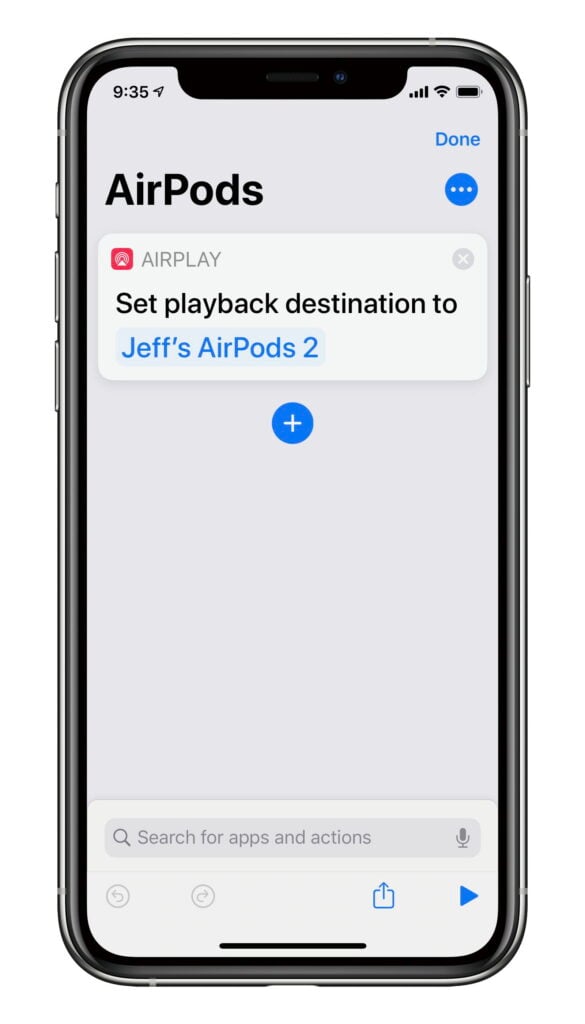
I frequently use my AirPods with two different devices: my iPhone and my iPad. I use them with my iPhone to listen to music and podcasts. I use them with my iPad to watch videos such as TV episodes. When AirPods are connected to one device, like my iPad, it is a pain to have to go through the multi-step process to switch the pairing to my other device. I can either open Settings, tap Bluetooth, and then tap on my AirPods (three steps), or I can swipe down from the top right to see the Control Center, long-press on the media controller, then tap on the source icon and then tap on my AirPods (four steps). Fortunately, thanks to the Shortcuts app, there is a way to switch pairing between an iPhone and an iPad using only one step. Here is how.
Open up the Shortcuts app and create a new Shortcut. You only need to add a single action to it: Set playback destination. Once you enter it, tap on the variable (which by default may say iPhone) and then change it to your AirPods. The result will look something like this:
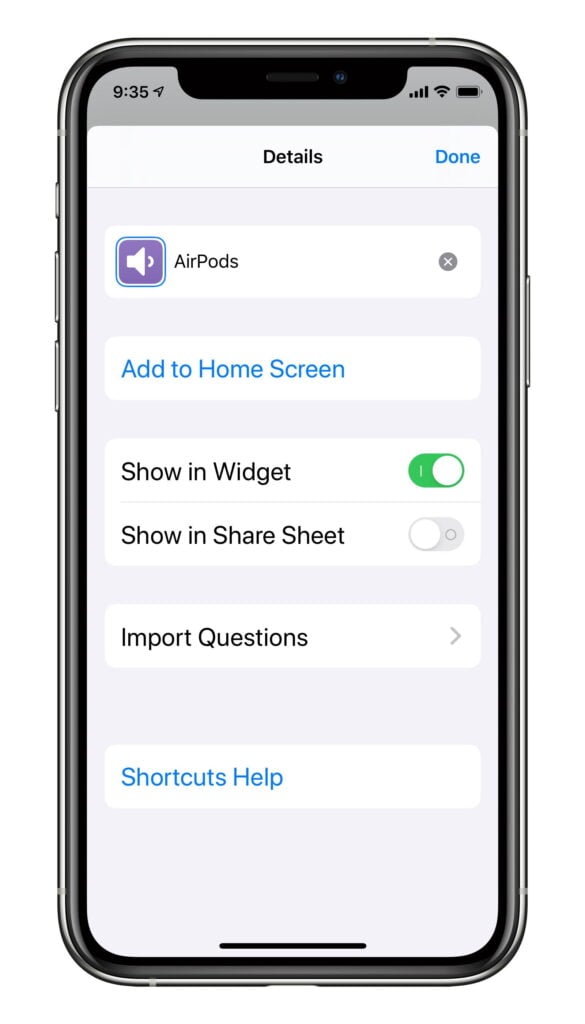
Next, tap on the three dots at the top right and give your Shortcut a name and an icon that makes sense to you (I selected a purple icon with a speaker icon) and then tap Add to Home Screen.
That’s it! Save your shortcut and you are done. Any shortcut that you create on your iPhone will be synced over to your iPad. After it syncs, you need to edit the shortcut on your iPad to add an icon to your iPad home screen — the same step that I just showed you. Now, you will have an app icon on both your iPhone and iPad home screen called AirPods (or whatever you called your shortcut).
At this point, you are ready to use your shortcut. If your AirPods are currently paired to your iPad, just tap the icon on your iPhone home screen. The Shortcuts app will open and after a few seconds your AirPods will be paired to your iPhone — and it only took one step. Similarly, if your AirPads are currently paired to your iPhone, just tap the icon on your iPad home screen, and then the AirPods will become paired to your iPad.
Here is another way to use the shortcut that is perhaps even better. Invoke Siri on the device that you want to pair to your AirPods and just speak the name of your shortcut. So in my case, I just say “Hey Siri. AirPods.” That will run the shortcut and pair the AirPods to my iPhone.
There are lots of ways that you can customize this shortcut, such as adding a step at the end to open up a particular app on your device after pairing to your AirPods — although if you want that to be a different default app on the iPhone and iPad you will need to create two shortcuts. Or I suppose you could even create a pop-up menu with a list of apps to open next.
If you want to create more complicated shortcuts, I refer you to folks who are better at this than me, such as California attorney David Sparks who created a great video guide on using Shortcuts. But even I can handle a shortcut with only one step, and so can you.
Over nine years ago, I reviewed an app created by Houston attorney Anthony Shorter called Courtroom Objections. Shorter reached out to me to tell me that he had recently updated his app, and it has been so long since I mentioned the app on iPhone J.D. that I thought it was time for another look.
The purpose of the app is to provide you with a quick guide to making and responding to objections in court. The app includes a list of common objections and responses. I think that the app would be most useful for those who are relatively new litigators, but any attorney who tries cases could use this app.
The app divides objections into two categories. If you tap the first button at the bottom, the app lists admissibility objections. Tap the second button to list objections to form.
When you tap on any objection, the app first gives you an example of words that you could use to make the objection. Next, the app explains the objection.
Finally, the app lets you see the text and number for the rule of evidence associated with that objection. Of course, this varies depending upon the state or federal jurisdiction in which you are trying a case, so the bottom of the app has buttons that you can use to select a jurisdiction. Currently, the app has the rules of evidence for the following jurisdictions: Federal, AZ, CA, CO, FL, GA, IL, IN, LA, MD, MA, MI, NJ, NY, OH, PA, TX, UT, WI.
If you ever want to scroll a list of all of the objections (to both admissibility and form), at the bottom of any page dedicated to a rule there is a big button called All Rules. Tap it and you can select any jurisdiction and any type of objection to see the rule.
Although I like the interface of this app better than the version I reviewed nine years ago, there is room for improvement. The buttons for jurisdictions at the bottom of the app are very tiny. It would be nice if there was a way that you could only display the jurisdictions that pertain to you. (For example, I’m licensed in Louisiana and Florida so I’d like to see those two and federal, but I’ll probably never have a reason to view the other states.) And it seems that the All Rules button should be an option from the main screen (such as a third button at the bottom), not a feature that you can only access by first going to some other rule.
Nevertheless, the app is quick and simple to use, which I like. If you find yourself preparing to make an objection, you could quickly scroll through the list of admissibility or form objections to remind you of the objection that you need to make. Even if the app only helps you to make a few objections, that’s more than enough to justify the $3 price tag.
Click here to get Courtroom Objections ($2.99):
—–
This article won the LitigationWorld Pick of the Week award on October 31, 2019. The editors of LitigationWorld, a free weekly email newsletter for litigators and others who work in litigation, give this award to one article every week that they feel is a must-read for this audience.