A few days ago, Apple released the results for its 2020 fiscal third quarter (which ran from March 20, 2020, to June 27, 2020) and held a call with analysts to discuss the results. This is typically not a big fiscal quarter for Apple; the important quarter for Apple every year is the first fiscal quarter (containing the holiday sales season). But the pandemic changes all of the usual rules, and as people started working from home and realizing that they needed a better iPad or a better Mac, Apple saw more revenue than normal during the past quarter: $59.7 billion, Apple’s best fiscal third quarter ever, and up 11% from this time last year. If you want to get all of the nitty gritty details, you can download the audio from the announcement conference call from iTunes, or you can read a transcript of the call prepared by Seeking Alpha, or a transcript prepared by Jason Snell of Six Colors. Apple’s official press release is here. As always, I’m not as interested in the financial details as I am the statements of Apple executives during the call that are of interest to iPhone and iPad users. Here are the items that stood out to me.
iPhone
iPhone revenue was $26.4 billion this quarter, about 2% better than this time last year.
Apple CEO Tim Cook said that Apple had expected lower iPhone revenue, with lower sales during the first three weeks of April, but then saw more iPhone sales in May and June than the company had expected.
Apple did not release numbers for any specific iPhone models, but gave the general impression that iPhone SE sales have been impressive.
Since 2012, when Apple announced the iPhone 5 on September 12, 2012, Apple has announced a new iPhone every September, with models typically available a few weeks later. But Apple CFO Luca Maestri said that 2020 would be different because the iPhone will go on sale “a few weeks later.” He did not explain why the next iPhone will go on sale in October 2020 instead of September 2020, and he also did not say whether Apple would also push back the announcement date. It is incredibly rare for Apple to say anything at all about products that it has not even announced, even though everyone knows that Apple will release a new iPhone this Fall. Thus, it is interesting that Apple decided to talk about the next iPhone now.
iPad
iPad revenue was $6.6 billion, which is the most revenue Apple has seen from the iPad in a non-holiday quarter in six years, and the most that Apple has seen in a fiscal third quarter in eight years. Maestri said that iPad demand was strong around the world.
Cook said that Apple could have sold even more iPads during the past quarter, but people were buying iPads faster than Apple could make them.
Maestri said that the iPad and Mac are “extremely relevant products in the new working and learning environments” as a result of COVID-19.
Other
Apple had a goal of doubling the amount of money it makes on selling services from 2016 to 2020. Cook said that Apple did better than expected in services, beating that goal six months before the end of fiscal year 2020.
Maestri said that Apple’s Wearables business is now the size of a Fortune 140 company, although growth in the Wearable segment was a little lower this quarter (although it still grew by 17%). Cook said he thought that was, in part, because a lot of people want to go into a store to buy an Apple Watch so that they can see what it looks like, select bands, etc., and that the opportunities for that have been far more limited due to COVID-19.
More than 75% of Apple Watch customers during the past quarter were buying their first Apple Watch.
In the United States, most Apple employees will continue to work from home through the end of the year as a result of COVID-19.
I don’t own Apple stock and I virtually never talk about Apple stock on iPhone J.D. Nevertheless, it is interesting that Maestri announced that Apple would do a 4-for-1 stock split on August 31, 2020. This will be the fifth time that Apple has split its stock since it went public on December 12, 1980 (at $22.00 per share). There was a 2-for-1 split on June 16, 1987, a 2-for-1 split on June 21, 2000, a 2-for-1 split on February 28, 2005, and a 7-for-1 split on June 9, 2014. Thus, if you bought a single share of Apple stock for $22 on December 12, 1980, you would have 224 shares on September 1, 2020. And with AAPL closing at $435.75 yesterday, your $22 grew to $24,402 as of last night. It sort of makes me regret those few weeks that I spent $22 on Pac-Man in 1980.
In February, shortly before the pandemic really started in the United States, my family took a road trip. Little did we know that would be the last traveling that we would be doing for a long time, but I look forward to the day when we will once again be able to travel with abandon. Whenever that day comes, I’ll be using a new app that was reviewed this week by Bradley Chambers of 9to5Mac called Weather on the Way. This app calculates a route to a destination, and then shows you the weather that you will experience along the way as you will be driving along the route. I’ve been on numerous road trips with my family when we have tried to do something similar by figuring out what cities were coming up and then checking the weather and radar for those places, but this process is cumbersome to do by hand. Weather on the Way is a much better alternative. Right now, the app still looks pretty simple — I’d like to see some indication of upcoming bad driving conditions — but the developer says that more features are coming soon. Whenever I start traveling again, this app will be nice to have. And now, the news of note from the past week:
In an article for TidBITS, Glenn Fleishman explains how you can turn your iPhone into a high-quality webcam for your Mac. The built-in cameras on most Mac and PC computers are of poor quality, and it is still hard to buy a high-quality webcam because demand is far beyond supply during the pandemic, so this could be a good solution for many folks.
If you don’t yet use a password manager, you really should do so. I recommend 1Password. If you already use 1Password and want to get more out of it, Thorin Klosowski of Wirecutter has some 1Password tips. I also discussed some of the extra features in 1Password in this post last year.
This is the first year that Apple TV+ shows are eligible for Emmy nominations, and there were quite a few — Apple says the most program and acting nominations for a streaming service in its first year. Chance Miller of 9to5 runs through all of the nominations.
Nicole LaPorte says that Apple may be looking at more movies for Apple TV+ in light of the success of the Tom Hanks movie Greyhound. (Which I enjoyed watching.)
Speaking of streaming services, if you are like me and you started a Disney+ subscription on July 3 to watch Hamilton with plans to cancel after a month, this is your last weekend, and I have a recommendation. My wife and I watched Hamilton again with the subtitles turned on, and it was a completely different experience. I love the music of Hamilton, but watching with subtitles gives you a much better appreciation for the clever lyrics. What a great show. I can also recommend The Mandalorian (and the behind-the-scenes series Disney Gallery: The Mandalorian) and The Imagineering Story.
Kristy Viers shows off in this fascinating video how she uses an iPhone even though she is visually impaired, such as braille typing on the iPhone screen.
And finally, here is an interesting video in which Joanna Stern of the Wall Street Journal looks at how the Apple Watch and other wearable devices may be able to detect COVID-19 symptoms in the near future:
I have been using and posting reviews of styluses that work with the iPad for a decade, and the index to iPhone J.D. tells me that I have reviewed 31 different styluses over that time. But ever since Apple introduced the first Apple Pencil in 2015, it has been difficult for stylus manufacturers to build a better mousetrap. The original Apple Pencil works great, and the second generation Apple Pencil released in 2018 is even better. This makes it difficult for a third party stylus manufacturer to give people a reason to purchase something that isn’t made by Apple.
One way to compete is on cost. For example, Adonit makes excellent quality styluses that are almost as good as the Apple Pencil at a fraction of the cost. Last year, I reviewed the Adonit Note. At the time of my review, it was $50, and you can now get the Adonit Note for only $4o on Amazon, which is much less than the $100 or $130 price of the first or second generation Apple Pencil. If you go back and forth between an Adonit Note and an Apple Pencil, I suspect that you will notice that the Apple Pencil is better. The Apple Pencil is a little more precise with a little less lag — especially on the second generation. And the second generation adds two great features: (1) the ability to charge and store the Pencil on the side of the iPad, and (2) the ability to double-tap on the side of the Pencil to switch between a pen and an eraser. I love the extra features of the second generation Apple Pencil when I use my Pencil virtually every day. Having said that, I am sure that many folks would rather pay $90 less and use the $40 Adonit Note — which as I noted in my review, is an excellent stylus.
In addition to competing on price, another approach is to compete on features. That is difficult to do when Apple controls both the hardware and software, but Adonit has figured out a way to do it by coming out with the Adonit Note UVC. It gives you almost everything that you get in an Adonit Note, plus it adds a feature that I’ve never seen in a stylus before: ultraviolet lights that can kill germs.
The Adonit Note UVC as a stylus
What you really want to know about is the germ-killing potential, but let me begin by stating that this is an excellent stylus. Adonit sent me a free review unit to try out, and I’ve used the Adonit Note UVC almost every day for the past few weeks to put it through its paces. I like it for all of the reasons that I said that I liked the Adonit Note last year. No pairing is necessary, it has a nice design, and it works well as a stylus on the iPad screen.
I’ve used it to take handwritten notes. I’ve used it to with photography apps like Photoshop and Pixelmator Photo to touch up photographs. I’ve used it to tap and select items on my screen as a more precise alternative than using my finger. I’ve used it to select cells in the Good Sododku app that I mentioned last week. And it just works.
I don’t like the placement of the button on the Adonit Note UVC — the same criticism that I had of the Adonit Note. It is too easy to tap it by accident, which turns off the stylus without me realizing it, and then when I go to use the stylus, I notice that it isn’t working. That’s annoying.
The only thing (besides price) that makes the Adonit Note UVC a little worse than the Adonit Note is that the Note UVC lacks a clip on the side. Not only does that make it less convenient to carry around in a pocket, it also means that the Adonit Note UVC — much like the original Apple Pencil — can roll off of a desk. My solution to that on my Apple Pencil was to add an inexpensive Fisher Chrome Clip, which solved the problem. (I still recommend that everyone using a first generation Apple Pencil get this clip, which is only $6.95 on Amazon.)
The Adonit Note lasts for up to 12 hours on a single charge. The Adonit Note UVC lasts for 12 hours when you use it as a stylus, or it lasts for 30 minutes when you use the ultraviolet lights. Unfortunately, there is no way to tell how much battery power the stylus has left.
The ultraviolet lights
Ultraviolet light has been used to disinfect and sterilize since 1878. Ultraviolet C, often called UVC, can kill both bacteria and viruses, and studies show that it can be over 99% effective. Adonit says that the two UVC lights on the Adonit Note UVC can reach 99% sterilization in one minute.
To turn on the UVC lights on this stylus, just hold down the power button for about five seconds while the lights are faced down. The two UVC lights will come on and remain on for a minute, or you can press the power button to turn off the UVC lights. You can tell that the UVC is on because you can see the purple light coming out of the side of the stylus, and you can also see the power button flash blue.
UVC light can be dangerous to your eyes, so if you turn the stylus so that the UVC lights face up, the UVC lights will go off automatically to prevent accidental eye damage.
Adonit doesn’t explain how much UVC light needs to be directed to a specific surface to kill 99% of the germs. I presume that you can slowly wave the UVC lights over a surface, but does each portion of the surface need to get a full minute of UVC lights? I think that this is just a case of the more, the better. Adonit says on its website: “The closer the object is to the surface, the higher the concentration of ultraviolet light and the better the sterilization!”
So let’s say that the surface of your iPhone was touched by someone else, and you think that there is a risk that the coronavirus is on the surface. Or maybe you touched a potentially contaminated surface and then touched your iPhone, which could have contaminated the screen on your iPhone. If you use the Adonit Note UVC to sterilize the surface, the science suggests that this could kill the virus. The longer you apply the light, the more it should work, so I would at least use it for the full minute that the UVC lights stay on by default. Of course, if you want to do the same thing to an iPad, you have more surface area to disinfect, so it is going to take longer.
Being neither a doctor nor a scientist, I don’t know how much this will actually reduce the risk of COVID-19. I see reports that transmission is more likely when someone breathes near you than from touching a contaminated surface. And if you miss a spot when you are using the Adonit Note UVC to disinfect, then you might be lulled into an unwarranted sense of security. But other than that, I don’t see any harm in using the UVC lights to disinfectant, and perhaps in some circumstances in which you don’t have access to some method of sterilization, it will make an important difference.
Conclusion
For many people, the $40 Adonit Note is an excellent alternative to the Apple Pencil — fewer features, but much cheaper. The Adonit Note UVC currently costs $70 on Amazon. Is it worth an additional $30 to get the ultraviolet lights? I’m sure that some will view the UVC lights as just a gimmick. On the other hand, if you are being extra cautious about COVID-19, then I guess every little bit can help. And you have to give it to Adonit for coming up with a stylus feature that definitely differentiates this product from the Apple Pencil.
Jeffrey Brandt is the Chief Information Officer for the Jackson Kelly law firm in West Virginia, and he is also the editor of the Law Technology Daily Digest for PinHawk. He reached out to me because he recently started a weekly show devoted to legal technology on the Litera TV network called Law Tech Weekly. I was pleased to be his guest on the latest episode. I’ve done lots of audio podcasts over the years, but I don’t believe that I have been a guest on a video show since when I was a guest on This Week in Law back in 2010 and 2012. Of course, as a result of the pandemic, I’m now using video to communicate far more than ever before, so it was fun to do another video show.
Brandt has been around technology for as long as I have, so we had lots to talk about. We discussed why Apple technology makes sense for many lawyers, what it is like to use a PC at work and a Mac at home, why I like using Apple mobile technology such as the iPad and iPhone, and a bunch of my favorite apps. We also took out the crystal ball to look into what may be the future of Apple technology. The episode came out really well, and so if you have any interest in these topics, I encourage you to watch the episode. Click here to view it, or I have it embedded below.
Thanks again to Brandt for inviting me on his show.
There are so many serious things going in the world today that sometimes you just need a break, such as a good game. Unlike my kids, who are experts in sophisticated games like Fortnite, I prefer to play casual games. A Sunday and a crossword puzzle is a great combination for me. I’ve long been a fan of Sodoku, but I haven’t found an iPhone or iPad app that I really liked. And I’ve tried a bunch. Yesterday, a new app was released called Good Sodoku, and I can already tell that it is excellent. It lets you play traditional Sodoku with a great interface, but it is even better than that because it also can teach you how to be a better Sodoku player, giving you details on all of the techniques. It also offers a mode that does some of the tedious parts automatically (such as indicating what number might go in each square), a mode that speeds up the game to make it more fun and let you focus on strategy. If you want more information, Illinois attorney John Voorhees reviewed Good Sodoku on the MacStories website. If you like casual games, I encourage you to click here to download Good Sodoku (for free) to see what you think. If you like it, you can unlock all of the features for only $3.99. And now, the news of note from the past week:
Neil Squillante of TechnoLawyer describes iMazing, software for Mac or Windows that can collect text messages from Apple’s Messages app or WhatsApp for a discovery production.
I had high hopes for the contact tracing software that Apple and Google worked together to develop. Unfortunately, it is not being used very much in the United States. In an article for Lawfare, Chas Kissick, Elliot Setzer, and Jacob Schulz note that only four U.S. states have said that that they will use the Apple-Google approach (Oklahoma, Alabama, South Carolina, and Virginia), and none of them are doing it yet.
Apple Vice President Lisa Jackson — former Administrator of the Environmental Protection Agency — says that by 2030, Apple will be 100% carbon neutral, and says that Apple will share details on how it is doing it so that other companies can do it too.
Christine Persaud and Joe Maring of Android Central explain how you can use the Google Search app to see 3D animated animals in augmented reality. They focus on doing this on an Android device, but it also works on the iPhone. It is really cool to see a Giant Panda and many other animals sitting on my floor or my desk as I walk around them.
And finally, the Wall Street Journal put together a video showing that Apple has done the best job of closing its stores in different locations just before COVID-19 outbreaks have increased in that area. So if you see that your local Apple Store is closing because of the pandemic, that may be a sign that you should increase your social distancing:
Every year, the Unicode Consortium selects new emoji to be added to the Unicode Standard. Unicode describes what the emoji should look like, but Apple and other vendors get to decide how each character will look on their devices. The same emoji can sometimes look very different on different devices. For example, the pistol emoji currently looks like a water gun on the iPhone but looks like a real gun on some other devices, and the pizza emoji always has pepperoni on it but the other toppings vary depending upon the device.
Emoji version 13.0 was announced by the Unicode Consortium on January 29, 2020, and it adds 117 new emojis. Last week for World Emoji Day, Apple provided the Emojipedia website with a preview of a few of the images that Apple will use when it implements Emoji version 13.0 later this year. As always, the designers at Apple have done a really nice job with these.
Visit this page of Eomjipedia if you want to learn more about Apple’s new designs. Here is a preview of some of the new emoji that we will see on the iPhone and other Apple devices later this year: Dodo, Nesting Dolls, Piñata, Tamale, Pinched Fingers, Boomerang, Ninja, Coin, Anatomical Heart, Beaver, Transgender Symbol, Bubble Tea, and Lungs.
Images from Apple / Emojipedia composite
Apple typically releases the new emoji in a release that comes after the main operating system release. So I don’t expect to see these new emoji in iOS 14.0, but perhaps they will be in iOS 14.1. In prior years, Apple released new emoji at the very end of October — iOS 11.1 (October 31, 2017), iOS 12.1 (October 30, 2018), and iOS 13.2 (October 28, 2019) — so that makes me think that we are about three months away from being able to use these new emoji.
My work computer (a Dell laptop) sits on a small stand next to my desk and is connected to an external monitor and keyboard that both sit on my desk. I also always have my iPad and iPhone on my desk. When I work, I will typically look at documents and other information displayed on my iPad while I am also typing on the keyboard and looking at the monitor to work on my computer. Sometimes, I need to enter text on my iPad or iPhone, and I’ve always thought that it was a shame that I could not just type on the keyboard right in front of me. Now, I can do so thanks to the Logitech MX Keys, an excellent keyboard that can almost instantly switch between three devices at the touch of a key. I love everything about this keyboard, and I highly recommend it.
Easy-Switch keys
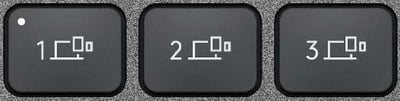
The MX Keys features three Easy-Switch keys that you can assign to three different devices: a Windows PC, an iPad, an iPhone, a Mac, or a Linux PC. I suspect that many people will use it the same way that I am using it, with one key for a computer, one key for an iPad, and one key for an iPhone.
There are two ways to pair one of these keys to a device. First, the MX Keys supports Bluetooth Low Energy, a version of Bluetooth supported by the iPad and iPhone that has the same range as Bluetooth (about 33 feet) but uses less power. Second, the MX Keys comes with a USB receiver that plugs into a USB port on your computer. Just like Bluetooth, it uses 2.4 GHz wireless technology provides a connection up to 33 feet away, and a single receiver can work with multiple Logitech devices. I tried both methods of connecting to my Dell laptop and I couldn’t tell the difference. For an iPad or iPhone, you use Bluetooth to connect.
Switching between devices is incredibly fast and easy. When you press a key for a device, a light on the key illuminates for about five seconds to give you confirmation that you pressed the key. But you don’t need to wait during those five seconds. When I press the key I assigned to my computer, the keyboard starts to work with the PC instantly. When I press the key assigned to my iPad or my iPhone, it takes about one second for the keyboard to start working. This is a huge improvement over a traditional Bluetooth keyboard that works with only one device at a time — to switch that keyboard, you need to unpair one device then pair with a different device. On the iMac that I use at home, I sometimes do this when I am using my Apple Magic Keyboard (with keypad) with my computer and I want to switch to my iPad, but because of the time it takes and the hassle to do so, I usually decide that it is not worth the effort. Ever since I started using the MX Keys in my office, I find myself doing this all the time. It is just so easy to tap one key and then type on the iPad using the MX Keys.
I would have loved the MX Keys if it just worked with two devices, but because there is a third button, I assigned that one to my iPhone. I traditionally would never type anything that is very long on my iPhone when I had other devices near me. But now, I’m doing that much more often. If I want to respond to a text on my iPhone, I can quickly tap the Easy-Switch key and then type out a sentence on the keyboard to get those words on my iPhone much more quickly than I could using my thumbs on the on-screen keyboard. I’ve even started to use the MX Keys to work with emails on my iPhone. I may be typing a document in Word on my computer while I look at PDF documents on my iPad and I have Mail open on my iPhone to watch out for new emails. When one comes in that I want to respond to, I don’t have to switch applications on my computer or iPad; I just type the response right into my iPhone using the MX Keys.
There have been times in the past when I expected to be typing on my iPad, so I would have one Bluetooth keyboard connected to my iPad (typically the Apple Magic Keyboard in a Studio Neat Canopy) while I used another computer to type on my computer. But then I have to make space for two keyboards on my desk, which is a waste of desk real estate and sometimes results in me accidentally hitting keys on one keyboard while I am using the other one. It is far superior to have a single keyboard that quickly switches between my computer and my iPad.
Keyboard feel and function
As much as I love the Easy-Switch feature, I wouldn’t use this keyboard if I didn’t like the way that it feels to type on it. Fortunately, this is perhaps my all-time favorite keyboard on which to type. The MX Keys uses full-size traditional scissor keys with a low-profile design (similar to the Apple Magic Keyboard). The feel is somewhat similar to a nice laptop computer. The keys are quiet as you type. Unlike many other keyboards, such as the Apple keyboard that I use at home, these keys have a deeper dip on each key and have rounded edges. This makes the keys more comfortable underneath my fingers, and also makes it easier to confirm that a finger is on the key.
The keyboard has a slight tilt to it. Although the outside of the keyboard is made of plastic, it has a very high-quality feel to it, in part because the entire body of the keyboard is held together by a single metal plate. This gives the keyboard a solid, somewhat heavy, and very sturdy feel. It is easy enough to move the keyboard around, and sometimes I move it from in front of my computer monitor to directly in front of my iPad, but this is not really intended to be a portable keyboard that you carry around frequently (although I suppose that you could fit it in a briefcase).
This is a full-size keyboard with 108 keys. It includes the standard Qwerty keys, full-size arrow keys in an inverse-T format, and a full numeric keypad.
You can certainly buy more compact keyboards, even if you want a keypad. For example, the Logitech K780 is more compact, also supports Easy-Switch for three devices, and costs only $60, whereas the MX Keys costs $100. But I prefer having full-size arrow keys, and I like using the dedicated keys above the arrow keys like delete, home, end, page up, and page down. (On the K780, the number pad keys are used for home, end, etc. with a function key.) And I like the more traditional key shape and arrangement of the MX Keys.
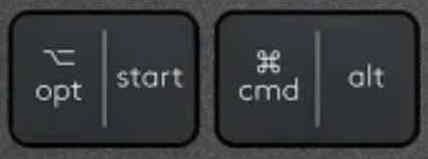
The modifier keys work with multiple platforms. The left side of each modifier key tells you what will happen on an iPad/iPhone/Mac, such as Option or Command. The right side tells you what will happen on a Windows PC, such as Start or Alt.
Press the Fn and the Esc key to switch between the two modes for the function keys. In one mode, they work as standard function keys. I never use that mode. In the other mode, the function keys work as media keys.
The escape key at the top left is large and easy to hit. The F1 and F2 keys control brightness on the iPad, iPhone, or computer. The F4 key is especially useful on the iPad or iPhone as it brings you to the Home Screen. On a PC, F4 brings up the Action Center. On the computer, F5 shows the desktop, hiding any other windows.
F8 through F10 are media control buttons, and the next three buttons control volume.
The last function key button is a lock key. It instantly locks your iPad, iPhone, or computer. Most of the time, my MX Keys is connected to my PC, and I love how quick it is to press the button to lock my computer screen when I step away from my desk instead of having to do the awkward Control-Alt-Delete keystroke.
Above the number pad and next to the lock key are three special keys. On the PC, the first key launches the Windows built-in calculator. On the PC, the second key is the Print Screen key, which by default takes a picture of your entire screen, but I instead have the assigned to launch the screen snipping tool. (In Windows 10, this is Settings -> Keyboard -> Print Screen shortcut.) On the PC, the third key is the App Menu key. On the iPad and iPhone, the first and third keys do not do anything, as far as I can tell, but the middle button takes a screen shot.
Note that the device I am using is the MX Keys, which was introduced in late 2019. In July 2020, Logitech introduced a similar keyboard called MX Keys for Mac, which you might want to use if you never intend to use the keyboard with a Windows PC. This MX Keys for Mac only has one command printed on each modifier key. Also, it doesn’t include a button for showing your Home Screen / Desktop, and instead, it has a traditional Mac eject key at the end of the function keys.
Modern Macs don’t use removable media like a CD or floppy disk (unless you add this feature with external hardware), and thus the eject key is less useful on a Mac now than it once was. On the iPad and iPhone, the eject key is a useful way to hide or display the on-screen keyboard, but it isn’t the only way. You can also make the on-screen keyboard appear by holding down on the ⌄ symbol at the far right of the bar at the bottom of the iPad screen for about a second. So in other words, when you are using the MX Keys with an iPad, you can still make the on-screen keyboard appear and disappear using on-screen controls, even though there is no eject button on the keyboard. For these reasons, you probably won’t miss the eject key on the MX Keys, but if this is important for you, and/or you plan to use this keyboard primarily with a Mac instead of a PC, consider getting the MX Keys for Mac.
(By the way, if you are using an external keyboard like MX Keys with an iPad and you wan to see the emoji picker, just hold down CTRL and hit the space bar. And use the same keystroke to make the emoji picker go away.)
Key illumination and battery power
Proximity sensors in the MX Keys detect when your hands come close, illuminating the keyboard. To save power, the backlit keys fade off after you stop using the keyboard. By default, the intensity of the light adjusts automatically to your lighting conditions, but you can use the F6 and F7 keys to manually adjust the amount of light.
Or you can turn the key illumination off, which is what I did. I have overhead fluorescent lights in my office, and they do a fine job of illuminating my keyboard, so I don’t find the key illumination helpful in my office (except that it looks sort of cool). But in other environments, I’m sure that key illumination is a nice feature.
When you use key illumination, the keyboard lasts about 10 days on a full charge. When you don’t use keyboard illumination, the keyboard lasts up to five months. On a PC, I don’t see a precise way to see the battery percentage, but when connected to an iPad or iPhone, the precise battery percentage shows up in the Batteries widget, along with other Bluetooth devices.
The keyboard has a USB-C port on the back of it for charging. I already have a USB-C cord on my desk to charge my iPad Pro, and it is incredibly convenient for me to use the cord that is already there with the MX Keys. But the MX Keys also comes with a USB to USB-C cord if you need it.
There is a small on-off switch on the back, next to the USB-C port. I keep the keyboard turned on all the time, but it is nice that you can turn it off if you are traveling with the keyboard.
Logitech Options
If you install the optional Logitech Options software, you gain additional options to customize how the keyboard works on a computer (but not on the iPad or iPhone).
For example, Logitech Options lets you change what happens when you press every single one of the keys on the very top row of the keyboard except for the escape key and the three Easy-Switch keys. You can either change what happens in all applications or you can create custom shortcuts that behave a certain way when you are running a specific application. You can reassign a key to launch an application, type a keystroke, or perform numerous other commands.
Logitech Options also includes other advanced options, such as the ability to disable backlighting. You can also control whether or not certain notifications appear on screen (such as when the lock key is pressed or when the battery is running low), and you can disable certain keys.
And finally, Logitech Options gives you a graphical interface to reassign the Easy-Switch keys.
Conclusion
In mid-2019, I needed a new keyboard for the iMac I use at home, and so I purchased an Apple Magic Keyboard (with keypad), which costs $119. The Logitech MX Keys costs less ($99.99 on Amazon) and I like it more. The keys feel better, the keys have backlighting (which I don’t use at my office but I would have appreciated at home), and the MX Keys makes it fast and easy to switch between a computer and an iPad and an iPhone. The Logitech MX Keys wasn’t even announced until a few months after I purchased that Apple keyboard, but if I could do it all over again, this would have been a better option.
If you are thinking about a new keyboard, or if you like the idea of upgrading your current keyboard so that you can use it with multiple devices, I can enthusiastically recommend the Logitech MX Keys.
ABA TECHSHOW, which is traditionally held in Chicago every Spring, is always a great conference to learn about legal technology — everything from the latest-and-greatest tech to the best ways to take advantage of what you already have. In light of the pandemic, it was announced this week that the 2021 event is going virtual so that folks can participate safely without having to travel. Specific details have not been released yet, except that it will be held the week of March 8, 2021. An online conference for attorneys produced by people who are tech-savvy sounds like a great idea to me because it could result in some great video presentations. And now, the news of note from the past week:
For an example of how someone tech-savvy can do a great video presentation, check out this new post by legal technology consultant Brett Burney in which he reviews the Microsoft To Do app on his Apps in Law website. Watch the video at the top of the post, in which you can see both Brett and the screen of his iPhone at the same time, which is a fantastic presentation technique. How is he doing that? My guess is that he is using brand new software called mmhmm. It is still in beta, it is invitation-only, and it currently only works on a Mac, but it allows you to do some cool picture-in-picture and video-in-picture techniques, much like what you see on a news broadcast. I’ve just started playing around with mmhmm on my Mac, and it is incredibly powerful. Not only can you record a polished video like Brett did, you can also use mmhmm as a virtual camera for videoconference software such as Microsoft Teams or Zoom to give you presentation capabilities that go far, far beyond what you can do within Teams or Zoom. I suspect that we are going to be seeing much more of this in the future.
Illinois attorney John Voorhees of MacStories reviews Eve Cam, an indoor security camera that is compatible with Apple’s HomeKit Secure Video.
Apple released iOS 13.6 this week, and Ryan Christoffel of MacStories explains what is new.
Along with iOS 13.6, Apple introduced its first podcast. It is called Apple News Today, and it a short daily podcast that provides an overview of the news of the day — stories that are available in the Apple News app. The podcast sounds incredibly professional. Although you can listen to it in the news app, you can also listen in any podcast app. Benjamin Mayo of 9to5Mac explains how to do so.
Dan Moren of Six Colors explains how to use AirDrop to share one of your passwords with someone else who you trust. If you want to share your passwords with people who you don’t trust, simply write them on a Post-it note and put that on a monitor.
And finally, last year, I linked to a video produced by Apple called The Underdogs, in which office workers use Apple products to work together to sell an idea. It was a funny video. This week, Apple released a sequel with the same characters, and this time they are all using Apple technology to work from home during the pandemic. The sequel isn’t quite as good as the original, but it still has some amusing moments. Here is the new video, which is called The whole working-from-home-thing:
The Bluebook is the most well-known resource for the citation of authorities in legal documents. It has been available since 1926 and is now published by the editors of The Columbia Law Review, The Harvard Law Review, The University of Pennsylvania Law Review, and The Yale Law Journal. Since the sixth edition in 1939, it has had a blue cover. Fred R. Shapiro & Julie Graves Krishnaswami, The Secret History of the Bluebook, 100 Minn. L. Rev. 1563, 1582 n.67 (2016). As a result, even though for many years the official title was A Uniform System of Citation, people ignored the title and just called it the Bluebook. Starting with the 15th edition in 1991, the official title changed to The Bluebook: A Uniform System of Citation. Since the 1970s, new editions have come out about every five years. In part, this is because new resources to cite become available making new rules necessary, and over the years the size of this book has increased from 28 pages to over 500 pages. I suspect that another reason for the new editions over the years is so that the version I purchased in law school appears to be increasingly outdated, prompting me to spend money on new versions.
Electronic Access
For many years now, I’ve found it more useful to use an electronic version of The Bluebook so that I can always access it on my iPhone or iPad without having to hunt for a paper copy. Back in 2012, I reviewed an app called Rulebook that allowed you to purchase the 19th edition of The Bluebook. You can now get the 20th edition of The Bluebook in the Rulebook app. (Rulebook is now owned by Casemaker. Casemaker showed me a beta version of a new version of Rulebook in early 2019, and I was told recently that the update will finally be available soon.)
The 21st edition of The Bluebook was just released, and you can now purchase the traditional wire-bound paper copy for $45. I don’t know if an electronic version of the latest edition will eventually be available in an app like Rulebook, but the 21st edition is now available online on a mobile-friendly website. You can try it for free for three days, and after that, you need to pay an annual subscription of $39. That’s right, they’ve come up with a way for me to have to pay essentially the full cost of the book every single year. Lovely. But you can save a little money by purchasing two years for $59 or three years for $79. There will also be a pricing plan for law firms, but it has not been announced yet.
I joke about the price, but the reality is that throughout the 26 years that I have been practicing law, I’ve frequently found The Bluebook to be a useful resource. I was interested to see how the new online version of the 21st edition works on my iPad, so I signed up for the three-day free trial. And I have to admit that I’m impressed.
You access The Bluebook Online by going to a website and signing in. Given that The Bluebook is something that I need when I am drafting appellate or trial court briefs, I suspect that I will always use The Bluebook when I have access to the Internet, so online access should always work for me. I suspect it will work for others too.
Dashboard
There are five main tabs along the left side of the iPad screen. The first tab is the Dashboard. It serves as a cover and gives you access to rules that you have recently viewed and rules that you have pinned.
Quick Style Guide
The next tab is the Quick Style Guide. It gives you the basic information that you need for the most common types of citations.
I believe that anyone can access the Quick Style Guide, even without a subscription, by using this page.
Bluepages
The next tab is called Bluepages, and these are the pages that are tinted blue in the paper book. They provide rules for practitioners to use when citing authority in non-academic legal documents. These are the pages that I find the most useful because I always use The Bluebook when drafting a brief. Now that I think about it, it has been a long time since I wrote citations for an academic publication — I see that the law review article that I wrote in law school hasn’t been cited since Clark v. State, 781 A.2d 913 (Md. Ct. Spec. App. 2001), so maybe it’s time for me to write another one.
Speaking of the Bluepages, I see that there is a somewhat significant change in the new 21st edition that could be interesting to attorneys who practice in federal court — or anyone who practices in a court that uses a word count instead of a page count. The new version of Rule B6 now gives practitioners the option of closing up abbreviations in reporter names to reduce the word count. Here is how the relevant part of B6 now reads:
Close up adjacent single capitals (U.S.), but do not close up single capitals with longer abbreviations (S. Ct.). Every abbreviation should be followed by a period (Univ.), except those in which the last letter is set off by an apostrophe (Soc’y).
Because many court systems impose word limits on briefs and other documents submitted to the court, abbreviations in reporter names may optionally be closed to conserve space, even if they would normally be separated under this rule. For example, “S. Ct.” would become “S.Ct.” and “F. Supp. 2d” would become “F.Supp.2d.”
If you find yourself in a tight situation with the word count for a brief, I suppose this is an option.
Whitepages
The next tab is called Whitepages. This is the main part of The Bluebook. While designed for academic documents, it is often useful for lawyers writing briefs.
Pins
The final tab of The Bluebook is reserved for sections that you have pinned. For example, at the end of the Whitepages there are sixteen sections of tables with all sorts of useful information. In fact, one of the tables — T2 for Foreign Jurisdictions — is no longer even a part of the paper version of The Bluebook; you have to access it online. The table that I often find useful when citing cases is T6, which provides appropriate abbreviations for words that commonly appear in case names. So I pinned it.
Search
I find the online version of The Bluebook easier to access than the paper book. Just save it as a bookmark and it is always there when you need it. An online resources is also easier to work with than a paper book because there is a big search bar at the top of every page. Just type any word and you will instantly see a list of all of the sections in which the word (or even something similar to the word) appears.
The organization of the Bluebook makes it fairly easy to find items just by browsing. But for those more difficult circumstances, the search bar lets you easily find a needle in the haystack.
iPhone
The Bluebook Online works very well on an iPad. You can also access it on an iPhone, although I don’t like it quite as much. With the much more limited screen real estate, you need tap through more menus to move around, and you cannot see as much text on the screen. But it certainly works.
I have one pet peeve about the iPhone version. A big blue tab called “Feedback” is always present on the right side of the screen. I found myself tapping it by accident very frequently, which was frustrating. I eventually used the Feedback button to send some feedback — namely, that they get rid of the darn Feedback tab. I thought that after sending some feedback the tab would go away, but no such luck. Hopefully, they will listen to my complaint and remove this.
Conclusion
I suspect that you already know whether The Bluebook is useful to your own law practice. If it is, The Bluebook Online is a very handy way to access the latest edition. It works really well on the iPad, it can be used on an iPhone, and of course, you can also access it on your computer from any web browser. I think that the price is a little high considering that you can pay $45 just once for the paper version and it will remain current for the next five years. Nevertheless, I’m sure that I will be paying $79 for the three-year subscription.
I’m excited to use iOS 14 and iPad OS 14, which Apple should release in a few months. Both have lots of new features that will improve the experience of using an iPhone and an iPad. If you want to try out those features without having to wait, yesterday, Apple released public beta of both operating systems. I don’t recommend installing a beta version of an operating system on the same iPhone or iPad that you use to get work done, but I will sometimes install the beta version on an extra iPhone or iPad. If you want to try out the beta, Jason Snell of Six Colors wrote a good overview of the iOS 14 beta for the iPhone, as did Jim Dalrymple of The Loop. And Dan Moren of Six Colors wrote a good overview of the iPadOS 14 beta for the iPad, as did Federico Viticci of MacStories. And now, the news of note from the past week:
In the latest episode of the TechSavvyLawyer.Page Podcast (Overcast link), D.C. attorney Michael D.J. Eisenberg interviews legal technology expert Brett Burney to discuss the best apps for attorneys, tips for production of evidence from an iPhone during discovery, and apps that are underutilized by attorneys.
Adam Engst of TidBITS compares the AirPods to the AirPods Pro, and he recommends that most people get the AirPods. He makes some good points; I love and prefer to use my AirPods Pro, but there are some specific features of the regular AirPods that I do miss.
Patrick Lucas Austin of Time gives tips for looking better on a videoconference. His first tip is better lighting. A few weeks ago I recommended getting this $30 Lampat LED Desk Lamp that you can purchase on Amazon for your home and/or office, wherever you might be doing a videoconference. It’s made a big difference for me when I’ve used Zoom or Microsoft Teams, plus it is a great lamp, plus it gives me a place to plug in and charge my iPhone.
Another helpful tip for appearing in court on a videoconference: wear a shirt.
As John Gruber of Daring Fireball points out, multitasking is a feature that was introduced with iOS 9 back in 2015. It is remarkable that a company with the resources of Google took half a decade to add an important feature to one of the most popular apps in the App Store — an app that a huge number of people use every single day.
And finally, last weekend, the movie to watch at home was Hamilton on Disney+, and my family loved it. I’ve been hearing great Hamilton songs in my head all week. Today, the new Tom Hanks movie Greyhound debuts on Apple TV+. The movie was destined for a theatrical release, but in light of COVID-19, Hanks made a deal with Apple to premiere the movie that he wrote and stars in, along with a star-studded cast. Here is a short inside look narrated by Hanks that doesn’t appear to contain any spoilers: