In the News

In the News

Apple and Google announced this week that Apple is going to use Google’s Gemini AI models as the foundation for Apple’s AI efforts, such as an upcoming improvement to Siri. Rebecca Bellan of TechCrunch reports that Apple also considered competitors such as OpenAI (ChatGPT) and Antropic (Claude), but thought that Google was the best fit—although it isn’t an exclusive relationship, and Apple could work with other AI companies on certain projects. Apple first announced that an improved version of Siri was in the works back in 2024, at its WWDC developer conference. But Apple had trouble getting to a product that it liked using AI foundation models that Apple had developed in-house, so that led to where we are now. Apple and Google already work together in many other ways. Hopefully, using Gemini as a foundation and then adding a user experience designed by Apple will result in something really useful for all of us. We should see the results of this collaboration later this year. And now, the news of note from the past week:

  • As John Gruber of Daring Fireball reports, Google had another AI announcement this week: it is using Gemini to bring “personal intelligence” to Google apps on the iPhone, Android, and the Web. This will start in beta this week, but only for a small group of testers at first. The idea is that you would let Gemini know details about yourself based on what is contained in a Google app—such as your Gmail—and then Gemini would be able to provide more personal answers to your queries. As Gruber points out, this is similar to what Apple promised back at WWDC in 2024.
  • There are obvious privacy implications with what Google is planning, and Brian X. Chen discusses those issues and how one might use this AI technology in this article for the New York Times.
  • Apple also announced this week that starting on January 28, Apple will introduce the Apple Creator Studio, a suite of apps. You can either pay $12.99 for a month or $129 for a year, and you get access to the following apps: Final Cut Pro, Logic Pro, Pixelmator Pro, Motion, Compressor, and MainStage. All of those apps are available for the Mac. Final Cut Pro and Logic Pro were previously available for the iPad, and starting January 28, Pixelmator Pro will also be available for the iPad as a part of this suite.
  • Harry McCracken of Fast Company notes that the Apple Creator Studio service is designed for creative people who do a little bit of everything. For example, a musician may use Logic Pro to write songs, but they also may want to edit music videos (Final Cut Pro) or create album artwork (Pixelmator Pro).
  • Malcolm Owen of AppleInsider compares the apps in Apple Creative Studio to the apps offered by Adobe in its various suites. For example, Apple’s Pixelmator Pro is a competitor to Adobe Photoshop. I currently have a subscription to Photoshop, and I use it for editing photos and graphics for this website and for my personal use. But I only barely understand the complexity of Photoshop, so I will consider getting this bundle and switching to Pixelmator Pro.
  • On the iPad, I’m a big fan of Photomator. It is sort of like the Photos app with a lot more photo editing features added. Photomator was made by the same company that made Pixelmator, a company that Apple acquired about a year ago. To my surprise, Photomator is not a part of the bundle, and Ryan Christoffel of 9to5Mac reports that it will continue to be sold separately. I had a feeling that this bundle was coming from Apple at some point, but I assumed that Apple would create an app called Photomator Pro for the iPad. Instead, Apple brought Pixelmator Pro to the iPad.
  • Apple says that if you subscribe to the Apple Creative Studio, in addition to those creative apps, you will also get access to “intelligent features and premium content” for the apps Keynote, Pages, Numbers, and Freeform. Jason Snell of Six Colors criticizes this decision. What if you don’t want a professional app for working with photos, movies, and music, but you do enjoy apps such as Keynote and Numbers? (For example, perhaps you are an attorney and you use Keynote for presentations and Numbers for making spreadsheets.) If those people want to access these premium features (whatever they will be), you need to pay $12.99 a month or $129 a year for a creative suite of apps that you won’t use just so you can access, for example, a premium feature in Keynote. He raises a good point.
  • If you use Verizon for your cellphone service, you may have lost cellphone service for much of the day on Wednesday, as noted by John Gruber of Daring Fireball. Fortunately, large outages like this don’t happen very often, but I know that they can be a big pain for many people when they do.
  • David Sparks of MacSparky discusses five new types of products that, according to the rumor mill, Apple might announce this year.
  • In an article for Six Colors, Glenn Fleishman explains how to block unwanted calls and texts on your iPhone using iOS 26. He notes that this is particularly a problem for senior citizens, who may receive as many as 50 calls a day from people trying to scam them. My father recently passed away, and I’ve been monitoring his cellphone for matters that I need to tend to as the executor of his estate. I am amazed—and frankly, disgusted—at the fraudulent texts, phone calls, etc. that I see on his device.
  • As we all look forward to an improved version of Siri later this year, Gabrielle Rockson of People reports that James Ward, a high school teacher in Texas, got lots of value out of the current version of Siri. When his son wanted to mine for crystals, he asked Siri where to go, and was told to go to a state park about six hours away. Once there, they started mining and discovered a 2.09-carat brown diamond (apparently worth thousands of dollars).
  • Joe Rossignol of MacRumors reports that there are now 36 airlines that use the iPhone feature to help you find lost luggage that has an AirTag in it.
  • I rarely discuss games on this website, but as someone who was a teenager in the 1980s, I have a soft spot for the original classic arcade games. Apple announced this week that the Apple Arcade subscription will soon include the app Retrocade, a game that recreates the Atari games Asteroids, Bubble Bobble, Centipede, Galaga, Pac-Man, and Space Invaders. The games will work on the iPhone and iPad, but to my surprise, they will also work on the Vision Pro, where the app will create a virtual arcade. I can’t wait to see what that looks like. Perhaps I can finally fulfill my childhood fantasy of having a full-size arcade game in my house.
  • Speaking of the Vision Pro, earlier this week, I discussed using that device to watch an immersive NBA basketball game and how incredible that experience was. Chance Miller of 9to5Mac provided this perspective on the experience.
  • At the recent Golden Globes, two Apple TV shows were winners: The Studio and Pluribus. But as David Snow of Cult of Mac notes, the win for The Studio was interesting because that series included an episode in which the characters go to the Golden Globes. As the winner, Seth Rogen noted in his acceptance speech: “We just pretended to do this, and now it’s happening. I thought the only way I’d get to hold [an award] is to create a whole show to give myself a fake one.”
  • And finally, here is the video that I have been waiting for since I wrote my first post on this website in 2008: an iPhone ad from Apple that features … attorneys! Enjoy:
Apple Vision Pro is the future of live sports

In 2002, when the idea of HD television was still very new, I purchased my first HD television, a Toshiba 57HDX82 1080p rear projection. A review of a related (but higher-end) version of that TV by David Katzmaier of Sound & Vision magazine predicated that “Television is here to stay, but the days of the tube are numbered” because of the high-resolution experience offered by the new HD technology. I remember the first time that I watched an NFL game on that television. My beloved New Orleans Saints did not look great on the field that season, but the quality of the HD broadcast was astonishingly good. It was clear to me that this was the future. I would never want to go back to watching a sports game in standard definition ever again—or any other type of program, if I had the option. Over two decades later, many of us are now watching TV in 4K instead of 1080p, and we all take HD for granted.

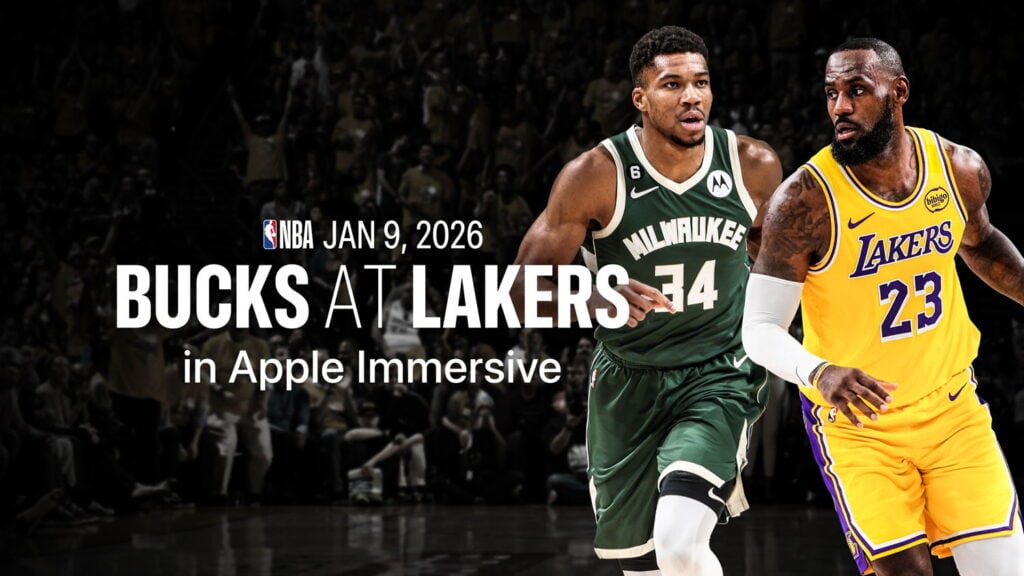
I am here to report that I have now seen the future of live sports, and it is immersive video. Apple is working with the NBA and Spectrum SportsNet to offer six Lakers games in immersive video that can be watched using an Apple Vision Pro. If you live in that Spectrum market, you could have watched the game live this past Friday night. Since yesterday morning, anyone in the world can watch a replay of the immersive game for free using the NBA app for the Apple Vision Pro. I watched it, and it was incredible. And I say that as someone who is not even an NBA fan; I have only seen a handful of live NBA games in my life, and the only player that I recognized in that game between the Los Angeles Lakers and the Milwaukee Bucks was LeBron James. For someone who is a true fan of either of those teams, I can only imagine how much better this was to watch.

With the Apple Vision Pro, you have the best seat in the house: a mid-court sideline seat. The players played the game just a few feet in front of me. Whenever I have attended a live professional sporting event, I have been in a seat up in the stands. A few times, I have been lucky enough to have a seat in a suite at the New Orleans Superdome, the New Orleans Arena, or even once at Yankee Stadium. But none of those seats were as close to the action as a courtside seat in this arena.

Better yet, I wasn’t limited to that seat. Apple had a number of the newest Blackmagic URSA Cine Immersive cameras in various places in the stadium. Thus, sometimes, I was mid-court, but other times, I was right behind the basket on either side—a place where you could never even purchase a ticket, at any price. Sometimes, it was a roaming camera right there on the court itself to witness the singing of the national anthem and other pre-game activities, or to watch the Lakers girls perform. Sometimes, I was high up in the stadium, taking in the entire view. Sometimes, I was in a hallway as a reporter interviewed a player. In this broadcast, just like a regular TV broadcast, I could not choose my camera angle; a director selected when to switch the cameras.

Of course, you can watch a basketball game on TV and also see the views offered by cameras close to the action. But this immersive experience was completely different because it was a 180º view. I felt like I was right there, and it gave me a new appreciation for how impressive these athletes are. I could look around and look at anything (as long as it wasn’t behind me). Thus, sometimes I would watch the game. Sometimes, I would turn my head to the left, where the coach of the Bucks, “Doc” Rivers, was just a few feet away from me, and I could see and hear him shouting to his players. Or I could look around and see the entire stadium. In an article for Forbes, David Bloom also remarked how nice it was to be able to look around:

Also lost in a traditional broadcast is all the little on-court interactions between players, coaches and referees, especially during lulls such as preparing for free throws. Not here, where you could pick out all kinds of amusing small moments, sometimes helped by microphones placed around the court. Lakers head coach J.J. Reddick, for instance, doesn’t immediately sit with players when a timeout is called, instead convening his assistants at the free-throw line before walking to the players sitting at the bench. At another point, Lakers guard Marcus Smart did his own version of a 10-second countdown during a Bucks player’s very slow free-throw process. And Hayes complains to referees, a lot, though he wasn’t alone Friday night, as refs generally seemed to swallow their whistles, allowing the game to run at high speed with a lot of physicality. (That said, refs did call enough fouls that Lakers star Luka Doncic, the NBA’s top scorer, fouled out for only the third time in his career).

In a nice touch, I could look down at the ground and see graphics showing the scoreboard, game clock, timeouts remaining, etc.—all rendered stereoscopically in 3D. It is a great place to put these graphics: they are there whenever you want them, and out of your line of sight when you don’t.

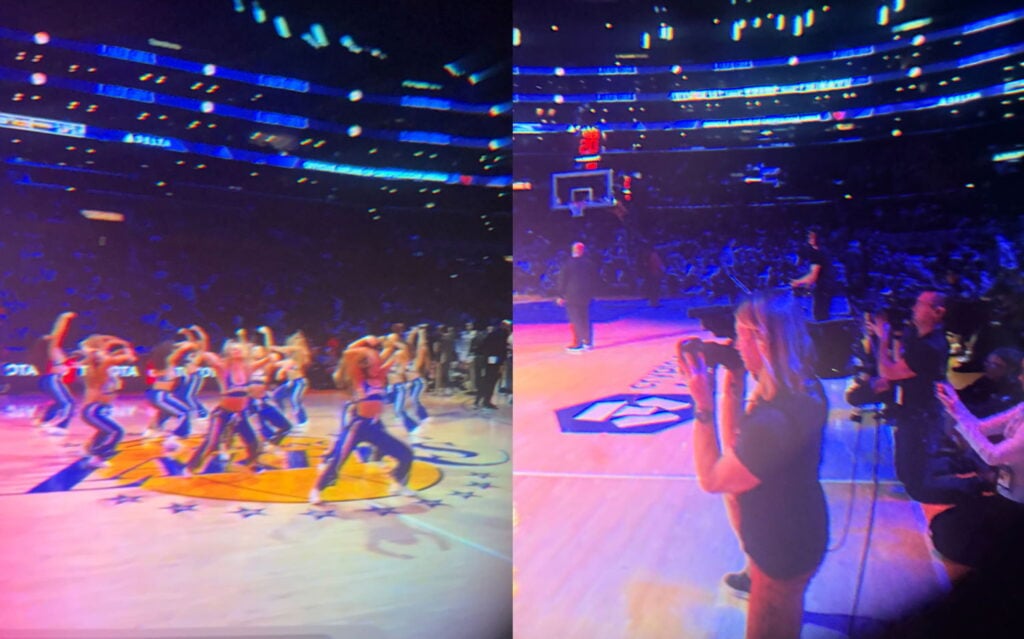
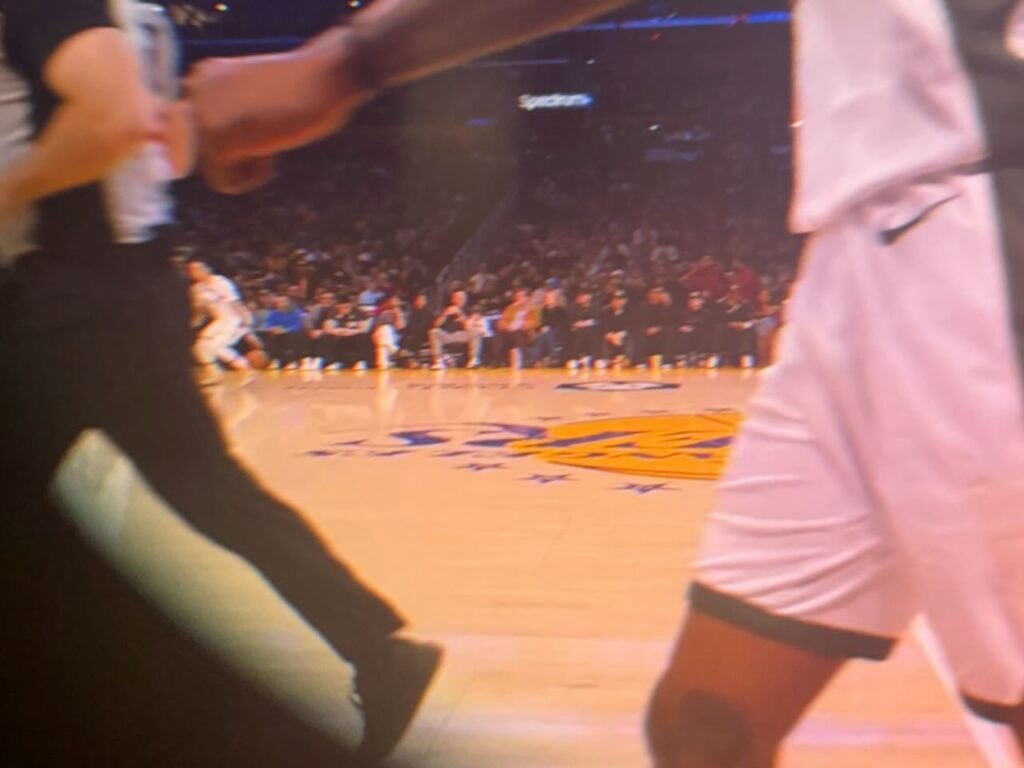
I want to show you a few pictures of this experience. The problem is that a 2D screenshot of something on the Vision Pro is always a pale imitation of what you see when you are wearing a Vision Pro. Moreover, I could not even do that for this post because the screen in the NBA app goes black whenever you take a screenshot. So I did something even worse: I loosened up my Vision Pro on my face and slid my iPhone between my eye and the lens to try to take pictures for this post. The image quality is horrible, but I’m going to share a few images anyway, and I hope it doesn’t hurt your eyes too much. You’ll have to imagine how good it looked in 3D 8K at 90 fps.

Here is a view from under one of the baskets, which gives you a sense of what a nice camera angle that was. (Ignore the warning from my Vision Pro that the device was no longer in the correct place on my face since I moved it away to make room for the iPhone.)

Here is an image of that same camera angle provided by Apple in a press release, so the image quality is far better. (Click to enlarge the picture.) I see that this image is from a prior game against my hometown team, the New Orleans Pelicans, and I wish I could have watched that one!

In these next photos, you can get a sense of what a great seat I had to watch the Laker Girls. Not to take anything away from their performances, but I found it just as interesting to turn to my right and see the other camera operators right next to me.

When the broadcast showed the courtside view, I could look to the other side of the court and see the rich and famous.

In that blurry view from my iPhone shoved next to my Vision Pro, you may not be able to make out the faces, but here is a screengrab from a TikTok video from Alex.S.Flores where you can see that it is Leonardo DiCaprio sitting next to Stephen Graham (his co-star from the movie Gangs of New York, and who I loved when he played Al Capone in the HBO show Boardwalk Empire).

If you want to see another person’s attempt to demonstrate in 2D what it was like to watch this 3D broadcast, you can check out this short video by Brad Lynch on X.

A segment that ran on Sportsnet LA right before the game on Friday night revealed some interesting details about the game. The immersive video broadcast is completely different from the broadcast shown on regular television. Apple uses its own broadcast truck with its own producer, director, and team. Apple currently uses seven cameras: three on the court, one behind each basket, one on the scorer’s table (which is the center court camera), and one that is portable. The immersive video broadcast uses its own announcers: Mark Rogondino and former Lakers player Danny Green. They were excellent, and occasionally commented on something unique to the Vision Pro experience, such as information on what you could see if you looked to the left, or right, or up, or down.

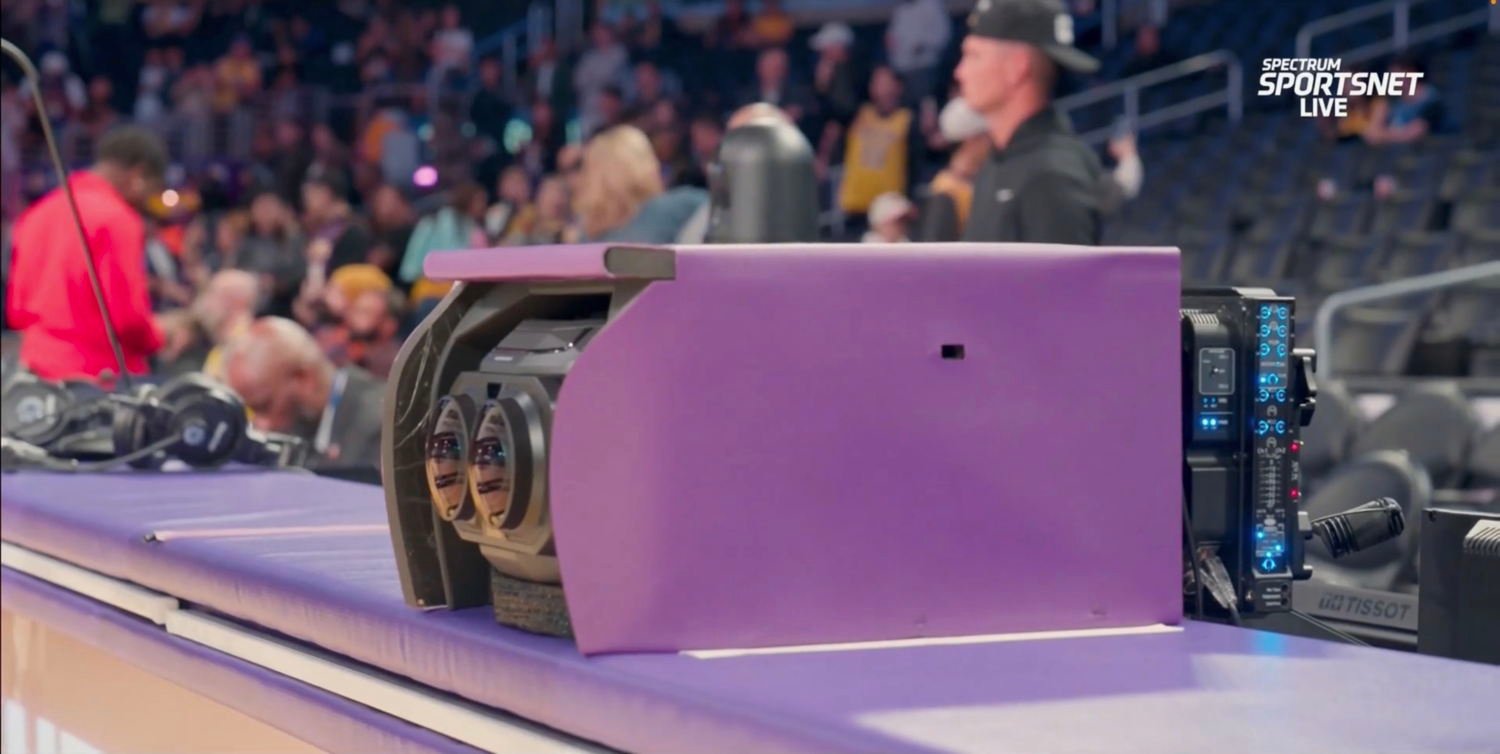
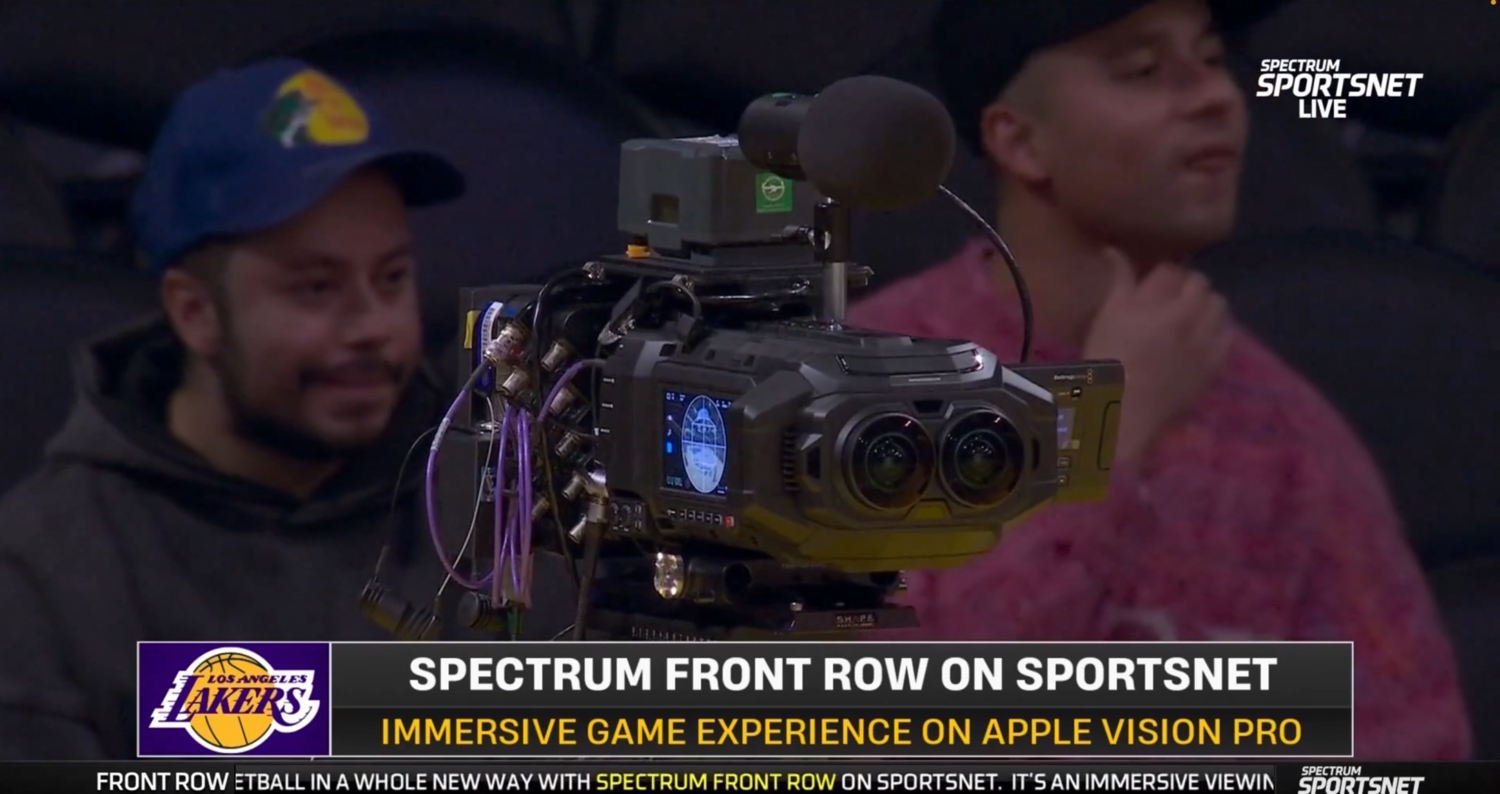
Here is Josh Earl, who is Apple’s Head of Content for Apple Immersive Video, showing off the camera on the scorer’s table :

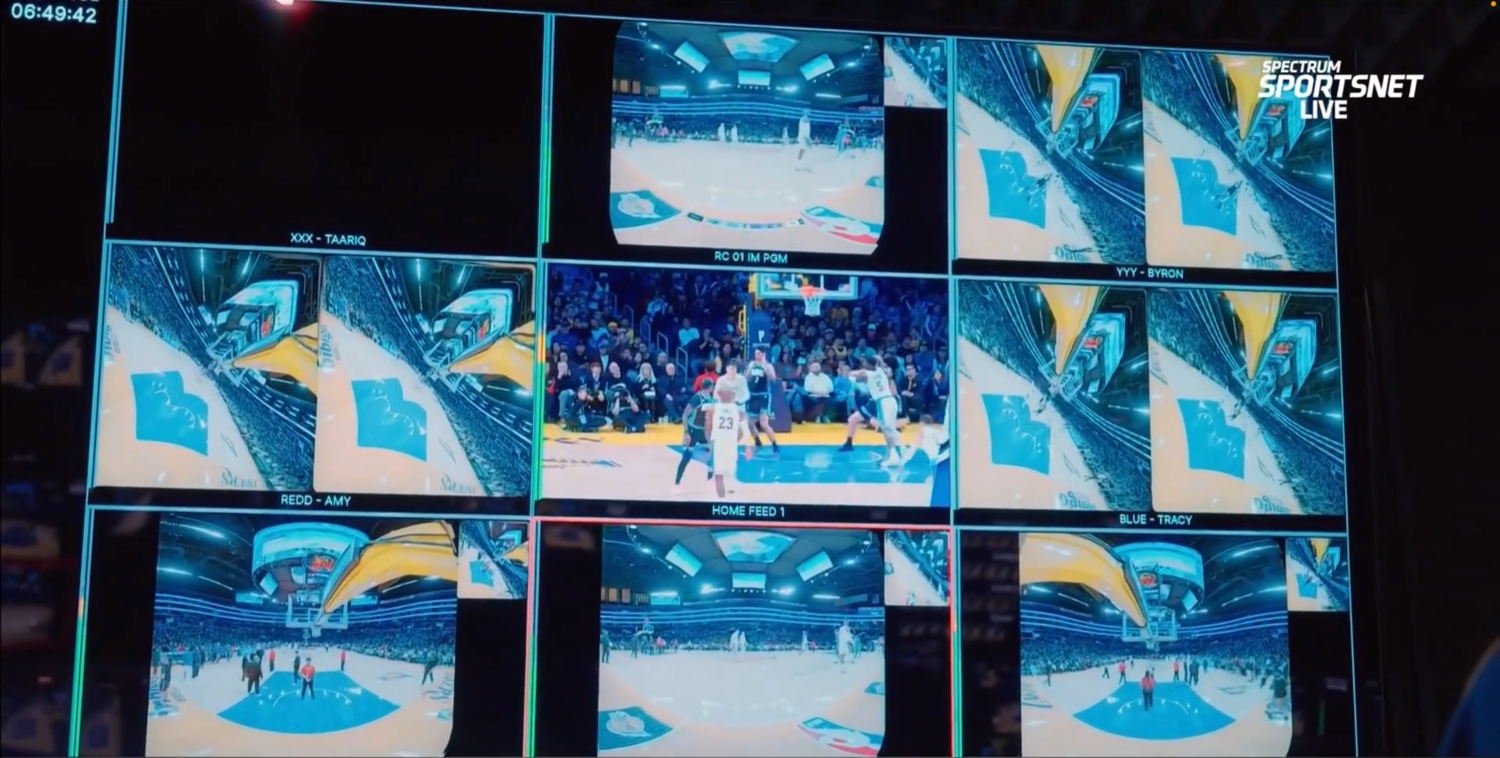
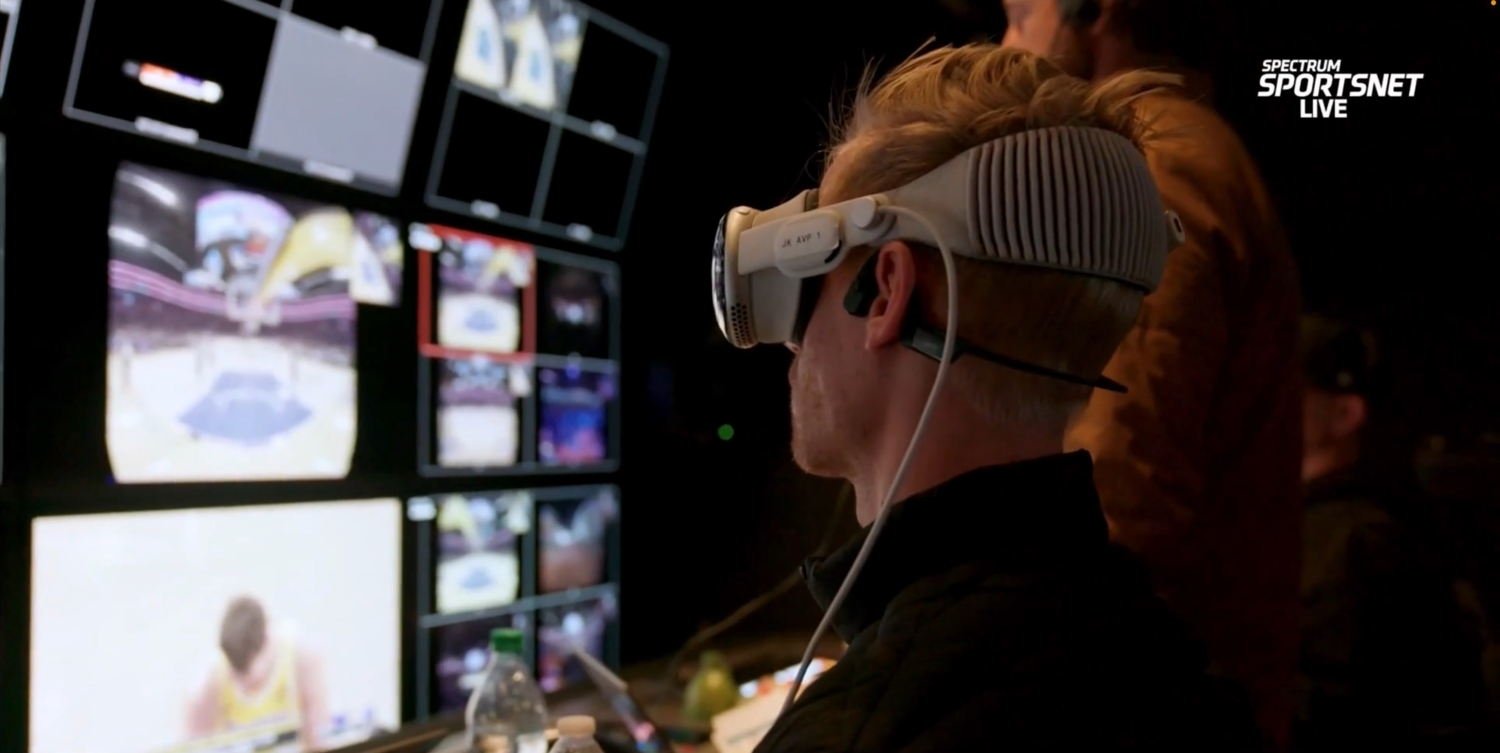
Here is what all of the camera angles looked like in Apple’s broadcast booth. The center image appears to be a regular 2D camera; the surrounding images are from Apple’s 3D cameras:

Here is one of the Blackmagic URSA Cine Immersive cameras. They are distinctive because they use two lenses instead of one, and the lenses are round to produce the 180º view.

This was Apple’s first live immersive sports broadcast, so I noticed a few things that may change in the future. For example, Apple did show instant replays, but they were not slow-motion instant replays. The quality of the video was incredibly good, but just a tiny bit grainy compared to some of Apple’s other amazing immersive videos. This was most obvious when I looked down on the floor at the graphical scoreboard because I could see that the scoreboard graphics were crisper than the video. But to be clear, the video quality was more than good enough to thoroughly enjoy the game. The colors also seemed just a little off; as you can see from the above pictures, the purple from the Lakers’ uniforms and the painted part of the court near the basket seemed to have a bit too much blue. There were also no commercials, which I’m sure will change in the future.

There is no one else in my household who owns an Apple Vision Pro, so unlike watching a game on TV, I had no way to share the experience with anyone. Apple has a solution for this—SharePlay—and it is currently possible to share the experience of watching some types of movies with other people wearing Vision Pro devices, even if they are somewhere else in the world. I would love to see a future version of Apple Immersive Video that supports SharePlay on the Vision Pro, especially for an experience that is fun to share with others, like a live game.

Overall, I am incredibly impressed. This was a truly amazing way to watch a game. The improvement from watching sports on an SD television to an HD television was a big step up, and this is an even better improvement. Yes, the Apple Vision Pro currently costs $3,499, but that is about how much I paid in 2002 for my Toshiba 57HDX82. And I would have had to pay well over $10,000 to get sideline seats at the Crypto.com Arena for just a single game. This technology will get better and cheaper in the future, but mark my words: this is the future of watching live sports from home.

Podcast episode 227: CES Craziness, Folding Up the iPhone 📲 and Chasing the Apple Card 💳

In the News

The start of a new year means the huge CES conference in Las Vegas has begun, and Brett and I start this week’s episode of the podcast discussing some interesting product announcements. Next, we discuss whether the rumored upcoming folding iPhone will be more of an iPhone that unfolds or an iPad that folds up. We also discuss Wi-Fi improvements for the iPad and Mac, changes to the Apple Card, a new article on Apple’s John Ternus, using the Vision Pro to get work done and to watch a basketball game, Apple Fitness+, and more.

In our In the Know segment, Brett shares an Apple Watch tip for guessing when you are doing a walking workout (and we disagree on whether it makes more sense to turn this on or off), and I share tips for working with notification alerts on your iPhone’s lock screen.

Click here to listen to the audio podcast, or just listen using your podcast player of choice. You can also watch the episode on YouTube:

In the News

In the News

Since 1967 (yes, that date is correct), Computerworld has been reporting on the use of technology in business. In an article this week for Computerworld, Jonny Evans explains why the Apple Vision Pro is a great product for many different types of businesses. But he also notes that Apple views this as the next big trend in consumer electronics. One feature that I think will appeal to many consumers is the ability to experience live sports. Yes, the Vision Pro is expensive, but future models will be cheaper, and people already pay top dollar for premium seats at just a single live sporting event. Apple announced this week that, starting tonight, people will be able to watch a live basketball game, sitting in seats that they could never afford. If you live in the Lakers’ regional broadcast territory—Southern California, Hawaii, and parts of southern Nevada, including Las Vegas—you will be able to watch live, in spatial video, tonight’s game in which the Los Angeles Lakers take on the Milwaukee Bucks. If (like me) you are outside of that market, you won’t be able to watch live, but you will be able to watch a full-game replay using the NBA app. This type of broadcast has the potential to be the future of live sports, live theater, live concerts, and more. I’m excited for it, and I’m glad that Apple technology is involved. And now, the news of note from the past week:

  • As we think about what kind of folding iPhone Apple might introduce later this year, Jason Snell of Six Colors explains why he thinks that it is more likely to work primarily as an iPad that you can fold in half rather than an iPhone that you can open up.
  • Chance Miller of 9to5Mac reports that once you update to iOS 26.2 and similar updates for the other Apple platforms, you can take advantage of Wi-Fi 6E on most modern Apple devices. This means channel bandwidth of up to 160MHz (up from 80 MHz), which can help with large file transfers and large uploads and downloads.
  • Many companies announced upcoming products at CES in Las Vegas this week. Ed Hardy of Cult of Mac reports on product announcements from Belkin. One product that caught my eye is a wireless HDMI display adapter, which would eliminate the need to run a long HDMI cord from the TV/projector to wherever your iPad or Mac is located.
  • Lewis Wallace of Cult of Mac reports on CES announcements from Anker, including some interesting new chargers and a power strip that clamps to the edge of a table.
  • Chance Miller of 9to5Mac reports on a CES announcement from Twelve South: a tray where you can drop your keys, wallet, and iPhone, and which includes a wireless charger for your iPhone. It is called the Valet. For certain homes, this could be quite useful.
  • Kalley Huang and Tripp Mickle of the New York Times wrote a profile of John Ternus, who is widely expected to become Apple’s CEO when Tim Cook steps down.
  • I love my Apple Pencil Pro, and I use it almost every day with my iPad. The retail price is $129, the lowest price that I have ever seen it is $89.99, and it is currently very close to that low price on Amazon: only $92.97.
  • If you use an Apple Card credit card—which is great for purchases from Apple and some other vendors, where you can get 3% back—it is currently issued by Goldman Sachs. As reported by Chance Miller of 9to5Mac, Chase will take over for Goldman Sachs in the next 24 months. But all of the key details will remain the same for customers: still Mastercard, still 3% cash back for many vendors, still pay your balance the same way, still have access to a savings account, continue to use the existing physical card, etc. Hopefully, the transition will be invisible.
  • This time last week, I reported that Apple was teasing an update to the Fitness+ app. Here is the official announcement from Apple. The new features are not as impressive as I had hoped for, but there are some nice improvements. I’ve been using Fitness+ to work out with weights, and I see that starting on Monday, January 12, Apple will debut a three-week program called Strength Basics that will consist of three workouts per week and will teach strength moves. I plan to check that one out.
  • When my daughter turned 13, her big birthday present was her first iPhone. She teared up with excitement when she unwrapped it because she had been asking for one for a while. Ariana Eunjung Cha and Sabrina Malhi of the Washington Post report on a new study that provides evidence of health risks associated with a child receiving an iPhone at age 12 rather than waiting until age 13. For parents who want a way to track and communicate with a younger child but don’t want to give them access to an iPhone screen, I know many people who have given their child an Apple Watch.
  • John Voorhees of MacStories reports that Season 3 of the show Tehran debuts tonight on Apple TV. I enjoyed the first two seasons, and I’m happy that I can finally watch Season 3. Season 3 was released 13 months ago on Kan 11, a TV channel in Israel. Apple has already renewed the show for a fourth season.
  • And finally, I’m a big fan of the AirPods Pro 3, but my wife finds that they don’t stay in her ears. Thus, she instead uses the Apple Powerbeats Pro 2 ($199.95 on Amazon), which stay put because of the earhooks. This video, called iShowSpeeed, is a silly send-up of old kung fu movies, but it does show how these devices stay on your ears even during extreme movement.

Podcast episode 226: Auspicious Apples 🍎 Live Boarding ✈️ Quit Quitting 🏋️‍♀️ and Crash Zoom Boom‼️

In the News

The In the News podcast is back and ready for a new year. We start this week’s episode discussing what we might see from Apple this month and this year. The “this month” part is a reference to Apple Fitness+, and after Brett and I talk about some cool things that we would love to see added to Fitness+, Apple announced some more modest changes. Still, any improvement is a welcome improvement. As for the rest of 2026, we discuss a possible folding version of the iPhone, possible new devices for the home, a possible sibling for the Apple Vision Pro, and more. We also discuss some of the big new products released by Apple in 2025 and the ones that Apple discontinued. We also talk about using Apple Gift Cards, AirDrop, boarding passes in the Wallet app, and some fun new videos from Apple.

In our In the Know segment, Brett shares a tip for figuring out how much time remains when you are watching a show on an Apple TV device, and I share tips for things that you can do now with an iPhone that will make it easier in the future when a loved one passes away.

Click here to listen to the audio podcast, or just listen using your podcast player of choice. You can also watch the episode on YouTube:

In the News

In the News

Hello, 2026! A new year means many predictions on what Apple is going to do over the next twelve months. In an article for Six Colors and Macworld, Jason Snell predicts (1) Tim Cook will transition from becoming Apple’s CEO to simply Chairman of the Board, with other changes in high-level Apple executives, (2) improvements to Apple Intelligence, (3) an improved Siri, (4) new products for the home, (5) a folding iPhone (starting at $1999 or more), (6) Pro versions of the iPhone this fall but non-Pro versions held back until Spring 2027, and more. Juli Clover of MacRumors agrees with Snell on the new product for the home, folding iPhone, splitting the iPhone releases, and a new version of Siri, and also predicts AI smart glasses and more. Mark Spoonauer of Tom’s Guide says that the rumored folding iPhone could start at $2400, and he predicts that Apple’s new device for the home will have a 7-inch touch screen and work like a beefed-up version of the iPhone’s StandBy Mode. M.G. Siegler of Spyglass predicts that, notwithstanding the high price, Apple’s folding iPhone will be a hit product even in its first generation. Liz Ticong of TechRepublic predicts that Apple will release a new home camera alongside its new product for the home, and also predicts version 2 of the AirTag. With a full year ahead of us, so much seems possible. And now, the news of note from the past two weeks:

  • Considering that so many people focus on fitness in January each year, I’m sure that many people will consider getting a new Apple Watch. Apple itself is promoting Apple Watch sales in a cute series of video shorts on social media that all feature the tagline Quit Quitting. Juli Clover of MacRumors collects all three of them in this post.
  • If you want a new Apple Watch, Amazon has the top-of-the-line Apple Watch Series 11 on sale for 25% off, starting at $299.
  • Apple is also teasing something new for fitness coming this month. As noted by Juli Clover of MacRumors, Apple released a short video on its Instagram account to say that Apple has “big plans” for its Apple Fitness+ service. I wonder what is coming?
  • One thing that I would love to see is for Apple to use AI to provide more actionable information about your health based on the data it gets from the Apple Watch. Demonstrating that this is possible, Marcus Mendes of 9to5Mac reports on a new study by researchers from MIT that found that it is possible to use Apple Watch data and AI to predict various medical conditions with impressive accuracy.
  • If you received an Apple Gift Card over the holidays, what can you use it for? Hartley Charlton of MacRumors answers that question.
  • In a related article, Chance Miller of 9to5Mac suggests using an Apple Gift Card to try out some of Apple’s excellent services.
  • In an article for Six Colors, Glenn Fleishman describes Apple’s Private Wi-Fi feature.
  • In another article, Fleishman describes Apple’s changes to the AirDrop protocol in iOS 26.2 (which was released in mid-December).
  • Every year, Apple designates some of its older products as “vintage” (meaning that Apple will only perform limited repairs, and only if the parts still exist) and “obsolete” (meaning Apple will no longer repair them. David Snow of Cult of Mac identifies the products “killed” by Apple in 2025, including the first-generation iPhone SE and the Apple Watch Series 1.
  • As old products die, new products are born. Chance Miller of 9to5Mac looks back at all of the new products released by Apple in 2025.
  • Ruffin Prevost of the New York Times describes using Apple’s new Live Translation feature for AirPods Pro 3 to translate for him while he was in Tokyo.
  • Storing airline boarding passes in the Wallet app on an iPhone is a great feature, and it was improved in iOS 26 to add Live Activities, airport maps, and Find My for luggage. Ryan Christoffel of 9to5Mac notes that Southwest Airlines now supports the improved boarding passes, joining Delta and United.
  • Rajat Saini of The Mac Observer discusses accessing a loved one’s iPhone to retrieve passwords and other information after they have passed away. These are good tips. My father passed away a few weeks ago, and as I pick up the pieces as the executor of his estate, having access to my father’s iPhone has been extremely helpful. I’m glad that I know his iPhone passcode.
  • A new month also means new shows coming to Apple TV. Ryan Christoffel of 9to5Mac says that this includes Season 3 of Tehran, Season 2 of Hijack, Season 3 of Shrinking, and more.
  • Michael Schneider of Variety reports that Season 4 of Ted Lasso is expected to be released in mid-2026.
  • One of my favorite shows of 2025 was Pluribus on Apple TV. In an article for The Ringer, Alan Sepinwall explains how the ending of Season 1 changed based on helpful comments from Apple executives. Obviously, don’t read that article until you have watched all of Season 1!
  • And finally, Apple released a cute video called Detectives 8x Zoom, which highlights one use of the 8x telephoto lens on the iPhone 17 Pro and Pro Max:

Podcast episode 225: Frosted Time 🕰️ Gift Card Warnings ‼️ and Transcripts On Your Phone!

In the News

Here it is, the last episode of the In the News podcast for 2025. We start by talking about iOS 26.2 and iPadOS 26.2, which include quite a few new features and some important security fixes. We also pay special attention to the Slide Over feature on the iPad: how it started, how it now works, and why it is useful. We also discuss the dangers of buying Apple gift cards from someplace other than an Apple Store, how to teach Siri to understand a name when you say it, the new TranscriptPad app for iPhone, and more.

In our In the Know segment, Brett and I both share tips related to the lock screen. Brett explains how to resize the clock size (which I immediately did, and I’m glad I did so), and I discuss how to prevent your iPad from driving you crazy by launching the camera app when you were just trying to pick it up.

Click here to listen to the audio podcast, or just listen using your podcast player of choice. You can also watch the episode on YouTube:

In the News

In the News

If you purchase an Apple gift card for yourself or someone else—and I’m sure that a lot of people are doing that this holiday season—be careful. Paris Buttfield-Addison shared the story on his blog of how he purchased a $500 Apple gift card from a reputable store, but when he went to redeem it, the code failed. Apparently, some thief had already acquired the code from that card and used it. But even worse, after the code failed for him, Apple disabled his Apple Account, presumably thinking that he was the thief. Even worse, Apple wouldn’t actually tell him why they had disabled his account—an account that he had been using for purchases for 25 years. Fortunately, his story was picked up by a number of news outlets, and after about five days, someone with a division of Apple called Apple Executive Relations was finally able to restore his account. That Apple employee warned him to only buy Apple gift cards from Apple itself. But I see Apple gift cards for sale at other stores all the time, including the Walgreens that is just a few blocks from my house. John Gruber of Daring Fireball noted another possible solution is to tear open the Apple gift card before you purchase it to inspect the redemption code and see whether it has scratched-off characters, but as Gruber notes, that is a crazy “solution” because if anyone sees you doing that, they will assume that you are the one who is trying to be a scammer. I’m glad that there was a happy ending to this particular story, but how many other people don’t have popular blogs and/or don’t get their situation picked up by numerous news outlets such that their story never escalates to someone with Apple Executive Relations who can fix the problem? But if you want to play it safe, I guess you need to be very cautious about buying an Apple gift card from any store other than an Apple Store. Indeed, Adam Engst of TidBITS goes so far as to recommend avoiding Apple gift cards completely. And now, the news of note from the past week:

  • Speaking of scams, Tara Siegel Bernard of the New York Times shares the story of a retired lawyer who tried to call tech support when he had problems with an iPad, but the number that he located from a Google search instead put him in touch with scammers, who subsequently stole $85,000 from him. This is an excellent reminder that online fraud is a serious problem and that we all need to be careful for ourselves and protect our friends and family members who are less tech savvy.
  • One week ago, Apple released iOS 26.2 and similar updates for its other platforms. Juli Clover of MacRumors notes what is new, and there is quite a lot. For example, the Reminders app has a new option to have an alarm go off when a reminder is due. There are also options to increase the security of AirDrop.
  • Jason Snell of Six Colors notes that if you use Slide Over on an iPad, you can now change the app in the Slide Over window by dragging an app from the App Library, Dock, or Spotlight into the Slide Over area.
  • In another post, Snell notes that there are also some significant security updates in iOS 26.2, including some zero-day bugs—i.e., bugs that were already being exploited. If you haven’t yet updated all of your devices, you should do so now.
  • Harry McCracken of Fast Company wrote a fascinating post about how filmmakers are exploring how to make immersive videos for the Apple Vision Pro.
  • Do you sometimes sleep through your alarms? Then you might want to consider using the Awake app. As Devon Dundee notes in his review for MacStories, the app can make you do various things to turn off the alarm, such as rotating your iPhone, solving math problems, walking a certain number of steps, and more.
  • In a post for Six Colors, Glenn Fleishmann provides advice for dealing with names that Siri has trouble understanding (such as the name “Caryn” which is pronounced like “Karen”).
  • Apple’s new intro “fanfare” for its shows on Apple TV has been out for a little while now, and the more that I see it, the more that I like it. John Gruber feels the same way, and he talks about it in detail in this post. As he notes, the old one “was not bad,” but it “just wasn’t great,” and now Apple has something that is really special.
  • Slow Horses is one of my favorite shows on Apple TV, and it is based on a series of books by Mick Herron. Herron wrote another series of books that Apple developed into another series: Down Cemetery Road. I just finished watching the first season, and while I didn’t like it nearly as much as Slow Horses, it was decent. I mention all of this today because Ryan Christoffel of 9to5Mac reported this week that Apple has picked up Down Cemetery Road for a second season.
  • If you are watching Pluribus on Apple TV, and if you have watched all the way through episode 7 (which came out last week), then I encourage you to read this post by Marcus Mendes of 9to5Mac to learn about something very interesting discovered on Google Maps. If you have not yet watched episode 7, then DO NOT READ THE ARTICLE or you will get a big spoiler.
  • Speaking of Pluribus, Zac Hall of 9to5Mac notes that the season finale will be released two days early: on Tuesday night, December 23. If you want to avoid spoilers from others discussing the show at the Christmas dinner table, watch the episode before Santa Claus makes his deliveries.
  • Long before there was Apple TV, there was Applevision. When I was in middle school, I remember using the Apple ][ computers in my school’s computer lab, and there was a fun demo called Applevision, created by Bob Bishop. I haven’t thought about that demo in decades, but I just learned that you can watch it on YouTube. At the time, this was considered to be extraordinary computer graphics. You can read more about Bishop and how Applevision came to be in this post by Steven Weyhrich on the Apple ][ History website. Bishop passed away over a decade ago, but many of us fondly remember his early contributions to Apple technology.
  • And finally, in this video from Apple called Outrun, Apple shows how useful Apple Pay can be. Especially when you are in a real hurry.

TranscriptPad comes to the iPhone

The folks at Lit Software have been making top-quality apps for lawyers who use iPads since 2010, when the iPad was introduced. The company makes many different apps for lawyers, but because of the type of law practice that I have, TranscriptPad has always been my favorite Lit Software app. This app makes it easy to read and annotate transcripts, search for relevant testimony in a transcript, create incredibly useful reports of the key testimony in one deposition or multiple depositions (organized by the key issues in your case), use deposition testimony at trial, work with video depositions, and more. In 2022, Lit Software made TranscriptPad and other apps even more valuable by bringing them to the Mac. This week, Lit Software has once again expanded its platform by bringing TranscriptPad to the iPhone. This makes the app even more useful for litigators, and it even comes with a brand new feature: the ability to read a deposition out loud so that, for example, you can listen to a prior deposition as you are driving across the state to take the next deposition in a case.

[UPDATE 12/18/25: The developer of this app, Ian O’Flaherty, posted a great comment to this post to note other useful features of the iPhone app. I’ve updated a few parts of this post to account for that, but read the comment for all of the details.]

Great way to work with your annotated transcripts

If you have already annotated transcripts in a case file, thanks to the new iPhone app, now you have access to all of those annotated depositions in your pocket.

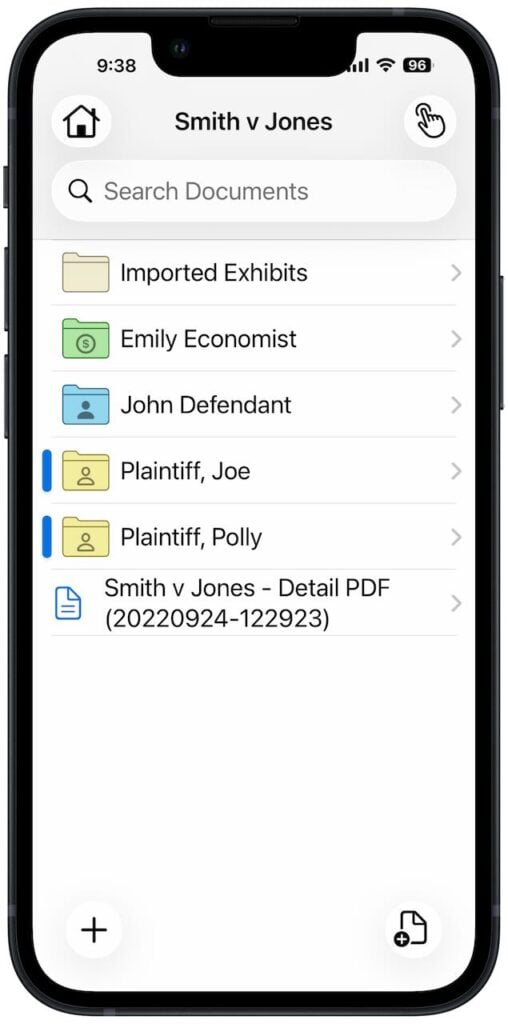
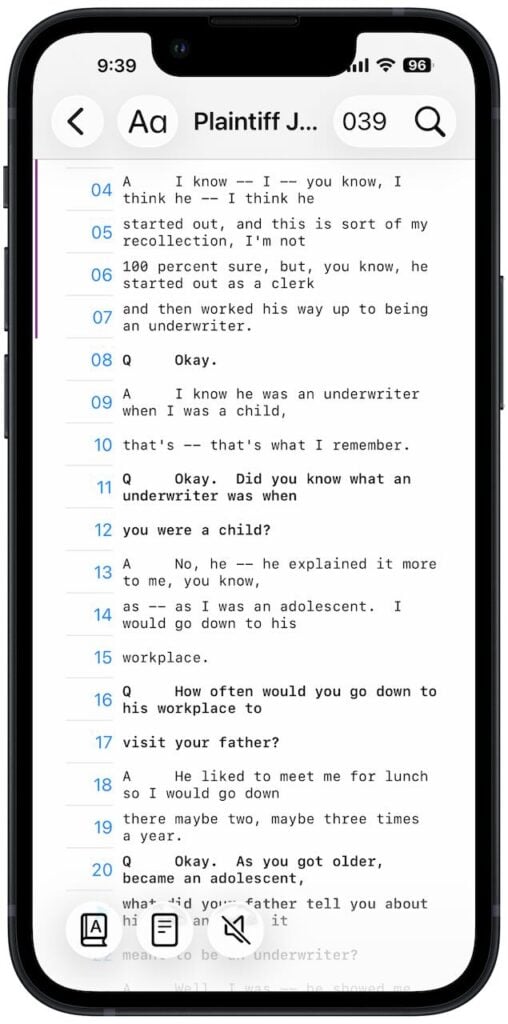
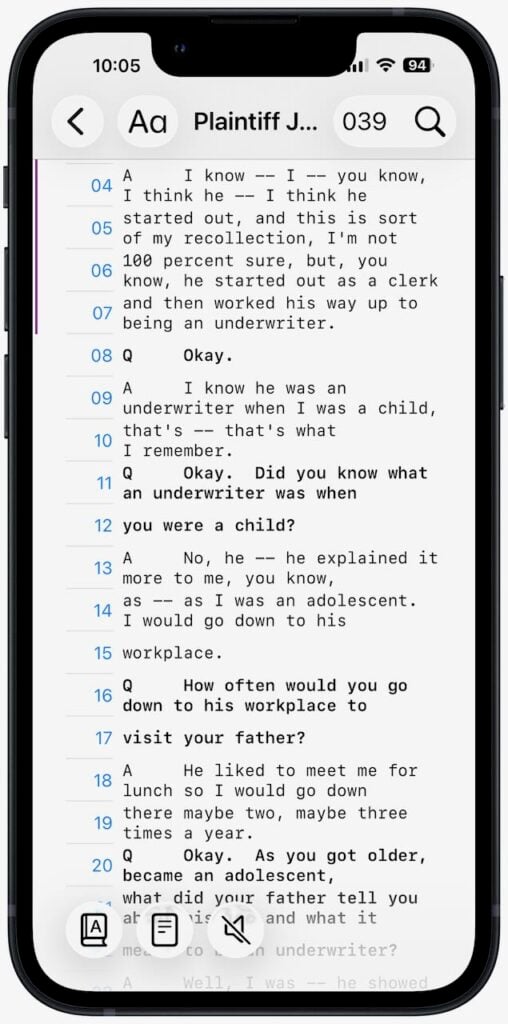
Simply tap a deposition to review it. The app splits each line into two lines so that you can read the transcript even on a small iPhone screen. Line numbers are clearly indicated on the left. The page number is clearly displayed at the top, and you can tap the page number to jump to another page.

The above screenshot shows the “standard” text size, but if you want the text a little larger but just as easy to use, you can also switch to a “large” text size.

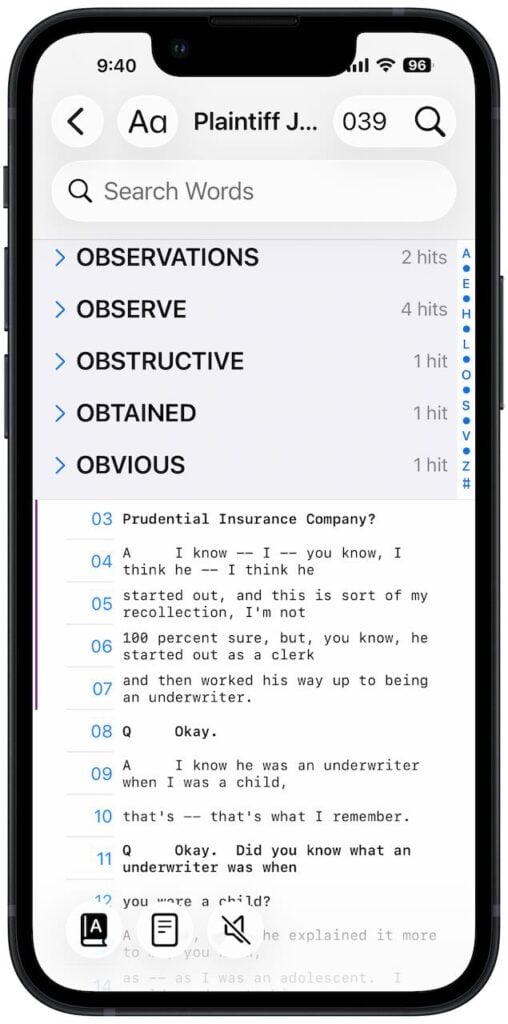
Searching a transcript is easy. You can either use the magnifying glass at the top right to search for words, or you can tap the index button at the bottom left to see each word in the deposition and the number of times it appears.

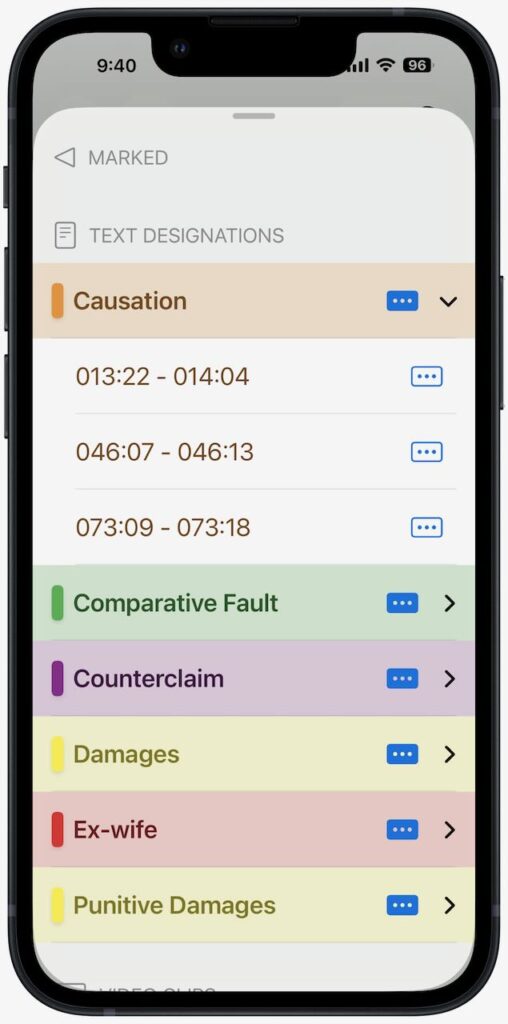
Better yet, you can view all of your issue codes, making it easy to jump directly to the key testimony on a specific issue.

Add annotations to deposition transcripts

The iPhone app is not just a viewer. It is also a full-featured annotation app, so you can also read and annotate a transcript using the normal tools: create and add issue codes, highlight text, etc. This makes it easy to read and annotate a deposition even if you don’t have your iPad with you—or, if you are in a situation in which it may not be practical to use an iPad.

Reports

The Reports feature is one of the best features of the iPad app. Once you have added issue codes to the key questions and answers, you can create a PDF report organized by issue of the key testimony. This is incredibly useful for me when I am drafting a motion and I review a report to focus on the testimony relevant to an argument in my motion.

[UPDATE 12/18/25: In the original version of this post, I said that you cannot create reports on the iPhone. As pointed out in the comment to this post by the developer, Ian O’Flaherty, while the iPhone app doesn’t include the full suite of reports like the iPad and Mac versions were you can create reports across all witnesses in a case, you can still generate the PDF Annotated (Full) Report for a specific witness. When you tap on a witness name and get a list of the different volumes, there is a button at the bottom right that you can tap to create a report. It is fantastic that you can do this on even the iPhone version of this app because it is one of the best parts of TranscriptPad. Also, if you create a report on the iPad/Mac for multiple witnesses in a case, you can review those generated reports in the iPhone app.]

Read out loud

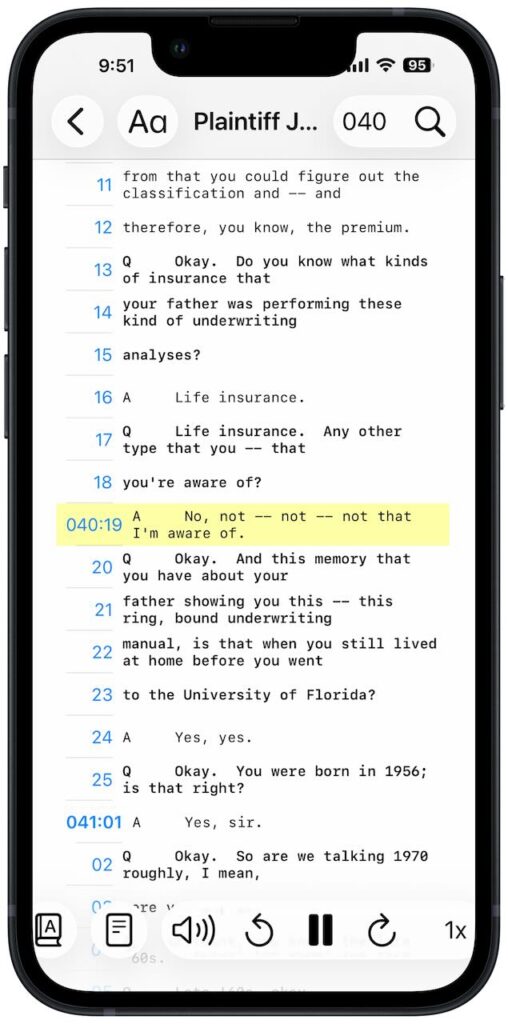
The iPhone app includes another feature that is perfect for the iPhone: the ability to read a deposition out loud. Pick where you want to start—the beginning, or some other part of the deposition—and press the speaker button at the bottom.

You can select a different voice to use for the question and the answer. You can also select any of the iPhone’s many built-in voices for each speaker. Better yet, if you open your Settings app and go to Accessibility -> Read & Speak -> Voices -> English, you can download any of Apple’s enhanced voices for more realistic voices. I’m currently using Allison (Enhanced) to read questions and Tom (Enhanced) to read answers. Going back and forth between these high-quality voices, with a female voice asking the question and a male voice providing the answer, creates a strong contrast, and makes it easy to know who is speaking even if you are not looking at your screen.

You can also change the playback speed. I prefer either 1.5x or 2.0x to be more efficient, but note that I also listen to most of my podcasts at 1.5x speed, so I’m used to that.

As noted above, I think that a perfect use of this feature is when you are driving in a car. You cannot look at the transcript while you are watching the road, of course, but the TranscriptPad iPhone app can read the transcript to you. This is a great way to review testimony and be productive while you are driving. I can also imagine listening to a transcript while cutting the grass, shoveling snow, doing dishes, etc.

[UPDATE 12/18/25: There is another new feature of the app that I didn’t realize at first, but it is pointed out in the comment to this post by the developer. It is called Marked Lines. If you are listening to a deposition being spoken, or if you are using the hands-free scroll mode, you can simply double-tap on the screen to begin to mark a section, and then you can double-tap again to end the mark mode. The testimony is slightly gray with an arrow on the side to indicate the marked testimony:

Later, you can look at the deposition transcript to see the testimony that you marked and you can go back and add issues codes etc. This is a great way to quickly mark important testimony even when you are not looking at the screen—such as if you are driving.]

Conclusion

To use Lit Software apps such as TranscriptPad, you pay for a LIT SUITE subscription. The cost is very competitive with other software designed for lawyers: $600/year for a single license, $500/year for 3 to 9 licenses, and $475/year for 10 or more licenses. If you work with transcripts, $50/month is worth it just for TranscriptPad alone, but the license also gives you the other apps, such as TrialPad and DocReviewPad. Moreover, the subscription continues to grow in value over time as Lit Software adds new apps (such as the new TimelinePad app added earlier this year) and as Lit Software adds new features to existing apps, such as this new iPhone app.

I’ve been using Lit Software’s apps in my law practice for the last 15 years, and I cannot imagine practicing law without them. Thanks to the new iPhone app for TranscriptPad, this already essential software is now even more useful.

Review: Snap Grip Wallet by ohsnap!

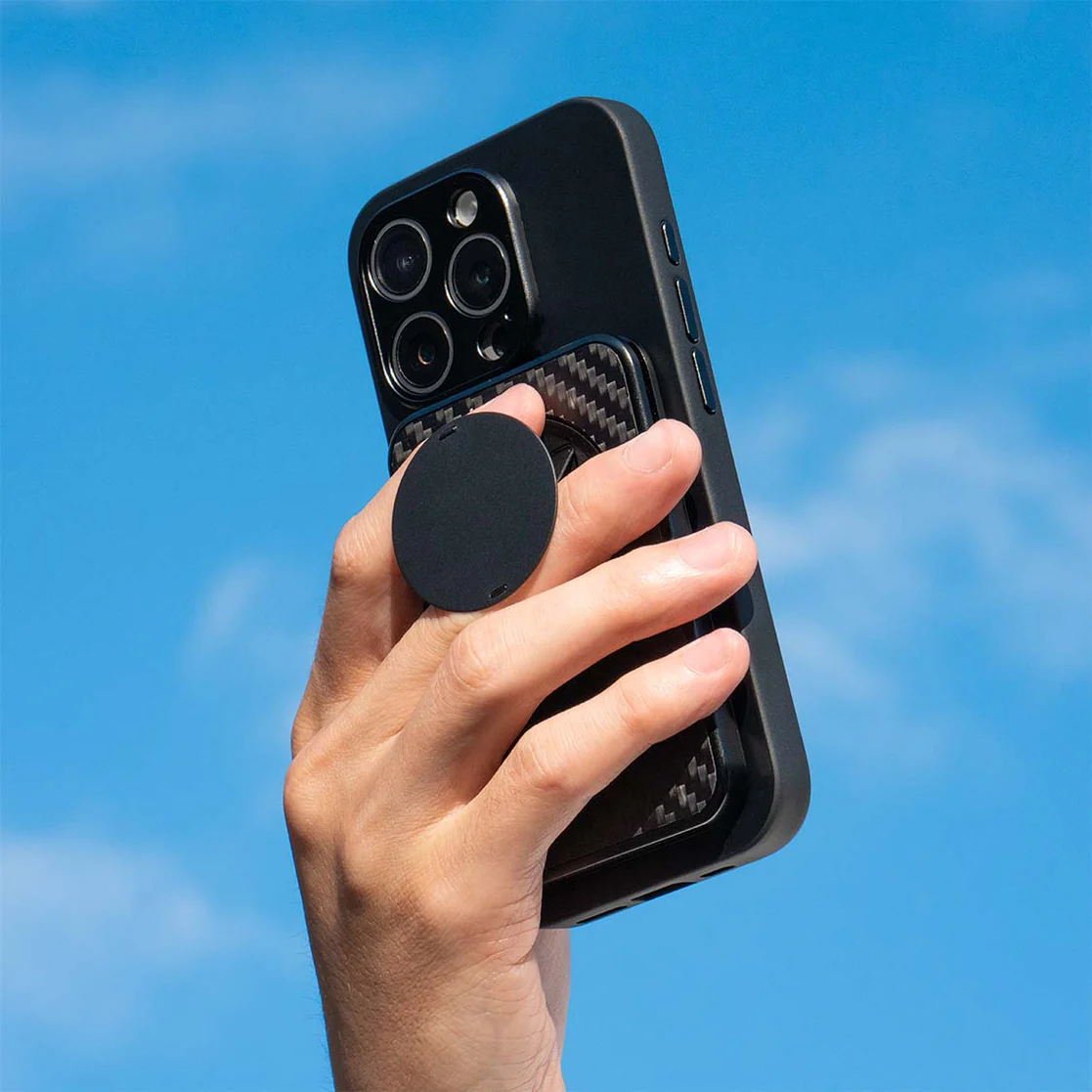
Sometimes, it is useful to carry just an iPhone without also carrying a wallet, and that is why Apple sells the Apple iPhone FineWoven Wallet with MagSafe ($59 on Amazon), and many others sell similar products. Sometimes it is useful to have something on the back of your iPhone to make it easier to hold, and that is why PopSockets makes tons of devices to do this, ranging in price from $5 to $70, as do many others. The Snap Grip Wallet by ohsnap! is a single product that includes both of these features. Plus, it includes a useful stand for your iPhone. Ohsnap! sent me a free review unit, and after trying it out for a few weeks, I like this product. It costs $71.99.

Colors

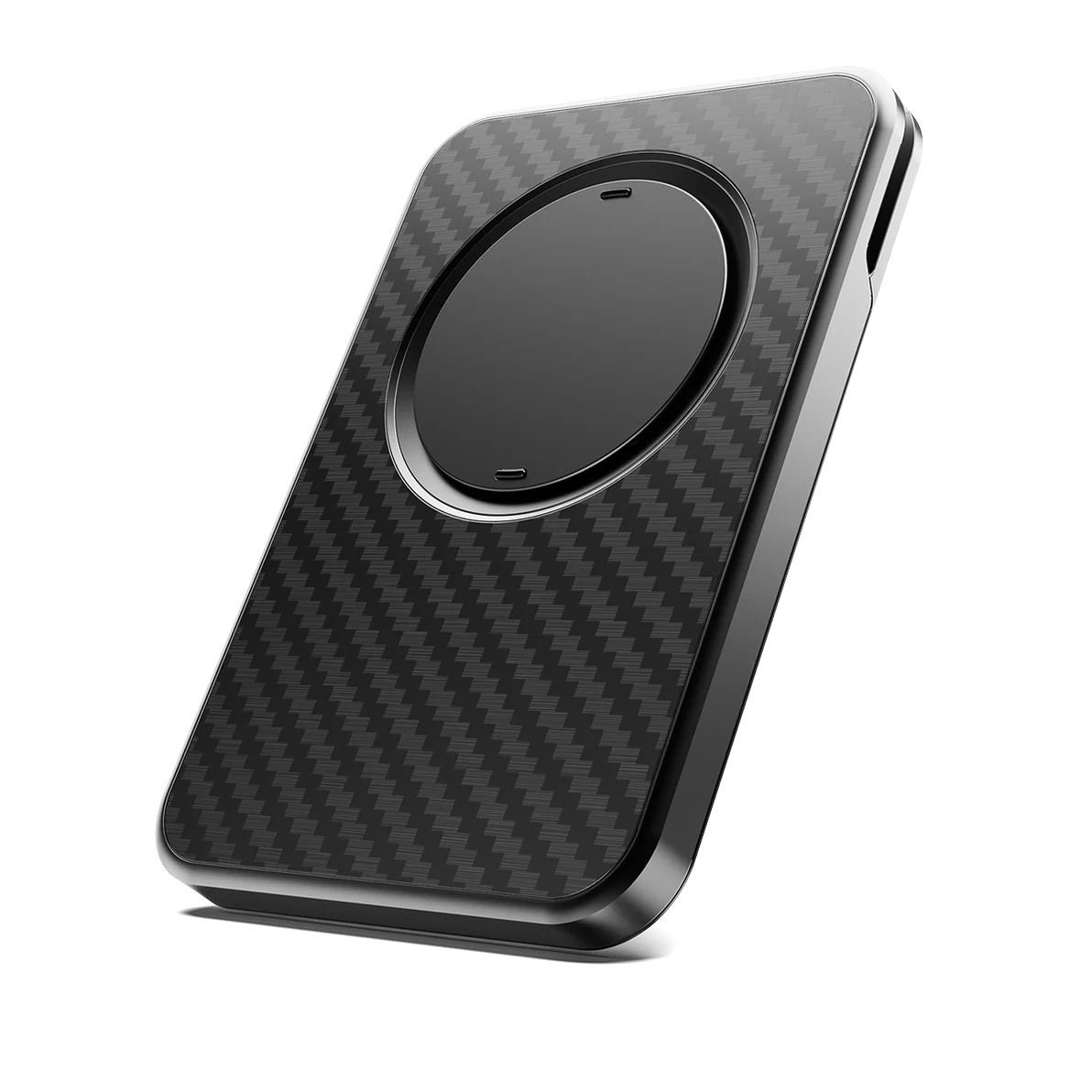
The color I was sent is Gator Fade, which is a type of green, but the other colors are Boring Black, Wine Noir (maroon), Orchid Slap (light blue), and Carbon Fiber (which costs $89.99).

The Gator Fade color is certainly not the one I would have picked for my Deep Blue iPhone 17 Pro Max, but I’m sure it looks good against other iPhone colors. (I would have picked either the Boring Black or the Caron fiber.)

The Snap Grip Wallet attaches to your iPhone using MagSafe, which means that it has a very secure connection to the back of the iPhone, but because it is based on magnets, it is easy to remove when you don’t want to use it. The backside of the Snap Grip Wallet also has a magnet, so if you have a MagSafe stand, you can use it while this product is on your iPhone. It won’t pass through a charge, but it does let hold an iPhone in the position provided by a MagSafe stand.

Wallet

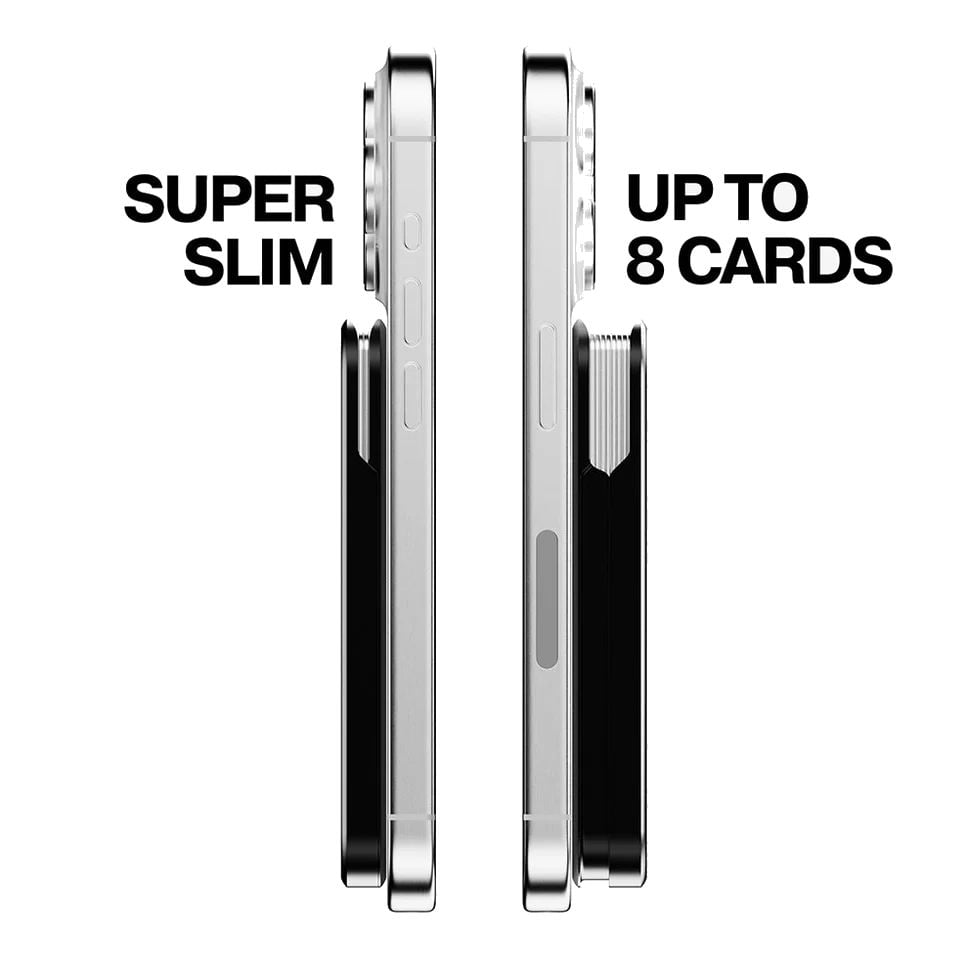
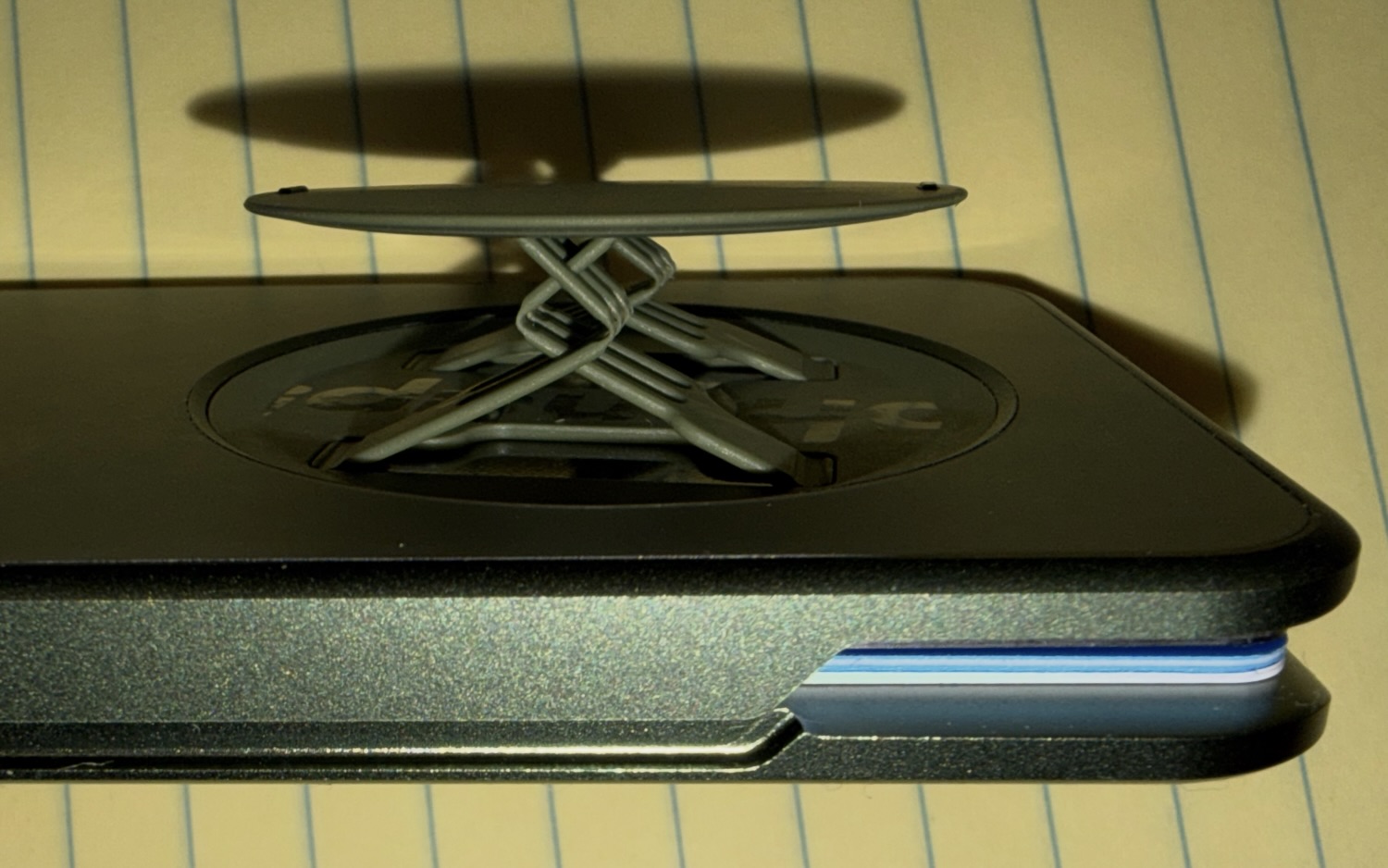
The wallet feature can hold five credit cards that have raised letters, eight cards that are not raised, or about six or seven cards if you have a mix. It has some sort of spring in it so that it expands as you add more cards, from a minimum product thickness of 7.8mm to a maximum of 12.7mm.

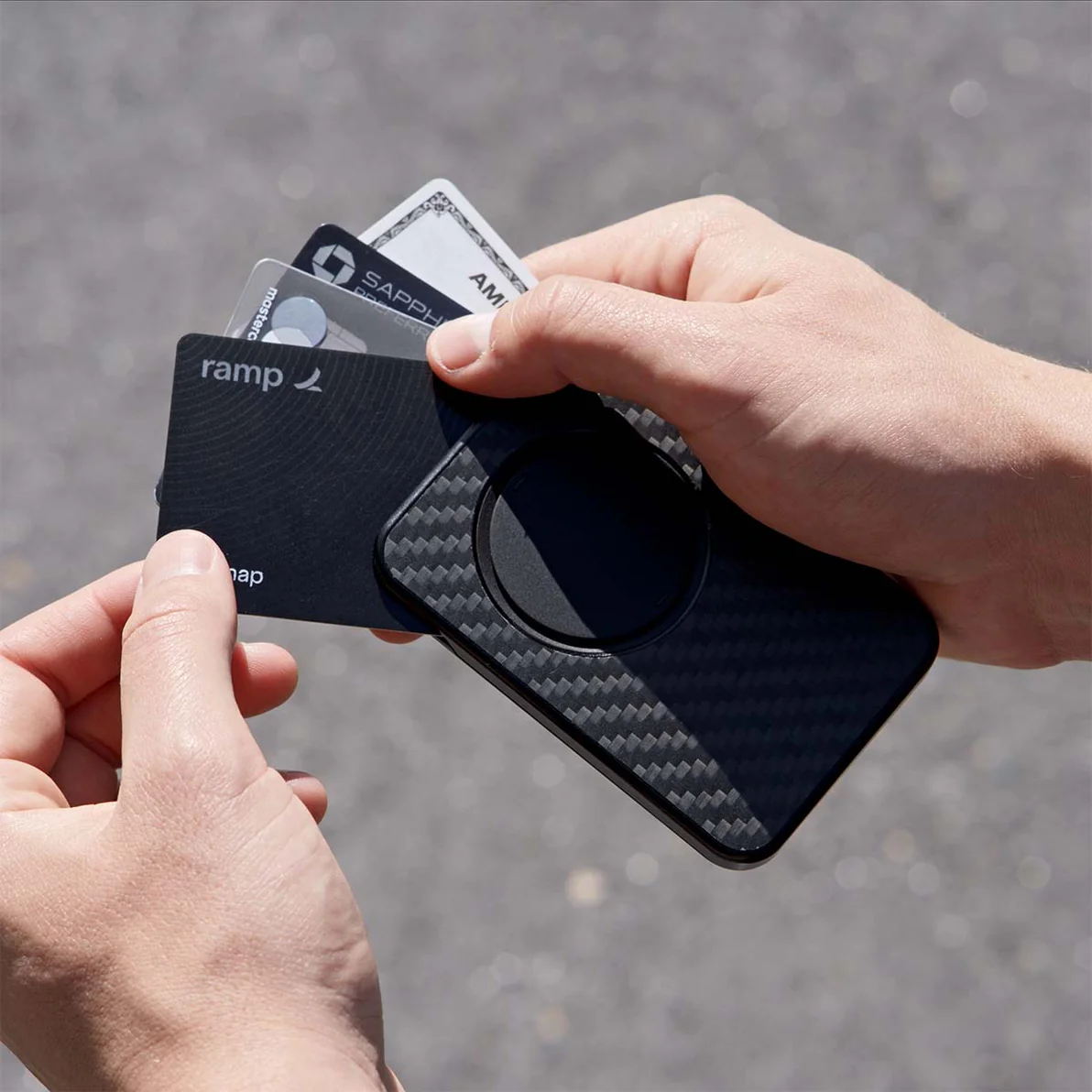
Your cards are incredibly secure in this device. There is no way that they would ever fall out. To remove a card, remove the Snap Grip Wallet from the back of your iPhone, slide the cards up in the slot with your finger, then fan your cards to select the one you need. It takes a little bit of time to do this, but it works fine. And I only occasionally have a need to use a physical card like a credit card or driver’s license, I find the real value is just knowing that they are there—I don’t actually put them in and pull them out very often.

When the Snap Grip Wallet is attached to the back of your iPhone, it is almost impossible to see that there are even cards in the device, which is a nice security feature.

Grip

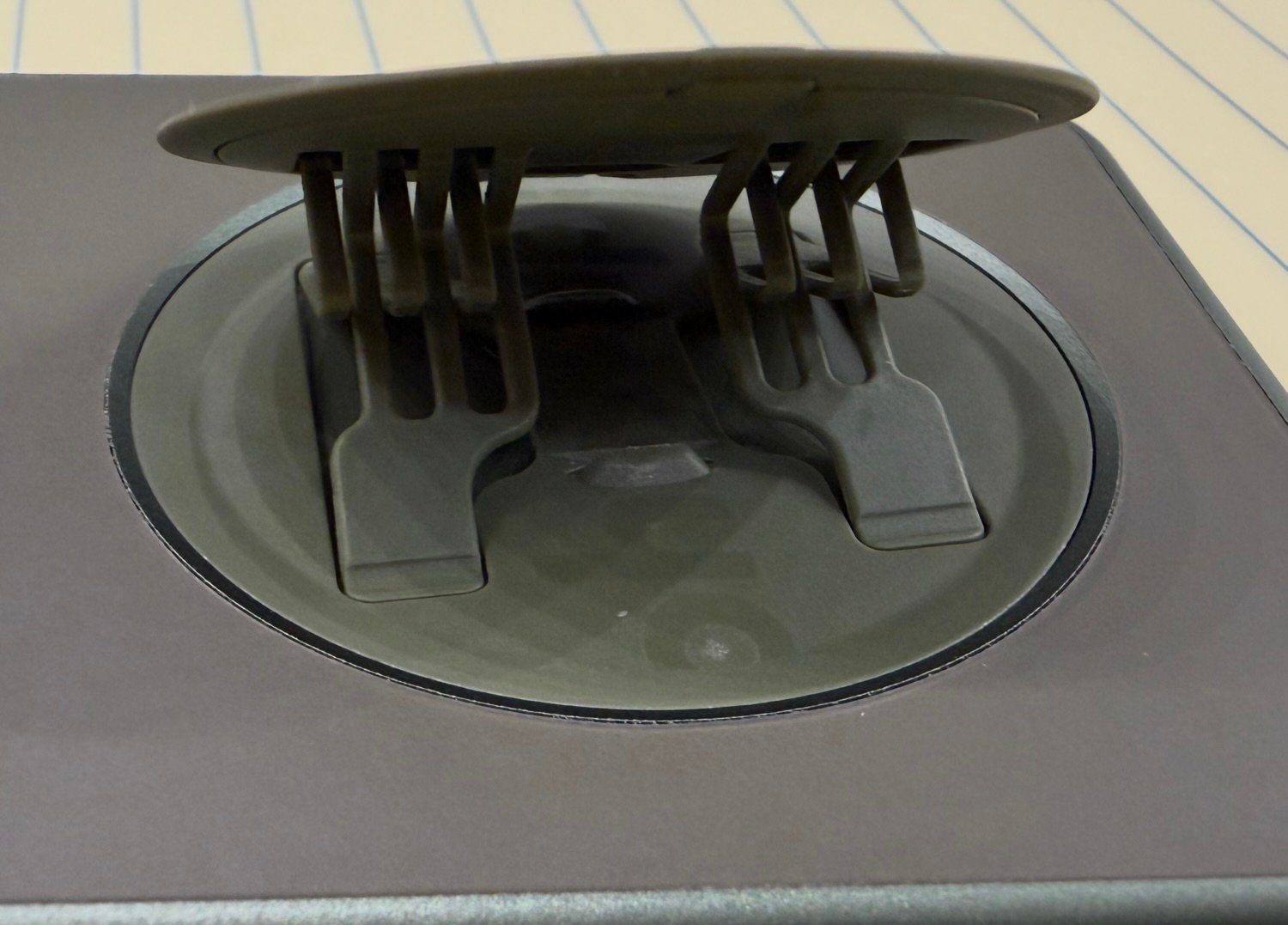
When you pop out the circle on the back of the Snap Grip Wallet, a series of very thin plastic strips in a diagonal design makes the circle pop out far enough that you can easily slide your fingers between the circle and the back of your iPhone.

When I first saw this, I was afraid that it would be too flimsy, but it has worked very well for me.

The Grip spins to rotate the plastic extenders to any position, so it is very easy to find a comfrotable position for your hand. Also, the plastic extenders are very soft, so they feel great against your fingers.

I mostly used the Grip with two fingers, one on each side of the plastic extenders. But you can also slide a single finger through the middle of the extenders to use just one finger to hold the Grip. Both positions work well.

The Grip provides a lot of support when you are holding your iPhone. I understand why PopSockets and similar devices have been popular for so long. You can hold an iPhone in one hand for a long period of time without the fatigue that comes with squeezing the sides of an iPhone. Also, an iPhone is far less likely to slip out of your hands when you are using the Grip. If you are traveling on a plane and holding an iPhone in your hand for a long period of time to watch a movie, this is a great device to have.

Some iPhone grips require you to use an adhesive to attach the grip to the back of the iPhone or to a case, and that has always been a non-starter for me. I love that you can use the Snap Grip Wallet whenever you want the Grip, but the MagSafe makes it easy to remove when you don’t.

Stand

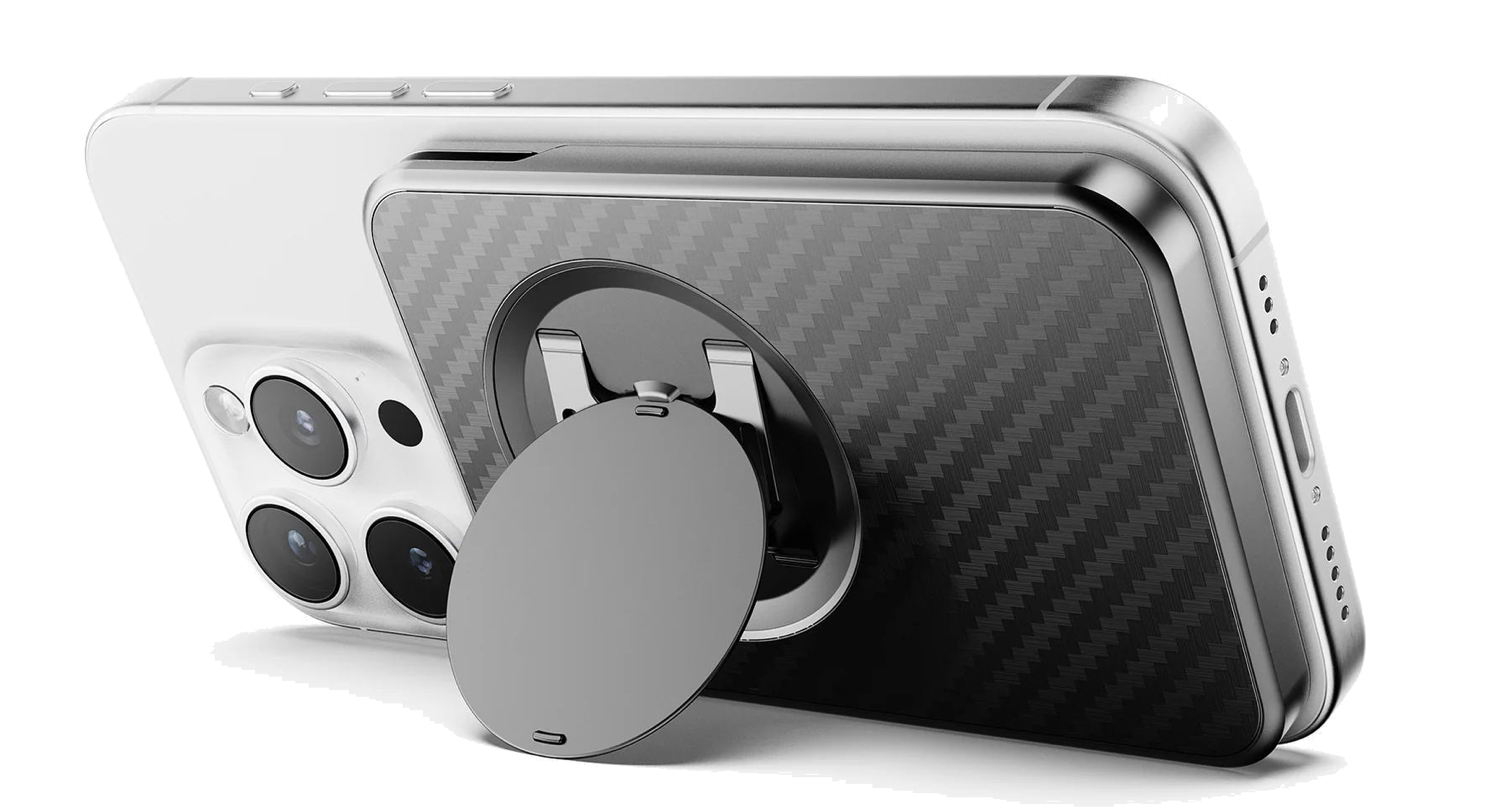
If you want to prop up your iPhone at an angle—for example, to watch a video—simply extend the circle at an angle and fit it under a small plastic holder. This turns the Grip into a stand. It works especially well when your iPhone is in landscape mode, but it also keeps it at a nice angle in portrait mode.

Conclusion

The Snap Grip Wallet is a useful iPhone accessory. It gives you a wallet for your cards, a grip for your hand, and a stand for the iPhone. And because it uses MagSafe, you can remove it when you don’t need it. Note that if you like the idea of the Grip and the stand but you don’t need a wallet, the company also sells the Snap Grip 5 for $35.99. This is a nicely designed and manufactured device that works as advertised.

Click here to get the Snap Grip Wallet from ohsnap! ($71.99)