

The folks at Lit Software have been making top-quality apps for lawyers who use iPads since 2010, when the iPad was introduced. The company makes many different apps for lawyers, but because of the type of law practice that I have, TranscriptPad has always been my favorite Lit Software app. This app makes it easy to read and annotate transcripts, search for relevant testimony in a transcript, create incredibly useful reports of the key testimony in one deposition or multiple depositions (organized by the key issues in your case), use deposition testimony at trial, work with video depositions, and more. In 2022, Lit Software made TranscriptPad and other apps even more valuable by bringing them to the Mac. This week, Lit Software has once again expanded its platform by bringing TranscriptPad to the iPhone. This makes the app even more useful for litigators, and it even comes with a brand new feature: the ability to read a deposition out loud so that, for example, you can listen to a prior deposition as you are driving across the state to take the next deposition in a case.
[UPDATE 12/18/25: The developer of this app, Ian O’Flaherty, posted a great comment to this post to note other useful features of the iPhone app. I’ve updated a few parts of this post to account for that, but read the comment for all of the details.]
Great way to work with your annotated transcripts
If you have already annotated transcripts in a case file, thanks to the new iPhone app, now you have access to all of those annotated depositions in your pocket.
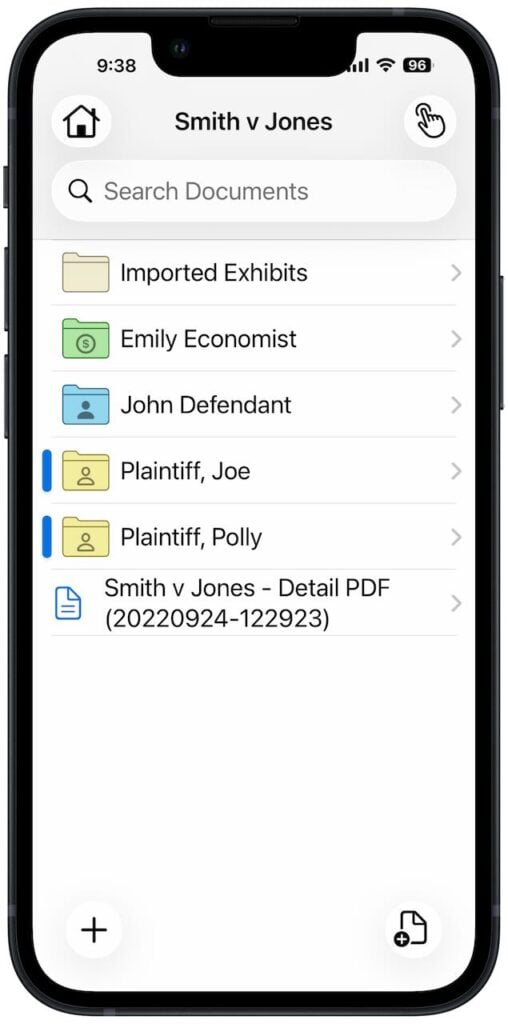
Simply tap a deposition to review it. The app splits each line into two lines so that you can read the transcript even on a small iPhone screen. Line numbers are clearly indicated on the left. The page number is clearly displayed at the top, and you can tap the page number to jump to another page.
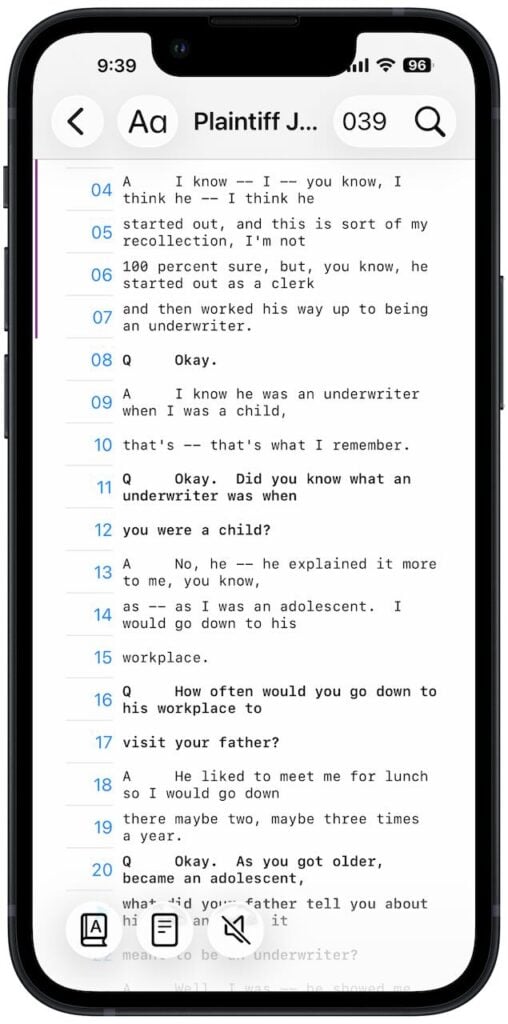
The above screenshot shows the “standard” text size, but if you want the text a little larger but just as easy to use, you can also switch to a “large” text size.
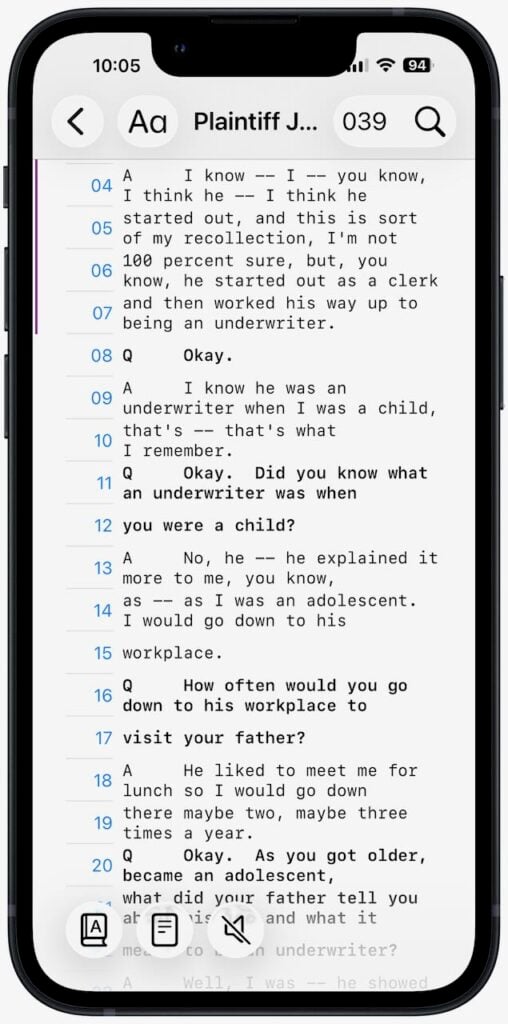
Searching a transcript is easy. You can either use the magnifying glass at the top right to search for words, or you can tap the index button at the bottom left to see each word in the deposition and the number of times it appears.
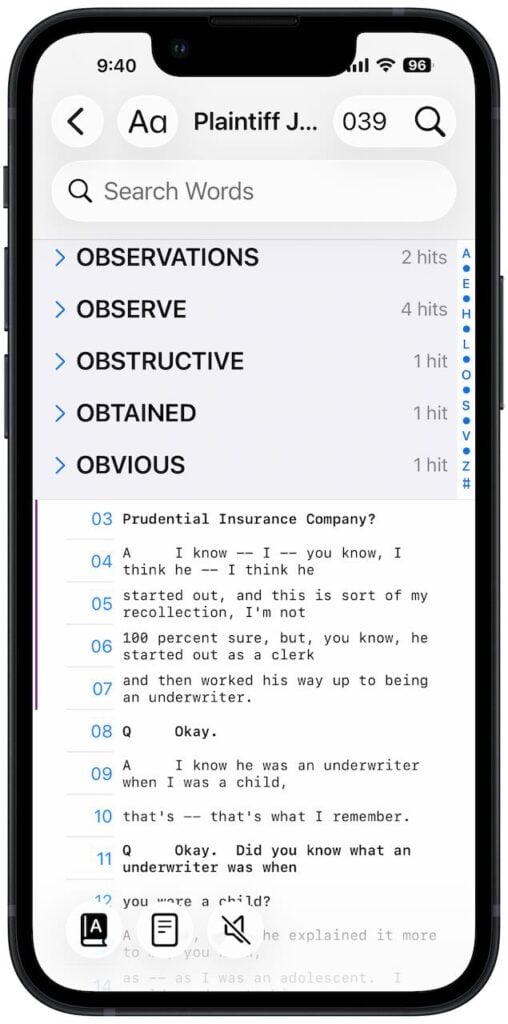
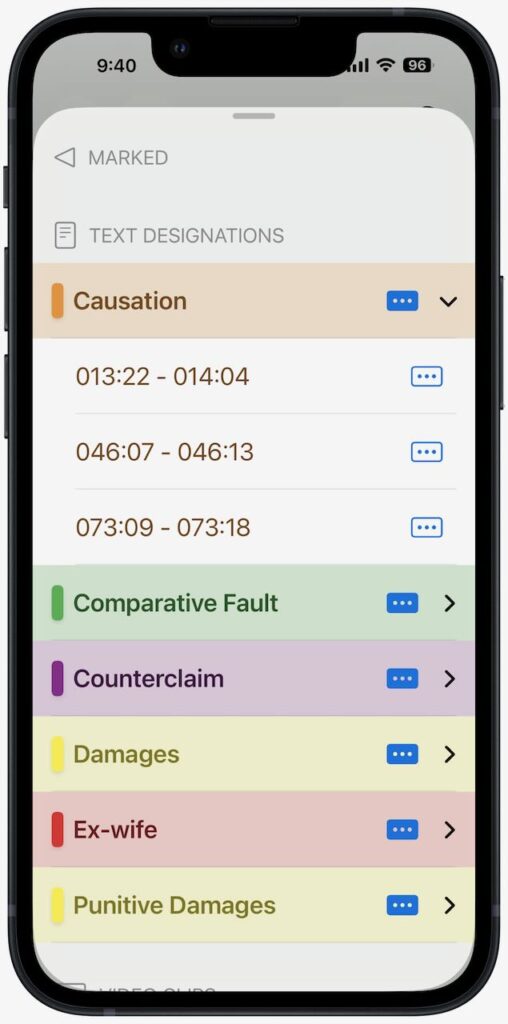
Better yet, you can view all of your issue codes, making it easy to jump directly to the key testimony on a specific issue.
Add annotations to deposition transcripts
The iPhone app is not just a viewer. It is also a full-featured annotation app, so you can also read and annotate a transcript using the normal tools: create and add issue codes, highlight text, etc. This makes it easy to read and annotate a deposition even if you don’t have your iPad with you—or, if you are in a situation in which it may not be practical to use an iPad.
Reports
The Reports feature is one of the best features of the iPad app. Once you have added issue codes to the key questions and answers, you can create a PDF report organized by issue of the key testimony. This is incredibly useful for me when I am drafting a motion and I review a report to focus on the testimony relevant to an argument in my motion.
[UPDATE 12/18/25: In the original version of this post, I said that you cannot create reports on the iPhone. As pointed out in the comment to this post by the developer, Ian O’Flaherty, while the iPhone app doesn’t include the full suite of reports like the iPad and Mac versions were you can create reports across all witnesses in a case, you can still generate the PDF Annotated (Full) Report for a specific witness. When you tap on a witness name and get a list of the different volumes, there is a button at the bottom right that you can tap to create a report. It is fantastic that you can do this on even the iPhone version of this app because it is one of the best parts of TranscriptPad. Also, if you create a report on the iPad/Mac for multiple witnesses in a case, you can review those generated reports in the iPhone app.]
Read out loud
The iPhone app includes another feature that is perfect for the iPhone: the ability to read a deposition out loud. Pick where you want to start—the beginning, or some other part of the deposition—and press the speaker button at the bottom.
You can select a different voice to use for the question and the answer. You can also select any of the iPhone’s many built-in voices for each speaker. Better yet, if you open your Settings app and go to Accessibility -> Read & Speak -> Voices -> English, you can download any of Apple’s enhanced voices for more realistic voices. I’m currently using Allison (Enhanced) to read questions and Tom (Enhanced) to read answers. Going back and forth between these high-quality voices, with a female voice asking the question and a male voice providing the answer, creates a strong contrast, and makes it easy to know who is speaking even if you are not looking at your screen.
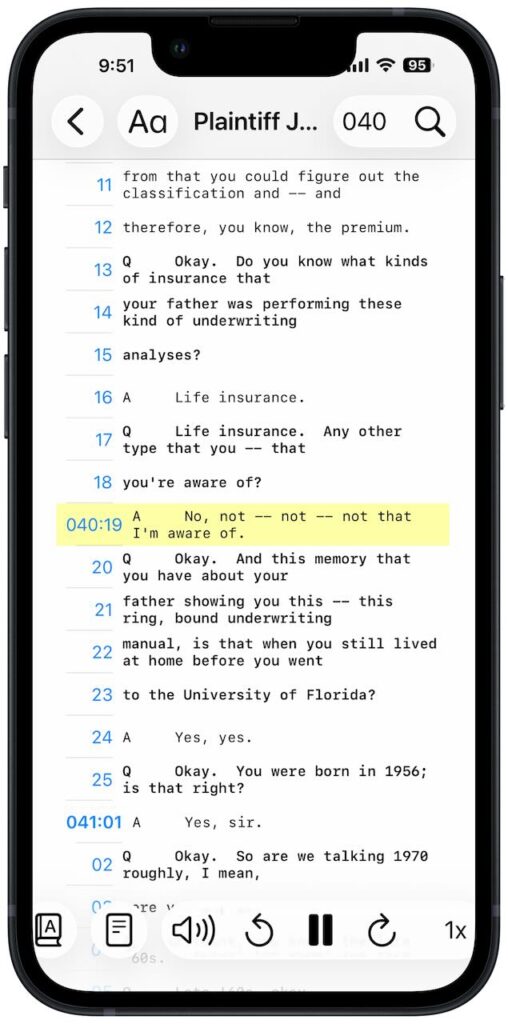
You can also change the playback speed. I prefer either 1.5x or 2.0x to be more efficient, but note that I also listen to most of my podcasts at 1.5x speed, so I’m used to that.
As noted above, I think that a perfect use of this feature is when you are driving in a car. You cannot look at the transcript while you are watching the road, of course, but the TranscriptPad iPhone app can read the transcript to you. This is a great way to review testimony and be productive while you are driving. I can also imagine listening to a transcript while cutting the grass, shoveling snow, doing dishes, etc.
[UPDATE 12/18/25: There is another new feature of the app that I didn’t realize at first, but it is pointed out in the comment to this post by the developer. It is called Marked Lines. If you are listening to a deposition being spoken, or if you are using the hands-free scroll mode, you can simply double-tap on the screen to begin to mark a section, and then you can double-tap again to end the mark mode. The testimony is slightly gray with an arrow on the side to indicate the marked testimony:

Later, you can look at the deposition transcript to see the testimony that you marked and you can go back and add issues codes etc. This is a great way to quickly mark important testimony even when you are not looking at the screen—such as if you are driving.]
Conclusion
To use Lit Software apps such as TranscriptPad, you pay for a LIT SUITE subscription. The cost is very competitive with other software designed for lawyers: $600/year for a single license, $500/year for 3 to 9 licenses, and $475/year for 10 or more licenses. If you work with transcripts, $50/month is worth it just for TranscriptPad alone, but the license also gives you the other apps, such as TrialPad and DocReviewPad. Moreover, the subscription continues to grow in value over time as Lit Software adds new apps (such as the new TimelinePad app added earlier this year) and as Lit Software adds new features to existing apps, such as this new iPhone app.
I’ve been using Lit Software’s apps in my law practice for the last 15 years, and I cannot imagine practicing law without them. Thanks to the new iPhone app for TranscriptPad, this already essential software is now even more useful.
Thanks for the great review of TranscriptPad for iPhone! I wanted to add a couple of notes that fellow users might find helpful. First, if you store your TranscriptPad Case Files in iCloud Drive, you can access those Case Files and all the depositions in them seamlessly from your iPad, Mac, and now your iPhone. This keeps everything in sync across devices, enabling you to start a review in the office, and finish it on your iPhone from the bleachers as you wait for your kid’s next at bat! Also, one of our favorite new additions is the “Marked Lines” feature introduced with the iPhone version (and also added to the iPad and Mac apps). If you’re using the hands-free auto-scroll or the “Speak Transcript” mode to have a deposition read aloud, you can double‑tap on the iPhone or iPad screen (or double‑click on a Mac) to “mark” the current question-and-answer for later review. It’s a really handy way to easily and quickly note any important Q&As on the fly without even looking at the screen, perfect for when you’re listening to a transcript while driving and can’t take your eyes off the road. 🚗 💼
One small clarification on the Reports feature: while the iPhone app doesn’t include the full suite of reports like the iPad and Mac versions, you can still generate the PDF Annotated (Full) Report for a witness. And regarding the “read a deposition out loud” feature, that text-to-speech capability has been available on the iPad version of TranscriptPad all along (so it’s not entirely new to iPad). I suspect it was just highlighted as a marquee addition for the iPhone release since it’s especially useful on a phone when you’re on the go. 👏 💻
Going back to listening to a transcript while driving, we hope that Apple will allow CarPlay entitlements for TranscriptPad. We have to request the entitlement and provide supporting documentation as Apple doesn’t normally allow CarPlay functionality for document-based apps. We hope to be able to allow our users to listen to their transcripts “podcast-style” as they drive!📱