British actor Stephen Fry talked to Apple CEO Tim Cook and Apple’s Jony Ive, and wrote an interesting article about it earlier this week in The Telegraph. The article reveals that Ive has a new position at Apple: Chief Design Officer. This led to much speculation as to whether this new position signals that Ive will be spending more time in England and less time designing cool new Apple products, but John Gruber of Daring Fireball disagrees with that and thinks that it means that Ive can spend less time focusing on administrative duties and more time thinking about design, which seems like a good thing to me. Whether Ive is involved or someone else, hopefully we will have a very long future of well-designed products from Apple. And now, the news of note from the past week:
This week, there were reports that if someone sends a very strange series of characters to you in a text message, it can crash the Messages app on your iPhone. If this happens to you, yesterday Apple posted instructions for fixing it, and also said that a permanent fix will come in a future software update.
Marques Brownlee put together a video addressing 10 common Apple Watch questions.
Jason Snell of Six Colors explains that even after you decide to get an Apple Watch, it is very difficult to decide which one to get because of the large number of choices, something new for Apple.
Zac Hall of 9to5Mac reports that the new Marriott app lets you check in and check out from your Apple Watch.
I noticed the day that I received my Apple Watch that the box / storage case that it comes in is really nice, which almost makes me feel guilty about never using it. Zac Hall reports that people are actually selling the boxes on eBay — not the Apple Watch, just the empty box — and people are buying them.
Marco Arment notes that the circles on the Apple Watch have caused him to exercise every day. The same thing has happened to me. I realize that this is just gamification, but I know many people who pay for a personal trainer mostly for the encouragement, so there is nothing unusual about using encouragement to be healthier. It’s nice to see that the Apple Watch is providing positive reinforcement for others, not just me.
This week I reviewed the excellent Weather Line app, but as I noted in that review, there are lots of other good weather apps too. Allyson Kazmucha put together a list of some of the best weather apps for the iPhone. I own most of the apps on that list and I agree with her that these are good ones.
M.G. Siegler, a partner with Google Ventures and tech expert, says that force touch works so well on the Apple Watch that it makes sense to also put force touch on the iPhone and iPad. I agree, and I hope the rumors are true and that Apple adds this to the 2015 version of the iPad and iPhone, which I expect to come out this Fall.
ITV News reports that a man in England survived a shotgun attack because he was lucky enough for the bullets to hit his iPhone 5c, which absorbed most of the impact.
And finally, the Jasper Hamill of The Mirror reports that Gregory Papadin handed his iPhone 5 (in a waterproof case) to his brother to dive into the ocean near San Diego. Then the brother tried to throw the phone back to him… but instead it fell in to the water and went down, down, down. But the camera was on, so the whole thing was captured on video — including the captain swimming down and saving the phone. It’s a fun video:
When it comes to using a stylus with an iPad, the Holy Grail is a stylus that gives you the precision and feel of a nice pen. Unfortunately, the iPad is not designed to recognize something as small as a pen tip. It is designed to recognize input from a finger — something the size of a thick crayon. Thus, for a long time, all iPad styluses had larger rubbery tips to simulate the touch of a finger.
Adonit changed all of that in late 2013 when it introduced the original Adonit Jot Script, a stylus with a tiny, hard tip just like a pen. Adonit figured out a way to have the iPad recognize a tip that is far, far smaller than a finger by emitting an electrical pulse that the iPad is tricked into thinking is input from a fingertip. This meant that the stylus needed a power source, and the original Script used a AAA battery. Other stylus makers followed suit with similar models, and this type of stylus is often called an active stylus.
When I reviewed the that original Adonit Jot Script, I was amazed at the engineering, but I was frustrated by some disadvantages. One thing that I didn’t like was that when you tried to make a diagonal line, the line would appear somewhat wavy on the iPad. This improved in 2014 when Adonit gave updated software to app developers, which made apps like GoodNotes work even better with the Jot Script. But then it got worse in late 2014 when Apple introduced the iPad Air. Something about the iPad Air screen made it less compatible with the original Jot Script, and this continued to be a problem with the iPad Air 2 introduced in late 2015. You could use an active stylus like the original Jot Script with the iPad Air and iPad Air 2, but it was not as precise as when you used an active stylus on older iPads.
Fortunately, the Adonit engineers recently figured out how to solve this problem, and the result is the new Adonit Jot Script 2. Adonit sent me a free sample to review, and I’ve been using it for the past few weeks to take notes in my office. My conclusion is that is a huge improvement over the original Jot Script, but it still has some drawbacks.
Diagonal lines
The biggest improvement in the Jot Script 2 is that it has no problem at all with diagonal lines. What you draw is what you get on the screen. If your line isn’t straight, the fault lies with your penmanship, not the stylus. Here is an example of using the original Jot Script and the new Jot Script 2 on an iPad Air 2 using GoodNotes:
As you can see, the difference when you making a diagonal line is substantial. But even when just writing words, I find that the Jot Script 2 does a much better job. Whatever Adonit did to make the iPad work when making a diagonal line also makes the stylus more precise for any writing that you are doing. You can see this in the above picture, especially in the T, o and w where I wrote “The quick brown fox…” The stylus may not improve your penmanship, but unlike other active styluses, the Jot Script 2 won’t make your penmanship any worse than it already is.
Rechargeable and slimmer
Another disadvantage of the original Jot Script that I noted in my review was that it needed a AAA battery to be powered. Not only did this mean that you need to go through batteries to keep it charged, but it also added to the diameter of the stylus.
The new Jot Script 2 is rechargeable. It comes with a small charger than plugs into a USB port, and the stylus fits into the circle on the charger. A magnet keeps the stylus connected to the charger. The charger works very well. Adonit says that the Jot Script 2"will function for over 20 hours of pen down writing time before a charge is needed. A full charge only takes 45 to 50 minutes.” Those claims seem about right to me.
The new version of the Jot Script is also skinnier than the original version. It is still not nearly as thin as a traditional pen, or as thin as most non-active styluses, but it is a noticeable improvement. In the following picture, the original Jot Script is on the left, and the Script 2 is on the right.
Design
The design of the Adonit Jot Script 2 is very similar to the original Jot Script, but there are a few subtle changes, one of which I really appreciate. One of my complaints in my review of the original stylus was that the button that you press to turn on the stylus was very hard to distinguish from the rest of the stylus, forcing me to waste time hunting for a button when I wanted to turn on the stylus. I included this photo in my review of the original Jot Script to show the problem:
In the Jot Script 2, the button is still flush with the rest of the stylus and thus somewhat hard to find just by touch, but now it is a shiny silver that is much easier to see.
Here is a picture from the Adonit website that does a good job of showing you the difference in the buttons:
Note that the button is only used to turn the stylus on. Some active styluses also have a button that can perform functions when used with a compatible app. When I use those styluses, I really enjoy being able to press a button to undo whatever I wrote last. Adonit sells another active stylus, the Jot Touch, which has both buttons that can perform functions and pressure sensitivity, but I don’t know if it has yet been updated to work well with an iPad Air and iPad Air 2 like the Jot Script 2 has.
The Jot Script 2 is also a tiny bit shorter than the original Jot Script, but the difference is not enough to make any real difference.
The one design feature that Adonit did not change, even though I really had hoped that they would do so, is that the Jot Script 2 still lacks a clip on the side. This means that you cannot easily clip it to a pocket, and thus the stylus rolls around in your shirt pocket. It also means that if you put down the stylus on a table, it can roll around on the table and sometimes for me would roll off the table completely.
Noise
One of my biggest complaints about the original Jot Script was that the hard tip is noisy when you tap against the screen. I even posted a video so that you could hear the sound. The sound in the Jot Script 2 is similar; it is perhaps the slightest bit less noisy, but when I tried to record the difference, the difference was too slight to hear. Thus, that original video still gives you a sense of what kind of noise you will make with the Jot Script 2.
I realize that we are not talking about a lot of noise, and some folks won’t mind it at all, especially if you are in an environment with background noise. But I tend to take notes in rooms that are very quiet except for whoever is speaking, and the noise bothers me. It also makes me want to tap more slowly on my screen and with less pressure to reduce the noise, but that often results in the stylus not working as well, so then I need to erase what I just wrote and write it again — an annoying process.
If you are taking notes in a noisy environment, or if you are drawing in a room by yourself, and thus the slight noise doesn’t matter, I very much like the feel of the hard tip against the iPad screen. I’m sure that this is why the original Jot Script was so popular. It’s a very nice stylus. But if I am in a quiet room with others around me — which is a very typical environment for meetings and team conference calls that I attend — the noise produced by the hard tip of the Jot Script 2, like the lack of a clip, annoys me.
Conclusion
The Adonit Jot Script 2 works well, and I do like this stylus. When you use a fine point tip on the iPad, you can be incredibly precise on where you want the digital ink to be drawn. It feels much more like writing with a pen, whereas many non-active styluses feel more like you are writing with a crayon.
When you use an active stylus like the Jot Script 2 with a compatible app, such as Evernote or GoodNotes, the app knows to ignore input from anything except for the stylus. If you rest your palm on your iPad screen while you write and you find that this often results in the iPad thinking that you intended to write on the screen when you just rested your palm, then an active stylus like the Jot Script 2 will solve that problem.
But having said that, I feel that I can be just as precise when I use another stylus which also happens to be made by Adonit, the 2015 version of the Adonit Jot Pro, which I reviewed two months ago. That non-active stylus creates the illusion of a fine tip by using a clear disc at the end of the stylus. The Jot Pro is only $30, whereas the Jot Script 2 costs $75. Also, with the Jot Pro, I don’t need to worry about charging or replacing batteries; no power is needed at all. And finally, while the Jot Pro does make a little bit of noise when you use it, it makes far less noise than the Jot Script 2. There are also some newer non-active styluses with rubber tips, like the third generation Wacom Bamboo Stylus duo, that do an excellent job of writing on the iPad Air or Air 2. The Stylus duo tip is not as small as the Jot Script 2 or the Jot Pro, but it gets the job done, and it is silent to use (and has a clip on the side).
If you want to use an active stylus so that you can use a fine tip and take advantage of compatible apps, this is a really good stylus — and likely the best active stylus for the iPad Air and iPad Air 2. If only it were silent and had a clip, then I would use it all of the time. Instead, I can only give it a qualified recommendation.
There are a ridiculous number of iPhone apps that can tell you the weather. I have purchased a whole bunch of them, partly because weather apps are inherently useful, but also because whenever I find one with an interface or a feature that I like, it is often not long before another one comes along that seems like it might be better. But for quite a while now, I’ve stuck with just one Weather app on the home screen of my iPhone: Weather Line, which is currently on sale for only $1.99. Here’s why this has been my favorite weather app, and perhaps it will appeal to you as well.
A line is worth a thousand words
Weather Line shows you a series of hours, days or months, and then displays the temperature for each day. Many apps do this, but what I love about Weather Line, and what gives the app the name, is the line that connects the temperatures. The line means that your brain does not even need to process the numbers. You quickly see that a line is going up to indicate that it is getting warmer, a line going down to indicate that it is getting colder, or the line is relatively straight if the temperature is staying about the same.
For example, in the following images from the Hourly view, I can see that the temperature starts at 80° and then slowly rises to 86°. I wouldn’t use the app if it didn’t include the numbers, but it is the slight incline of the line that helps me to quickly see the gradual increase in temperature. Moreover, the lines are yellow when it is mostly sunny and blue when there is a chance of rain, another quick and helpful visual clue. You can tap on any hour to get more detailed information about the temperature during that hour, such as what the weather will actually feel like, the chance of rain during that hour, the humidity, etc.
If you swipe from right to left, you can see the hourly forecast for the next 48 hours.
In the Daily view, you see the high and low temperature for each day, again with lines to help you see how the highs and lows will change (or not change) from day to day, plus blue or yellow colors to indicate rain or shine. I use this view all the time to get a sense of whether it is getting warmer or colder during the week. Tap on any specific day for a mini-forecast for that day at the bottom. The app was updated last week to show you the date in addition to the first letter of the day of the week, which was a nice addition.
On an iPhone 5s or earlier, you can see up to seven days on the screen. Although I use an iPhone 6, I have it set to the “Zoomed” view (Settings -> Display & Brightness -> View -> Zoomed) so that all of my apps are bigger and easier for me to see, but if you instead use the Standard view on an iPhone 6, a recent update to Weather Line will take advantage of that extra space to show an extra day. In the following images from my iPhone 6, the first one is in Zoomed mode, and the second one is Standard mode.
I am sure that you can also see the extra day on an iPhone 6 Plus, but I don’t have one to test so I don’t know if you only see the extra day when you are in Standard view.
The app also has a Monthly view that shows monthly averages for a city. I can see how that might be useful, perhaps for a city that you will be visiting. In practice, however, I rarely use this view.
Dark Sky forecasts
Dark Sky is an amazing weather app that provides very precise forecasts for the next hour in your specific location. If you are about to head out of the office for lunch, this is the app that lets you know whether you need to bring an umbrella. But other apps can also tap into the Dark Sky database, and Weather Line does so. Thus, at the very bottom of the screen, Weather Line tells you whether or not it will rain in the next hour. Tap that forecast to get a detailed minute-to-minute forecast of precisely when it will start and stop raining and how heavy it will be.
These Dark Sky forecasts are very useful and I use them all of the time. For example, I often find out that the rain is going to stop in a few minutes and then start up again, so I know that I can wait for a short window to go out without getting wet. Or, I can find out that it is just going to get worse, so I might as well go out now.
Although I also have the Dark Sky app on my iPhone, I love that much of its functionality is built in to the Weather Line app so that I can have everything that I need in a single app. (The Dark Sky app is still useful if you want to see a radar from the last few hours plus an excellent forecast of the predicted radar for the next hour.)
Conclusion
Weather Line has a few other features. For example, tap the information icon at the top right to switch to another city, or to add new cities to your list of favorites. You can also switch from Fahrenheit to Celsius.
However, the core of the app is just a single screen that I use to see the hourly, or the daily, forecast. I find this app to be incredibly easy to use, and I find that it is better than any other weather app that I have tried when I want to quickly see the current weather and how that weather will change in the future. Whenever I take a trip to another city, this is my favorite app for helping me to quickly figure out what weather I need to pack for.
I highly recommend Weather Line to anyone looking for a great weather app. It is normally $2.99, but I see that it is currently on sale for $1.99.
It was the end of the era this week with David Letterman going off of the air. I remember Letterman using an iPad for a Top Ten list when the iPad first debuted, but until this week I did not know the back story. It turns out that Andy Ihnatko, a Boston-based technology columnist for Chicago Sun-Times, had a pre-release iPad for review from Apple, and he let Letterman use it — and lick it — on the program. His story was published this week in the Sun-Times, and it is worth reading for anyone who enjoyed watching Letterman over the years. The article also includes a video clip of Letterman with the iPad that night. And now, the news of note from the past week:
New York attorney Nicole Black interviewed me to talk about the Apple Watch in an article for the Above the Law website.
If you use, or want to use, TranscriptPad for the iPad — a fantastic app for reading and annotating transcripts — the free TranscriptPad Quick Start Guide has been updated to version 2.2. You can download it from the iBookstore by clicking here.
If you have been thinking of getting 1Password for the iPhone, iPad, Mac or PC, it is currently 30% off, as noted in this post on the developer’s blog.
Tech columnist John Moltz explains why it is great to use the Apple Watch in the kitchen. I’m a big fan of using the “Hey Siri” function to dictate tasks to my Apple Watch, and I love that you can do it hands free, whether you are in the kitchen or anywher else. I can just lift my wrist and say “Hey Siri remind me to [whatever]” and Siri will remind me at the right time or place.
Roger Fingas of AppleInsider reports that MD Anderson Cancer Center is giving patients Apple Watches as a part of its breast cancer treatment.
Do you use Emoji on your iPhone, iPad or Apple Watch? Joanna Stern of the Wall Street Journal wrote an article about learning to write using Emoji. Much of the article is actually written using Emoji, although an English translation is available.
Andy Faust of WatchAware recommends using the Mickey Mouse watch face with black and white mode enabled for a retro look.
Mickey Campbell of AppleInsider reports that Apple CEO Tim Cook gave the commencement address at George Washington University this past weekend. The article includes the full 20 minute video.
It’s an old joke that people claim to read Playboy just for the articles, but as Andrew Tarantola of Engadget reports, you can now download the free Playboy Now app, an app which contains Playboy articles but absolutely no nudity. I downloaded it yesterday — to perform my research for this post, of course — and it was interesting to see articles about very explicit intimate acts juxtaposed with far less titillating articles such as “How to recover an unsaved draft in Microsoft Word.”
And finally, this past Sunday, the first trailer was released for the Steve Jobs movie coming out in October. This is the movie written by Aaron Sorkin, based on the book by Walter Isaacson. Here it is:
Yesterday, Apple released the first update — I’m sure the first of many updates — for the Apple Watch, updating the software from Watch OS 1.0 to Watch OS 1.0.1. That is only a minor number change, which seems appropriate because this is only a minor update. No new features are added, and instead Apple improved the performance of Siri and several activity monitor functions such as measuring stand activity and calculations during workouts, along with some other minor improvements. If you open the Apple Watch app on your iPhone (which is what you use to update the watch) you can see all of the details of Watch OS 1.0.1:
Although this update is a minor one, it is nice to see that the Apple Watch is already starting to mature, even though it is a brand new device. And as I think back to the carefree youthfulness that was Apple Watch 1.0, I find myself thinking of the origin of my Apple Watch. How was my Apple Watch born? Well, um, when a mommy iPhone and a Daddy iPad love each other very much …
Let’s try a different question. When was my Apple Watch born? There may be a more ascertainable answer to that one. I learned from Episode 37 of the Upgrade podcast released this week, with hosts Jason Snell and Myke Hurley, about how you might be able to determine this date from the Activity app on the iPhone.
The purpose of the Activity app is to show how you are doing with your three circles measured by the Apple Watch — Move, Exercise, and Stand. The Watch wants you to stand up and move around at least once an hour for at least 12 hours, to exercise for at least 30 minutes, and to move around enough to burn a certain number of calories every day (an amount that varies based on how active you normally are). For example, last week I was able to complete all of my circles every day, and I can see that in the Activity app:
If I scroll back even further, I can see the first day on which I started to measure real activity on the circles was Friday April 24, 2015, which makes sense because that is the day that my Apple Watch first arrived:
But if I scroll back to the prior week, I see that my watch measured some activity on Tuesday, April 14 and Wednesday, April 15. That’s around ten days before my Apple Watch was first on my wrist. On April 15, my watch even measured enough activity around 5am Central to record two calories being burned:
How was my Apple Watch measuring movement before I even had the watch? It’s just a theory, but it makes sense to me that April 14 was the day that my Apple Watch was first born, the day that it was first turned on and able to measure something. It measured activity on the 14th and 15th, and was then powered down. It was then powered back on again on Thursday April 23, sent to me overnight FedEx, and then I had it on April 24. That would explain all of the movement measured by my Apple Watch.
Does learning an Apple Watch’s birthday constitute useful information? Perhaps not, but you never know, maybe one day it will be important to know that my watch was born on April 14, 2015. My own horoscope sign is Scorpio, so hopefully Aries and Scorpio are compatible.
If you have read this far into this post, I suspect that you either already have an Apple Watch or you will have one someday. When you get it, check your Activity app to see when your own Apple Watch was born. And feel free to post your watch’s birthday in the comments to this post. I’m curious to learn of the birthdays of the earliest Apple Watches to be sold.
In September of 2014, when Apple released iOS 8 for iPhone and iPad, Apple began an overhaul of the way that its products manage photographs. On April 8, 2015, Apple completed that transition by releasing an update to the Mac operating system, OS X Yosemite 10.10.3, which introduced the new Photos program, a replacement for iPhoto. You can still use iPhoto for now, but Apple doesn’t plan to update it anymore, so its days are numbered. Photos, on the other hand, is not only the supported program, but is also a much better program with great new features, such as being much faster to use, even if you have tens of thousands of pictures, plus with Photos you can make all of your pictures available on all of your devices. Thus, I recommend that anyone who uses a Mac start moving from iPhoto to Photos, especially if you also have an iPhone and/or iPad.
The problem is that Photos is new. Many of the ways that you used to do things in iPhoto are different in Photos. Indeed, the entire philosophy for how the software organizes photos is different. Knowing that I would need to learn how to make my way through this transition, I bought, and posted a review of, an ebook called Photos for Mac – A Take Control Crash Course by Jason Snell. That book is still only available in preview form, with the full content expected to be released very soon, but for now that book won’t tell you all that you need to know about Photos.
In the meantime, California attorney David Sparks recently released a 2.5 hour video called Photos Video Field Guide. It costs $9.99, and I had planned to buy a copy because I’ve always been impressed by the other videos and iBooks produced by David, but he was nice enough to send me a free copy to review. I finished it over the weekend, and I loved it.
I enjoy reading books and articles when I am trying to learn something new, but sometimes there is no substitute for having someone actually show you something. Photos Video Field Guide is a screencast, so you see David’s computer screen, iPad screen or iPhone screen while you listen to him explain exactly what he is doing. This is an excellent way to show how Photos works. Sure, I could have eventually figured out many of the features of Photos by just fiddling around with the software, but now that I’ve watched David edit and manipulate photos while explaining what he was doing, I no longer need to waste time figuring out the basics.
While I most wanted to watch this video to learn about Photos on the Mac, this video also does an excellent job of explaining how to use Photos on the iPad and iPhone. Even though I’ve been using those apps since last Fall, I learned a ton about those apps that I didn’t previously fully appreciate. One of the key advantages of Apple’s new approach to photographs is that you can now view and seamlessly work with your photos across platforms — Mac, iPad and iPhone. Thus, it makes perfect sense that this video pays attention to all three platforms.
The video also does a good job of appealing to a spectrum of user levels. David walks you through everything, so this video is perfect for a complete novice, but I found the entire video interesting and educational even though I consider myself an advanced iPhoto user and I even use Photoshop a little. I can recommend this video to you regardless of your digital photography skill level.
In addition to showing off how to use all of the features, David does an excellent job of explaining the new philosophy of Photos. I’ll admit that I had been upset that Apple got rid of Events, which was the central focus of iPhoto, and something that I felt very comfortable using. But now that I understand Apple’s new organization philosophy in Photos of using years, collections and moments, along with the new super-fast search features of Photos on the Mac, iPad and iPhone, I finally get it. There was a moment this past weekend when I was listening to David talk and I all but heard a bell ring in my head (much like Don Draper in the Mad Men finale Sunday night) and suddenly I got it. (And I’ll refrain from making further references to Mad Men for those of you who have not yet watched it on your DVR.) For me, finally understanding why Apple did what it did in Photos, as opposed to the old approach in iPhoto, was perhaps the best part of watching the Photos Video Field Guide.
The video is fully bookmarked, so after you finish watching the video if you want to go back to, say, the section on Searching Photos in iOS, just click on the chapter icon in QuickTime Player (or whatever you use to watch videos) and you can jump right to 01:18:51 where that starts.
Rather than me continuing to wax poetic about this video, let me stop and simply refer you to the very generous 30 minute sample of the Field Guide provided by David. This is essentially the first 30 minutes of the screencast, so you can watch this, and if you like it, you can buy the full video to watch the other two hours and have a copy that you can save on your computer to refer to in the future.
The Photos Video Field Guide is an excellent way to learn all about Apple’s new approach to photographs and all of the powerful things that you can do in Photos on the Mac, iPad and iPhone. I really enjoyed this video, and if you enjoy taking photographs, you will too.
I only ran across a few articles this week that struck me as good candidates for In the news, so here is today’s shorter-than-normal list of articles that you should consider reading and other items that you should be aware of:
New York attorney Nicole Black discusses her first week using an Apple Watch in an article for The Daily Record. Niki and I had the opportunity to talk on the phone about the Apple Watch earlier this week, and she made the good point that the Apple Watch can be even more useful for female attorneys than for male attorneys. While men often store an iPhone in an easy-to-reach shirt pocket, women often keep the iPhone in a purse. Being able to glance at your wrist to get information is even more valuable when the alternative is having to dig through a purse to find an iPhone. As Niki writes in her article, with the Apple Watch, there is “[n]o more reaching for your phone or digging through your purse to locate it when it’s ringing. Instead, you just look at your wrist for the time, the weather, your upcoming appointments, notifications of important communications and more.”
Minneapolis attorney Sam Glover of Lawyerist wrote a 35-page PDF e-book called 4-Step Computer Security Upgrade in which he provides advice on the four best things that attorneys can do to improve their security. The e-book costs $10, and Sam gave me a free copy to review this week. I agree with all of his suggestions, and any attorney that follows his advice will be much better protected.
Tech analyst Ross Rubin discusses the future of the iPad in an article for iMore.
Apple explains on this page that you can improve the accuracy of distance and pace measurements on an Apple Watch by doing a 20 minute workout with both your iPhone and Apple Watch.
And finally, David Pogue of Yahoo Tech shows in this video why Apple’s new ResearchKit for the iPhone is a big deal. He calls it the best product that Apple has ever produced:
While my wife attended an event last night, my kids decided that the rest of us should go out to eat TexMex. The three of us had a fun evening, but at one point when my daughter was dipping a chip in salsa, she managed to spill a little salsa on my Apple Watch. It wasn’t much, and I just wiped it off with my napkin and didn’t think much about it at the time. But last night as I was using the watch on a treadmill, I noticed that the Digital Crown (the tiny dial that you can turn on the side of the watch) wasn’t spinning correctly; it felt like it was getting stuck. And after I finished exercising, when I was trying to scroll through an email on the watch, the crown wouldn’t scroll the message at all. (I could still scroll by flicking my finger up and down the screen, but not with the Digital Crown.) It occurred to me that the salsa must have somehow gotten stuck around the Digital Crown, although I couldn’t see it.
Turn off your Apple Watch and remove it from the charger.
If you have a leather band, remove it from your Apple Watch.
Hold the Digital Crown under lightly running, warm, fresh water from a faucet for 10 to 15 seconds. Soaps and other cleaning products shouldn’t be used.
Continuously turn and press the Digital Crown as water runs over the small gap between the crown and the housing.
Dry your Apple Watch with a non-abrasive, lint-free cleaning cloth.
I followed these steps, finishing up by drying my Apple Watch with an official iPhone J.D. logo MOBiLE CLOTH, left over from the ones I had been handing out at ABA TECHSHOW last month. (I presume that these steps will work for you even if you didn’t see me at TECHSHOW and you use another cloth.) Finally, after a short prayer that I had not just ruined my Apple Watch, I turned it back on.
Sure enough, the Digital Crown was once again working great. Really great. It actually now spins better than it has since the first day I started using the Apple Watch. This reminded me, I always wondered whether a tiny amount of sunscreen got caught in the Digital Crown when I used it at Jazz Fest just two days after my Apple Watch first arrived. Maybe that is what happened; that page on the Apple website talks about “substances like dust or lotion” getting caught around the Digital Crown.
Please DO NOT start sticking your iPhone or iPad under the faucet the next time that you encounter a problem. I really cannot emphasize enough that the sink is not a remedy for an iPhone app that crashes. But if you think that something might have gotten stuck in or around the Digital Crown on your Apple Watch, give it a quick warm shower as Apple suggests, and you should be up and running again.
I’ve been on the lookout for good iPhone apps that also work well on the Apple Watch, and that led me to buy an app called Deliveries. This app has been around for many years, but I had never tried it. The app costs $4.99 and gives you a central location to track any packages sent via all of the popular delivery services. This past week, I had packages coming to me via UPS, FedEx and U.S. Mail, so I figured that was a good chance to test this app. I found that the app works well for the times when you want to check status, but I had less success when I waited for the app to send me push notifications.
Entering your tracking numbers
To use the app, you need to start by providing the app with a tracking number. The easiest way to do this is to use cut-and-paste. For example, my Apple Watch has a classic leather band, but I also ordered a Sports Band to use when working out. Last week I received an email from Apple telling me that my band had shipped and would deliver by May 8. That email told me that my watch was being shipped via FedEx and gave me a tracking number. I selected that number in the email, copied it, and then launched the Deliveries app.
Deliveries automatically sensed that I had something that appeared to be a tracking number on the clipboard, and asked me to confirm that I wanted to use that number. I tapped Add.
Next, the app asks you to confirm the delivery company, which Deliveries had correctly guessed was likely a FedEx delivery, but also gave me some other choices. I tapped FedEx to confirm, and then I could type a unique name to identify this package. I entered “Band” and then tapped Save.
After those few taps the app knew about my package.
Other times I had to use a few more taps to get the information added. For example I ordered some headphones from Amazon, and although Amazon sent me an email when they shipped, I had to go to the Amazon website to get the tracking number. For this package, it turned out that Amazon was using the U.S. Postal Service.
Of course, you can also manually enter a number, but tracking numbers are typically so long that I imagine that most folks will want to use cut-and-paste whenever possible. If you have access to a barcode, you can also tap the + at the top right of the app’s main screen and then tap on the barcode icon to turn on your camera so that you can scan a barcode to enter the tracking number. I haven’t yet tested this feature myself, but I imagine that it could be useful when you are sending a package that you want to track.
There are a few other ways to enter tracking numbers, and you can get all the details here. But I imagine that copy-and-paste of a tracking number is how much folks use this app.
Tracking Packages
Once the Deliveries app knows about your package, it is easy to check the status. Simply open the app and the app checks the appropriate websites to find the latest shipping status. The main screen of the app lists each item, puts a big number to indicate how many more days you have before the delivery is coming, and even uses appropriate color coding for entries — such as brown for UPS, purple for FedEx and white for U.S. Mail.
Opening the Deliveries app on an iPhone is much, much faster than having to find the email or website to locate the tracking information and then clicking the appropriate buttons to search the current status. Just launch the app and the status of all of your pending deliveries are in one central location, no matter what store you ordered from and what service is shipping the package.
If you want more information, just tap on any entry. That brings you to a screen that shows you the additional information on the status of the package, including a map that shows where the package is and where you are located. If you want even more details, tap “View details online” to go directly to the FedEx/UPS/etc. website page for that tracking number.
Once your package is delivered, the entry remains on the app’s main screen. If you want to remove it, swipe to the left and tap Archive. You can find packages — both new ones and ones that are archived — by typing search terms in the Search box at the top. Or type a space in the search field to see every entry that has ever been tracked by the app, including archived entries.
Apple Watch
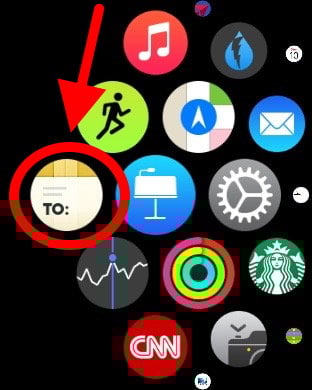
There is also a Deliveries app for the Apple Watch. You cannot enter a new tracking number on the watch (nor can I imagine wanting to do so), but when you tap the icon to launch the app you see a handy list of the packages that you are tracking on your iPhone.
Tap on any entry to get more details on the current status, similar to what you see on the iPhone (including a map, albeit a tiny one given the size of the watch screen).
For those times when you are eagerly anticipating the arrival of a package, it is nice to be able to check the status with a few taps on the watch instead of having to use the iPhone app.
Notifications
All of the features I described above work very well and make this app worth getting. Having said that, the one feature of the app that I was most looking forward to was notifications, especially notifications on my Apple Watch, and this is an area in which the app fell short for me.
I usually have my packages delivered to my office, which means that they are given to the mail room at my law firm. The mail room is on the 44th floor of my building and my office is on the 46th floor, and so sometimes I have to wait an hour or two for a package to show up in my office. For those times when I want to get a package as soon as it arrives, it is nice to know that the package is already at my law firm. For example, this past Friday I was eager to try the sports band on my Apple Watch. My hope was that the Deliveries app would send me notifications within a few minutes of that package arriving in my office, so that I could just walk down to my mail room to get it right away.
Similarly, if you have a package being delivered to your home and if the delivery company just leaves it on your porch without ringing a doorbell, it would be nice to know, right away, that it is there.
The Deliveries app does advertise that is provides notifications, but in my experience they were sent to me very infrequently, and often too late. For example, I was handed a package from Amazon that had been sent via U.S. Mail without getting any notification that it had arrived. In this case, the fault was with the U.S. Mail, which did not even update its website to say that the package had arrived until that night. But at the same time, I was also handed my watch band, which had been sent via FedEx, without getting any notification from the Deliveries app, even though the FedEx website reflected that it had been delivered an hour earlier.
The app does seem to check in from time to time to update entries, and did occasionally send notifications of delivery updates to my iPhone/Apple Watch. But the app doesn’t seem to check very often.
When you launch the app, Deliveries updates status at that time, and then doesn’t send you notifications of that updated status because you are already looking at it. If you never launch the app, Deliveries will send you updates via push notifications, but you should not count on those being timely notifications.
Other
There is also a version of Deliveries that works on the Mac, and the app uses iCloud to sync information between the iPhone and the Mac. I didn’t test the Mac version.
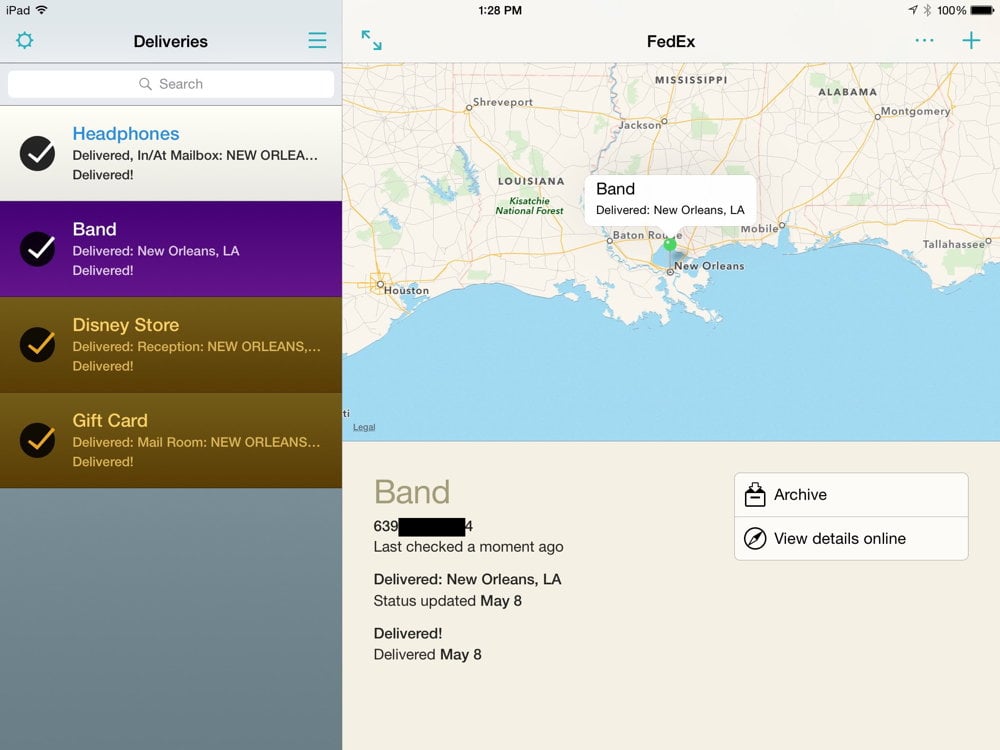
Deliveries is a universal app, so it also works on the iPad, again syncing information using iCloud. Deliveries on the iPad takes advantage of the larger screen by showing both a list of packages being tracked and the details for one of the items — essentially showing on one screen what the iPhone and Apple Watch show on two screens.
The iPhone app also features a notification center widget. If you enable it, you can check your package status just by swiping down from the top of your iPhone screen, without even having to launch the app.
Conclusion
Deliveries works great for those times when you decide that you want to find out the latest status of your packages. Just launch the app on your iPhone or Apple Watch, and in a few seconds you’ll see the current status.
Deliveries didn’t work as well in my tests when I wanted to have the app to take the initiative and push a timely notification to me. Notifications did come, but not as quickly as I had hoped when I purchased the app.
Nevertheless, I can still recommend Deliveries for anyone who is interested in tracking package status and who wants a quick and easy way to do so. The app really shines when you have multiple packages in route because a simple launch of the app collects different information about different items from different delivery services and then shows you all of the information at once.
Here we go again; another week in which there is very little iPhone/iPad news but a lot of Apple Watch news. For example, I enjoyed the short article by Dave Caolo of Apple World Today in which he recommends silencing your iPhone, silencing your Apple Watch, and turning your Apple Watch haptic settings to high. This way, you get your alerts via a tap on your wrist instead of a noise or vibration from an iPhone, maximizing the utility of the Apple Watch and making you less annoying to others in meetings. The way that I do it is a little different, but he and I agree on the goal. Indeed, shifting my alerts from my iPhone/iPad to taps on my wrist is one of my favorite features of the Apple Watch, especially since you can control which notifications are important enough to tap you on the wrist. As the Macalope wisely wrote in an article criticizing a New York Times editorial, “the Watch is like an administrative assistant for your phone. It filters the things that vie for your attention.” I agree 100%. And now, the news of note from the past week:
A small administrative note: I switched my domain registration service this week, and depending upon your own internet server provider, iPhone J.D. may have been down for a period of time yesterday. Also, if you sent me email on Thursday afternoon, there is a chance that it did not come through so consider resending it. I apologize for the inconvenience, but everything should be up and running now.
Jason Snell of Six Colors was the first person I saw who figured out and posted that you can change the volume of your iPhone playing music or a podcast by using the Digital Crown on the Apple Watch. This is really useful.
Jon Fingas of Engadget reports that a Florida woman, who was held hostage and not permitted to use her phone for anything other than to order pizza, inserted a 911 message in her pizza order using the Pizza Hut app. The Pizza Hut employees saw the plea for help and called the authorities.
Apple has a new part of their website called Everything changes with iPad, showing off lots of different ways that you can use your iPad when cooking, learning, traveling, redecorating, and in business.
And finally, as we get ready for Mother’s Day, what would it be like if Siri was your mom? The Daily Dot explores this in a funny video — which works because it stars Susan Bennett, whose voice was the basis for the first version of Siri. Very much worth watching: