A week ago, Apple released iOS 13.0, but it had lots of bugs. This week, Apple released iOS 13.1 and iPadOS 13.1, and unfortunately I’m still seeing some bugs, especially in the Mail app in iPadOS 13.1. I love all of the new features, but hopefully it won’t be long before we see another update so that we can appreciate all of the new features without seeing bizarre behavior in some of the built-in apps. [UPDATE: About 12 hours after I posted this, Apple released iOS 13.1.1 and iPadOS 13.1.1 to provide “bug fixes and improvements.” Hopefully, this will make a difference.] And now, the news of note from the past week:
As I mentioned last week, if you want to hear me talk about iOS 13 and you are in the New Orleans area, I’ll be speaking to the Krewe de Tech group at the Jefferson Parish East Bank Regional Library on Tuesday, October 1 at 6:30. The meeting is free and open to the public. Click here for more details.
This week, the Lit Software blog shared the story of New York attorney Gurfein Douglas who used the TrialPad app (my review) in a seven-week medical malpractice trial in which he obtained a verdict of $110,640,958.
iOS 13 has been a big news item for many weeks now, but if for some reason you are still running iOS 12, you should install the iOS 12.4.2 update which came out yesterday to address some security issues, as explained by Chance Miller of 9to5Mac.
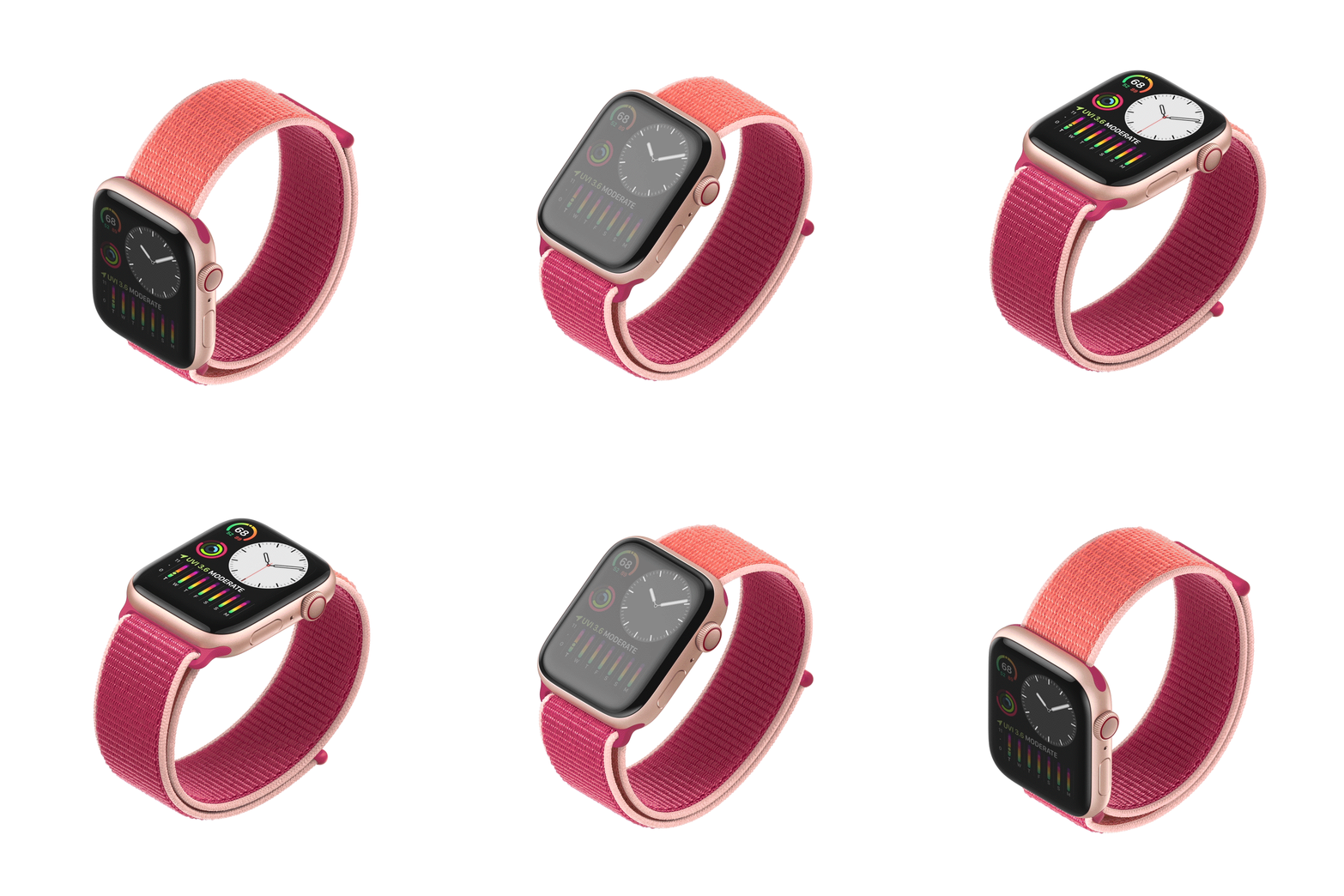
Michael Simon of Macworld ranked all of the Apple Watch Series 5 watch faces, from worst to best. Even if you disagree with his rankings, he does a good job of explaining what is different in each face.
Zac Hall of 9to5Mac shares the story of a mountain biker who flipped his bike, hit his head, and was knocked unconscious. But fortunately, he was wearing an Apple Watch, which automatically detected his fall, alerted 911 to his location, and texted his son.
And finally, the band Maroon 5 recently released a catchy new song called Memories. Of course, that is also the name of a feature of the iPhone and iPad in the Photos app. Members of the band are Apple fans, so they teamed up with Apple in two ways, as described by Heran Mamo of Billboard. First, the band created the music video for their song by using the Memories feature pointed at a folder of pictures and a few videos of the band members starting when they were young and then through the years. It’s a great music video, and it shows off the power of the Memories feature. Second, the song Memories is currently available (although only for a limited time) for you to use as a soundtrack with your own Memories movie. The Photos app may select that song for you automatically, but if it doesn’t, just create any movie in Memories (part of the For You tab), then pause the movie and tap Edit at the top right, and then tap Music to edit the music selection and then from the Soundtracks section, listed under Pop, select Memories by Maroon 5. It’s a great song, and the lyrics go well with any selection of old photographs of family and friends. I cannot embed the Maroon 5 music video in this post, but you can watch it if you click here or click on the picture below. If you don’t subscribe to Apple Music, you’ll see a 30 second preview. If you do subscribe, you can watch the whole video in the Apple Music app.
It has taken Apple a few years to get here, but the Series 5 version of the Apple Watch is the one to get. If you have been thinking about an Apple Watch for all of these years but haven’t done so yet, this is a perfect time. If you have an older model and you are ready to get something better, this is the perfect time for that too. The Apple Watch Series 5 is a great device. Two weeks ago, I wrote a longer overview of the Apple Watch Series 5, and you should consider that part one of this review. This second part of the review adds my own experiences with the Apple Watch Series 5.
From time to time
A little more than four years ago, Apple released the first version of the Apple Watch. It deserves credit for reinventing what it means to be a watch, much like the original iPhone in 2007 reinvented what it means to be a smartphone, but I wouldn’t recommend using either one of those devices today. They were full of potential but incredibly limited in what they could do. Apple started to fill in the missing pieces with the Series 2 in 2016, which added GPS, the ability to get wet, and a somewhat faster processor so that it wasn’t painfully slow. Series 3 in 2017 added cellular and even more speed. Series 4 in 2018 introduced a slightly larger screen that could show a lot more because the unused space on the edges got thinner, plus it was the first Apple Watch to be fast enough that you no longer really thought much about the speed of the device.
I was happy enough with the Series 4 that I didn’t plan to buy a Series 5 unless Apple did something special. But Apple did so, adding a screen that is always on so that it can always tell you the time, and other information on your watch screen. To state the obvious, the ability to always tell you the time is pretty important for a watch. As I am typing this sentence right now, I can glance down at my Apple Watch and see what time it is and the status of my daily activity circles. That’s something that I could never do in the past; I’d have to lift up my left arm or perform a jiggle or jerk motion to tell the Apple Watch to get out of its sleep mode.
Sure, that was only a minor inconvenience, but in daily use it makes a big difference. In my law practice, I spend a lot of time every day with my hands on a keyboard as I am typing, and it is great to have the ability to glance at my watch while I’m typing. The alternative — making that movement to activate the screen — pulls me out of my workflow. Also, when I’m in a meeting or in court, the motion required to activate an older Apple Watch screen can draw too much attention, alerting the outside world that I’m checking the time, and thus sending the impression that I’m getting bored or restless. Sure, sometimes I am indeed getting bored or restless, but I certainly don’t want to others to know that. Thus, I don’t think it is an exaggeration to say that the Series 5 version of the Apple Watch is twice as useful because I find myself using the watch at least twice as often now that I can look and see the time and other information so easily.
The always on display
Here’s how the always on display works. If your watch is showing a watch face, after 15 seconds (or you can change this to 70 seconds in Settings) the watch face used to go completely black. But now, it just dims. The amount that it dims depends upon your environment, so if you are in a dark room it will dim even more. Also, there may be some information on the screen that is no longer displayed when in standby mode. For example, if you are using a watch face with a second hand, the second hand will disappear when the screen is dimmed.
I have had no trouble reading the dimmed screen when I’m inside and I glance at the watch. And even when I’m outside, I can usually see the dimmed screen well enough.
If something other than the watch face was being displayed — such as the Now Playing screen for a song or podcast or one of your apps — then the display blurs and dims so much that you can no longer read the screen and a digital clock appears on the top near the right of the screen. Thus, you can glance down at your watch and see what time it is, but you will need to wake the screen to see whatever the app was showing you.
There is currently one exception: the Workout app. If you are using the Workout app and you are in the middle of a workout, after 15 seconds the screen dims but you can still see almost all of the information on the screen. For example, instead of seeing the elapsed time to the hundredth of a second, you just see it to the second, but those seconds and minutes do update. This makes a big difference. For example, I often find that when I’m on a treadmill, or when I’m quickly walking or jogging outside, I want to quickly see some numbers on the Workout app such as the elapsed time, my heart rate, or my distance. But when I’m already moving my arm back and forth, it is particularly annoying and distracting to have to raise or jerk my left wrist, or reach over with my right hand to touch the screen, just to wake up the watch so that I can see those numbers. With the Series 5, I can just glance down and see the numbers as my arm is already moving. It may seem like a tiny change, but it is a major improvement.
Design and battery life
The design of the Apple Watch Series 5 is the same as the Apple Watch Series 4. As I noted in my review of the Series 4, that is a good thing. These last two versions of the Apple Watch use more of the screen and have a slightly larger screen, so you can see more on the watch.
Because the design hasn’t changed, that means that battery life hasn’t changed either. Even though Apple has done some amazing things to make the always on display work without sucking down too much of the battery, I do notice that my Series 5 uses more battery during the day than my Series 4. Perhaps a small part of that is me using the watch more over the past few days just because it is new, but I suspect that it is also the always on display using more battery life. I wear my Apple Watch all day long, not taking it off until I go to sleep late at night. With my Series 4, I usually had around 40% battery life at the end of the day. With my Series 5, it seems like it is closer to 20%. So in other words, I still have enough battery life to get through a day in which I use the watch quite a bit, but since all rechargeable batteries like this do hold less of a charge over time, I’ll be curious to see how the battery life will be doing at the end of the day a year from now.
For now, the trade off is certainly worth it. It doesn’t do me any good to have an extra 20% of battery life at the end of the day because I charge my watch every night. But it does to me a lot of good to have an always on display, all day long.
A sense of direction
No other new feature in the Apple Watch Series 5 is as useful as the always on display. Having said that, adding a compass to the Apple Watch does make sense if you are ever using the maps feature on the Apple Watch, such as to give you turn-by-turn directions.
Although you can use your iPhone for walking directions, I’m not a big fan of being that person walking around the city staring down at my phone too much — especially if I’m in another city where I don’t know the neighborhood very well. But walking around and looking down at my watch face is quick and fine. The map display on the Apple Watch shows you the street that you need to be walking down, and with the Series 5 you can see which way you are facing. In the two pictures below, in the first picture, I am facing the wrong way, and you can see the rays coming out of the blue dot indicating that I’m not facing the path that I need to be going. In the second picture, I have turned to face the path, and now the rays indicate that I’m faced the right way. It’s subtle, but it works to get you faced the right way.
And the rest
As much as I like the new features in the Series 5, what I like the most are the features that have been a part of the Apple Watch for a long time. I vastly prefer getting notifications on the watch — a reminder of an upcoming meeting, an email from someone I’ve marked as a VIP, a text message, a request to authenticate a two-factor authentication, etc. I also love being able to connect my AirPods directly the Apple Watch and then I can walk around and perform tasks while I listen to music or a podcast without needing to carry around my iPhone. I love being able to turn lights on and off in my house from my watch, thanks my HomeKit setup. And of course, the Apple Watch is fantastic for managing my workouts and encouraging me to be more active.
I’m a big fan of lots of products made by Apple, but my Apple Watch is the only Apple product that is with me all day long, from when I get dressed in the morning to when I go to sleep at night. And because I use a charging dock on my night stand, my Apple Watch is also right next to me all night long, always there to tell me the time using the Night Stand mode.
Conclusion
When the Apple Watch was a young product, the missing features were important enough omissions that the Apple Watch was best for early adopters. I’m sure that Apple will find ways to make the Apple Watch even better for many years to come. But at the current stage of Apple Watch development, with the Apple Watch Series 5, we are now at the point where I believe that anyone who owns an iPhone would find an Apple Watch to be a great and useful product. If you have been waiting for the right time to get an Apple Watch, that time is now.
Thank you to Bellefield Systems, the creator of iTimekeep, for sponsoring iPhone J.D. again this month. iTimekeep is one of the most useful apps on my iPhone, and along with Microsoft Word, it is one of those rare apps that I use almost every day on multiple computing platforms: PC, Mac, iPad, and iPhone. iTimekeep greatly improves time entry and time management for attorneys. Billing time is one of the most annoying aspects of a law practice, so the ability to transform this task from a daily drudgery to something that can be done much more easily is a huge win. I posted a full review of iTimekeep two years ago, and last month I discussed how I use iTimekeep on my iPhone, iPad, PC and Mac. Here are are two additional reasons that I recommend that you incorporate iTimekeep into your law practice.
Track your performance
I have always found it more efficient to enter my own time, but I know that others jot down their time in some other way and have an assistant handle the time entry process. But the iTimekeep app is an incredible app for all attorneys, regardless of whether you enter your own time, because it makes it so easy to track your own performance.
First, the main screen of iTimekeep shows you a list of your most recent time entries. For each day, a number indicates the total number of hours (billable and non-billable) for that day. Scroll to the bottom and you can tap a button to load seven more days. This is a quick and easy way to make sure that all of your recent time was correctly tracked. And if you see a particular day that only has a few hours recorded or that doesn’t mention a task that you know that you did that day, that’s a red flag that you may be missing some time from that particular day.
Second, there is another way that iTimekeep can tell you if it looks like you may be missing time. In iTimekeep, you give yourself a daily goal. Mine is eight hours. Select the option in iTimekeep called Missing Time, and it will show you any days on which you were short of your daily goal. Usually, if I was short of my daily goal, there was a good reason for it that I already knew about, such as I got to work late or left work early because of something going on with my kids. But if there is a day when I should have recorded eight or more hours, it is useful for iTimekeep to alert me that I was short so that I can go back and figure out what I forgot to record.
Third, there is a Dashboard feature that you can use to get an overview of a week, month, or year. It shows you the number of hours (both billable and non-billable) that you worked, the average number of hours you billed every day, any missing time, and time entries with errors, any time entries that are incomplete, etc. This is a quick and easy way to see your overall progress, and you can do it on your iPhone, iPad, PC, or Mac.
Using all of these tools, it is easy to track your progress throughout the week, the month, and the year, not to mention fix anything missing before you forget about it. Indeed, even if you are not normally the person who enters your own time, if you see that a time entry is missing, or if something looks wrong in an entry, it just takes you a few seconds to add the missing time or fix the incorrect entry. You can spend less time fixing any mistake yourself then it would take you to explain to someone else what is wrong and how to fix it.
Capture all of your time
Discovering, and fixing, a missing time entry is good, but of course it is better if all of your time is entered correctly in the first place. And it’s the word “all” in that sentence that is sometimes tricky because attorneys frequently perform tasks throughout the day that we can forget to record, such as a short phone call or an email exchange. One of the best features of iTimekeep is that it gives you the power of anywhere timekeeping. If you are in front of your computer, you can just use the iTimekeep website in your browser of choice. But if all you have is your iPad or your iPhone, iTimekeep is there for you when you need it — with a simple, easy-to-use interface and ample security to protect your time entries.
Thus, iTimekeep makes it as simple as possible to enter time contemporaneously with the event. When you finish up a phone call, you can take a few seconds and immediately enter the time in the iTimekeep app before you forget about it — even if you are out of the office.
You are doing the work anyway. You might as well get credit for it. And over the course of a month and a year, those small time entries can really add up.
Conclusion
Everything about the time entry process is better with iTimekeep. You spend less time entering your own time, and you do so more accurately and efficiently. And because your iPhone is probably always with you, it is incredibly easy to enter time contemporaneously or record an entry from earlier in the day whenever and wherever you think about it. Additionally, reviewing prior time entries is simple, and iTimekeep will even alert you when you appear to be missing time from a day. Thus, even if you don’t enter your own time, iTimekeep makes it incredibly easy to see what time was recorded for you so that you can fix any mistakes earlier in the process. Thanks to iTimekeep for sponsoring iPhone J.D. this month and for improving my own law practice.
What a busy week in the iPhone and iPad world! iOS 13.0 was released yesterday, but it won’t be the latest version of the operating system for very long. In just a few days, on September 24, Apple will release iOS 13.1 and the first version of iPad OS (which I presume Apple will also designate as 13.1 to be consistent with iOS). Meanwhile, the iPhone 11 and Apple Watch 5 are both available starting today. If you place a pre-order, like I did, you are just a few hours away from the delivery truck showing up with your new device. There was way too much news this week, but I’ve picked some of the highlights for the news of note:
If you want to hear me talk about iOS 13 and you are in the New Orleans area, I’ll be speaking to the Krewe de Tech group at the Jefferson Parish East Bank Regional Library on Tuesday, October 1 at 6:30. The meeting is free and open to the public. Click here for more details.
If you want to learn almost every detail of iOS 13 and iPad OS, Federico Viticci has released his comprehensive, 76,000-word, review of iOS and iPad OS 13.
Attorney John Voorhees of MacStories reviews PCalc 3.9, an impressive calculator app that was updated to take advantage of many new features in iOS 13.
I updated my iPhone to iOS 13 yesterday afternoon, and when I connected to the CarPlay system in my car on the way home from work, I got a chance to use the new version of CarPlay. I love everything about it. The new Dashboard provides so much more information, and I love being able to use the Maps function while also being able to see what is playing and access controls for the audio. Also, there is so much more useful information on every screen, and the larger font sizes and buttons are fantastic. CarPlay Life provides a good overview of everything that is new in CarPlay in iOS 13.
The iPhone 11 models support the latest and greatest version of Wi-Fi called Wi-Fi 6. Jeff Abramowitz wrote an interesting article for Wired about the origins of Wi-Fi, which launched 20 years ago this week.
iPhones are powerful and efficient thanks to the Apple-designed processor inside. In an article for Wired, Om Malek writes about the A13 Bionic chip in the new iPhones.
Bob Iger, the head of Disney and a departing member of the Apple Board of Directors, wrote an article for Vanity Fair about Iger’s relationship with Steve Jobs.
And finally, here is a short video from Apple showing off the primary new camera features in the iPhone 11 Pro:
If you are at all curious about being more productive and efficient on your iPhone and iPad, you need to start using Apple’s built-in Shortcuts app. It was updated for iOS 13 (and iPad OS) to make it a lot more powerful but also a lot more simple to use. I have dozens of shortcuts that I use to calculate deadlines in my law practice, to save receipts, to send texts, to navigate to specific locations, to format pictures in specific ways, etc., and I can’t wait to do even more with iOS 13.
Last year, I wrote about a series of videos produced by California attorney David Sparks called the Siri Shortcuts Field Guide and I recommended it to anyone interested in using the Shortcuts app, whether you are brand new to Shortcut or an old pro.
In light of the significant changes in iOS 13, David Sparks created the new Shortcuts Field Guide, iOS 13 Edition. David gave me a free preview last week and I’ve already made my way through many of the new videos. This is an excellent resource that makes me very excited to start creating new shortcuts once iOS 13 comes out today. I’ve learned so much from these videos. Indeed, the best way to learn about creating shortcuts is to watch a video in which someone like David shows and explains how everything works. Plus, his course includes lots of sample shortcuts that you can download and modify to meet your specific needs. There are 107 separate videos in seven different sections, and you can either watch the videos in order or just jump to the ones that interest you the most.
The course costs $29, but if you use the code LAUNCHSHORTCUTS when you sign up, for a limited time you can access the course for only $24.
Apple gave certain members of the press early access to the iPhone 11 and the iPhone 11 Pro and the first set of reviews came out yesterday. As compared to the 2018 iPhones, everyone is focusing on two things. First, the camera function is greatly improved. Reviewers noted that you can now take pictures that simply were not possible before, such as wide pictures with the new ultra-wide lens and pictures taken in very low light. The ultra-wide camera lens seems especially good for videos, which in the past were always more zoomed in, and you can seamlessly zoom in from the ultra-wide to the wide to the zoom lens while taking a video and the iPhone switches to the best lens without you even knowing it. And Apple has improved the HDR function to do a better job of correctly exposing the different elements in your photo. The reviews include photographs comparing the new iPhones to older iPhones and to Android phones, and the photos taken with the new iPhone 11 models are virtually always better.
Second, the additional battery life on all of the new iPhones, but especially the two iPhone 11 Pro models, is apparently quite impressive. I’m still amazed that Apple was able to add another four hours to the iPhone 11 Pro as compared to last year’s iPhone XS. For example, Matthew Panzarino of TechCrunch took the new iPhones to Disneyland — a hot environment with congested networks and thus very challenging for any phone. Last year, an iPhone XS lasted 9.5 hours in those conditions; this year the iPhone 11 Pro lasted 12 hours. Attorney Nilay Patel of The Verge reported that the iPhone 11 Pro has been running 10-12 hours per day, as compared to the 8-10 hours for the iPhone XS Max.
Reviewers also noted that Face ID works a little better, and the iPhone 11 Pro screen is a little brighter and thus a little easier to see outside.
Every lawyer needs to take notes, whether you are meeting with a client or other attorneys, on a conference call, in court, brainstorming what you want to put into a contract, etc. Taking notes on paper is easy but has disadvantages. It is difficult to change something after you have written it, and virtually impossible to move your previous writing to make room for something that should appear before it. And unless you use scissors and tape, you cannot easily add pictures or typed text to your notes. And if you have lots of pages of notes, there is no easy way to search for a specific word in your notes. And notes written on paper can get lost and can easily be damaged. The solution to all of these problems is to take digital handwritten notes, and my favorite way to do that is with the GoodNotes app. I’ve been a happy user of GoodNotes for many years and I recommend it to other attorneys all the time, so I am thrilled to welcome GoodNotes as a new sponsor of iPhone J.D.
To use GoodNotes on an iPad, all that you need is the iPad, a stylus, and the GoodNotes app. Fortunately, there are now a large number of iPads that work with Apple’s Pencil stylus (either the first or the second generation) from the entry-level iPad (6th or 7th generation) all the way to the iPad Pro.
GoodNotes allows you to create virtual notebooks that contain a cover followed by pages. The cover has one style, and each of the internal pages share another style by default.
GoodNotes comes with lots of different paper styles, or you can take any PDF document and turn it into a template for your pages. GoodNotes comes with a legal pad template, but I prefer to use one that I created myself because I like having the dotted red lines on the left and right side. If you want to download it and use it yourself with GoodNotes, click here to download my legal paper template file.
Also, you can add other types of PDF files to a notebook. For example, while I typically use my legal pad pages to take notes, if I am attending a meeting with an agenda, I will often insert that agenda as a PDF document in my notebook so that I can take notes right on the agenda.
The toolbar along the top has all of the tools that you would want to use to take notes, insert pictures, highlight, insert text, etc. There is also a lasso that you can use to select items to move them elsewhere. I will often write one line, then write a second line, then realize that something else belongs between those two lines so I will simply move the second line down the page (or onto the next page) using the lasso tool to make space.
Why not just type my notes? First, typing can be more obnoxious to folks around you than taking handwritten notes, not only because of the noise when you type, but also because you create the perception that you are not paying attention when you are looking at a screen that others cannot see; when you are taking notes with a pen, it is obvious to everyone that you are just taking notes. Second, many studies show (e.g., 1, 2) that your memory improves when you take handwritten notes versus when you take notes on a keyboard. Why? When you take notes on a keyboard, you instinctively find yourself typing almost every word, almost as if you are a court reporter, which means that your brain spends less time understanding those words. When you take handwritten notes, it is virtually impossible to write down every word, so your brain spends time figuring out the key part of what is being said and what you write in your notes is really a summary. And that process of having your brain pick out the key concepts helps you to remember those concepts in the future. Thus, there are tons of notes that I take which I never review again; the reason I took notes in the first place was to help me to remember the information later on. Of course if I do want to go back and review the notes, they are right there in the app.
GoodNotes uses OCR to “read” your notes in the background and convert them to text. Thus, if you have a notebook full of notes and you want to find the specific pages where you wrote about a specific word, just search for that word. You can search within a notebook or across notebooks. I’m constantly amazed at the ability of GoodNotes to decipher my handwriting and find exactly what I need.
If there is a notebook that you use frequently, you can designate it as one of your favorites. Tapping a single button at the bottom right of the main screen shows you all of your favorites.
I love that I keep all of my notebooks with me at all times on my iPad. If I have a sudden need to look at notes from a conversation with another attorney from last year, I don’t need to ask my secretary to search for some notes in a file cabinet. In just seconds, I can pull up that notebook and see exactly what I wrote.
The GoodNotes app only costs $7.99, which is a bargain for an app that you can use every day. If you own an iPad and a stylus and you are not yet taking digital notes on your iPad, I strongly encourage you to try doing so with the GoodNotes app. This is a fantastic app — one of the most useful apps on my iPad, and a key part of my paperless law practice. Thanks again to GoodNotes for sponsoring iPhone J.D. this month.
Apple starts taking pre-orders for the new iPhone 11 models this morning at 5am Pacific / 8am Eastern. Deliveries of the new iPhone 11 (and availability in Apple Stores) will begin a week from today on Friday, September 20 — the same day that the Apple Watch Series 5 will be available. I am ordering the iPhone 11 Pro with 256GB. And now, the highlights of the news of note from the past week in which there was a ton of Apple news:
Voorhees also prepared two other helpful articles about Apple’s announcements this week. One post provides the most important numbers associated with Apple’s announcements; another post complies in one place all of the upcoming dates announced by Apple this week.
Along with the new iPhone and the new Apple Watch, Apple also announced a new iPad this week. The model that Apple updated was the entry-level iPad, which was last updated when Apple announced the 6th generation iPad in March 2018. There are two main differences between the new 7th generation iPad and that 6th generation. First, the new iPad is a little bit bigger to accommodate a slightly larger screen. Second, the new iPad now has a smart connector on the side, making it easy to attach Apple’s smart keyboard. For an attorney who is a very occasional iPad user, this version of the iPad, which starts at only $329, may have some appeal. But Apple introduced a mid-range iPad earlier this year, the iPad Air 3, and I think it is a better value. Starting at $499, you get a slightly larger and significantly better screen (even though the dimensions of the iPad Air 3 are the same as the 7th generation iPad), a much better processor so the iPad is faster, and twice the capacity for storing your documents, pictures, etc. For an attorney using an iPad to get work done, the iPad Air 3 is worth the additional money. And of course, if you plan to make the iPad an important part of your law practice like I do, the iPad Pro is fantastic.
Apple also announced this week that its Apple Arcade service will cost $4.99 a month and will be available on the iPhone starting September 19. That $5 gets you the ability to play 100 games created specifically for Apple Arcade, with no in-app purchases. And some of the games look pretty good. Apple released a short video yesterday to preview some of the 100 games in 100 seconds.
John Gruber of Daring Fireball shares his analysis of Apple’s announcements this week.
Dan Moren of Six Colors shares his analysis of Apple’s announcements this week.
Benjamin Mayo of 9to5Mac discusses some new features coming to the HomePod later this year, including the ability to recognize different voices (and personalize responses), easily send music from an iPhone to a HomePod, and play ambient background sounds like ocean waves to help you to relax or focus on your work.
I’m not sure that I would want to switch to T-Mobile right now considering that they are about to merge with Sprint and I’m not sure what the company will look like in the future. But if you are thinking of making the switch anyway and want to know how well the T-Mobile service works in your neighborhood, Steven Samde of AppleWorld.Today describes the T-Mobile Test Drive program where the company will send you a mobile hotspot to test for 30 days (for free). You connect your iPhone to the hotspot so that you can get a sense of how well the T-Mobile service works with your iPhone. That’s an interesting way to try to acquire new customers.
The new iPhone 11 models all feature better battery life, but if you want even more battery life, this week Mophie announced its new battery cases for the iPhones.
I cannot imagine that the quality of the images is very good, but I guess the point here is nostalgia, not print quality. David Pierini of Cult of Mac discusses a new device called Polaroid Originals which takes an image on your iPhone’s screen and projects it onto a Polaroid picture that is very similar to what you used to get with the Polaroid One-Step system. It’s certainly an interesting way to share a picture from your iPhone with someone else.
And finally, here is one of the videos that Apple showed at its keynote this week. It is called Dear Apple: Face to Face, and it features people telling stories about how their Apple Watch helped to improve or save their lives. This is one of those videos that makes me tear up when I watch it, but they are happy tears, so I recommend that you watch it too:
The Apple Watch Series 4, which came out a year ago, was a major improvement over prior models of the Apple Watch. That model of the watch added significant new features such as a larger screen with more of the screen used to display graphics and significant speed increases that made the watch much more usable, plus other useful features like the EKG monitor. It was such an improvement that I didn’t expect Apple to update the Apple Watch at all this year. The only significant feature that I could see Apple adding was the ability to have a watch face always displayed on the watch, but folks have been asking for that since the very first Apple Watch, and while the feature seemed inevitable, there were no rumors or other indications that Apple was anywhere close to adding that long-requested feature.
Well surprise, surprise. This week, Apple introduced the Apple Watch Series 5, and the marquee new feature is a display that is always on. It’s nice to see that Apple hasn’t lost the ability to surprise and delight its customers. Here are some thoughts on this new feature as well as the other changes.
I want to wake up with an Apple Watch that never sleeps
Ever since the Apple Watch first came out in 2015, that device preserved battery power by having the display turn off when you were not using the watch. And it is pretty aggressive about it. Often, I am still looking at something on the screen when it goes black, and then I need to tap the screen to see it again.
Moreover, using an Apple Watch since 2015 has always meant that you have to move your wrist to let the watch know that it should turn on. Sometimes this just means raising your wrist, which works fine. But often my arm is already resting on a desk, and just turning my wrist slightly isn’t enough to turn on the watch. I need to jerk my wrist to get it to turn on — and often that doesn’t work the first time — or I need to tap the screen. This is only a minor annoyance, but if you are like me and look at your watch many dozens of time a day to check the time, see a notification, etc., those multiple minor annoyance can add up.
Moreover, sometimes you are in a situation in which the need to turn on the screen prevents you from using the watch at all. I’m often in a meeting with another person when I want to quickly see the time, but tapping the screen, raising my wrist, or jerking my wrist are all obvious actions that convey to the other person that I’m no longer paying attention. To avoid being perceived as rude, I’m unable to find out what time it is. Having a display that is always on would solve this; I could just quickly glance at the watch face without moving any part of my body other than my eyeballs.
So how is Apple keeping the display on without ruining battery life? Apple has done a number of things to make this feature possible. First, Apple has a brand new display and new computing technology behind the display that allows the watch to switch from a 60Hz refresh rate when you are actively using the watch (the screen is refreshed 60 times each second) all the way down to 1Hz when you are not using it (the screen updates only once each second). Apple hasn’t touted any other advantage of the new S5 chip in the Series 5 Apple Watch, so I don’t know if it makes the watch faster or better in any other way other than the always-on display.
Second, the Apple Watch dims when it isn’t being used — bright enough to be seen, but not as bright as when you are actively using the watch.
Third, the Apple Watch will modify what is on the screen, reducing some of the unnecessary elements (such as a moving second hand) so that only the essentials of the watch face that you are using are on the screen. After all, the OLED screen on an Apple Watch completely turns off pixels when they are black, so by keeping only a small portion of the screen some color other than black, minimal power is used. Click here to see an animation from Apple showing what this looks like.
I’ll need to try it to see how well it works, but I love that Apple has worked so hard to make this feature possible. If this feature works well, it has the potential to be a very major improvement to the Apple Watch.
Compass
Although far less significant, another new feature of the Series 5 Apple Watch is that it now has a built-in compass, just like the iPhone.
Unless you are a Boy Scout, you probably won’t spend much time using the Compass app itself, but this feature makes the Maps app and similar apps more useful because your watch knows which direction you are facing.
International Emergency Calling
If you hold down the button on the side of your watch for a while, an Apple Watch can call 9-1-1 in the United States. And if the watch detects that you have fallen and you can’t get up or are in an accident, the Apple Watch can even call 9-1-1 on its own. The Series 5 model adds the ability to call a 9-1-1 type service around the world, so your Apple Watch can help you stay safe even when you are traveling around the globe.
New materials
Since the very first Apple Watch, you have been able to purchase a model with a case made of aluminum or stainless steel. Aluminum is lighter and less expensive, but I’ve always liked the look of stainless steel. This year, Apple adds two more materials: white ceramic, a material that Apple has offered in the past with the Apple Watch, and titanium, a material that is new to the Apple Watch but has long been an option for many traditional watches. And you can get different colors of the three of those materials. Aluminum comes in silver, gold, or space gray; stainless steel comes in regular, gold, or space black; and titanium comes in normal or space black.
Here is what the titanium looks like:
There are different prices for each material. For example, if you want a 44mm Apple Watch with cellular, the price is $529 for aluminum, $699 for stainless steel, $799 for titanium, and $1,299 for white ceramic.
If you get the aluminum model, you can save $100 if you opt for the version that doesn’t have cellular. For the other three materials, Apple only sells models with cellular. And if the smaller 40mm size is better for your wrist, you can save money by getting the 40mm version instead of the 44mm version: $30 less for aluminum and $50 less for the other three materials.
I’ll be curious to see what the titanium model looks and feels like. Apple says that it is lighter than stainless steel but twice as strong.
I have seen the white ceramic before; I was at a business dinner years ago and an attorney from New York was wearing the white ceramic model with a white sport band on her wrist, and it looked very fashionable. I don’t see myself ever paying the higher cost for the ceramic model, but it is really nice.
Mix and match
Another change this year is that you choose almost any band when you purchase an Apple Watch. In the past, if you opted to get a Sport Band (one of Apple’s cheapest bands), you could often only choose between white and black even though Apple sells many other colors. This year, Apple is letting you select almost any band that it sells to match with the body and color that you select. On the Apple Website, Apple calls this option “create your own style.” If you walk into an Apple Store, a sales assistant will help you to select each item individually.
I say “almost” any band because the Hermès bands can only be purchased with the stainless steel body and the Nike bands can only be purchased with the aluminum body.
Conclusion
The original Apple Watch was a breakthrough but had lots of compromises. As new models have been released over the past four years, Apple has addressed many of the major complaints. This year’s addition of the always-on display addresses one of the last major complaints about the Apple Watch. I’ve ordered one of the new models (Apple is taking pre-orders now, and the Series 5 Apple Watch will be available on September 20), and I look forward to putting this new feature through its paces to see how well it works. I’ll let you know.
Yesterday, Apple introduced the 2019 iPhone line with three new iPhones. In the immortal words of Spinal Tap’s Nigel Tufnel, “these go to 11.” The iPhone 11 and the two sizes of the iPhone 11 Pro are better than last year’s models, with the main improvements in iPhone photography and battery life. But these are incremental improvements, and it would be fair to think of them as representing the third generation of the iPhone X, introduced in 2017. Having said that, if you are still using a pre-iPhone X model, then upgrading to one of these models will be a major advance for you. Here are the main features of the iPhone 11, iPhone 11 Pro, and iPhone 11 Pro Max that I think will most appeal to lawyers.
The screen
I want to begin with a feature that is only somewhat new: the screen. I mention this first because the feature that I most love in the iPhone X and iPhone XS, and I’m sure that I will continue to love with the iPhone 11 models, is the edge-to-edge screen. As I explained in my reviews of the iPhone X and iPhone XS, you can be much more productive with a larger screen on a device that doesn’t take up more space. Whether you are reading emails or trying to review a document on your phone while you are out of the office, the larger and beautiful screens that Apple first introduced with the iPhone X are fantastic for lawyers.
The screen on the iPhone 11 is the same 6.1" screen that Apple used last year with the iPhone XR. It’s a very good screen. The iPhone Pro models come with a 5.8" or 6.5" screen that uses a beautiful OLED display, which means that blacks are pure black and colors really pop. And this year’s model is brighter than ever before and features a larger contrast ratio. Whether you are using your iPhone 11 Pro to get work done, look at photos, or watch a movie on a plane, the iPhone 11 Pro screen is going to be fantastic.
Photography
The hardware of the iPhone 11 probably won’t do much more than the iPhone X or the iPhone XS in terms of making you a better, more productive lawyer. (Contrast this to the software; iOS 13, coming out later this month, will add lots of features that let you be more productive with an iPhone.) But when you use your iPhone as a camera. the iPhone 11 has lots of great new features.
First, Apple is adding a new ultra wide camera. On the iPhone 11, this means that you have two cameras on the back. The iPhone 11 Pro models now feature three cameras: ultra wide, normal, and telephoto.
The new ultra wide camera has a 120º field of view, which lets you capture even more without having to step back. The way that Apple has implemented the feature is interesting: when you are taking a normal photograph, you see on the left and right edges a preview of some of what you will see if you zoom out by switching to the ultra wide lens.
I often find myself in situations in which my iPhone cannot capture everything that I want to include in the picture, so I switch to panorama mode. That mode works well for a landscape when everything is still, but yields comical results when objects (such as people) in the panorama are moving. With the ultra wide lens, you may be able to get the picture you want without resorting to panorama mode.
In an article for Macworld, Jason Snell notes that you can even decide to take advantage of the ultra wide lens after you took a picture with the normal lens:
You can optionally set the iPhone 11—for both video and stills—to capture data from both the wide and ultra wide cameras. The iPhone retains both versions for an undetermined period of time; eventually, if you do nothing with the ultra wide version, it will get thrown away. What’s really happening here is that the iPhone is stashing away a broader view of the image or video you just took, in case you end up realizing after the fact that an important part of the scene was cropped off the edges of the frame.
To fix that issue, you do exactly what you’d expect—open the image in the Photos app and tap Edit, then select the Crop tool. You’ll discover that there’s more image beyond the crop marks! This is image data from the ultra wide camera that has been seamlessly stitched into your photo or video, and if you want to use it, you can just change the crop to reveal more information. It’s a very clever way to provide a safety net via the ultra wide camera. Once you’ve tapped that Edit button, that extra off-camera information will continue to be available for later tweaking—iOS won’t throw it away.
Second, Apple has implemented a feature previously seen on some Android phones like the Google Pixel, the ability to take a night mode picture when there is almost no light. Whether you are taking a picture at a dark restaurant or outside when it is night, night mode allows you to take pictures in environments in which you previously couldn’t take a usable picture at all.
Related to this feature, if you are in a dark environment, the iPhone will show you how long your exposure will be. And if you put your iPhone on a tripod or other stable surface, you can increase the exposure time to let the iPhone suck in even more light out of the dark environment. This should allow for some really interesting long exposure photography.
Third, it is now faster than ever to switch between taking a picture and taking a video. If you are taking a picture and you hold down on the shutter button, you’ll immediately start recording a video as long as you hold down the button, or you can swipe right to lock into video mode. (Holding down on the shutter button was previously used to bring up burst mode, which you can still access by holding down on the button and then swiping left.) There are so many times that I am taking a picture of my daughter playing soccer and then I want to quickly start taking a video, but I cannot do so without wasting a few seconds to switch modes. This will be a nice new feature.
Apple calls that new feature QuickTake. That name has a history at Apple; back in 1994, Apple sold a $749 digital camera called the QuickTake 100, which could take eight photos at a time at 640 x 480 resolution. After you took eight pictures, you had to download them to a computer. My law firm purchased one of those to try out this fancy new technology called digital photography. To get a sense of how far digital photography has come, here is a picture that my wife took of me using the QuickTake 100 on April 2, 1995, when I borrowed the camera from my law firm to play around with it for a weekend:
While this picture is old and grainy, I still love to play that piano as much as I can.
Fourth, if you are using an iPhone 11 Pro, a feature will be coming later this year called Deep Fusion which combines nine different images taken with the three cameras along with artificial intelligence to create a single, incredibly life-like and detailed picture, the sort of picture that traditionally would require an expert photographer using a high-end DSLR camera. [UPDATE 9/11/2019: According to John Gruber, Deep Fusion will also be available on the iPhone 11. But with only two lenses, I’m curious if the results will be as good. We’ll see.]
There are other new features too, like better videos, better selfie pictures (including slow-motion video selfies and a widescreen lens to fit more people in your picture), and other tricks that advantage of combining the normal camera with the ultra wide camera, such as better portrait mode pictures on the iPhone 11 versus the iPhone XR.
Professional photographers and videographers are already using the iPhone quite a bit, and as Apple demonstrated yesterday, the results that these professionals can get with the iPhone 11 and iPhone 11 Pro cameras are phenomenal. But even if you are just taking pictures of your vacation, a birthday, or your kids, you can create some really amazing photographs with the three new iPhone 11 models.
Battery life
From my colleagues at work to my kids at home, everyone I know wants better battery life from an iPhone. The iPhone 11 gains one extra hour of battery life over the iPhone XR. Even more impressive, the iPhone 11 Pro gets four additional hours of battery life over the iPhone XS, and the iPhone 11 Pro Max gets five additional hours of battery life over the iPhone XS Max. For the pro models, that sounds like an incredibly impressive increase in battery life. I’ve had days when I was using my iPhone extensively (often when traveling) and by 6pm my battery is starting to run low. Having that deadline extended to 10pm or 11pm is a huge difference.
Perhaps to accommodate a larger battery, the new iPhones are slightly heavier than last year. For example, the iPhone 11 Pro is 6.63 ounces, versus the iPhone XS, which was 6.24 ounces.
When you do need to recharge your iPhone, the iPhone 11 comes with the same Apple 5W charger that Apple has included with iPhones for many years. But the iPhone 11 Pro models come with an 18W charger, allowing you to charge up to 50% in only 30 minutes. Or you can purchase a 29W or 30W USB-C adapter (or third party options like the Anker PowerPort line) to charge an iPhone even faster.
Colors
The iPhone 11 is made of aluminum and glass. It comes in six colors: purple, white, yellow, green, black, and red.
The iPhone 11 Pro is made of stainless steel and glass, with a texture matte finish on the back. It comes in four colors: space gray, silver, gold, and a brand new midnight green.
To help you see the new colors, Apple is now selling clear cases for all of the iPhone 11 models.
Ultra Wideband
The new iPhone has a new U1 chip that takes advantage of Ultra Widebrand technology so that the iPhone knows where it is located in relation to other devices with Ultra Widebrand. Apple said that you can use this feature with AirDrop, making it easier to send a file to an iPhone that is closer to yours. But then after describing that use of this feature, the Apple website teases: “And that’s just the beginning.”
Given the rumors, I suspect that what Apple is hinting at is that Apple is working on a new tracking device. If you put one on your keys and you lose your keys, Ultra Wideband technology will let you use your iPhone to find the specific location in a room where your keys are hiding. Hopefully, we will see this new device later this year.
Faster
Every new iPhone is faster than the year before. This year, the iPhone 11 uses the A13 Bionic chip to do everything faster. Apple also says that Face ID is 30% faster than it was before, plus it can recognize your face from even farther away and at new angles.
Etc.
Although Apple doesn’t encourage you to dunk your iPhone 11 in water, Apple does say that the new model is even more water resistant than before, with the iPhone 11 Pro even more water resistant than the iPhone 11. Also, the glass is even more durable, giving you a little more protection if you drop the iPhone 11.
The new iPhones also produce better sound, using something Apple calls spatial audio to create “a more immersive, theater‑like surround sound experience.” And the new iPhones support Wi-Fi version 6, allowing you to download up to 38% faster if you are connected to a Wi-Fi router that also supports Wi-Fi 6.
Apple also removed a feature with the iPhone 11: 3D Touch. All three models now instead use Haptic Touch, which Apple used last year with the iPhone XR. The two technologies are similar; Haptic Touch works based on how long you touch the screen, whereas 3D Touch measures how much pressure you apply to the screen.
Pricing
Last year, there was a $250 price difference between the entry level iPhone XR ($749) and the entry level iPhone XS. This year, the iPhone 11 is $300 less, starting at $699 for a 64GB model. The iPhone 11 Pro starts at $999 for 64GB, and the iPhone 11 Pro Max with the larger screen starts at $1,099 for the 64GB model. You can pre-order the new models of the iPhone 11 starting this Friday, September 13.
Conclusion
If you are still using an iPhone older than the iPhone 8 and iPhone X, you are probably ready for an upgrade. If you want to limit how much you spend on an iPhone and/or if you still like the old design with a button and Touch ID, Apple is still selling the iPhone 8, starting at $449 (or $549 for the iPhone 8 Plus). But keep in mind that the iPhone 8 is already two years old. The iPhone 8 will be the right phone for many folks, but I strongly recommend that you also consider the iPhone 11. Yes, it takes a little while to get used to Face ID, but the edge-to-edge screen of the iPhone 11 along with the better camera, increased speed, and other features make the iPhone 11 a better value.
If you want the best iPhone ever, the two sizes of the iPhone 11 Pro look great. The two main improvements are photography and battery life, and those are two features that I know that I will really appreciate.


 Illinois attorney John Voorhees of MacStories did his research and put together a gallery with pictures of