Here it is, the last episode of the In the News podcast for 2025. We start by talking about iOS 26.2 and iPadOS 26.2, which include quite a few new features and some important security fixes. We also pay special attention to the Slide Over feature on the iPad: how it started, how it now works, and why it is useful. We also discuss the dangers of buying Apple gift cards from someplace other than an Apple Store, how to teach Siri to understand a name when you say it, the new TranscriptPad app for iPhone, and more.
In our In the Know segment, Brett and I both share tips related to the lock screen. Brett explains how to resize the clock size (which I immediately did, and I’m glad I did so), and I discuss how to prevent your iPad from driving you crazy by launching the camera app when you were just trying to pick it up.
If you purchase an Apple gift card for yourself or someone else—and I’m sure that a lot of people are doing that this holiday season—be careful. Paris Buttfield-Addison shared the story on his blog of how he purchased a $500 Apple gift card from a reputable store, but when he went to redeem it, the code failed. Apparently, some thief had already acquired the code from that card and used it. But even worse, after the code failed for him, Apple disabled his Apple Account, presumably thinking that he was the thief. Even worse, Apple wouldn’t actually tell him why they had disabled his account—an account that he had been using for purchases for 25 years. Fortunately, his story was picked up by a number of news outlets, and after about five days, someone with a division of Apple called Apple Executive Relations was finally able to restore his account. That Apple employee warned him to only buy Apple gift cards from Apple itself. But I see Apple gift cards for sale at other stores all the time, including the Walgreens that is just a few blocks from my house. John Gruber of Daring Fireball noted another possible solution is to tear open the Apple gift card before you purchase it to inspect the redemption code and see whether it has scratched-off characters, but as Gruber notes, that is a crazy “solution” because if anyone sees you doing that, they will assume that you are the one who is trying to be a scammer. I’m glad that there was a happy ending to this particular story, but how many other people don’t have popular blogs and/or don’t get their situation picked up by numerous news outlets such that their story never escalates to someone with Apple Executive Relations who can fix the problem? But if you want to play it safe, I guess you need to be very cautious about buying an Apple gift card from any store other than an Apple Store. Indeed, Adam Engst of TidBITS goes so far as to recommend avoiding Apple gift cards completely. And now, the news of note from the past week:
Speaking of scams, Tara Siegel Bernard of the New York Times shares the story of a retired lawyer who tried to call tech support when he had problems with an iPad, but the number that he located from a Google search instead put him in touch with scammers, who subsequently stole $85,000 from him. This is an excellent reminder that online fraud is a serious problem and that we all need to be careful for ourselves and protect our friends and family members who are less tech savvy.
One week ago, Apple released iOS 26.2 and similar updates for its other platforms. Juli Clover of MacRumors notes what is new, and there is quite a lot. For example, the Reminders app has a new option to have an alarm go off when a reminder is due. There are also options to increase the security of AirDrop.
Jason Snell of Six Colors notes that if you use Slide Over on an iPad, you can now change the app in the Slide Over window by dragging an app from the App Library, Dock, or Spotlight into the Slide Over area.
In another post, Snell notes that there are also some significant security updates in iOS 26.2, including some zero-day bugs—i.e., bugs that were already being exploited. If you haven’t yet updated all of your devices, you should do so now.
Harry McCracken of Fast Company wrote a fascinating post about how filmmakers are exploring how to make immersive videos for the Apple Vision Pro.
Do you sometimes sleep through your alarms? Then you might want to consider using the Awake app. As Devon Dundee notes in his review for MacStories, the app can make you do various things to turn off the alarm, such as rotating your iPhone, solving math problems, walking a certain number of steps, and more.
Apple’s new intro “fanfare” for its shows on Apple TV has been out for a little while now, and the more that I see it, the more that I like it. John Gruber feels the same way, and he talks about it in detail in this post. As he notes, the old one “was not bad,” but it “just wasn’t great,” and now Apple has something that is really special.
Slow Horses is one of my favorite shows on Apple TV, and it is based on a series of books by Mick Herron. Herron wrote another series of books that Apple developed into another series: Down Cemetery Road. I just finished watching the first season, and while I didn’t like it nearly as much as Slow Horses, it was decent. I mention all of this today because Ryan Christoffel of 9to5Mac reported this week that Apple has picked up Down Cemetery Road for a second season.
If you are watching Pluribus on Apple TV, and if you have watched all the way through episode 7 (which came out last week), then I encourage you to read this post by Marcus Mendes of 9to5Mac to learn about something very interesting discovered on Google Maps. If you have not yet watched episode 7, then DO NOT READ THE ARTICLE or you will get a big spoiler.
Speaking of Pluribus, Zac Hall of 9to5Mac notes that the season finale will be released two days early: on Tuesday night, December 23. If you want to avoid spoilers from others discussing the show at the Christmas dinner table, watch the episode before Santa Claus makes his deliveries.
Long before there was Apple TV, there was Applevision. When I was in middle school, I remember using the Apple ][ computers in my school’s computer lab, and there was a fun demo called Applevision, created by Bob Bishop. I haven’t thought about that demo in decades, but I just learned that you can watch it on YouTube. At the time, this was considered to be extraordinary computer graphics. You can read more about Bishop and how Applevision came to be in this post by Steven Weyhrich on the Apple ][ History website. Bishop passed away over a decade ago, but many of us fondly remember his early contributions to Apple technology.
And finally, in this video from Apple called Outrun, Apple shows how useful Apple Pay can be. Especially when you are in a real hurry.
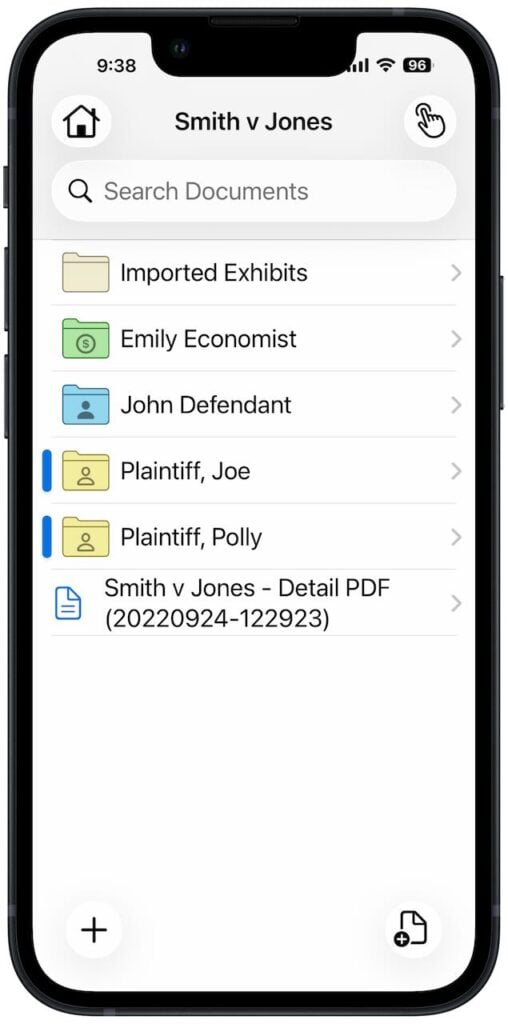
The folks at Lit Software have been making top-quality apps for lawyers who use iPads since 2010, when the iPad was introduced. The company makes many different apps for lawyers, but because of the type of law practice that I have, TranscriptPad has always been my favorite Lit Software app. This app makes it easy to read and annotate transcripts, search for relevant testimony in a transcript, create incredibly useful reports of the key testimony in one deposition or multiple depositions (organized by the key issues in your case), use deposition testimony at trial, work with video depositions, and more. In 2022, Lit Software made TranscriptPad and other apps even more valuable by bringing them to the Mac. This week, Lit Software has once again expanded its platform by bringing TranscriptPad to the iPhone. This makes the app even more useful for litigators, and it even comes with a brand new feature: the ability to read a deposition out loud so that, for example, you can listen to a prior deposition as you are driving across the state to take the next deposition in a case.
[UPDATE 12/18/25: The developer of this app, Ian O’Flaherty, posted a great comment to this post to note other useful features of the iPhone app. I’ve updated a few parts of this post to account for that, but read the comment for all of the details.]
Great way to work with your annotated transcripts
If you have already annotated transcripts in a case file, thanks to the new iPhone app, now you have access to all of those annotated depositions in your pocket.
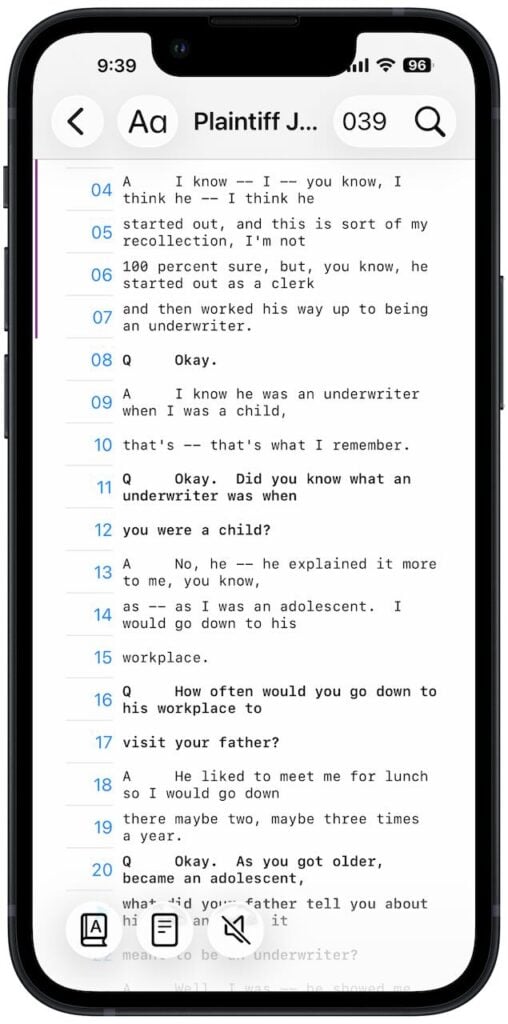
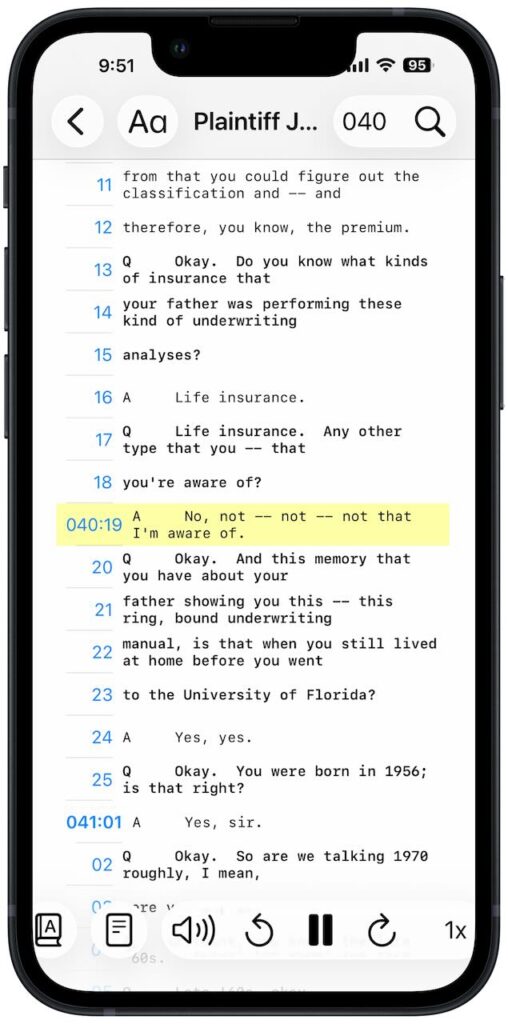
Simply tap a deposition to review it. The app splits each line into two lines so that you can read the transcript even on a small iPhone screen. Line numbers are clearly indicated on the left. The page number is clearly displayed at the top, and you can tap the page number to jump to another page.
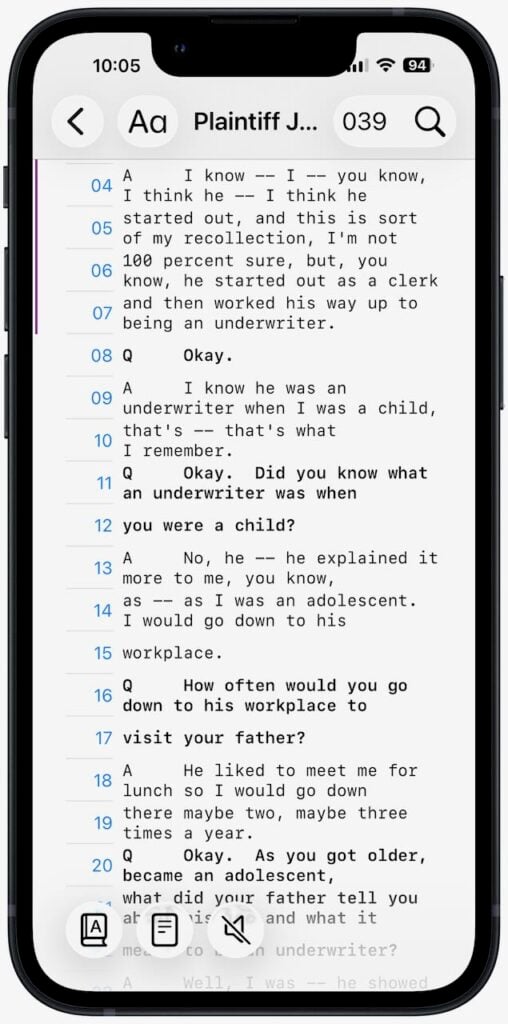
The above screenshot shows the “standard” text size, but if you want the text a little larger but just as easy to use, you can also switch to a “large” text size.
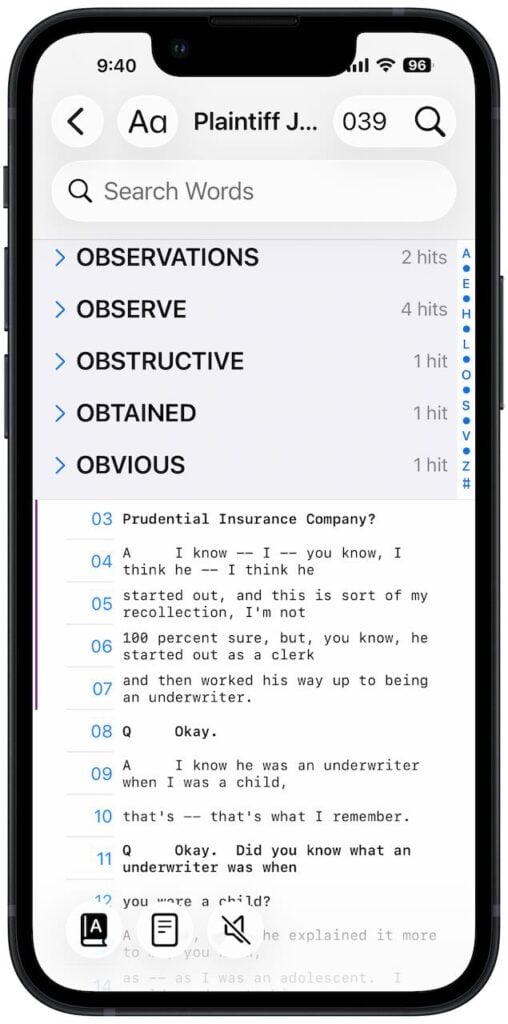
Searching a transcript is easy. You can either use the magnifying glass at the top right to search for words, or you can tap the index button at the bottom left to see each word in the deposition and the number of times it appears.
Better yet, you can view all of your issue codes, making it easy to jump directly to the key testimony on a specific issue.
Add annotations to deposition transcripts
The iPhone app is not just a viewer. It is also a full-featured annotation app, so you can also read and annotate a transcript using the normal tools: create and add issue codes, highlight text, etc. This makes it easy to read and annotate a deposition even if you don’t have your iPad with you—or, if you are in a situation in which it may not be practical to use an iPad.
Reports
The Reports feature is one of the best features of the iPad app. Once you have added issue codes to the key questions and answers, you can create a PDF report organized by issue of the key testimony. This is incredibly useful for me when I am drafting a motion and I review a report to focus on the testimony relevant to an argument in my motion.
[UPDATE 12/18/25: In the original version of this post, I said that you cannot create reports on the iPhone. As pointed out in the comment to this post by the developer, Ian O’Flaherty, while the iPhone app doesn’t include the full suite of reports like the iPad and Mac versions were you can create reports across all witnesses in a case, you can still generate the PDF Annotated (Full) Report for a specific witness. When you tap on a witness name and get a list of the different volumes, there is a button at the bottom right that you can tap to create a report. It is fantastic that you can do this on even the iPhone version of this app because it is one of the best parts of TranscriptPad. Also, if you create a report on the iPad/Mac for multiple witnesses in a case, you can review those generated reports in the iPhone app.]
Read out loud
The iPhone app includes another feature that is perfect for the iPhone: the ability to read a deposition out loud. Pick where you want to start—the beginning, or some other part of the deposition—and press the speaker button at the bottom.
You can select a different voice to use for the question and the answer. You can also select any of the iPhone’s many built-in voices for each speaker. Better yet, if you open your Settings app and go to Accessibility -> Read & Speak -> Voices -> English, you can download any of Apple’s enhanced voices for more realistic voices. I’m currently using Allison (Enhanced) to read questions and Tom (Enhanced) to read answers. Going back and forth between these high-quality voices, with a female voice asking the question and a male voice providing the answer, creates a strong contrast, and makes it easy to know who is speaking even if you are not looking at your screen.
You can also change the playback speed. I prefer either 1.5x or 2.0x to be more efficient, but note that I also listen to most of my podcasts at 1.5x speed, so I’m used to that.
As noted above, I think that a perfect use of this feature is when you are driving in a car. You cannot look at the transcript while you are watching the road, of course, but the TranscriptPad iPhone app can read the transcript to you. This is a great way to review testimony and be productive while you are driving. I can also imagine listening to a transcript while cutting the grass, shoveling snow, doing dishes, etc.
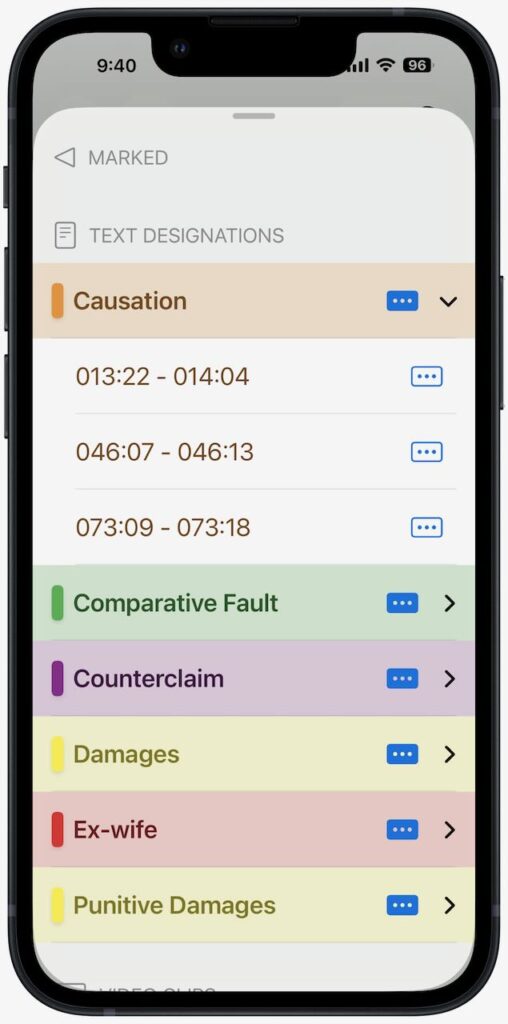
[UPDATE 12/18/25: There is another new feature of the app that I didn’t realize at first, but it is pointed out in the comment to this post by the developer. It is called Marked Lines. If you are listening to a deposition being spoken, or if you are using the hands-free scroll mode, you can simply double-tap on the screen to begin to mark a section, and then you can double-tap again to end the mark mode. The testimony is slightly gray with an arrow on the side to indicate the marked testimony:
Later, you can look at the deposition transcript to see the testimony that you marked and you can go back and add issues codes etc. This is a great way to quickly mark important testimony even when you are not looking at the screen—such as if you are driving.]
Conclusion
To use Lit Software apps such as TranscriptPad, you pay for a LIT SUITE subscription. The cost is very competitive with other software designed for lawyers: $600/year for a single license, $500/year for 3 to 9 licenses, and $475/year for 10 or more licenses. If you work with transcripts, $50/month is worth it just for TranscriptPad alone, but the license also gives you the other apps, such as TrialPad and DocReviewPad. Moreover, the subscription continues to grow in value over time as Lit Software adds new apps (such as the new TimelinePad app added earlier this year) and as Lit Software adds new features to existing apps, such as this new iPhone app.
I’ve been using Lit Software’s apps in my law practice for the last 15 years, and I cannot imagine practicing law without them. Thanks to the new iPhone app for TranscriptPad, this already essential software is now even more useful.
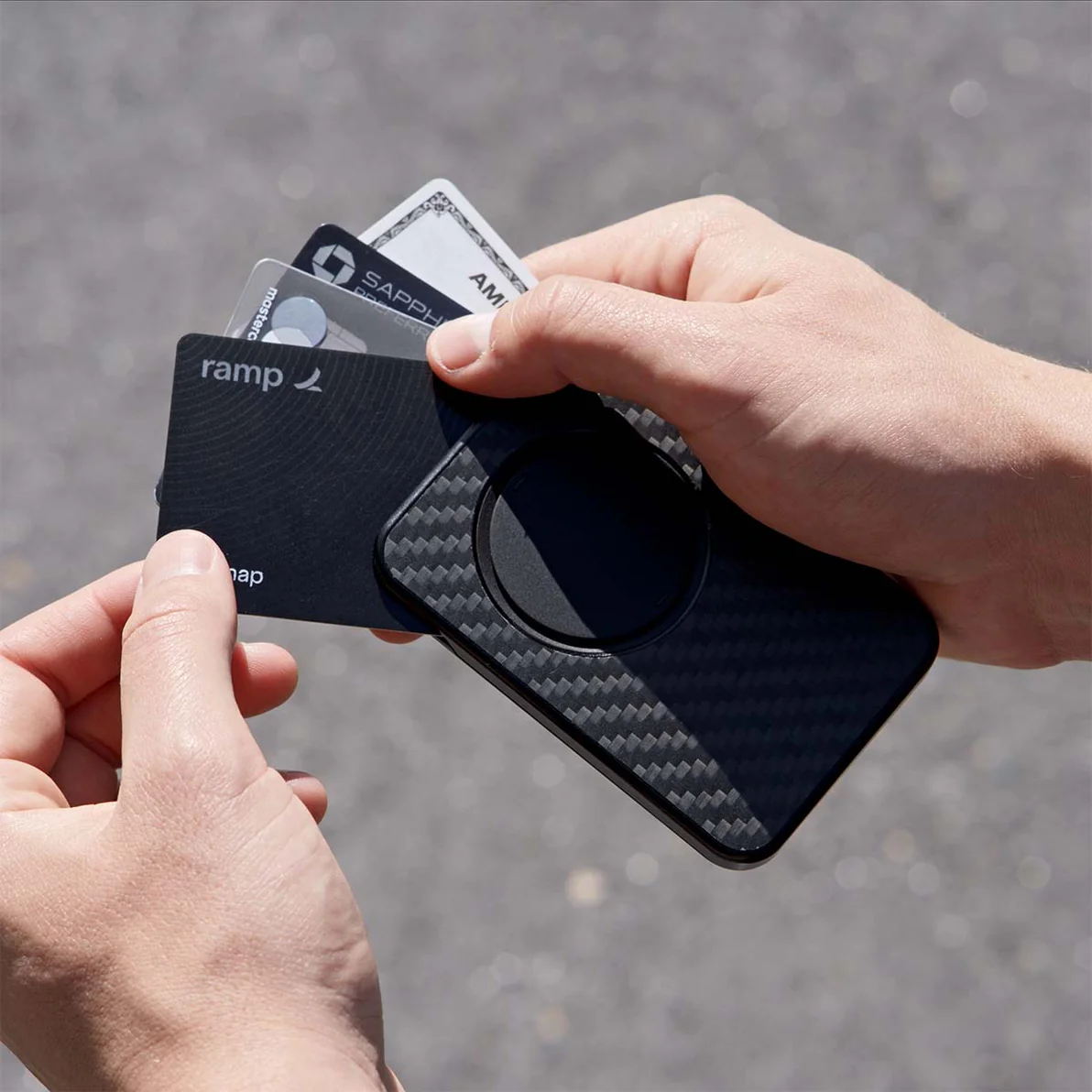
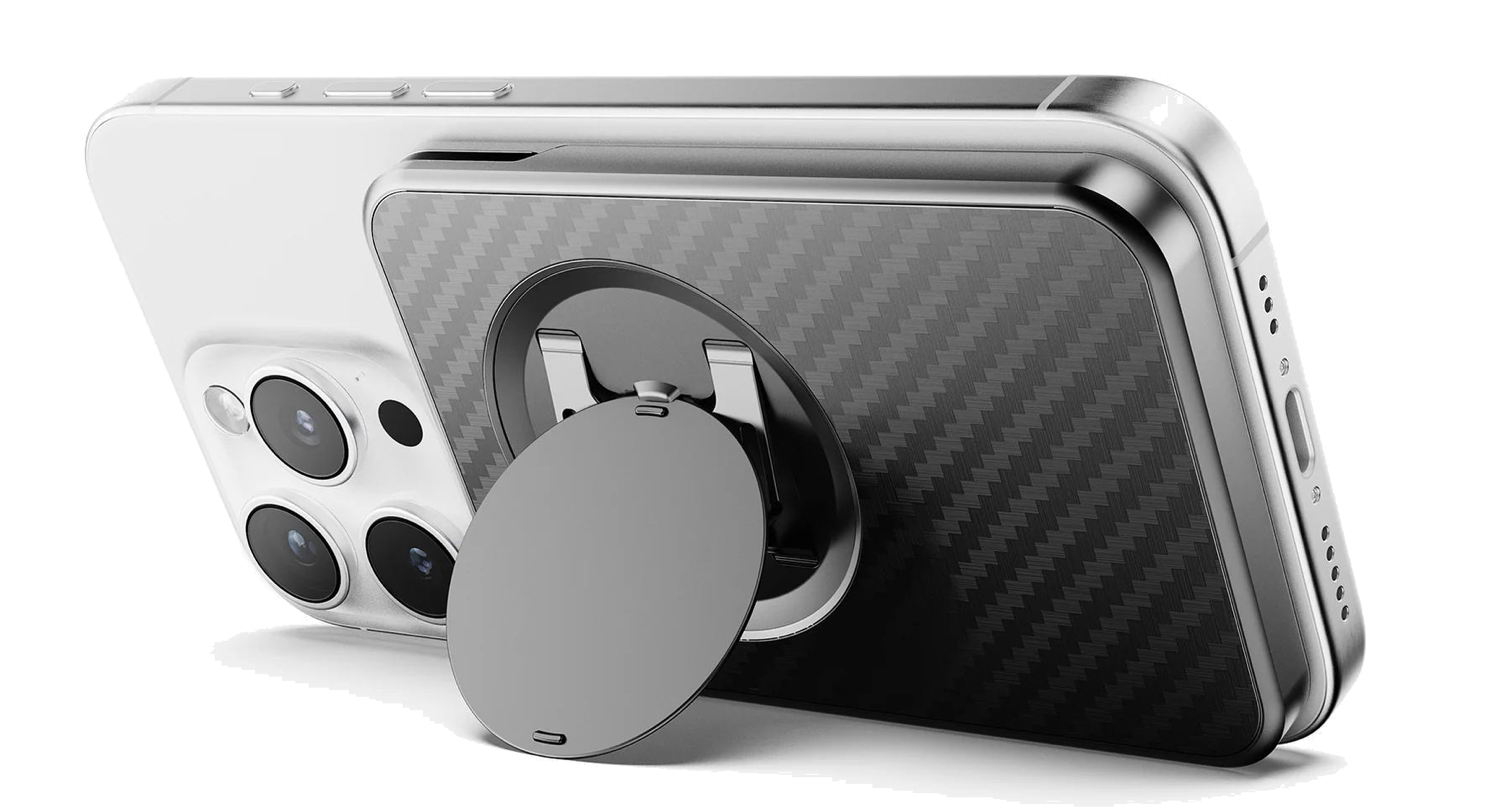
Sometimes, it is useful to carry just an iPhone without also carrying a wallet, and that is why Apple sells the Apple iPhone FineWoven Wallet with MagSafe ($59 on Amazon), and many others sell similar products. Sometimes it is useful to have something on the back of your iPhone to make it easier to hold, and that is why PopSockets makes tons of devices to do this, ranging in price from $5 to $70, as do many others. The Snap Grip Wallet by ohsnap! is a single product that includes both of these features. Plus, it includes a useful stand for your iPhone. Ohsnap! sent me a free review unit, and after trying it out for a few weeks, I like this product. It costs $71.99.
Colors
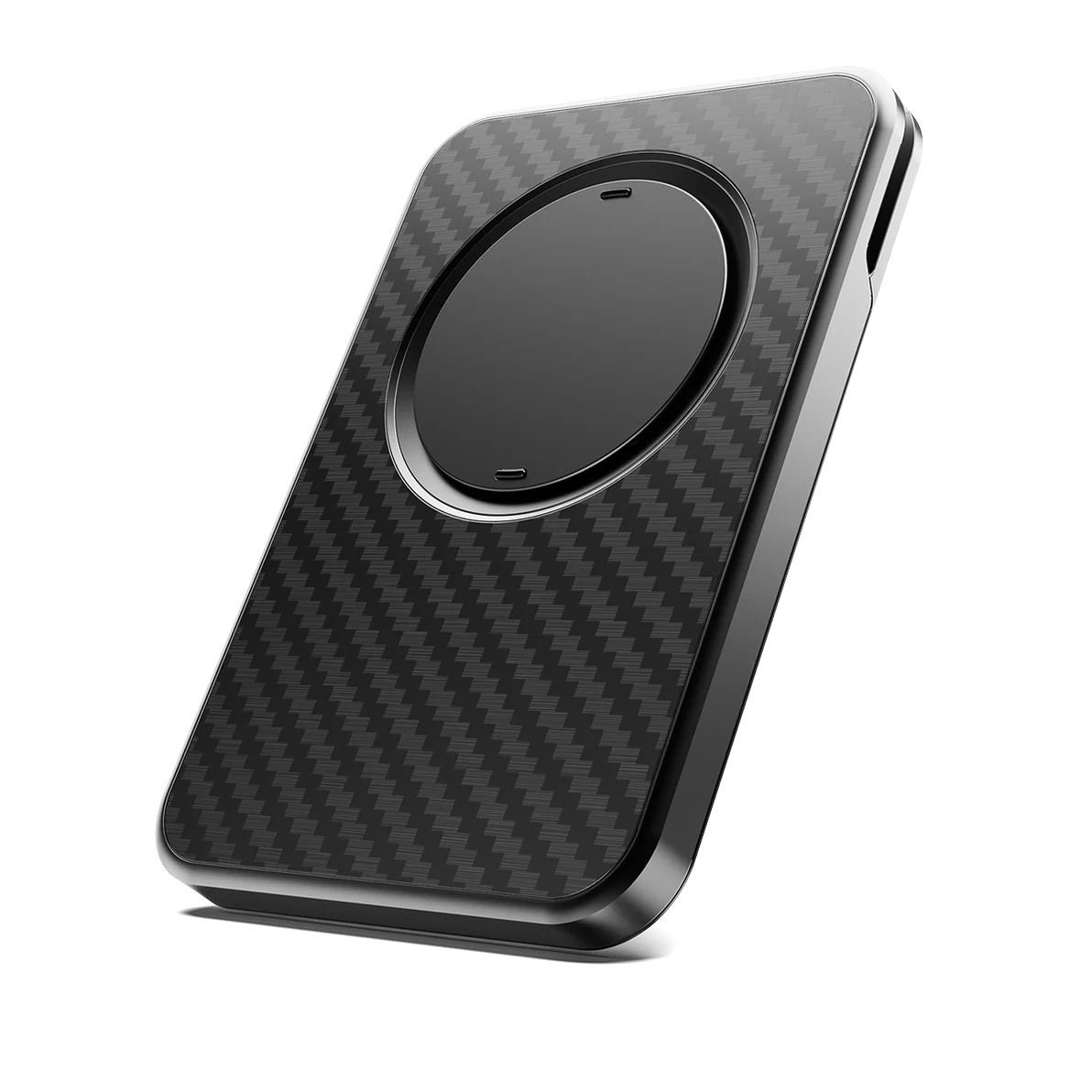
The color I was sent is Gator Fade, which is a type of green, but the other colors are Boring Black, Wine Noir (maroon), Orchid Slap (light blue), and Carbon Fiber (which costs $89.99).
The Gator Fade color is certainly not the one I would have picked for my Deep Blue iPhone 17 Pro Max, but I’m sure it looks good against other iPhone colors. (I would have picked either the Boring Black or the Caron fiber.)
The Snap Grip Wallet attaches to your iPhone using MagSafe, which means that it has a very secure connection to the back of the iPhone, but because it is based on magnets, it is easy to remove when you don’t want to use it. The backside of the Snap Grip Wallet also has a magnet, so if you have a MagSafe stand, you can use it while this product is on your iPhone. It won’t pass through a charge, but it does let hold an iPhone in the position provided by a MagSafe stand.
Wallet
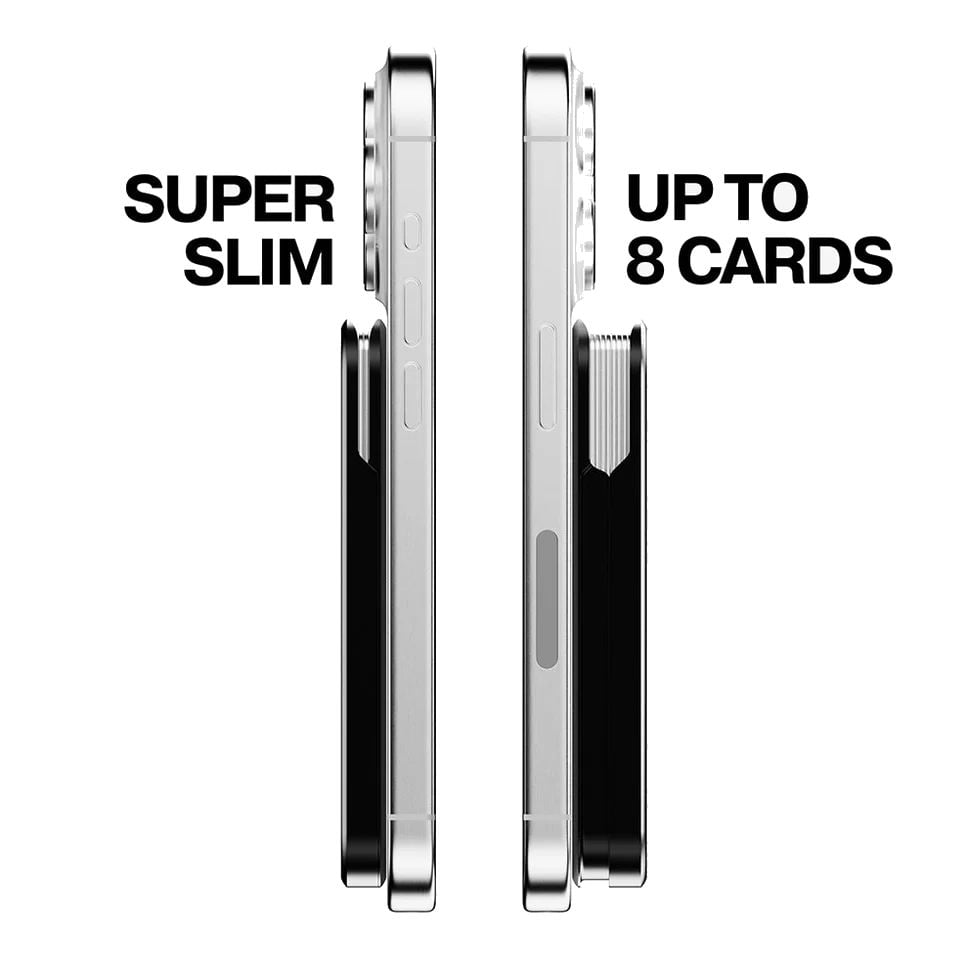
The wallet feature can hold five credit cards that have raised letters, eight cards that are not raised, or about six or seven cards if you have a mix. It has some sort of spring in it so that it expands as you add more cards, from a minimum product thickness of 7.8mm to a maximum of 12.7mm.
Your cards are incredibly secure in this device. There is no way that they would ever fall out. To remove a card, remove the Snap Grip Wallet from the back of your iPhone, slide the cards up in the slot with your finger, then fan your cards to select the one you need. It takes a little bit of time to do this, but it works fine. And I only occasionally have a need to use a physical card like a credit card or driver’s license, I find the real value is just knowing that they are there—I don’t actually put them in and pull them out very often.
When the Snap Grip Wallet is attached to the back of your iPhone, it is almost impossible to see that there are even cards in the device, which is a nice security feature.
Grip
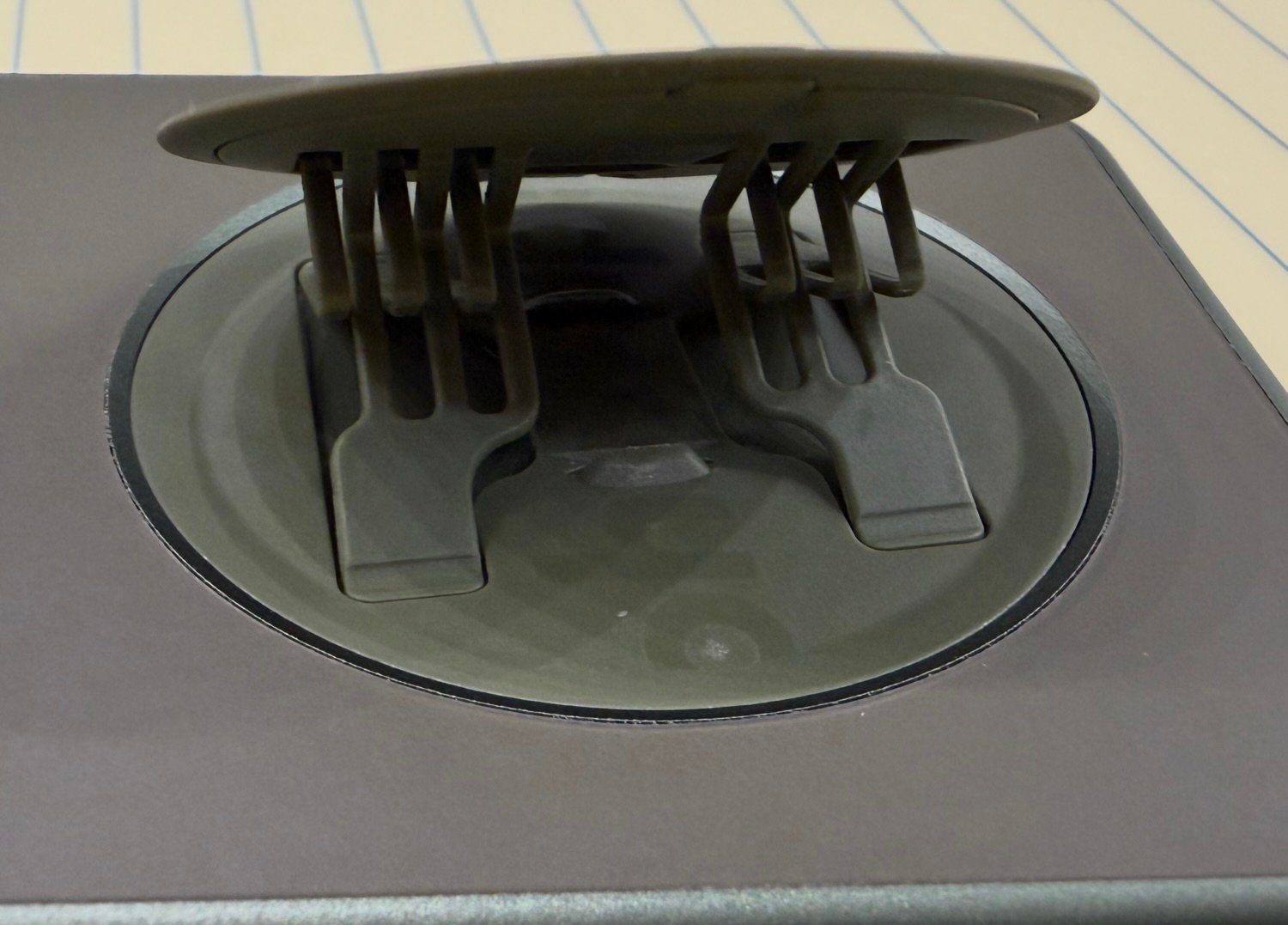
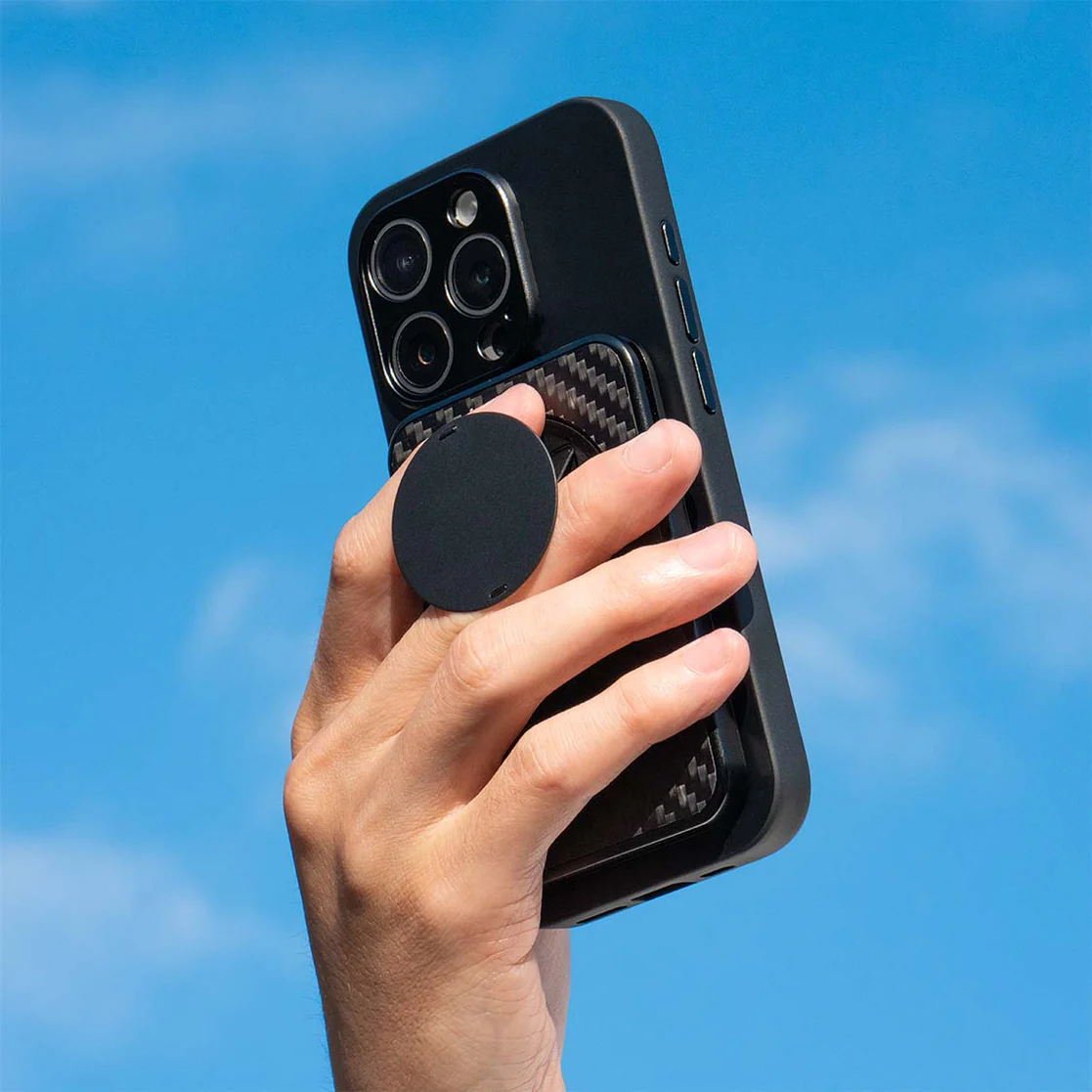
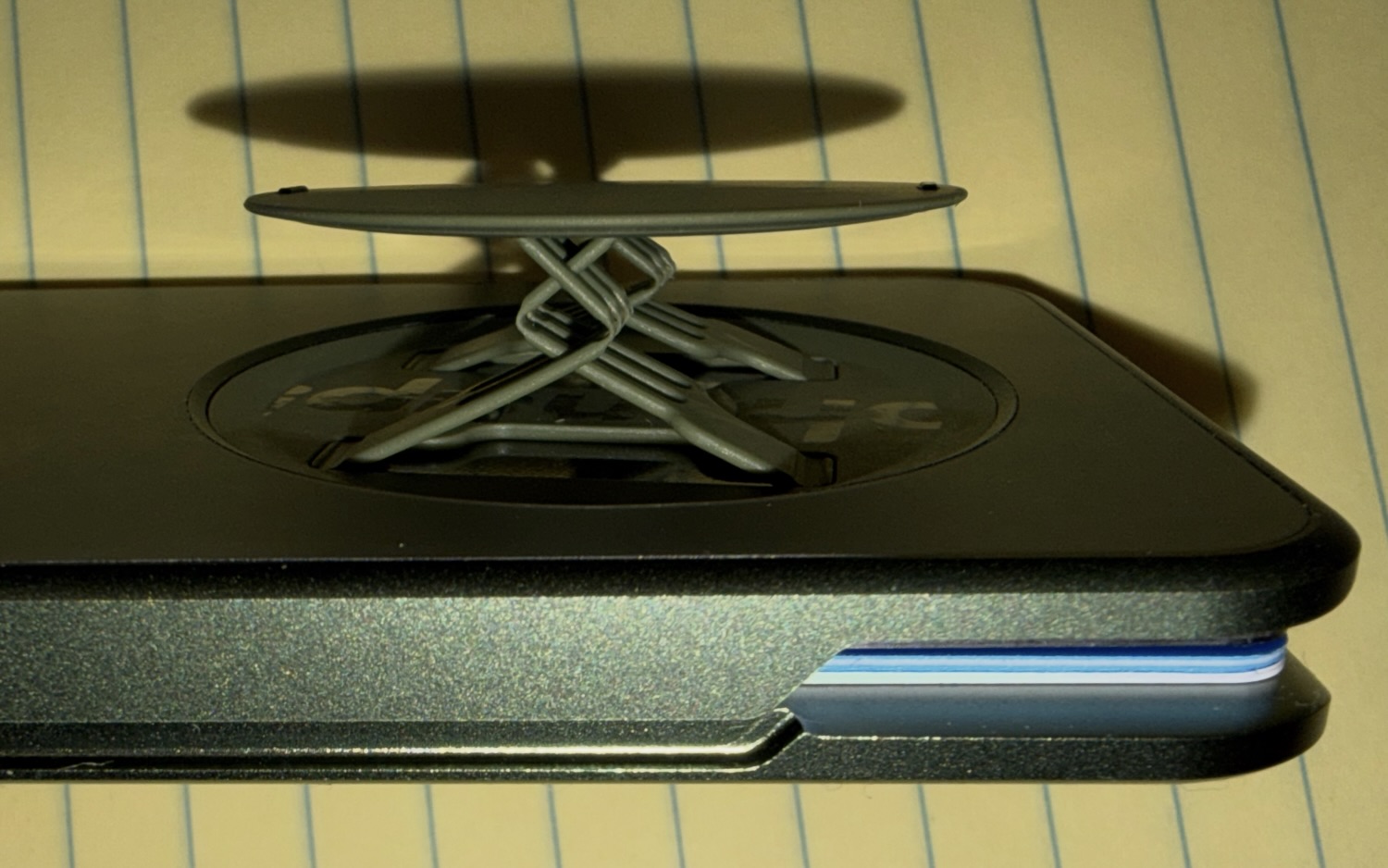
When you pop out the circle on the back of the Snap Grip Wallet, a series of very thin plastic strips in a diagonal design makes the circle pop out far enough that you can easily slide your fingers between the circle and the back of your iPhone.
When I first saw this, I was afraid that it would be too flimsy, but it has worked very well for me.
The Grip spins to rotate the plastic extenders to any position, so it is very easy to find a comfrotable position for your hand. Also, the plastic extenders are very soft, so they feel great against your fingers.
I mostly used the Grip with two fingers, one on each side of the plastic extenders. But you can also slide a single finger through the middle of the extenders to use just one finger to hold the Grip. Both positions work well.
The Grip provides a lot of support when you are holding your iPhone. I understand why PopSockets and similar devices have been popular for so long. You can hold an iPhone in one hand for a long period of time without the fatigue that comes with squeezing the sides of an iPhone. Also, an iPhone is far less likely to slip out of your hands when you are using the Grip. If you are traveling on a plane and holding an iPhone in your hand for a long period of time to watch a movie, this is a great device to have.
Some iPhone grips require you to use an adhesive to attach the grip to the back of the iPhone or to a case, and that has always been a non-starter for me. I love that you can use the Snap Grip Wallet whenever you want the Grip, but the MagSafe makes it easy to remove when you don’t.
Stand
If you want to prop up your iPhone at an angle—for example, to watch a video—simply extend the circle at an angle and fit it under a small plastic holder. This turns the Grip into a stand. It works especially well when your iPhone is in landscape mode, but it also keeps it at a nice angle in portrait mode.
Conclusion
The Snap Grip Wallet is a useful iPhone accessory. It gives you a wallet for your cards, a grip for your hand, and a stand for the iPhone. And because it uses MagSafe, you can remove it when you don’t need it. Note that if you like the idea of the Grip and the stand but you don’t need a wallet, the company also sells the Snap Grip 5 for $35.99. This is a nicely designed and manufactured device that works as advertised.
This week’s episode of the In the News podcast starts with a discussion of the very practical uses of AI: using it to fix items, thanks to the new app from iFixit, and Apple’s approach to AI which seems to be focused on the slow and steady as opposed to the announcement-of-the-day. Next, we talk about Apple Fitness+: why it it such a nice service, and how it is expanding. We also discuss about tweaking the Messages app, Anker batteries, vapor cooling the iPhone 17 Pro, and more.
In our In the Show segment, we discuss some of the great dramas on Apple, especially the fantastic show Pluribus.
In our In the Know segment, Brett shares a tip for reducing the size of a PDF file on the iPhone or iPad, and I discuss using HomeKit (or Matter) devices to control your holiday lights.
There are some areas of life where I feel confident that I know what I’m doing. There are other areas where I know that I am far from an expert. Fixing things falls in the second category, so it is a good thing that I’m a lawyer, not a handyman. But thanks to a new app, maybe I can fake it. For over two decades, the folks behind the iFixit website have been helping people fix things. I sometimes link to a story on iFixit because they frequently post interesting videos and pictures in which they take apart new Apple products, providing some insight into how they work. But the company has guides and sells tools not only for fixing iPhones and Macs but also for fixing appliances, cars, power tools, medical devices, and more. I mention all of that today because, as reported by Boone Ashworth of Wired and Juli Clover of MacRumors, iFixit released a new iPhone app this week (App Store link). The app provides lots of great advice for fixing items, but perhaps most impressively, it has an AI-powered chatbot that is trained on iFixit’s vast knowledge base of how to fix things. Just explain what you are trying to fix—you can even take a picture of an item in question—and the AI offers helpful advice on what is wrong and what you can do. The service is free, but Ben Lovejoy of 9to5Mac reports that a paid version is coming soon, which will add step-by-step voice guides. This app looks to be a great use of AI. And now, the news of note from the past week:
I like to use Apple Fitness+ to do workouts at home. I’ve seen some recent speculation about the future of the service, but I hope that Apple keeps it going, and there is new evidence that it will. This week, Apple announced that it is expanding Apple Fitness+ to 28 new markets around the world. What struck me as particularly interesting about that announcement is that Apple is now dubbing the instructors in Spanish, German, and Japanese, using AI to create a voice that is based on the actual voice of each of the 28 Fitness+ instructors. In theory, Apple could do this for any spoken language in the world.
One of the improvements to the Messages app in iOS 26 is the ability to screen unknown senders. It has vastly reduced the number of spam texts that bother me. I’ve noticed that, by default, it allows texts that seem to be time sensitive to come through, which I like, but I didn’t realize that you can toggle that on or off in the Settings app. Moreover, Ryan Christoffel of 9to5Mac recommends turning on “Personal” (which is turned off by default) so that unknown text messages will come through if they don’t seem to be from businesses or organizations. I’m going to try that for a while to see what I think.
I frequently use the Shazam service on my iPhone all the time to identify a song—often a good song that I discover while watching something on TV. I’ve never paid much attention to the Shazam.com website, but now there is an interesting reason to do so. Ryan Christoffel of 9to5Mac reports that not only does the website reveal the top songs that drove Shazam activity within the past week, but it also identifies the popular segments—i.e., the moment in the song that led the most people to trigger Shazam in the first place to identify the song. It comes as no surprise that as I type this, a song featured during the last episode of the Apple TV show Pluribus is on the Top 10 list for the past week.
Speaking of Shazam, did you know that you can have the app continuously recognize songs in the background for you? Ankur Thakur of iDownloadBlog explains how the Auto Shazam feature works.
If you are thinking of getting an Apple Watch as a gift for the holidays, the Apple Watch Series 11 is currently selling on Amazon for an all-time low price of $299 for the 42mm version, and the 46mm version is only $30 more.
This week, the American Film Institute announced the 2025 Top 10"outstanding television programs deemed culturally and artistically representative of this year’s most significant achievements in the art of the moving image,” and three shows from Apple TV are on the list: Pluribus, Severance, and The Studio. Those are all fantastic shows, and it is impressive that 30% of the list comes from Apple TV. Other shows on that Top 10 list that I loved include The Diplomat (Netflix), Andor (Disney), and The Pitt (HBO).
And finally, when Apple first announced that the iPhone 17 Pro would have a vapor chamber so that the processor could work faster without the device getting too hot, I linked to a video from Aldo of Know Art studios in which he showed how vapor chambers on smartphones work. Apple recently released its own video—and a rather dramatic one—to celebrate the vapor chamber. It is called Peak Performance:
The podcast is break after a break for Thanksgiving, and there is lots to talk about. We start by discussing all of the executive shuffles at Apple. With senior executives announcing that they are retiring, what does that mean for the future of the company and—more importantly—for the products that we all use? Next, we talk about the iPad mini, a product that I have been trying out for the last month and which I reviewed just before Thanksgiving. We also talk about a new, tiny version fo the Time Capsule for AirTag, troubleshooting problems with Wi-Fi on an iPhone, and two new videos from Apple.
In our In the Know segment, Brett shares a useful tip for sharing a Wi-Fi password with someon using a QR code, and I share a tip about correctly arranging your displays when you use the very useful Universal Control feature to share a keyboard and mouse between multiple Apple devices.
I’ve always thought that working as a lawyer for Apple has to be a fascinating way to practice law, and the top General Counsel position has to be the most interesting—and difficult—job of all. When Steve Jobs returned to Apple in 1996 and started the modern era of the company, he made Nancy Heinen the General Counsel—a job that she had performed at NeXT before Apple purchased the company to bring Jobs back to Apple. Heinen held the position until May of 2006, when she resigned shortly before Apple admitted to some irregularities in the backdating of stock options. It took Apple six months to replace Heinen, and the next two replacements did not last as long as Heinen. First, Apple hired Donald Rosenberg in November of 2007, who had previously been general counsel at IBM, but he only lasted ten months before he left Apple to become general counsel at Qualcomm. In September of 2007, Daniel Cooperman, former general counsel at Oracle, was given the position, but he left Apple after two years to return to private practice and to teach. In September of 2009, Apple hired Bruce Sewell. During the eight years that Sewell led the legal department at Apple, Apple became the largest company in the world thanks to the iPhone. Sewell oversaw numerous complex legal issues, including litigation with Samsung for copying the iPhone, efforts to get back a prototype iPhone 4 that an Apple employee left in a bar, and numerous consumer privacy issues including negotiations with the FBI and other law enforcement agencies around the world eager to access confidential information on iPhones. Sewell retired at the end of 2017. He was replaced by Kate Adams, who was previously general counsel at Honeywell. I mention all of this today because Apple announced this week that Adams is retiring after eight years at Apple. It seems like Apple has faced more lawsuits and regulations by countries around the world during the last eight years than ever before, and I can only imagine how busy her plate has been. Adams will be replaced on March 1, 2026, by Jennifer Newstead. Newstead has served as general counsel at Facebook since 2019, and she has a very impressive resume before that, including serving as the Legal Adviser to the United States Department of State and teaching at my alma mater, Georgetown University Law Center. Apple needs good lawyers now more than ever, and Newstead certainly has a track record of working on important and complicated legal matters. I wish her well in this important and difficult job. And now, the other news of note from the past week.
Apple also announced that another very senior executive is retiring: Lisa Jackson, Vice President for Environment, Policy, and Social Initiatives. Jackson grew up in my hometown of New Orleans and was the head of the EPA from 2009 to 2013. Apple CEO Tim Cook praised Jackson for “helping us reduce our global greenhouse emissions by more than 60 percent compared to 2015 levels.”
Another transition at Apple is that Steve Lemay is replacing Alan Dye as the head of UI design at Apple—a critical position for a company that for decades has been perhaps the best design company in the world. Leander Kagney of Cult of Mac provides background on Lemay, including the funny story of how he got the nickname “Margaret” from Steve Jobs.
There are rumors that Tim Cook is also planning to retire, perhaps in 2026, and the rumor is that the CEO position will go to John Ternus, Apple’s senior vice president of hardware engineering. I don’t mean to suggest that all of these executive transitions were part of some master plan for Apple, but if Apple is planning a transition from Cook to Ternus, maybe it is a good thing to bring in younger talent to these critical positions in the company.
Apple announced its 2025 App Store Award winners, and Joe Rossignol of MacRumors reports on who won. For example, the iPhone app of the year is Tiimo, a task and planning assistant.
Amazon is selling Apple’s iPhone cases for about 50% off right now. For example, the Clear Case is $25 instead of $49, and the Silicone Case is also $25 instead of $49. I don’t currently use a case for my iPhone 17 Pro Max, but at these prices, I’m thinking about getting one for the rare occasions when I might decide to use a case.
FaceTime communications are encrypted, and I guess Russia has figured that out. Juli Clover of MacRumors reports that Russia is now blocking FaceTime video calls, asserting that it is a tool used for terrorist attacks.
India is ordering Apple to pre-load on every iPhone in that country an app that can be used to track an iPhone and, somehow, prevent them from being misused. John Gruber of Daring Fireball reports that Apple responded by saying that it does not plan to comply. The initial report was that India was going to mandate that the app could not be removed from an iPhone, but a follow-up report from Marcus Mendes of 9to5Mac says that India is now saying that the app has to be installed, but that it can be removed by a user. It will be interesting to see how this all pans out.
Earlier this year, I reviewed the TimeCapsule by Elevation Lab. It’s a cool device that allows an AirTag to last ten years. I put one in my car, and now I never need to worry about the battery dying. But to be honest, ten years is a crazy long time, and the device would be just as useful to me if it lasted five years—at which time we will probably have a better version of the AirTag that I want to use. Elevation Lab is now selling a compact version of the Time Capsule that is smaller and lasts five years. On Amazon, the price is $19.99 for one, or $39.99 for four. Like the larger model, this new version is waterproof, and it hides the AirTag itself, making it far less obvious to a thief what it is.
Apple is once again projecting video onto the Battersea Power Station Apple Store in London. This year, as reported by Marcus Mendes of 9to5Mac, Apple is projecting designs by iPad users. It looks fun.
Samuel Axon of Ars Technica reviews the new M5 version of the Apple Vision Pro, and at the same time provides his thoughts on the present and future of the platform as a whole. I don’t agree with all of his opinions, but I did enjoy reading his perspective.
John Voorhees of MacStories reports on some of the shows coming to Apple TV this month, including the F1 movie and A Charlie Brown Christmas, and some of the games coming to Apple Arcade.
I’ve been waiting for Apple TV to show Season 3 of the excellent show Tehran. It has been a year since Season 3 debuted in Israel, but because of events in the world, Apple delayed the release in the United States. Zac Ntim of Deadline reports that Season 3 will finally debut in the United States on January 9, 2026, and Season 4 is now in production.
I wish that the next season of Severance could come to Apple TV in 2026, but Ryan Christoffel of 9to5Mac explains why it will more likely be June or September of 2027.
And finally, December 3 was the International Day of Persons with Disabilities, and Apple used that occasion to release a fantastic video called I’m Not Remarkable that celebrates college students with disabilities using Apple products. As Shelly Brisbin notes in an article for Six Colors, the tools featured in the video include the Magnifier app for the Mac, Braille access, an accessibility reader, sound recognition, live captions, and assistive touch.