In this Fourth of July episode of the In the News podcast, Brett Burney and I start with a red, white, and blue discussion of Apple Watch bands. Next, we discuss some of the interesting new features coming in iOS 26 and watchOS 26. We discuss the next new version of the GoodNotes app for the iPad, which is coming out this Fall. And we also share some travel tips.
In our Where Y’at? segment, we go deep on using the satellite text messaging feature of the iPhone when no cellular service is available, sharing some details of Brett’s recent use of the service.
In our In the Know segment, we both share tips and information on using Eufy cameras—both a video doorbell camera and and the new eufyCam S3 Pro.
As we observe Independence Day in America—our annual celebration of the hard-fought freedom to not be subject to the unchecked whims of a monarch—the #1 app in the “Social” category of the App Store sits at the intersection of the iPhone and the law. Amid recent reports that the federal government has shifted its focus from violent illegal immigrants to legal immigrants with viewpoints that the Trump administration disagrees with, and with the President himself discussing plans to deport even U.S. citizens, Joshua Aaron decided to create an iPhone app. In an interview with Callum Sutherland of Time magazine, Aaron explained: “When I saw what was going on in this country, I just really felt like I had to do something.” Aaron’s free app is called ICEBlock. The app displays a map of the user’s current location and shows any reported ICE sightings in that area. A user can report an ICE sighting by tapping a button. Reece Rogers of Wired reports that the Trump administration has responded not only by threatening to prosecute the developer, even though there is nothing illegal about the app, but even by threatening to prosecute CNN for simply reporting the news that the app exists. Fox News also reported the news that the app exists, and speaking on Fox News, U.S. Attorney General Pam Bondi mentioned the app’s developer Joshua Aaron and remarked, “we are looking at him, and he better watch out.” And now, the other news of note from the past week:
There are lots of new features coming to the Photos app when iOS 26 comes out this Fall, and Ryan Christoffel of 9to5Mac runs down what is new in Photos.
Nick deCourville of The Mac Observer has been using the beta version of iOS 26 for several weeks, and he lists his favorite features so far, including new app icons and new folders for spam texts.
The headline features in the upcoming iOS 26 have been getting lots of attention in the tech press, but Sanuj Bhatia of Make Use Of reports on eight less obvious features that are also very interesting, such as the ability to create custom snooze times for alarms and an indication on the lock screen of how much longer it will take to charge your iPhone.
When iPadOS 26 comes out this Fall, we will also see a major new update to the GoodNotes app, my go-to app on the iPad for taking handwritten notes. As noted on the GoodNotes blog, the app will include a Whiteboard feature with an infinite canvas size, so if you need more space on the edge of a page, it is there for you. The app will also let you use AI to do things like transform your scribbled handwriting into organized meeting notes. I’m also excited to use a new Text Documents feature, which is a block-based editor that looks like it will vastly improve adding typed notes to a notebook.
Ryan Christoffel of 9to5Mac reports that the new “hints” feature of the upcoming watchOS 26 is an especially nice improvement.
If you want Apple Watch bands in some new colors, Woot is once again offering a deep discount. Apple’s Solo Loop bands, normally $50, are on sale for $14.99 each. Apple’s Braided Solo Loop bands, normally $100, are only $29.99. The Braided Solo Loop is my current favorite Apple Watch band because its stretchy woven yarn is incredibly comfortable. I’m wearing one as I type these words. The only criticism that I noted in my review is that I think the $100 price is too high. But $30 is much more reasonable. I’ve purchased numerous Apple Watch bands from Woot during previous sales, and the buying experience was excellent. If you are interested in adding to your collection—perhaps by purchasing some red, white, and blue bands today?—this is worth checking out.
Being able to unlock your Mac just because you are wearing your Apple Watch is a pretty cool feature. But sometimes, it doesn’t work, and Glenn Fleishman explains in a post on Six Colors how you can get it working again.
If you have travel plans this summer—either for vacation or for business—Ed Hardy of Cult of Mac recommends his favorite travel gadgets, including chargers, hubs, and more.
Speaking of travel, Brett Burney and I recorded a special edition of the In the News podcast three years ago to recommend tips and accessories for travel. Most of those recommendations are still good today, although there are now updated versions of many of the accessories that we praised. For example, I recommended the Weego Jump Starter 22 (which I still use today), but you can now get the Weego 44S for $99.99 on Amazon. And while I previously recommended the eufyCam 2 Pro for keeping an eye on your house while you are away, you can now get the eufyCam S3 Pro, which comes in a 2-pack for $549.99 on Amazon. I purchased a 4-pack of the eufyCam S3 Pro a few months ago to upgrade my home security cameras, and while I haven’t written a formal review yet, I can tell you that I really like that product.
Speaking of Brett Burney, his wife shared with Brett, and Brett shared with me, this report from Josh LaBella of the CTPost in Connecticut. Two people from Kentucky were camping in Rhode Island when thieves broke into their car and stole numerous items, including AirPods. The couple was able to track their AirPods to a location in Connecticut, which led the police to execute a search warrant, and most of the stolen items were recovered.
Maddie Rhodes of KDVR in Denver reports that a man in Colorado became injured as he was over 10,000 feet and climbing down a mountain, and was no longer able to climb down on his own. Although he had no cellphone service, he was able to use his iPhone’s satellite texting feature to contact a family member, and he was subsequently rescued by a mountain rescue team.
And finally, here is a video from Apple called Camera Control that shows off how much more quickly you can take pictures using an iPhone that has a Camera Control button.
Thank you to SaneBox for sponsoring iPhone J.D. SaneBox is a service that works in the background at the server level, so you continue to use your Inbox of your current mail program the same way that you always do. But thanks to SaneBox, your Inbox is suddenly much better. Primarily, this is because your Inbox changes from being overpopulated with lots of unimportant stuff into a short list of the most important messages. Thus, when you open your Inbox, you essentially see just the good stuff that matters. But SaneBox also gives you powerful features so that your email is smarter.
SaneBox keeps your Inbox tidy because less important emails, such as newsletters, are moved to subfolders. That way, you can deal with them when you have time, and it is often faster to deal with the items moved to a subfolder all at once. Additionally, if you tell SaneBox that there is an email sender from which you never want to see email again, those go to the SaneBlackHole folder. It is so satisfying to move an item into the SaneBlackHole folder, knowing that I’ll never be interrupted by that sender again. (If I later change my mind, I can always just move an email out of SaneBlackHole and back into Inbox to train SaneBox that I now want those emails. But I think I’ve only done that once in my many years of using SaneBox.)
And that’s just the beginning. SaneBox also gives you lots of tools that you can (optionally) enable to make you more productive. For example, I love the SaneNoReply folder. It gives you an overview of all the emails you’ve sent—emails that you initiated—that haven’t yet received a reply. Sometimes, no reply is necessary. (If you don’t need a response, simply delete the email from SaneNoReplies, and SaneBox will stop tracking it.) But I often skim the emails in this folder and then see that there is something for which I did need a reply, and so this SaneBox folder reminds me to follow up.
What if you know that you need to get a reply by a certain date (or time)? SaneBox can help you when you use the SaneReminder feature. When you send the email, send a BCC to an address that tells SaneBox when you need a response by. For example, you can use “1.day@sanebox.com” or “2.weeks@sanebox.com” or a day of the week such as “monday@sanbox.com” or “mon@sanbox.com.” If there’s no reply within that time period, the email will resurface in your Inbox for your attention.
Put all of this together and SaneBox makes your Inbox both more simple and more powerful. All at the same time.
I’ve been paying for and using SaneBox for many years, and I find the service well worth it. For my iPhone J.D. emails, when I look at the Inbox, I can quickly focus on the messages that matter the most to me, such as a reader sending in a suggestion with a news story for my Friday In the News post or interactions with someone who matters to me. Every once in a while, I’ll look in the SaneNews folder to see newsletters that I subscribe to or the SaneLater folder to see messages that SaneBox thinks are less important, but those messages don’t crowd up my Inbox.
If you want to try out SaneBox to see what a huge difference it can make in your life, click here to get a 14-day free trial with no credit card required. If you don’t like having a clean and tidy Inbox and decide to return back to how you had it before, no sweat. But if you appreciate having a better way of working with email, using this link in this post will give you a generous $25 credit for when you pick a plan—and there are lots of different plans offered so that you can choose the one that gives you just what you want.
Thanks again to SaneBox for sponsoring iPhone J.D. and for giving all of us a more efficient way to work with email.
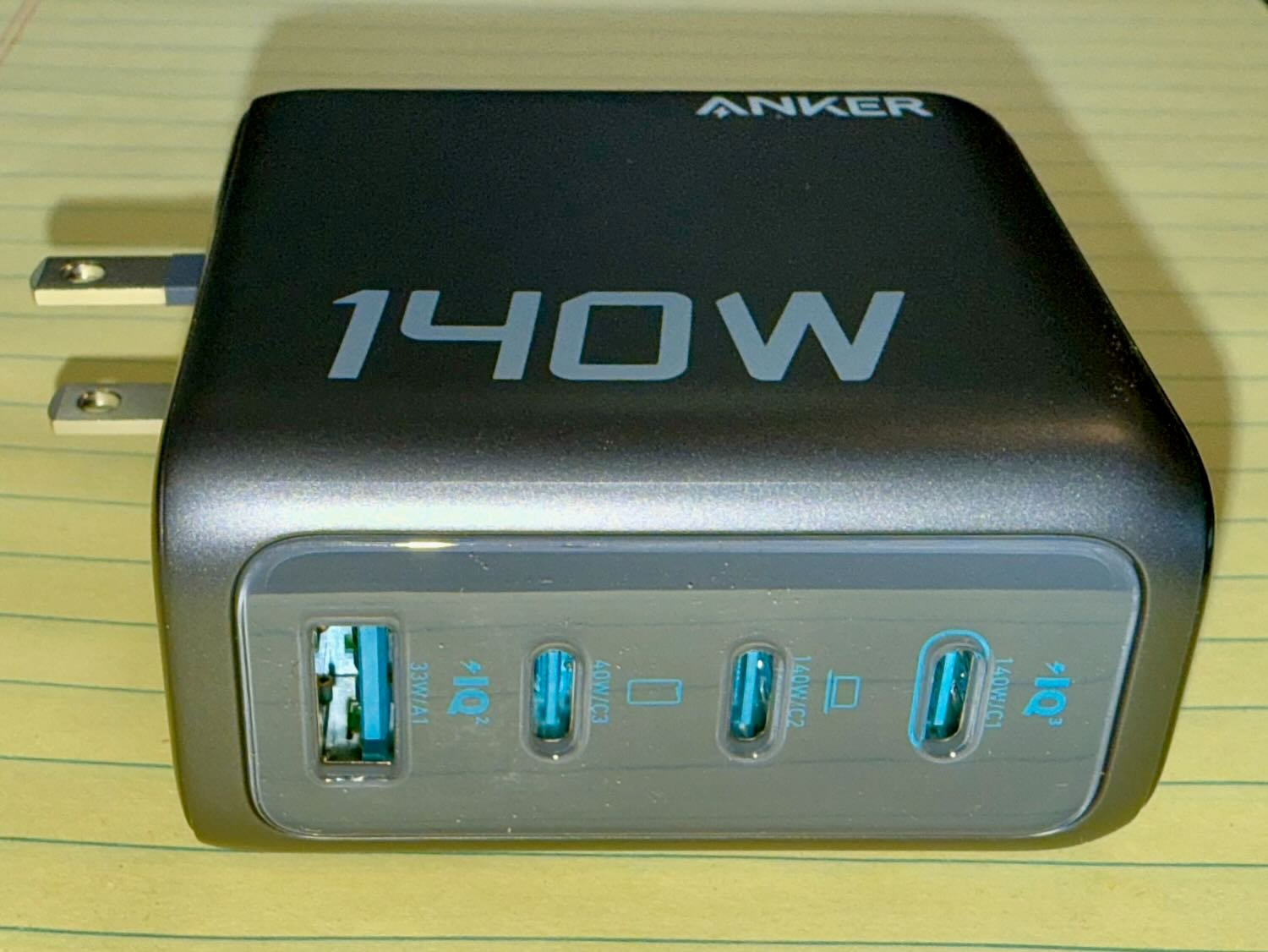
A power charger that plugs into an outlet may not sound like anything all that special. We have all been using these for many years. But the smart folks at Anker decided to make the best possible charger that they could, and as a result, came up with a fantastic device: the Anker Laptop Charger (140W, 4-Port, PD 3.1). It is useful not only when you need to charge a bunch of items in your home or office but also when you want a handy travel charger. I paid $99.99 for it on Amazon, and it was a great purchase. It has lots of useful ports and a great display, all in a compact package that makes this much more useful than a traditional power charger, including anything from Apple.
Four ports, lots of power
This charger has four different ports on it: three USB-C ports and one traditional USB-A port. Having four ports available means that you can often charge everything that you need with this one device.
This charger supports USB Power Delivery 3.1, a standard that allows for power transfer of up to 240W.
If you are charging one device, you can use either of the top two ports (marked USB-C1 and USB-C2) to get 140W, assuming that your cord can support that much of a charge. That is more than enough power to charge a laptop; the top-of-the-line current MacBook Pro can get a fast charge with a 96W USB-C power adapter. The USB-C3 port can deliver up to 40W, and the USB-A port can deliver up to 33W.
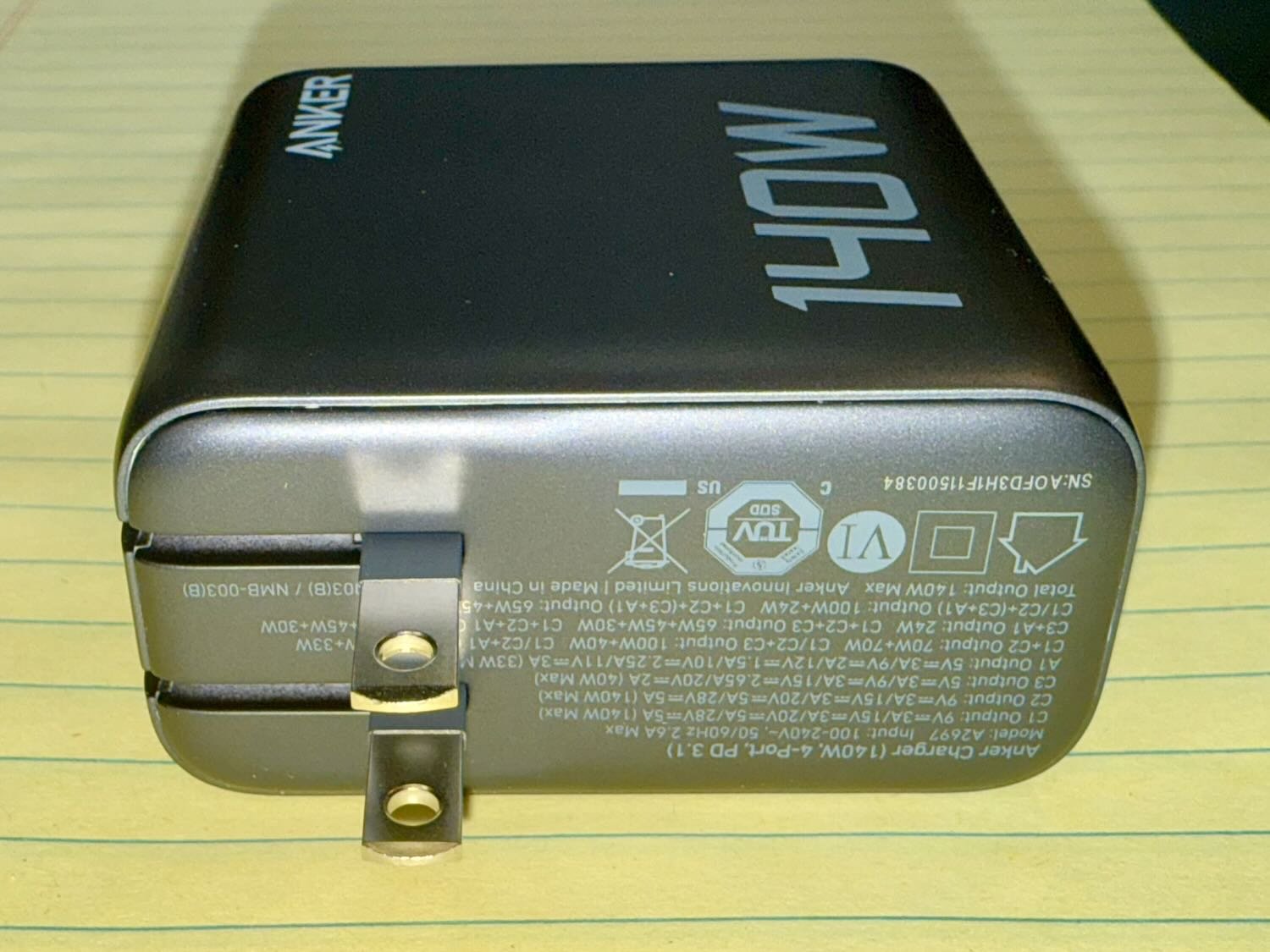
If you are using multiple ports, the amount of power that each port gets depends upon which combination of ports you are using. For example, if you use the USB-C1 and USB-C2 ports at the same time, they get up to 70W each (for a total of 140W from both ports combined). If you use the USB-C1 and the USB-C3 port at the same time, the first one gets 100W, and the second one gets 40W. If you use all four ports at once, you can get 65W on the USB-C1 port, 45W on the USB-C2 port, and 12W each on the USB-C3 and USB-A ports. That should be sufficient for many needs. You only need a 20W charger to fast-charge an iPhone or Apple Watch or to charge an iPad Pro.
Display
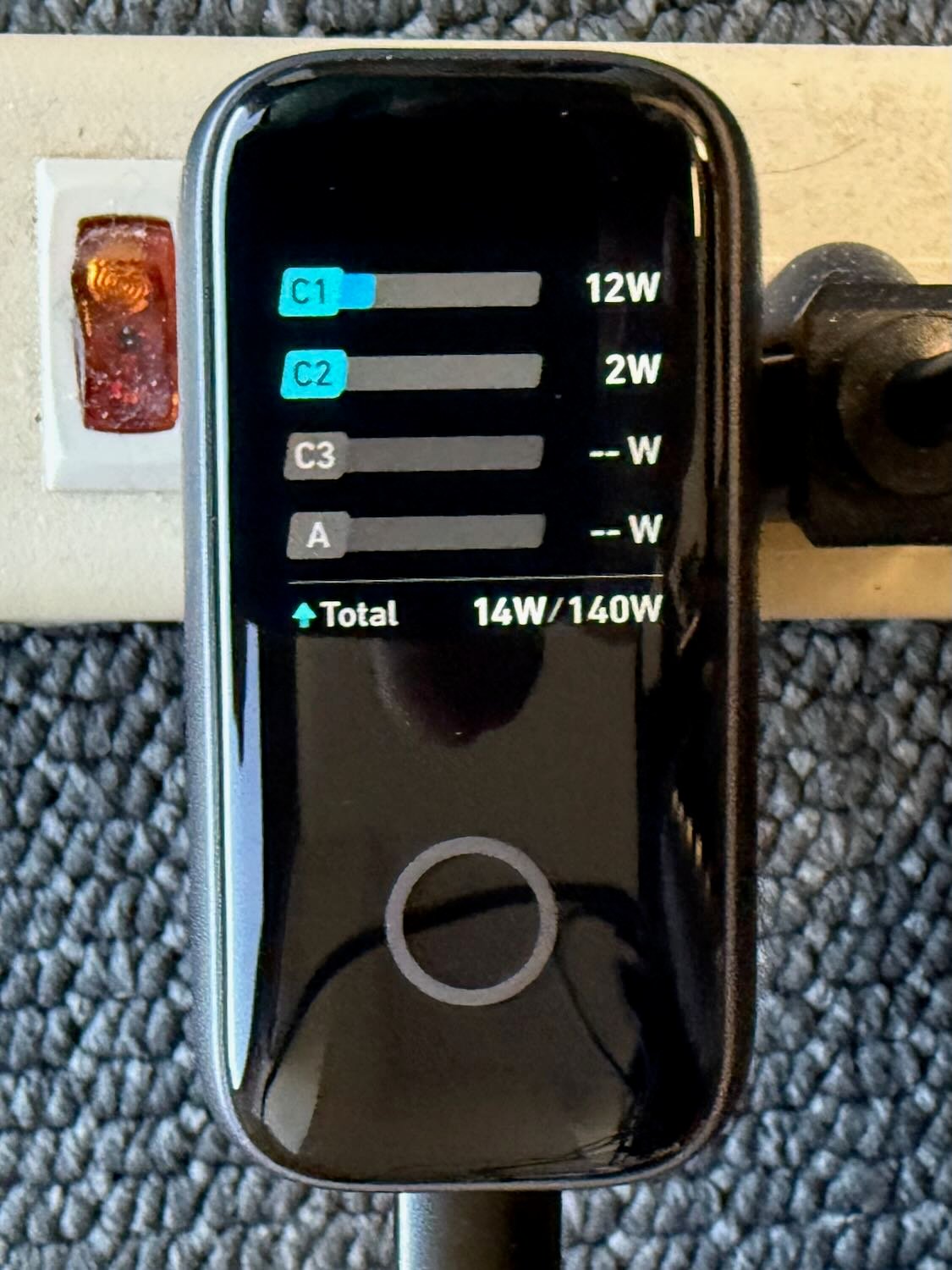
For a few months, I’ve been using an Anker Laptop Power Bank (my review), which is a great portable battery. One of the things that I love about that product is the display, which makes it easy to see things like the battery life and how much power is going out to each port. This is the first time that I’ve had a power charger that plugs into an outlet and that has a display. The color display is a great feature.
First, it is useful to be able to see how much power is going out of each port. This is an easy way to ensure that you are getting all of the power that you want for each device. It is also useful when troubleshooting why something doesn’t seem to be charging the way that it should—for example, you may be using a cord that has a limit on my much power it can transfer. Also, if you are using multiple ports at the same time, the display lets you see how much total power each port is getting and can potentially get.
Second, the display can provide a temperature warning if it is getting too hot—and to compensate, the charger will decrease how much power it is providing to stay safe.
Third, the display can show other information, such as the total operating time of the charger and even, at times, an animated face.
There is a single round button on the face of the device. Press the button to switch between different displays. Long-press the button to rotate the screen, ensuring that you can read the display regardless of what direction you plug it in.
Portable
I am using this charger in my office. I purchased a 2-pack of Anker 100W USB-C cords that are six feet long with a rugged nylon exterior ($11.99 on Amazon) to use with the USB-C1 and USB-C2 ports. I use one cord to connect to my Anker 3-in-1 Cube with MagSafe ($129.99 on Amazon) (my review), which I use to charge my iPhone, Apple Watch, and AirPods Pro. I use the second cord to connect to my iPad Pro. I don’t regularly use the other two ports in my office, but they are there for when I need them.
When it is time to travel, this charger becomes very portable. Because this is one of the newer Gallium nitride (GaN) chargers, it is small and compact: only 2.72 × 2.72 × 1.42 inches. And the prongs fold down, so it is easy to pack.
I can throw this in my bag with a couple of cords, and I am good to go. Thanks to the four ports in a compact size, I can travel with just this one charger instead of multiple chargers that have only a single port.
USB-C cord included
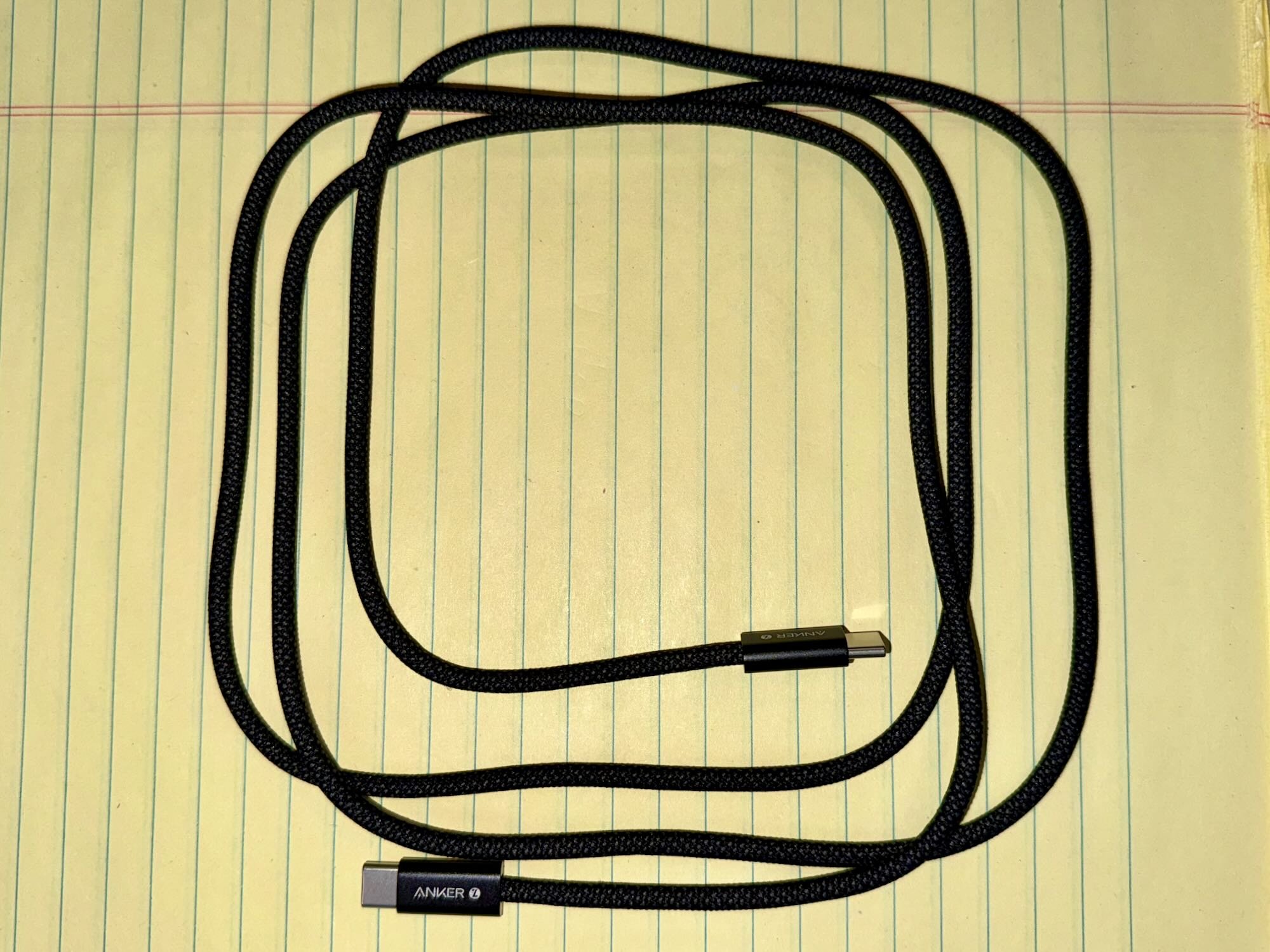
This charger comes with a five-foot 240W USB-C to USB-C cable. I needed something just a little longer in my office to reach the top of my desk (and I didn’t need a full 240W of charging capacity) so, as noted above, I purchased a 2-pack of 100W six-foot USB-C to USB-C cords to use with the charger, but the five-foot cord that comes with this charger is also nice to have.
Conclusion
This is a great charger. It is small, perfect for travel, provides lots of power to up to four devices, has a very useful display, and comes with a USB-C cord. I highly recommend it.