The Apple world was relatively quiet this week as everyone is looking forward to the Apple Event scheduled for September 15. The prevailing speculation continues to be that we will see a new Apple Watch and a new iPad Air. Will there be anything else? Yesterday, Kyle Bradshaw took a look at the code for the latest update to the Apple Music app for Android and saw a reference to “Apple One,” which is rumored to be a new subscription service from Apple that allows you to pay one price for multiple Apple services. But you never know what Apple has up its sleeve. And now, the news of note from the past week:
California attorney David Sparks reviews the Eufy line of wireless cameras, which work with Apple’s HomeKit. Unlike many other home security cameras, this one doesn’t try to get you to pay for an online subscription.
Ben Lovejoy of 9to5Mac warns of a recently discovered flaw in Bluetooth that would potentially allow a hacker to connect to a device without authentication. Fortunately, built-in protections on Apple’s mobile devices protects against this sort of flaw — for example, your iPhone asks for your permission before connecting a Bluetooth device — but this is still something to be aware of.
I mentioned on Wednesday that you can see an Augmented Reality version of Apple’s invitation for its event next week if you load the event page using an iPhone or iPad and then tap the blue graphic. If you want to see more high-quality AR examples, Apple has a page on its developer website with lots of 3D models that you can play around with.
If you have the Apple TV+ channel and you are not watching Ted Lasso yet, do yourself a favor and start watching it now. The penultimate episode of the first season came out a few hours ago, and the first season wraps up in a week. I was afraid that it would be like other silly comedies inspired by SNL skits, and boy was I wrong. The show is genuinely funny and has a great heart that will leave you smiling after every episode — something that all of us can use in 2020. I cannot say enough good things about this one.
And finally, here is a short video walk-through from CNA, an English-language news channel based in Singapore, of Apple’s stunning new Apple Store Marina Bay Sands in Singapore, an Apple Store that floats on water and opens to the public today. Just like the iconic Apple Store Fifth Avenue in New York, this store seems destined to become a big tourist attraction.
Two days ago, Filipe Espósito of 9to5Mac reported that Apple seemed to be running out of Apple Watch Series 5 models at the various places that you can buy an Apple Watch. It appears that now we know why. Yesterday, Apple announced that it will hold an Apple Event on Tuesday, September 15, at 10 Pacific / 1 Eastern. In a normal year, I would think that this is an announcement of a new iPhone. From 2012 to 2019, Apple announced a new iPhone every September. But remember, Apple announced over a month ago that this year would be different (presumably because of COVID-19, although Apple didn’t say) because this year the new iPhone will go on sale “a few weeks later” than normal, which likely means that the new iPhone will also be announced a few weeks later — perhaps October 2020.
So what will Apple announce next week if not a new iPhone? The tagline that Apple is using for next week’s event is “Time Flies.” As John Gruber of Daring Fireball speculates, the word “time” almost certainly indicates that Apple is ready to announce the next version of the Apple Watch. The Apple Watch Series 5 was announced this time last year (and the Apple Watch Series 4 the year before that), so Apple may now be on a yearly refresh cycle for this product. Also, there is a rumor that Apple is close to releasing a new version of the iPad Air (last updated in March 2019), so that could be part of next week’s event as well.
Because of COVID-19, this will not be a typical event in which members of the press are in the audience and Apple executives are on stage. Instead, Apple will stream video of the event for anyone to watch.
As we wait for the next Apple Event, if you want a cheap thrill, use an iPad or iPhone to load the event page and the tap the blue graphic to see an animated AR version of the graphic.
Calum Leslie of the BBC reports that when a penguin — now named Pierre — was found washed up on a beach in Australia, he was brought to the Perth Zoo. But he was the only penguin there, so to stop him from getting lonely, they let the penguin watch penguins from other zoos on an iPad. In other words, the penguin was forced to social distance, and the only way he could see and hear others was to use video streaming. Trust me, Pierre, we can all empathize with you right now. And now, the news of note from the past week:
Apple released iOS 13.7 this week. It adds COVID-19 exposure notifications that work without you having to first download a special app. However, you still need to be in a region in which the government supports the Apple-Google notification system. As Igor Bonifacic of Engadget explains, there are currently only a few states in the United States that support this system.
Bradley Chambers of 9to5Mac recommends apps to extend the features of HomeKit. One of the apps that he recommends is HomeRun, an AppleWatch app that makes it simple to turn devices on and off from your Apple Watch. I use that app almost every day, and it works very well for me.
Margaret Barthel of DCist reports that in the Washington D.C. area you can now use your iPhone as a Metro Card. I used to ride the Metro every day when I went to law school in D.C., but that was in the early 1990s, so I wasn’t getting much use out of the iPhone at the time.
As Apple’s website explains, the latest version of the iMovie app can add a song to a video project, and then iMovie will automatically adjust the song to fit the length of your project. The Memories part of the Photos app can do this as well, and it is a pretty slick feature.
Using an iPhone to take pictures underwater may damage your iPhone. It is safer to use a waterproof case, such as the Catalyst Waterproof Case. But if you want to risk it anyway, Erin Brooks offers some very helpful tips for underwater iPhone photography in an article for The Sweet Setup.
If you are looking for some good music to listen to this weekend, WWOZ in New Orleans is hosting Festing In Place: The Next Fest Thing featuring seven days of recordings of live performances from Jazz Fest and other music festivals in New Orleans. The lineup is very impressive.
And finally, here is a clever new video from Apple emphasizing privacy as an advantage of the iPhone.
I was the guest on the latest episode of the Tech Savvy Lawyer Podcast, hosted Washington, D.C. lawyer Michael D.J. Eisenberg. Eisenberg’s practice areas include federal employment issues, military appellate law, social security appeals, the Uniformed Services Employment and Reemployment Rights Act, and Veterans’ Benefit Appeals. In other words, he represents veterans, military members, and federal employees. On the Tech Savvy Lawyer Podcast, he talks to lawyers and other legal professionals about using technology in a law practice. I’ve enjoyed listening to the other episodes of this podcast, and I enjoyed being his guest for this episode.
The episode that was released yesterday was actually recorded on April 28, 2020. Although I’m now back to working in my office in downtown New Orleans, at that point I was very much in the work-from-home mode while my kids were doing school-from-home. Thus, some of what I said in that podcast about using an iPad and iPhone in a law practice came from the perspective of using those devices for remote working. Nevertheless, everything that we talked about four months ago remains 100% relevant today. We talked about some favorite iPad apps, using an iPad and using a PC at the same time, videoconference apps, and more.
You can click on the link below to listen to this episode in your podcast player of choice, or click here to listen on the web.
If you were to ask either one of my kids, they would tell you that there was only one story in the news this week that matters: the dispute between Epic and Apple over whether Epic should have to pay Apple the same 30% for in-app purchases in the Fortnite game that other app developers pay Apple. So far, both sides have drawn lines in the sand as they battle in court, and as a result, my kids and countless others have lost cross-platform play and the ability to experience the new features of the game. As Jason Snell notes in his good analysis of how this all effects users, there are arguments to be made on both sides. And now, the other news of note from the past week:
As California attorney David Sparks notes, the GoodNotes app was updated this week to version 5.5, and one of the new features is the ability to share a notebook with someone else so that you can both take notes in the same notebook. Unfortunately, there are some limitations. First, as Sparks notes, when you write something in a notebook, it takes about 20-40 seconds for the other person to see the change. There is a second problem that Sparks does not note but which limits the usefulness of this feature for attorneys. As GoodNotes itself explains in this article posted on Medium: “Please note that shared documents are currently public, which means that everyone with the link can open and edit a shared document with GoodNotes. For now, we recommend sharing links with trusted people only or making sure not to include any sensitive data.” I wouldn’t be comfortable with putting confidential information in a notebook that anyone in the world can access if they just guess or somehow gain access to the URL. But GoodNotes had to start somewhere, and hopefully this feature will be improved in the future in a way that makes it more useful for attorneys who want to collaborate.
Every year, Fastcase announces the Fastcase 50, a group of lawyers, judges, and other folks who have something to do with the law who Fastcase believes made important contributions to the law — often, but not always, the legal technology side of the law. The 2020 class was announced this week, and I was happy to see that Ian O’Flaherty was honored. Ian is the founder of LIT Software, which makes essential iPad apps for lawyers including TrialPad, TranscriptPad, and DocReviewPad. Congratulations, Ian!
On Tuesday, September 29, 2020, at 1 Pacific / 4 Eastern, I’ll be the guest on the Tech Talk Law Happy Hour with D.C. attorney Melissa Kucinski and Florida attorney Brian Karpf. In this live video presentation, I’ll answer questions and provide tips for using an iPad (and iPhone) (and probably Apple Watch too) in a law practice. You can sign up for free, and you’ll be able to submit questions using the chat feature. I hope to “see” some of you there.
In an article for OneZero on Medium, David Pogue discusses one of the newest Fitbit watches, which has lots of sensors — even more than the Apple Watch. And as Pogue explains, with these sensors, the watch was sometimes (about half of the time) able to sense that the person wearing the watch was infected by COVID-19, a day or two before symptoms began. Just a few weeks ago, I mentioned a similar story from Joanna Stern of the Wall Street Journal. It will be interesting to see if Apple uses some of these additional sensors on future versions of the Apple Watch.
John Gruber of Daring Fireball warns that if you only have a six-digit passcode on your iPhone or iPad, there are devices available like GrayKey which are made for cops but are likely also in the hands of criminals that can crack your passcode. And then once your device, they can access all of the passwords in your iCloud keychain. Yikes. The moral of the story: it is safer if you have a longer numeric passcode or if you use an alphanumeric passcode.
This week, Apple updated its free iMovie app for the iPhone, iPad, and Mac. There are new soundtracks, performance improvements, and there are even new filters to give your videos a hand-drawn look — perfect for when you want to create your own version of the a-ha Take On Me video.
If you ask either one of my kids, they would tell you that by far the most important news of the past week was the dispute between Apple and EPIC over Fortnite on the iPhone/iPad. In an article for Macworld, Jason Snell offers a good analysis of the dispute regarding the App Store.
And finally, Apple is about to open a new Apple Store in Singapore called Apple Marina Bay Sands. According to Nick Statt of The Verge, it is the “only Apple retail shop on the planet that floats on water.” The colorful orb on the water looks cool during the day but even better at night, as you can see in this video from Singapore photographer SG Yap:
[UPDATE 11/5/2020: Apple has now started an official service program to address this issue. Read this post for the latest information.]
Apple started selling the AirPods Pro on October 30, 2019, and due to limited supplies, many of the early adopters did not receive them for many weeks. I received mine in mid-December of 2019, and I wrote a review a month later on January 14, 2020. In mid-April 2020 — about four months after I started using my AirPods Pro — I started to experience a problem with the left AirPod: every once in a while, I would hear some bizarre sounds. It sounded almost like I was listening to a traditional speaker and there was something slightly touching the tweeter and occasionally making a vibrating sound. It was more pronounced when I was moving around, such as using a treadmill. I would especially notice it if I was eating something crunchy while wearing them — as I would bite down, I would hear a bizarre crackling or static sound. I was convinced that it was some sort of hardware issue. It didn’t happen all of the time, but when it did happen, it was annoying.
I finally reached out to Apple support near the end of April, using the feature where you use the Messages app on the iPhone to text with a support professional. (That process, by the way, works incredibly well and is so much better than talking to someone on the phone and dealing with hold times. There are often delays between me typing something and Apple responding, but I can do something else at the same time and just deal with the text messages whenever they arrive. Great system.) The support professional asked me for my serial number (here is how you find that), asked me to reset the AirPods Pro to see if that fixed it (here is how you do that), and then asked me if the issue persists in all three modes. I had noticed it in the noise cancellation and the transparency modes, the only two modes that I use, so I enabled the off mode to see what happened. To my surprise, that “fixed” it. It was at that point that I realized that this bizarre noise was not a hardware issue but instead a software issue associated with the noise cancellation/transparency modes.
I’ve seem some speculation that the microphone plays a role. The AirPod seems to think it hears a noise and tries to cancel the noise (in noise cancellation mode) or pass through the noise (in transparency mode) but something goes wrong in doing so. This would be consistent with my experiences. I don’t think that the problem ever occurred for me when there was complete silence around me.
But for the pandemic, the next step probably would have been for me to go to an Apple Store. But with all of the stores closed, the support professional instead sent me a replacement left AirPod via FedEx. There was no charge for this. (AirPods Pro have a one-year warranty. Or you can pay $29 for AppleCare+, at the time that you purchase the AirPods Pro or within 60 days, to increase that to a two-year warranty.) However, Apple did put a $99 hold on my credit card — the cost of a replacement AirPod — which was removed after I received the replacement AirPod and then used the same box with a self-addressed return label to send the broken left AirPod to Apple. It only took a few days to receive the replacement left AirPod from Apple. I’ve now been using that replacement unit for almost four months, and I’ve had no problems with it.
Then I went through the whole experience again with right AirPod in mid-August — about eight months after I started using it. I started hearing the same bizarre noises, but of course this time, I knew what was going on. I contacted Apple using the Messages app, and a few days later, I received the replacement right AirPod. I’ve now been using that replacement right AirPod for about 10 days. So far, the replacement works great.
Apple has a page on its support website that describes this issue, but it doesn’t say very much other than to contact Apple if it happens. From my research online, I see that the problem I experienced has been happening to a large number of people. If it happens to you, now you know what to do about it. Some folks even say that they went through all of these steps, got replacement units, and then those replacement units had the same problem so they had to get a second replacement.
I use my AirPods Pro every single day, multiple times a day. I use them to listen to podcasts and music. I use them when I’m on the treadmill. I use them connected to my Windows work computer when I do videoconferences in my office. I use them with my iPhone and iPad when I don’t want to disturb others. And I really like both the noise cancellation and the transparency features, which are a big improvement over the non-Pro AirPods. Because I get so much use out of them, it is annoying to have something go wrong. Fortunately, for now, at least, Apple is making it easy to get a replacement AirPod if this happens to you. As for what Apple will do after the warranty ends, I’m not sure.
The Apple Music app on the iPhone has a Radio tab where you used to be able to listen to a station called Beats 1. Apple has now rebranded that station to Apple Music 1, and also launched two new radio stations: Apple Music Hits and Apple Music Country. The “Hits” station features favorite songs from the ’80s, ’90s, and 200s. It also features some specific shows that you can listen to on demand — which, unlike live radio, gives you the ability to skip ahead if you don’t like a song. As someone who graduated high school in 1987, I enjoyed the first episode of ’80s Radio with Huey Lewis. The songs are great, and it is interesting to listen to the information about the songs that Huey Lewis provides between tracks. Other folks you might recognize with shows on Apple Music include Billie Eilish, Elton John, Frank Ocean, the Backstreet Boys, Alanis Morissette, Snoop Dogg, Meghan Trainor, Shania Twain, Carrie Underwood, Luke Combs, and many, many more. If you are looking for something new to listen to during the pandemic, check out one of these offerings on the new Apple radio stations. And now, the news of note from the past week:
I mention this periodically, but it is always worth saying again: if you don’t use a password manager, you really should. Scott Gilbertson of Wired discuses some of the best password manager options, and names 1Password the best overall password manager.
Geoffrey Fowler of the Washington Post describes the new COVID-19 exposure notification app available in Virginia that uses technology from Apple and Google.
Jason Cross of Macworld describes some of the accessibility features coming in iOS 14 that everyone may found useful. I’m looking forward to trying out the Back Tap feature.
Sean Endicott of Windows Central notes that the Microsoft Teams app was updated this week to let you see six people at one once on the iPhone (2×4) and nine people at once on the iPad (3×3).
I seriously doubt that Apple would do something like this with the iPhone, but former Apple employee David Shayer wrote an interesting article in TidBITS about how he helped the U.S. government create a top secret iPod back in 2005 that was used for … well, he’s not exactly sure, but he has a theory.
And finally, at some point in the future, we will have an iPhone that supports 5G. How useful might that be? Joanna Stern of the Wall Street Journal explores that question in this interesting (and amusing) video:
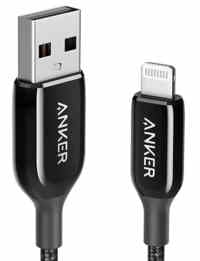
A USB-to-Lightning cable is probably the most essential accessory for an iPhone. For many years, I used the white cords sold by Apple and included with the iPhone, but they seemed to wear out far too quickly, especially on one of the ends where this is a lot of wear-and-tear. After trying some of the different third-party cables, a few years ago I started using the cables made by Anker. I’ve been very happy with them, and over the years I have purchased quite a few of them for me, my wife, and my kids. Like the Apple cables, some of my Anker cables have worn out over time after a few years – especially the ones that get a lot of abuse by my kids — but they have worked better than the Apple cables and they are cheaper. And over the years, Anker has created even more durable versions of its cables. The latest generation is the Anker PowerLine+ III line, and I recently purchased one to replace a PowerLine+ I cable that is starting to occasionally lose its connection with my iPhone if I move the cable around. This is the cable that I’ve been using in my car for about three years to connect to a CarPlay system. That cable has an 18-month warranty, and since I leave it in my car, it gets exposed to a lot of high temperatures and gets a lot of use. For example, my kids sometimes use my iPhone in the back seat to select music to play while I am driving (which is one of the reasons that I use the 6-foot length), and that can result in a lot of tugging on the connectors at the end of the cable. In today’s post, I’ll talk about not just this specific cable but the entire Anker cable line because Anker’s own website doesn’t do a great job of explaining the differences between the different lines of cables.
In this post, I’m providing prices for the 6-foot version of each cable as a point of comparison. You can pay a little less for a 3-foot version and, for some models, a little more for a 10-foot version. Also, note that the prices change from time to time.
PowerLine versus PowerLine+
One series of cables from Anker is called PowerLine. Cables in this line have a PVC coating that feels sort of rubbery, similar to the standard white Apple cable. A 6-foot version of the first-generation PowerLine costs $14.99. Anker says that a typical cable sold by other companies will last for about 1,000 bends, whereas its first-generation PowerLine will last for 6,000 bends and comes with an 18-month warranty.
Another series of cables from Anker is called the PowerLine+. It features a double-braided nylon coating to make it more durable. The first-generation PowerLine+ also has an 18-month warranty, and Anker says that it will last over 6,000 bends. A 6-foot version of the first-generation PowerLine+ costs $16.99.
For many years, I’ve typically purchased a PowerLine+ for myself, but my kids sometimes preferred the bright colors that are available in the PowerLine series.
I versus II versus III
The original PowerLine and PowerLine+ don’t have “I” next to them, but I’ll use that roman numeral in this section just to distinguish between the I, the II that was reviewed on iPhone J.D. in 2018, and the III that I’m reviewing today.
Anker says that the PowerLine II is twice as durable as the PowerLine I — 12,000 bends versus 6,000 bends. And it currently costs the same, $14.99 for a 6-foot version. Instead of an 18-month warranty, Anker gives it a lifetime warranty for all quality issues.
Anker says that the PowerLine+ II is about five times as durable as the PowerLine+ I — 30,000 bends versus over 6,000 bends. As I described (and showed in pictures) in my 2018 post, the PowerLine+ II cord is just a hair thicker than the PowerLine+ I cord, and the plugs on the ends of the PowerLine+ II are a little bit larger and are more tapered than the PowerLine+ cord. It costs $20.99 for a 6-foot version.
Although I’ve had two or three first-generation Anker cords wear out over the years (after the 18-month warranty), I haven’t yet had a PowerLine+ II cord wear out. For example, my wife uses a PowerLine+ II cord that I bought about 19 months ago in the kitchen, and it still looks and works just like new. Thus, I have never had a reason to investigate making a warranty claim with Anker.
That brings us to the latest line, the III-series. Once again, you can get it either in the PowerLine or the PowerLine+ depending upon the coating for the cord that you prefer.
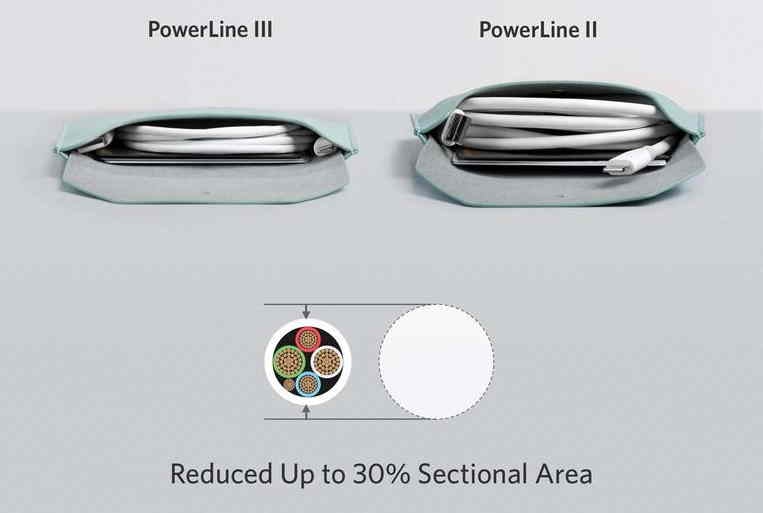
Anker says that the PowerLine III is about twice as durable as the PowerLine II — 25,000 bends versus 12,000 bends. It is also thinner than the PowerLine II, so it takes up less space in your briefcase, purse, etc. This image from Anker’s website shows this:
You can get a 6-foot version of the PowerLine III for $17.99 for the black version or $15.99 for the white version. I have not yet tried a PowerLine III cable, but if you prefer this style of coating for the cord, I would recommend getting the PowerLine III over the original PowerLine or the PowerLine II. Not only do you get something more durable for just a few dollars more, but it is always nice for a cable to take up less space.
That brings me to the current top-of-the-line Anker cable that I purchased, the PowerLine+ III. Anker says that the PowerLine+ III is slightly more durable than the PowerLine+ II — 35,000 bends versus 30,000 bends. It also comes with a lifetime warranty. You can get a 6-foot version of the PowerLine+ III for $25.99. I bought the black one, but you can also get it in silver.
In addition to having a more durable cord, there seem to be two other major changes for the PowerLine+ III.
First, the plastic on the USB and the Lightning ends utilizes what Anker calls a premium design and material. It certainly feels stronger and durable. And considering that the connectors on each end of a cord are the stress points, you want them to be as strong as possible. Every time I plug my iPhone into this cable, the connection seems incredibly secure, better than I’ve ever experienced with any other Lightning cable.
In this picture, you can see the USB connector end of three PowerLine+ cables. The top is the PowerLine+ III, the middle is the PowerLine+ II, and the bottom is the original PowerLine+ I.
The next picture shows the other end of the cable with the Lightning connector. The top is the PowerLine+ III, the middle is the PowerLine+ II, and the bottom is the original PowerLine+ I.
A second difference is that the PowerLine+ III cord is a little bit thinner than previous generations. Anker says: “PowerLine+ III has an ultra-slim design with a 35,000-bend lifespan for a cable that is slimmer, yet stronger than ever before.” The difference in cord circumference is minor in the PowerLine+ series (not as dramatic as the new PowerLine III series). In the following picture, the new PowerLine+ III is at the top and the original PowerLine+ I is at the bottom. You can only barely see the difference in the below picture, but trust me, when each cord is wrapped up, I can definitely feel the difference between the two. And I find the slimmer cord easier to work with, so this is a nice new feature.
No case
When I purchased previous generations of the PowerLine and PowerLine+ cables, they came with cases, pictured in my 2018 post. The 6-foot PowerLine+ III that I purchased did not come with a case, just a small Velcro strap that you can attach to one of the ends of the cable. Over the years, I’ve only rarely used the cases so I don’t really miss it. And a Velcro strap that you can (optionally) keep attached to the cord seems more useful. I guess that omitting a case is one of the ways that Anker is keeping the price lower on the new model.
Conclusion
Although Anker has come out with three different generations of PowerLine cables, the company continues to sell all three, in two different lines, and I think that this makes sense. For a kid that is going to abuse the cable, you might want to get one of the cheapest models and know that it will need to be replaced in the future. If you prefer the feel and additional durability of the double-braided nylon coating, then the PowerLine+ series is the way to go.
The top-of-the-line PowerLine+ III is the most expensive model, but the difference between $15 for the cheapest model and $26 for this newest 6-foot cable isn’t really that big of a difference. Since I plan to use this cable in my car — which as I noted above, puts a lot of stress on the cable — I figured that it was worth it to spend just a few more dollars for the best cable that Anker sells. Whichever model you decide is right for you, I can definitely recommend Anker’s line of cables.
Paresh Dave of Reuters reported yesterday that U.S. states North Dakota, Wyoming, and Alabama are joining Virginia in adding support for the Apple-Google coronavirus contact tracing system, which Apple described back in April in this press release. Over 300,000 people have already downloaded the Virginia app. The North Dakota app launched yesterday, the Wyoming app launches today, and the Alabama app launches on Monday. Washington and Pennsylvania could have apps in a few weeks. On the other hand, according to a Business Insider report from Aaron Holmes and Hugh Langley back on June 10, 2020, seventeen states said that they had no plans to introduce one of these apps: Colorado, Delaware, Florida, Georgia, Hawaii, Indiana, Iowa, Louisiana, Maryland, Missouri, New Mexico, North Carolina, Ohio, Oregon, Tennessee, Texas, and Vermont. With both of my kids starting school this month, the risk of exposure for my own family is certainly increasing. I hope that some of those seventeen states reconsider because every little bit helps. And now, the news of note from the past week:
Bryan Wolfe of iMore explains how you can use a $2 app called Opener to take a location in Apple’s Maps app and send it to the Google Maps app.
Fantastical from Flexbits has been my calendar app of choice for a very long time, and I pay $40/year for the premium features. This week, Flexbits announced a new family plan that provides the premium features for five family members for $65/year.
Karen Freeman of iMore recommends headphones to use on videoconferences. Her top recommendation is to use AirPods Pro, which is what I’ve been using. Of course, they work great with an iPad or iPhone. I’ve also been using them with the Dell PC that I use at work. They are far, far superior to the built-in speaker on my Dell PC, but I haven’t yet figured out if it is better to use the microphone on the AirPods Pro or the built-in microphone on the Logitech HD Pro C922 webcam that sits on top of my monitor. (When I’ve asked folks on the other side of a connection which microphone sounds better to them, different folks have had different preferences.) I’ve mostly used the microphone on the Logitech webcam. One downside of using AirPods Pro for a long videoconference is that they can run low on battery power. That’s not a problem for a typical court hearing, and it’s not a problem for a video deposition if there is a lunch break. But for one longer video deposition I had this week in which we worked through lunch, after about four hours or so, I heard a tone telling me that a battery was getting low. Fortunately, it was easy to charge my left AirPod in the case for 10 minutes, and then wear the left one again and charge the right one in the case for 10 minutes, and that got me through to the end of the deposition.
Bryan Wolfe of iMore explains how you can use a $2 app called Opener to take a location in Apple’s Maps app and send it to the Google Maps app.
And finally, actor Amy Acker and her husband, actor James Carpinello, decided to take advantage of being stuck at home during the pandemic by writing, producing, filming, and starring in a short 14-minute film called Outside that was filmed in their home, entirely on their iPhones. The end result is a thriller that is quite good. I enjoyed watching it:
About ten years ago, Apple released an “Apple Store” app on the App Store which you can use to shop for Apple hardware, such a new iPhone. I don’t believe that I even mentioned it on iPhone J.D. at the time, and a June 15, 2010, article from Marco Tabini of Macworld begins by saying: “Apple has quietly released a new iPhone OS app that allows users to access the company’s online store directly from their favorite iPhone OS devices.” About 10 years later, Apple came up with a quiet-but-fun way to celebrate. If you open up the Apple Store app — again, this is not the App Store app, but instead the app called Apple Store — and then you tap the Search button and type 10 years … well, I’ll let you try it yourself to see what happens. I find that the Apple Store app is usually the easiest and fastest way to purchase an Apple product. And now, the news of note from the past week:
I’ve never been a fan of screen protectors for the iPhone and iPad, but California attorney David Sparks says that he is a fan of the Moshi iVisor screen protector for the iPad. It changes the iPad from a glossy to a matte screen to reduce glare, reduces screen smudges, and improves the Apple Pencil experience.
The Microsoft Teams software on the PC and Mac was recently updated to show up to 49 people on the screen at one time. According to an official post on the Microsoft user feedback forum, the next app update will allow you to see up to 8 people at once on the iPhone (2×4) and up to 9 people at once on the iPad (3×3). I just checked and it doesn’t look like the app has been updated yet, but hopefully, the update is coming soon.
When Apple and Google announced in April that they were working together to develop contact tracing software, I was encouraged that this would help to slow the spread of the coronavirus. Unfortunately, very few states in the U.S. and countries have adopted the technology. Chance Miller writes in 9to5Mac that Virginia is the first state to debut an app that works with this technology, and he also wrote that the app is now available in Canada.
If you get a new iPhone and you need to move the Microsoft Authenticator app to your new device, your best bet may be to contact the IT department. But apparently, you can also do it yourself, and Rob Woodgate sets forth the steps in this article from How-To Geek.
Katie Conner of CNet offers advice for cleaning an iPhone. One tip that I had not heard before: use Scotch tape to remove sand and lint.
When astronaut Bob Behnken was returning home from the International Space Station in the SpaceX Crew Dragon, he encountered a problem with the iPad mini that acts as a spaceflight manual. As Zac Hall of the Space Explored website explains, mission control helped him to get the problem by using AirDrop to transfer files from astronaut Doug Hurley. I doubt that Apple has tested using AirDrop in space, but now we know that it works.
Here is an interesting battery for the iPhone: the Anker PowerCore Play 6K, a battery designed for using with an iPhone while you are playing a game in landscape orientation. The battery — $36 on Amazon — has two grips to make it easier to hold the iPhone, has a fan to keep the iPhone cooler while a game is pushing the iPhone’s processor to the limit, and it supports both USB and USB-C.
And finally, this video is absolutely worth watching, but don’t do it on your computer. Watch it on an iPhone or iPad that you can turn to portrait orientation. Apple released a short film by director Damien Chazelle that was shot entirely on an iPhone 11 Pro using vertical video, and the film takes full advantage of that aspect ratio. It is called The Stunt Double and it is great fun. There is also a great “making of” video. Bravo!