Review: iTimeKeep — time entry on an iPhone, iPad and more

One of the least glamorous aspects of practicing law is doing time entry every day.  We know that we need to do it to get paid, but it can be such a chore.  Worst of all, sometimes you forget to record time for an activity, perhaps because you are out of the office when you work on a project, which means that you are essentially working for free.  iTimeKeep from Bellefield Systems is an app which lets you enter time using your iPhone or iPad and have the time go straight into your law firm’s billing system.  I’ve been using the app for the last two months at my firm, and it works great.

I wasn’t involved with setting up the back-end software for iTimeKeep at my firm — our IT folks did that — but I know that iTimeKeep works with many popular time and billing systems.  We use Elite at my law firm, but I see that it also works with Aderant, Equinox, Juris LexisNexis, Omega, LawBase, Tabs3, Amicus, PCLaw, TimeMatters, and many other systems.

Once the software on the server-side is installed, users get an email with an account name and password.  They activate an account, and then that’s it.  The free iTimeKeep app can be downloaded from the App Store.

Entering time

When you start the iTimeKeep app, you see a list of your latest time entries — the past seven days by default, but you can load more days if you need to do so.  The app shows time entries regardless of whether you entered the time in iTimeKeep or if you (or your secretary) entered the time directly in your firm’s billing system using a computer.  You can edit prior time entries (as long as they have not been finalized in your billing system) or tap the plus at the top right to enter new time.

On the time entry screen, at the top you indicate the client and matter.  The app can default to the last matter on which you entered time, and if that isn’t correct you can easily select the right matter by just tapping the matter area at the top.  This brings up a list of your recent matters, plus a search field so that you can do a full text search of client and matter names on your billing systems.  I was amazed how quickly the full text search works.

The app defaults to “today” for the time entry date but you can change that if you are entering time for another day.  To record hours, you can either press start to begin a timer or you can just directly enter the time by tapping on the 0.00.


I usually just enter my time directly, but the timer feature is pretty sophisticated.  If you need to switch to another matter, you can pause time on one matter and then start a timer for another time entry.  If you need to adjust the time (for example, if you forgot to press the START button when you started working) you can use the NUDGE button to add or subtract 1, 5 or 10 minutes.  Tap END to stop the timer.  Even when you use the timer to initially record time, you can still tap on the time to manually change the time entry as needed.

There is a description field where you enter your time description.  You can use the iPhone/iPad built-in Siri dictation to speak your time entry if you prefer.  You can also use the iPhone’s keyboard shortcut feature to speed up time entry.  (In the Settings app, go to General -> Keyboard -> Text Replacement.)  For example, if I type “tcw” on my iPhone, it automatically changes that to “Telephone conference with ” so I just need to type the name and the “re” information.

If your matter requires a task code, iTimeKeep will know that and will prompt you to select one from a list (or search for one).  I encourage you to enter your description first, because iTimeKeep is smart enough to read what you wrote and will suggest, at the top of the task code list, the likely applicable task code. 

When you are finished with your entry you can tap Submit to send it to your time entry system.  If you are not yet finished with the entry, you can also flip the switch for Save as Draft.  This is helpful if you want to just enter part of the information now and fill in the rest later; when an entry is a draft, iTimeKeep won’t yet validate it against your time entry system.  Turn off the Save as Draft function and tap Submit when you are finished.

Review your time

When you are on the main iTimeKeep screen, the word Calendar is at the bottom right.  Tap that word to see a summary of all of your time for the month.  At the top you see your total hours month-to-date, including an indication of how many were billable hours and how many were non-billable.  Then you will see specific daily totals.

You can tell iTimeKeep your daily hourly goal, such as 8.0 hours a day.  That way, if you tap the Missing Time tab at the top of the calendar screen, the app will show you any days in the current month when you didn’t record 8.0 hours.  For example, when I took the below screenshot, I had not yet entered my time for the day, so iTimeKeep showed me that “today” was the only day so far in the month when I had not yet recorded at least 8 hours:

Apple Watch

If you own an Apple Watch, you can even use your watch to do at least some of the work of recording your time.  Start the iTimeKeep app and press the plus sign to start a timer.  Then do your work.  If you need to pause at any point, just tap the pause button on the watch, and then tap resume when you are ready to start again.

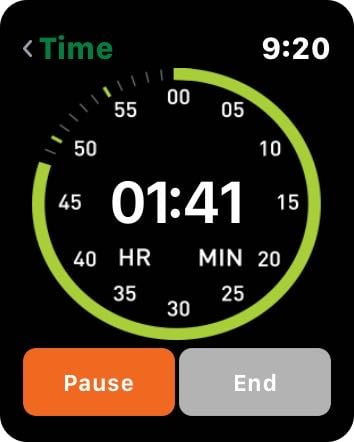
 

When you are finished with your task, tap the End button.  This will cause iTimeKeep to convert the time into .1 increments and will show you the total.  Then tap Next and iTimeKeep will start Siri dictation on the watch for you to dictate your time description.  Tap Done when you are finished.

 

The Apple Watch app will then send this time entry to your iPhone.  The entry will be incomplete — there won’t be a client / matter assigned yet — so you’ll need to tap the entry to fix the details.  But the most important parts will be there:  what you did, and how long it took you to do it.

Other ways to enter time

iTimeKeep also has a web browser interface, so if you are at your home computer you can enter time using your full size keyboard.  There is also an Android app, which is nice if some of the folks in your law firm don’t use an iPhone. 

Security

Your time entries obviously contain lots of confidential and privileged information.  As you would expect, Bellefield takes security very seriously, and has a page of its website devoted to all of the security features.  For example, all data communication is encrypted using SSL.

Conclusion

iTimeKeep has been around since 2011, and I’ve been watching it from afar over the years as the product has improved.  Now that I’ve been able to use iTimeKeep at my law firm for the last few months, I’m really impressed.  iTimeKeep is fast, simple and intuitive to use.  I can enter time on my iPhone (or iPad) just as easily as I can on my computer, and sometimes even faster because of keyboard shortcuts and the ability to use Siri.  I know that iTimeKeep is communicating with my law firm’s servers to work, but the whole thing works so incredibly quickly that it feels like everything is just running on the device.  And best of all, iTimeKeep makes it easy to enter time, and is a far better option than just jotting down time on a piece of paper that you might lose.  This is not only a convenience, but it can also help you to enter your time at the time that you are working — even when you are out of the office — so that you don’t forget to enter the time.  In this way, iTimeKeep can actually help you to make more money.

The cost of iTimeKeep varies depending upon the number of lawyers at your firm, and I wasn’t involved with the price discussions at my law firm.  But the product is incredibly useful, so I encourage you to check it out.

Click here for more information on iTimeKeep.

In the news

I’ve become a big fan of the TripIt app combined with TripIt Pro (which I reviewed earlier this year) whenever I travel.  It is nice to have all of my travel info in one spot, and the TripIt Pro service has saved my bacon in the past by altering me immediately when flights are cancelled are delayed.  This week, the app was updated this week to add searchable airport maps.  The feature looks quite useful.  The airport maps are detailed, and make it easy to see what is around you.  I don’t think you can get a full list of restaurants at a terminal, like you can in the Gate Guru app I reviewed way back in 2010, but Gate Guru doesn’t seem to be as up-to-date as it used to be so I’m glad to see that TripIt is adding this feature.  Not only can you look around the map to see what is at a terminal, you can also search for just about anything at an airport such as “restaurant” or “burger”.  And the app can give you step-by-step walking directions in an airport.  I’m sure that I will be using this the next time that I travel.  Click here for more information from the TriptIt website.  And now, the news of note from the past week:

  • In the latest episode of the Apps in Law podcast, Brett Burney interviews Columbus attorney Sean Harris to discuss the Notability app for the iPad.
  • Burney also released a video with three tips for using an iPad in a law practice.
  • California attorney David Sparks discusses changes to the Timeline 3D app, an app which creates exactly what its name says.  I know of many attorneys who have used this app to create 3D timelines used at trial.
  • I always use Microsoft Word when I draft anything in my law practice, but I know that some attorneys have various reasons for preferring to draft in a plain text editor.  If that describes you, Jason Snell of Six Colors explains why Editorial is his favorite iPad app for writing text.
  • David Pierce has tips on improving the Wi-Fi at your home or office in an article for Wired.
  • I recently discussed how the Apple Watch is in some ways a successor to the iPod nano.  Jason Snell had a similar thought this week, and wrote about it in an article for Macworld.
  • Marco Arment, developer of the great Overcast podcast app, explains why he is removing the feature to send a podcast to an Apple Watch to allow you to listen to a podcast even if your iPhone isn’t around.  This feature didn’t always work for me, but when it did work, it was incredibly useful.  I hope that the feature returns in the future.
  • Dropbox now lets you use the Dropbox app on your iPhone for two-step verification.  More details are available on the Dropbox blog.
  • Ben Lovejoy of 9to5Mac reports that the Uber app is being updated so that if a driver needs to contract you, there is a chat function within the app.  Thus, you and the driver don’t have to use text messages to communicate.
  • If you subscribe to Apple Music, you can now watch the first episode of Apple’s new “TV” series, Carpool Karaoke.  It features James Corden and Will Smith. Sonia Saraiya of Variety wasn’t very impressed with the episode, but I thought it was pretty good, and it made me want to watch other episodes that feature folks I’m interested in.  I believe that there are 20 episodes in the first season, and starting next week there will be two episodes released each week.
  • And finally, I didn’t run across any interesting Apple-related videos this week, so instead I’ll share this teaser trailer for Ready Player One, a Steven Spielberg movie coming out March 30, 2018.  I absolutely loved the book by Ernest Cline, which I listened to in audiobook format (read by Wil Wheaton).  It is a futuristic sci-fi thriller involving virtual reality and a huge number of references to the 1980s, which is a lot of fun if you are around my age and were also a teenager in the 1980s.  I hope that this movie is as good as the book, and based on this video, maybe it will be:

Review: Glif + Hand Grip + Wrist Strap by Studio Neat — hold your iPhone steady for video and photos

I often use my nice Nikon DSLR camera to take photos because the telephoto lens and add-on flash allow it to take fantastic pictures, typically (although not always) better than my iPhone.  But I don’t use my Nikon camera to take video anymore because as the quality of video on the iPhone has improved over the years, it now usually does a better job than my more expensive SLR camera.  The videos are bright and always in focus, and I can even shoot in 4K or 60 fps.  But holding up an iPhone in my hand to take videos of more than a few minutes makes my hand tired, which makes my hand shake, which reduces the quality of the video.  The Glif by Studio Neat is a clip that attaches to the iPhone, making it possible to keep the iPhone steady by mounting it on a tripod.  The Glif has been around for a while, but it was significantly improved this year, and can now be purchased with a hand grip accessory.  Studio Neat sent me a free review unit and I’ve been testing it out for the last few weeks.  It works incredibly well.

Glif

I’ve tried lots of different devices over the years that purport to hold an iPhone for taking pictures or videos.  The only ones that really felt secure were iPhone cases, but those stop working whenever Apple releases a new iPhone model with a different shape.

The Glif has an ingenious solution to this problem — one of those solutions that once you see it, you wonder why everyone hasn’t been doing it this way all along.  The Glif has a lever on the back.  With the lever pulled back, you can freely move the clamps on the Glif up and down to accommodate any size iPhone, even when in a case.  It can open wide to about four inches, big enough to even accommodate the huge SnowLizard SLXtreme case I reviewed a few weeks ago

Once the clamp of the Glif is around your iPhone, you push the lever in.  This makes the clamp go down just a little more, enough for the rubber inside of the clamps to hold the iPhone snug.

And I do mean snug.  The Glif has a fantastic grip on an iPhone, and the iPhone feels very safe and secure in the Glif.

With the iPhone in the Glif, you can use screw holes to attach the Glif to any standard tripod.  There are holes on the top, bottom, and the side so you can easily mount the iPhone in either portrait or landscape orientation.  And if you are really into iPhone photography and want to attach other accessories like an external light or flash and external microphone, you might have a reason to use all three holes at once. 

Here is the Glif attached to a Joby GorillaPad tripod — which is useful because you can use it as a normal small tripod, or you can wrap the feet around most any object to mount your iPhone in a location.

With the iPhone in the Glif on a tripod, it will stay very still.  This is nice for shooting videos when you can have a stationary camera.  It is also nice for taking photos when you don’t want the camera to move, especially when taking time-lapse photos or photos in low light.  Of course, pressing the button on the iPhone to take the picture can make the iPhone move, but you can instead use the timer function on the Camera app.  Or better yet, if you have an Apple Watch, use the Camera app on the watch as a remote shutter for the iPhone, which is a great way to make an iPhone take a picture without touching the iPhone.

Hand Grip + Wrist Strap

Studio Neat also sells a great accessory for the Glif called the Hand Grip — another one of those devices that seems so obvious once you start using it.  One of the things that I dislike about taking video with my iPhone is that my hand and forearm get tired when I am holding it up for an extended period of time.  But holding the Hand Grip feels much more natural, making it easier to keep the iPhone steady, easier to pan the iPhone, and, most importantly, easier to hold the iPhone for much longer.

The Hand Grip is made of cherry wood, and it looks great and feels really nice in the hand. It has a short screw at the top which is perfect for attaching the Glif to it.

The Wrist Strap attaches to the bottom of the Hand Grip and allows you to place your hand through the strap for added protection.  Even if you were to drop the Hand Grip, the strap should prevent your iPhone from falling on the ground.

The Hand Grip is not a gimbal so don’t expect to keep your iPhone perfectly steady, but it does make it much easier to keep the iPhone steady.  And even if you are walking, and thus you are going to naturally have some up-and-down motion in your video, the Hand Grip keeps the iPhone more steady.  Here is a short 90 second video that I shot this past weekend in a park with my kids.  In the first part of the video, I am staying in one spot and panning my iPhone.  In the second part of the video, I am walking and trying to keep up with my kids on scooters.  The video is not perfectly steady, but it is far better than it would have been if I was just holding my iPhone only using a hand.

I look forward to trying out the Glif and Hand Grip the next time that I am on vacation taking video.  Both are small enough to easily put in a pocket, and they will make it much easier to take videos.  I can also imagine using the Hand Grip to hold up an iPhone over a crowd — although this might annoy the folks in the crowd behind you.

And again, the best part is that even after a long time of shooting video in the park, my hand was very comfortable holding the Hand Grip and the Glif.  When not filming, you can let your hand drop as you hold the Hand Grip, and the Glif has such a secure hold on the iPhone that the iPhone remains very safe.

I’ve been talking about taking video because that is where the Hand Grip works incredibly well.  My kids at first called this a “selfie stick” but that isn’t accurate.  I don’t find that the Hand Grip works well for taking photos because you have to manually reach up and push the button to take each photo.  If I am going to have to do that anyway, I think it is just as easy to just hold the iPhone in my hand.

Conclusion

Studio Neat, the same company that makes the great Material Dock stand, has come up with another clever and useful product.  If you want to take better photos with your iPhone, keeping the camera perfectly still, the Glif is a fantastic device.  It is inexpensive at $28, and it is future-proof because it can adjust to any size iPhone.  Thus, you can purchase this device and use it for years.  If you want to take video, the Hand Grip and Wrist Strap are great accessories.  The next time you need to film your kids at a piano recital, film a birthday party, or just take some great nature videos. the Hand Grip will make it much easier to take video and the quality of the video will vastly improved.  And with just a simple pull of the lever, you can release your iPhone and use it normally.  The quality of these two products is top notch, and I highly recommend them to anyone who wants to use an iPhone on a tripod or with a grip.

Click here to get Glif on Amazon ($27.99).

Click here to get Glif + Hand Grip + Wrist Strap on Amazon ($54.99)

In the news

Remember back in March of 2010 when an Apple employee left an iPhone 4 prototype in a bar, and it was subsequently purchased by Gizmodo and revealed to the world?  It looks like an Apple employee goofed again, but instead of leaving an iPhone in a bar, this time the employee posted software for the unreleased HomePod on a public server.  Not only did that firmware software contain previously unknown details about the HomePod, but it also contains details about an unannounced iPhone — presumably a higher-priced version of the iPhone (iPhone Pro?) that Apple is rumored to release later this year.  Jason Snell of Six Colors has more details on what was revealed including the lack of a home button, a bezel-less design, and an infrared face unlock feature.  I presume that some Apple employee just made a mistake, but as they say, you cannot unring the bell.  Of course, the new revelations raise far more questions than they do answers, so now I’m just anticipating even more the announcement of the next iPhone, which I’m guessing will occur on Sept. 6 or Sept. 12, 2017.  And now, the rest of the news of note from the past week:

  • California attorney David Sparks discusses the recent leak from Apple about the upcoming iPhone.
  • Sparks also compares and contrasts the 10.5" iPad Pro with the 12.9" iPad Pro and gives advice for deciding which one to buy.  I love my 12.9" iPad Pro and cannot imagine going back to a smaller size, even though I understand the appeal of a smaller and lighter device.
  • A few weeks ago, I discussed the risks of your iPhone being searched when you cross the border to return to the United States.  We now have the first ethics opinion to discuss this issue, as reported by Debra Cassens Weiss of the ABA Journal.  There’s a lot of interest in this opinion — Formal Opinion 2017-5 of the New York City Bar.  For example, the opinion says that if a border agent asks to search an iPhone which contains privileged information, “the attorney first must take reasonable measures to prevent disclosure of confidential information, which would include informing the border agent that the device or files in question contain privileged or confidential materials, requesting that such materials not be searched or copied, asking to speak to a superior officer and making any other lawful requests to protect the confidential information from disclosure.  To demonstrate that the device contains attorney-client materials, the attorney should carry proof of bar membership, such as an attorney ID card, when crossing a U.S. border.  Finally, if the attorney discloses clients’ confidential information to a third party during a border search, the attorney must inform affected clients about such disclosures pursuant to Rule 1.4.”  The opinion also recommends that, in certain cases, a lawyer consider not keeping confidential information locally on the device and instead use secure remote access technology to access confidential information when abroad.
  • In an article for Backchannel on Wired, Steven Levy discusses Apple’s efforts to make Cochlear implants (which allow some deaf people to hear for the first time) work with the iPhone.
  • If you use the Uber app, I see that you now have an option to tip your driver, and then when the app sends you an email receipt, the tip is indicated on the receipt.
  • Rene Ritchie of iMore reports that the Find My Friends app was used to save the life of an injured climber.
  • And finally, Apple is about to release the new Carpool Karaoke series.  I’ve always enjoyed these segments on the Late Late Show with James Corden, and it is possible that Apple may have a hit on its hands.  We’ll see.  The first show in the series will feature James Corden and Will Smith, and here is a preview of that episode, and here is a longer preview of the entire series:

Apple 2017 fiscal third quarter — the iPhone and iPad angle

Apple logo 48 Yesterday, Apple released the results for its 2017 fiscal third quarter (which ran from April 2, 2017 to July 1, 2017) and held a call with analysts to discuss the results.  This is typically not a big fiscal quarter for Apple; the important quarter for Apple every year is the first fiscal quarter containing the holiday sales season, and during the fiscal third quarter, most potential Apple customers are waiting to see what new products Apple will introduce in the Fall.  Apple reported revenue of $45.4 billion, which is better than the $42.4 billion that Apple saw one year ago (but not as good as the $49.6 billion of two years ago).  If you want to get all of the nitty gritty details, you can download the audio of the conference call from iTunes, or you can read a rough transcript of the call prepared by Seeking Alpha.  Jason Snell of Six Colors also prepared a transcript.  Apple's official press release is here.  As always, I'm not as interested in the financial details as I am the statements of Apple executives during the call that are of interest to iPhone and iPad users.  Here are the items that stood out to me:

iPhone:

  • During the past quarter, Apple sold  just over 41 million iPhones. That's up just a tiny bit from the 40.4 million iPhones that Apple sold a year ago, but not as good as Apple's record-breaking 2015 fiscal third quarter when it sold 47.5 million iPhones.
  • Apple CEO Tim Cook said that the Plus model of the iPhone was especially popular this past quarter.  Although Apple did not release specific numbers on the Plus model, Cook did say that Apple sold "dramatically" more iPhone 7 Plus models this past quarter than it sold iPhone 6s Plus models in the 2016 fiscal third quarter.
  • Cook announced that Apple has now sold more than 1.2 billion iPhones.  By my math, from June 29, 2007 when the iPhone first went on sale until July 1, 2017, Apple has sold around 1,203,555,000 iPhones.  Not a bad run for the first ten years.
  • So many folks already have an iPhone, is there room for sales growth over the next few years?  Cook thinks so, saying that while he wouldn't make a specific prediction, he does "think that we can grow in both units and market share," especially because of developing markets like China and India.

2017q3

iPad:

  • Apple sold over 11 million iPads in the last fiscal quarter.  That's up from the almost 10 million that Apple sold in the 2016 fiscal third quarter.
  • The increase in year-to-year sales is noteworthy because it is the first time in three and a half years that iPad sales have started to increase.  I think that the best way to see this is to look at a chart that shows the average of four quarters of iPad sales over time.  In the following chart, the blue line shows the actual iPad sales each quarter (in millions), and you can see the peaks every year in Apple's fiscal first quarter — the holiday quarter, when folks buy lots of iPads as presents.  The green bars show the average of the current quarter and the prior three quarters, which gives you a better sense of iPad sales over time.  As this chart shows, the iPad was introduced in 2010 and saw a sharp rise in sales until the end of calendar year 2013 (the beginning of Apple's fiscal year 2014), followed by a decrease in iPad sales over time, and then finally a slight increase in this past quarter.  It will be interesting to see over the next few quarters whether this past quarter was just a short-term increase due to the new 10.5" iPad, or whether iPad sales are back on the upswing again.

2017q3iPad

  • By my count, Apple has sold over 370 million iPads from April 3, 2010 to July 1, 2017.
  • Apple CFO Luca Maestri cited a report finding that the iPad had a 55% share of the U.S. tablet market in the month of June, the month that Apple introduced the new 10.5" iPad Pro and an updated version of the 12.9" iPad Pro.  What else are folks buying?  Cheap tablets.  If you just look at tablets costing over $200, the iPad had an 89% market share in June.

Other:

  • Apple doesn't release specific sales numbers for the Apple Watch, but Cook did say that sales were up 50% in the past quarter, and said that the Apple Watch is the top selling smartwatch in the world by a "very wide margin." 
  • Cook said that Apple is increasing production of the AirPods to try to catch up with demand, and cited a survey showing 98% customer satisfaction with AirPods.
  • Last week, President Trump revealed in an interview with Tripp Mickle and Peter Nicholas of the Wall Street Journal that "Tim Cook has committed to build three big manufacturing plants in the U.S."  When asked to comment on that, Cook didn't directly respond, instead simply noting that Apple had directly and indirectly created a lot of jobs in the United States and had plans to do more.
  • You can use VPN software on an iOS device to make it appear to the outside world that you are in a different location than you really are.  Many iOS users in China have used VPN software to evade China's strict restrictions on what websites can be viewed.  But recently, China started to require that all VPN software be licensed — which many believe means that the Chinese government can still spy on what you are doing even if you use VPN, plus can continue to restrict the websites that you access — and this resulted in lots of VPN apps being pulled from Apple's App Store in China.  Here is what Cook had to say about that.  This is a long quote, but I think it is interesting:

"The central government in China, back in 2015, started tightening the regulations associated with VPN apps, and we have a number of those on our store.  Essentially, as a requirement for someone to operate a VPN, they have to have a license from the government there.  Earlier this year, they began a renewed effort to enforce that policy, and we were required by the government to remove some of the VPN apps from the App Store that don't meet these new regulations.  We understand that those same requirements are on other app stores, and as we checked through that, that is the case.

Today there's actually still hundreds of VPN apps on the App Store, including hundreds by developers that are outside China, and so there continues to be VPN apps available.  We would obviously rather not remove the apps, but like we do in other countries, we follow the law wherever we do business.  And we strongly believe that participating in markets and bringing benefits to customers is in the best interest of the folks there and in other countries as well.  And so we believe in engaging with governments even when we disagree.  And in this particular case, now back to commenting on this one, we're hopeful that over time the restrictions that we're seeing are loosened, because innovation really requires freedom to collaborate and communicate, and I know that that is a major focus there.  And so, that's sort of what we're seeing from that point of view.

Some folks have tried to link it to the U.S. situation last year, and they're very different.  In the case of the U.S., the law in the U.S. supported us.  It was very clear.  In the case of China, the law is also very clear there.  And like we would if the U.S. changed the law here, we'd have to abide by them in both cases.  That doesn't mean that we don't state our point of view in the appropriate way; we always do that.  And so hopefully that's a little bit, probably more than you wanted to know, but I wanted to tell you."

  • When asked to comment on what Apple is doing in the field of autonomous automobiles, Cook replied:  "In terms of autonomous systems, what we've said is that we are very focused on autonomous systems from a core technology point of view.  We do have a large project going and are making a big investment in this.  From our point of view, autonomy is the mother of all AI projects.  And the autonomous systems can be used in a variety of ways and a vehicle is only one.  But there are many different areas of it and I don't want to go any further with that."  It was interesting that Cook volunteered that the autonomous artificial intelligence work that Apple is doing has applications other than self-driving cars.

From iPod to Apple Watch

As reported by Chris Welch of The Verge and many others, last week Apple announced that it was finished selling the iPod.  There is one exception — the iPod touch — but that has always been just an iPhone without the phone.  As for the iPods that were truly iPods, Apple is no longer selling them, and all iPod models are now destined to appear on Apple’s webpage for vintage and obsolete products

Many folks have been talking about how the iPod was the precursor to the iPhone, and that is certainly true.  But this past weekend I was looking at my old iPod nano 6th edition — the penultimate version of the iPod nano — and thinking about how it was a precursor to the Apple Watch.  That version of the iPod nano was introduced on September 1, 2010, and I used it for many years.  One of the things that I liked about it was the ability to have something very small — much smaller than a traditional iPod or iPhone — that you could clip to your shirt and just have earphones coming out.  It was so light that you barely noticed it when it was clipped to your clothes.  You could walk around and do chores, exercise, etc. without carrying anything heavy.  But unlike the iPod shuffle which, in its second through fourth generation, could also be clipped to your clothes, the iPod nano had a screen so you could actually see what you were doing with it.

There were many folks who looked at the iPod nano (6th edition) and thought that this would make a good watch.  Indeed, Apple included a clock as one of the built-in apps (even one with Mickey Mouse).  Just two months after the iPod nano (6th edition) was introduced, attorney Nilay Patel (who was then with Engadget) wrote a review of the iPod nano as a watch in light of the numerous iPod nano wristbands on the market.

Thanks to the Apple AirPods and similar Bluetooth earphones, you can now achieve much of the advantage of the iPod nano watch, as long as your iPhone is in the same room.  But the real replacement for the iPod nano watch is to use an Apple Watch with music loaded on it along with AirPods.  That way, you can walk around and do your chores, exercise, etc. even when far away from your much larger and heavier iPhone, and without any wires getting in your way.

Having said that, the technology is not quite yet where I want it to be.  Loading songs onto an Apple Watch is slow and clumsy.  Playing songs with just an Apple Watch and AirPods usually works OK, but isn’t nearly as reliable as using an iPhone with AirPods.  And loading podcasts onto an Apple Watch is even less convenient.  You can use apps like Overcast and Watch Player to transfer podcasts, but playback is not always smooth.  And the developer of Overcast, Marco Arment, recently announced on Twitter that syncing to an Apple Watch will probably not work once watchOS 4 comes out later this year so the feature is likely to be removed.  Surely Apple will get this all working well at some point; hopefully, that point is sooner rather than later.

Let’s all raise a glass to the iPod.  It was the device that many credit with saving Apple in the 2000s.  It helped to bring about the iPhone, which is one of the most useful and amazing items in the history of technology.  And it also played an important role in inspiring the Apple Watch.  As Steven Levy wrote in his fantastic book chronicling the history of the iPod, the iPod truly was The Perfect Thing.

In the news

Not long after I discussed the implications of traveling with an iPhone or iPad as you cross the United States border, the TSA decided to make domestic traveling with an iPad even more complicated.  This week, the TSA announced that when you go through security at an airport, you now need to remove from your bag any electronics device larger than a cellphone.  Under the prior rules, you had to remove a laptop computer, but not an iPad.  The new policy is “[d]ue to an increased threat to aviation security” on which the TSA provides no additional details.  Note that if you use TSA Pre-Check, then this rule change doesn’t apply to you, and you can continue to keep that iPad in your bag.  I signed up for Pre-Check a while ago, and now I have yet another reason to appreciate that program.  And now, the other news of note from the past week:

  • The latest episode of Brett Burney’s Apps in Law podcast features an interview with Pennsylvania lawyer Patrick “PJ” Best, who describes how he uses iAnnotate to work with PDF files.  I listened to the episode while driving home last night, and it is a great one.  Best notes that one of the most useful features of iAnnotate is that the app lets you modify the toolbar to display just the tools that you like to use when annotating documents, and you can even switch between multiple toolbars.  It’s been four years since I reviewed iAnnotate, and that app has received lots of great updates since that time.
  • California attorney David Sparks discusses Omnigraffle, an iPad app that lets you create diagrams.
  • In an article for Lawyerist.com, Louisville attorney Stephen Embry discusses how augmented reality on an iPad might be useful in litigation in the future.
  • (Another reason that AR on the iPad will be interesting — you can put yourself in one of the best music videos of the 1980s.)
  • New Orleans attorney Greg Rubin and I have been trading emails about Apple Watch apps, and he said that if any iPhone J.D. readers are boaters, he recommends the YoNav! app.  If you have an Apple Watch Series 2, this Apple Watch app can show you your GPS coordinates even if you don’t have your iPhone with you.  Finding your GPS coordinates is useful if you are on a boat, but could also be useful if you are into geo-location, or if you are hiking outdoors.
  • Jason Snell of Six Colors discusses iPad multitasking improvements in iOS 11 in an article for Macworld.
  • Jonny Evans of Computerworld identifies the best new features in the upcoming iOS 11.
  • And finally, this week Apple released a short video in which Dwayne “The Rock” Johnson shows off some of the things that you can do with Siri.  It’s a funny video, so check it out if you haven’t seen it yet:

Review: SnowLizard SLXtreme for iPhone 7 — waterproof, protective iPhone case with battery and solar panel

Earlier this year, I reviewed Renogy E.LUMEN, a device which combines a flashlight with an iPhone charger and a battery that can be recharged by a built-in solar panel.  In a similar spirit, today I am reviewing the SnowLizard SLXtreme for iPhone 7, a protective case for the iPhone 7 which is also waterproof, and which also has a built-in battery which can be (optionally) recharged with a built-in solar panel.  That’s quite a mouthful.  SnowLizard recently sent me a free review unit of this device, which sells for just under $150.  The “snow” in the SnowLizard name tells me that this device was designed for folks who ski.  I live in New Orleans, so I don’t know much about this strange substance you call snow.  But I do know about the beach, so when my family recently took a beach trip, I gave this device a spin.  It worked quite well.

Protection

The case has two parts:  the main body, and the bottom which removes to insert the iPhone. 

Just plug the Lightning connector into the bottom of your iPhone, and then slide it in.  Then snap snap down on both sides to attach the two parts of the device.

The case itself is large, although it doesn’t add much weight to the iPhone.  But it does add protection.  I didn’t perform drop tests myself, but SnowLizard says that it is built to withstand a drop from a height of 6.6 feet.  I tried to abuse the case, and it does seem quite rugged.

The camouflage design that the company sent me also gives it the appearance of being rugged.  If you want something that looks a little more tame, I see that the company also sells models that are black, yellow and orange.

Additionally, the bumps along the side and the use of rubber on the bottom makes this device easy to grip in your hand, even if your hand is wet and might normally drop an iPhone.  And yet you still have access to all of your buttons.  The thin protective film over the Home button provides protection and yet lets you still use Touch ID.  I was amazed to see that Touch ID worked every time for me except for once — and that was because my finger was totally covered with sand so it wasn’t the SnowLizard’s fault at all.

You cannot use a wired Lightning headphone while your iPhone is in this device, but you can use Bluetooth.  I used my AirPods with the SnowLizard for many hours and it worked great.

Waterproof

This device is rated IP-68 under IEC standard 60529.  The first number – the 6 – is the highest on the scale of solid particle protection, so it is dust tight and provides complete protection against dust.  The second number – the 8 – is the second-highest level on the liquid ingress protection scale, suitable for continuous immersion in water of 1 meter or more.  SnowLizard says that it provides protection at up to 2 meters (6.6 feet) of depth.  (For comparison, the Apple Watch Series 2 rates a 7 on the same scale, so the SnowLizard device is more waterproof than the newest Apple Watch.)

To test this, I kept my iPhone in this case while I was at the beach.  I was surrounded by lots of sand, but knew that my iPhone was protected.  Then I went in a swimming pool with my kids and took lots of cool underwater video.  The case performed like a champ, and my kids thought it was fun to get filmed doing stunts underwater in the deep end of the pool.

Here is a 15 second clip to give you a sense of how that looked:

Battery and Solar Panel

I would have considered this a useful product if it was nothing more than a rugged waterproof case.  In fact, when I first saw that this case had a built-in battery, I wondered about the necessity of that.

In actual use, however, I see how this is a good idea.  When you are at an outdoor location like the beach, camping, etc. you may be lucky enough to get a cell signal, but it may not be very strong.  As your iPhone works harder to get and send data, your battery wears out more quickly.  Because the SnowLizard has a built in 4000 mAh battery, it can completely recharge an iPhone 7 once and then still has enough power to provide a partial charge after that.  You turn on the battery by pressing a button on the back of the device.  I thought it was great to be at the beach for many hours, and then find that instead of my iPhone being almost completely drained, it was still at 100%.  If you are already dealing with a larger case to provide protection to the iPhone, it is a nice bonus to also devote some space to a battery.

While you can recharge the battery with an included USB to Micro USB cable, which frankly is what I usually did, the device also has a solar panel on the back of it.  It takes a long time to recharge a 4000 mAh battery using the sun.  (SnowLizard says that you can boost the battery up to 7% in an hour.)  But it is nice to have the option to use the sun if you are outdoors.

Note that you cannot use the battery and recharge the battery using the solar panel at the same time.  If you turn on the battery, you will charge your iPhone.  If you turn off the battery and let the sun hit the solar panel, then the battery will start to recharge with one LED flashing to indicate that the battery is receiving a charge.

Conclusion

This case is bulky enough that you are unlikely to want to use it every day, unless you live a far more adventurous life than I do.  I don’t see myself going to Court with this device – especially with the camouflage colors.  But when you want to be active and exposed to the elements while also using your iPhone, the SnowLizard SLXtreme device is more than up to the task.  You can protect your iPhone from bumps and falls, you can use your iPhone even underwater, and you can extend the battery life of your iPhone, all with this one device.

Click here to get SnowLizard SLXtreme for iPhone 7 on Amazon ($147.82)

In the news

Apple updated iOS to version 10.3.3 this week.  You should update your iPhone and iPad for the same reasons I mentioned back when 10.3.2 came out; iOS updates always improve security.  In fact, Ben Lovejoy of 9to5Mac reports that one of the things fixed is the potential ability of a hacker who is close enough to your iPhone to exploit a flaw in the iPhone’s Wi-Fi chip and wirelessly gain control of your iPhone.  Yikes!  Glad that one was fixed.  And now, the other news of note from the past week:

  • South Carolina attorney Justin Kahn discusses a recent update to the iAnnotate app (version 4.3) which lets you annotate two documents side-by-side.
  • John Gruber of Daring Fireball explains why you should not manually quit apps in iOS.  Sure, you can do it occasionally if an app is frozen or otherwise isn’t working properly, but if you believe that you are saving memory or making your iPhone faster by quitting apps, you are wrong.
  • Jonny Evans of Computerworld shares over 50 iOS 10 tips, and there are some good ones on that list.
  • Cella Lao Rousseau of iMore reviews portable Apple Watch chargers.
  • When I purchased a 2017 Honda Accord earlier this year, I made sure to select CarPlay as an option.  I love CarPlay and I use it every time I drive.  Reese Counts of Autoblog reports that this Fall, Honda will start to sell the 2018 Honda Accord, with Apple CarPlay included in every model and a larger 8" display (up from 7" on the 2017 model).  It will also include a physical knob to control the volume instead of touchscreen volume controls (which can be hard to use).
  • There was a time when I would carry an iPhone, and iPad and an iPad mini all at the same time, but apparently that is nothing.  Ben Lovejoy of 9to5Mac reports that Chinese customs agent stopped a woman coming in from Hong Kong who had 102 iPhones strapped to her body.  (iPhones are cheaper in Hong Kong than in mainland China.)
  • David Pogue of Yahoo explores the idea of charging an iPhone wirelessly, and interviews the CEO of Energous, a company trying to do this.  The charge would be very slow (a trickle charge), and the technology seems far off, but someday this might actually work.
  • Ryan Christoffel of MacStories reviews the new CARROT Weather app, an app that gives you both the weather forecast and snarky banter.
  • We all like free WiFi, but at what cost?  Rheet Jones of Gizmodo reports that 22,000 people agreed to clean toilets to get WiFi … because they didn’t read the terms of service.
  • And finally, yesterday Apple updated its Clips app to version 1.1.  This first update to Clips adds some neat new features like new posters (an animated background on which you can place text), but the big new feature is the ability to add Disney/Pixar characters to your videos.  Here is an 11 second demo I created at my desk which didn’t take much more than 11 seconds to make:

Using 1Password for websites with two-factor authentication

A few days ago, 1Password was updated to improve the ability to use 1Password with sites that have a time-based, two-factor authentication code.  This is a useful feature of 1Password.  Here is why I recommend two-factor authentication in general, and how it and how it now works in 1Password on the iPhone or iPad.

Two-factor authentication is good

Two-factor authentication is a way to confirm your identity when you are logging in to a website.  Normally a website asks for your username and password, but your username is often easy for a hacker to learn (it might just be your public email address), and thus all a hacker needs to do is learn your password and he has access to your account with that website.  There are lots of different ways that a hacker could theoretically learn your password — such as if you use the same password at multiple sites (don’t do that!) or if you have multiple password that are similar and the hacker can guess your pattern (don’t do that either!) or if someone looks over your shoulder while you are typing in your password in a public spot (yikes!), etc.  With two-factor authentication, it is not enough for the hacker to have your username and password; he must also have access to a device in your possession (such as your iPhone) which displays a number that changes every 30 seconds.  If the hacker is in some foreign country across the globe, he won’t have that, and his attempts to access your account will fail.

There are many different iPhone apps which can be used to display authentication numbers which change every 30 seconds.  1Password is a good one to use just because you naturally think of that app as a place to store login information.  But with the update this week, 1Password is even better than other apps because it can automatically put the number on your clipboard.  This makes two-factor authentication really fast to use.  And that’s good because you get more security without a bottleneck that slows you down.

Here is how you use the feature. 

Configure a 1Password entry to use a one-time password

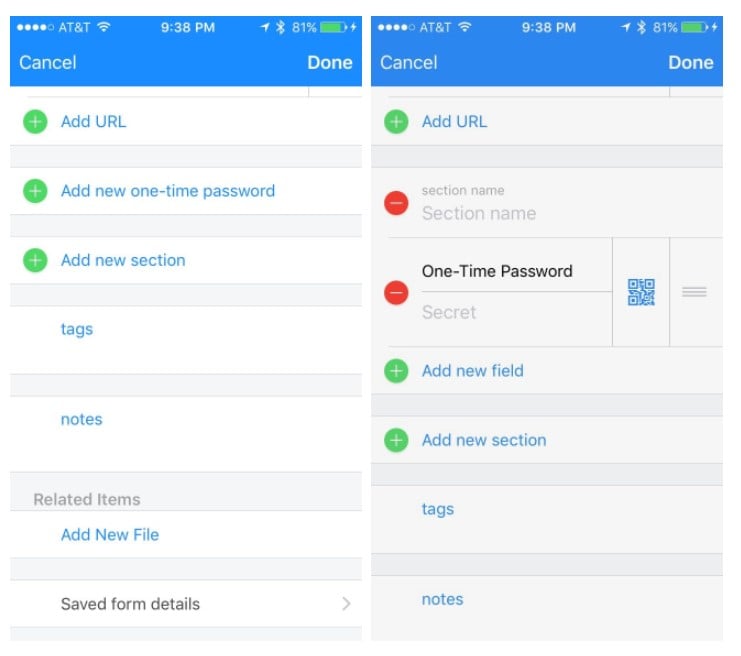
First, in 1Password, find your entry for the website in question, where you already have your username and password stored.  Tap Edit in the top right corner and scroll down until you see “Add new one-time password.”  Tap that and you will see a new entry which has a QR code icon on it.


Next, on your computer, go to the website in question.  In this example, I’ll use Backblaze, the service I use to automatically backup my home computer.  On the account settings area of the Backblaze website on my computer, I click on the option to turn-on two-factor authentication.  The website will then display a big QR code on my computer’s monitor.  I tap the QR code icon in 1Password on my iPhone and use my iPhone’s camera to scan the QR code.

Now my 1Password entry for Backblaze has a One-Time Password field with a six-digit number which changes every 30 seconds.  There is even a little timer on the right which counts down the seconds so I can see how long I have until the password changes.

Using 1Password with two-factor authentication

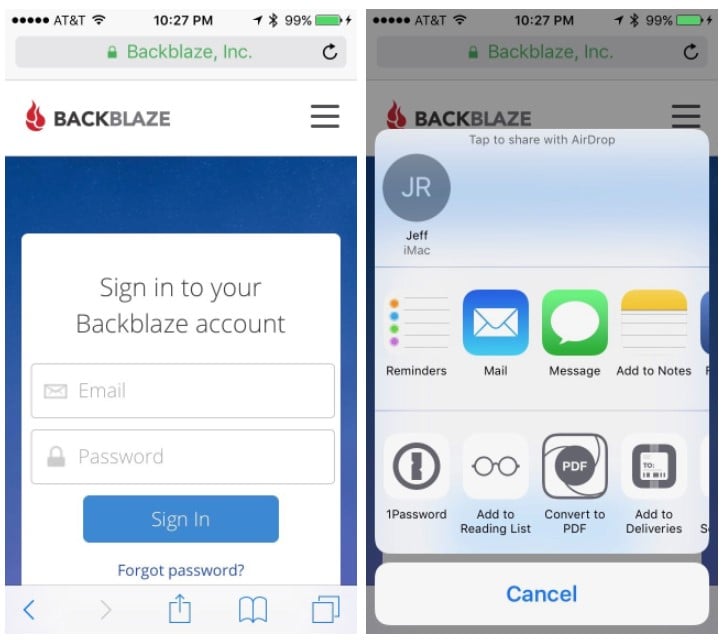
Now that the entry for a website has two-factor authentication configured, you can use it the next time that you access that website.  So back to my Backblaze example, whenever I want to access the Backblaze website on my iPhone, I tap the Action button at the bottom of the Safari window, then I select 1Password, I use my Touch ID fingerprint to confirm that I am really me, and then 1Password automatically types my username and my password on the website.


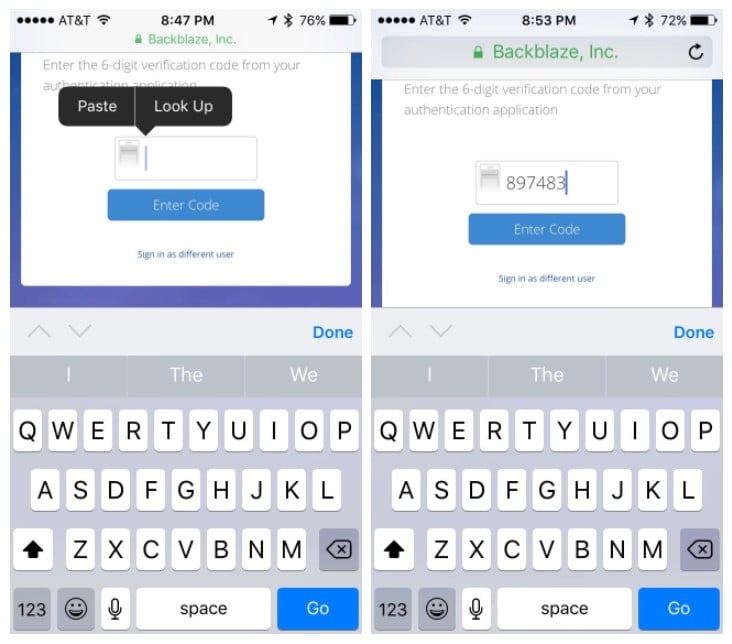
Next, the website will ask me for my authentication code, but I don’t have to go back to the 1Password app to lookup that code.  Right after 1Password automatically entered my username and password, it pasted the six-digit code to my iPhone clipboard, and it briefly displayed a message that says “One-time password saved to the clipboard.”  Thus, all I need to do is tap in the box and select paste, and the number is entered for me.


This new system is so much more convenient then having to manually go to another app to find the number and then going back into Safari to enter the number.

Although my focus here is iPhone/iPad, this new 1Password system works the same on your PC and Mac.  Just use 1Password on your computer to enter the username/password, and then use your computer to paste the number when you are asked to enter the six-digit code.  [UPDATE:  To be more clear, the current version of 1Password for Mac automatically copies that code so that it is ready for you to paste, just like iOS.  The current version of 1Password 6 for Windows (version 6.6.439) does not automatically copy the code, but you can right-click on the entry in the browser add-on to manually copy that code and then you can paste it into the Windows browser.  I presume that 1Password for Windows 6 will gain this feature in a future update.]

I currently have two-factor authentication in 1Password configured for Backblaze, Dropbox and Facebook, but I plan to add more websites in the future now that 1Password works so much better with two-factor authentication.