NotifyMe is an app that I reviewed back in 2009, and almost two years later I still use it all the time. Whenever I need to remember to do something at some point in the future, such as remember to call someone, pick up dry cleaning, etc., I just launch the app, type a quick reminder and enter the time and date. At that time, the app plays a sound and pops up on the screen and tell me what to do. I mention the app today because the main version of the app normally costs $2.99, but it just went on sale for $0.99. The app also has a nicer interface than when I posted a full review back in 2009 and the current 2.0 version has additional, sophisticated features.
The version that is now on sale for a buck syncs with a cloud service, so you can go online to manage your reminders if you want. And there is also a $7.99 iPad app that gives you some of the same control. But I also see that there is a free version that doesn’t sync with the cloud and doesn’t allow you to set up sophisticated repeating reminders, but it does make it easy to provide simple reminders. Frankly, that free version seems to include everything that I do in the paid version, so if $0.99 is too rich for your blood, I encourage you to download the free version and see what you think. Hopefully the app will help you as much as it helps me.
[UPDATE 5/21/2011: Note that while the developer calls the app “NotifyMe” and that’s how I have always referred to it as well, make sure that you don’t confuse this app with another app on the App Store called “Notify Me.” The full name on the App Store of the app that I use is called “NotifyMe 2: ToDo in cloud.” Make sure that you get the correct one, and if you click any of the below links, you will.]
Click here for NotifyMe (on sale for $0.99):
Click here for NotifyMe Simple (free):
Click here for NotifyMe Control Center for iPad ($7.99):
A big part of my law practice is collaborating with other attorneys, whether they be co-counsel for the same client or counsel for co-defendants. Accordingly, one feature that I use heavily in Microsoft Word on my computer is the track changes feature to suggest improvements to documents. As you know, edits show up in redline in Word on your computer and look something like this:
The iPhone generally does a good job of reading Word files. If one is attached to an e-mail, you can just tap the attachment to read it. But be warned that if the document has the track changes feature enabled to show edits, you don’t see the edits on the iPhone. You instead just see what the text would look like with the redline edits accepted. Thus, if I e-mail a Word document containing the text in the above example to my iPhone and tap the attachment, here is what I see:
Note that if I hold down on the attachment and view it in another app, I might be able to see the redline edits. For example, if I open the Word file in Documents to Go, I correctly see the redline edits:
Documents to Go cannot create redline edits on the iPhone or iPad — indeed, there is currently no app that does so, and I hope that this changes soon — but it is nice to be able to see the redline edits when someone asks you to review them.
If you try to view the file in Office2, you see all of the text (both the deleted text and the new text) without any indication of what is old and what is new. Rather confusing:
I wasn’t able to try this redline file with the Quickoffice app. A few days ago, that app was upgraded to version 4.0.0, and unfortunately on my iPhone it now crashes every time I try to start the app. I’ve been in communication with Quickoffice about this bug and they are investigating it. If you use Quickoffice and you have not yet upgraded, consider waiting to upgrade until this bug is fixed.
[UPDATE 5/24/11: A new version of Quickoffice is now out. Unfortunately, I confirmed that Quickoffice Pro handles track changes the same way as Office2, i.e., not well at all.]
Accordingly, there are two things that you should be aware of. First, if you want to view redline edits, purchase and use Documents to Go on your iPhone or iPad.
Second — and this is the really important one — be aware that when you are viewing a Word file using the iPhone or iPad’s built-in viewer, you are not seeing redline edits even if they are there. Thus, if you forward that file to opposing counsel, you may not realize that you are showing the opposing counsel not just the modified version of the document but also the original version of the document with the modifications noted in redline. Depending upon the edits, this could be disastrous for you and your client.
Under the ABA Model Rules of Professional Conduct, there is nothing unethical about your opposing counsel reviewing those redline edits that you sent him, although if he knows or reasonably should know that the transmission of this metadata was inadvertent he does have a duty to notify you. And apparently in some states, such as Maryland, there is not even a duty to disclose. Take a look at this helpful page from the ABA for a comparison of the ethical duties of attorneys in various jurisdictions.
There are companies such as 3BView that offer a service to remove metadata from files on your iPhone. That can be useful if you know that the metadata is there, but my main concern is for lawyers who view and forward Word files on their iPhone or iPad without realizing that the track changes features was in use. Of all of the metadata that exists in a Word file such as author and date of creation, it is redline edits that have the biggest potential to cause headaches when you share them without knowing it.
So my advice to you is to be aware of this possibility, and take a look at a file with Documents to Go if you want to check for the existence of tracked changes in redline.
Mikael Ricknäs of IDG reports that, according to a survey by Ericsson, 35% of iPhone and Android owners use their smartphone before they get out of bed in the morning. So if I may address 35% of you right now: Good morning! Instead of rushing into work on this Friday the 13th, why don’t you first check out these news items from the last week:
Lex Friedman of Macwold wrote a good article on how to transfer files to and from an iPad. As he writes, and I completely agree: “Unfortunately, transferring and synchronizing files between the Mac and the tablet isn’t easy. There are several different ways to do it, but none are perfect, and each has its deficiencies. Frankly, this is one area where Apple could vastly improve the iPad experience.” Amen.
Mary Kate Sheridan wrote a good article for the ALA publication Legal Management about using an iPad in a law practice. Unfortunately, the article is only available in PDF format, so to read it you can go to this page and then scroll down to the article link, or click here to directly download the PDF file.
You may have heard that Microsoft paid $8.5 billion this week (gulp!) to purchase Skype. According to Gregg Keizer of Computerworld, Microsoft plans to continue to support Skype on non-Microsoft platforms such as the iPhone and Mac. I hope that is true.
I always love a good Find My iPhone story, and here is a new one. According to AP, a thief in El Paso stole a truck from Joshua Mitzelfelt, who left his truck running and unattended in his driveway (bad move) but also left his iPhone on the front seat (good move). The owner tracked his truck’s location using the Find My iPhone feature and gave updates to the sheriff, who eventually found the stolen truck seven miles away and arrested the thief.
Alabama attorney Clark Stewart had the misfortune of dropping his iPhone in a “water-centric room” in his house (ahem) and the wet iPhone stopped working, but as he details in this blog post on his site The Soul Practitioner, he was able to save his iPhone with rice. Read his post now so that you know what to do if this happens to you. By the way, as Andy Ihnatko of the Chicago Sun Times wrote a few years ago, if you use the rice trick make sure that you also use an airtight container like a Ziploc bag or Tupperware, and if you don’t have rice, kitty litter can also work.
In another post on The Soul Practitioner, Clark Stewart explains how he used the Noterize app on his iPad to present evidence in trial.
For those of you who enjoy reading The New Yorker, you’ll be pleased to learn that you can now subscribe to the magazine on your iPad. Peter Kafka of All Things D reports on the negotitions between Conde Nast and Apple to make this happen.
When you click the button to agree to the iTunes terms of service, you are agreeing to a 56 page document. Umika Pidaparthy of CNN takes a look at what is in that agreement.
Ready for a bunch of links from the New York Times? Okay, here we go. First, David Pogue of the New York Times writes about iPhone apps that will translate a word on a menu that you may not know — such as “brodo” or “Pancetta” or “aioli” — into plain English. Neat idea.
John Markoff of the New York Times reports that an iPad 2 is as speedy as the fastest Cray supercomputers in the world in the early 1980s. Something about this story makes me think of the 1983 movie War Games. Shall we play a game?
If you want to put a custom photo on an iPhone case, Roy Furchgott of the New York Times recommends some options.
Matt Richtel of the New York Times writes about a free app called SFpark that can help you find a parking spot in San Francisco.
David Pogue of the New York Times reviews a version of Al Gore’s Our Choice book for the iPad that uses “revolutionary” technology to bring the story to life.
David Pogue also posted this useful tip on Twitter: “iPhone tip: in the Search Contacts box, you can type initials with a space (like “D P”) to jump to a contact, just like on the old Treo!” That’s handy.
Jason Snell of Maworld writes about the Eye-Fi, a card that you place your digital camera. As you take pictures, the Eye-Fi automatically sends the pictures, in full resolution. to your iPhone or iPad, where you can do all sorts of things with your picture like edit them, e-mail them, etc.
LegalPlayground asked me to announce their new social networking site for lawyers and their current and prospective clients. You can use the service either through the website or through a free iPhone app:
Legal Easy Technologies asked me to announce their new app LE Dictate, a $9.99 dictation app for the iPhone:
And finally, Apple’s marketing has been so good for so long that we pretty much expect that if Apple makes a TV commercial or other video, it is going to be great. Apparently, this was not always the case, as the following Apple video from 1984 demonstrates. (Link via Cult of Mac.) I find it hard to decide what is more awful about this video — the blatant rip off of the Irene Cara hit disco song “What a Feeling,” the actors, the graphics — it just all combines into one horrible mess that is so bad that you cannot help but watch:
Adam Lashinsky, a Silicon Valley business journalist, wrote a long article for Fortune magazine this week called “Inside Apple — From Steve Jobs down to the janitor: How America’s most successful – and most secretive – big company really works.” The article got some good press so I wanted to read it, but on the Fortune website you can only read the first few paragraphs of the article. To read more, you need to go to a newsstand and buy an issue of Fortune, or you can download the free Fortune Magazine app for the iPad and then purchase the May 23, 2011 issue for $4.99. (You can download issues for free if you subscribe to the magazine; I do not.) However, I looked at the Table of Contents for the issue and the Apple story was really the only one that interested me. True, in the past, I have certainly purchased an entire magazine just because one story caught my eye, but it seemed a little much to pay $5 for one article.
However, I saw that Fortune is also selling that single article for the Kindle on the Amazon website for only $0.99. I don’t mind spending a dollar for something good, and given the quality of Lashinsky’s prior writings, I figured that this would be a good read. I have the Kindle app running on both my iPhone and my iPad (although I haven’t used either one very much), and on the Amazon website just below the “Buy now with 1-Click” button there was a pop-up menu letting me select either my iPhone or iPad for delivery. I selected my iPad, clicked the button, and I was told that the article would load on my iPad the next time I started the Kindle app. Sure enough, I fired up the Kindle app, the article automatically started to download, and in a few seconds it was there.
Reading the article using the Kindle app on my iPad was a pleasure, much better than reading it on a website. For one thing, I could sit back on my comfortable couch and read on my iPad, far more enjoyable than sitting at my desk and staring at a computer screen. Also, the text and layout is very nice in the iPad Kindle app.
You can adjust the text size to whatever feels comfortable for you, so here was the default size:
…and here is what I increased it to because I prefer a larger font:
Whenever pictures appear in the article, you can pinch to zoom. For example, here was an interesting organization chart of VPs and Senior VPs that Lashinsky pieced together based on interviews and limited public information on the topic, and it was nice to zoom in and see all of the names and positions:
Once you have purchased something in Kindle format, you can read it on any device. I don’t own a Kindle, but since I have the Kindle app on both my iPad and iPhone, I was also able to download the article in the iPhone app and view it there. Had this been a longer article or a book, it might have been nice to catch up on a few pages on my iPhone while waiting in line somewhere, even if all of my heavy reading would have been on my iPad. (Click here for my review of the Kindle app for iPhone from early 2009 when the app was first released.)
I can’t say that I look forward to a world in which I have to pay $0.99 every time I read an article, especially something short. But even though the web has conditioned us to believe that we should be able to read anything that we want for free, as a lawyer who is paid to write advocacy pieces for my clients, I certainly understand the value of paying for high quality content. Indeed, although it has been years since my wife and I subscribed to the New York Times, we recently started a Sunday Times subscription, in small part because we thought it would be nice to read that physical paper on Sunday, but mostly because that way we can also read the Times on the web, in the iPad app or in the iPhone app without having to worry about the paywall that the New York Times erected a few weeks ago. I’m also currently paying a buck a week for The Daily on my iPad. The content of The Daily is in many ways the opposite end of the spectrum from the New York Times, but so far I am finding the content just interesting enough to justify the cost, and whenever I want a more in depth story than The Daily provides I just jump over to the New York Times.
And by the way, although my focus in this post is on the technology involved, I will add that the Inside Apple article is worth reading. Lashinsky clearly did a lot of research to write this behind-the-scenes peak at how business is done at Apple, a fascinating company, and the role of Steve Jobs, a fascinating CEO. I encourage you to download the article and read it yourself.
Click here for Kindle for iPad or iPhone (free):
Click here for Fortune for iPad (app is free; issues cost $4.99 each):
Click here for the Kindle version of the Inside Apple article in the May 23, 2011 issue of Fortune.
Click here for the New York Times for iPad (free, but subscription required for most content):
Click here for the New York Times for iPhone (free, but subscription required for most content):
Click her for The Daily for iPad (free, but subscription required):
Megan Erickson is an associate in the Des Moines, Iowa office of Dickinson, Mackaman, Tyler & Hagen. Her primary practice area is employment law, but she also has a general practice including areas such as commercial litigation, constitutional law and business law. Erickson is a longtime reader of iPhone J.D. and tells me “I don’t know how I survived before I had my iPhone!” Erickson was kind enough to share this story with me about how she has used her iPhone in her practice:
During opening remarks in a hearing last year, opposing counsel misstated a key legal issue in the case. Our lead counsel leaned over, asking me to run back to the office (about 3 blocks away … and it was raining that day) to print off the case we both knew was directly on point – he wanted me to pull out the key quote and get him the citation for the court. As much as I love sprinting in a suit and heels, in the rain, in 80-degree weather, I whipped out my iPhone instead. I pulled up Google Scholar on my browser, quickly typed in the case name, and had the case I needed within seconds. I jotted down the crucial sentence and case citation, and passed it to my colleague. He grinned. I got ‘cool associate’ points. And I chalk that up as a happy ending for all.
I have used my iPhone in court many times in very similar circumstances, although instead of Google Scholar I prefer to use the Fastcase app.
Erickson has an interest in social media, and she publishes Social Networking Law Blog, a great website devoted to the “intersection of technology, social media, Web 2.0 and the law.” The iPhone helps with her blog, as Erickson explains:
Particularly for my blogging, I love having so many news sources at my fingertips. In addition to my own blog (www.socialnetworkinglawblog.com), I also contribute to two others – so it’s important to stay current! The free AP Mobile app is among my favorite news sources, and I like the MobileRSS app [Free version with ads: ; $2.99 version without adds: ] (but admit I need to get in a more regular routine of keeping up with my reader). Twitter has also become a great source of news and legal trends. Shameless plug: follow me @erickson_meg!
I also use an RSS reader and Twitter on both my iPhone and iPad to help me produce iPhone J.D. For example, I am always on the lookout for articles to link to in my Friday “In the News” posts. My favorite RSS reader is NetNewsWire. On my iPhone I use the $4.99 premium version that doesn’t include ads , and on my iPad I use the $9.99 NetNewsWire for iPad . My favorite Twitter client on the iPhone is Twitterific .
I asked Erickson about her favorite iPhone apps, and while (like me) she has trouble picking favorites, she named these four and gave me these reasons:
Nolo Law Dictionary – until Black’s price comes down, this is a nice free tool to have handy. [My review of Nolo is here; my review of Black’s Law Dictionary is here.]
Mr. Number – reverse phone number lookup that (at least in my experience) even finds cell phone numbers. [This free app is new to me: ]
LawStack – I like having the Federal Rules of Civil Procedure, Federal Rules of Appellate Procedure, and Federal Rules of Evidence at my fingertips via this free app. [My review is here.]
Court Days – useful app to calculate court days/calendar days (although, I always double-check when I’m calculating a filing deadline). [My review is here.]
Thanks so much to Megan Erickson for sharing some of her lawyer iPhone stories with all of us. I’d love to hear from the rest of you as well! You can send your stories about how you use the iPhone and/or iPad in your practice to jeff@iphonejd.com.
Aside from the critical built-in iPad apps such as the Mail client and Safari, GoodReader is the most valuable app that I have on my iPad. It is the top app that I recommend to every lawyer who asks me what they should get for their new iPad. For that reason, I’m a little amazed that I am only now writing a review on iPhone J.D. Indeed, I have so much good to say about this app that I could probably justify a week of posts on everything that I do with GoodReader. Instead, let me try to hit the highlights to share with you the ways that I use this app most often.
GoodReader manages all kinds of files such as Word documents and pictures, but where it really shines is as an app to handle PDF files and that is how I use it the most. Virtually all of my important files are in PDF format. Any documents filed in federal court must, of course, be in PDF format, I use PDF to share files with other counsel, I download cases from Westlaw or Lexis in PDF format, when I get transcripts from a court reporter I export them into a PDF format, etc. Once a file is in a PDF format, there are lots of ways to get it into GoodReader. One easy way is if the PDF file is attached to an e-mail; simply hold down your finger on the PDF icon for a second and a pop-up menu allows you to open the file in any app that handles PDF files, such as GoodReader.
Another easy way to get a document into GoodReader is to use the free Dropbox service. Any file in the Dropbox folder on your PC or Mac can be synced to GoodReader. Just tap the button to connect to your Dropbox and select the folders in your Dropbox that you would like to sync. All of the contents (including sub-folders and their contents) are synced into GoodReader. You can make changes to files in GoodReader, or make changes to files on your computer, and then by pressing just a single “Sync” button in GoodReader, all of the latest changes on both ends are synced to each other. So for example, I might take a bunch of pleadings and drop them into one folder and a bunch of cases I downloaded from Westlaw or Lexis and drop them into another folder on my computer, and then with the tap of one button in GoodReader on my iPad they are brought to my device. Any file that you have not yet opened in GoodReader has a blue title; files you have opened already have a black title:
Once a file is opened, you can easily manipulate it in many different ways. A slider on the left lets you quickly jump between pages. Buttons along the bottom let you do many tasks such as dim the screen, add or jump to a bookmark, extra the text from the PDF file, rotate a file, view all comments, go to a specific page number, find text in the file, export the file, etc.
After a few seconds these buttons will disappear and the PDF file will fill your screen, or you can just tap in the middle of a document to clear the buttons. One button that I use quite a bit to make files easier to read on my iPad is the Crop Margins button, the sixth button along the bottom of the screen. If you have a file with a lot of white space on the sides, instead of having to manually pinch to zoom every time you turn the page to make the text larger, you can crop all pages. Just tap the button and on the next screen you can either manually drag the four sides to add crop margins, or even easier, you can just pinch to zoom the page to how you like it and then tap the “To Current View” button at the top right. For example here is a page without crops from a Supreme Court brief I was recently working on:
…and here is that same page after I cropped most of the extra white space. The text is larger, and the file is now much easier to read on the iPad:
I have been discussing how to get documents into GoodReader and how to crop them, if necessary, to make them easier to read. GoodReader handles those tasks very well, but where GoodReader really shines is in reading and manipulating PDF files. GoodReader is one of the fastest PDF viewers on the iPad, so it is easy to swipe back and forth to read a case, a pleading, etc. You can even just tap on the right side of any page to advance, tap on the left side of the page to go back. Whenever I see something that I want to highlight, I just tap my finger on a word and hold down for a second and the familiar selection sliders come up so that I can adjust the words in my selection. A pop-up menu appears giving me tons of choices for what to do with the text including copy the text, add a comment, highlight the text, underline (straight or squiggly line), strike-through text, add note to insert or delete text, draw a line or arrow near the text, and draw a box or oval or draw freehand:
Once you have made any of these annotations you can adjust them in lots of different ways, such as change the color of a highlight or an arrow, move or adjust the size of something that you drew, delete the annotation, etc.
For example, a typical workflow for me might be to download some cases from Westlaw or Lexis in PDF format into my Dropbox, then press the button to sync all of those cases to GoodReader, then take my time to go through the cases on my iPad, marking them up with highlights or any notes I want to make on them (I find it easiest to do this with a stylus), and then when I am done I tap the sync button again so that the PDF files on my computer now contain all of my highlights, annotations, etc.
There are lots of iPad apps that you can use to sign your name to a file. Josh Barrett at Tablet Legal just discussed one such app called iAnnotate. But when I have a PDF file that requires my signature, I just open it in GoodReader, tap to select the freehand annotation tool, turn my iPad into the landscape position, and use the full length of the screen to sign my name. Then I can tap on my signature to change the size to make it the right size for the line, move my signature so that it is on the line, change the color or the line width if I want to do so, and then I’m done. I can send off the file as an e-mail attachment, put it in Dropbox, or just keep a copy on my iPad for when I will need it next. The iPad lacks a built-in file manager, but GoodReader does a good job of storing folders, and folders within folders, so you can keep all of your files organized.
GoodReader does not have the ability to OCR a file. So for example, an opposing party may send me a file in PDF format that is just an image of a pleading. I will use Acrobat on my computer to OCR the document before I send it to my iPad. That way GoodReader will recognize the individual words in the document, making it easier for me to highlight, circle, underline, draw an arrow, or add a “this is crazy!” note in the margin when that is appropriate.
And I’m only scratching the surface of what GoodReader can do. You can maximize security by adding a password to the app and encrypting the files, you can change a file’s name or move it to another folder, you can search for files in GoodReader by name or by date read or added, you can bring up a mini-browser to download a webpage as an HTML file so that you can later launch the page even if you don’t have Internet access (such as you are on a plane) or if the original webpage has changed, you can flatten a PDF file with annotations, you can connect to an external monitor, etc.
And as if all of this was not enough, this app is constantly updated to add significant new features. A few days ago, the developer revamped the annotations system, resulting in the powerful and easy to use popup menus shown in the pictures above. In the past the developer has updated the app to add syncing features, the typewriter tool, faster PDF management, and many other significant features. This is truly an app that gets more useful over time.
There is also a version of GoodReader for the iPhone, but this is not a universal app so you need to buy it separately for each device. I don’t use my iPhone to read and annotate long PDF files, and whenver I do read a PDF file on the iPhone, the built-in PDF viewer is good enough for me. Thus, I haven’t tried the iPhone version of the app and I doubt I will ever need this app on my iPhone.
My only real gripe with GoodReader is that the interface is confusing. There are buttons everywhere and menus everywhere and especially when you are first getting started it is hard to find what you need. One might argue that some of this confusion is necessary because the app is so powerful. Programs like Microsoft Word and Photoshop are plenty confusing when they are brand new to someone, but you learn to use the programs over time. Fortunately, GoodReader’s developers seem to recognize the need to improve the interfae. As noted above, just a few days ago the popup menus for PDF annotations were redesigned from scratch and they are now much easier to understand than they were last month. Hopefully further such improvements are in the works.
The iPad is a great device for a lawyer to use to read and highlight or otherwise annotate documents. GoodReader is my favorite app for making this possible. If you don’t have the app yet, I strongly encourage you to get it.
If you have an iPad, a stylus is a nice accessory to have for apps that let you write or draw on the iPad such as Note Taker HD, Adobe Ideas and Penultimate, or for an app that lets you draw on a PDF file such as GoodReader. A stylus is far more natural than drawing with your finger. I have reviewed four styluses in the past: the BoxWave Capacitive iPad Stylus and the Ten One Design Pogo Sketch Stylus (both reviewed on 12/12/10) and the Kensington Virtuoso Touch Screen Stylus and the BoxWave Capacitive Styra (both reviewed on 3/30/11). Of those four, the Kensington Virtuoso is my current favorite; I like the weight, the length, and the fact that it also includes a regular pen for when you need that. Click here to get the Kensington Virtuoso on Amazon (currently $19.27).
A few days ago, Serenity Caldwell of Macworld reviewed 12 different styluses in this comprehensive post plus a video that goes along with the post. Caldwell likes to draw cartoons, so she was mostly interested in a pen for that task whereas I am most interested in a pen that I can use to take notes (which I suspect will be true for most iPhone J.D. readers). Caldwell likes the Pogo Sketch better than the Kensington Virtuoso because she prefers the foam tip of the Pogo Sketch to the silicone tip used by the Virtuoso and many other models. In this picture, the Pogo Sketch is on the right:
Also, Caldwell thinks that the Virtuoso is too long “for navigation, sketching, or detailed line work.” That may be true for drawing cartoons, but for taking notes I prefer using something the size of a regular pen. Caldwell’s favorite of the bunch is the Wacom Bamboo Stylus for iPad, and she also posted a separate review of that model. I haven’t tried the Wacom model yet, but Caldwell’s review makes it sound pretty good.
Yesterday, New York attorney Patrick DiDomenico posted his own review of five different styluses on the iPad4Legal site. Like me, he thought the Kensington Virtuoso was the best of the bunch. Having said that, and like me, he also did not review the Wacom Bamboo Stylus for iPad (which goes on sale on May 13, 2011).
Click here to get the Kensington Virtuoso on Amazon ($19.27).
Click here to get the Ten One Design Pogo Sketch Stylus on Amazon ($6.85)
Click here to get GoodReader for iPad ($4.99):
Click here to get Note Taker HD for iPad ($4.99):
Click here to get Penultimate for iPad ($1.99):
Click here to get Adobe Ideas for iPhone or iPad ($5.99):
Don’t tell anybody, but just between you and me, I played hooky yesterday and skipped work to go to the New Orleans Jazz & Heritage Festival, known here simply as Jazz Fest. The weather was in the 70s and perfect, the food was amazing, and we saw some incredible performers including Gal Holiday & the Honky Tonk Revue (sort of a Louisiana version of Patsy Cline), Steve Riley & the Mamou Playboys (great Cajun music), The New Orleans Bingo! Show (chaotic fun), Amanda Shaw (amazing fiddle player, and yet only 20 years old) and Cyndi Lauper. Lauper was a bit of surprise. Yes, she played many of her classic songs, so the audience got a chance to “Bop” and sing along to songs like “Time After Time,” “True Colors” and “Girls Just Want to Have Fun.” But Lauper’s latest album is a blues album, Memphis Blues, so about half of her songs were blues and she did an amazing job with them. Before I risk turning this blog into a music review site, let me shift to an iPhone angle. Jazz Fest gets around 400,000 visitors over 7 days, and with tens of thousands of people in one location every day, cell phone towers typically get jammed. In past years, I had difficulty calling people, experienced delays with text messages, and connecting to the Internet over 3G was near impossible. But this year, AT&T provided free WiFI for AT&T customers at Jazz Fest and may have also done something to boost their cell towers, and what a difference that made on the iPhone. I was able to keep up with e-mails from the office, had no trouble making phone calls, and with the free WiFi I was even able to do a FaceTime chat with my brother in California, aim my iPhone’s camera to the stage, and make him jealous share some of a performance with him. He told me that the video and audio quality using FaceTime on his Mac to watch the stream from my iPhone 4 was quite good. It’s nice to see that even when you have a ton of people in a small area, AT&T service can be wonderful when AT&T takes proactive steps. I hope this continues in future years. And now, on to the news of the week:
One of the big Apple stories over the last two weeks was news that the iPhone was saving certain location-related data on your computer in iTunes. On May 4, Apple released iOS 4.3.3 to address this issue. (iOS 4.2.8 if you are using a Verizon iPhone.) Dan Moren of Macworld explains what it does.
I am frequently asked what percentage of lawyers use an iPhone or an iPad. I haven’t seen any reliable statistics, although anecdotally my answer is “lots, and more every day!” My law firm has almost 300 attorneys and about half of them use an iPhone; I don’t know the iPad numbers but considering that I get a call virtually every day from a partner asking me which model he or she should get, that number is getting bigger too. I mention this because Manhattan Research, a market research firm, recently issued a press release announcing that “30 percent of U.S. physicians” currently own an iPad “and an additional 28 percent plan to purchase an iPad within the next six months” and that the iPhone is the “number one smartphone platform used by physicians in the U.S.” although they don’t give a percentage. They do say that 75% of all doctors in the U.S. own either an iPhone, iPad or iPod, but I’m not sure how revealing that statistic is considering that virtually everyone seems to own an iPod.
As for the overall market, AppleInsider cites an IDC report that Apple’s iPhone has an 18.7% share of the smartphone market, and cites a Nielsen survey concluding that Apple’s iPad has an 82% share of the tablet market.
Of course, market share isn’t everything. Jay Yarow of Business Insider reports that Apple gets 50% of the profits that come from the entire handset industry, even though Apple only sells 4.9% of all cell phones in the world.
Walt Mossberg of the Wall Street Journal discusses options for watching TV shows on an iPad.
Steve Kovach and Jay Yarow of Business Insider describe 20 iPhone shortcuts. Many of these have been discussed on iPhone J.D. before (look at the Tips and Shortcuts section of the iPhone J.D. Index) but it is easy to forget these tips so their article is a good read. Note, however, that I strongly disagree with their final statement that jailbreaking your iPhone is “the only way you can really enjoy your iPhone.” I discourage jailbreaking because it makes your iPhone unstable and it offers most iPhone users no real advantage, unless you are looking to run pirated apps or tether without paying AT&T’s monthly fee — which you shouldn’t be doing anyway.
Another good tip: Allyson Kazmucha of TiPb dicusses how to include pauses in a phone number in your iPhone contacts, useful for accessing things like voice mail.
I’ve noted in the past that President Obama now has an iPad 2, as do others in his administration. Gautham Nagesh of The Hill discusses problems that this can pose for the Presidential Records Act which requires that official communications be preserved.
According to an article on MSNBC, a woman in South Carolina lost her iPhone, and then learned that whoever found her iPhone was sending e-mails to the contacts on her iPhone and attaching her nude pictures that she kept on her iPhone. I think that we can all learn two lessons from this story. First, try not to lose your iPhone, but because you might do so anyway be sure to enable the passcode lock to give you some protection from intruders. I’ll let you figure out the second lesson.
If you play golf, Bob Tedeschi of the New York Times recommends some golf apps.
David Drumm has a post on the Jonathan Turley blog discussing whether smartphones can be searched incident to a valid arrest (the Chimel doctrine).
AppReviews provides an overview of the different iPhone and iPad apps that you can use to annotate a PDF. GoodReader is curently my favorite on my iPad.
If you fly American Airlines but have trouble seeing the video monitors on the plane, a press release reveals that they are working on a solution. The airline is testing the ability to stream video content to WiFi devices such as the iPhone and iPad.
Virginia attorney Rob Dean discusses the Fastcase app for the iPad on his blog. I love the Fastcase app; my review of the iPhone version is here and Fastcase works just as well on the iPad — arguably better because of the larger screen.
Sue Megrund of AppReviews discusses AirBeam, an app that you place on one iOS device to act as a video camera and on another iOS device to act as a monitor. So you can turn an old iPhone into a baby monitor or a home security system.
Lex Friedman of Macworld mentions iFontMaker, an iPad app that lets you turn your handwriting into a font that you can use on your computer. Friedman recommenmds that for one of the characters, instead of handwriting the character, sign your name. That way you can enter your signature on a document on your computer just be selecting the font you created and hitting that one key.
Ben Brooks discusses many of the iPhone weather apps and recommends a few.
Dan Havlik of The Daily discusses what smartphones mean for the future of digital cameras.
A great feel-good story: a nine year old with a terminal illness had the dream of designing a video game, and thanks to the Make a Wish foundation and the awesome folks at PopCap, they helped him create his own iPad game, which will be available in the App Store soon (with all proceeds to go to Make a Wish). Chris Ward of TUAW has details and a link to a video.
And finally, last month I discussed Apple’s “We Believe” iPad commercial narrated by Peter Coyote. This week Apple unveiled a follow up commercial called If You Asked, and it is worth watching:
When taking a deposition of an adverse witness, I sometimes want to pin down a witness on exactly where he was standing or where some other events took place. This can be difficult with simple questions and answers because even if the witness gives one explanation for where things took place, mere words may give the witness some wiggle room to later say that it happened differently. A good solution is to be armed with a picture of the area so that the witness can identify exactly where, in the picture, events took place. Of course, in a discovery deposition, you may not always know beforehand what the witness will say, so it can be difficult to arrive armed with every possible picture from every possible angle.
Virginia prosecutor Rob Dean recently wrote a useful post on WALKINGOFFICE, his blog for lawyers who use an iPad. I give Dean full credit for this idea, I have simply expanded upon it a bit in this post. If your witness describes an event that took place on a public street, you can use the built-in Maps app on your iPad to plug in the address or the intersection at issue. Let’s say, for example, that a witness tells me that an event took place across the street from Jackson Square in New Orleans. If I have a street address, I can plug that into the Maps app. Or if I have a popular place name, such as “Jackson Square” I can plug that in.
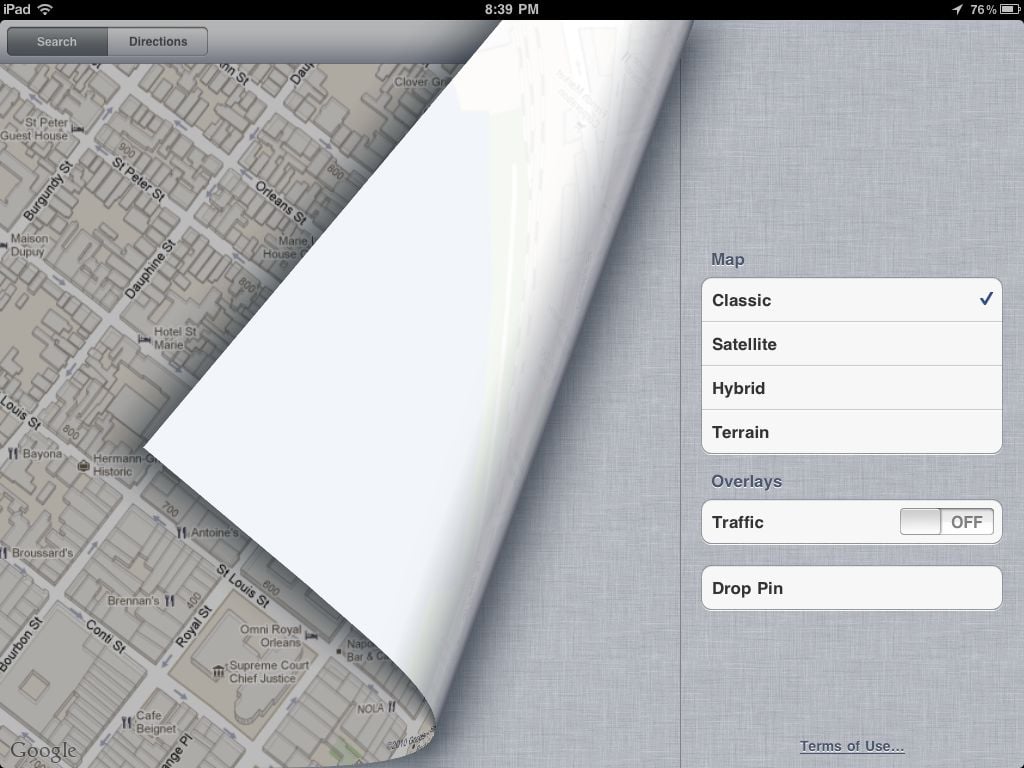
If the location on the map has an icon next to the pin (a white figure in an orange circle) then I can tap the icon to enter the Street View mode to get a street level view of the location. If not, I can tap the bottom right corner of the screen to choose “Drop Pin” and then I can tap and hold the pin to drag it to a street, where Street View will work.
Now I just tap the Street View icon and show the image to the witness. I suspect that most of you have used this feature before and you know how easy it is to virtually look around in 360º and tap on the white arrows to move up and down the street. Get your witness to identify the spot and/or the angle that corresponds to his story on where the event took place. Once you have it on your screen, take a screenshot by quickly pressing and releasing the Sleep/Wake and Home buttons at the same time. The screen will flash to let you know the screenshot was taken, and the screenshot is added to your iPad’s Camera Roll.
The iPad always takes screenshots in the Portrait mode. If that is the way that you were holding your iPad, then you can skip the next step. But most likely, such as in my examples above, you had your iPad in the landscape position, so you will next want to rotate the image 90º. Unfortunately, the Photos app doesn’t currently let you rotate an image, but there are many third party apps that do. For example, the free Adobe Photoshop Express app will let you manipulate an image in lots of different ways. Launch the app, select the screenshot that you just took from your Camera Roll on the iPad, and tap the first icon at the bottom of the screen to get the option to Rotate:
If you want to be fancy you can even quickly adjust the exposure, contrast, etc. but for these purposes that probably isn’t necessary unless the Street View picture from Google is particularly poor. When you are done, tap Save at the top.
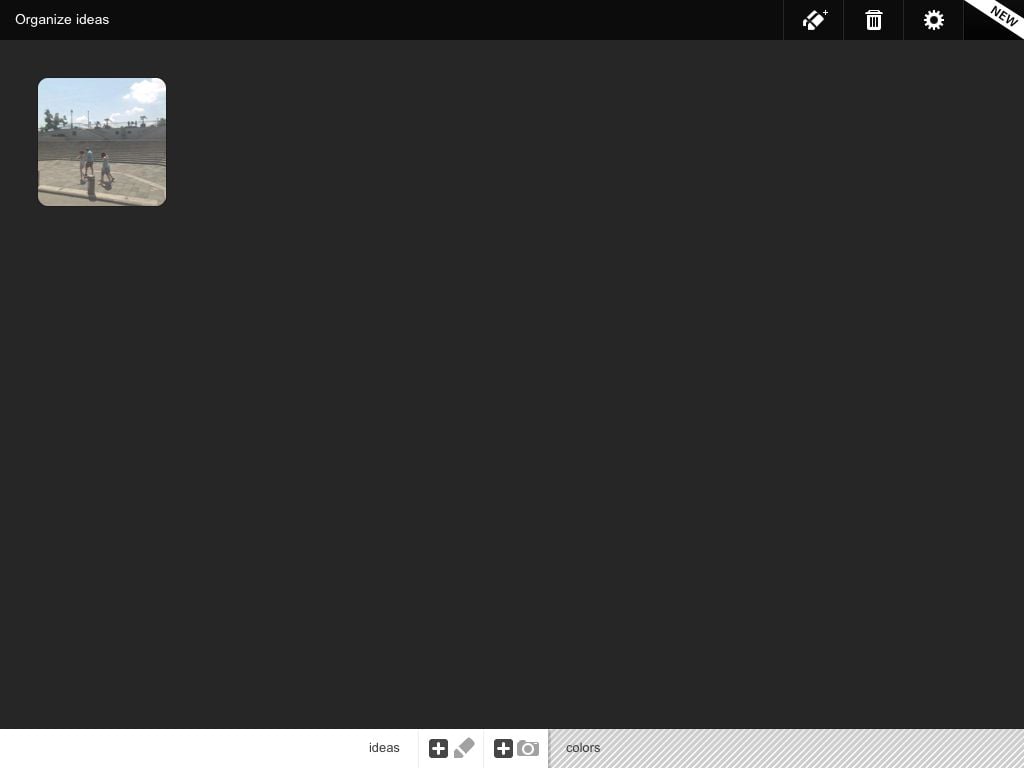
Now that the image is in your Camera Roll in the correct orientation, you can have the witness identify locations by drawing right on the picture. I recommend using a $5.99 app called Adobe Ideas. Launch the app and tap the plus sign at the bottom of the screen that is next to a picture of a camera. This lets you choose a picture from your Camera Roll as a background image:
Tap the image and it opens up in the app. Along the left side you can select a pen, eraser and a hand (to move around the image or pinch to zoom). Change the pen to whatever color you want, preferably one that will have a lot of contrast to the background such as a bright yellow. If necessary, adjust the size of your brush.
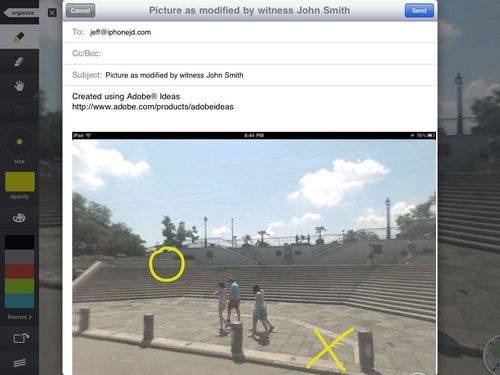
Now, ask the witness to either use his finger or a stylus that you provide to indicate exactly where events took place. For example, the witness might put an X where he was standing and a circle where the other party was standing. Don’t worry if a mistake is made; you can undo and redo, and you can use the eraser took if you need to change a bunch. You are drawing in a separate layer on top of the picture, so you don’t have to worry about erasing or modifying the underlying picture.
Make sure your witness identifies on the record what his markings mean (such as the X and the O) and then you will have a very specific record of where the witness was standing and/or where the significant events took place, even though you didn’t come to the deposition with a picture for him to use. In fact, in some ways this is better than photograph. The iPad screen is large, so unless you brought an 8×10 picture, this is bigger. Also, drawing on a photograph is very difficult unless you have the right pens with you, but using an iPad app like Adobe Ideas to draw on a picture is simple when you select the right color. Once done, you can tap the share button at the bottom right to send the picture via e-mail to the court reporter and all counsel of record, and/or you can save the modified picture to an album on your iPad.
If you want the witness to include even more information, you can tap the hand button and then pinch to zoom out. This reveals extra space that a witness might use to indicate some other information in the margins around the picture:
When Adobe Ideas sends the image, it puts it in PDF format and automatically crops it to just include the areas where you have drawn. Click here if you want to download the PDF image that I just created to see what it looks like.
For all of this to work using Maps and Google Street View, the event must have taken place on or near a public street. Sometimes, this will be exactly what you want. For example, in a deposition in a car accident case, you might position the view to match what a driver would have seen as he is approaching an intersection.
Keep in mind you can also create the underlying image in many other ways. For example, the Bing Maps service from Microsoft offers something called Streetside, which is Bing’s version of Google Street View. Unfortunately, as of now, Streetside doesn’t work on an iPad (although you can use it on your computer if you want to create the picture before your deposition), but you can use the free Bing app to use the Bird’s Eye view in Bing Maps, a mode that does not exist in Google Maps. Depending upon what you want a witness to describe, the Bird’s Eye view might be even better from a top down view that you get in a traditional map. For example, here is a Bird’s Eye view of the same location I showed above.
Once again, you can take a screenshot and then use Adobe Ideas or another graphics app to have the witness mark specific landmarks. A nice feature of the Bing app is that you don’t even have to type something; you can just tap the microphone icon at the top and say something, such as in this example “Jackson Square” and that location will pop right up in the map.
Or you might even use a photograph that you did take yourself before the deposition. Instead of printing out the picture, just put it on your iPad and load it up in the Adobe Ideas app before your deposition starts so that you can quickly have the witness draw on the picture. Perhaps you might use a picture of the equipment that malfunctioned and ask the witness to mark exactly where the malfunction took place.
A picture can be worth a thousand words. A picture that you use with a witness to exactly identify where he says something took place can be much more valuable than that when you later want to impeach the witness at trial, showing that the events could not possibly have unfolded as he previously testified. Thanks to the iPad, you have the tools to create a photograph with markings right there in the deposition, which may end up being the reason that you win your case. (And thanks again to Rob Dean for his original post with this idea.)
Many attorneys who read iPhone J.D. write to tell me how they are using their iPhone or iPad in their practice. I love to read these stories, and from time to time I like to share them here on iPhone J.D. I find that when I hear what others are doing, it usually gives me more ideas for making the most of my iPhone or iPad in my practice. Hopefully you find that the same is true for you.
Al Saikali is a partner in the Miami office of Shook, Hardy & Bacon, a law firm with 500 attorneys that started in Kansas City and now also has offices in Geneva, Houston, London, Miami, Orange County, San Francisco, Tampa, Florida, and Washington, D.C. Saikali's practice mostly involves representing companies at trial and on appeal in products liability, personal injury and commercial litigation. He uses both the iPhone and iPad in his practice. After reading my post from last week about using my iPhone and iPad in a class certification hearing, he shared this story about using his iPhone and iPad in the non-billable portion of his practice:
I serve on the committee that drafts Florida’s Rules of Civil Procedure. Recently, we were considering changing Florida’s rules on expert witness disclosures to make them more consistent with the federal rule. Someone at the general committee meeting asked for the exact language of the federal rule we’d be modeling. I quickly pulled the rule up from a FRCP app on my iPhone and read the relevant provision to the entire committee.
Also, I recently delivered two presentations to different local bar organizations about recent changes to Florida’s Rules of Civil Procedure. During the first presentation, I used Keynote on my MacBook and then used my iPhone as a remote control (through the iPhone Keynote app) to change the slides from the other side of the room. It really impressed the crowd. Separately, I delivered the same Keynote presentation from my iPad. It was equally cool. I was able to view the presenter notes and use my stylus like a red laser (when you hold a finger or stylus on the iPad screen during a presentation, Keynote creates a small red circle you can use to point to and circle information on the slide).
On a recent flight from Miami to Kansas City, I drafted an entire Keynote presentation about how lawyers can use the iPad and iPhone for work. I used the internet connection on the plane to download images and incorporate them into the presentation. I delivered the presentation the following day flawlessly.
I'm glad that Saikali (who is pictured at right with another happy iPad user) shared this with me. When I think about items to post on iPhone J.D., I often find myself focusing on ways to use the iPhone or iPad in connection with the representation of a client. Saikali's e-mail reminded me that I frequently use both devices during important non-billable activities. For example, I often give presentations to attorneys and others and I really love using the Keynote app on my iPad to do so. I actually find that it is often easier to create a presentation from scratch using the iPad, but it is also nice that you can start a presentation in Keynote on a Mac or in PowerPoint on a PC or Mac and then move the presentation to Keynote on the iPad for final polishing and presenting.
Please keep those e-mails coming! Just send them to jeff@iphonejd.com. I'd love to hear how you are using your iPhone and/or iPad in your practice, and with your permission I'd love to share some of those stories here on iPhone J.D.