When participating in a conference call, it is often helpful to let everyone on the call see a shared screen at the same time. GoToMeeting from Citrix is software that let’s you do exactly that. If you use the free GoToMeeting app, you can view the shared screen on an iPad or iPhone. I haven’t tried doing so on an iPhone yet; it seems to me that the shared screen would be very small, although I suppose if you were out of the office and only had an iPhone with you that could be better than nothing. On a large iPad screen, however, the GoToMeeting app has more than enough space.
I used the GoToMeeting app during a recent conference to get some screenshots for this post, but unfortunately I cannot simply show you the actual images without revealing confidential information. Instead, I redacted large parts of these images, but trust me that I saw everything on the iPad that I needed to see. During that meeting I actually had GoToMeeting running on both a computer and my iPad at the same time just to confirm that everything I could see on my computer screen could also be seen on the iPad screen — and yes, it was the same.
To participate in a meeting, just start the app and enter the meeting ID, along with your name and email address. Or, if you receive a meeting invitation in an email, you are supposed to be able to just tap on a link in the email, although I haven’t tested that yet. Note that you can only participate in a GoToMeeting conference with this app; you cannot currently initiate the conference from an iPad or iPhone, although Citrix says that this feature is in the works for a future update. [UPDATE: It appears that feature is now added, although I haven’t tried it myself.]
In just a few seconds, you will see the screen of the person sharing their screen. It will look something like this, without the big blue redaction box:
In my prior experiences with conferences like this, it works best to have a regular telephone conference call and then use GoToMeeting just to share a screen and not audio. Having said that, I understand that the app will allow you to listen and talk, if that is how the conference is being conducted.
If you tap the people icon at the top, you can see a list of who is participating in the conference. You can also “chat” (like instant messaging) with a specific person on the call or with everyone on the call.
Instead of or in addition to sharing one person’s screen, I understand that it is also possible to use GoToMeeting for a videochat. I haven’t tested that feature, except to tap the camera button to see how I would go about sharing my camera.
The settings icon will let you get information on the call or change some of the basic settings.
Although the iPad screen is smaller than most computer screens, I actually think it is better for a task like this. First, you can easily pinch to zoom the screen up to 3x. That’s larger than you will see on your computer’s monitor, so with a simple gesture you can see all the details that you want. Second, I like being able to devote my iPad to the shared screen of the conference and constantly have it shown while I use my computer screen to type notes or look something up in a file. In this way, the iPad is a substitute for a second monitor on the computer.
There is not much more to say about this app. It does what you would expect it to do, and it is free. The main reason for this post today is to alert you that the app exists. The next time that you are asked to participate in a conference call using GoToMeeting, I recommend that you download this app and see what it is like to participate from your iPad.
I was a little surprised to hear iPhones and iPads mentioned during the presidential debate this past week. Candy Crowley, the moderator, asked Obama and Romney: “iPad, the Macs, the iPhones, they’re all manufactured in China. One of the major reasons is labor is so much cheaper there. How do you convince a great American company to bring that manufacturing back here?” Romney answered that China has been cheating and pointed out that there is even a counterfeit Apple Store in China. Obama answered that there are some jobs that are not going to come back because they are low wage, low skill jobs, but Obama wants to improve educational opportunities so that we have more high wage, high skill jobs.
Obama’s answer was interesting because I believe it came from Steve Jobs himself. In February of 2011, a number of technology titans had dinner with President Obama, including Steve Jobs. According to Charles Duhigg and Keith Bradsher of the New York Times, Obama asked Jobs the same question that Crowley asked the candidates. “Mr. Jobs’s reply was unambiguous. ‘Those jobs aren’t coming back,’ he said, according to another dinner guest” because the factories and skilled workers available in China simply do not exist here. As Walter Isaacson explained in his biography of Steve Jobs, Jobs told Obama at that dinner that if there were more educated engineers in the U.S., “we could move more manufacturing plants here.” Issacson states: “The argument made a strong impression on the president. Two or three times over the next month he told his aides, ‘We’ve got to find ways to train those 30,000 manufacturing engineers that Jobs told us about.'” And sure enough, in the debate this week, Obama continued to speak about the need to educate more engineers so that we have more high wage, high skill jobs. We know that Steve Jobs continues to have a huge impact on Apple, but apparently he also continues to influence the President. And now for the rest of the news of note from the past week:
(in China) has ever assembled. “‘To make it light and thin, the design is very complicated,’
said an official at the company who declined to be named. ‘It takes time
to learn how to make this new device. Practice makes perfect. Our
productivity has been improving day by day.'” I know of several attorneys who are still on a waiting list for an iPhone 5, plus a law student who tweeted to me yesterday. Hopefully supply will increase soon.
New York attorney Nikki Black reviews the Typi Folio Case, an iPad case that includes a Bluetooth keyboard, for the GP Solo eReport.
Minnesota attorney Randall Ryder discusses using iOS 6 in your law practice in this post for Lawyerist.com.
Localscope, a useful app I reviewed about a year and a half ago, was updated to version 3.0 this week to add iOS 6 support, proximity based push notifications, and other new options. It’s a neat app for discovering places around you. Click here to get Localscope ($1.99):
My favorite Twitter app for the iPhone and iPad is Tweetbot. Yesterday, a version was released for the Mac, and I immediately purchased it. It looks and works great. Highly recommended for anyone who uses the iPhone or iPad app. Click here to get Tweetbot for Mac ($19.99):
A large amount of the iPad-related stories from this past week consisted of speculation about the Apple announcement coming up on Tuesday, October 23. If you are interested in reading some of the most interesting articles, I can recommend this one from John Gruber and this one from Rene Ritchie of iMore.
And finally, it’s almost time for Halloween, which means it is now time for someone to figure out the latest and greatest way to integrate an iPhone or iPad into a costume. Mark Rober — a NASA Jet Propulsion Lab engineer — has come up with a fun idea: T-shirts in which you place an iPhone or iPad to make the shirt come to life. The following video shows how it works, and you can get more information and download the free app that works with the shirt on the Digital Dudz website.
The track changes feature in Microsoft Word is a critical feature for many attorneys because it provides a way to suggest edits to a brief, contract, or other document while making those edits obvious so that someone else can accept or reject individual edits. Although the iPad and iPhone have been able to view Microsoft Word files since Day 1 using the built-in file viewer, the ability to work with documents containing redline “track changes” edits has been limited. For a while now, Documents to Go has been able to view those redline edits but not make them. A few months ago, Office² HD from Byte2 was updated to add full support for track changes — the ability to both view redline edits and create your own. Unfortunately, the interface is not great, with track changes shown in very tiny type on the side of the screen:
This week, the Quickoffice Pro app (now owned by Google) added the ability to both view and create redline edits using the track changes feature. I like the implementation in Quickoffice Pro much better than the implementation in Office².
To turn on the feature, tap the track changes icon, which is at the top right of the screen, fourth from the right. Once selected, a green ON circle appears on the icon.
To create edits in the document using the track changes mode, tap the
Track Changes button just above the keyboard so that it both turns green
and says “ON” to the left. Now, edits that you make appear in
redline. (Well technically, the color is blue.) For example, in the next screen I am updating a Lexis cite with a So. 3d cite now that a case has appeared in the official West reporter:
Every change made in the track changes mode will have a line with a plus and minus button. Tap the plus button to see what was added in this edit. Tap the minus button to see what was deleted in this edit:
Using the track changes menu bar which appears just above the keyboard, or at the bottom of the screen if you have hidden the keyboard, you can easily tap the arrows to go through each of the redline edits and choose to accept or reject each one. Or tap the button at the left of the menu bar to accept or reject all edits at once.
I’m thrilled to see track changes added to Quickoffice Pro. However, I still have one very serious reservation about using the app: it does not support footnotes at all. For example, if you look at my first Quickoffice Pro picture above, I have part of a sentence displayed before the ARGUMENT section of my brief begins. Viewing the file in Quickoffice Pro, you might think that there are no footnotes. But if I view the same file in Documents to Go or Office², footnotes appear. For example, here is the file in Documents to Go, first showing how it normally looks, and second showing how it looks when I tap on the footnote number:
You cannot edit footnotes in Documents to Go or Office², but as a litigator, the ability to know that they are there and read them is usually pretty critical for me.
So with this update to Quickoffice Pro, what is the state of viewing and editing Word documents on the iPad or iPhone? Documents to Go, Quickoffice Pro and Office² will all let you view a Word document, including any redline edits. I like the Documents to Go interface the best because it is so easy to zoom the text size larger or smaller as you are reading a document, but something can be said for the interface of each of these apps. To create redline edits, you can use Quickoffice Pro or Office², but Quickoffice Pro doesn’t show footnotes, whereas Office² does.
This might lead you to conclude that Office² is the app to use because it has the most features, but I have two issues with Office² that make me hesitate to recommend the app. First, as noted above, I don’t like the way it handles track changes in the margin. Edits are very hard to read. Quickoffice Pro does a much better job of handling redline edits. Second, Office² seems to crash on me all the time when I open a complicated document — and by complicated I mean any document of around 15 or more pages with footnotes. That covers most any file that I would want to edit on my iPad. When I reviewed Office² in June I noted that I was having a lot of trouble with the app crashing, but at the time I assumed that an update to the app would fix that. But it has now been four months and I’m still having the same problems with no fix in sight.
If Quickoffice Pro were to simply add the ability to work with footnotes, that would probably become my go-to app for Microsoft Word files. For now, because I tend to review documents on my iPad or iPhone far more than I edit them, I’m sticking with Documents to Go because I can see footnotes and redline edits and I otherwise like the Documents to Go interface. Hopefully track changes support will be added to Documents to Go at some point, although it is perhaps worth noting that Documents to Go is now owned by RIM, the manufacturer of the BlackBerry, and that company has a lot more to worry about right now than iOS apps. If I really need to use track changes and other sophisticated features of Microsoft Office on my iPad, I often will just use LogMeIn to create a remote connection to my PC and handle it that way. (If remote access to your own computer is not an option, you might consider a service like CloudOn which provides online access to a virtualized version of Office 2010.) All of this means that if you are trying to pick an app to handle Word documents (and other Office documents such as Excel files) on your iPad or iPhone, you are going to have to decide what features and limitations of these three apps are the most important to you.
And when you make your decision, you also need to think about the different versions of the apps. There are two versions of Documents to Go. The regular version costs $10 and probably does everything you need, but for $17 you can get the Premium version that adds the ability to create and edit PowerPoint files (the regular version only views PowerPoint files) and the ability to edit and sync files stored in cloud services (Google Docs, Box.net, Dropbox and SugarSync). But both versions of Documents to Go work on both the iPhone and the iPad. With Quickoffice Pro and Office², you don’t pay extra for features, but instead you pay extra for other devices because both apps come in a regular version for the iPhone and an “HD” version for the iPad. So if you own an iPhone and iPad, you’ll probably have to buy Quickoffice Pro and Office² twice, whereas you only need to buy Documents to Go once.
And to make all of this more complicated, we continue to hear rumors that Microsoft itself will release a version of Word (or Office) for the iPad. As I noted this past Friday, the latest rumor is a launch in early 2013, but note that we have been hearing rumors like this for almost a year now, so I’m not sure how much faith we can put in any of these rumors.
Click here for Quickoffice Pro HD [for iPad] ($19.99):
Click here for Quickoffice Pro [for iPhone] ($14.99):
Click here for Documents to Go [both iPad and iPhone] ($9.99):
Click here for Documents to Go Premium [both iPad and iPhone] ($16.99):
Yesterday, Apple announced that it will hold a media event at 10am Pacific on Tuesday, October 23, 2012. As is the norm, Apple did not say what it would be announcing, but Apple is famous for including small clues in the words or graphics used on the invitation. The invitation for next week’s event includes the following:
The use of the word “little” in the tagline “We’ve got a little more to show you” might be a clue that Apple will unveil a smaller version of the iPad next week, something that has been the subject of countless rumors throughout 2012. There is also speculation that Apple may also announce updates to its Macintosh computers and/or make announcements related to the use of Apple products in education.
The event will be held at the California Theatre in San Jose, California. The theater has a Jazz Age décor and opened in 1927 as a grand movie palace. It is now used for concerts for the Symphony Silcon Valley and the Opera San Jose. You can find a number of pictures of this historic site here. Apple previously used the California Theatre to announce updates to the iPod in 2004 and 2005. The San Jose Mercury News republished some pictures from those announcements.
The iPhone 5 was announced on September 12, 2012, and it is exciting to have another Apple announcement only six weeks later.
Transcripts can come in many formats such as ASCII text, a PDF file or the E-Transcript format. If I am working with transcripts on my iPad, I prefer to work with a transcript in a text format that I can send to the fantastic TranscriptPad app or in a readable PDF format that I view and annotate in GoodReader. But sometimes you receive a file in the E-Transcript format, a file with “.ptx” as the extension. The E-Transcript format was originally created by RealLegal, which was acquired by LiveNote and is now owned by Thompson West. A long time ago it was possible to view a .ptx file on a Mac, but in recent years you have only been able to view a .ptx file using the E-Transcript Viewer software on a PC or other PC-only software. This changed a few weeks ago when West released Westlaw Case Notebook Portable E-Transcript, a free app that lets you view and even annotate .ptx files on an iPhone or iPad.
When you receive an email with a .ptx file attached, simply tap the attachment and choose Open in E-Transcript.
The transcript will then open in the E-Transcript app, and you can read the deposition on your iPhone or iPad. As you can see from these images, the app is not yet updated for the longer screen on the iPhone 5. Flick your finger to scroll through the document. Tap the information icon to get metadata regarding the transcript such as the name of the witness, the date, etc. If you want to search for a term, tap the magnifying glass. This brings up a screen where you can type a term, or you can scroll through a list of every term in the document along with the number of hits.
You can turn your iPhone to landscape mode to make the text larger.
You can use the app to annotate a transcript. Simply select some text and then you can copy, add a note, or highlight the text in yellow.
If you choose to add a note, the text is highlighted and a small green box appears next to the text for which there is a note. If you tap the bookmark icon at the bottom, you will see a list of all text that you have either highlighted or added a note to, with the note text indicated.
If you tap the Pg. icon at the bottom left, you can jump directly to another page by number. If you tap the button at the top left, you go back to the main screen of the app with a list of all depositions that you have stored in the app.
Unfortunately, the export options are very limited and you only have two choices. If you select Share with Notes, the app will create an email with a .xml file attached, and I believe that you need the Westlaw Case Notebook software on your computer to access the file. If you select Share without Notes, the app will create an email with the original .ptx file attached. There is no way to export the entire transcript as a text file or a PDF file, nor is there a way to export a version of the transcript with your annotations if you are not using Westlaw Case Notebook.
The above images are taken from an iPhone 5, but the app also works great on an iPad. The text is (obviously) larger and easier to read on an iPad, and windows pop-up on top of the transcript.
If you already use Westlaw Case Notebook to manage your litigation files, then I imagine that this app would be very useful. If you don’t use that product, then I doubt that you will want to use this app to highlight a transcript because you have no easy way to export the file with your annotations. Even so, this is an app that every litigator should keep on their iPhone and iPad just in case they receive a .ptx file from a court reporter or another attorney. With this app installed, at least you can look at the transcript immediately without having to go to a PC or ask to
have the file sent to you again in another format such as pure text or
PDF.
Click here to get Westlaw Case Notebook Portable E-Transcript (free):
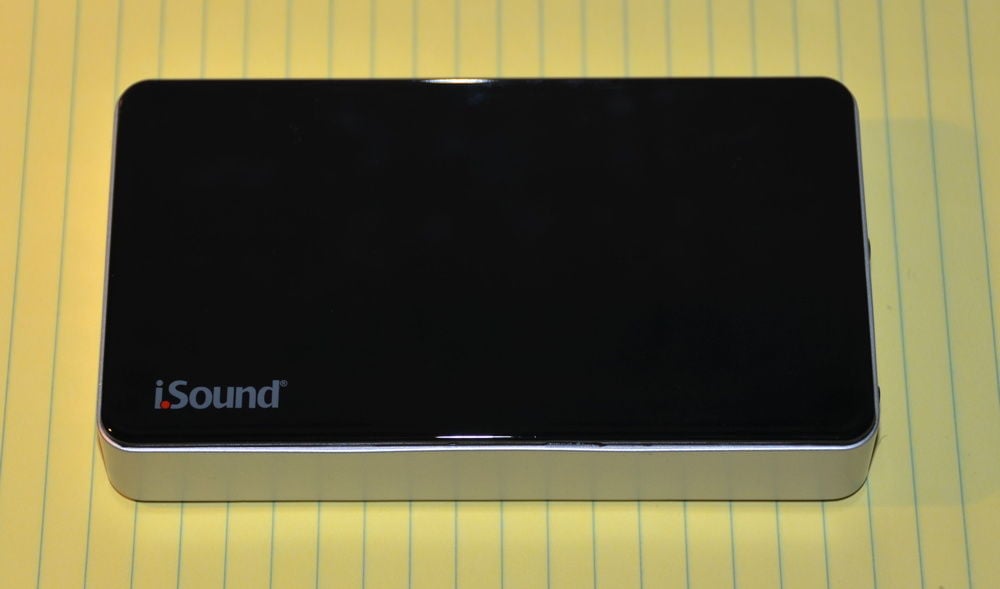
Considering how powerful the iPhone and iPad are, their power management is particularly impressive. I can typically use either device all day long without any concern about running out of power. There have been times, however, when I have been out of my office and I have made extensive use of either device, so much so that I am running low as I near the end of the day. This is not a problem when I am close to an outlet because I can simply plug in the devices, but sometimes that is not an option such as if am at a meeting or CLE out of the office with no easy access to an outlet, or if I am traveling. (Airports are getting better about providing power outlets for travelers, but it is not always easy to get a seat close to one.) I used to use small external batteries such as the RichardSolo 1800 to charge my iPhone, but those devices don’t provide enough power to charge an iPad while you are using the iPad, and the 30-pin connector doesn’t work with the new iPhone 5. RichardSolo sent me a free review unit of the iSound Portable Power Max 16,000 mAh Backup Battery, and I’ve been using it for the last few weeks. As the name suggests, it contains a huge, 16,000 mAh battery and it outputs 2.5 Amps so it has no trouble providing power to a third generation iPad or an iPhone 5, or any of the earlier iPads or iPhones.
The device itself black on the top and bottom and silver around the edges. It is 5.75" long, 3.25" wide and one inch high. It weighs 14.6 oz., which is one of the few negatives of the device. That’s about two-thirds the weight of a third generation iPad, and is over four times the weight of iPhone 5. You’re not going to want to carry something this heavy in your pants or shirt pocket, but it will be fine to put it in a briefcase or purse.
The device comes with a simple travel bag to protect it from getting scratched up.
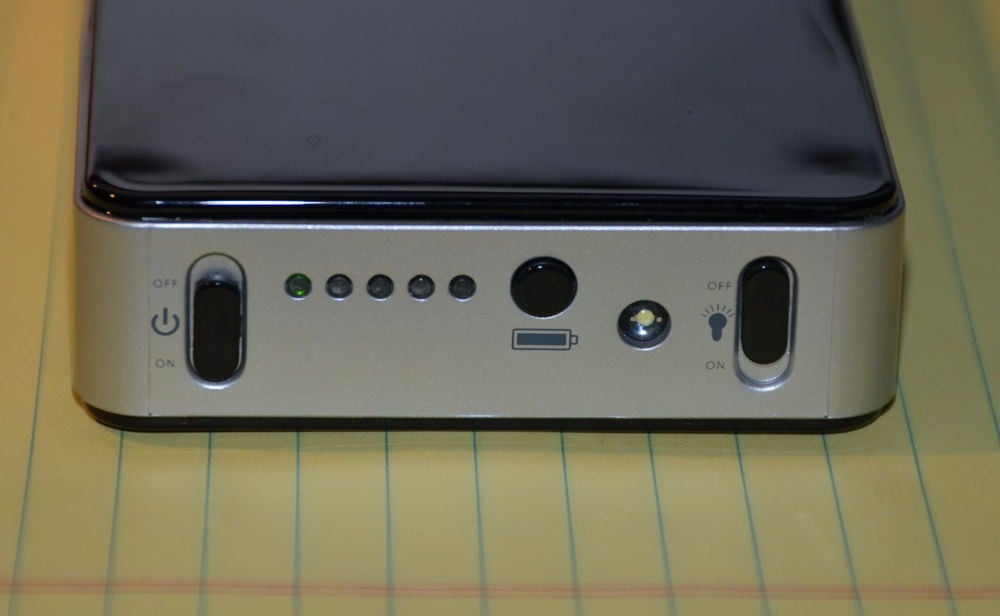
One edge of the device has an on-off switch next to a series of lights. The first light is green when the device is on.
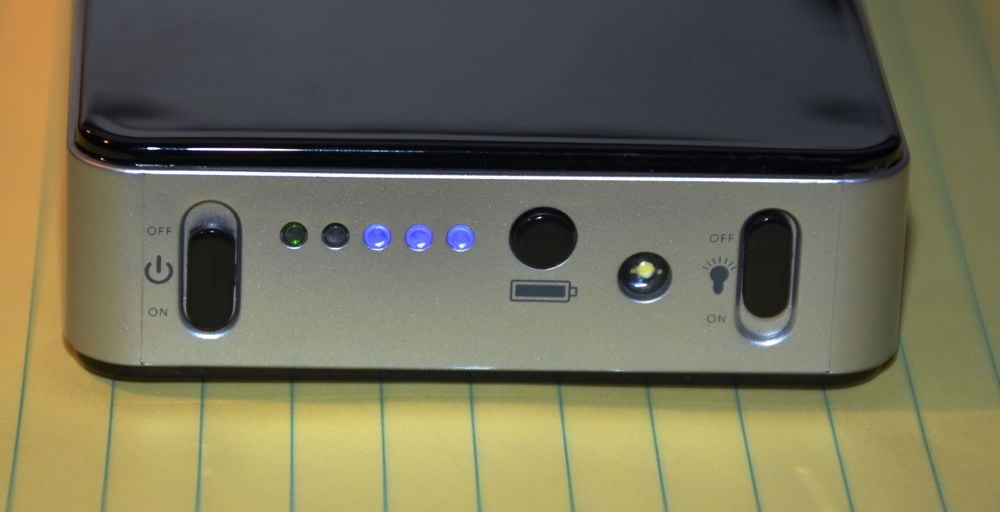
The next four lights are next to a button with a battery icon below it. If you press that button, those four lights will come on depending upon how much power the device has remaining (one light means 25%, two lights mean 50%, etc.).
Finally, there is a LED light and a switch to turn it on as a flashlight. RichardSolo has always loved to sell iPhone batteries that include some sort of flashlight, and I’ve never understood why, nor have I ever found a reason to use such a light. But given the size of the battery, I suspect that this light could stay on for a VERY VERY LONG time, so if you have a need for a light with a ton of battery power, with this device you have it.
The other edge of the iSound Portable Power Max Backup Battery has five USB ports:
Whether you can actually use all five USB ports at one time depends upon what you are charging. The device will output 2.5 Amps, so your devices cannot total more than that. My understanding is that an iPhone (including an iPhone 5) will draw 1 Amp from this device, so you could charge two iPhones at one time. On the other hand, an iPad will draw 2 Amps, so you cannot cannot charge an iPad and an iPhone at the same time. (If you try to do so, the lights will flash on and off to alert you to the error.) But if you have an iPod, that only draws .5 Amps so you could charge an iPad and an iPod at the same time, or you could charge up to five iPods at the same time. It is a shame that the device cannot charge both the iPad and the iPhone at the same time as that would be quite useful.
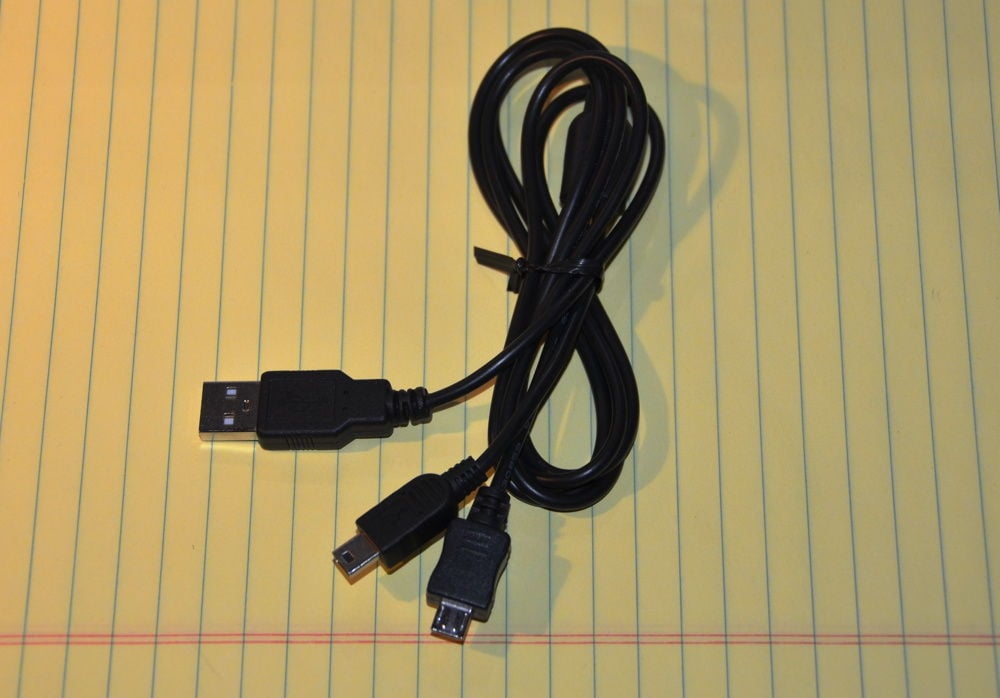
You can also use this device to charge items that have a micro USB or a mini USB connection. Included with the device is a cord that has a standard USB plug at one end and both micro and mini USB plugs at the other end. I’ve seen external keyboards, external speakers, Bluetooth headsets, and many other iPhone/iPad accessories that are charged via micro or mini USB. Thus, you may be able to use the iSound Portable Power Max Backup
Battery to charge not only your iPhone or iPad, but also one or more of
your accessories at the same time.
The 16,000 mAh battery is a lot of power. The RichardSolo website says that is enough to provide an 83% charge to a fully-drained third generation iPad, in a period of 5 hours. I got even better results than that. I connected my third generation iPad to the iSound Portable Power Max Backup Battery when the iPad was down to only 2% battery power left. In about 90 minutes the iPad was back up to 25%. After two and a half hours, the iPad was at 40%. I allowed it to continue to charge overnight, and when I woke up, my iPad was at 100% power and the Portable Power Max still had a little bit of a charge remaining.
In another test, I plugged in two iPhones at night: an iPhone 4S that was completely drained, and an iPhone 5 that was at 10%. The next morning, the two iPhones were completely charged and the Power Max still had about half of its charge left.
In another test, I connected a fully drained iPhone 5. In an hour it had 65% power, In 90 minutes it had 90% power, and it was fully charged in two hours. And after fully charging that iPhone 5 from 0% to 100%, the device displayed three blue lights, so around 75% of its battery remained.
I cannot tell you how much I wish I had this device when Hurricane Isaac hit New Orleans six weeks ago. My house was without power for four days, and I depended heavily on my iPhone to keep up with critical news, but I had to use every trick in the book to stretch out my iPhone’s power. At the time, I would have paid top dollar for a device like this with such a large battery. Hopefully losing power for days on end is not going to be a common occurrence for me or any other iPhone J.D. readers, but a device like this is an incredibly useful component of any emergency preparation kit. And if you go camping or engage in other activities where you are away from power sources for more than a day, this device would be very handy.
To charge the device itself, it comes with an AC adapter. If the battery is depleted, it takes 7 to 9 hours to charge the device. Note, however, that you can charge an iPad, iPhone, iPod, etc. that is plugged in to the device while the device itself is receiving a charge from an outlet. This is helpful because it means that at night you can charge one or more devices plus the battery itself at the same time. I mention this because there are other external batteries on the market that lack this feature.
The retail price of the iSound Portable Power Max Backup Battery is $129.99, so that is what you will pay if you order from the manufacturer, iSound. However, RichardSolo sells the device for only $79.95. And if you order this device between now and October 31, 2012, RichardSolo was nice enough to provide a discount for iPhone J.D. readers. When you checkout, use coupon code “jeff” to get a 15% discount on this item, which brings it down to $67.96 — almost half of the MSRP.
I wish that this device could somehow be even lighter, and it would be nice if you could use it to charge an iPad and an iPhone at the same time, but those are really the only complaints that I have and they are minor complaints. If you want a portable device that can recharge multiple iPhones multiple times or recharge an iPad, the iSound Portable Power Max Backup Battery is an excellent solution. This is a great device to have with you when you travel out of town or when you are out of the office all day long and plan to get a lot of use out of your iPhone and/or iPad, and as a side benefit it is a great addition to any emergency preparation and camping kit. The price from RichardSolo is fantastic, and I’ve long been a fan of that company, which was started by Richard Thalheimer, the founder of The Sharper Image. Indeed, a RichardSolo battery for the iPhone 3G was the very first third-party accessory that I reviewed on iPhone J.D., back in December of 2008 when this site was brand new. It’s nice to see that almost four years later, RichardSolo is still selling useful accessories for the latest and greatest devices from Apple.
I’m not an IP attorney, but it was fascinating to watch the reports from the recent Apple versus Samsung trial. Why does Apple fight these battles (aside from the obvious fact that it won that last trial)? Charles Duhigg and Steve Lohr of the New York Times try to provide some answers in an interesting article on Apple’s use of patents in litigation. And now, the rest of the news of note from the past week:
San Francisco attorney Deanne Katz of FindLaw’s Technologist tells the story of ride-sharing apps that received cease-and-desist letters from the State of California on the grounds that they are taxis.
JuryStar is an iPad app that can be used to assist with jury selection. To celebrate the one-year anniversary of the app, the developers (Nancy and Boyd Patterson) are giving away a “Litigation iPad Survival Kit” worth $1,800 to one lucky winner. Click here for the details.
Evan Koblentz of Law Technology News reports on the new iPad app from Thomson Reuters called Global Business Law.
Daniel Eran Dilger of Apple Insider compares Apple’s iOS 6 Maps app with the alternatives, noting that there are some real advantages to Apple’s new maps, especially considering that Apple is just starting in this field.
Alan of Art of the iPhone explains the new VIP feature in Mail in iOS 6.
Kit Eaton of the New York Times recommends some good games for the iPhone 5.
There have been rumors and speculation of a Microsoft Office app for the iPad ever since there has been an iPad. This week, someone with Microsoft’s Czech subsidiary stated that the app would be out in early 2013, but then a company spokesman from the main office stepped in to say: “The information shared by our Czech subsidiary is not accurate. We do not have anything further to share at this time.” So who knows. Gregg Keizer of Computerworld has more details.
My office uses Microsoft Outlook so I don’t use Google Calendar, but if you do, you might want to check out Calendars from Readdle, which was upgraded to version 3.0 this week. I haven’t tried the app myself, but Readdle has a good reputation for high-quality apps.
Nick Wingfield of the New York Times reports that an iPhone game developer in Finland called Supercell has two apps that are free to download but have in-app purchases, resulting in the company grossing over $500,000 every day. Every day? Apple gets 30% of all app profits, so that’s $350,000 a day for the company.
That made me think of about a story from Brad Stone, Adam Satariano, and Peter Burrows of Businessweek that I mentioned last week. That story about Tim Cook running Apple mentions that after Bob Mansfield, Apple’s Senior VP for Hardware Engineering, announced his retirement, Cook enticed him to stay on by offering Mansfield $2 million a month to be a consultant. That sounds like a lot, but it translates to about $67,000 a day — only half of what Apple gets every day from just those two Supercell apps. And there are over 750,000 apps in the App Store.
In related news, if anyone else feels like paying someone $2 million a month, my contact information is on this website. I play both the piano and the ukulele, so you’ll get lots of entertainment for your investment.
And finally, the larger screen on the iPhone 5 is nice, but what if you want a REALLY big screen for your iPhone? Then the fine folks at Oh Need have you covered with their $68 Mini Cinema for iPhone 4/4S. It combines the high-tech iPhone with an old-school magnifying glass and gramophone horn. No batteries required! (via Cult of Mac)
Earlier this year I reviewed PDFpen for iPad, and it remains one of my favorite tools for editing and annotating PDF files on the iPad because it has a great interface and is relatively easy to use, but it also packs in tons of sophisticated features. About two weeks ago, Smile Software released PDFpen for iPhone. The company sent me a free review copy of this $5 app to try out, and I’m very impressed. Editing PDF files on the iPhone is obviously harder than on an iPad because of the smaller screen (although PDFpen for iPhone does take advantage of the larger screen on the iPhone 5), but if you are on the go and only have access to your iPhone, this app can be incredibly useful and includes (as far as I can tell) all of the features of the iPad app.
The main screen of the app shows your documents as thumbnail images, and you can sort by either date or name. If you enable iCloud sync, then every document in your Documents folder is automatically synced with PDFpen on your iPad (and on your Mac if you use that software too, but I don’t so I wasn’t able to test that). Since I already use PDFpen on my iPad, that meant that when I first started using PDFpen for iPhone, all of my documents were there waiting for me. I can edit a document on the iPhone, and then a few seconds later the edited document is there on my iPad. Very sleek. Or if you want to create a new document, just tap the plus sign at the top left. You have several choices, including creating a blank document or copying a file from popular cloud services.
Once you open up a document, you’ll see a toolbar at the top, or you can tap once in the middle of the screen to make the toolbar disappear so that you can use the entire screen to view the PDF file.
All of the editing tools that I described for PDFpen for iPad are here. Thus, you can draw on a document, add shapes, underline, etc. Once again, highlighting is handled very well. You can highlight a document even if it isn’t a “readable” document with text, and highlighted words are not painted over with a opaque yellow box like some other apps do, but instead the black text stays dark black even when highlighted after you press the “Done” button.
Swipe left or right to move between pages. There are two ways to see other pages in the document. First, you can tap the grid icon in the toolbar at the top, which gives you the option to see and edit multiple pages (such as delete a page, move pages around, rotate pages). Second, if you swipe in from the left side of the screen, a bar pops up with thumbnail images of pages. Just swipe up or down to find the page you want and then tap to jump straight there.
PDFpen for iPhone includes the powerful Library feature. Just tap the library icon to add text boxes, comments, notes, shapes, photos from your Photo library, annotation marks, etc. There is also a powerful custom library where you can add an object to easily use that object again in the future. For example, in my PDFpen for iPad review I showed you that I made a custom exhibit sticker. Although you cannot automatically sync the custom library between the iPhone and iPad (that would be a great feature to add in the future), it was easy for me to create a new document on the iPad and add the exhibit sticker, wait a second for that file to sync to the iPhone, then select the exhibit sticker and add it to my custom library on the iPhone. Now I can easily paste an exhibit sticker on any document using my iPhone, and then using the text box function I can give the exhibit a number or letter.
This trick is also useful for storing your signature. You can use the scribble tool to sign a document with PDFpen for iPhone, but the iPhone screen is so small that it is difficult to get a good signature unless you have a very short name. But you can sign your name on a blank document in PDFpen for iPad on the large iPad screen, and then once that document syncs to the iPhone you can select the signature and add it to your custom library. Now, if someone ever emails you a document and asks for your signature, just open up the file in PDFpen on your iPhone, add your signature, and then email the file back.
I mentioned above that you can create a new document by copying it from any of the popular cloud document services, such as Dropbox. Additionally, PDFPen has the ability to sync with one of your Dropbox folders so that you always have instant access to your documents. (This feature was added to PDFpen for iPad after I wrote my review earlier this year.) After you choose a folder to sync, PDFpen for iPhone downloads and syncs in the future the names and dates of all files, but doesn’t actually download the documents themselves until you tap a document. That helps to reduce sync times. After you edit a document in a Dropbox folder, within just a few seconds the edited file is available in your Dropbox folder on all devices that sync with your Dropbox. The only flaw I see with the implementation is that I don’t yet see a way to tell PDFpen for iPhone that you no longer want to sync a Dropbox folder. I presume this will be fixed in the future.
There are a few features that I would love to see added to PDFpen for iPhone, such as the ability to search for text in a document, but I am amazed at all of the advanced features that this app does include. It even includes the ability to edit the text in a PDF file, assuming that the file is readable. So if you find a typo or other problem in a PDF file, you can fix it right on your iPhone without having to go back to Microsoft Word or whatever program created the document in the first place.
To see PDFpen for iPhone in action, click here to see a video created for Smile by California attorney David “MacSparky” Sparks.
If you just want to view a PDF file on your iPhone, there are lots of free options available. My top recommendation is probably Apple’s own iBooks app , which is the fastest PDF viewer I’ve seen on the iPhone. But if you want to go to the next level to annotate and edit PDF files on the iPhone, PDFpen for iPhone is a great option. It is a beautifully designed app that is full of sophisticated features. And if you already use PDFpen for iPad, then it is a no-brainer that you will want this app as well.
MobileLaw is a new app for the iPad and iPhone that contains the text of more than 200 sets of statutes, rules and other legal authorities, and gives you access for the low, low price of free. The app was developed by attorney Peyton Healey, a commercial litigator with the Dallas law firm Powers Taylor. The app is nicely designed, and it was just updated this past weekend to support the iPhone, including the longer screen on the iPhone 5.
When you start the app, you will most likely want to tap one of the first two options, either State Texts or Federal Texts. You will then see at the top, in bold, the sources of law that are already downloaded to your device. Below, in gray, are the additional sources that you may download for no charge.
To download more law, just tap on it. For example, in the above list in the Federal Texts section there is one called “Organic Laws.” It contains the Declaration of Independence, the 1777 Articles of Confederation, the U.S. Constitution, and similar sources. Just tap it to download, which only takes a few seconds. The State Texts section currently contains laws and rules from Alabama, Alaska, California, Delaware, Florida, Illinois, New York, Texas, Washington and Wyoming. The number of sources available to download varies from state to state. In Florida, for example, there are four selections: the rules of appellate procedure, civil procedure, criminal procedure, and the Title VII rules on evidence.
Once you have a set of laws downloaded, it remains on the device so you can access it in the future even if you don’t have Internet access. The app uses an accordion style to show the law, so you see a top level list of categories, and you tap on a category to expand the laws underneath that category.
If you would prefer to just see a big long list of rules, you can do that too. At the bottom right, just turn on the Rules button.
Tap on a rule to read the law. Some rules have better formatting than others. For example, you can clearly see the hard returns at the end of certain lines in the Preamble to the U.S. Constitution — the first sentence ends the line at “perfect” and than picks up with “Union” on a new line. But other sources, such as the Federal Rules of Civil Procedure, have better formatting.
You can easily browse between rules by swiping left or right.
Buttons at the bottom of each rule give you various options. Tap the bookmark icon to add to a list of bookmarked rules. Unfortunately, the bookmark icon always looks the same and doesn’t indicate if you have already chosen a rule as one of your favorites. The next button allows you to add notes. The third button lets you email the text of a rule, or your notes, or both. The fourth button let you print the rule and/or your notes.
A search field at the top will let you search for a word or an exact phrase. The app does not allow for sophisticated searches such as AND / OR searches. The app searches across all of the downloaded law and displays the rules containing your search term, but unfortunately the app does not highlight the term within the rule. Thus, you will know that the term you looked for is in there somewhere, but you need to hunt to find it.
You can navigate around the app by tapping the shark button at the top right. You will then see a number of choices: the home icon (go to the main page of the app), the State of Texas icon (go to the list of state law, for all states not just Texas), another shark icon (for information about the app), a capital icon (for the list of federal laws) and the bookmark icon. The icon corresponding to the part of the app that you are currently using doesn’t have a circle around it.
All of the above pictures show the iPhone in portrait mode. The app does not allow you turn the iPhone to landscape mode. However, the app also works on an iPad, and on an iPad you can use the app in either portrait or landscape mode. The layout of the app on the iPad is similar to how it looks on the iPhone, but the buttons are moved to the top and are always visible to take advantage of the larger screen.
Bookmarks and notes do not sync between the iPhone and iPad versions of the app.
I’ve concentrated on the first two parts of this app — federal law and state law — but you can see from the home screen of the app there are other options too. There is a MobileLaw Review which contains scholarly articles, and then there are options to see a list of attorneys, expert witnesses, meditators and local counsel services. For many of these options, the only law firm currently listed is Peyton Healey’s own law firm, Powers Taylor. On the MobileLaw webpage, there is a form that allows other law firms, mediators, expert witnesses or legal support services companies to add their information to the app for $100/month. Healey tells me that he doesn’t charge users to download his app because he sees it as a marketing device to promote himself and his law firm, and it is interesting to see that Healey offers the marketing potential to others, too, for a fee. But none of this information gets in the way of using the app to read state and federal law, and frankly I hope that Healey does receive some financial support for the app because that will help to encourage him to continue to update the app itself and the law contained within.
MobileLaw lacks some of the features found in paid apps such as the Rulebook app I reviewed earlier this year. For example, the search function is limited (as I noted above), you cannot change the font or font size, and you cannot highlight the rules. But the app is still relatively new and more features are being planned. Healey tells me that a highlight feature should be available in about a month. If you are looking for an app that works on the iPad or iPhone, that has a nice design, and that works well for browsing the law, you should definitely give MobileLaw a look because I suspect that it will fit your needs quite well.
It’s been a year since Steve Jobs passed away at the much too young age of 56, and a number of publications wrote about the occasion. Brad Stone, Adam Satariano, and Peter Burrows of Businessweek wrote about how Apple has proceeded without Jobs. Heather Kelly of CNN wrote a similar article on how Apple has changed under CEO Tim Cook. Meanwhile, Connie Guglielm of Forbes collects a number of anecdotes about Steve Jobs. And now for the rest of iPhone and iPad news of note from the past week:
If you like the idea of using your iPad to present documents in trial or in meetings, yesterday the TrialDirector app was released. Litigation consultant Ted Brooks reviews the app and notes that while it lacks some features of similar apps, it has the key advantage of being free, plus it integrates with TrialDirector on the PC if you use that. Click here to get TrialDirector (free):
Two months ago, I reviewed Stick Texting, a fun app developed by Florida attorney Mitch Robiner. The app was updated this week to add new animations. It’s worth checking out if you ever send text messages, but you can use it with emails too. Click here to get Stick Texting ($0.99):
California attorney David Sparks has written several books that are of interest to iPad owners such as iPad at Work and Paperless. His latest ebook, 60 Mountain Lion Tips, is for folks who use the Mac with the latest operating system, OS X 10.8. Sparks sent me a free review copy, and I’ve learned a bunch from it, even though I (incorrectly) assumed that I already knew most of the tips and tricks on a Mac. I suppose it is correct to call this a “book,” but since it includes 53 screencasts and over 1.5 hours of video, somehow that doesn’t seem quite right. In this age of ebooks, I need to expand my personal definition of what a “book” is. You can get it by clicking here ($6.99):
Speaking of David Sparks, he offers advice for using the iOS 6 Maps app in a car at night.
Speaking of Maps, Tim Baran of the Legal Productivity blog discusses Waze, a popular map app for the iPhone. (The Legal Productivity blog is published by the fine folks behind Rocket Matter.)
If you are looking for other apps like Waze that you an use to supplement the iOS 6 Maps app, Chris Foresman of Ars Technica looks at the alternatives.
And if you are missing the Google Street View feature that was a part of the Maps app before iOS 6, Lex Friedman of Macworld notes that Google added it to the web version of Google Maps, so you can still access it on an iPhone or iPad and Friedman explains how.
One last item on Maps: Jim Dalrymple of The Loop notes a study by Onavo that determined that Maps in iOS 6 uses much less data than Maps in iOS 5, which is good news when you are downloading Maps on the go and using 3G or 4G for your data.
Here’s yet another story about using Find My iPhone to find a stolen iPhone or
iPad, but this time it was a sting operation conducted by ABC News /
Nightline, and the crook was a TSA agent. You can watch the TV segment
and read the article here. (via San Francisco attorney Kevin Underhill of the always funny Lowering the Bar.)
When I receive an Outlook appointment invitation on my iPhone or iPad, I sometimes notice weird things happening when I accept or reject the event on my iOS device. I haven’t taken the time to try to figure out what is going on; instead I just wait until I am back at my computer to accept or reject. (Just receiving the invitation is enough for it to show up in a tentative fashion on my iPhone/iPad calendar so I can see that the event is there.) Michael Rose of TUAW writes that there is indeed a flaw, and Microsoft and Apple are pointing figures at each other over who is responsible. Ugh.
The camera on the iPhone 5 is so good that even digital camera websites are impressed. Barney Britton of Digital Photography Review reviews all of the features, advantages and drawbacks of the iPhone 5 camera.
Similarly, Andy Ihnatko of the Chicago Sun-Times reviews the camera on the iPhone 5.
Dave Caolo of 52 Tiger explains how to use the new Do Not Disturb feature in iOS 6.
Peter Cohen of The Loop writes that according to a new report from Pew Research Center, 25% of adults in America own a tablet or regularly use one owned by someone else. More than half of them are using an iPad.
And finally, it’s iPhone 5 — The Musical! (Shot and edited entirely on an iPhone 5, by the way. From The Studio In Your Pocket.)