Review: CaseMaker Pro — turn any picture into an iPhone case

Except for a short period of time when I occasionally used the Apple bumper for the iPhone 4, I have never used a case for my iPhone.  Yes, this means that I have gotten some minor nicks and scratches on the edges on my iPhones over the years, but I figure that they just add character.  I prefer to keep my iPhone as small and light as possible, and I like the way that an iPhone fells in my hand without a case.  That’s probably the reason that I haven’t reviewed an iPhone case in over three years.  So when the folks behind the CaseMaker Pro offered to send me a free sample of their product for a review, I had some doubts about spending time with a case on my iPhone so that I could review it.  But now that I’ve used it for a while, I have to admit that this is a pretty neat product.  Originally an IndieGoGo campaign, it is now a shipping product that lets you use any picture as an iPhone case.  If you want a case for your iPhone — and based on what I see around me, it seems like most attorneys do use a case — and you want a versatile way to make it both unique and changeable, you’ll want to look at the CaseMaker Pro.  

The CaseMaker Pro consists of two devices.  First, you get an iPhone case.  It is a slim design case with a black silicon edge.  The case does not cover the front of the phone, so you can touch your iPhone screen just like normal.

There is a slot opening for the mute switch, and the case includes buttons you can press which push in on the iPhone’s built-in volume up/down buttons and power on/off button.

There is also an opening for the speakers, microphone and the Lightning port on the bottom.  Be warned that the opening for the Lightning port is very small.  I was able to use the USB-to-Lightning cord made by Apple that came with my iPhone, but most of the third party Lightning cords in my possession had bases that were too big to fit through this hole in the case, so I had to remove the case to use the cable, which was annoying.

The second part of the CaseMaker Pro is the photo cropper, a stainless steel stamp with 14 blades.  This is a substantial, heavy unit, not unlike the industrial-strength three-hole punch that you might have your office. 

When you place a picture in the photo cropper and then firmly push down, the stamp cuts the outline of an iPhone and a hole for the camera and flash. 

Take the stamped picture, place it in the case and then the picture will appear on the back of your iPhone.

Sometimes you have to experiment to get your stamped picture just right.  If you want something precisely centered, or if you want to precisely align something right at the edge, you may want to experiment with how your crop a picture before you print it, and you may want to print out more than one picture, so that you can try a few times.  When you place a picture in the photo cropper, the photo cropper does not show you precisely where your picture will be cut.  But once  you get the photo cropped like you want it, the end result looks nice.

My favorite feature about the CaseMaker Pro is that there are infinite possibilities.  You can use any of your own pictures.  You can use a picture in a magazine or a catalog.  You can find a picture on the Internet and print it out.  You can cut out pretty much any picture you can find as long as it is thin enough.  So this means that if you want to have your iPhone stand out and grab people’s attention, you choose a colorful, eye-catching image.  Or you might want to use a picture of your kids or your spouse or your pet.  Or you might want to use a picture of your favorite team, actor, band, superhero, college, sportscar, or product.  Or you could use a company logo.  Or a pattern.  And if you ever get bored with your picture, just make a new one. Your son just brought home the class turtle to take care of for a few days?  Take a picture, and bingo, you have another iPhone case.

Thus, with the CaseMaker Pro, you don’t have to worry about being stuck with the leopard-print pattern that happened to strike your fancy when you were in the Apple Store buying your iPhone.  You can change your picture as often as you like.

At first, I thought that the CaseMaker Pro would be best for folks who want to make a bold statement with their iPhone by using a picture that stands out in a crowd, but there is nothing stopping you from using a picture of a simple, dark, muted background.  With the CaseMaker Pro, the back of your iPhone can look however you want it to look.  You are limited only by your own imagination and creativity.

The CaseMaker Pro is designed for the iPhone 5 and 5s.  If you upgrade your iPhone when Apple releases the new 2014 model later this year, I seriously doubt that the iPhone size will remain the same.  Thus, this product is unlikely to work with your next iPhone.  Of course, this is true with almost every iPhone case since Apple tends to change the shape of the iPhone every two years.  And when I get a new iPhone later this year, if I pass on my current iPhone to my daughter to use (without a SIM chip) for entertainment purposes during a long car or plane ride, she will be able to select any picture or design that she wants to customize the look of the case just for her.  (Were she to pick a picture today, I strongly suspect that it would be a character from Frozen; all of you who have six-year old girls know what I am talking about.)

If you like the idea of a slim profile iPhone 5/5s case that can look like anything you want and is infinitely changeable, then the CaseMaker Pro is a fun and useful product.

Click here to get the CaseMaker Pro on Amazon ($59.99).

In the news

I frequently take handwritten notes using my iPad and a stylus.  People sometimes ask me why I’m not just typing my notes, using an external keyboard.  Sometimes I do, such as if I am in a meeting or monitoring a deposition and I want to capture as much as possible, almost as if I am transcribing.  But I’ve often found that my notes are more helpful to me when I take them by hand.  I have far fewer words on the page, but my handwritten notes capture what is most important.  It turns out that I’m not alone in thinking this way.  This week, Minneapolis attorney Sam Glover of Lawyerist.com wrote about new research confirming that taking notes by hand is often better than typing.  It’s a fascinating article and worth reading.  And now, the rest of the news of note from the past week:

  • Speaking of Lawyerist.com, this week the site produced a list of every iOS app created for lawyers.  The site explains that some apps are purposely excluded (such as apps not updated in the last few years and apps that simply republish free content such as statutes), and once you take those out, I couldn’t find any apps missing from the list.  Of course, there are also lots of incredibly useful apps for lawyers that are not created specifically for lawyers, such as Microsoft Word for iPad, Fantastical, 1Password, etc.
  • Attorney Andrew Weber, the Legislative Information Systems Manager for the Law Library of Congress, tells me that Congress.gov was updated this week with new information and the ability to save your searches.  As I noted when I reviewed the site in 2012, the website works well on a mobile device.  You can get more information on the updates in this post by Weber.
  • If you find that your iPhone or iPad is clinging to a weak Wi-Fi signal when it should instead be using 4G LTE, you can always turn off Wi-Fi to force your device to get off of Wi-Fi, but California attorney David Sparks explains why it may be better to toggle Wi-Fi off and then on again.
  • Erika Aguilar of KPCC (Southern California Public Radio) discusses a Los Angeles trial court that is giving jurors iPads to us to view evidence.
  • New Orleans attorney Ernest Svenson explains how his iPhone has allowed him to use meditation to improve his life.
  • One of my favorite Apple Stores is the one inside of Grand Central Terminal in New York.  What I like most about it is that this high-tech store greatly respects the traditional architecture of the building.  Kevin Baker wrote an interesting article this week about how Grand Central Terminal was almost demolished.  It’s an good read.  (via Daring Fireball)
  • Joshua Ho of AnandTech describes the sophisticated manual camera controls in the upcoming iOS 8.
  • Serenity Caldwell of Macworld describes five great iOS 8 features.
  • Harish Jonnalagadda of iMore writes that EA has cut the price of many popular games by up to 90%.  For example, Battleship (normally $4.99), Monopoly (normally $9.99), Trivial Pursuit (normally $4.99) and Mirror’s Edge (normally $9.99) are each just $0.99 for a limited time.  Click here to see all of EA’s games in the App Store.
  • Apple has done a lot to make it harder for a thief to steal your iPhone.  For example, you can use Find My iPhone to locate and remotely erase your device.  Brian Chen of the New York Times reports that, according to New York Attorney General Eric Schneidermn, these changes have resulted in a huge decrease in iPhone thefts.
  • Jason Gilbert of Yahoo Tech shows off some of the best photos of the year taken by an iPhone.  These pictures may happen to have been taken by an iPhone, but they are just great photos, period.
  • This week, Matt Richtel and Brian Chen of the New York Times wrote a profile of Tim Cook’s tenure as Apple CEO.  The analysis in the article suffers from many flaws, but the article does includes some interesting information including statements from Jonathan Ive, the head of design at Apple.  I actually preferred reading the edited transcript of the interview with Jonathan Ive.
  • And finally, here is a short video of a woman wearing x.pose, which purports to be a “wearable data-driven sculpture that exposes a person’s skin as a real-time reflection of the data that the wearer is producing.”  In other words, the more that you use your iPhone to share information about yourself, the more that this corset makes you naked.  Mariella Moon of Engadget has some details, you can get more information on the x.pose website, or you can just click here or below for the video.

I can smell the future

This week, a new fund-raising campaign launched on IndieGoGo to raise money to produce the oPhone DUO, a hardware accessory and app for the iPhone that lets you send someone a scent.  The idea is that Person #1 takes a picture and then tags the picture with what he smells — much like when you sample a wine and then say that you smell hints of blackberry, chocolate, and oak.  Then Person #1 sends that tagged picture to Person #2, who can see the picture on his iPhone and can — thanks to the connected oPhone DUO hardware — also smell the scent that was described by Person #1 because the oPhone hardware device can create over 300,000 different aromas.  The product is being developed by David Edwards, a Professor of Engineering at Harvard, and some of his former students.  This video does a nice job of explaining how it works:

When I initially saw this video for the oPhone, my first thought was that this is such a quirky idea that it would be perfect for the offbeat video that I typically post at the end of my Friday In the news posts.  But upon further reflection, I’ve begun to think more seriously about what the oPhone might tell us about the future.

None of us are old enough to remember a time before the telephone was invented, but for those who encountered a telephone for the very first time, I imagine that it must have seemed incredible to hear the voice of a loved one from across the country.  I am old enough to remember a time before cellphones, and I remember that when my father first brought home one of those large, clunky devices that debuted in the 1980s, it seemed amazing to me to be able to talk to someone wherever they were, even if they were far away from a house or a payphone.  (For younger iPhone J.D. readers, here is a link to the Wikipedia entry for payphone so that you can read up on this device that you may have never used.)  It wasn’t that long ago that the idea of taking a high-quality picture on a mobile device and then instantly sending it to someone else around the world seemed futuristic.  And today, with my iPhone, I can easily have FaceTime videochats with people around the world, even if both of us are in the middle of parks.  We now live in a world where sights and sounds can be instantly shared from anyone to anyone. 

Which brings me back to the oPhone.  I’m not sure that the oPhone itself will ever be commercially popular; the device would be far more interesting if it could automatically sense a smell and then recreate that exact scent for someone else without relying on people to choose the right words to describe an aroma.  Nevertheless, it makes me wonder about what may be coming in the future.  Will our children be using mobile devices that can instantly transmit not only sights and sounds, but also smells?  Tastes?  Or even the sense of touch, so that you could send someone a handshake or a hug or a kiss?  It all seems pretty unbelievable right now, but if Alexander Graham Bell and Thomas Watson were around today to see what I can do with my iPhone 5s, I suspect that they would be astonished.

In the news

I usually wear a shirt that has a pocket, and that is where my iPhone typically lives when I am out and about, so when my iPhone alerts me (such as when I receive a new text) it is easy for me to feel my iPhone vibrating even if my ringer is turned off.  But what about women who have a different wardrobe and keep their iPhone in a purse?  Susie Ochs of TechHive reviews a new piece of jewelry called Ringly, a ring that vibrates when your iPhone needs to get your attention (and which Ochs considers stylish; I’m not a good judge of that).  I link to that article not so much because of the Ringly itself, but instead because it makes me wonder what features might be included in the iWatch that Apple is rumored to be working on right now for a possible debut later this year.  And now, here are the news items of note from the past week.

  • The U.S. Fifth Circuit has gone almost completely digital, and many judges use iPads to read briefs that are full of hyperlinks thanks to the Fifth Circuit’s custom software.  Texas attorney David Coale discusses this on his Fifth Circuit-centric blog called 600 Camp. 
  • Rene Ritchie of iMore wrote an interesting analysis of Apple’s recent WWDC announcement in an article that he calls Timing.  Another good one that he wrote about WWDC is called A Love Letter From Apple.
  • David Pierce of The Verge explains why the iPhone 5s is the best smartphone on the market today.
  • The iPhone 5s might be the best, but what if you wanted to use the most expensive smartphone on the market?  Tim Moynihan of Wired reviews the Vertu Signature Touch, which starts at $10,300.
  • Allyson Kazmucha of iMore explains how to use Siri to create, view, update and cancel Calendar events.
  • Chris Welch of The Verge reports that Amtrak has plans to improve Wi-Fi on trains in the Northeast Corridor.
  • iOS 8 adds a time lapse feature to the Camera app.  Dave Mark of The Loop shares a video that shows off this feature, and it looks great.
  • This has nothing to do with the iPhone, but FYI, today is Friday the 13th and we have a full moon, which won’t happen again until August 13, 2049. 
  • Twenty years ago, Apple debuted eWorld, a competitor to the other services that you accessed with a dial-up modem such as America Online, Prodigy and CompuServe.  I was a member of eWorld from the beginning to the end in 1996, and it was an interesting service in the days before the Internet became popular.  Benj Edwards wrote an article about eWorld for Macworld.
  • Time magazine made a list of what it calls the 50 Best iPhone Apps.
  • And finally, what do you do if you are stuck overnight in an airport by yourself?  If you are Richard Dunn, you take your iPhone and film yourself in a fun and deliberately cheesy music video.  He posted it to Vimeo earlier this week and it went viral, and has now been viewed over 11 million times.  When I first saw this video, I assumed that Dunn had help making it, but as Dunn explains in an interview on CNN’s HLN and an interview on USA Today, he really did film the video all by himself using items located in the virtually empty airport (tape, a ruler, a wheelchair, etc.) and then he later edited it on a Mac using Final Cut Pro.  Jon Blisten of Rolling Stone even has a video response from Celine Dion.

Review: Rechargeable Apex Fine Point Active Stylus

[UPDATE 8/20/15:  There is a new version of this stylus that is designed to work better with the iPad Air 2.  It costs $59.99 on Amazon.]

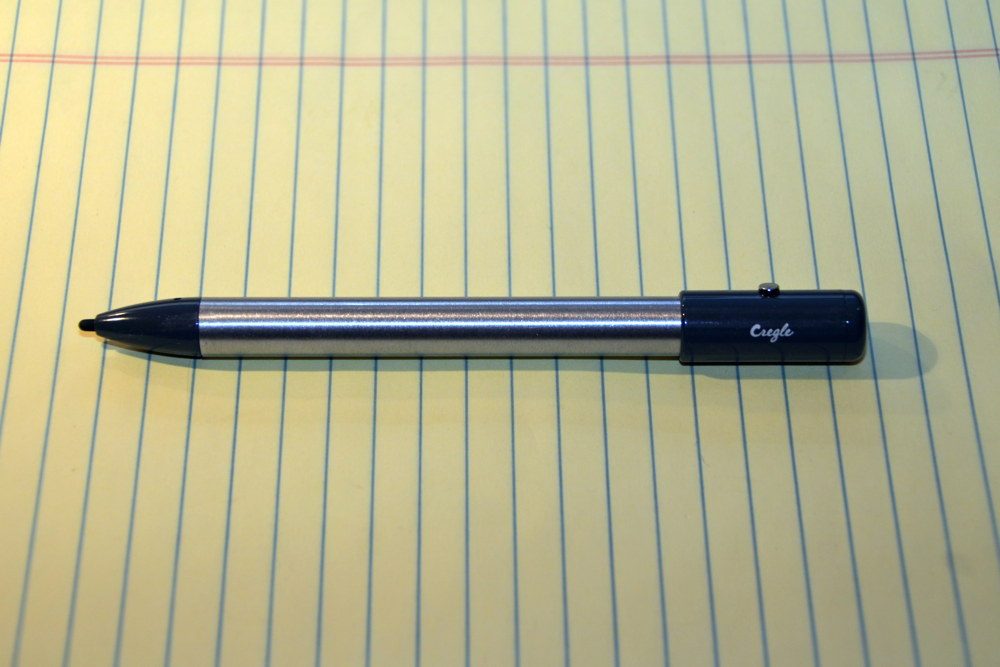
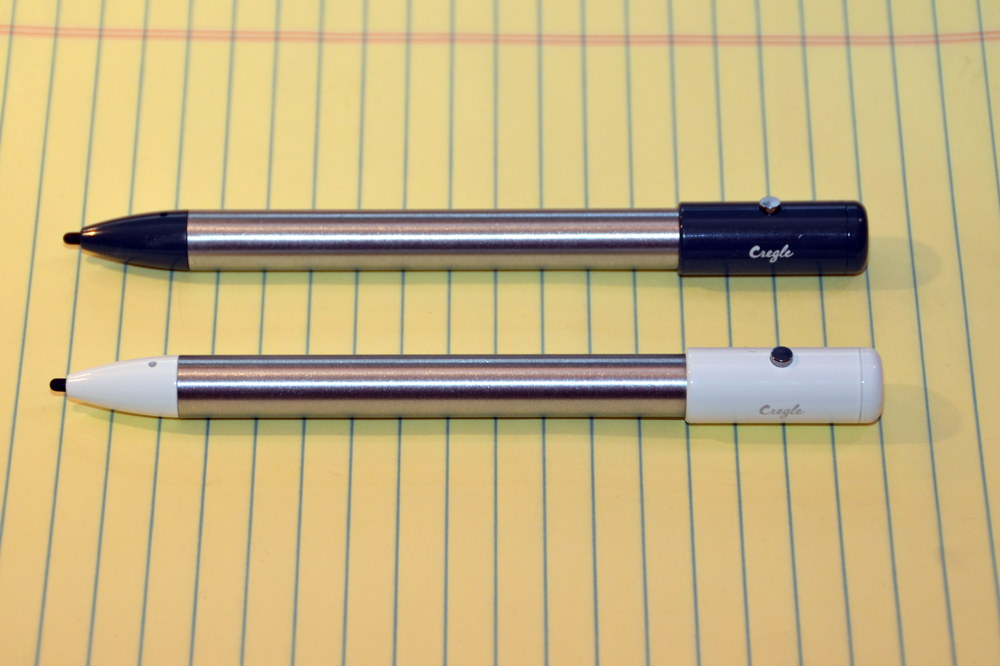
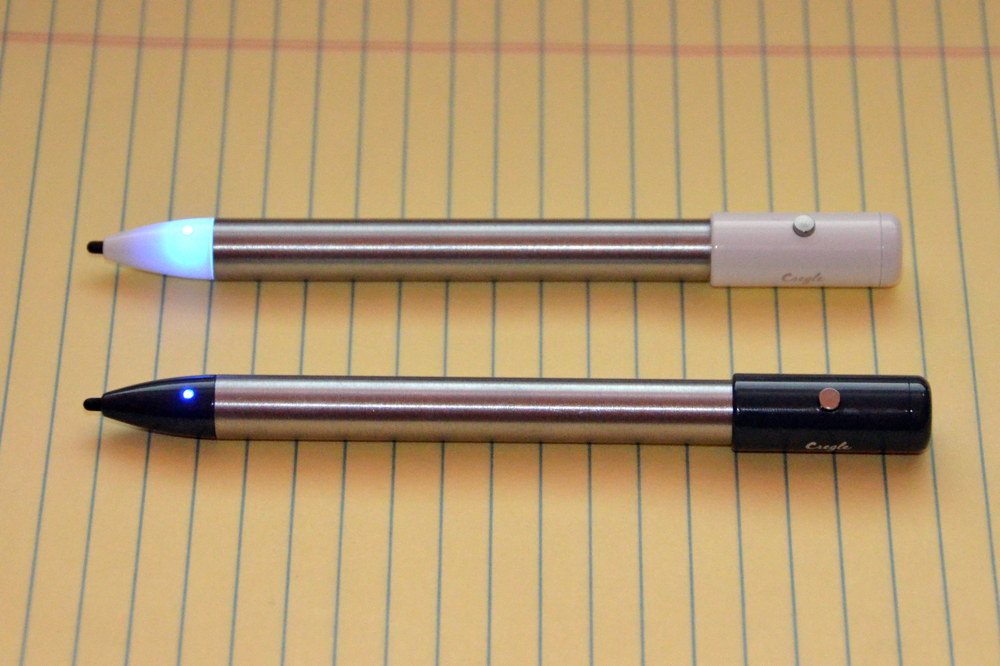
I’ve reviewed lots of iPad styluses on iPhone J.D., and with this review of Lynktec’s Rechargeable Apex Fine Point Active Stylus, I feel like I have finished looking at the current state-of-the-art in iPad styluses.  To recap, there are countless companies that sell standard styluses with a rubberized tip that is about the same size as a finger tip.  My long-time favorite of that type of stylus is the Wacom Bamboo Stylus duo, which you can get on Amazon for about $25, although there are many other good options.  Last year, Adonit shook up the stylus scene when it introduced the Adonit Jot Script with a tip as small as a ballpoint pen.  When turned on, the stylus emits a signal that the iPad can sense, so you feel like you are using a fine point pen but the iPad senses something bigger.  It costs about $75 on Amazon, so the price is much higher than a standard stylus, and it requires batteries.  We then saw other companies come out with their versions of active styluses, and one excellent one that I recently reviewed is the Cregle Ink, which also uses batteries but costs less, about $50, and lacks the Bluetooth that the Adonit Jot Script uses to let compatible apps perform additional features, such as ignoring your hand when it touches the screen and only drawing when the stylus touches the screen.  I can see why some would love the Bluetooth features, but I find them largely unnecessary and a little bit of a hassle.  More importantly, I prefer the Cregle Ink over the Adonit Jot Script because the Jot Script has a hard tip that feels nice on the iPad screen but is noisy every time you touch the screen, while the Cregle Ink is silent to use.  I also don’t like the absence of a clip on the Adonit Jot Script.

That brings me to today’s review of Lynktec’s Rechargeable Apex Fine Point Active Stylus.  It costs about $70 on Amazon, and like the Cregle Ink, it is a powered stylus that lacks Bluetooth and has a tiny rubber tip that doesn’t make noise when you use it.  The key distinguishing feature of the Rechargeable Apex is evident in its name:  it is rechargeable.  Thus, you don’t need to worry about buying batteries.  Lyntec sent me a free Rechargeable Apex so that I could review it, and I’ve been trying it out for the last few weeks.  I like it a lot, and it quickly became my favorite iPad stylus.

Fine tip

Like the other active stylus such as the Adonit Jot Script and the Cregle Ink, the best feature of the Rechargeable Apex Fine Point Active Stylus is the small tip.  When you are taking notes or drawing on an iPad screen, it is much better to use a stylus with a fine tip that is about the same size as the line that you are drawing, and you notice a big difference when using any active stylus versus a traditional stylus.  Unlike a standard stylus that has a 6 mm tip, or the Wacom Bamboo Stylus duo which has a smaller 5 mm tip, the Apex has only a 2.3 tip.  That is just slightly smaller than the Cregle Ink (which has a 2.4 mm tip) and is slightly larger than the Jot Script (which as a 1.9 mm tip) but frankly all three of those tips feel the same when it comes to size, and all three of them work considerably better than a stylus with a 5 mm or 6 mm tip.

In this picture, the Jot Script is top left, the Rechargeable Apex is top right, the Cregle Ink is bottom left, and the Wacom Bamboo Stylus duo is bottom right:

One of the big advantages of the Rechargeable Apex (and the Cregle Ink) over the Jot Script is that the Jot Script can be noisy when using it because of its hard tip.  (Check out the video in my review.)  The Apex stylus makes essentially no noise when you use it. 

The rubber polymer tip on the Apex feels great against the iPad screen.  The stylus comes installed with a firm tip (nib) that is extra durable, and there is a spare located within the cap on the back of the pen for if/when the original one wears out. 

The company sells two types of replacement nibs.  You can get a 5-pack of firm nibs (the kind included with the stylus) for $4.99, or you can get a 3-pack of soft nibs for $2.99.  After going back and forth, I think that I prefer the soft nib, which seems to me to glide a little more easily on the screen, but honestly both of them work really well and both of them feel great.  Lynktec says that the soft nib is better if you use a screen protector on your iPad (I don’t).

Rechargeable

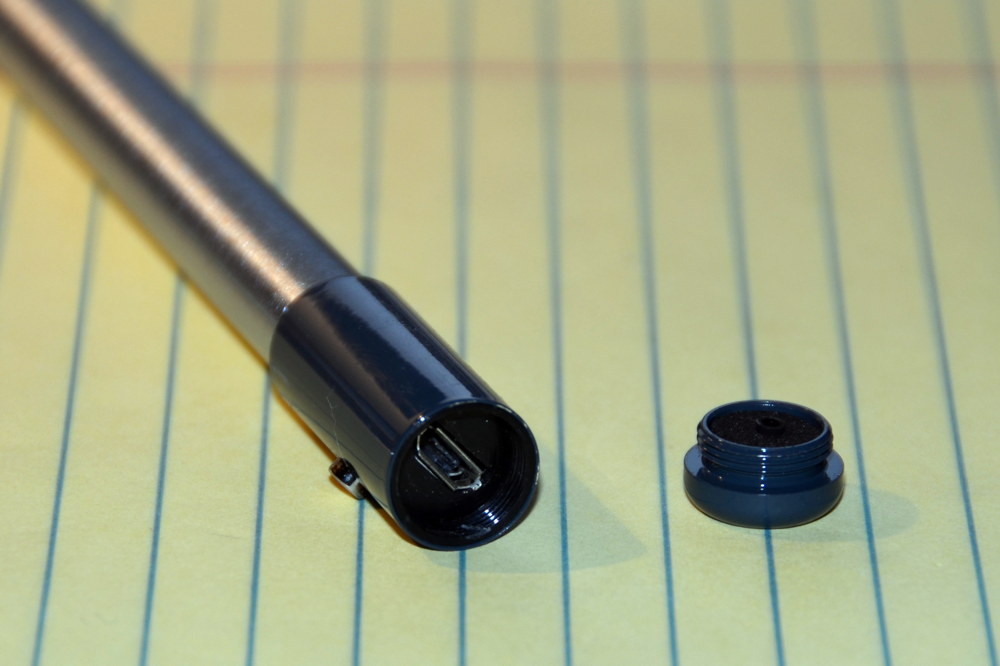
The key distinguishing feature of the Rechargeable Apex Fine Point Active Stylus is that it is rechargeable.  To charge the stylus, you unscrew the cap on the back of the stylus and then plug in the included Micro-USB cord to the stylus and plug the USB end of the cord into a power adapter (or the USB port on a computer).


In my tests, the stylus went from completely drained of power to fully charged in about an hour.

The Lynktec website doesn’t say how long the stylus lasts on a charge, but a Lynktec marketing manager told me that a fully charged battery should last about 16 hours.  In my tests, I went about a week between charges, but I honestly don’t know if I used it for more or less than 16 hours during each of those weeks.  If you haven’t used the stylus in 30 minutes, it turns itself off to save power.  I did have one time when I was in the middle of taking notes and suddenly the stylus stopped working because the battery was drained, and that was annoying because the stylus cannot work without power.  I didn’t have another stylus with me, so I had to use my finger to take notes during the rest of the meeting.  A light on the clip is supposed to change color when the battery is running low, and perhaps it did, but I must admit that I didn’t notice it.

The Rechargeable Apex uses a Micro-USB cord for charging.  Technically that is a standard connector and you may have other Micro-USB cords already.  Note, however, that the Micro-USB plug on the stylus is somewhat far inside of the back of the stylus.  The included Micro-USB cord has a small enough plug that it works fine, but I noticed that some of my other Micro-USB cords were too large and could not be used to charge the Apex.  For example, I typically carry in my briefcase a dual Micro- and Mini-USB cord (like this one) with the goal of only carrying around one cord for all of my Micro- and Mini-usb devices, but that cord does not fit in the back of the Rechargeable Apex stylus.

Other nice features

You need to turn on an active stylus, and it is very easy to turn on the Apex because there is an easy-to-press button on the side of the clip.  One of my complaints about the button on the Adonit Jot Script is that it is tiny, flush to the side of the pen, and hard to find.  To turn on the Cregle Ink you need to twist the pen, which is a little awkward.  I far prefer the on/off button on the Apex.

The Apex also has a clip on its side, which makes it easy to carry the stylus in a shirt pocket or a pocket in your purse or briefcase.  The lack of a clip is another thing I don’t like about the Adonit Jot Script — not only because you cannot attach it to a pocket, but also because the stylus tends to roll around, and off of, a table.  You don’t have to worry about that with the Rechargeable Apex.

The front of the Apex has ridges that make it comfortable to grip without the pen slipping out of your hand.  The Adonit Jot Script has a similar feature that makes it easy to hold.  The Cregle Ink does not, which causes the Cregle Ink to slip a little in your hand when you use it.

Finally, the Rechargeable Apex is a longer stylus, about 5.9" long.  The Jot Script is about 5.7" long, the Cregle Ink is about 5.5" long, and the Wacom Bamboo Stylus duo is about 5.2" long.  I like the extra length of the Apex; it feels more like a normal pen and feels better in your hand.  Having said that, all of these active styluses are (unfortunately) thicker than a normal pen, unlike the Wacom Bamboo Stylus duo which has a circumference much more like a regular pen.  With any of these active styluses, you feel more like you are holding a Sharpie.

In this picture, the Adonit Jot Script is at top, then the Cregle Ink, then the Rechargeable Apex, then the Wacom Bamboo Stylus duo at bottom:

Conclusion

Do you prefer an active stylus that uses batteries, which you can replace if the power runs out, but which you have to buy and carry around?  Or do you prefer an active stylus that has a cord and is recharged whenever you plug it in?  I can see arguments on both sides, but after using both types of styluses, I prefer using a rechargeable stylus.  Having to buy replacement batteries is a pain — especially the harder-to-find AAAA batteries used by the Cregle Ink — and I did not consider it to be much of a hassle to plug in the Rechargeable Apex for an hour every once in a while.

If you do like the idea of a rechargeable stylus, The Rechargeable Apex Fine Point Active Stylus is excellent.  The small tip works incredibly well, and shows of why active styluses are so much nicer when you are writing or drawing on an iPad screen.  Also, Lynktec clearly put a lot of time and effort into designing a great stylus.  Indeed, the webpage for the Rechargeable Apex stylus lists a number of complaints that customers reported with Lynktec’s non-rechargeable Apex stylus (which is similar to the Cregle Ink) and explains how they have been addressed in the Rechargeable Apex.  This is now my favorite stylus for the iPad, and if you are in the market for an active stylus with a fine tip, you’ll definitely want to consider the Rechargeable Apex Fine Point Active Stylus

Click here to get Lynktec’s Rechargeable Apex Fine Point Active Stylus from Amazon ($69.99).

[UPDATE 8/20/15Click here for the new version of this stylus that costs $59.99 on Amazon.]

Delta Glass Bottom Jet — see beneath your plane using the Fly Delta App for iPad

In early 2013, Delta introduced its Fly Delta App for iPad.  The app lets you book trips, get information on destinations, and get flight information during trips.  One feature of the app that I had not tried until recently is called the Glass Bottom Jet.  While you are in flight, this part of the app gives you a sense of what you are flying over at that very moment.  It’s an interesting feature.

To take advantage of the iPad app during a flight, you need to be using an airplane equipped with in-flight Wi-Fi.  Once you are over 10,000 feet, you can connect to the Gogo internet service.  If you don’t pay for service, you are limited to accessing the Delta website in Safari or using the basic features of the Fly Delta App, but even that can be pretty useful.  You can see information on your current flight such as the estimated time of arrival and the gate where you will be landing.  (Which if helpful if you want to use the GateGuru app, which doesn’t require internet access, to get information on restaurants and other services close to the gate where you are landing and the gate where your next flight takes off.)  The Fly Delta app can also give you an graphical overview of your current flight.

At the very top right of the screen, there is a toggle to turn on the Glass Bottom Jet feature.  If you are not paying for the Gogo in-flight Wi-Fi service, then you won’t be able to use the feature, and instead the app offers to show you a video describing the feature.

But if you have paid for Internet access, then the Glass Bottom Jet feature shows you your plane superimposed on a map.  On the map you will see pushpins with the Wikipedia W icon and pushpins with a camera icon.

If you tap a camera icon, you will see a preview of a picture taken at that exact longitude and latitude that was uploaded by a user to the Panoramio service.  Tap the picture to see it full-screen.  So in this way, the app let’s you virtually see what you are flying over right now.

Some pictures are stunning.  Others are more mundane.  But it is neat to be able to “see” what you are flying over.  And you don’t have to worry about the pilot announcing that all of the cool stuff is on the right side of the plane when you are seated on the left side.

If you tap a Wikipedia pushpin, you get a link to the Wikipedia entry describing what you are flying over.

I’m not sure that it is worth paying for Gogo Internet access just to use the Glass Bottom Jet feature.  Having said that, if you happen to be paying for the Internet anyway to catch up on your emails during the flight, this is a neat feature to entertain and perhaps even educate you for a few minutes while you are in the air.

Click here to get the Fly Delta App for iPad (free):  Disney Mobile Magic - Disney

In the news

I’ve enjoyed reading about the reactions to Apple’s WWDC announcements earlier this week.  Sure, there were lots of great individual announcements of new features that I’m going to love in iOS 8.  But most of all, I love that Apple has set the stage to open up iOS and let developers do some really neat things with the iPhone and iPad that were never before possible, such as letting apps work within other apps and the sharing of files between apps.  I completely agree with Jason Snell of Macworld (and I’m not alone) who said:  “The ways Apple is opening up app access to iOS in particular will change the experience for users more than any single OS feature. And it will happen in unexpected ways, because those developers are very, very clever, and tend to think of approaches that nobody — not even the people at Apple who enable them — has anticipated.”  We won’t see these advances overnight, but over the next year or two, the usefulness and magic of the iPhone and iPad is going to vastly increase.  How awesome is that.  And now, the news of note from the past week:

  • New York attorney Nicole Black notes in an article for The Daily Record that three more state ethics advisory authorities have weighed in on cloud computing.
  • North Carolina attorney Brian Focht recommends new apps for lawyers on his site, The Cyber Advocate.
  • Mark Gerlach of Law Technology News discusses the latest update to ABBYY Business Card Reader Pro.  I reviewed an earlier version of the app in early 2012
  • Macworld put together an excellent FAQ on all of the highlights of iOS 8.
  • One of the cool new features of upcoming iOS 8 is that it makes it easier to find an iPhone or iPad via the Find My iPhone feature.  Currently, if you try to use it but the device is turned off because the battery is died, the location service does not work.  In iOS 8, you can turn on an option that your device automatically submit it location when the battery drains to a critical level so that when you use the Find My iPhone service, you will see the last known location of the device.  AppleInsider provides this explanation of the feature.
  • Joshua Topolsky of The Verge believes that this year’s WWDC keynote reflects a new, better Apple.
  • Horace Dediu of Aymco tweets that Apple will cross the 1 billion iOS devices sold mark at some point this year.
  • Nick Guy of iLounge reviews Just Mobile’s AluCable Flat, a flat USB/Lightning cable that is supposed to resist getting tangled.
  • And finally, just in case you didn’t think that your iPhone was useful enough, you can now get the IN1 Multi Tool Utility Case for iPhone 5 and 5S, a case which adds to your iPhone (1) blue pen, (2) red pen, (3) Phillips screwdriver, (4) flat screwdriver, (5) kickstand, (6) nail file, (7) tweezers, (8) scissors and (9) toothpick  And somewhat surprisingly, the company says that it is TSA complaint.  It is available on Amazon for only $44.99.  The video has more info:

Why lawyers will love iOS 8

IOS8The iPhone and iPad are amazing tools for lawyers because they are relatively easy to use, but are also incredibly powerful.  But as lawyers (and others) start to master the basics of iOS, they often start to want more powerful features.  Every year, Apple adds more advanced features to iOS, and now it is hard to imagine that there was a time when we didn't have third party apps, copy and paste, or even Siri.  But based on the announcements made by Apple yesterday, when iOS 8 comes out this Fall, Apple will make huge advancements to the operating system, with lots of advanced features for power users and lots of ways to make iPhones and iPads more powerful for everyone.  Apple announced a huge number of new features yesterday and I won't even try to mention all of them today — not only because there are so many of them, but also because many of the features have so much potential that it is going to take a while for their importance to really sink in.  Moreover, Apple only gave us a taste of the highlights of iOS 8, and I'm sure that when it is actually released in a few months there will be even more surprises.  For all of those reasons, today's post provides only a few of the reasons that I am confident that lawyers are going to love iOS 8.

Mail

For many lawyers, Mail is the app that you use the most on your iPhone and iPad.  Mail will see some great improvements in iOS 8.  First, you know how you start to compose a an email message and then realize that you need to check something in another message to add to your email?  Currently, your only option is to cancel out of the current email (although you can save a draft).  But in iOS 8, you can simply swipe down to move the current draft of your email to the very bottom of the screen, then use the Mail app to find whatever you were looking for, then bring that draft right back up again to work on it more.  What a great and useful feature.

It will also be faster to work with messages.  With a simple swipe you can mark an email as read or unread, or add a flag so that you remember to go back to it later.  If Mail sees that a message contains a reservation, a flight confirmation, etc., a notification appears at the top where you can simply tap to add it to your calendar.  Or tap on a phone number to add it to a contact. 

It will also be easier and faster to type in Mail — and in all other apps.  The new iOS 8 keyboard predicts the words that you are likely to type next and displays them at the top of the keyboard so that you can tap a word to enter it.  Instead of typing a letter at a time, you may be able to type a word at a time.  Apple even customizes the suggested words based on the context, such as what you are talking about or who you are writing to — a co-worker versus your spouse, etc.  At this point I don't know how Apple is pulling this off and how it will work in practice, but clearly this is very sophisticated technology behind the new predictive text feature.  And not only is the Apple keyboard much more powerful, but Apple will also let you select different types of keyboards including keyboards offered by third parties, such as the Swype keyboard that lets you drag your finger across the screen instead of lifting up after pressing every key.

All of these little features will let you do more, more quickly, with Mail.

Working with files

Currently in iOS, each app has its own files.  You can store a bunch of files in an app like GoodReader, but no other app can see those files.  To share, you need to use the Open In feature, one file at a time, and then a second copy of the file is created in a different app, which can lead to confusion over which is the latest draft.  iOS 8 lets multiple apps work on the same file, much like you can a computer.  You can edit a Word file in one app and those changes will be there when you open the Word file in another app.

Apple is also integrating access to cloud services and file servers.  Apple itself is adding something called iCloud Drive to store your files, but it appears that you can also use third party services such as Box, Microsoft's OneDrive, your company's file server, etc.  Note that I didn't mention Dropbox because neither did Apple yesterday, but I'm sure that Dropbox will also be supported.

Moreover, using iCloud Drive, you can access the same file from your iPhone or your iPad or your Mac or even your PC (although it may Windows 8, which I doubt many lawyers are using yet).  When you edit a file on any one device, the new version appears on all of your devices.  This sounds a lot like Dropbox, and that's probably the reason that Apple didn't mention Dropbox yesterday:  Apple's iCloud Drive will be real competitor to Dropbox.  Over the coming months I really look forward to seeing how iCloud Drive compares to Dropbox in terms of security, usability, price, etc.

Continuity

iOS 8 will make it incredibly easy to handoff from one device to another.  You can start writing an email with your iPhone, then with a simple tap can continue writing the email on your iPad.  Or start working on a document on your iPad and then pick it up on your iPhone.  Mac users are going to really love this feature because it also works with Macs.  Start working on a message on your iPhone, and then hand it off to your Mac to finish off the message.  (Just what I needed; yet another reason to wish that I was using a Mac in my office.)

You can even use a Mac or an iPad to make a call, as long as your iPhone is in the same room.

Less intrusive notifications

How often are you doing one thing on your iPhone or iPad when you see an alert that you have a new email or text message?  It happens to me all the time, and if I want to respond to that email or text, I have to switch over to the Mail or Messages app to do so, and then switch back.  In iOS 8, notifications are interactive, so you can take action on emails, texts, calendar invitations, reminders, and certain messages from other apps (like a Facebook invite) right from the notification banner.  So if you see a text, you can respond to it right there on the same screen without having to go to the Messages app.  When you see an email, you can mark it as read or delete it right then and there — much like you can do on a PC when Outlook gives you that pop-up notification that you have a new email. 

By the way, when you do use the Messages app to send and receive text messages, you are no longer limited to text.  You can simply tap a microphone and speak and the other person receives a voice message in their Messages app.  And of course they can send voice messages to you, too.  By going back and forth with voice messages, the Messages app becomes almost like a Walkie Talkie, except that the other person doesn't have to listen to your voice until they are ready to do so, so it is a less intrusive Walkie Talkie.  This also works with video messages.

The end result is that you can deal with messages, emails and other notifications more quickly, more easily, and with minimal interruption.

Security

Security is so important to lawyers that I have to mention that iOS is even more secure.  Apple says:  "The enterprise-grade security technologies built into iOS are even more powerful in iOS 8. We’ve expanded data protection to more apps and enabled finer control over mail encryption."  I need to dig deeper to find out everything that is changed, but more security is always good.

Siri

Siri is going to be a heck of a lot more powerful in iOS 8.  When your iPhone is plugged in, such as in your car, you no longer have to press a button to activate Siri.  Instead, just say "Hey Siri" and Siri will listen and do what you say.  Some Android users have had a similar feature with technology called Google Now, and I look forward to trying it out on the iPhone.

Siri will also understand what you are saying while you are talking, which should mean that Siri responds even more quickly.  Siri also includes Shazam support so you can use Siri to identify a song that you are hearing on your TV, radio, etc.  Siri can also be used to purchase iTunes content.

Extensions

Many apps will be more powerful in iOS 8 because they can add extensions from other apps.  For example, I hope that means that 1Password support can be added to within the Safari browser.  Apple showed off Apple's Photos app taking advantage of filters offered by other apps, all from within the Photos app.  Allowing apps to talk to each other in this direct way has the potential to pave the way for huge improvements, and I cannot wait to see what developers do with this new feature.

And so much more

I cannot say this enough … there are just so many new features in iOS 8.  It will be easier to share apps, songs, etc. among your family members.  HealthKit will add a single place for all of your health-related data.  HomeKit adds a single place to control all of your different home automation devices that you buy from different manufacturers.  Technology Apple calls Metal will allow developers to create apps that are 10x faster.  There is a new In Case of Emergency card.  There are improvements to the Maps, Photos and Camera apps.  You can get information on which apps are draining your battery the most.  Touch ID (the fingerprint reader) will be supported by many apps.  And I could go on more, but you get the point.

iOS 8 is going to be one of the biggest iOS updates ever released by Apple, not only because of what it directly does, but also because of what it lets developers do with their apps.  Advanced iPhone and iPad users will be particularly delighted by the huge number of power-user features.

And finally, with all of these improvements to iPhone and iPad software, I can't wait to find out later this year what Apple has planned for the next generation of iPhone and iPad hardware.

WWDC keynote is today

Today is the start of WWDC, Apple’s developer conference.  At 10 am Pacific / 1 pm Eastern today, Apple CEO Tim Cook and other Apple executives will give the keynote address, an event Apple typically uses to preview new iPhone, iPad and Mac software.  I’m sure that we will see a preview of iOS 8, which will likely be released later this year when the 2014 model of the iPhone is released.  We will probably also hear more about Apple’s $3 billion acquisition of Beats last week, and perhaps we will even hear from Beats executives Jimmy Iovine and Dr. Dre.  And perhaps there will be other surprises.

One sign that Apple thinks that this will be an interesting keynote is that Apple is offering a live stream, something that they do not always provide.  It appears that you need to watch it using Safari on an iPhone, iPad or a Mac, or using an Apple TV.  I believe that this is the link to watch the event

If you are curious about the rumors and speculation on what Apple will announce at the keynote and cannot wait until 10 am Pacific, Mark Gurman of 9to5Mac offers a great roundup of WWDC keynote rumors.  John Gruber also wrote a good preview.

On Tuesday, I’ll offer my thoughts on what the WWDC keynote announcements mean for attorneys who use an iPhone or iPad.

In the news

Next week (June 2 – 6) is Apple’s annual Worldwide Developer Conference (WWDC) in San Francisco.  This is the premier events for folks who develop Mac, iPhone and iPad software, and it is so hard to get a ticket that this year Apple instituted a lottery for tickets.  The keynote address is at 10am Pacific time on Monday, June 2, and will be streamed live (but you need a Mac, iPhone, iPad or Apple TV to watch).  Apple typically uses this event to preview new software, and sometimes to announce new hardware.  Last year at WWDC, Apple previewed iOS 7, and two years ago, Apple previewed iOS 6.  I suspect that apple will preview iOS 8 on Monday, and even though the new operating system probably won’t be available until September or October, it will be interesting to learn some of the new features that are coming later this year.  And if you believe the rumors, Apple may have some other interesting announcements next week too.  We’ll see.  But enough looking ahead, here are the news items of note from the past week.

  • Sam Glover of Lawyerist.com links to an article on The Legal Skills Prof Blog that links to a studies collected by Education Week that show that people tend to skim text when they read it on a screen instead of paper.  As Glover notes, considering the increasing number of judges who reads briefs on an iPad, this is something for legal writers to keep in mind.  I think that it underscores the need to use an introductory paragraph that quickly gives the gist of your entire argument so that the judge doesn’t miss it in the brief.
  • Another interesting article in the Legal Skills Prof Blog describes the commencement speech that Apple’s General Counsel, Bruce Sewell, gave at his alma mater George Washington University Law School.  I wrote about Sewell when he took the job at Apple back in 2009.
  • This week, Apple announced that it is buying Beats, which manufactures premium headphones and has a streaming music service.  Apple is paying $3 billion, making this by far the largest acquisition in Apple’s history in terms of dollars.  I’m sure we will learn more about the acquisition at WWDC on Monday.
  • Karen Haslam of Macworld UK wrote an a good article on Ken Segall, the man who was responsible for lots of Apple’s ads, but as Segall himself notes, will probably be best remembers as the man who come up with the name “iMac” (which of course led to the name for the iPhone and iPad).  Segall is also one of the guys behind the funny site Scoopertino, which I discussed back in 2010.
  • Speaking of Segall, he recently wrote a good post on his blog about the origins of the Apple Store.
  • Darrell Etherington of TechCrunch says that he reviews a lot of smartphones and explains why the iPhone is the best.
  • If you have ever given an iPad or iPhone to a kid, you know that they basically need no instruction and can figure it out in minutes … and give them a week or two and they probably know more than you do.  Ben Lovejoy of 9to5Mac posted a cute video in which today’s kids react to an Apple II.  Funny stuff.
  • And finally, here is a cute video created by Marty Cooper, an animator who has worked at Blue Sky, ReelFX, and Rovio.  He has an interesting technique where he draws on a transparency and then holds that up in front of objects in the real world and then takes a picture with his iPhone.  By changing the drawings on the transparency and combining all of the pictures taken with his iPhone, much like a stop motion film, Cooper creates animations.  He posts many of these animations to his account on Instagram, and he recently combined some of his best animations into a short movie that he calls Aug(De)Mented Reality.  In this interview of Cooper on the House/Fire blog, Cooper explains his process and shows off how he does it in some pictures.  Here is the Aug(De)Mented Reality video, which is great fun: