Review: iSound Portable Power Max Backup Battery from RichardSolo — high capacity portable battery for iPad and iPhone

Considering how powerful the iPhone and iPad are, their power management is particularly impressive.  I can typically use either device all day long without any concern about running out of power.  There have been times, however, when I have been out of my office and I have made extensive use of either device, so much so that I am running low as I near the end of the day.  This is not a problem when I am close to an outlet because I can simply plug in the devices, but sometimes that is not an option such as if am at a meeting or CLE out of the office with no easy access to an outlet, or if I am traveling.  (Airports are getting better about providing power outlets for travelers, but it is not always easy to get a seat close to one.)  I used to use small external batteries such as the RichardSolo 1800 to charge my iPhone, but those devices don’t provide enough power to charge an iPad while you are using the iPad, and the 30-pin connector doesn’t work with the new iPhone 5.  RichardSolo sent me a free review unit of the iSound Portable Power Max 16,000 mAh Backup Battery, and I’ve been using it for the last few weeks.  As the name suggests, it contains a huge, 16,000 mAh battery and it outputs 2.5 Amps so it has no trouble providing power to a third generation iPad or an iPhone 5, or any of the earlier iPads or iPhones.

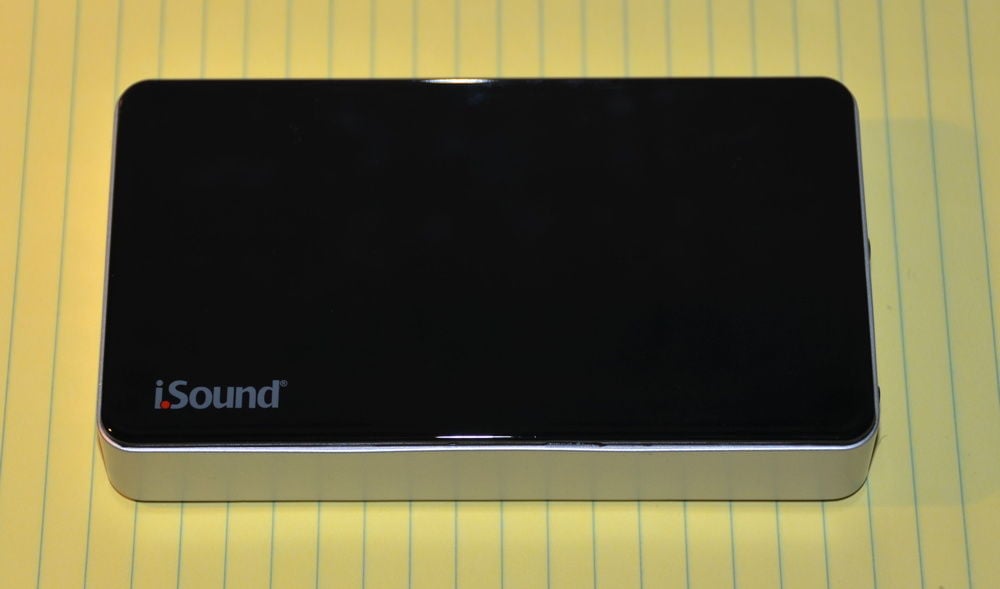
The device itself black on the top and bottom and silver around the edges.  It is 5.75" long, 3.25" wide and one inch high.  It weighs 14.6 oz., which is one of the few negatives of the device.  That’s about two-thirds the weight of a third generation iPad, and is over four times the weight of iPhone 5.  You’re not going to want to carry something this heavy in your pants or shirt pocket, but it will be fine to put it in a briefcase or purse.
The device comes with a simple travel bag to protect it from getting scratched up.

One edge of the device has an on-off switch next to a series of lights.  The first light is green when the device is on. 
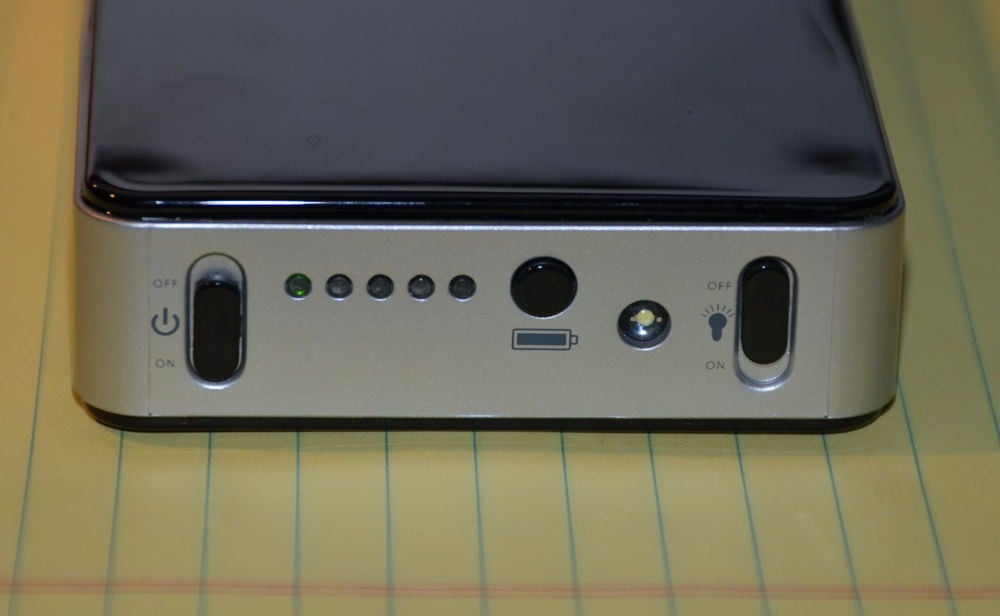
The next four lights are next to a button with a battery icon below it.  If you press that button, those four lights will come on depending upon how much power the device has remaining (one light means 25%, two lights mean 50%, etc.).
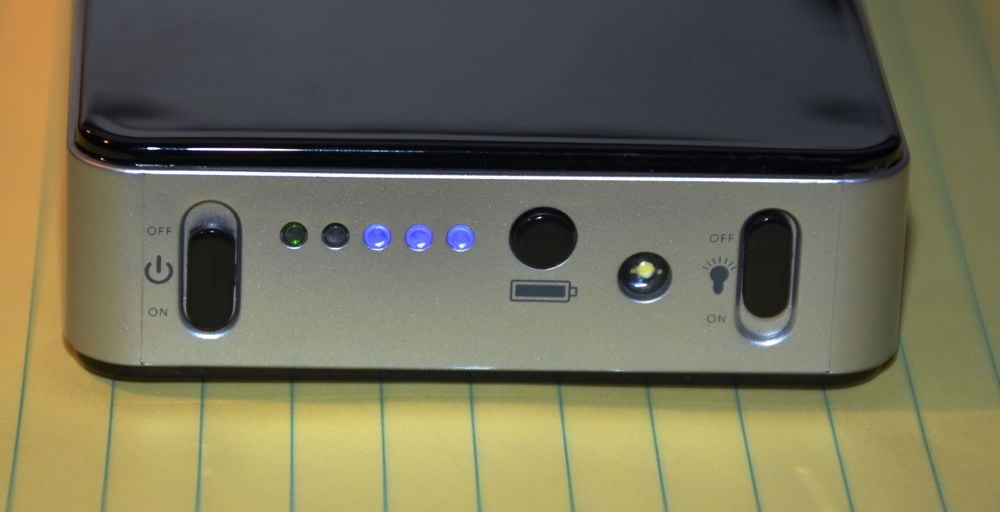
Finally, there is a LED light and a switch to turn it on as a flashlight.  RichardSolo has always loved to sell iPhone batteries that include some sort of flashlight, and I’ve never understood why, nor have I ever found a reason to use such a light.  But given the size of the battery, I suspect that this light could stay on for a VERY VERY LONG time, so if you have a need for a light with a ton of battery power, with this device you have it.

The other edge of the iSound Portable Power Max Backup Battery has five USB ports:

Whether you can actually use all five USB ports at one time depends upon what you are charging.  The device will output 2.5 Amps, so your devices cannot total more than that.  My understanding is that an iPhone (including an iPhone 5) will draw 1 Amp from this device, so you could charge two iPhones at one time.  On the other hand, an iPad will draw 2 Amps, so you cannot cannot charge an iPad and an iPhone at the same time.  (If you try to do so, the lights will flash on and off to alert you to the error.)  But if you have an iPod, that only draws .5 Amps so you could charge an iPad and an iPod at the same time, or you could charge up to five iPods at the same time.  It is a shame that the device cannot charge both the iPad and the iPhone at the same time as that would be quite useful.

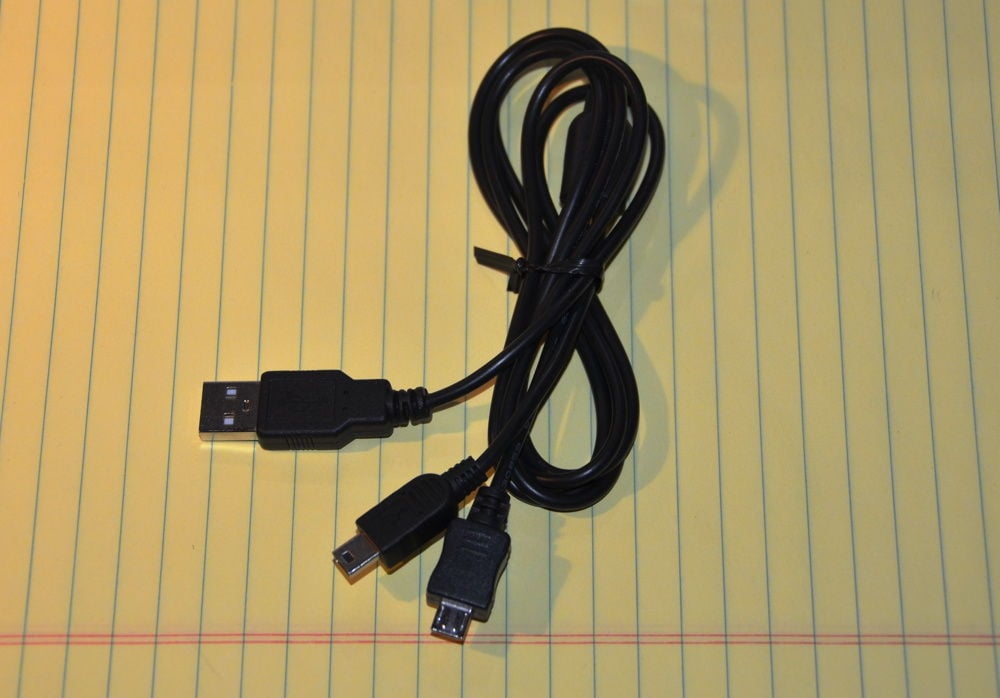
You can also use this device to charge items that have a micro USB or a mini USB connection.  Included with the device is a cord that has a standard USB plug at one end and both micro and mini USB plugs at the other end.  I’ve seen external keyboards, external speakers, Bluetooth headsets, and many other iPhone/iPad accessories that are charged via micro or mini USB.  Thus, you may be able to use the iSound Portable Power Max Backup
Battery to charge not only your iPhone or iPad, but also one or more of
your accessories at the same time.
The 16,000 mAh battery is a lot of power.  The RichardSolo website says that is enough to provide an 83% charge to a fully-drained third generation iPad, in a period of 5 hours.  I got even better results than that.  I connected my third generation iPad to the iSound Portable Power Max Backup Battery when the iPad was down to only 2% battery power left.  In about 90 minutes the iPad was back up to 25%.  After two and a half hours, the iPad was at 40%.  I allowed it to continue to charge overnight, and when I woke up, my iPad was at 100% power and the Portable Power Max still had a little bit of a charge remaining.

In another test, I plugged in two iPhones at night:  an iPhone 4S that was completely drained, and an iPhone 5 that was at 10%.  The next morning, the two iPhones were completely charged and the Power Max still had about half of its charge left.

In another test, I connected a fully drained iPhone 5.  In an hour it had 65% power, In 90 minutes it had 90% power, and it was fully charged in two hours.  And after fully charging that iPhone 5 from 0% to 100%, the device displayed three blue lights, so around 75% of its battery remained. 

I cannot tell you how much I wish I had this device when Hurricane Isaac hit New Orleans six weeks ago.  My house was without power for four days, and I depended heavily on my iPhone to keep up with critical news, but I had to use every trick in the book to stretch out my iPhone’s power.  At the time, I would have paid top dollar for a device like this with such a large battery.  Hopefully losing power for days on end is not going to be a common occurrence for me or any other iPhone J.D. readers, but a device like this is an incredibly useful component of any emergency preparation kit.  And if you go camping or engage in other activities where you are away from power sources for more than a day, this device would be very handy.

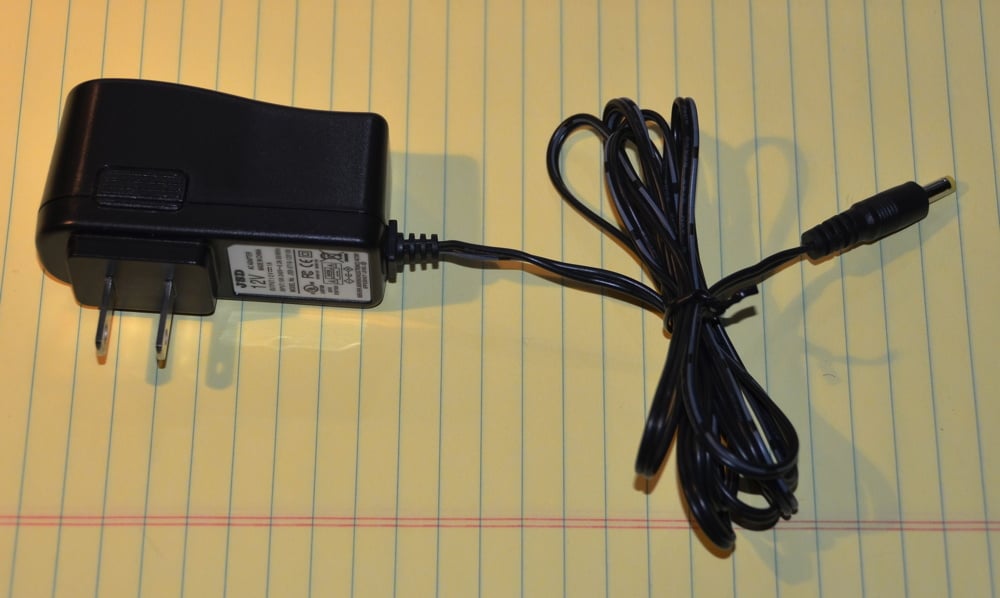
To charge the device itself, it comes with an AC adapter.  If the battery is depleted, it takes 7 to 9 hours to charge the device.  Note, however, that you can charge an iPad, iPhone, iPod, etc. that is plugged in to the device while the device itself is receiving a charge from an outlet.  This is helpful because it means that at night you can charge one or more devices plus the battery itself at the same time.  I mention this because there are other external batteries on the market that lack this feature.
The retail price of the iSound Portable Power Max Backup Battery is $129.99, so that is what you will pay if you order from the manufacturer, iSound.  However, RichardSolo sells the device for only $79.95.  And if you order this device between now and October 31, 2012, RichardSolo was nice enough to provide a discount for iPhone J.D. readers.  When you checkout, use coupon code “jeff” to get a 15% discount on this item, which brings it down to $67.96 — almost half of the MSRP.

I wish that this device could somehow be even lighter, and it would be nice if you could use it to charge an iPad and an iPhone at the same time, but those are really the only complaints that I have and they are minor complaints.  If you want a portable device that can recharge multiple iPhones multiple times or recharge an iPad, the iSound Portable Power Max Backup Battery is an excellent solution.  This is a great device to have with you when you travel out of town or when you are out of the office all day long and plan to get a lot of use out of your iPhone and/or iPad, and as a side benefit it is a great addition to any emergency preparation and camping kit.  The price from RichardSolo is fantastic, and I’ve long been a fan of that company, which was started by Richard Thalheimer, the founder of The Sharper Image.  Indeed, a RichardSolo battery for the iPhone 3G was the very first third-party accessory that I reviewed on iPhone J.D., back in December of 2008 when this site was brand new.  It’s nice to see that almost four years later, RichardSolo is still selling useful accessories for the latest and greatest devices from Apple.

Click here to get the iSound Portable Power Max Backup Battery from RichardSolo ($79.95, plus save 15% with coupon code “jeff”).

In the news

I’m not an IP attorney, but it was fascinating to watch the reports from the recent Apple versus Samsung trial.  Why does Apple fight these battles (aside from the obvious fact that it won that last trial)?  Charles Duhigg and Steve Lohr of the New York Times try to provide some answers in an interesting article on Apple’s use of patents in litigation.  And now, the rest of the news of note from the past week:

  • San Francisco attorney Deanne Katz of FindLaw’s Technologist tells the story of ride-sharing apps that received cease-and-desist letters from the State of California on the grounds that they are taxis.
  • JuryStar is an iPad app that can be used to assist with jury selection.  To celebrate the one-year anniversary of the app, the developers (Nancy and Boyd Patterson) are giving away a “Litigation iPad Survival Kit” worth $1,800 to one lucky winner.  Click here for the details.
  • I see that Nancy Patterson also has a helpful list of 118 iPhone and iPad apps for litigators on her Litig8r Tech blog.
  • Evan Koblentz of Law Technology News reports on the new iPad app from Thomson Reuters called Global Business Law.
  • Daniel Eran Dilger of Apple Insider compares Apple’s iOS 6 Maps app with the alternatives, noting that there are some real advantages to Apple’s new maps, especially considering that Apple is just starting in this field.
  • Alan of Art of the iPhone explains the new VIP feature in Mail in iOS 6.
  • Kit Eaton of the New York Times recommends some good games for the iPhone 5.
  • There have been rumors and speculation of a Microsoft Office app for the iPad ever since there has been an iPad.  This week, someone with Microsoft’s Czech subsidiary stated that the app would be out in early 2013, but then a company spokesman from the main office stepped in to say:  “The information shared by our Czech subsidiary is not accurate. We do not have anything further to share at this time.”  So who knows.  Gregg Keizer of Computerworld has more details.
  • My office uses Microsoft Outlook so I don’t use Google Calendar, but if you do, you might want to check out Calendars from Readdle, which was upgraded to version 3.0 this week.  I haven’t tried the app myself, but Readdle has a good reputation for high-quality apps.
  • Nick Wingfield of the New York Times reports that an iPhone game developer in Finland called Supercell has two apps that are free to download but have in-app purchases, resulting in the company grossing over $500,000 every day.  Every day?  Apple gets 30% of all app profits, so that’s $350,000 a day for the company.
  • That made me think of about a story from Brad Stone, Adam Satariano, and Peter Burrows of Businessweek that I mentioned last week. That story about Tim Cook running Apple mentions that after Bob Mansfield, Apple’s Senior VP for Hardware Engineering, announced his retirement, Cook enticed him to stay on by offering Mansfield $2 million a month to be a consultant.  That sounds like a lot, but it translates to about $67,000 a day — only half of what Apple gets every day from just those two Supercell apps.  And there are over 750,000 apps in the App Store.
  • In related news, if anyone else feels like paying someone $2 million a month, my contact information is on this website.  I play both the piano and the ukulele, so you’ll get lots of entertainment for your investment.
  • And finally, the larger screen on the iPhone 5 is nice, but what if you want a REALLY big screen for your iPhone?  Then the fine folks at Oh Need have you covered with their $68 Mini Cinema for iPhone 4/4S.  It combines the high-tech iPhone with an old-school magnifying glass and gramophone horn.  No batteries required!  (via Cult of Mac)

Review: PDFpen for iPhone — sophisticated PDF editing tool

Earlier this year I reviewed PDFpen for iPad, and it remains one of my favorite tools for editing and annotating PDF files on the iPad because it has a great interface and is relatively easy to use, but it also packs in tons of sophisticated features.  About two weeks ago, Smile Software released PDFpen for iPhone.  The company sent me a free review copy of this $5 app to try out, and I’m very impressed.  Editing PDF files on the iPhone is obviously harder than on an iPad because of the smaller screen (although PDFpen for iPhone does take advantage of the larger screen on the iPhone 5), but if you are on the go and only have access to your iPhone, this app can be incredibly useful and includes (as far as I can tell) all of the features of the iPad app.

The main screen of the app shows your documents as thumbnail images, and you can sort by either date or name.  If you enable iCloud sync, then every document in your Documents folder is automatically synced with PDFpen on your iPad (and on your Mac if you use that software too, but I don’t so I wasn’t able to test that).  Since I already use PDFpen on my iPad, that meant that when I first started using PDFpen for iPhone, all of my documents were there waiting for me.  I can edit a document on the iPhone, and then a few seconds later the edited document is there on my iPad.  Very sleek.  Or if you want to create a new document, just tap the plus sign at the top left.  You have several choices, including creating a blank document or copying a file from popular cloud services.


Once you open up a document, you’ll see a toolbar at the top, or you can tap once in the middle of the screen to make the toolbar disappear so that you can use the entire screen to view the PDF file. 


All of the editing tools that I described for PDFpen for iPad are here.  Thus, you can draw on a document, add shapes, underline, etc.  Once again, highlighting is handled very well.  You can highlight a document even if it isn’t a “readable” document with text, and highlighted words are not painted over with a opaque yellow box like some other apps do, but instead the black text stays dark black even when highlighted after you press the “Done” button.


Swipe left or right to move between pages.  There are two ways to see other pages in the document.  First, you can tap the grid icon in the toolbar at the top, which gives you the option to see and edit multiple pages (such as delete a page, move pages around, rotate pages).  Second, if you swipe in from the left side of the screen, a bar pops up with thumbnail images of pages.  Just swipe up or down to find the page you want and then tap to jump straight there.


PDFpen for iPhone includes the powerful Library feature.  Just tap the library icon to add text boxes, comments, notes, shapes, photos from your Photo library, annotation marks, etc.  There is also a powerful custom library where you can add an object to easily use that object again in the future.  For example, in my PDFpen for iPad review I showed you that I made a custom exhibit sticker.  Although you cannot automatically sync the custom library between the iPhone and iPad (that would be a great feature to add in the future), it was easy for me to create a new document on the iPad and add the exhibit sticker, wait a second for that file to sync to the iPhone, then select the exhibit sticker and add it to my custom library on the iPhone.  Now I can easily paste an exhibit sticker on any document using my iPhone, and then using the text box function I can give the exhibit a number or letter.


This trick is also useful for storing your signature.  You can use the scribble tool to sign a document with PDFpen for iPhone, but the iPhone screen is so small that it is difficult to get a good signature unless you have a very short name.  But you can sign your name on a blank document in PDFpen for iPad on the large iPad screen, and then once that document syncs to the iPhone you can select the signature and add it to your custom library.  Now, if someone ever emails you a document and asks for your signature, just open up the file in PDFpen on your iPhone, add your signature, and then email the file back.

I mentioned above that you can create a new document by copying it from any of the popular cloud document services, such as Dropbox.  Additionally, PDFPen has the ability to sync with one of your Dropbox folders so that you always have instant access to your documents.  (This feature was added to PDFpen for iPad after I wrote my review earlier this year.)  After you choose a folder to sync, PDFpen for iPhone downloads and syncs in the future the names and dates of all files, but doesn’t actually download the documents themselves until you tap a document.  That helps to reduce sync times.  After you edit a document in a Dropbox folder, within just a few seconds the edited file is available in your Dropbox folder on all devices that sync with your Dropbox.  The only flaw I see with the implementation is that I don’t yet see a way to tell PDFpen for iPhone that you no longer want to sync a Dropbox folder.  I presume this will be fixed in the future.

There are a few features that I would love to see added to PDFpen for iPhone, such as the ability to search for text in a document, but I am amazed at all of the advanced features that this app does include.  It even includes the ability to edit the text in a PDF file, assuming that the file is readable.  So if you find a typo or other problem in a PDF file, you can fix it right on your iPhone without having to go back to Microsoft Word or whatever program created the document in the first place.

To see PDFpen for iPhone in action, click here to see a video created for Smile by California attorney David “MacSparky” Sparks.

If you just want to view a PDF file on your iPhone, there are lots of free options available.  My top recommendation is probably Apple’s own iBooks app iBooks - Apple, which is the fastest PDF viewer I’ve seen on the iPhone.  But if you want to go to the next level to annotate and edit PDF files on the iPhone, PDFpen for iPhone is a great option.  It is a beautifully designed app that is full of sophisticated features.  And if you already use PDFpen for iPad, then it is a no-brainer that you will want this app as well.

Click here to get PDFpen for iPhone ($4.99):  PDFpen for iPhone - SmileOnMyMac, LLC

Click here to get PDFpen for iPad ($9.99):  PDFpen - SmileOnMyMac, LLC

Review: MobileLaw — statutes and rules on your iPhone and iPad for free

MobileLaw is a new app for the iPad and iPhone that contains the text of more than 200 sets of statutes, rules and other legal authorities, and gives you access for the low, low price of free.  The app was developed by attorney Peyton Healey, a commercial litigator with the Dallas law firm Powers Taylor.  The app is nicely designed, and it was just updated this past weekend to support the iPhone, including the longer screen on the iPhone 5.

When you start the app, you will most likely want to tap one of the first two options, either State Texts or Federal Texts.  You will then see at the top, in bold, the sources of law that are already downloaded to your device.  Below, in gray, are the additional sources that you may download for no charge. 


To download more law, just tap on it.  For example, in the above list in the Federal Texts section there is one called “Organic Laws.”  It contains the Declaration of Independence, the 1777 Articles of Confederation, the U.S. Constitution, and similar sources.  Just tap it to download, which only takes a few seconds.  The State Texts section currently contains laws and rules from Alabama, Alaska, California, Delaware, Florida, Illinois, New York, Texas, Washington and Wyoming.  The number of sources available to download varies from state to state.  In Florida, for example, there are four selections:  the rules of appellate procedure, civil procedure, criminal procedure, and the Title VII rules on evidence.


Once you have a set of laws downloaded, it remains on the device so you can access it in the future even if you don’t have Internet access.  The app uses an accordion style to show the law, so you see a top level list of categories, and you tap on a category to expand the laws underneath that category.


If you would prefer to just see a big long list of rules, you can do that too.  At the bottom right, just turn on the Rules button.

Tap on a rule to read the law.  Some rules have better formatting than others.  For example, you can clearly see the hard returns at the end of certain lines in the Preamble to the U.S. Constitution — the first sentence ends the line at “perfect” and than picks up with “Union” on a new line.  But other sources, such as the Federal Rules of Civil Procedure, have better formatting.


You can easily browse between rules by swiping left or right.

Buttons at the bottom of each rule give you various options.  Tap the bookmark icon to add to a list of bookmarked rules.  Unfortunately, the bookmark icon always looks the same and doesn’t indicate if you have already chosen a rule as one of your favorites.  The next button allows you to add notes.  The third button lets you email the text of a rule, or your notes, or both.  The fourth button let you print the rule and/or your notes.

A search field at the top will let you search for a word or an exact phrase.  The app does not allow for sophisticated searches such as AND / OR searches.  The app searches across all of the downloaded law and displays the rules containing your search term, but unfortunately the app does not highlight the term within the rule.  Thus, you will know that the term you looked for is in there somewhere, but you need to hunt to find it.

You can navigate around the app by tapping the shark button at the top right.  You will then see a number of choices:  the home icon (go to the main page of the app), the State of Texas icon (go to the list of state law, for all states not just Texas), another shark icon (for information about the app), a capital icon (for the list of federal laws) and the bookmark icon.  The icon corresponding to the part of the app that you are currently using doesn’t have a circle around it.

All of the above pictures show the iPhone in portrait mode.  The app does not allow you turn the iPhone to landscape mode.  However, the app also works on an iPad, and on an iPad you can use the app in either portrait or landscape mode.  The layout of the app on the iPad is similar to how it looks on the iPhone, but the buttons are moved to the top and are always visible to take advantage of the larger screen.

Bookmarks and notes do not sync between the iPhone and iPad versions of the app.

I’ve concentrated on the first two parts of this app — federal law and state law — but you can see from the home screen of the app there are other options too.  There is a MobileLaw Review which contains scholarly articles, and then there are options to see a list of attorneys, expert witnesses, meditators and local counsel services.  For many of these options, the only law firm currently listed is Peyton Healey’s own law firm,  Powers Taylor.  On the MobileLaw webpage, there is a form that allows other law firms, mediators, expert witnesses or legal support services companies to add their information to the app for $100/month.  Healey tells me that he doesn’t charge users to download his app because he sees it as a marketing device to promote himself and his law firm, and it is interesting to see that Healey offers the marketing potential to others, too, for a fee.  But none of this information gets in the way of using the app to read state and federal law, and frankly I hope that Healey does receive some financial support for the app because that will help to encourage him to continue to update the app itself and the law contained within.

MobileLaw lacks some of the features found in paid apps such as the Rulebook app I reviewed earlier this year.  For example, the search function is limited (as I noted above), you cannot change the font or font size, and you cannot highlight the rules.  But the app is still relatively new and more features are being planned.  Healey tells me that a highlight feature should be available in about a month.  If you are looking for an app that works on the iPad or iPhone, that has a nice design, and that works well for browsing the law, you should definitely give MobileLaw a look because I suspect that it will fit your needs quite well.

Click here to get MobileLaw (free):  MobileLaw - Brooks Penland, LLC

In the news

It’s been a year since Steve Jobs passed away at the much too young age of 56, and a number of publications wrote about the occasion.   Brad Stone, Adam Satariano, and Peter Burrows of Businessweek wrote about how Apple has proceeded without Jobs.  Heather Kelly of CNN wrote a similar article on how Apple has changed under CEO Tim Cook.  Meanwhile, Connie Guglielm of Forbes collects a number of anecdotes about Steve Jobs.  And now for the rest of iPhone and iPad news of note from the past week:

  • If you like the idea of using your iPad to present documents in trial or in meetings, yesterday the TrialDirector app was released.  Litigation consultant Ted Brooks reviews the app and notes that while it lacks some features of similar apps, it has the key advantage of being free, plus it integrates with TrialDirector on the PC if you use that.  Click here to get TrialDirector (free): 
    TrialDirector for iPad - inData Corporation
  • Two months ago, I reviewed Stick Texting, a fun app developed by Florida attorney Mitch Robiner.  The app was updated this week to add new animations.  It’s worth checking out if you ever send text messages, but you can use it with emails too.  Click here to get Stick Texting ($0.99): 
    Stick Texting - Mitchell Robiner
  • California attorney David Sparks has written several books that are of interest to iPad owners such as iPad at Work and Paperless.  His latest ebook, 60 Mountain Lion Tips, is for folks who use the Mac with the latest operating system, OS X 10.8.  Sparks sent me a free review copy, and I’ve learned a bunch from it, even though I (incorrectly) assumed that I already knew most of the tips and tricks on a Mac.  I suppose it is correct to call this a “book,” but since it includes 53 screencasts and over 1.5 hours of video, somehow that doesn’t seem quite right.  In this age of ebooks, I need to expand my personal definition of what a “book” is.  You can get it by clicking here ($6.99): 
    60 Mountain Lion Tips - David Sparks & Brett Terpstra
  • Speaking of David Sparks, he offers advice for using the iOS 6 Maps app in a car at night.
  • Speaking of Maps, Tim Baran of the Legal Productivity blog discusses Waze, a popular map app for the iPhone.  (The Legal Productivity blog is published by the fine folks behind Rocket Matter.)
  • If you are looking for other apps like Waze that you an use to supplement the iOS 6 Maps app, Chris Foresman of Ars Technica looks at the alternatives.
  • And if you are missing the Google Street View feature that was a part of the Maps app before iOS 6, Lex Friedman of Macworld notes that Google added it to the web version of Google Maps, so you can still access it on an iPhone or iPad and Friedman explains how.
  • One last item on Maps:  Jim Dalrymple of The Loop notes a study by Onavo that determined that Maps in iOS 6 uses much less data than Maps in iOS 5, which is good news when you are downloading Maps on the go and using 3G or 4G for your data.
  • Here’s yet another story about using Find My iPhone to find a stolen iPhone or

    iPad, but this time it was a sting operation conducted by ABC News /

    Nightline, and the crook was a TSA agent.  You can watch the TV segment

    and read the article here.  (via San Francisco attorney Kevin Underhill of the always funny Lowering the Bar.)
  • When I receive an Outlook appointment invitation on my iPhone or iPad, I sometimes notice weird things happening when I accept or reject the event on my iOS device.  I haven’t taken the time to try to figure out what is going on; instead I just wait until I am back at my computer to accept or reject.  (Just receiving the invitation is enough for it to show up in a tentative fashion on my iPhone/iPad calendar so I can see that the event is there.)  Michael Rose of TUAW writes that there is indeed a flaw, and Microsoft and Apple are pointing figures at each other over who is responsible.  Ugh.
  • The camera on the iPhone 5 is so good that even digital camera websites are impressed.  Barney Britton of Digital Photography Review reviews all of the features, advantages and drawbacks of the iPhone 5 camera.
  • Similarly, Andy Ihnatko of the Chicago Sun-Times reviews the camera on the iPhone 5.
  • Dave Caolo of 52 Tiger explains how to use the new Do Not Disturb feature in iOS 6.
  • Peter Cohen of The Loop writes that according to a new report from Pew Research Center, 25% of adults in America own a tablet or regularly use one owned by someone else.  More than half of them are using an iPad.
  • And finally, it’s iPhone 5 — The Musical!  (Shot and edited entirely on an iPhone 5, by the way.  From The Studio In Your Pocket.)

[Sponsor] Rocket Matter — iPhone app for practice management time and billing

Thank you to Rocket Matter for sponsoring iPhone J.D. this month.  I’ve heard great things about this company for longer than I can remember, and now they have an iPhone app to make it even easier to use their service when you are on the go.

Rocket Matter is an online time and billing service for small to mid-size firms that you pay for on a monthly basis.  Their clients range from solo practitioners to law firms with more than 60 timekeepers.  The core service that they provide is time and billing.  You login to the Rocket Matter website in the morning, and then throughout the day you can add entries for your time.  When it is time to prepare invoices, Rocket Matter does so quickly and easily so that you can concentrate on practicing law, not being an accountant. 

Rocket Matter has lots of well-designed features that make it easy to enter your time.  For example, Rocket Matter has a built-in calendar to help you keep track of your appointments, and then it makes it easy to convert calendar entries into billing entries.  Likewise it includes a sophisticated task manager that can help your organize the work that you need to do, and then easily create time entries based upon those tasks.  And because it is an online service, you can use it with a PC, a Mac, or just about anything else you have.  The website is secure, fast, and easy to use.  And earlier this year, Rocket Matter added sophisticated document assembly tools.

I see one sign of Rocket Matter’s appeal when I attend the large ABA TECHSHOW conference in Chicago every Spring.  The Rocket Matter booth is always full of attorneys talking about how much they love using the product — and suffice it to say that time and billing software is not normally a subject that invites such enthusiasm.  Plus, Rocket Matter’s CEO Larry Port always seems to have something interesting to say about the future of law practice management.  It was no surprise to see him named one of the Fastcase 50 for 2012.

But that is the old news about Rocket Matter.  The new news is that just a few weeks ago, Rocket Matter released an iPhone app.  Rocket Matter was always an online service that could be used from an iPhone or iPad, but the new iPhone app makes it even easier to use the service from the device in your pocket to manage your contacts, calendar and tasks.  Plus, easy access to Rocket Matter makes it even easier to enter your time contemporaneously, reducing the risk that you forget to keep track of your billable work.

The iPhone app makes it easy to create events on your calendar.  Note that you can also choose to use the iPhone’s built-in Calendar app, and if you sync that with Google you can then sync your Google account with Rocket Matter.  But by creating an entry in the iPhone app, you can also add Rocket Matter details such as the client and matter.  Just tap the plus sign at the top right, enter the event info, choose a matter from your list of matters, and you are done.


In addition to the month view, you can also view your calendar as a list or daily view.


Rocket Matter also keeps track of your clients and other contact and integrates that into the matter management.  You can access your Rocket Matter contacts from the app.

You can also use the app to quickly enter expenses as they occur (e.g. parking at the courthouse) or as a timer for your billable tasks.  Just start the timer, hit stop when you are done, and then select the matter and add a description.  Just that quickly, you are done and your entry is sent to the online Rocket Matter billing system.


You can also access matter information from the app.  Thus, if you want to know how much a client currently owes you, or if the client asks you how much billable work you’ve already done this month, the answer is at your fingertips.


Because Rocket Matter is an online service, one nice feature of the app is that it works even if you have no signal at all.  But when you do have a signal, the data in the app is synced with your Rocket Matter online account.  And if you ever want the full features of the Rocket Matter website, you can still access that from Safari on your iPhone, just like you can from your iPad or computer.

If you want more information on Rocket Matter and its iPhone app, click here or click on the ad on the left.  And once you are a Rocket Matter customer, you can click below to download the free iPhone app.  Thanks again to all the great folks at Rocket Matter for supporting iPhone J.D.

Click here to get the Rocket Matter iPhone app (free):  Rocket Matter - Rocket Matter, LLC

Review: Smart Dockets – free legal dates calculator

Calculating dates is important for any litigator.  There are several apps that let you take one date and then add a certain number of days to it.  (My favorite remains the very simple DaysFrom which is only a buck.)  More advanced calculators let you take into account legal holidays, and the sophisticated Court Days Pro calculates dates based on sophisticated rules that you establish.  Smart Dockets is a new app from American LegalNet, Inc. that knows the court rules on calculating dates for a number of state and federal jurisdictions.  The app is free and the idea is great, although the app’s execution leaves something to be desired.

When you start the app, you’ll see that you are required to sign up for a free account, and you are asked for a lot of personal information including your phone number, your email address, your firm name and size, etc.  You need to provide an accurate email address, but the app does not appear to check any of the other information.  (For example, the phone number I provided was 555-555-5555 and that worked fine.)

Once you are logged in, you are presented with the main screen, the Event Calculator.  You start by selecting a court rule set.  The app may well have all 50 states, but I couldn’t easily tell because the list is not in any order that I can make sense of.  Fortunately, you can start to enter the name of the jurisdiction and matches will pop up, which saves you the trouble of wading through the entire, unorganized list.  In addition to many state and federal courts, dates from other rule sets are included such as the AAA arbitration rules, rules for the Judicial Panel on Multidistrict Litigation, etc.


Next you select a trigger type.  Again, the list is long and organized, so use the search field at the top to find something.  For this example, I am assuming that I have a hearing on a motion in Louisiana state court.  I know that many dates are calculated once you have a hearing date, such as a memorandum in opposition being due eight days before.  After selecting the trigger type, you then select the date for that trigger type.


You can next enter a case number, matter number and case title if you want, but you don’t have to do so.  There are more interface problems here.  For example, if you tap the Case Title field and start to type a case name, the keyboard covers up the field in which you are typing, so you cannot see what you are typing.  Obvious bugs like that make you question whether this feature was even tested before the app was submitted to the App Store.


Finally, tap the Generate Events button. This will give you a full list of events that result from your trigger event.  If you turn on a button called Show Rule ID, the app will give you a cite for each event so that you can double-check the calculation.  I encourage you to do so.  You must accept terms and conditions before you first use the app, and one of them is:  “You agree not to rely, in any way, on ALN’s SMART DOCKETS Court Rules
and Software and the ALN website to assist You in complying with any
court’s rule(s).” — which is somewhat humorous considering that is the whole purpose of the app, but I understand that the app developer just doesn’t want to get sued over calculations that they are providing for free.

For example, in my test, with an Oct. 29 hearing date, I know that an opposition is due eight days before, but that would be a Sunday so the app correctly bumps back two more days to Friday, October 19.  And the app shows many other dates that I might not have thought of.  For example, you can see in the next screen that the app tells me that the deadline to move to recuse the judge is Friday, October 26, and the app gives me a cite to La. C.C.P. art. 154.  That rule simply says that a motion to recuse shall be filed prior to the hearing, so I suppose calendaring a deadline of one business day before the hearing makes some sense.

At the bottom of the report screen, you are given three options.  First, you can send an email to yourself with the contents of your report in the body of the email in HTML format.  Second, you can send an email to yourself with the report attached as a PDF file.  Both report types are very nicely formatted and easy to read.  Here is what the PDF report looks like (click to see larger):

The third option at the bottom of the report is called “Email Invites.”  To use this option, select one or more of the events in the list and then tap the button.  The app will email to you a .ics file that you can open in Outlook and many other programs to add the event(s) to your calendar.

One last thing that this app can do is simple date calculation.  On the main screen, ignore all of the fields and just tap the Quick Date Calculator button at the bottom left.  Enter a start date and then count forward or backwards a number of days, with options on what to do when the date falls on a weekend.

The app also works on the iPad, but again I ran into some problems with the interface, such as needing to tap in several different places to get the app to accept entries.  Also, on the iPad, you are limited to using the app in portrait mode. 

If you are using this app on an iPad, keep in mind that you can do everything that the app does on the Smart Dockets website, which you can access in Safari on the iPad in landscape or portrait mode.

As you can tell, I am disappointed with the interface on this app, especially on the iPad, but when it comes to the substance, this app is quite useful.  The app contains court rules from a large number of jurisdictions, and because you can turn on the option to see cites to rules, it is easy to do a calculation and then check the rule itself to double-check the app’s calculation.  Calculating legal deadlines is incredibly important — I have seen a mistake in calculating an appeal deadline lead to a multi-million dollar malpractice lawsuit — so anything that helps you measure twice before you cut once seems like a good idea to me.  Hopefully the developer will update the app with a better interface, but the hard part for an app like this is getting the content, and the app seems to have that covered quite well.  Considering that the app is free, you might as well download it to add it to your arsenal of useful apps — unless you have a problem providing the personal information requested.

Click here to get Smart Dockets (free):  Smart Dockets™ - American Legalnet Inc.