Yesterday, Apple released the results for its 2011 fiscal fourth quarter (which ran from June 26, 2011 to September 24, 2011) and held a call with analysts to discuss the results. It was a record-setting quarter for Apple, with sales of $28.27 billion and net profit of $6.62 billion. It was also a record-setting fiscal year, with $108 billion in revenue and $26 billion in profit. If you want to hear the full call yourself, you can download it from iTunes. Apple’s official press release is here. Here are the highlights of the call that I think would be of interest to attorneys who use an iPhone or iPad:
Apple sold 17.07 million iPhones this past quarter, almost $11 billion in revenue. Apple’s CEO Tim Cook admitted that this number could have been higher but many people were waiting for Apple to announce the 2011 version of the iPhone, influenced by the numerous rumors. In past years, the new iPhone was released in June or July, so during the entire length of this fiscal quarter, tons of people were holding off on iPhone purchases, just waiting for a new announcement.
Apple sold 11.2 million iPads, more than ever before, resulting in $6.9 billion in sales. If you combine iPhone, iPad and iPod touch sales, that means that Apple has to date has sold over 250 million iOS devices.
There are more than 500,000 apps on the App Store right now. Over 18 billion apps have been downloaded to date.
iPhones and iPads are extremely popular in businesses, such as law firms. (OK, I added that last part about law firms, but I know it is true.) Apple said that 93% of the Fortune 400 are using or trying the iPhone, and 92% are using or trying the iPad.
The big news of the moment is the new iPhone 4S. Apple sold over 4 million of them in the first weekend that they went on sale. (When the iPhone 4 went on sale in 2010, less than 2 million were sold the first weekend.)
Apple is especially pleased to see the great response to Siri. I myself think that with Siri, we are on the edge of something exciting, and I can’t even imagine how much more advanced the artificial intelligence and speech recognition technology will be in a few years. Over the last few days as I have been using my new iPhone 4S, I have frequently found myself thinking that Siri really changes everything.
Tim Cook stated that he expects Apple to sell more iPhones and more iPads during the current December fiscal quarter than ever before in Apple history. With the new iPhone 4S, the much-loved iPad 2, and the holiday buying season, I suspect that Tim Cook is quite safe in making that prediction. But Cook’s vision stretches far beyond this quarter and he predicted that tablet computers will ultimately be more popular than PCs.
One of the most useful features of the iPhone and iPad is the ability to view PDF files. This is especially true on the iPad; the larger screen makes it a natural for reviewing documents. If someone sends you an e-mail with a PDF file attached, you can easily tap on the file and view it using the built-in iOS document viewer. The recent iOS 5 update enhanced that viewer on the iPad, placing previews of every page along the right side of the screen so you can quickly scan for another page in the document and then jump directly there. But often you will want to copy a PDF file from your e-mail, or from some other source (such as a web page), and store it someplace to view it later. There are many useful apps that let you do so and that also include sophisticated annotation features so that you can markup a pleading, a deposition, etc. On the iPad, GoodReader (which costs $5) is my favorite.
On the other hand, if you are not looking to annotate a PDF and just want a simple app to read the document, there are several free apps that can do that, the best of which is Apple’s own iBooks. Yes, iBooks is normally thought of as an app to purchase and read books, but the iBooks app also can view and store PDF files. The app is free, and in my testing has always been the fastest PDF viewer on either the iPhone or the iPad. Perhaps this comes as no surprise for Apple’s own product to be the best PDF viewer.
Yesterday, Adobe released Adobe Reader, an app for the iPhone and iPad that lets you view PDF files. Like iBooks, it is free, and while Apple may have created the iPhone and iPad, Adobe created the PDF standard, so I was curious to see how Adobe Reader stands up to iBooks as a PDF viewer. Adobe Reader is an excellent app, although right now, I slightly prefer iBooks as a PDF viewer.
Speed when browsing through a document
Sometimes you have the luxury of working with a short PDF file, but I often find myself working with very large PDF files such as pleadings, compilations of evidence, depositions, etc. When you work with large files and browse from page to page, you don’t want the app to lag behind you. This has always been the strength of iBooks because it renders PDF pages faster than any other app. In my tests, the new Adobe Reader app is very fast, but not quite as fast as iBooks. In iBooks I can quickly flick my finger on the screen to browse through pages on my iPad 2 and I see each page appear almost immediately. In Adobe Reader, I can flick through pages just as quickly, but I have to wait a little longer before the image appears. In other words, I flick to the next page, I see a white blank screen for a short moment, and then the page appears. I don’t mean to suggest that Adobe Reader is slow; it is actually quite fast. Just not as fast as iBooks.
Searching a document
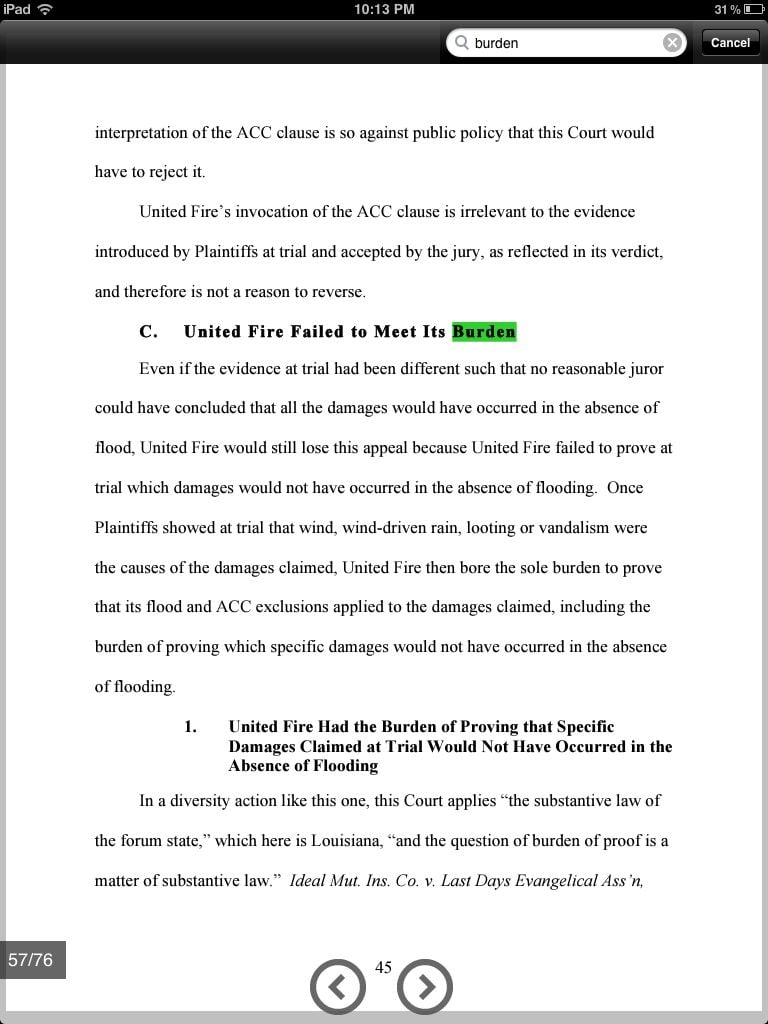
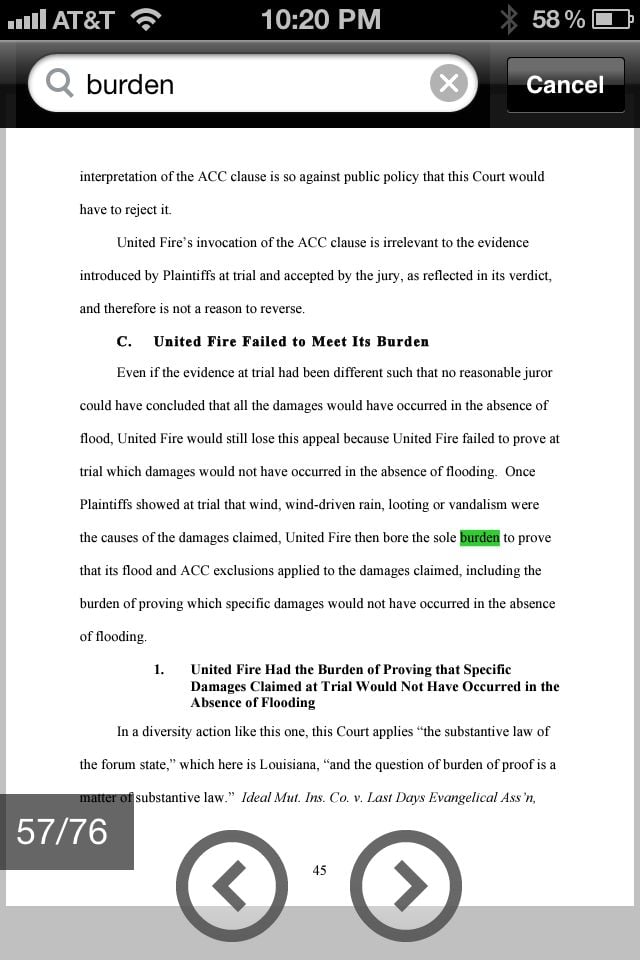
Another key feature when looking at PDFs that contain text is the ability to search the PDF. Both iBooks and Adobe Reader have a search function, but I prefer the implementation in iBooks. In Adobe Reader, you enter a search term and then the app shows you the first page with the highlighted word on the page. Tap the very large (nice touch!) arrows at the bottom to go through each instance of the word. Here are screenshots from the iPad and from the iPhone:
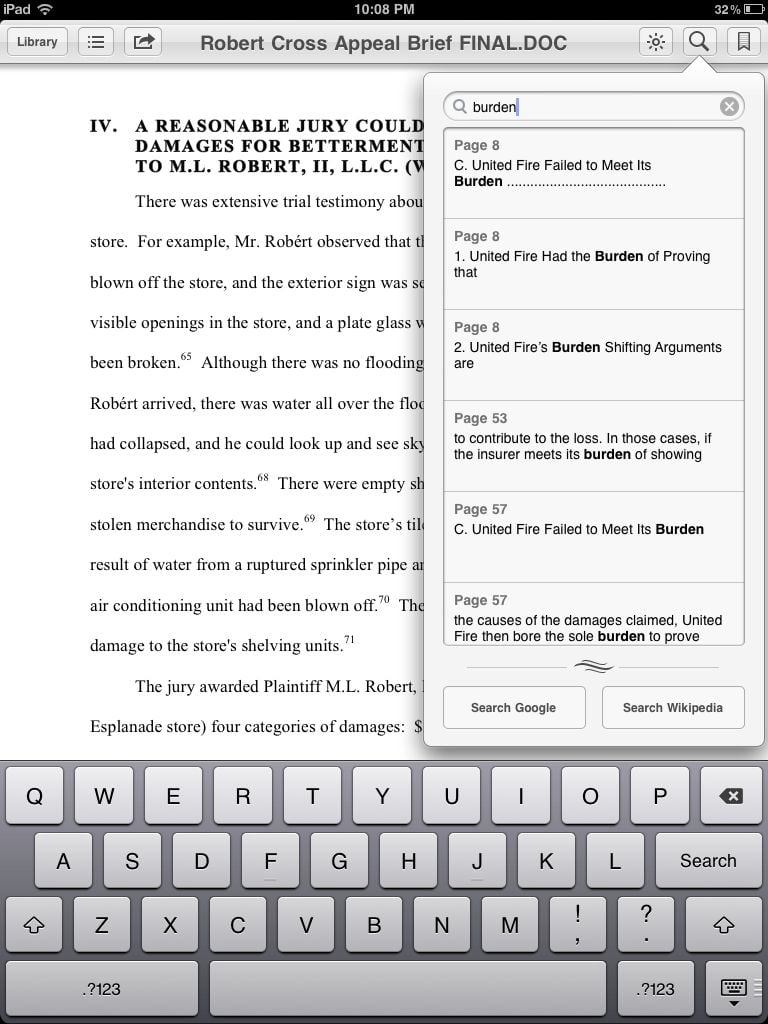
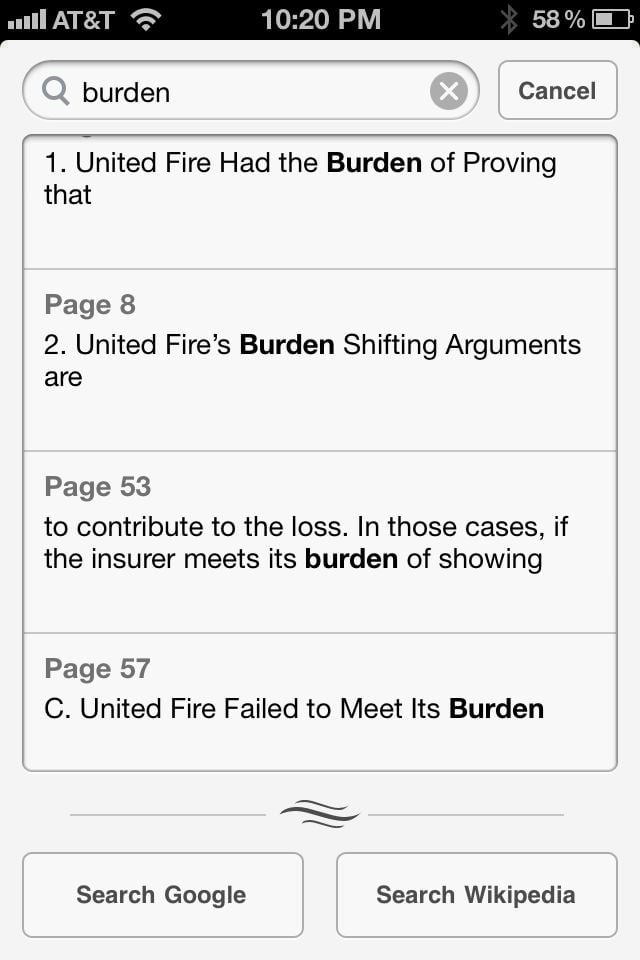
In iBooks, on the other hand, when you search for a term you see a list that shows each instance of the word, in context, and the page number on which the word appears. This makes it even faster to find the instance of the term that matters most so that you can get the right page even faster. Again, here is the iPad and the iPhone version of the same search:
While I prefer the iBooks approach, I admit that this is a matter of personal preference. For some searches, you may find it more efficient to see the entire page of the document at once so that you can view the term in context on the page. And for search terms that appear in a document only a few times, this makes sense to me. But for search terms that appear in a document many different times, I consider the iBooks approach more efficient.
Jumping to another page
Besides browsing and searching, I believe that the next most important feature of a PDF viewer is the ability to jump to another page. If you are on page 4 and you want to go to page 36, you don’t want to have to swipe 32 times. And when jumping to another page, page previews are important because you often only have a general sense that you want to jump to somewhere around page 36. For this feature, both apps do a great job, and the slight edge may go to Adobe Reader. In iBooks, if you tap once in the middle of a document to bring up the menu bars, you see tiny previews of each page at the bottom of the screen. You can tap on another page to jump there, or scroll your finger along the page previews to quickly find the right page. This system works quite well, and here is what it looks like on the iPad:
Adobe reader only shows one page preview at a time, but that preview is much larger and thus much more useful. After you tap in the middle of a document to make the menus appear, a bar at the bottom of the document lets you quickly slide through previews of all pages in the document, and the page preview is large enough to give you a good sense of what is on the page. Here it is on the iPad:
Again, I admit that this is a matter of personal preference, but I think that the Adobe Reader approach works better.
Storage
Another key feature of a PDF viewer is the ability to store a file for later viewing. In iBooks, you can view all of your stored documents either as large icons (with previews of the first page) on a virtual bookshelf, or you can view a list of documents. In Adobe Reader, you can only view a list. In iBooks, you can create different “collections” of documents, which work like folders. In this initial version of the Adobe Reader app, all of the documents are in just one long list. Frankly, if I am going to store a bunch of Acrobat documents, I prefer to use an app like GoodReader that lets me use both normal folders plus folders within folders. Moreover, an app like GoodReader can work with cloud storage providers like DropBox, Google Docs and Apple’s new iCloud service. Neither iBooks nor Adobe Reader support these advanced features yet. Having said that, as between the two, iBooks is more powerful than Adobe Reader becuase of the “collections” feature and the ability to view documents as icons or in a list.
Other features
Both iBooks and Adobe Reader let you create bookmarks to specific pages. [UPDATE 10/22/12: iBooks lets you create and view bookmarks to specific pages. Adobe Reader does not currently let you create bookmarks, but you can jump to bookmarks already in a PDF document.] You can get a PDF file into either iBooks or Adobe Reader by using the standard iPhone and iPad “Open in…” feature. Adobe Reader also lets you send a PDF file to another app using the same “Open in…” feature; iBooks is a one-way app that lets you send files to iBooks but not export files to another app. In iBooks, you can only browse through a file by flicking left or right; Adobe Reader also lets you view a PDF file in continuous mode, one page after another, in which you can quickly scroll up and down. Both apps let you e-mail a PDF file or print a PDF file.
The iBooks app also lets you change the screen brightness from within the app. In a way this is cheating; other apps don’t have this feature because Apple won’t let third party app developers do so, and yet Apple adds this feature to its own iBooks app. As Mel Brooks wisely noted in History of the World, Part 1: “It’s good to be the king.”
One annoying feature of the iBooks app is that the document title that it displays is not the file name but instead the title contained within the document properties. In my experience, that is often not the title that you want to associate with a document. Adobe Reader displays the file name. Neither app gives you the option of changing the title.
Summary
On the PC and Mac, Adobe Acrobat is the gold standard for editing PDF files (although other programs compete by offering the most useful features at a reduced price), and Adobe Reader is arguably the best free PDF reader (although the Preview program built-in on every Mac is arguably just as good). Reading PDF files on the iPad is so important that I’m thrilled to see Adobe itself now offering a free reader app. In this first version of the app, it has some advantages over iBooks, but I still give iBooks the slight edge. Hopefully, Adobe will add new features in the future, and if it does so I can easily see Adobe Reader one day becoming the gold standard for viewing PDF files on the iPad and iPhone.
Fortunately, these apps are free so you can try them out yourself, switch between them at your leisure, and not worry about choosing one and losing out on new features added to another app.
I suspect that if you ask lawyers what app they use the most on an iPhone or iPad, the answer would be Mail. I suspect many non-lawyers would say the same thing. We get and send tons of e-mail messages a day, and anything that makes it easier to handle those messages is appreciated. The new iPhone and iPad operating system, iOS 5, became available last week. The upgrade can take several hours and some features (like iCloud) can be confusing at first. Nevertheless, there are so many new features in this free upgrade that I think that virtually all iPhone and iPad owners should make the jump. Here are the improvements to the way that the iPhone and iPad handle e-mail in iOS 5 that I have found to be very helpful, and which many will find to be a good reason to upgrade:
New e-mail(s) on the Lock Screen. I love that when I get a new e-mail and my iPhone is in sleep mode, I can now see the sender, subject, and the first line of the message. That is enough information for me to decide whether this is an e-mail that I need to pay attention to or is one that can wait. If you do want to view the e-mai right away, just wipe to unlock your screen and you are taken right to that e-mail. This is useful for seeing an important, new e-mail as soon as it shows up. It is also useful if your iPhone has been in your pocket for a while and you haven’t been paying much attention to it and several e-mails have come in. You might be in another meeting and have a short break, and you can now just press the home button or the sleep/wake button and then glance at the screen of the iPhone to see new e-mails. To turn on this feature, go to Settings -> Notifications -> Mail (which might be listed either under “In Notification Center” or “Not in Notification Center” depending upon your current setup) and then turn on “View in Lock Screen.”
New e-mail notifications. If you are doing something else on your iPhone or iPad and a new e-mail arrives, you can now receive notification of the sender and the subject line of the message. Notifications can come in two formats, a banner at the very top of the screen or an alert in the middle of the screen. I don’t like the alert choice because then you get a blue box in the middle of the screen and you need to either tap “dismiss” or “read” to make it go away. But the banner style of notification is fantastic. Just glance at the banner at the top of the screen to see what e-mail came in. If it is something that matters to you, just tap the banner to jump to the Mail app and see it, but if not, just ignore the banner and it will go away in a few seconds.
Rich text formatting. Before iOS 5, messages that you composed in the Mail app were always plain text. Now, if you want to add some simple rich text formatting — bold, underline and italics — you can do so. Just write the word(s), then select the word(s) and you will see a pop-up menu. (To select a word, hold your finger on it until the magnifying glass shows up, then let go and tap on the word “Select” in the pop-up menu.) Next tap the arrow at the end of the pop-up menu and you will see more options, one of which is a button labeled BIU which lets you apply bold, italics or underline. A small gripe: on the iPhone, I understand the need for first tapping the arrow (you can only fit so many menu options on the screen at once) but on the iPad I wish that Apple would get rid of the arrow and just have a larger pop-up menu since there is ample space for it.
Dictation. This is a feature of Siri, which currently only exists on the iPhone 4S, but it is a wonderful new feature of iOS 5. To write an e-mail, just tap on the microphone button that is next to the space key and dictate. After a second or so, the text that you just dictated shows up in your e-mail without you having to type anything at all. I’ve been jealous of this feature on Android phones for a while now and I love using it on an iPhone. Hopefully it will come to the iPad at some pont, although I wonder if Apple will hold this one back until the iPad 3.
Split keyboard on the iPad. The iPad may not support Siri yet, but the split keyboard is another new way to compose a message on the iPad. When you see the full keyboard appear on your screen, put your finger on the bottom right key and then swipe up. This makes the keyboard smaller and splits it in two. You can then hold the iPad in two hands and use your thumbs to type. It takes some time to get used to this method of typing, but it sometimes feels faster to type this way. By the way, you can use the split keyboard in other apps too, but Mail is where you are likely to use it the most. By the way, you can also press and hold on that button to see a pop-up menu that gives you the option to undock the keyboard. This lets you move the full keyboard up and down the screen. I can’t yet think of why this is useful, but perhaps you’ll find it to be a fun party trick.
Shortcuts. Another improvement to composing e-mails (and this one works on both the old and new iPhones and the iPad) is the addition of shortcuts. You can have letters automatically replaced with other text. For example, on my iPhone I often have the need to type “iPhone J.D.” but it is a pain to do so with all of the capital letters and periods. Now I can just type ijd and my iPhone automatically changes it to iPhone J.D. Another useful one that is included by default is that you type omw and the iPhone or iPad changes it to On my way! To add more, simply go to Settings -> General -> Keyboard and then scroll down to the bottom to see the Shortcuts. To delete a shortcut, tap the “Edit” button at the top right of the Keyboard screen.
Search the body of e-mails. If you scroll up to the top of your e-mails, there is a place where you can search your Inbox (or whatever current Mail folder you are in). In the past you could only search the “From” “To” or “Subject” fields, but now if you tap the new “All” selection the iPhone will look for your search term in all fields, including the body of an e-mail message. This is a great way to track down an old message, and it is very fast.
PDF viewing on an iPad. If someone sends you an e-mail with a PDF attached and you tap on the PDF to view it on the iPad, you can now see a tiny preview of each of the pages on the right side of the screen. This makes it easy to see how many pages are on the PDF, but better yet, you can tap any page preview to jump directly to that page, saving you the hassle of scrolling up or down a long document. You can even slide your finger up or down the page previews to quickly look at each page. Tap in the middle of the screen to make all menus, including those previews, disappear. In addition to seeing this new feature, it also seems to me that PDF viewing is much faster in iOS 5, although I haven’t done a test to confirm this.
Swap a person between “to” and “cc” and “bcc” fields. Have you ever started typing a message to Person A with Person B as a “cc” and then you realize that Person B should really be in the “to” field? In the past you had to delete Person B from the “cc” field and then manually add him to the “to” field. In iOS 5, just drag the bubble around the person’s name to put him in the right field. This is especially useful when you do a “Reply All” because sometimes Person A sends a message, Person B responds, then you want to reply as well but you are really directing your reply at Person A, not Person B.
Switch between apps on the iPad 2 using four fingers. If you want to quickly change from the Mail app to another app, just place four fingers on the screen and swipe to the left or right to switch between apps, sort of like Alt-Tab on a PC or Command-Tab on a Mac. Technically this feature is not unique to the Mail app and works to switch between any apps on the iPad 2, but because I use the Mail app so much on my iPad, this is where this feature is most useful. Over the last few days I have been using this feature a lot to switch between Mail and GoodReader, and it is so much faster with this shortcut. Also useful: put four fingers on the screen and swipe up to bring up a menu at the bottom with recently used apps, then tap the app to switch to it. Another useful tip: put those four fingers on the screen and then pinch in to hide the current app and see your Home Screen.
Message flags. Mail now shows you when a message is flagged (although it only shows red flags, not any other color). If you want to flag a message yourself, tap the blue “Mark” word in the subject and date area of a message, which brings up a menu asking if you want to flag the message or mark it as unread. Unfortunately, this means that you now need to tap twice to mark a message as unread; before iOS 5 this only required one tap. But it is very useful to now have the option to create and view flags.
Definitions. See a word in an e-mail that you don’t understand? Just select the word and then choose “Define” in the pop-up menu. This brings up a nicely-designed screen with a definition, pronunciation, usage, and the other information that you would find in a nice dictionary. This one works in other apps, too.
Mark several messages at once. You can now quickly select a bunch of messages to mark as read or unread or to add or remove a flag. Just tap the “Edit” button at the top right of your list of messages. Circles appear on the left side of your messages. Tap on one or more messages and then you will see that you have the option to delete them all, move them all, or mark them all — and mark includes both read/unread and flag options.
View unread messages. In iOS 5, if you swipe down from the top of any screen you will see the new Notification Center. If you want, you can have 1, 5 or 10 most recent unread e-mails listed there. To turn on this feature, go to Settings -> Notifications -> Mail (which might be listed either under “In Notification Center” or “Not in Notification Center” depending upon your current setup) and then tap the “Show” button.
See a message list in portrait mode on the iPad. If you are reading an e-mail with your iPad turned to the portrait mode, you don’t see a list of messages. But now you can swipe one finger from the left side of the screen towards the middle to see a list of all of your e-mails, without having to rotate your iPad back to the landscape mode.
Manage mailboxes. iOS 5 gives you the ability to create new folder within an Exchange or IMAP mailbox, change the name of a mail folder, or delete a mail folder.
Change indent levels for quotes. Once you select some text, press the right arrow in the pop-up menu to see an option to increase or decrease the indent levels for the quotes of prior messages. To be honest, this is a feature that I don’t expect to use very often, but I suppose it is nice to have this power. If you want to always remove the indentations when you reply or forward an e-mail, you can now turn this off by going to Settings -> Mail, Contacts, Calendars -> Increase Quote Level.
Secure signing and encryption of e-mails. If you want to sign your e-mails using a public key so that other folks know it really came from you, or if you want to encrypt messages, iOS 5 now supports S/MIME. Justin Rummel wrote a good overview of what this means and why you might want to use it in this post.
UPDATE for Gruber and Koz: Disable the unread e-mail badge. John Gruber of Daring Fireball linked to this post and added: “My pal Koz says Richardson missed the number-one new feature in Mail — the ability to turn off the unread message count icon badge. (Settings: Notifications: Mail: Badge App Icon.)” I must admit that I hadn’t thought of this as an e-mail improvement; why would you NOT want the Mail icon to tell you how many unread message you have? Seeing that number increase is a helpful way to see how many new messages you have to read. Having said that, Gruber and Michael Koziarski are correct to note that this is a new Mail-related feature, so I should have mentioned it. And now I have.
These are some pretty major improvements to one of the most important apps on the iPhone and iPad.
Today is the day that the iPhone 4S goes on sale. There are already lines outside of many stores. For example, Apple co-founder Steve Wozniak tweeted last night that he was first in line at the Los Gatos, CA Apple Store: “The long wait begins. I’m first in line. The guy ahead was on the wrong side and he’s pissed.” (My guess is that anyone who gets to be second in line behind Steve Wozniak won’t mind it too much.) And if you pre-ordered your iPhone 4S, it should be arriving at your house today. (As of the last UPS update last night, mine was on a plane from Dallas to New Orleans.) There was so much iPhone and iPad-related news this week that I couldn’t possibly keep track of every notable story, but here are a few that you might have missed:
In addition to being iPhone 4S Day, somebody designated today Steve Jobs Day and there are meet ups around the world — from Atlanta, GA to St. Petersburg, Russia — where people will wear Levi’s 501 jeans, a black mock turtleneck and New Balance sneakers. One couple is even celebrating the day by getting married in an Apple Store today.
If you want to know the story behind why Steve Jobs in recent years always wore the jeans and mock turtleneck, Ryan Tate of Gawker has the explanation courtesy of an excerpt from Walter Isaacson’s upcoming biography of Steve Jobs. (It goes on sale October 24th.)
Attorney Jeremy Horwitz of iLounge reviews the iPad versions of four magazines (Businessweek, Fortune, Time, Wired) with special editions devoted to Steve Jobs.
Adam Satariano, Peter Burrows and Brad Stone of Businessweek profile Scott Forstall, the Apple executive in charge of the iPhone who has worked with Steve Jobs for 20 years.
Have you had a chance to update your iPhone and iPad to iOS 5 yet? I am really enjoying all of the new features. Chris Herbert of Macstories posted a good set of iOS 5 tips, tricks and hidden features.
California attorney David Sparks pointed out some small, but appreciated, features of iOS 5.
One iOS 5 feature that I am still getting my arms around is iCloud, the feature that makes it easy to sync between devices. David Pogue of the New York Times has a good explanation of iCloud.
One feature of iCloud that I find problematic is that if you have Photo Stream turned on, every photo you take from your iPhone is automatically and instantly streamed to your iPad and your computer. Georgia of TiPb warns that this could be embarrassing if you take intimate pictures with your iPhone. While I don’t foresee that being a problem for me, I do hate the fact that you can’t remove a picture from Photo Stream. So if I take five pictures before I decide on the one that I want to keep, I can delete the four bad ones from my iPhone but all five of them are already synced to my iPad and computer and I cannot remove the four bad photos from the Photo Stream. Thus, for now, I have Photo Stream turned off, and I hope that Apple refines the Photo Stream feature in a future iCloud update.
Apple’s iPhone and iPad apps Pages, Numbers and Keynote have been updated to add iCloud support and other new features. Leanna Lofte of TiPB explains what is new.
If you want an alternative service for storing documents in the cloud, Christian Zibreg of 9to5Mac reports that, starting today at Noon and for a limited time, Box.net will let anyone using its iPhone app get 50GB of storage for free. (50GB of storage on iCloud costs $100 a year.)
Customers are clearly excited for the new iPhone 4S given the record pre-orders, but some members of the press looking to add the drama of a controversy to their stories are suggesting that the iPhone 4S is somehow a disappointment just because Apple kept the same (fantastic) exterior and only changed the interior. Attorney John Kheit exposes the flaw in this argument in an article for The Mac Observer.
On a related note, Harry McCracken describes what was new with each generation of the iPhone. Comparing the iPhone 4S to the original iPhone, it is amazing how much the product has been improved since 2007. Makes you wonder what the 2015 version of the iPhone will be able to do.
If you want to get a close look at everything that is new inside of the iPhone 4S, iFixIt has done another one of their famous teardowns where they disassemble a product and then photograph and explain each of the components.
Kentucky attorney Finis Price just started a new blog devoted to iPad apps for lawyers called iPad ESQ. He already has two good reviews posted.
Have you had trouble using the federal court PACER system from an iPhone or iPad? There is now a version of the PACER website that is specially-formatted for mobile devices, and it works with all district, bankruptcy and appellate courts. You can access it here. Unfortunately, this is just a case locator, and once you find the right case, you are often switched to the regular PACER site, which doesn’t have full iPad and iPhone compatibility. However, you can get it to work in a pinch, and I understand that upcoming versions of the PACER website software will add more support for mobile devices.
Catherine Dunn of Corporate Counsel magazine has an article about Daniel Cooperman, the former General Counsel of Apple. Cooperman retired two years ago and was replaced by Bruce Sewell.
How many tablets are being used that are not iPads? Chris Rawson of TUAW writes about a new comScore report that finds that the iPad accounts for 97.2% of tablet internet use in the U.S. Wow.
David Walker of photography website PDN wrote an interesting article on how difficult it was to photograph Steve Jobs, including the story of the famous 2006 photograph by Albert Watson that Walter Isaacson selected for this cover of his upcoming biography.
And finally, Bashir Sultan is a artist who sketches using salt. He displays videos of his fascinating process on his website Art With Salt, and his version of that famous Albert Watson photograph of Steve Jobs is really amazing. Watch this:
Last night, I updated my iPhone and my iPad to iOS 5. To do a full upgrade, you need to upgrade iTunes itself (which I did on Tuesday), download the updates for the iPhone and then for the iPad, install the updates, restore from your backup (which took a very long time, mostly because I have over 300 apps installed), then Mac users need to upgrade to Mac OS 10.7.2 in order to complete the migration from MobileMe to iCloud, and then there are lots of updated apps to download to get full compatibility with iOS 5. It was a lot of work, and took me a lot longer than any prior iOS upgrade than I can remember. Having said that, this is a major update for the iPhone and iPad that adds a huge number of new features. It is well worth the time.
I am only now starting to explore all of the new capabilities of my iPhone and iPad with iOS 5, so I’m not ready to write about them yet. However, if you are ready to start reading today about iOS 5, you need to read Macworld. As you would expect, the Macworld reporters are all over this upgrade. For example, Dan Moren wrote this incredibly long and detailed post on iOS 5, and it is a great resource to learn about what is new (and something good to read during the long upgrade process). Serenity Caldwell wrote a great series of stories on iCloud, starting with this one. And Macworld is starting to post in-depth “Up Close” articles with on many of the marquee features of iOS 5, such as this one on the notification improvements and this one on iMessage. I’m sure that there will be even more great articles posted by the time you read this, so just check out the main Macworld page for the latest index.
If you are a fan of the iPhone, this is the best week of the year. Yesterday, Apple updated iTunes to version 10.5, which was done to get iTunes ready for iOS 5, which will come out today and will work on the current iPhone 3GS and iPhone 4 as well as the iPad and iPad 2. I discussed 18 great new features in iOS 5 this past June when we first saw a preview. For example, there are big improvements to e-mail, the ability to use Apple’s new iCloud service, vastly better notifications, a sophisticated Reminders app, a faster Camera app that you can use even when your iPhone is locked and which supports pressing the volume up button to take a picture, Wi-Fi sync so you don’t have to physically connect the iPhone to your computer running iTunes, and much more.
Just last week, Apple also announced two new features of iOS 5. Find My Friends is a new app that allows you to let your friends know where you are located for a time period that you select, and likewise you can see where your friends are located. The next time you are at a large festival, a theme park or on vacation with friends or family, it will be easy for everyone to keep track of each other. Apple’s new Cards app let’s you create a greeting card on your iPhone or iPad and have it sent in the U.S. Mail with notifications on the day that your card is being delivered.
iOS 5 will be a major upgrade to the iPhone and iPad, and yet that is not the biggest iPhone news this week. This Friday, the 2011 version of the iPhone — the iPhone 4S — officially goes on sale. If you pre-ordered one (like I did from AT&T), you should receive it on Friday. Otherwise, you’ll need to wait in line at an Apple Store or another store that sells the iPhone 4S (AT&T, Verizon, Sprint, Best Buy, Wal-Mart, Sam’s, and Radio Shack). These two people have been waiting in line at the Apple Store on Fifth Avenue in New York for two weeks. Yikes! Last year, I showed up at the downtown New Orleans AT&T store two hours before it opened with a cup of coffee and some briefs I needed to review, and that was enough for me to be first in line, plus get in some billable hours before my day normally starts.
And just to add to the excitement now that we are in the middle of “iPhone week,” last night we started to see reviews of the iPhone 4S from the select members of the press who were provided with an iPhone 4S last week. The reviews have been glowing, with people raving about the new camera and Siri. Reviews of the improved antenna have been mixed, with some people finding only slightly better improvement over the iPhone 4, whereas Walt Mossberg of the Wall Street Journal reported that in Washington DC he saw average download speeds of nearly 7 megabits per second, even better than he has ever seen on 4G phones. (Note that while the iPhone 4S has faster download speeds on both Verizon and AT&T, you need to be an AT&T customer to take advantage of the substantially faster 3G speeds.)
Here are the reviews that I have read so far:
Jason Snell of Macworld. “The iPhone 4S has speed, a great camera, some cool voice-recognition features, and the same beautiful industrial design that was introduced in the iPhone 4. It’s destined to be immensely popular. The S, in this case, seems to stand for ‘sure thing.'”
Brian X. Chen of Wired. “I’ve spent a week with an iPhone 4S loaned to me from Apple, and I got hooked on Siri quickly. Creating Reminders with Siri was the most useful.”
MG Siegler of TechCrunch. “First of all, the iPhone 4S blows away the iPhone 4 when it comes to speed. … I would switch back to my iPhone 4 and get frustrated by the lag. … You really have to use it yourself to see just how great Siri actually is. Using it for the past week, I’ve done everything from getting directions, to sending emails, to sending text messages, to looking up information on WolframAlpha, to getting restaurant recommendations on Yelp, to taking notes, to setting reminders, to setting calendar appointments, to setting alarms, to searching the web. The amount of times Siri hasn’t been able to understand and execute my request is astonishingly low. I’ll say something that I’m sure Siri won’t be able to understand, and it gets it.”
Walt Mossberg of the Wall Street Journal. “There is now an 8-megapixel rear camera, with a greatly improved sensor, a new five-element lens and a wider aperture. Other phones boast 8-megapixel cameras, but the 4S takes the best pictures and high-definition videos I have seen on a phone. The colors were gorgeous, everything was sharp and the camera can detect up to 10 faces. Plus, it’s fast, both in taking the first shot and subsequent pictures.”
David Pogue of the New York Times. “Apple says Siri will improve with time — both because she adapts to you, and because Apple itself will periodically upgrade her brain. But already, Siri saves time, fumbling and distraction, and profoundly changes the definition of ‘phone.’ I find myself using certain commands constantly, especially ‘Wake me at,’ ‘Call,’ ‘Send a message to,’ ‘Give me directions to,’ and ‘Remind me.'”
Vincent Nguyen of SlashGear. “Does it all work? You bet it does. There are two noticeable [camera] improvements – quality and speed – and the best thing is that they’re clearly evident from the start. Sharpness and detail are significantly boosted in the iPhone 4S when compared to what the iPhone 4 can achieve; there’s less noise and less color bleed evident. Aberrations such as fringing around the edges of the frame are cut right back, a benefit of that five-lens array. In brightly lit environments there’s less over-exposure; in darker scenes the iPhone 4S is less prone to crunchiness in shadow areas. We’ve been able to shoot low-light images without resorting to the single LED flash, and still make out detail thanks to the boosted sensitivity. Apple says colors are 26-percent more accurate now, thanks to the work that’s been done on the processing algorithms, and while we can’t exactly put a number on it ourselves there’s certainly a more natural feel to images taken with the iPhone 4S.”
Ed Baig of USA Today. “Apple concedes that Siri isn’t a finished product; she is in beta. But even with her blemishes, Siri is pretty darn cool. And she helps make the iPhone 4S pretty darn cool, too.”
Shane Richmond of The Telegraph: “Overall, the iPhone 4S is a good upgrade to a very good phone. It retains the stylish design of the iPhone 4 and gives it a substantial boost. It’s certainly not cheap when you consider some of the alternatives but it feels like a luxury product and it’s an absolute joy to use.”
Rich Jaroslovsky of Bloomberg. “The 4S isn’t a ‘4G’ device, but my tests showed it to be as fast or faster on AT&T’s network as phones being sold as ‘4G.'”
Stephen Fry of The Guardian. “Siri, the high quality and ultra-fast camera, 30 fps 1080p HD video, globally available voice recognition and the introduction of two antennae (the phone seamlessly switches between whichever is getting the strongest signal) are features that make the 4S irresistible; what is more, the unchanged form means that a whole new range of covers and accessories won’t be required.”
John Gruber of Daring Fireball: “The iPhone 4S is exactly what Apple says it is: just like the iPhone 4, but noticeably faster, with a significantly improved camera, and an impressive new voice-driven feature called Siri. … On a whim, I asked Siri, with no other context, ‘When is my next haircut?’ Siri answered with my appointment scheduled for later this month. I asked, ‘When was my last haircut?’, and it found that appointment from a month ago.”
Joshua Topolsky of This Is My Next. “The iPhone 4S is an astoundingly good phone. Between the hardware (both inside and out) and the software (iOS 5 as well as third party offerings), it’s just kind of an awesome package.”
Jim Dalrymple of The Loop. “You can look at each of the items that Apple will release in conjunction with the iPhone and be amazed with how innovative each one of them are. When you put them all together in one product like the iPhone 4S, you have an incredibly successful product that other companies just can’t compete with.”
Last year, Apple had 600,000 pre-orders for the iPhone 4 on the first day you could do so, and Apple raved that this was unprecedented. Last week, Apple saw over one million pre-orders in the first 24 hours that one could order an iPhone 4S. And those were from people who didn’t have the benefit of the rave reviews that came out last night, let alone the benefit of trying out the latest iPhone in the store or looking over the shoulder of a friend that has one. But again, you don’t have to buy a new iPhone 4S to join in the fun. Your existing iPhone is going to get tremendously better later today when you have the ability to upgrade to iOS 5.
It’s a great week to be an iPhone-using J.D.
—–
This article won the BlawgWorld Pick of the Week. BlawgWorld is a free weekly email newsletter that links to the best articles on the Web for lawyers and law firm administrators.
One of the most useful apps that a lawyer can have on an iPhone or iPad is an app that contains often-used rules and statutes. If you practice civil litigation in federal court, then you ought to have a copy of the Federal Rules of Civil Procedure on your iPhone and iPad so that you can quickly and easily look up the relevant rule, whether you are at your desk or in court. There are several FRCP apps to choose from and some of them are free (such as LawStack, which I reviewed last year). But I have long been a fan of the Louisiana law apps created by New Orleans attorney Matt Miller, and now he has created a $1 app for the iPhone and iPad containing the FRCP. It’s a great app that I highly recommend.
The app lets you get into the rules several different ways. If you want to browse, there are two ways to do so. First, you can browse through titles and then look at the rules under each title. Second, you can just scroll through a long list of all of the rules, with title indicators (roman numerals) on the right that you can use to quickly jump to the right part of the rules.
Tapping on the rule gives you the full text of the rule, and arrows at the top let you browse back and forth through rules. Plus, the app includes a feature I haven’t seen in similar apps: scroll down to below the text of the rule (or tap the “Jump Down” link at the top right to quickly jump there) and you see links to additional information on the Internet selected by the author of the app as potentially relevant such as forms, law review articles, advisory notes, etc. It is not a long list of links for each rule, but it is helpful to have something extra to go a little bit further in your research if you want to do so.
One of the most useful features of an app like this is a powerful search function, and this app has one. Enter one or more words and the app lets you decide whether you want to search for all words (AND) any words (OR) or the exact phrase typed. Tap return and then you see a list of rules showing you the hits. Tap on a search result and see the full text of the rule with the search terms highlighted in yellow.
Once you find a relevant rule you can tap the heart to save it to a list of favorites, or you can tap the button next to the heart to e-mail the full text of the rule, or from that same button you can print the rule (if your iPhone or iPad is configured to work with a printer). And of course, you can just use the normal iOS tools to select some text from a rule, copy the text, and then paste it into an e-mail or another app. Moreover, if you forget to save the results of a search, tap the “More” button at the bottom to see some other options, one of which is a link to all of your recent searches.
If you go to the Settings app on the iPhone and then tap the FRCP icon, you can change some of the settings for this app. First, you can increase or decrease the text size. (The screenshots above use the default 12 point font size.) Second, you can turn off the feature of saving your search history, which I suppose adds privacy.
This is a universal app, which means that it will run on both an iPhone and an iPad. The app takes full advantage of the larger iPad screen, with a list on the left and the full text on the right:
In the interest of full disclosure, I should note that I know the author of this app. We both practice law in New Orleans, and our daughters go to school together. Having said that, my enthusiasm for this app is not because of the author, but instead because this app includes all of the features that I would ask for in an app like this. It is easy to browse, it is easy to search, it works on both the iPhone and the iPad, and it is easy to copy text or export to an e-mail. There are free apps out there that contain the federal rules, but they don’t include all of the features of this app. Plus, the app only costs a buck so you can easily afford it, and I’d rather pay for apps like this to give the author a financial incentive to continue to update the app. If you handle civil cases in federal court, this is a great app to get for your iPhone and/or iPad.
Click here to get Federal Civil Procedure by Matt Miller ($0.99):
Last week, I teamed up with Reid Trautz and Josh Barrett for an encore presentation of 60 iPhone and iPad Apps in 60 Minutes, a CLE sponsored by ALI-ABA. Tom Mighell was the moderator. It was possible for participants to submit questions online, but we only had time to address a few questions during the session and promised to handle all of them in a post. Here are the audience questions and our answers, along with a list of the apps that we discussed. We received some good questions, so hopefully you will find this of interest even if you didn’t attend the session.
Dropbox
Question #1 from S.F. in Anchorage, AK: What is the best way for lawyers to use Dropbox or a similar service with an iPhone or iPad, assuming the need to access client information occasionally?
Answer: Dropbox is a useful service for sharing documents between multiple computers and between a computer and an iPhone and/or iPad. Because Dropbox is run by a third party, however, you need to be conscious of security issues. Jeff’s solution is that he only uses Dropbox for non-confidential documents, such as copies of pleadings, depositions and exhibits. For confidential attorney-client documents, Jeff keeps those documents in an app like GoodReader or Quickoffice that allows you to password-protect documents.
Tom also uses Dropbox, but understands that SpiderOak provides better security. Unfortunately, it doesn’t integrate with as many iPad apps as Dropbox, which limits its utliity. Tom also recommends GoodReader as a good app for downloading and accessing your Dropbox files—it is relatively simple to connect your Dropbox account to GoodReader, and start downloading files to your iPad. Tom says, “Whenever I download a new app, one of the first things I do is check to see whether it integrates with Dropbox. You may find you have a lot of apps that do so, and it may be easier to download into those apps directly from Dropbox, rather than into GoodReader.”
Josh often uses the file manager built into LogMeIn Ignition to grab confidential client files left on the computer back at the office. The transfer from desktop to iPad is encrypted end-to-end and doesn’t let the document sit on a cloud based service so the confidentiality concerns some raise about services like Dropbox don’t apply. The key to using any cloud-based service with your device is setting up a good workflow to help keep track of document revisions, versions and originals.
Reid uses the Dropbox/GoodReader combo, and also uses Dropbox to transfer PDFs to the Apple iBooks app for reading. Jeff adds that, on the iPhone, the Apple iBooks app is his favorite app for handling PDFs.
Alternate Calendar Apps
Question #2 from J.H. in San Francisco, CA: Does entering an event in Calvetica simultaneously make the entry in the iPhone Calendar app?
Answer: Yes. One of the nice features of third party calendar apps such as Calvetica, Easy Calendar or Agenda is that the all use the iPhone and iPad’s built-in calendar database. Thus, you can use one app to enter an event, another app to edit the event, another app to view the event, and they are all working from the same database.
Question #3 from C.P. in Greenwood Village, CO: Do the calendar apps interface with Microsoft Outlook calendars?
Question #4 from L.L. in Sant Louis, MO: Do the calendar apps interface with MS Outlook? We use an Exchange server to coordinate with our iPhones.
Answer: Again, yes, Because all iPhone and iPad calendar apps use the built-in calendar database, if you have your iPhone and iPad configured to synchronize with your office’s Exchange server, you can add an event in a third-party app and then the change will be synced to Exchange and will show up in Outlook on your computer.
Stylus
Question #5 from C.McD. in Blue Bell, PA: What stylus do you like for Penultimate?
Question #6 from M.M in Reno, NV: What is the name of the suggested stylus?
Answer: Jeff’s current favorite stylus is the Kensington Virtuoso Stylus for Tablet which he reviewed on iPhone J.D. here. Tom’s current favorite stylus is the Adonit Jotpro Stylus. Josh uses the MORE/REAL Stylus cap because it has the weight and balance of a regular pen. That said, Josh recommends waiting until version 2 is released with the faster tip. If you go to the iPhone J.D. website and do a search at the top right for “stylus” you will find lots of reviews pointing out the advantages and shortcomings of many different options.
Accessing Online Legal Resources
Question #7 from: M.S. in Shawnee Mission, KS: Two general questions regarding the iPad. First, do you have any suggestions on how to access electronic dockets and pleadings etc. in federal court? I can access it through my browser on the iPad but cannot scroll within documents that are retrieved. Do any apps help? Second, and similarly, I cannot scroll down within the web browser when accessing Lexis on my iPad. Do any apps help for this?
Answer: When you access PACER from an iPad, once you select a document from the docket, if you click the button to view a document you only see the first part of the first page and cannot scroll down. However, there is a workaround. Instead of clicking the button that says “view” click the button that says “download.” This will send a .zip file to your iPad, and your iPad will ask what app you want to open the zip file in. One such app is GoodReader, an app that Jeff recommended. Josh recommends ReaddleDocs for the same functionality. Either app will allow you to unzip a .zip file and view all of the PDF files contained in that file.
As for accessing Lexis on the iPad, Lexis is supposed to be updating Lexis.com so that it can be accessed from an iPad. Moreover, before the end of this year, Lexis will be releasing a Lexis Advance app for the iPad. For more information on the upcoming Lexis app, see this post from Jeff on iPhone J.D.
Voice transcription
Question #9 from: S.E. in Draper, UT: Can the Dragon Diction app be download to an iPad?
Answer: Yes. The Dragon Dictation app works on both the iPhone and iPad.
Remote access
Question #10 from R.H. in Milwaukee, WI: Is there an app to allow my iPad to connect to my desktop remotely? I use Time Matters.
Answer: Yes, any of the remote access apps that we discussed in our session will let you do this — Citrix Receiver, LogMeIn Ignition or GoToMyPC.
Question #11 from P.O in Austin, TX: Is LogMeIn Igntion better than iTap RDP?
Question #12 from P.dB in Stuart, FL: Do you recommend LogMeIn more than iTeleport?
Answer: None of the presenters have used the iTap RDP, but in Tom’s opinion, it looks like a good option. It uses Windows’ Remote Desktop Protocol, which is a solid method for remotely accessing your computer. Tom thinks that LogMeIn might be better for one reason: ease of configuration. With LogMeIn, it “just works,” and requires very little configuration. It looks like the iTap RDP requires a little more work under the hood, which might limit the app’s appeal to more advanced users. Further, with LogMeIn you can access your desktop from any computer using just a browser, with no configuration; with the Remote Desktop Protocol, you’d have to configure it on any computer you plan to use.
Likewise, none of the presenters use iTeleport, which also looks like a solid remote desktop application. However, like iTap, it does not appear that you can use iTeleport on regular computers to remotely access your desktop—LogMeIn’s universal capabilities give it an advantage here.
Reid’s office has a corporate GoToMyPC account, so he has to use their iPad app. He finds it works well on his iPad2, although sometimes a bit balky.
First generation iPad
Question #13 from J.G. in Pocatello, ID: Do most or all of the apps discussed work with the first generation iPad?
Answer: Very few apps that work with the iPad require the iPad 2, although some do exist. All of the apps that we discussed work on the original iPad and the iPad 2, although some of these apps are designed for the iPhone and therefore run on the iPad/iPad 2 in iPhone emulation mode.
Accessing Word documents
Question #14 from M.H. in Lubbock, TX: What is the best app to read and edit Microsoft Word documents?
Answer: The most popular apps for reading and editing Word documents are Documents to Go, Quickoffice and Office2. Jeff’s current favorite is Documents to Go because it is the only app of the three that shows you footnotes and shows you redline edits (although it will not let you create footnotes or create redlines). But these apps are updated frequently, so hopefully the other apps will add this feature soon.
Apps for transactional law
Question #15 from D.C. in Naperville, IL: I am a transactional lawyer, with a specialty in business law, estate planning, tax and some business litigation. What are the apps you would consider important for a lawyer with that type of practice to have?
Answer: As a transactional lawyer you deal with a lot of documents. If those documents are in PDF format, GoodReader or PDF Expert are essential apps for managing and annotating those documents. Josh prefers PDF Expert because of the easy to use document signing too, the ability to reorder/move/delete pages from a PDF and the ability to fill PDF forms. You also need one of the Microsoft Office compatible apps like Documents to Go or QuickOffice.
Josh recommends creating a folder on your Dropbox with your principal forms. This will give you access to your key drafting inspirations from anywhere.
If you use a Mac in the Office, also consider TextExpander Touch (with the desktop companion TextExpander) which allows you to expand text snippets into words, sentences or even paragraphs. With this app, Josh types “attfee1" and TextExpander types his preferred attorney fee clause. The snippet “simplemisc” expands into my preferred miscellaneous clauses for a basic contract that I can then edit. “engageltr” expands into the text I start with when drafting my engagement letter or email. Note that iOS 5 will also provide a shortcut feature like this, but it is unclear whether you can sync the shortcuts to a computer.
One key to making the iPad work well for transactional lawyers is to have some flexibility or be willing to try new things in your workflow. For example, Josh does lots of drafting in plain text on the iPad and only worries about formatting when back in front of a desktop computer. Even with the Word compatible apps mentioned here, they aren’t WYSIWYG. You will still need to fine tune back at the office on your own or send to an assistant to format. Plain text is also necessary to take advantage of TextExpander since at this time the Word compatible apps do not support it but apps like Elements or Plaintext do support TextExpander.
List of apps
Most of the apps that we discussed last week are the same apps that we included in our 60 Apps in 60 Minutes presentation at ABA TECHSHOW earlier this year, but there were some differences. Here are the apps that we discussed last week. I’ve added a link for the apps that I have previously reviewed here on iPhone J.D.:
A new iPhone was announced this week and yet, unfortunately, that was far from the most important iPhone and iPad-related story in the news this week. I don’t know whether Steve Jobs was able to watch the iPhone 4S presentation on Tuesday, but I like to think that he stuck around for one last product introduction just to see that Apple would be in good hands before the he finally passed away to go to the great iCloud in the sky. The number of well-written tributes to Steve Jobs that I have seen this week is simply staggering. I’ll note a few below, but there are so many more.
Jason Snell wrote a great article on Steve Jobs making a dent in the universe.
Lex Friedman of Macworld wrote a great article on why Steve Jobs’s death feels so sad, even for those of us who never met him.
Buinessweek is devoting its current issue to Steve Jobs. There is a long, well written, three-part story about his life with tons of details that I had never heard before: 1955-1985, 1985-1997 and Return to Glory.
AdWeek reports that when Time magazine learned the news, they stopped the presses for the first time in 30 years to scrap all of its other stories and devote 21 pages to Steve Jobs. One such story is this one by Harry McCracken, and it’s a great read.
On McCracken’s own blog, Technologizer, he posts an interesting video that was created as a tribute to Jobs on his 30th birthday.
Moving from magazines to newspapers, John Brownlee of Cult of Mac collected pictures of the front pages of over 100 newspapers around the world reporting on the passing of Steve Jobs.
Charles Duhigg wrote a touching story for the New York Times about Jobs saying goodbye to close friends and family during his last few weeks.
Kentucky attorney Finis Price shares a great story on his TechnoEsq blog about the time that he got a call from Steve Jobs to assist with a broken Macbook Pro.
Now for a few other stories in the news this week. If you are trying to decide whether to get an iPhone 4S on AT&T, Verizon or Sprint, Alex Colon of PC Magazine compares the different plans. Sprint, for example, is the only carrier offering a plan with unlimited data.
What size iPhone 4S should you get? I find that video is the one thing that really eats up a lot of space on an iPhone, and since the iPhone 4S takes 1080p video instead of the iPhone 4’s 720p, I’ve been wondering whether I should get a 32GB version or a 64GB version. Justin Horn of When Will Apple estimates that video on the iPhone 4S will take up about 2.5 times as much space as the iPhone 4. In other words, 60 minutes of video will take up about 10.4 GB of storage, versus 4.6GB on the iPhone 4.
Anand Lal Shimpi of AnandTech offers a technical explanation for why the iPhone 4S does not support 4G.
If you drop or otherwise damage your iPhone, bring it to an Apple Store. The folks at the Genius Bar are usually very forgiving and will often help you out with no or minimal charge, at least the first time. But if you can foresee more than one such incident (perhaps because that new iPhone is for a teenager), Charles Starrett of iLounge reports that Apple has a new AppleCare+ program for the iPhone. For $99, it extends your warranty to two years, and most importantly provides coverage for two incidents of even accidental damage (although subject to a $49 service fee).
Newsweek notes that, back in 1984, Steve Jobs described a product that sounds an awful lot like the Siri integration in the new iPhone 4S. The new article on Newsweek’s Tumblr account is here, but you should take a minute and go back and read the original interview from 1984 that is posted here, especially the second page.
Dean Bubley of Disruptive Analysis believes that the new iPhone 4S contains complicated new hardware that will be the basis for many future iPhones to come.
Maryland attorney Michael Berman reviews The Deponent App, an iPad app that can be used when taking a deposition.
Debra Cassens Weiss of the ABA Journal reports that Atlanta’s John Marshall Law School is the first to support using an iPhone or an iPad to prepare your law school application, and will even waive the $50 application fee for those who do so.
Marketing consultant Martin Lindstrom writes in an Op-Ed piece for the New York Times that MRIs show that people literally love their iPhones. On the other hand, David Dobbs writes in Wired that the Lindstrom article is, um, bunk. (He uses more graphic words.)
And finally, one of the most famous Apple commercials to ever air was the Think Different commercial that ran in 1997, shortly after Steve Jobs returned to Apple. Apparently Jobs was directly involved in selecting the people to be featured in that ad and in securing the rights to their images. (Here is a wonderful video of Steve Jobs explaining the new Think Different campaign and debuting the commercial.) The final version that aired was narrated by Richard Dreyfuss, but apparently Apple also considered having Steve Jobs himself narrate the Think Different commercial, and that version is on YouTube. I actually agree with the decision back in 1997 to have an actor with a distinctive voice like Dreyfuss do the voice over, but this week it is great to watch and listen to this alternative version of the video:
I’ve seen Steve Jobs in person three times in my life. I saw him give the keynote address at Macworld New York on July 19, 2000, the introduction of the unique G4 Cube computer. I then saw Steve Jobs unveil another unique cube when I attended the opening of the Apple Store on Fifth Avenue on May 19, 2006. A few months after that, I was eating lunch at Caffe Macs (the cafeteria on Apple’s campus in Cupertino, California) and Steve Jobs and Jony Ive sat down at a table next to us to have lunch. Those occasions were the most minor of connections between me and Jobs, and yet there are few people who have touched my life so much without being a friend or family member.
My love of technology probably began with the Atari 2600, but it started to grow when I learned how to program on an Apple II computer in Sixth Grade. Years later, I would save up enough money from a summer job in college to buy my own Mac (a Mac Plus) and I’ve been an avid Mac user ever since. And after Steve Jobs returned to Apple and steered the company towards its current renaissance, I became an avid user of the iPod, then the iPhone, and then the iPad, all technology that has enriched my life in more ways than I can possibly count, such as prompting me to start this website.
We all knew that this day would come — as it will for all of us — but it is still hard to imagine that Steve Jobs is no longer around to inspire great technology and deliver amazing presentations. But of course, his presence remains. As Apple states on its website right now: “Steve leaves behind a company that only he could have built, and his spirit will forever be the foundation of Apple.” I have no doubt that is true. I had few concerns for Apple when Steve recently retired because I knew that Apple employees are constantly analyzing their work through the prism of what would Jobs see and think, and while that doesn’t mean that every product will be a home run (that G4 Cube I saw him pitch in 2000 never did take off), it does mean that his spirit will live on forever.
One of my favorite technology journalists, Steven Levy, wrote a beautiful and comprehensive obituary for Wired magazine. When you have the time to sit down and read something that is over 5,000 words, read this.
On the opposite extreme in terms of length, there is always Twitter. I saw so many interesting posts on Twitter after the news broke last night. In fact, “broke” is the right word; I hear that at one point last night, 17% of all tweets on Twitter related to Steve Jobs, and then shortly after that Twitter broke from overload and shut down for a short period of time. Here are just a few of the tweets that caught my attention:
The White House: “Brave enough to think differently, bold enough to believe he could change the world & talented enough to do it” -Obama on #SteveJobs
Ernest Svenson: Is it the best you can do? No? Then go back and make it the best. — Steve Jobs
Jim Dalrymple: Here’s to the crazy ones. Cheers Steve
Jason Hiner: 100 years from now, people will still marvel at how Steve Jobs changed the world by humanizing technology.
Joshua Topolsky: One thing I see tonight: Steve Jobs had a crazy ability to affect those who knew him well or didn’t know him at all. An astounding legacy.
David Chartier: Let’s all go make great things tomorrow.
I’ll share three more links before I close. First, if you read only one tribute to Steve Jobs, read this one by Walt Mossberg of the Wall Street Journal. If you read one more, read this one by Om Malik of GigaOm. Finally, I’ve embedded below the commencement address that Steve Jobs gave at Stanford on June 12, 2005. If you haven’t watched it before, it is a classic that will inspire you, although be warned that it will also bring a tear to your eye.
Rest in peace, Steve Jobs. The people who are crazy enough to think they can change the world are the ones who do.