I just started writing a column for the TechnoLawyer BigLaw newsletter, and I encourage all iPhone J.D. readers to sign up for a free subscription so that you can keep up with the articles that I write for BigLaw.
A little background: since 1997, TechnoLawyer has distributed free e-mail newsletters for attorneys. Today, TechnoLawyer publishes nine different newsletters. Some of my favorites include BlawgWorld (a guide to what is new and noteworthy on the legal web), LitigationWorld (tips for litigators) and FatFriday (a weekly grab bag of of various topics such a product reviews and tips and tricks). In 2009, TechnoLawyer started to publish BigLaw to address topics that are of particular interest to attorneys who work at midsize and large law firms. Articles in BigLaw are written by a mix of current and former corporate counsel, attorneys at medium-to-large law firms and legal journalists. The BigLaw e-mail newsletter is typically sent out every Tuesday.
My articles in BigLaw will come out about once a month and will cover issues that are of particular interest to attorneys at a law firm who use an iPhone or iPad. My first article appeared in the January 17, 2012 newsletter and discussed law firm support for iPads, including whether law firms should purchase iPads for all of their attorneys.
I encourage you to click here to subscribe to BigLaw to keep up with my articles and the other great articles in that newsletter. And while you are there, you should sign up for some of the other TechnoLawyer newsletters as well; they are free, and they are always full of useful information. If you want to catch up on older feature articles from BigLaw, they are posted on the BigLaw Blog several weeks after they appear in the newsletter.
Yesterday, Apple released the results for its 2012 fiscal first quarter (which ran from September 25, 2011 to December 31, 2011) and held a call with analysts to discuss the results. This is the 13th time that I have discussed an Apple quarterly earnings call on iPhone J.D., and over that time I’ve frequently remarked that Apple had a record-setting quarter, which was true this time as well. Of course the fiscal first quarter is always Apple’s best quarter because it includes holiday sales, but this past quarter was something really special for Apple. Not only was it the best quarter in Apple’s history, it blew away the previous best quarter. The previous record was announced on July 19, 2011, when Apple revealed sales of $28.57 billion and profit of $7.31 billion in its 2011 fiscal third quarter. Yesterday, Apple announced sales of $46.33 billion and profit of $13.06 billion. This wasn’t just an amazing quarter from Apple’s perspective, it was an amazing quarter from any company’s perspective. David Goldman of CNN reports that this was the second most profitable quarter of any U.S. company ever, behind only ExxonMobil’s record-setting $14.8 billion quarter in the Fall of 2008 when oil prices were at an all-time high. Wow.
Apple sold a record 37 million iPhones last quarter. That is twice what it sold the same quarter a year ago. Take a look at the first graph in this article by Philip Michaels of Macworld to see just how incredible a quarter this was for iPhone sales.
iPad sales were a record 15.4 million last quarter.
What about the iPod touch, the iPhone-without-a-phone? Apple announced that it sold 15.4 million iPods last quarter and indicated that about 10 million of those are the iPod touch.
To date, “combining the iPhone, iPad and iPod touch, we surpassed 315 million cumulative iOS device sales, selling more than 62 million in the December quarter.” That is a huge market for app developers.
Speaking of app developers, there are now over 550,000 apps in the App Store, including 170,000 iPad-specific apps. To date, app developers have made over $4 billion, including over $700 million in the last quarter alone.
Apple announced that nearly all Fortune 500 companies now approve and support the iPhone and the iPad. “Real estate agents at Coldwell Banker and Sotheby’s access sales presentations and use custom iPad apps in the field. Retail chains such as Bed Bath & Beyond use iPads to deliver key business metrics on the sales floor. Wineries are using iPads in their vineyards to call up weather data and soil profiles, record quality assessments and make decisions on the spot about whether to harvest their grapes. And in this past quarter, Chinese airline EVA has also deployed iPads to pilots and crew for flight manuals, documentation and training.”
85 million people are signed up for iCloud, Apple’s system for keeping files in the cloud and syncing them across multiple devices. Apple CEO Tim Cook said that iCloud is “a fundamental shift, recognizing that people had numerous devices and they wanted the bulk of their content in the cloud, and easily accessible from all the devices. And, you know, I think we’re seeing the response from that, and with 85 million customers in just 3 months, it is a very, very important part. It’s just not a product. It’s a strategy for the next decade.”
Apple CEO Tim Cook predicts an incredible future for the iPad, noting that the iPad is “a huge opportunity for Apple over time. And as I’ve said before, I truly believe, and many others in the company believe, that there will come a day that the tablet market and units is larger than the PC market. In fact, it’s interesting to note that in the U.S., it’s clear from the IDC’s recent data on desktop PCs in the U.S. that tablets exceeded desktop PC sales last quarter in the U.S. And so I think you can already see different indicators that there is significant momentum in this space.”
There are many ways to use an iPad to replace a legal pad. Numerous apps let you type notes using the on screen keyboard, but that only works well if your iPad is on a flat, stable surface. A good alternative is to use a stylus along with an app that lets you draw on the screen, and the most useful apps let you draw in a window that reduces the size of what you type so that you can get a large number of words on a page. Note Taker HD is a perfect example of one of these apps, and for a long time now, that is the app that I have been using and recommending to use with a stylus. But I have often been asked if there is a way to take handwritten notes and then convert those notes to searchable text. Notes Plus is a $6.99 note-taking app for the iPad, and the recently-released 3.0 version of Notes Plus gives you the option of purchasing a $1.99 in-app upgrade to add handwriting recognition. The developer of Notes Plus sent me a free copy of the app to review and I purchased the in-app upgrade. It works farily well, but Notes Plus can be confusing to use because the app has so many features.
Writing with a stylus
If you read my review of Note Taker HD or if you use the app yourself, then you understand the concept (and advantages) of writing in one window and having what you write show up in a smaller version elsewhere on the page. Notes Plus includes the same feature. When you are using the pen function in the app, you hold down your stylus for a second and a window pops up in which you can write.
(By the way, my favorite stylus right now is still the Kensington Virtuoso Stylus for Tablet that I reviewed last August.)
The biggest difference between writing in Notes Plus versus Note Taker HD is that when you near the end of the window and you pick up your stylus to continue writing in the left side of the window, Notes Plus actually shows you what you have previously written, making it very easy to place the next letter in the correct location. In the following image, for example, you can see that I am ready to write a word after “the” but I am about to reach the end of the window, so I can instead start writing just after the “the” in the left side of the window.
Notes Plus also gives you the option of moving the handwriting window to another part of the screen, although frankly I haven’t found that to be very useful. Unfortunately, I find that Notes Plus is a little slower than Note Taker HD; there is a fraction of a second greater delay between the time that you move your stylus and the “ink” shows up on the screen. The difference is slight, but I mention this because even Note Taker HD on an iPad 2 feels like it is just barely keeping up with your writing, so it is unfortunate that Notes Plus is a tiny bit slower (perhaps because the app is taking the time to show you what you have already written in the left side of the window?)
Handwriting recognition
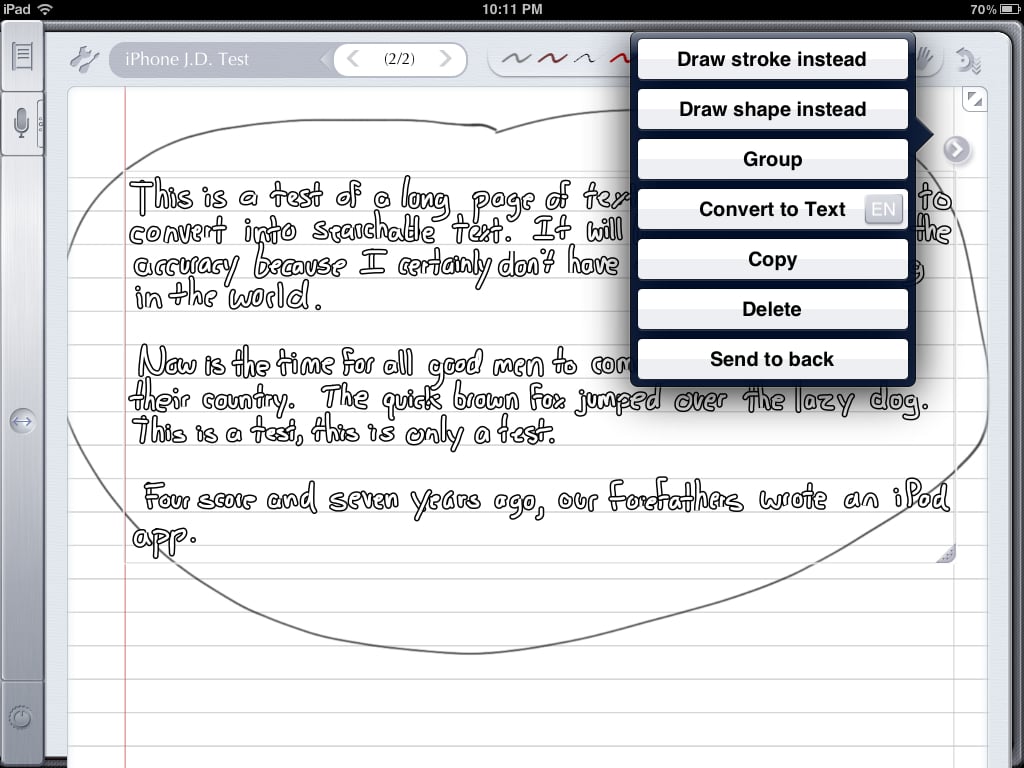
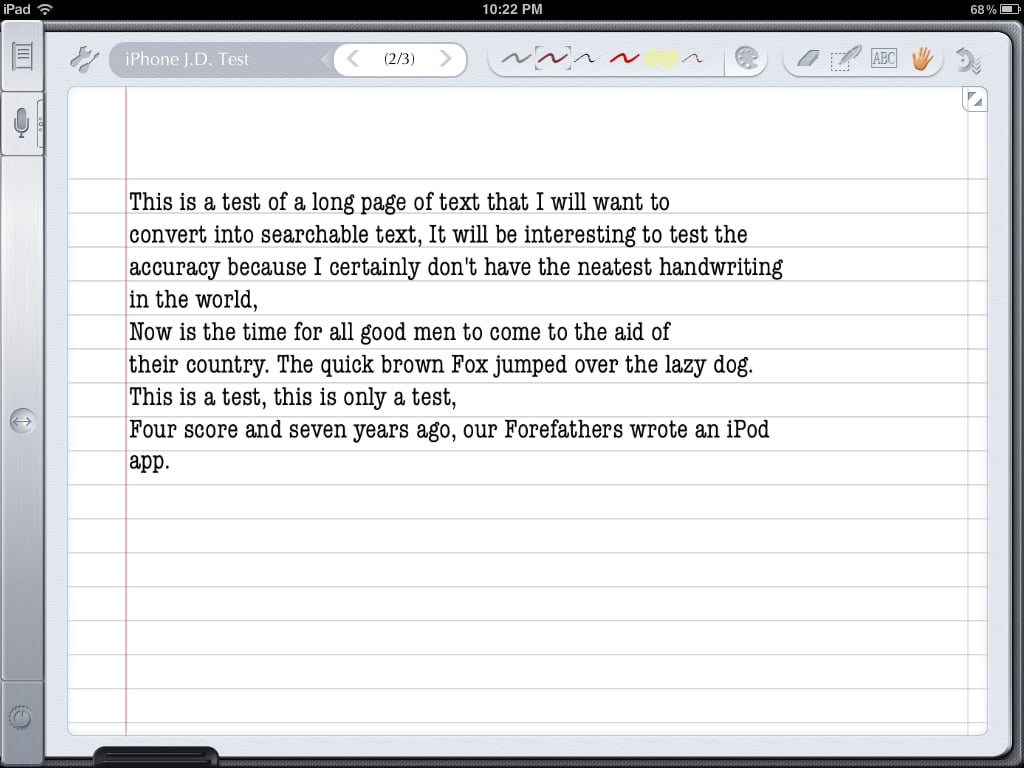
When you draw a circle around something in Notes Plus, the app selects whatever it is that you have circled, gives it an outline appearance so you understand what was selected and what was not selected, and then gives you the option to do something with the selected writing such as copy it, delete it, or recognize the handwriting. (Or you can tell Notes Plus that you just intended to draw a circle.) The first time that you choose to recognize handwriting, you are given the option of paying $1.99 for the in-app upgrade. (The developer of Notes Plus pays another company for the MyScript technology that handles the handwriting recognition, so he made this an in-app upgrade for those who want the feature rather than adding $2 to the price of the app.) Once the purchase is made, the handwriting recognition works very well. In my tests it was often perfect and otherwise darn close. For example, in the test shown in the next picture, the only thing it got wrong is that it thought a lowercase f was an uppercase F, and frankly the fault there is likely my sloppy handwriting, not the MyScript technology:
[UPDATE: Indiana attorney Robert Hunt posted a comment to this post asking if the app can convert cursive handwriting to text. Yes, it does. And my cursive handwriting is worse than my block letters, so the handwriting recognition engine really is quite impressive.]
Why would you want to convert your handwriting into text? First, text is easier to read, although frankly that is not enough of a reason for me. Others may have trouble reading my handwriting, but I don’t. Second, text is searchable. This is the key advantage for me. If I take several pages of handwritten notes during a meeting or a hearing, I cannot do a full-text search to find a specific term. But if I use Notes Plus to select all of my handwriting on a page and convert it to text, then I can search for specific terms when I am later looking for something in my notes.
If you are just working with words, conversion to text is very useful. It gets more complicated, however, if page layout makes a difference to you, for example if you are also drawing things on a page next to your text. Unless you use the perfect size font, the text will not occupy the same space on the page as your handwriting, so if you intended to draw a picture, a star, etc. next to your text, it will not line up correctly after conversion.
Shapes
And this is a good point to mention that Notes Plus has the neat ability to create perfect shapes. If you draw a standard shape like a line, a circle, a square, a triangle, etc., the app recognizes what you are doing and converts it to a perfect shape. Thus, you can draw this:
And the app automatically changes it to this (although you have the option to change it back if that was not your intent):
Thus, it is easy to include a nice diagram in your notes with perfect curves and straight lines. Or you can just draw a box around some important words and have it look perfect.
Plus much more
And that is just the tip of the iceberg of what Notes Plus can do. You can use the microphone button at the top left to record audio along with your notes. You can switch to a full screen mode (in landscape view) to remove all menus and maximize your space for taking notes. There is a highlighter. You can insert pictures. You can select different backgrond paper, and you can even import a PDF to write on top of that. You can scratch through something you wrote to erase it. You can move anything that you wrote to a different location. You can import and export files to Google Docs and Dropbox. (Dropbox support is currently broken, but the developer says that an updated version that fixes Dropbox support has already been submitted to the App Store and should be available soon.) And there are even more features of the app that I am just beginning to learn.
Unfortunately, there is a price to pay for all of these features: complexity. Even though I have spent countless hours learning how to use the app, reading help files, reading the website, etc., I often get confused on how to perform the various functions in the app. As a result, I have some hesitation recommending Notes Plus, especially to beginner iPad users. It reminds me of Photoshop on the computer; Photoshop can create some amazing images, but there is a very steep learning curve, and if you are someone (like me) who only uses Photoshop occasionally, you can easily get lost trying to figure out what each button does and how to get something done. Notes Plus is not as complex as Photoshop, but there is nevertheless a steep learning curve. I love that this app is so powerful, but I must tell you that it sometimes drives me crazy.
Conclusion
I decided to take a look at Notes Plus in the summer of 2011 because so many attorneys had told me that it was their favorite app for taking notes. I waited to post this review because the developer has been working on version 3.0 for the last six months and I wanted to wait and see how the app would work with handwriting recognition and other features added. I still haven’t yet decided whether this app will replace Note Taker HD as my favorite iPad app for taking notes, but it might. I love all of the advanced features, such as handwriting recognition and shape creation, but I don’t (yet) feel as efficient when using this app and it is a minor annoyance that the app isn’t quite as fast as Note Taker HD. Nevertheless, if you are looking for a sophisticated app for taking notes and you don’t mind putting in the time to learn how to control all of the bells and whistles, you’ll definitely want to check out Notes Plus.
The Congressional Record is the official, daily record of the proceedings and debates of the United States Congress. There are four parts of each issue: (1) House of Representatives, (2) Senate, (3) Extension of Remarks, and (4) the Daily Digest summary of the day’s activities. You can access individual issues of the Congressional Record through FDsys, a service of the U.S. Government Printing Office (GPO). There is now an easier way to view individual issues on your iPad because the Library of Congress partnered with the GPO to release a free app last week called, appropriately enough, The Congressional Record.
From the main screen of the app, you select a specific day then tap the view button. The app provides access to January 4, 1995 (the 104th Congress) to the present.
You then see up to four buttons for the four parts of the daily Congressional Record, such proceedings in the Senate. (You only see buttons for the parts that are available for that day.) A fifth button displays the entire Congressional Record for that day.
When you view the text, you are presented with a PDF file, so it looks exactly like the printed Congressional Record (and exactly like what you would get from the FDsys website).
When a specific issue is displayed, you can search for specific terms in that issue. Search results start to appear as you type, and the terms are highlighted in the text in blue. Just tap on an occurance to see it.
You can only search within a specific issue; if you want to search across multiple issues, you’ll need to use another resource. And you need to know the specific day that you want; the app doesn’t include any sort of index. Once an issue is displayed, the app lets you e-mail that issue to someone, or you can send it to another app on your iPad that handles PDFs.
On the main page of the app, at the bottom, the app shows you what is going on today on the House and Senate floor, and you can tap on an entry to jump to a corresponding page on the Library of Congress THOMAS website.
This app only works on the iPad, not the iPhone, but that makes sense; it would be difficult to read an issue on the tiny iPhone screen. [UPDATE: As of July of 2012, the app now works on the iPhone too. This is a nice update, but you need to squint to read the CR on a small screen!] You can get more information on the app from this post by Andrew Weber, the Legislative Information Systems Manager the Law Library of Congress, and in this Library of Congress press release.
For the attorneys, lobbyists and others for whom the Congressional Record is a valuable resource, you now have an easy way to access it from your iPad.
Click here to get The Congressional Record (free):
Yesterday, at the Gugenheim Museum in New York City, Apple announced a new version of its iBooks app that supports enhanced, interactive textbooks, and also announced software to create these cool e-books. For now, the focus is on education, the idea being that instead of students carrying tons of heavy books that get outdated, they carry one iPad with textbooks that are updated and more engaging. I’m reminded of my science textbook when I was in First Grade at St. Edward’s in 1975 that opened with a picture of the moon and the statement that “someday, man will walk on the moon.” Time will tell what impact this has on schools, but as a member of a profession that does a heck of a lot of reading and writing, I’m intrigued to see the future of iBooks beyond the education field. If you want to learn more, Macworld has comprehensive coverage of yesterday’s announcement. As for the rest of the news of note from the past week:
Virginia attorney Rob Dean reviews Notability, an app for taking notes.
South Carolina attorney Bill Latham provides some basic, but nevertheless very helpful, iPad tips useful to lawyers (and others).
Massachusetts lawyer Robert Ambrogi reviews iProBono, an app that helps Arkansas attorneys sign-up for pro bono cases.
Litigation consultant Ted Brooks reviews iJury, an app to assist with voir dire.
South Carolina attorney Justin Kahn mentions an update to the WestlawNext app for the iPad; now you can share folders with others.
Charles Starrett of iLounge reports that Apple has joined the Fair Labor Association and is seeking to improve working conditions at manufacturing facilities in countries like China that assemble Apple hardware such as the iPhone and iPad.
John Brownlee of Cult of Mac reports on iConvert, a product sold at Brookstone (shown at the right) that converts your iPad into a scanner.
Jim Dalrymple of The Loop reports on a new survey from IDG Connect that shows that shows an increasing use of iPads by business professionals.
Daniel Eran Dilger of AppleInsider reports on a new study from security firm Check Point that surveyed thousands of IT professionals and concluded that the iPhone is overtaking the BlackBerry in popularity, while Android is considered the “most risky” mobile platform.
Similarly, Brad Reed of Network World reports that the iPhone 4S sold very well in November and December, according to the latest data from Nielsen, while BlackBerry market share continues to decline.
Matt Brian of The Next Web reports that Japanese car manufacturer Nissan is launching an iPhone case that uses special paint (already used on Nissan cars) that will allow the case to repair itself if it gets scratched.
I reviewed the Camera+ iPhone app back in August of 2010 when it added what was at the time a unique feature — the ability to press the iPhone’s volume button to take a picture. Apple wasn’t thrilled about an app developer using the hardware button this way, so the app was removed from the App Store for a while and then allowed to return when the feature was removed. Of course, Apple itself added this feature to its own Camera app when iOS 5 was released in October of 2011. I mention Camera+ today because even though the app only costs a buck (it used to cost $2), the developer recently revealed that it has earned $5,125,844 to date, and that is after Apple takes its 30% cut of the sale price. It just goes to show you that with a good product (and some good luck), an iPhone app developer can do quite well.
Attorneys love the Dropbox service, especially on the iPhone and iPad, and Jessica Guynn of the Los Angeles Times interviewed Drew Houston, the developer of Dropbox, and wrote this interesting article.
A man in the front row at a performance of the New York Philharmonic had a brand new iPhone in his pocket. He had the mute switch enabled, but for some reason an alarm had been set on his iPhone and it went off during the performance — causing the conductor to halt the performance. This resulted in a flurry of stories from sources such as The New York Times and editorials from people like John Gruber, Andy Ihnatko and Calfornia attorney David Sparks. Those are all good reads, but the morale of the story is: remember that just becuase your iPhone is in “mute” mode, it can still make noise. For example, an alarm will still sound — good if you are using your iPhone to wake up in the morning and forgot that the mute switch was on, bad if you are in court.
That reminds me of an embarrassing situation that I once created with my iPad during a meeting, and hopefully you can learn from my mistake. I was typing notes on my iPad during a conference using the Apple external Bluetooth keyboard, and apparently I hit the F8/play button without realizing it. That triggered the Music app to resume playback, and caused a song that I had been listening to on my iPad earlier that morning start to play again, causing quite a few people around me to stare and wonder I was disrupting the meeting by playing music. Oops. That experience led me to remove all music from my iPad so that it would never happen again. (I use my iPhone to listen to music, not my iPad.)
And finally, if you are going to make noise with your iPhone, why not go all the way? At this year’s CES convention, Behringer introduced a $29,999 product called the iNuke Boom, a REALLY REALLY BIG speaker for the iPhone. Click here for the story from Buster Heine of Cult of Mac, although perhaps the picture from that story really says it all:
One of the best features of iOS 5 on the iPhone is the Reminders app. Your iPhone can remind you to do tasks on a specific date and time, which is very useful, but I especially love location-based reminders that remind you to do something when you arrive at, or leave, a specific location such as your office, your home, or any other address in your Contacts list. Yesterday, Lex Friedman of Macworld wrote a great article about using the Reminders app that I strongly encourage you to read so that you can fully take advantage of reminders on the iPhone. Friedman also linked to an article he wrote last November about how you can share reminders with another iPhone user using iCloud. For example, you can share a grocery list with your spouse, and either of you can use your iPhone (or iPad) to update the shared list.
If you have an iPhone 4S, the Reminders app is even more handy because you can just tell your iPhone to remind you of something, which is much faster than tapping the app icon and typing in all of the information needed to create a reminder. Just tell your iPhone “Remind me to pick up my dry cleaning when I leave work” and Siri takes care of the rest.
One tip not mentioned by Friedman conerns using the Reminders app if you sync your iPhone with a Microsoft Exhchange server. The default setting is to sync Mail, Contacts, Calendars … and Reminders. That sounds like a good idea — the Reminders app on your iPhone can share items with the Tasks tab in Microsoft Outlook — but be aware that if you have this turned on, you will not be able to use location-based reminders because that is not a feature supported by Microsoft Office. To fix this, go to Settings -> Mail, Contacts, Calendars and then tap on your Exchange account. Then simply make sure that Reminders is set to off:
Unless it is really important to you for your tasks to show up in Outlook on your computer, I recommend that you keep this turned off so that you can have your iPhone remind you to do things based upon where you are located.
As a litigator, I read a lot of depositions, and I love the ability to review them on my iPad. In the past, I have typically created a searchable PDF version of the deposition transcript and then read the transcripts in the GoodReader app, using the standard PDF highlight feature to mark significant text. I’d store all of the depositions in a folder in GoodReader so I could pull them up in the future. However, Lit Software LLC has just introduced a new $50 iPad app called TranscriptPad, an app dedicated to the task of reviewing depositions. This is the same company that created TrialPad, a powerful trial presentation app for the iPad. The developer, Ian O’Flaherty, sent me a free copy of the app to review, and so far I am very impressed. The app offers many powerful features, and I think that this will be the tool I will use going forward for reviewing depositions.
To get a deposition into TranscriptPad, simply find an e-mail with a text version of the deposition (presumably an e-mail from your court reporter), tap and hold on the attachment, and select TranscriptPad. (If you don’t see TranscriptPad in the list, read my post from earlier this month about missing apps in the Open In menu.) Or if you have the .txt deposition in your Dropbox, TranscriptPad also includes an option to import from Dropbox.
TranscriptPad will then ask you which case the deposition pertains to, or gives you the option to create a new case. The app then scans the deposition and automatically determines the name of the deponent and the date of the deposition, although you also have the option to modify those if you wish.
Now you are ready to start reading your deposition. You can do so in either portrait or landscape view, and if you are like me, you’ll do most of your viewing in portrait mode. A bar along the right makes it easy to jump to a particular page of the deposition, or you can just swipe up and down to go from page to page. Or if you want, you can even use the “Play” button at the bottom to have the deposition scroll automatically (you can adjust the speed), much like a teleprompter.
There are a few settings for changing the way that a transcript is displayed. You can select one of four fonts. Also, you can have the app display questions in bold, which can make it easier to distinguish questions and answers when reading a transcript.
The key feature of this app is the ability to designate text that is significant. To do so, simply tap the line number at the beginning of the passage and tap the line number at the end of the passage. You can then associate an issue code (created by you) with that passage, perhaps something general like “damages” or perhaps some specific issue in your case. You can associate each issue code with any of six colors. (You can use the colors more than once, so perhaps you want to use green for all of the issues good for yoru side, red for the issues bad for your side, etc.) This creates a line to the left of the transcript text in the appropriate color.
You can associate more than one issue code with a block of text; you’ll just see more than one colorful line to the left of the text. If you want to designate something as important, you can also apply a flag.
Issue codes that you create work for all depositions in a case, so after you review your first deposition it is easy to use those same codes in other depositions. On the other hand, when you are working with depositions from a different case, TranscriptPad lets you create a different set of codes appropriate for that case.
It is easy to see the passages that you have designated. If you are in landscape view, there is a running list on the left, and you can easily tap to jump to specific pages and lines that you marked. If you are in portrait view, just tap the Index button to see a pop-up list of the issue codes and designated passages, and tap to jump to a selection.
Once you are finished designating a deposition, it is easy to export a report of what has been designated. There are several ways to do so. First, you can create an e-mail with all of your designations, organized by issue code, with just the designated lines shown. Any lines not designated are omitted.
Second, you can create a report, either in text or PDF format, with just the page and line number designations, organized by issue code. Third, you can create a report, text or PDF format, with the full text of all of the designations in a table format. I see that this table format is not in page number order; I think each item is listed in the order that you designated it, which seems strange. [UPDATE 1/26/12: As the developer notes in a comment to this post, this is fixed in version 1.09 of the app.]
In addition to e-mailing a report, you can also print it to a printer associated with your iPad. I haven’t tested that feature.
It is also easy to search for words in a deposition. Just enter a word or a phrase, and every instance of the word is highlighted in the document, with a list of page and line numbers on the left.
Unfortunately, the search is simple — just a word or a phrase and no proximity search. For example, you can’t search for one word in the same paragraph as another word. On the other hand, I love that you can search for a term across all of the depositions in your case. The app shows you how many instances there are in each deposition.
The app also gives you the ability to store exhibits, but it is a limited feature. There is simply a folder called “Imported Exhibits” and any PDF file that you send to the app is located in that folder. You cannot highlight or annotate the exhibits, although I suppose you could do so in another app such as GoodReader and then send the annotated PDF file to TranscriptPad.
This app is new, and it is still missing a lot of features that you find in more sophisticated transcript management software on a computer. For example, as noted above you cannot do a proximity search. Also, there is currently no way to share files with someone else, so if you want another attorney or paralegal to make a first pass at reviewing a deposition and designating key text, you’re going to have to lend them your iPad. (The developer tells me that collaboration is a feature that he is working on now, both for this app and the TrialPad app.)
But even when that collaboration feature is added, I also would like to see a way to export a full copy of the deposition, perhaps in PDF format, with all of the colorful lines to the side to show passages that you designated. This way, you could review a deposition on your iPad, and then share an annotated version with another attorney who doesn’t even use an iPad. (And it would be useful to create that PDF file as either a full page transcript or with four pages per page.) The developer told me that he is thinking about adding a full transcript export option, but with only six designation colors, it can get complicated to indicate why a passage was designated. Even so, I think that this is a major omission from the current version of the app.
Other limitations: as noted above, the exhibit handling is very simple, and there is no way to associate specific exhibits with specific depositions. [UPDATE: The developer of TranscriptPad posted a comment to this post noting that you can work around this by simply creating your own folders. Makes sense.] The reports, although useful, are still rather simple, although I like that you can create a text report that you can then easily modify using a word processor on a computer. I wish there was a way to export all lines, in order, regardless of the issue code; that way you could add plaintiff and defendant designations in different colors but then create one continuous designated transcript to be read at trial. And I’d love it if this app worked with real time transcript feeds, although perhaps that is too much to expect out of an iPad app.
That is a long list of missing features, but I am still very impressed with this app. There are always missing features in the 1.0 version of any software, and the developer promises free updates. And this 1.0 version does include tons of features that I love, especially the following:
Reading a transcript works great, and it is easy to flip pages and jump to other pages.
Selecting text is easy and fast. In other apps you can highlight text by holding down at the start of a selection then dragging to the end of the selection. It is much faster to select text in TranscriptPad because you just need two taps, one at the start and one at the end.
Creating and applying issue codes is easy and fast.
Searching across multiple depositions is easy and fast. In the past, the only way I could do this on an iPad was to create a large text or PDF file containing multiple transcripts merged together into a single file. And then when I received a new transcript I’d have to manually add that transcript to the single large file.
You can select text and then, instead of designating the text, choose to e-mail just that snippet of text. This creates an e-mail listing the starting page and line, the end page and line, and then the full text on those pages and lines. Very clean, very useful.
I suppose it is worth mentioning that this app costs $50 whereas most iPad apps cost $10 or less, but that is still a lot cheaper than similar software for your computer, and I’d much rather use an iPad than a computer to review a deposition. I prefer sitting back in a chair and reviewing the transcript on my iPad, plus I love having all of my deposition transcripts with me at all times on my iPad. And considering that this software has appeal only to a niche audience — litigators — versus general PDF and text reading apps that are useful to millions of iPad owners, it is only natural that the app will be more expensive. I think it is worth $50.
The TranscriptPad website is worth checking out if you use this app because it has a User Guide with helpful videos and a FAQ.
With TranscriptPad on my iPad, I’m actually looking forward to the next time I have to review a bunch of depositions, and I don’t believe I’ve ever said that before. This 1.0 version is full of great features, and I love that the developer already has useful additions, such as collaboration, in the pipeline for future updates. If you are a litigator with an iPad who works with deposition transcripts, I think you will really like TranscriptPad.
[UPDATE: TranscriptPad now includes even more features, as noted in this updated posts, but costs more.]
Happy Friday the 13th! The Consumer Electronics Show (CES) took place in Las Vegas over the last few days. Lots of products that work with the iPhone or iPad, or are inspired by their success, were previewed. History tells us that many of these items will never see the light of day, and many more will prove to be interesting ideas that never panned out. Nevertheless, there are always a few diamonds in the rough. I discuss a few CES announcements below, and I’ll be talking about more over the coming weeks. And now the news of the week:
Trial presentation consultant Ted Brooks wrote an extensive review for Law Technology News of ExhibitView, an iPad app that you can use to display and annotate exhibits at trial.
Joan Feldman of Attorney at Work recommends 10 apps for attorneys.
Martha Neil of ABA Journal writes about two Portland attorney who are trying to raise money through Kickstarter to manufacture a product that they call the Clutch, a handle and stand for the iPad.
This article is dated June 6, 2011, but I just saw it a few days ago and it is worth noting. Jury consultant Dr. Ken Broda-Bahm reviews iJuror and Jury Duty, two apps that can help you pick a jury. His article includes a great video that shows the apps in action. I’m intrigued by apps like these, but the author notes that in their current versions, they are not quite helpful enough to replace traditional voir dire tools. Nevertheless, I suspect that in the future, apps like this could become essential in trial.
Virginia attorney Rob Dean discusses using GoodReader and Dropbox to get documents on an iPad to use in court.
Houston attorney David Bissinger discusses in Texas Lawyer what trial lawyers can learn from Steve Jobs regarding presentation skills.
On January 19, Tom Mighell, the author of iPad in One Hour for Lawyers, Jim Calloway of the Oklahoma Bar Association, and Birmingham, AL attorney Jamie Moncus are presenting an online CLE through ALI-ABA called “iPads for Litigators.” The course will showcase apps and accessories to help litigators get the most out of their iPads.
Camille Reynolds, law librarian at the Nossaman firm, recommends iPhone and iPad apps for lawyers in an article for The Recorder at Law.com.
Mike Scarcella of The Blog of LegalTimes discusses authenticity and admissibility of notes on an iPhone in a conspiracy prosecution.
On Thursday, January 19, Apple is hosting an event at the Guggenheim Museum on Fifth Avenue in New York. Dan Moren of Macworld shows the invitation sent to members of the press, which states: “Join us for an education announcement in the Big Apple.” Many are predicting that this will be an announcement related to textbooks on the iPad. Given the weight of the books that I carried around when I was in college, and especially when I was in law school, textbooks on an iPad sounds like a good idea.
Do you like to read Kindle books on your iPad? The Kindle app works great as an e-book reader, but unfortunately it doesn’t let you find and buy new books because Amazon doesn’t want to pay Apple a percentage of every sale. Steven Sande of TUAW discusses a new Kindle website that is optimized for the iPad to make it easy to find and purchase books.
On Monday, I noted that it has been five years since Apple announced the iPhone. Andy Ihnatko of the Chicago Sun Times was one of the few reporters to get to play with an iPhone five years ago, and he has a great post describing the experience.
Ihnatko also wrote a great article about the new tablets announced at CES and how they compare to the iPad.
If you have ever applied a protective screen to your iPhone or iPad, you know how difficult it is to do so without getting dust or bubbles under the screen. John Brownlee of Cult of Mac describes an interesting new device that is supposed to make it easy to apply a screen by using a roller.
Nick Wingfield of the New York Times describes a new free iPad ap called OnLive that let’s you run Windows on an iPad. It works similar to Citrix or LogMeIn.
Warren Buckleitner of the New York Times reviews four iPhone cases designed to make the iPhone even more child-friendly.
And finally, earlier this week I reviewed the Chef Sleeve, a solution for using your iPad in your kitchen. But what if you want to use your device in the shower? A new product was announced at CES in Las Vegas this past week that addresses this urgent problem. The iShower is a waterproof Bluetooth speaker that works when your iPhone or iPad is up to 200 feet away. That way, you can press play on your iPhone and leave it in your bedroom and then sing along to the tunes while you take a shower. It will debut in March and will cost $99.99.
I know lots of attorneys who also love to cook. As useful as the iPad is in the office, it can be just as handy in the kitchen. There are tons of great cooking apps so you might use an iPad in place of a physical cookbook, or maybe you just want to have a video play on the iPad while you are in the kitchen, or maybe you just want to keep your e-mail open while you are in the kitchen. Just prop up the iPad on a stand in your kitchen and you are all set — until the moment when you need to touch the screen and you realize that you have been using your fingers to prepare food. You don’t want to get cookie dough on your iPad screen, but you also don’t want to take the time to wash your hands every time you need to tap or swipe.
The Chef Sleeve is a great solution to this problem. This is a thin, plastic bag that is a perfect fit for a first or second generation iPad. The Chef Sleeve is thin enough that the iPad has no problem recognizing your fingertips, but it provides some protection so that anything on your fingers just gets on the Chef Sleeve, not the iPad itself.
The Chef Sleeve is almost invisible when it is on your iPad; it just makes the screen a little more shiny. I used a flash when taking this picture which makes the Chef Sleeve more obvious, but remember that you won’t see it nearly as much in actual use, which is a good thing:
When you first take a Chef Sleeve out of the box, there is a flap on one side. You slide your iPad in the sleeve, then remove a thin white strip to expose a sticky part on a flap, then you fold the flap back over the iPad. This creates a seal to protect the iPad in the Chef Sleeve. It’s not water-proof, but it certainly makes it water-resistant.
You can easily open the flap and remove the iPad and then reuse the Chef Sleeve at a later date. The sticky substance on the flap is akin go a Post-It Note; you can remove it and reapply it many times. When the Chef Sleeve gets dirty, you can wipe it off to reuse it, or you can dispose it or recycle it.
You get 25 Chef Sleeve in a box, and the box itself is worth discussing. The box is shaped like a prism, and there are perforated lines on two of the slides. As a result, not only can you use the box to store your Chef Sleeves, but also the box itself can act as a stand that will hold the iPad in the portrait position. It’s not the most sturdy iPad stand in the world, but it works in a pinch, and is a clever way to make the box useful.
The manufacturer primarily advertises this as a device to use in the kitchen, but Chef Sleeves can be useful elsewhere. Being the father of two young children who love to use my iPad but who often seem to have sticky fingers, I can definitely envision protecting an iPad in a Chef Sleeve before letting them use it, although I admit that I haven’t actually done so yet. The Chef Sleeve website also promotes using the device in a hospital, on the beach, or in any other location where your hands might get greasy or wet. (I’m not sure about beach use, though; how are you supposed to see an iPad screen with that much sunlight?)
I have heard of people doing something similar by just placing an iPad in a gallon size Ziploc bag. That works too (and the thicker Ziploc bag is probably easier to clean and reuse), but the Chef Sleeve is perfectly sized for the iPad, and the thinner plastic is a plus for ensuring that the iPad recognizes your fingers.
The manufacturer sent me some free Chef Sleeves for this review, and I’ve been showing them to others over the holiday season. The most common critique that I heard is simply that it seemed weird to touch an iPad through a plastic bag. I agree to a certain extent, but that is the trade-off to protect the iPad, and I myself never considered it a major problem. I wouldn’t want to keep the Chef Sleeve on my iPad all the time, but in a situation where I want to protect my iPad from food, moisture, etc., this seems like a great solution. If you are looking for quick and easy protection for your iPad in the kitchen or elsewhere, the Chef Sleeve works very well.
The iPhone and iPad let you take a document from one app and open it in another app that can handle the same file type. If you are like me, you use this feature most often when someone sends you an attachment to an e-mail. Just hold down your finger on the attachment for a second or so, and you’ll be give the option to open the attachment in some other app. For example, I often like to open up a Word document in the Documents to Go app because that app lets me see redline edits and footnotes, plus the app makes it easy to increase the font size by just pinching.
For some file types, you may have many apps that can handle the file. For me — and perhaps for you as well — this is especially true for PDF files because a large number of apps can handle PDF files, and I have quite a few of them installed on my iPhone and iPad.
I have two tips today. First, keep in mind that you can see a list of up to 10 apps that can open a file type, even though this is not so obvious on the iPad. Second, here is a solution for when the app that you want to use to open a file doesn’t appear in the list of ten.
Seeing all ten apps in the menu
In iOS 5, Apple will show you up to 10 apps that can handle a file type. This is fairly obvious on the iPhone, but can be confusing on the iPad
On the iPhone, the list of apps that can open a file type appears in a large, full-screen list, and if you have more than seven items, the last item on the list is somewhat cutoff, indicating that there are more items if you scroll down. Scroll down to see the rest of the list:
On the iPad, even though the screen itself is larger, the iPad only shows four apps in the list. Even worse, there is little indication that there are additional items beyond those four. When the menu first appears there is a scroll bar on the right, but it quickly disappears. If you think to touch the menu and start to scroll it, you will again see the scroll bar to alert you that there are more items, but if you don’t touch the menu you may just assume that only four apps can handle this file type:
So my first tip is that if you want to open up a document in another app, keep in mind that you can select from a list of up to ten such apps, even though on the iPhone you only see seven at first, and on the iPad you only see four at first.
Using apps that are not in the menu
What if you have more than ten apps that can handle a certain type of file, and the app that you want to use is not in the list of ten? There is a solution, but it is not obvious, nor is it all that elegant.
I had to deal with this issue yesterday because I updated the GoodReader app on my iPad. GoodReader is my favorite app for handling PDF files on my iPad becuase it is such a powerful app, and indeed one reason that the app can do so much is that the developer frequently updates the app to add new features. But after updating the GoodReader app on my iPad yesterday, I then tried to send a document attached to an e-mail to the GoodReader app, only to learn that GoodReader was no longer one of the ten listed apps for a PDF file. Until yesterday, GoodReader had always been in my list of ten.
The solution is to delete some of the apps in that list from your device. I looked at the list of ten PDF-reading apps and deleted one of them. This caused another app that could handle PDF apps to appear on the list — but unfortunately, it wasn’t the GoodReader app. I deleted a second app, and again no luck. When I deleted a third app, suddenly GoodReader was once again on my list, at the very bottom.
What about those apps that I just deleted? Fortunately, you can always re-download an app from the App Store, and even if it is not a free app, Apple will not make you pay for the app again. Thus, I re-downloaded the three apps that I had just deleted. That put all of the apps back on my device, and none of them showed up in the “Open In…” menu; GoodReader remained in the last position.
The mystery of the list
How does the iPhone or iPad decide which apps to include in the list of ten? Frankly, I don’t know. At first I thought that the list was simply organized by date, with apps that had been purchased or updated more recently appearing lowest in the list (and off the list completely if beyond the tenth position). But no date that I could associate with an app — date added, date modified, purchase date or release date (all fields that you can see in iTunes) — explained the order of the apps in my list of ten.
The Open In functionality is controlled by iOS, we have no active control over it, we just declare GoodReader to be capable of accepting certain file types. iOS is known to show only a limited number (10 or so) of randomly selected apps for any given file type when you invoke the Open In action in any app. The actual maximum number of apps depends on a device type and on a version of iOS. The only way to resolve this issue is to delete some apps that you don’t need that expose themselves for a particular file type, to make way to other eligible apps.
I suppose that could be true, but there does seem to be some rough (albeit imperfect) association between when an app was added or updated and where it falls on the list on my iPhone or iPad. A bunch of Google searches didn’t give me any answer for how apps are listed (or not listed) in the menu other than what I just quoted from the GoodReader website. Perhaps someone reading this post knows the full answer, and if so I’d appreciate it if you commented on this post or sent me an e-mail to answer the mystery of which apps appear in the list of ten and the order in which they appear.
An area for improvement
I love using the iPhone and iPad because the smart folks at Apple do such a good job at paying attention to the tiny details. Having said that, there is always room for improvement, and that’s why Apple frequently updates the iOS. My hope is that Apple improves the way that the “Open In…” menu works in a future version of the iOS. Specifically:
1. It would be nice to have a way to control which apps appear in the list of ten, most obviously by using the Settings app. I would like to be able to select (1) which apps show up in the list of ten, (2) the order of those apps on the list and (3) the default app for each file type (i.e. the first item in the list). Right now, Apple gives the #1 spot to its own apps. Thus, iBooks is always the top choice for PDF files, Pages is the #1 spot for Microsoft Word files, etc.
2. Apple does a good job of using the full screen on the iPhone to show apps that can handle a file type. The iPad has a much larger screen, but we can only see four apps at a time in the list. That makes no sense. The screen is more than big enough to show all ten apps at one time.
3. Do we even need the limit of ten? I presume the thinking is that it gets confusing to have too many choices, but it is even more confusing when the app that you want to use doesn’t show up in the list at all. Why not include every app that can handle a file, and even if the user is not allowed to control the order, how about just using alphabetical order, or perhaps the order of which apps have most recently been used to handle that file type. With the ten app limit, you need to delete apps to get other apps to show up in the list of ten. This “solution” is not obvious, nor is it desirable if the app you delete has a document stored in the app. Deleting the app deletes all of its documents, and when you re-download the app, the documents are gone unless you also stored them somewhere else. For example, one of the apps that I deleted to make GoodReader appear was the Amazon Kindle app, and after I re-downloaded the app, I was given the option to restore my purchased Kindle titles to the app. But very few apps include this feature.




 John Brownlee of Cult of Mac


