As we start the weekend before Christmas, I hope that you and yours have a wonderful holiday season. I suspect that for many of you, Santa will be leaving some presents created by his elves in Cupertino. And now, the news of note:
Pittsburgh attorney David Ries and security expert John Simek recommend encryption options for lawyers, including lawyers using an iPhone, in this article in the ABA’s GP Solo magazine.
Last week I linked to an article by Robyn Weisman of Law Technology News about how attorneys handling the huge BP oil spill litigation in New Orleans used Trial Pad and TranscriptPad and a whole bunch of iPads to manage key aspects of the litigation. If the link last week didn’t work for you, try this one.
Evan Koblentz of Law Technology News recommends tech holiday gifts for lawyers, several of which relate to the iPhone or iPad.
Are you wondering about the ethical implications of using cloud services, such as Dropbox, for confidential documents? Check out this page on the ABA website linking to ethics opinions from various states on the issue. (via Ernest Svenson)
Speaking of Svenson, he discusses PDFpen, an excellent iPhone and iPad app, on his PDF for Lawyers site.
Speaking to Svenson (see what I did there?), he recently wrote a book for the ABA called Blogging in One Hour for Lawyers. He asked me and a bunch of other bloggers some questions while he was writing the book, and you can click here to see the Qs and As.
For the second year in a row, the Law Firm Mobile website has an extensive report on law firms from the AmLaw 200 and Global 100 that have mobile websites. I’m proud to see that my own firm, Adams and Reese, is #1 on the list. Oh wait, the list is alphabetical.
St. Louis attorney Dennis Kennedy writes about BYOD (bring your own device) in law firms. For most law firms, I suspect that BYOD is the explanation for the rise in iPhone and iPad use.
New York Law School student Steve Cohen wrote an article in the New York Times recommending that the criminal justice system use iPads to increase efficiency.
One more note about PDFpen for iPhone and PDFpen for iPad: both apps are currently discounted for the holidays. Click here to get PDFpen for iPhone ($1.99): Click here to get PDFpen for iPad ($6.99):
Tim Cook was almost Time’s man of the year, but the title instead went to President Obama. Nevertheless, Lev Grossman wrote an interesting article about Tim Cook as a runner-up.
Alexander George of The Wirecutter reviews the field of iPad mini cases and recommends his favorites.
I had been noticing some slight issues with WiFi on my iPhone 5 and iPad mini, such as the WiFi icon not showing up in the menu bar even when I had a connection. Apparently Apple saw some issues too because, as Lex Friedman of Macworld notes, Apple released iOS 6.0.2 for those devices this week.
Unfortunately, Siri currently lacks the ability to read you your emails. However, there are a few useful things that Siri can do with emails, as Dom Esposito of AppAdvice explains.
And finally, the Onion “reports” on the new iPhone 5C. It is aimed at college-aged girls, and therefore comes with a pre-shattered screen. Click here for the short but amusing video.
This Friday is the deadline for votes in the ABA Journal Blawg 100. The ABA is now hiding the vote tallies, but before the numbers were hidden, iPhone J.D. was about 200 votes behind Groklaw in the Legal Technology category. That’s a formidable gap, but it ain’t over ’till it’s over, and thousands of people read iPhone J.D. every day so anything is possible.
If you found iPhone J.D. useful at some point this year, I’d appreciate it if you could spare 10 seconds — it really is that quick! — to click here, provide your name and email address (which the ABA asks for just to prevent vote fraud), select the Legal Technology category and then vote for iPhone J.D.
To those who have already voted and those who are about to do so — thanks! You are awesome.
From time to time, attorneys who read iPhone J.D. write to tell me how they are using their iPhone or iPad in their practice. I love to read these stories, and with permission I like to share them here on iPhone J.D. I recently heard from K. Lindsay Rakers, a personal injury attorney with Hefner, Eberspacher & Tapella who practices in Missouri and Illinois. She tells me that she frequently finds herself traveling to meet with injured clients, potential clients and fact and expert witnesses, and with her iPad and iPhone she has everything that she needs without having to lug around a computer. She currently uses an iPhone 4 (and plans to upgrade to an iPhone 5 in the future) and the third generation iPad.
I asked Lindsay to share with iPhone J.D. readers the most useful apps on her iPhone and iPad. Here is what she told me:
Twitter/LinkedIn/Avvo
– These apps allow me to connect with and keep in touch with other attorneys
across the nation and also allows me to stay on top of personal injury news.
Mr.
Reader – The app allows you to select different RSS feeds relating to the topic
areas you are interested in. When I have
extra time, I can read the news clips and create my own original blogs.
Dragon
Dictation – I don’t always dictate but if I am on the road or away from my
computer, I can easily dictate a letter or memo with this app, from my iPhone
or iPad, and email it to my assistant.
Scanner
Pro – This app uses the camera feature to take a picture of a document and then
save it as a PDF, just as if you had scanned it with a desktop scanner. [Jeff adds: here is my review.]
Dropbox
– I store many files in Dropbox so that I do not have to carry my computer
everywhere or remember to put files on a flash drive.
PDF
Expert – This app allows me to move PDFs from Dropbox or other applications and
highlight, sign or otherwise mark up the PDF document and then save or email
HD – There are several note taking apps out there but I think this one looks
the best and is the most user friendly. [Jeff adds: I reviewed this app in 2011, but it has since been updated with a new interface. My current favorite app for taking notes is GoodNotes, but Note Taker HD is also an excellent app.]
Google
Earth – Because I represent a lot of car accident victims, having access to a
3D map has proven to be very useful when meeting with clients and experts.
TrialPad – This app allows me to display evidence to a jury or other audience. It can work wirelessly with a TV or projector
and is very user-friendly.
I asked Lindsay if she has tried using an Airport Express in a courtroom to create her own wireless network to use for TrialPad — the setup that California attorney David Sparks described in this post that I discussed this past Friday. She has not; she tells me that so far she has simply relied on the WiFi available in the courtroom, and that has worked well for her (although she emphasizes that she practiced first).
Thanks for sharing with us, Lindsay!
If you are willing to share your experiences using an iPhone or iPad in your law practice with other iPhone J.D. readers, I’d love to
hear from you! And in case you missed them, here are the reports that I previously shared from other attorneys:
Virtually every time that I have to give a presentation to any sort of audience, I prepare slides using the Keynote app on my iPad. Sure, I could use PowerPoint or Keynote on a computer, but Keynote on the iPad is a powerful app that creates beautiful presentations, and I prefer using the touch interface on an iPad to move objects around. Also, I use my iPad to give presentations, and I like that the software that I am using to give the presentation is the same software that I used to create the presentation so I never have to worry about incompatibilities when I make last minute changes to slides. There is a slow trend towards using HD screens or projectors, but virtually every place that I go to give a presentation still uses a projector with a VGA connector. Thus, I consider a VGA adapter an essential part of my iPad accessory toolkit.
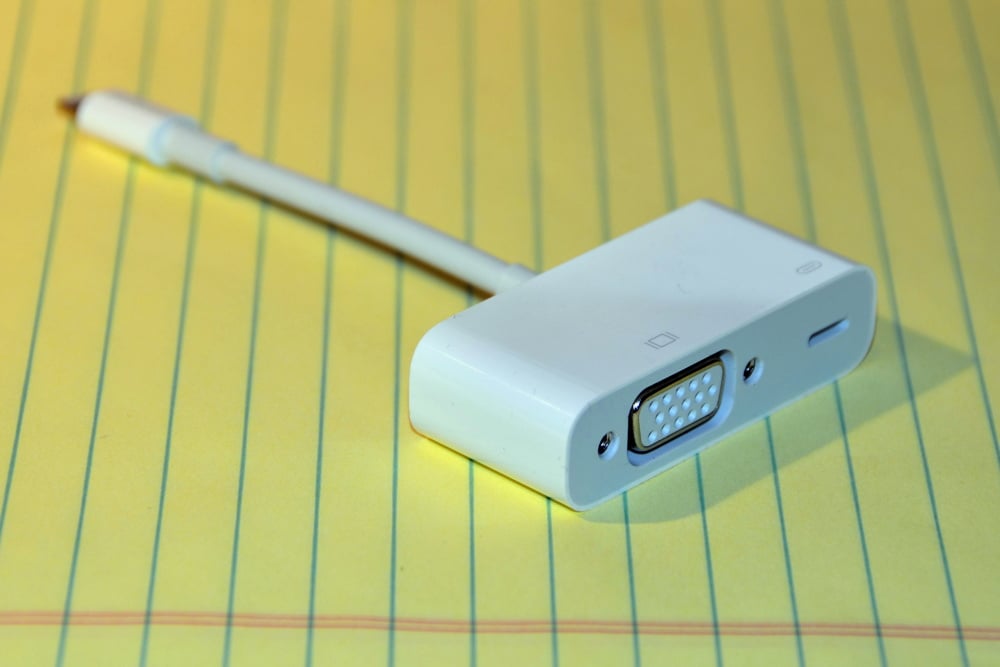
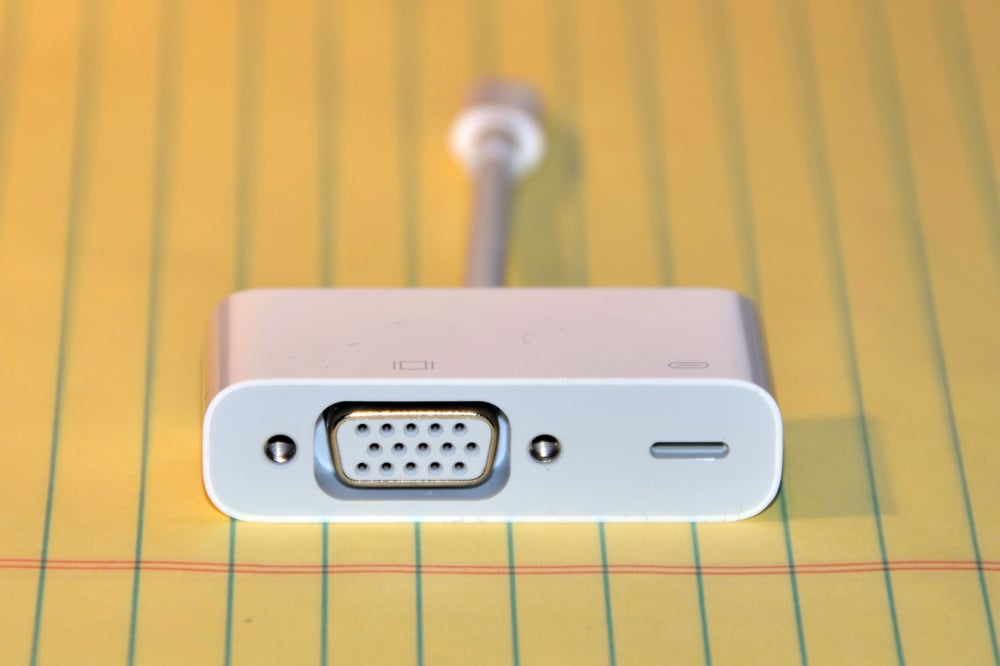
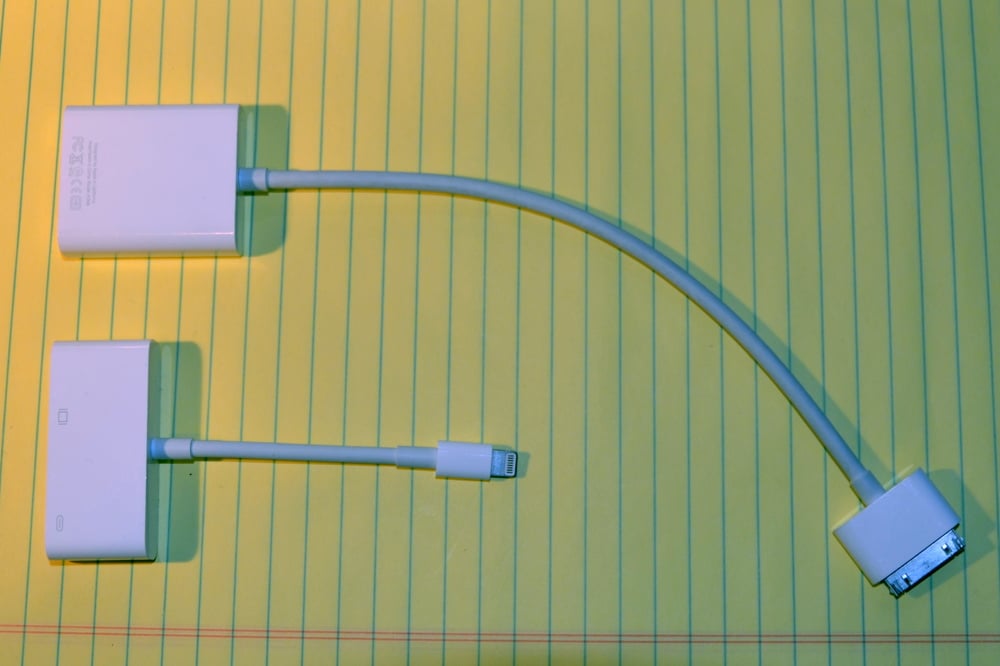
With my iPad 3, I use Apple’s 30-pin to VGA adapter ($29 from Apple, or much cheaper on Amazon). But if you want to run a presentation from the latest fourth generation iPad, the iPad mini, or an iPhone 5, you need a way to connect the Lightning connector to VGA. The answer is Apple’s Lightning to VGA Adapter, which Apple sells for $49 but you can save about $5 if you get it on Amazon. I recently purchased this adapter from Amazon, and it works great.
You would expect this adapter to be the same as the old 30-pin to VGA adapter except that it works with the Lightning connector. To a certain extent, this is true. This is a true plug-and-play accessory. Just like the old one, you connect one end to the VGA plug and connect the other end to your iPad or iPhone, and that’s it. Wait a few seconds and you will see your presentation on the large screen. And thanks to the iPad/iPhone mirroring feature, you can easily show off to an audience everything taking place on your iPad/iPhone screen. This is a great tool for showing an audience how an app works.
There are a few differences with this new adapter, besides the obvious — it has Lightning instead of 30-pin, and it costs almost twice as much. Fortunately, most of the differences are improvements.
First, I love that you can plug this device into your iPad with either side up (a feature common to all Lighting connectors). When I give a presentation from an iPad, I will sometimes disconnect the iPad from the projector to hold up my iPad, or to switch from my iPad to my iPhone, or for some other reason. I like that I don’t have to worry about this accessory being upside down when I plug it in. Snafus like that interrupt your flow and make you stumble in front of your audience.
Second, the Lightning to VGA Adapter has another Lightning plug on it so that you can add a Lightning cord connected to a power source. That way, you can charge your iPad during a presentation without any worries about running out of power. You can’t do that with the old 30-pin to VGA adapter. iPads have much better battery life than laptop computers, and I’ve always loved that I can run hours and hours of slides from an iPad without having to worry about power as long as I start with a good charge. But thanks to this Lightning plug, I’ll be safe even if I forgot to charge my iPad the night before and I only have a small charge remaining.
Third, the Lightning connector does a better job staying connected to the iPad. Even though the Lightning connector is tiny and is easy to unplug from an iPad or iPhone, it makes a firm connection. Several times in the past I have had an iPad or an iPhone 4 or 4S connected to a projector and the 30-pin connector would come out just a tiny bit, not enough for you to really notice if you look at it, but it results in the connection being lost to the projector. The audience instantly sees that I am no longer showing anything on the screen, but it sometimes takes a few seconds for me to notice. Ugh; very embarrassing. In my initial experiences with the Lightning to VGA Adapter (I gave a presentation from an iPad mini this past Friday, and I conducted several tests last week), the Lightning connector stayed very snug and did not disconnect until I was ready for it to disconnect. [UPDATE 7/3/13: I’ve now given countless presentations with my iPad mini using this Lightning to VGA Adapter over the last six months and I continue to love that the Lightniing connector is much more snug. The adapter has never accidentally disconnected from my iPad during a presentation.]
Fourth, the Lightning to VGA Adapter seems to do a slightly better job of sending the video signal to a projector. When I use the 30-pin VGA connector and I switch from mirroring my screen to running an app that displays something different on the projector than the screen — such as Keynote, where your audience just sees the slide but the iPad screen can show you the current slide, the next slide, a timer, etc. — there will sometimes be a flicker as the screen mode changes. I’ve never figured out what causes the flicker to occur. Sometimes I think it is the projector I’m using, sometimes it seems to have something to do with the app I’m using on the iPad, and sometimes I think it is just complete randomness. But so far I have yet to see any flickering at all when I switch modes on the iPad mini using the Lightning to VGA Adapter — even when I try to recreate the exact same circumstances that caused flicker on my iPad 3 using the 30-pin to VGA adapter.
Those are four major advantages. The only slight disadvantage that I’ve seen is that the cord is much shorter. The 30-pin version is over 10 inches end-to-end; the Lightning version is under 5 inches end-to-end. VGA plugs tend to be big and bulky, and I prefer having a slightly longer cord to separate that plug from my iPad or iPhone. Having said that, the shorter cord does make it easier to carry around the Lightning version.
I realize that in some ways, this list of advantages and disadvantages is irrelevant. If you want to connect your iPad or iPhone to a projector and you have a newer model with the Lightning connector, you simply need to get this adapter. Nevertheless, it’s nice to see that Apple took the time to make this a better adapter. And frankly, I like these improvements in the Apple Lightning to VGA Adapter enough that I suspect that in the future I will be using my iPad mini, not my iPad 3, to run presentations.
Apple’s new Maps app in iOS 6 has certainly received its share of bad publicity. Even Apple CEO Tim Cook admitted that Apple “fell short” of its goal of “deliver[ing] the best experience possible to our customers,” adding that he was “extremely sorry for the frustration this has caused our customers.” My experience with the app is that it works quite well when I provide a street address, and I love the turn-by-turn directions and the flyover feature. Where the app has fallen short for me has been its database of points of interest. Every once in a while, I give it a place name instead of an address, and the app gives me an old or otherwise incorrect address. This week, Google brought its maps back to the iPhone by releasing the free Google Maps app. I’m happy to see streetview back on the iPhone — it is often very useful to preview what a place looks like before you go there — and the reviews have been very positive. The end result is pretty good for iPhone users. We now have a better version of an app containing Google’s maps, while at the same time we have Apple devoting serious resources towards adding improvements to its own Maps app. Click here to get Google Maps (free): . And now, the rest of the news of the week:
I regularly use my iPad to give presentations. This afternoon, for example, I’m giving a presentation on using an iPad in your law practice for the Louisiana State Bar Association’s Techno Friday CLE. (If you are in New Orleans, join us!) But one thing that I haven’t done yet is cut the cord — i.e., use an Apple TV and an AirPort Express instead of a VGA cord connected to the projector. It seems like a great idea, but in my (admittedly limited) tests, I’ve had problems with the connection being flaky, so I’ve stuck with the tried-and-true method. But California attorney David Sparks has apparently had some success with it, and he describes the process in this post. I suppose I’ll have to give it a try in 2013. In the meantime, if any of you want to live on the cutting edge, I’d love to hear about your experiences and any tips.
Robyn Weisman of Law Technology News explains how attorneys handling the huge BP oil spill litigation in New Orleans used Trial Pad and TranscriptPad and a whole bunch of iPads to manage key aspects of the litigation.
Lex Friedman of Macworld offers theories on why it is good for Apple for the Google Maps app to exist.
Andy Ihnatko of the Chicago Sun-Times explains why he prefers the Google Maps app to Apple’s app.
Attorneys and others have been looking forward to a Microsoft Word app on the iPhone/iPad for a long time. Now that there are signs that such an app will be released in 2013, Derek Kessler of iMore opines that it might be too late. I think he has a point. Had Microsoft Office been available for the iPad soon after launch, it might well dominate the word processing market on iOS just like it does on the PC. But by waiting, we now have other credible solutions, including Apple’s own Pages. Interesting food for thought, although I’m sure I’ll still buy Office for iOS if it is ever released.
It’s the end of the year, so once again Apple has announced the iTunes Best of 2012. Click here to launch iTunes and see the list of the best apps of the year, where you will also find links to the best music, movies, TV shows, books and podcasts.
By the way, congratulations to California attorney David Sparks, author of Paperless, for making the iTunes list of best books of the year.
The Pope is now on Twitter (@Pontifex), and as you can see in this picture in the New York Times, he is using an iPad.
Time magazine named the iPhone 5 the best gadget of the year.
Art of the iPhone shares three hidden features of the iPhone Camera’s Panorama mode.
And finally, if you are still coming up with gift ideas for the person who has everything, Juli Clover of AppAdvice found some funny over-the-top iPhone handmade iPhone cases on Etsy. Click here to see them. But Clover’s article just hit the tip of the iceberg, there are so many more. For example, I found these after just a few seconds of searching Etsy:
I recently received an email from Matthias M. Edrich, a tax attorney in the Denver office of Kutak Rock LLP, letting me know about an app that he developed called TouchTax. The app contains the full text of the current IRS Code and the related Treasury Regulations. I don’t practice tax law, but Edrich sent me a free copy of his $5.99 app so that I could check it out. It looks like a useful app for anyone who wants to have access to federal tax laws wherever they go.
The app has a nice interface with a main page from which you can choose to browse the Code, Regs or IRS Bulletins, jump to a specific section in the Code or Regs, perform a keyword search, or go to one of your favorites. The relevant laws then appear in a layer on top (on the iPhone), but you can always tug the icon at the bottom left to move away that layer and go back to the main page. Edrich (pictured at right) has versions of TouchTax available on a large number of devices — not only the iPhone and iPad, but also Google Android phones and tablets, the gone-but-not-forgotten HP/Palm TouchPad Tablet, and the BlackBerry PlayBook. For example, here is a recent review of the TouchTax app on Android devices by Jeff Taylor of The Android Lawyer. And Florida attorney Rick Georges of FutureLawyer, an Android user, helpfully advises: “I would not mention to a date that you carry the entire Revenue Code on your phone. You are really already plenty dorky enough.” Ahem.
If you know the Code section that you want to see, just make sure that the “Code” tab at the top is selected and enter the number. For example, if gift-giving is on your brain now that we are in the holiday season, you can enter “102" to jump to 26. U.S.C. § 102, the general rules on gifts and inheritance income tax.
One thing I like about the way that the sections are displayed is that major sections — e.g. § 102(a) and § 102(b) — are highlighted in pink. Major subsection titles are highlighted in purple, and then grey. This highlighting was helpful when browsing through a long section, often making it quick and easy to orient myself as to where I was in the statute. If you want to use the entire screen to read the law, just tap the double arrows at the top right to make the bars at the top and bottom disappear.
Use the left and right arrows at the bottom to browse backwards or forwards through the sections.
Unfortunately, the text is read-only and cannot be selected. Thus, you cannot copy a sentence of the law and then paste it into an email or another app. (See below for a work-around.)
The Code provisions also contain hyperlinks to the related Treasury Regulations, saving you the trouble of entering a new search.
If you want to email a section, tap the paper airplane icon. Instead of sending the text, the app prepares an email with a link to the same provision on the TouchTax website.
If you want to search for a keyword in the Code, Regs and IRS bulletins since 2003, tap the Keyword tab on the main screen. The search does not take place within the app itself but instead takes place on the TouchTax website. This means that the results come quickly, but it also means that you need to have internet access to perform a search.
Once the search results load, you have the option of redoing the search using a natural language relevancy search, which will give you even more results, although some might not include your exact keyword(s).
There is currently a problem with the keyword search feature: the keyword itself is not highlighted in the text. Thus, you know that the keyword appears somewhere, but you need to hunt for it manually. One (awkward) work-around: email the section to yourself, then click on the link which pulls up the text of the same section in the Safari browser, and from there you can use the search feature in Safari to see your search terms highlighted. You can also select and copy text in Safari, something that, as noted above, you cannot do in the app itself. Here are screens from Safari:
Fortunately, Edrich tells me that highlighting search terms is already on his list for the next update of the app.
The app includes a notes feature. Tap the pencil icon and enter a note associated with a section. From the main page of the app, you can see a list of notes that you have created. When viewing a note, you can choose to email it, which composes an email with the link to the statute but also includes your note in the text of the email.
I spent most of my time testing this app on an iPhone 5, but it is a universal app so it will also work on an iPad. On the iPad, the main page portion of the app is always visible on the left, with the content shown on the right.
The app does not give you any options for changing text size or font. The default actualy looked fine to me on an iPhone 5, but on the iPad mini I did find myself wishing that I could make the text larger.
Apps like this that contain the text of laws are only valuable if they are kept up to date. Edrich tells me that since he uses this app himself, he has been keeping it up to date and plans to continue to do so. He gets the content directly from the Government Publishing Office and uses the most recent official version of the Code and Treasury Regulations, updating the app each time the GPO publishes new official versions. Edrich tells me that he updates the Internal Revenue Bulletin information weekly. Edrich also states on the website for this app:
TouchTax is updated within a few weeks of each federal update of the
official finalized Code and Regulations. The federal government appears
to be updating these materials each May and June. The next Code update
is expected in May 2013, and the new Regulations update is expected in
June 2013.
This app itself was originally released a year ago, and it has already been updated six times since then, which bodes well for the future. Edrich tells me that there are already 2,000 people using his app, most of
whom are iPhone/iPad users.
I’m glad to learn that the search issue I noted above is already on the list to be addressed in a future update. Hopefully Edrich can also add the ability to select text. But even in its current form, TouchTax is a useful app for those attorneys or accountants who work with the tax laws and want to have easy access at all times.
As I noted this past Friday, there is a part of the Brian Williams interview of Apple CEO Tim Cook that was not included in the 20 minute segment that ran on TV, a part in which Tim Cook explains that he does 80% of his work on an iPad. I was surprised at how high that percentage is. I love my iPad, but I can’t imagine doing 80% of my work on it, and I don’t run the largest company on the planet. Watching that clip again, I also find it interesting that Tim Cook apparently likes to use the iPad’s on-screen keyboard. Here is the full question and answer:
Q: How adapt are you at the virtual keyboard [of the iPad] which confounds a lot of us?
A: Pretty good. I think if you stick with it a little while, you get quite good at it. And the auto-correction is quite good. And so I ditched physical keyboards. 80% of my time is spent on iPad in terms of authoring emails and working on things. And I still spend time on the Mac, and of course I have this [holding his iPhone] with me all the time.
So not only is Tim Cook using an iPad a lot more than a computer, he is doing his typing on the iPad’s virtual keyboard.
I was thinking about that over the weekend when I saw an interesting article by Jason Snell, the Editorial Director of Macworld, PC World and TechHive, called Why I’m Writing on the iPad. He says that he is writing most of his articles on the iPad using the virtual keyboard. He admits that he is faster with the physical keyboard on his computer, but explains that when uses the iPad’s virtual keyboard and has to type slower, his brain spends more time choosing his words and the end result is better. He compares it to writing with a pen and paper, in which the process of getting words written is so much slower that your brain is forced to spend more time thinking about what you are writing.
I don’t type on the iPad’s virtual keyboard very often. Just about any time that I am going to sit down at a table and type something with the iPad, I use the Apple Bluetooth keyboard. I am a fast typist on a physical keyboard, and my writing style is to quickly get the words on the page, and then once that is done, I go back and edit to improve the sentences, move things around, etc.
Those times that I don’t use the physical keyboard with my iPad, I tend to use a stylus and take handwritten notes in GoodNotes.
I’m not saying that I never use the iPad’s virtual keyboard — I use it with emails all the time — but unlike Tim Cook and Jason Snell, I never really consider using it for serious writing. But Snell’s article has me thinking, and maybe I’ll try writing with the virtual keyboard just to see how it changes both the way that I think and the final work product itself.
Note that when I say “iPad” above, I’m just talking about the full-size iPad. The virtual keyboard on the iPad mini is so much smaller that I don’t see how anyone could touch type very quickly on it. Indeed, with the iPad mini, I find it faster to turn the device to portrait orientation and then use my thumbs to type on the keyboard, which is similar to typing on an iPhone’s virtual keyboard with your thumbs except that you have to stretch your thumbs a little bit more on the iPad mini.
If anyone else out there had found it to be advantageous to type text of any real length on the iPad’s virtual keyboard, I’d love to hear from you. Cook and Snell are both pretty smart guys, so you are in good company.
Many people, myself included, wondered how Apple would continue without Steve Jobs. But Apple CEO Tim Cook seems to have done a fantastic job with the company, and it is good to know that Apple is in good hands. Cook is famously private, but he recently agreed to two major interviews. Last night, NBC’s Brian Williams interviewed him on the show Rock Center, and you can watch the program here on the NBC website (or here on YouTube). (If you’d rather read than watch, Alex Heath of Cult of Mac posted a transcript.) Second, Josh Tyrangiel of Bloomberg posted a long interview with Cook. Both are worth your time if you are interested in how Apple works and how Apple prepares for what’s next. And now for the news of note:
Virginia attorney Sharon Nelson and her husband John Simek discuss using an iPad in court in this article for Litigation News.
California attorney Scott Grossberg answers questions from attorneys about using the iPad in a law practice.
South Carolina attorney Justin Kahn of iPad Notebook discusses JuryPad, a new app to assist with jury selection.
Kahn also notes the new features in an update to TrialPad, an app that you can use to present evidence at trial.
Nick Bilton of the New York Times explains why if he was forced to live on a desert island with one device, he would pick the iPad mini.
Apple updated iTunes to version 11. David Pogue of the New York Times likes it, and explains why.
Horace Dediu of Asymco wonders if Apple is moving to a six-month cycle, with an iPhone 5S due in Spring of 2013.
In a part of the Brian Williams interview with Tim Cook that didn’t make the cut for the TV show, Tim Cook explains that he does 80% of his work on an iPad, and the other 20% on a Mac or an iPhone. I use my iPad quite a bit in my practice, but I’m nowhere near 80%.
Kevin Fitchard of GigaOm reports that T-Mobile USA will start selling the iPhone next year, and will do it differently than other carriers. T-Mobile will sell the iPhone unsubsidized, which means between $650 and $850, but will then offer cheaper monthly plans, which saves customers money in the long run.
The Daily made a big splash when it debuted as an iPad-only newspaper. I’ve been a subscriber since day 1, in part because of the content, but in part because I wanted to support their efforts. The Daily is shutting down this month, and John Gruber of Daring Fireball offers some thoughts on why.
Andy Ihnatko of the Chicago Sun-Times recommends some interesting tech gifts, including iPad and iPhone accessories.
And finally, have you ever felt that you wanted to use a stylus with your iPad, but you wanted something that isn’t shaped like a pen? Woodees has come out with the iPic, a cross between a stylus and a guitar pick. I can understand using this with a virtual guitar app, but for other apps, is this crazy or ingenious? I’m actually not sure. If you want to find out yourself, it can be yours for $9.99. Here is the video:
Yesterday Apple updated its iWork apps for iOS: Pages, Keynote and Numbers. There are lots of new features in version 1.7 of these apps, and Leah Yamshon of Macworld provides a good overview. I want to dig deeper on just one new feature because it is so critical to most lawyers: the ability to track changes to a word processing document. The good news is that the feature works well for viewing and creating redline edits. The bad news is that the app doesn’t give you an easy way to review all edits at once, and there is no support for Comments.
I am often out of the office when I am sent a Word document containing redline edits that I need to read. When it comes to just reading a document and seeing the edits, version 1.7 of the Pages app works quite well. When you first open a document in Pages containing redline edits, you will only see what is added, not what is deleted. To see both, tap the Tools icon, tap Change Tracking, and then change the view from the default setting of Markup Without Deletions to Markup. With this change, you will see additions in a different color and deletions in that different color but with strikethrough. For example, you might see something like this if an amount is changed from $500,000 to $100,000: $500100,000.
If multiple authors have changed a document, you will see the changes of each author in a different color. The Pages app doesn’t show you the name of each author, but when you send
an edited document back to a computer running Word, changes made by the
iPad or iPhone will use the name of your iPad or iPhone as the author. For example, changes that I made with my iPad showed up on my computer as being made by “Jeff’s iPad.” If you use a wacky name for your iPad or iPhone, keep this in mind before you send redline edits to a client.
You can also accept or reject edits in Pages 1.7. To do so, double-tap on an edit, andthen select Accept or Reject from the pop-up menu.
Unfortunately, Pages 1.7 does not include a review mode in which you can view a change and decide to accept or reject it and then instantly go to the next change. Instead, you must double-tap on each change to accept or reject it. When Quickoffice Pro added a track changes feature this past October, it did include this feature, as I noted in my review. However, Quickoffice Pro doesn’t currently support footnotes, which prevents me from using it on most of my litigation documents. Pages, on the other hand, includes the best support for footnotes that I have seen in any iPad or iPhone app.
The biggest shortcoming that I see with Pages 1.7 is that it still does not support the Comments feature of Microsoft Word. I myself don’t use the feature — when I am editing a document and I want to say something, I usually just type it in bold and highlight my words — but I work with several other people who do use that feature when they send me a redlined document. If you try to open a document in Pages that contains Comments, Pages will warn you after it converts the document from Word to Pages format that it has deleted all of the Comments. This warning is presented to you on the iPad like this. (I added the red circle to emphasize where you need to look.)
On the smaller iPhone screen, you instead just get a warning that “This document may look different on your iOS device” and you need to tap a button marked “View Details” to see a list of warnings that the iPad shows automatically.
If someone emails you a document with edits and you see that warning after opening up the file in Pages, I recommend that you go back to the email and open up the document in another app that does show Comments such as Documents to Go, Office2 or (if you don’t care about footnotes) Quickoffice Pro.
Track changes support has long been the Holy Grail for many litigators using an iPad or iPhone. For the most part, I really like the way that Apple implemented this feature in the latest version of Pages. I wish that the update included a better way to review each edit, but for the most part I suspect that I’ll just scroll through a document and look at the redline edits in the context of the document as a whole so this omission is not critical for me. The lack of support for Comments will sometimes be a problem (depending upon how often you work with people who use that feature), but as long as you know about it and have an app like Documents to Go, Office2 or Quickoffice Pro, you can work around the Comments omission when it becomes an issue.
I have long been a fan of Pages because it is a powerful, rock solid app. For example, Pages is my preferred app for creating Word documents on the iPad. And if I am in a meeting and I am typing notes on my iPad using a Bluetooth keyboard, Pages is the app that I always use. With the new track changes feature, I strongly suspect that Pages will also become my favorite app for viewing and creating redline edits on the iPad.
I rarely create redline edits on my iPhone, but if I need to do so, I suspect I’ll use Pages there too. For simply viewing redline edits on my iPhone, I still prefer using Documents to Go because it has the best pinch to zoom implementation of any other word processing app, and with the iPhone’s smaller screen I find that it really helps to have an elegant way to make the text larger.
Click here to get Pages ($9.99):
The other apps I discussed above:
Click here for Quickoffice Pro HD [for iPad] ($19.99):
Click here for Quickoffice Pro [for iPhone] ($14.99):
Click here for Documents to Go [both iPad and iPhone] ($9.99):
Click here for Documents to Go Premium [both iPad and iPhone] ($16.99):
Last week, I received an email from Portland attorney Josh Barrett. (Josh started the great Tablet Legal website in January of 2010 when the iPad was first announced, and ran that website until he finally called it quits earlier this year.) He was writing to recommend that I check out Fantastical, a calendar app for the iPhone from Flexbits. Josh has been a fan of the Mac version of Fantastical for some time, but it was a new product to me. The app is only $1.99 right now (at some point the price will increase to $3.99), and I decided to spend the two bucks to see what all the fuss was about. Boy am I happy that Josh sent me that email. This is a brilliant and beautiful app that I think every busy attorney using an iPhone would really appreciate. Indeed, anyone who manages a lot of appointments will find a lot to love in this great little app.
The focus of the app is version of a calendar that is similar to the list view in the built-in Calendar app. I’ve always liked the list view on the iPhone because it is a great way to browse a bunch of upcoming events at one time. But the list view is improved in Fantastical because there is also a row of dates along the top that you can quickly flick to jump forward or backwards in days. Alternatively, if you want to see a traditional calendar, you simply swipe your finger down on the top of the screen to replace that row of dates with a calendar, and then swipe left or right to change the month instead of the day. (Swiping to change the month is considerably easier than tapping those tiny arrows in the built-in Calendar app to change the month.) Swipe down again to return back to the row of dates. The gestures are very easy and quickly become second-nature.
I can’t show you my own calendar without showing some confidential information so I’ll start with two screens from the Fantastical website that illustrate the two views:
As you can see, both the list view and the calendar view include small bars indicating other appointments that you have on that day, just to give you a small visual clue that there are (or every once in a while, are not) other items already on your calendar for that date. If you use multiple calendars (I don’t) each will have a different color. In either view, you can jump to the current date just by tapping at the top (where in the above images it says “November 2012"). Tap on any event to see all of the details on a full screen.
If that was all that this app did, that would be enough to recommend it because it is such a fast and easy way to jump around a calendar and quickly see what is coming up. But that is just the beginning. The app also includes a nice search feature. Swipe down just a little bit on the calendar at the top (not far enough to switch views) and you will see a search box. Unlike the built-in Calendar app that only searches all fields, Fantastical also gives you the option to search by the Title, by the Location, or by the Invitees.
I notice that when I run a search in the built-in Calendar app, I only see results from the last 12 months. In Fantastical, I am seeing results from the last 10 years.
But I’m saving the best feature of Fanstastical for last. Creating an event in the built-in Calendar app always seems like it takes more time than it should. First you tap the + button, and then you have all of these fields to fill out. But in Fantastical, you can create events just by using natural language. Type “Meeting with John next Friday at 3" and the app creates that event. In fact, you can even watch the app create the different parts of the event as you type, an animation that is so neat and fun that you might want to spend the $2 just to see that at work.
Other examples that work, taken from the Flexbits website:
Grocery shopping at Wegmans Thursday at 5pm
Lunch with Matthew at 123 Main St at 1:30 Monday
Family vacation from August 9-18
Soccer practice every Tuesday at 6
Sam’s birthday every year on 5/16
When I see that big open field waiting for a narrative description, I often find myself tempted to just talk to my iPhone. You can do that too, and it works great — just tap the microphone icon and dictate. Of course, an iPhone 4S and 5 already have the ability to create events via speech thanks to Siri, and in some ways Siri is more powerful than Fantastical. For example, Siri will warn you if you have a conflicting event, and Siri will try to match the event with your Contacts (tell Siri “meeting with John” and it will show you a list of all of the John’s in your Contacts so you can select the right one). But I often find that I cannot talk to my iPhone when I am creating an event because I am on a call, or working with another person, and it is faster to type a narrative in Fantastical then it is to tap in each of the fields in the Calendar app.
Here’s another shortcut for creating an event. On the calendar bar at the top of the screen (either the row of days, or the full calendar), tap and hold on a day for a second or two. That brings you right to the New Event screen and you can just type the event title and Fantastical puts it on that date.
Deleting an event is also very fast. Remember that in the built-in Calendar app, you
need to tap an event, then tap edit, then scroll down to the bottom,
and then tap Delete. In Fantastical, just swipe across an event to see
the option to delete (much like you can swipe across an email in the
Mail app to delete it).
Fantastical is only an iPhone app. It runs on an iPad, but I don’t recommend doing so because it is not formmated for that screen and the gestures are designed for something that fits in your hand. On the iPhone, it only works in portrait mode, not landscape mode. That one makes sense to me because the core of this app is to show lists, which works better in portrait mode. Also, this app makes great use of the iPhone 5’s longer screen because you can see more entries in the list.
For just the 1.0 version of this app, it is packed with features, and I can’t wait to see what is added in the future. One that I’d like to see is the ability to jump to a specific date so that you can see what was happening several years ago without swiping all the way back one month at a time. (Tip
for the advanced user: you can use Launch Center Pro to create an action that takes you to a specific date within Fantastical.)
Fantastical lives up to its name. It is a fantastic alternative to the built-in Calendar, offering a faster and easier way to add events, search for events and browse events, all in an app that has a beautiful design. I was tempted to actually replace the Calendar icon at the bottom of my Home Screen with Fantastical, but I like the way that the built-in Calendar app tells you the current date on the face of the icon itself (a feature that Apple doesn’t let third-party apps use). Also, there are still some things that you can only do with the built-in
Calendar app, such as accessing alerts or creating new events with
invitees. (Fantastical uses the same databse as the built-in Calendar app so you can switch back and forth.) But for most of your calendering needs, Fantastical is all
that you will need. Thus, I have placed Fantastical on the very first page of my home screen, prime real estate reserved for only my most favorite apps.
As noted above, the developer says that the current $1.99 price is 50% off of what the app will eventually cost, so you can save a few bucks by buying it now. But whether the price is $2 or much more, it would still be worth it. I strongly encourage you to give this app a try and see if you like it as much as I do. I suspect that you will.


 Twitter/LinkedIn/Avvo