Episode 25 of the In the News podcast is now available. We start by discussing how Apple (with iOS 15.1) and Facebook are taking the first steps towards a future in which we share a virtual presence with folks in other locations. Next, we wish the iPod a happy 20th anniversary, and then discuss the new AirPods (third generation). We also discuss iPad multitasking and the new Apple Watch Series 7.
In our In the Know segment, Brett discusses the Memoji feature on the iPhone and iPad. I share a tip for the Notes app: when you are sharing a note with someone else, you can view activity (who made changes, when they did so, and what they changed) by swiping left-to-right across a note. It’s sort of like the track changes redline edit feature in Microsoft Word.
Around the year 2000, I started using my first MP3 player — a popular Diamond Rio device that Apple was providing for free when you purchased an iBook laptop computer. I think it was the Rio 600. It could only hold about 10 songs, so I’d have to listen to the same songs every time I used it, or I had to take the time to update the songs on the Rio by connecting it to my computer before starting a workout or other activity I wanted to do while listening to music. Twenty years ago (specifically, October 23, 2001), Apple introduced the original iPod. Because I used the Rio and other music devices going back to the Walkman in the 1980s, I instantly understood the allure of a device that could hold 1,000 songs — 1,000 songs! — but still fit in a pocket. As Dan Moren wrote in Macworld a few days ago, the iPod changed everything for Apple. That first model caught everyone’s attention, and the success of subsequent models brought a wave of new customers to Apple and made plenty of money for Apple — a company that was on the brink of bankruptcy just a few years earlier. I owned and loved numerous models of the iPod over the years. And fortunately, none of them looked like this prototype model that Cabel Sasser of Panic shared this week. Of course, the iPod is no longer necessary now that we have the iPhone, but the iPod’s touch interface (the innovative scroll wheel) and small size made it the forefather of the iPhone. You can make a strong argument that without the iPod, Apple would have never invented the iPhone. So happy 20th to the iPod, and thanks for everything that you did. And now, the news of note from the past week:
I’ve written before about the Pegasus software sold by NSO Group to governments, which can be used to hack into smartphones including the iPhone. Ben Hubbard, a New York Times correspondent covering the Middle East, has evidence indicating that Saudi Arabia may have hacked his iPhone four times over the last few years using Pegasus. Unless you are a high-profile target, you are probably safe, and Apple is always working to patch security holes exploited by black hat and white hat hackers to hack into devices. But a risk always remains, and this article is a fascinating read. (I’m using the “gift” feature of the New York Times, so you can use this link to read this article even if you don’t pay for a subscription.)
One new feature in iOS 15.1 and iPadOS 15.1 is SharePlay. Lewis Wallace of Cult of Mac explains the new Apple Fitness+ feature that lets you use SharePlay to talk to one or more other people while you do a Fitness+ exercise program together.
Adobe had its Adobe Max conference this week, and during that conference, Adobe announced updates to many of its products. Ed Hardy of Cult of Mac explains some of the new features added to Photoshop and Illustrator for iPad.
Even though the new Apple Watch Series 7 is still in short supply, you can already purchase select models at a discount through Amazon. For example, I see that the stainless steel model that I ordered is $30 cheaper on Amazon, although it doesn’t come with the watch band that I selected. But if you are lucky and the model and band that you want are currently being sold on Amazon, you can save some money.
Currently, when I purchase home automation devices, I virtually always select devices that work with Apple’s HomeKit technology. That makes it easier because I can manage devices from different vendors using the Home app and because different devices that support HomeKit can often work with each other. But at some point in the coming years, a new smart home standard called Matter should become widespread. Apple, Google, and Amazon will all support Matter, so the hope is that this will be the first truly cross-platform home automation standard. I mention all of this today because Jeff Butts of The Mac Observer notes that many different eero devices – including the eero Pro (Wi-Fi 5) that I reviewed last year and the newer eero 6 and eero Pro 6 — will support Matter in the future.
And finally, for the last few years, Apple has commissioned a series of YouTube videos created by Donghoon Jun and James Thornton called Experiments in which these smart guys create fascinating videos using relatively simple materials filmed with an iPhone. It’s a way to show off the incredible videos that an iPhone can capture. The latest installment is Experiments VI: Movie Magic, and it is really cool. In this installment, they recreate special effects that you might see in a movie, and while you might assume that computer graphics were used, these were actually created using practical objects:
Multitasking on the iPad is very useful, but in the past, it has been somewhat confusing. Apple improved this in iPadOS 15 by making two changes. First, at the top of the screen, Apple added a new button with three dots. Tap the three dots to activate multitasking. Second, Apple added the new Shelf to the bottom of the screen, which appears when you launch an app to remind you of other windows associated with that same app. These are both great improvements that make it easier to work with multiple windows and apps on an iPad.
The three dots
Open just about any app on an iPad running iPadOS 15 and you will see three dots at the top. Apple calls the dots the multitasking button.
When you tap the three dots, you will see the different multitasking modes: full screen, Split View, or Slide Over. The mode that the window is currently using is indicated by a gray circle around its corresponding icon.
If you tap the Split View or Slide Over buttons, the active window will move to the side so that you can select another app. If you pressed the Split View button, the app you select will be placed side-by-side with the app that you were previously in. If you pressed the Slide Over button, the app you select will fill the screen, and the app that you were previously using will appear on the right side of the screen on top of the app you selected.
Some apps, such as the Mail app, will show a fourth mode: Center window. That mode places a window in the center of your iPad screen on top of the other window in the app.
You don’t have to use the three dots to do multitasking on the iPad. For example, the iPad continues to support the previous method: open the Dock at the bottom of the screen and then drag an app from the Dock to the side of the app you are currently using for Split View mode, or drag an app from the Dock to the top of the app you are currently using for Slide Over mode. But with the new three dots system, you can put an app in a multitasking mode even if it is not in the Dock.
The Shelf
For a while now, an iPad app could have multiple windows open. For example, you might have one window of Safari open with three tabs, then another window of Safari open with only a single tab. Or you might have different Microsoft Word documents open in different windows. Before iPadOS 15, it could be difficult to know how many windows were open for an app. You might tap the Microsoft Word icon in your Dock thinking that it was going to open a contract that you are drafting only to discover that Microsoft Word instead opened a different document, a brief that you are also drafting.
In iPadOS 15, whenever you open an app that has more than one window open, a Shelf appears at the bottom of the screen with thumbnail images of the different windows associated with that app. One of those windows will be the active window, but if that isn’t the window that you intended to use, you can tap one of the other thumbnail images in the Shelf. And if the thumbnail images are too small for you to tell what each window is, you can just keep tapping on different thumbnail images until you find the one that you want.
Once you start to act on the active window, the Shelf goes away.
If you are working in an app and want to see the Shelf associated with that app again, there are many ways that you can bring back the Shelf. First, you can exit the app (swipe up to go to your Home Screen) and start the app again. Second, you can swipe up from the bottom of the screen — just a little — to bring up the Dock, then tap the icon for the active app and you will see the Shelf again. Third, you can tap the three dots at the top of the screen — not only does that show you the multitasking modes at the top of the screen, but it also shows you the Shelf at the bottom of the screen if you are using an app that currently has two or more windows open. Fourth, if you use an Apple external keyboard that has a Globe key on it, you can tap the Globe key and the down arrow key to activate the Shelf. (Keyboards without a Globe key may be able to do this as well. For example, on my older Apple Magic Keyboard, the FN key works like the Globe key.)
When you are already in an app and you use one of these methods to reactivate the Shelf, you will see another option at the end of the Shelf: a blank thumbnail image with a plus sign on it. Tap that one to create an additional window in the app.
Conclusion
Anyone who uses a computer knows that the ability to switch between different windows, either in the same program or in different programs, allows you to be much more productive with the computer. The same is true for the iPad. Switching between different apps, or different windows within the same app, makes it much easier to do much more with an iPad. And thanks to the three dots and the Shelf, iPadOS 15 makes it easier than ever to multitask on an iPad.
Episode 24 of the In the News podcast is now available. Apple announced lots of new products and services this week, so that is where Brett Burney and I begin this episode. We then talk about the Apple Watch Series 7 and the iPhone 13 Pro.
In our In the News segment, Brett and I talk about my post from earlier this week recommending that you put only widgets on your iPad home screen. I share some tips for getting the most out of the Notes widget, and Brett does the same for the Files widget.
On April 22, 2009, Tim Cook (who at the time was Apple’s COO and acting CEO) announced that Apple had sold its 21st million iPhone, was happy with its exclusive relationship with AT&T, and looked forward to the competition from the Palm Pre. Just two days later, I published the first edition of In the News. Fast forward to today, and analyst Horace Dediu concluded that Apple recently sold its 2 billionth iPhone, and this is the 600th edition of In the News. That is a lot of Fridays. Well, TGIF once again, and here is the news of note from the past week:
One of the new announcements made by Apple this week was a new plan for Apple Music. The Apple Music plan options were $9.99/month for an individual, $14.99/month for up to 6 people in a family, or $4.99/month if you are a college student. This week, Apple added a fourth plan: $4.99/month for the Apple Music Voice plan. With this plan, you have to ask Siri to play music — such as individual songs, albums, Apple Music playlists, or new mood and activity playlists (such as “Play the dinner party playlist”) — and you cannot use the traditional Apple Music app to search for songs. You also don’t get Spatial Audio, and because you are not using the Apple Music app, you cannot see lyrics or watch music videos. California attorney David Sparks points out another drawback: Siri often does not understand you when you ask it to play one song and it plays a different one instead. Perhaps this new plan will be attractive to some folks, but I share David’s concerns. On the other hand, I think that the family plan is a tremendous value. Apple Music integrates incredibly well with all of our Apple products, and it is great that I, my wife, and both of my teenagers can play virtually any song that we want, whenever we want, for about the same price that I paid for a single cassette tape when I was a teenager. And I don’t even need to flip the iPhone over to play the second half of that Journey album.
Speaking of David Sparks, he and Stephen Hackett released a great episode of the Mac Power Users podcast with tips on getting work done using an iPad. I learned a lot from that one.
Illinois attorney John Voorhees of MacStories shares some of the small things that you may have missed associated with Apple’s new product announcement from this past Monday.
How do you decide between the AirPods (second generation), the new AirPods (third generation), and the AirPods Pro? Chance Miller of 9to5Mac compares the three products and created an especially useful chart comparing the key features.
Stephen Hackett of 512 Pixels (and the Mac Power Users podcast) shows all the details on how the new Apple Music Voice plan compares to the other plans.
Ed Hardy of Cult of Mac notes another new announcement from Apple this week: you can now buy the HomePod mini in the original colors (space gray and white) or three new colors: yellow, orange, and blue. I reviewed the HomePod mini earlier this year, and I’m still a big fan.
Juli Clover of MacStories notes a new Apple product that Apple did not mention at its event this past Monday: a new $19 Polishing Cloth that is safe to use to clean any Apple device. And I see as I type this that it is currently sold out for the next 10-12 weeks, so I hope that you were not counting on getting one from Santa Claus this year.
One feature of the iPhone 13 Pro is 120hz ProMotion. What exactly does that mean? This two-minute YouTube video from “The Slow Mo Guys” uses slow motion to show exactly how it works. Very informative.
Federico Viticci of MacStories writes about an app called Yoink, a clipboard manager on the iPad that and iPhone that manages to run all the time in the background by telling the operating system that it is in picture-in-picture mode. I’m curious if Apple will let the app continue to exploit this loophole.
One of the new watch faces that Apple created to take advantage of the larger face on the Apple Watch Series 7 is called Contour. Parker Ortolani of 9to5Mac shares all the details on how the Contour watch face works.
Mark Sullivan of Fast Company reviews the Apple Watch Series 7 as a smartwatch for runners.
You can usually get 3% cash back when you use an Apple Card to purchase products from Apple. But Chance Miller of 9to5Mac reports that you can now get 6% cash back.
Clive Thompson writes on Medium about reading War and Peace on an iPhone. The. Whole. Book. It’s a fascinating article written by a great writer, and it addresses far more topics than you might expect.
And finally, if you missed the first two minutes of Apple’s announcements on Monday, then you missed a great video called Start Up: 45 Years of Apple Sounds. I love so much about this video: the homage to creating something in a garage — the place that Apple itself started, the vintage Apple products, and the song that A.G. Cook created. Worth watching:
A year ago in iOS 14, Apple first provided the ability to add widgets to the iPhone home screen. It’s a nice feature that I use every day, but I am only willing to devote a limited portion of my first iPhone home screen to widgets because I want to also have space for my frequently-used apps. On the other hand, screen real estate is a completely different story on the iPad. Now that iPadOS 15 allows the placement of widgets on the iPad, I find myself using a different approach to widgets: only widgets on the home screen.
There are two reasons that this works so well for me. First, and most obviously, there is a lot more space on the iPad screen. Thus, when you are deciding where to place your widgets, you have a larger canvas to work with.
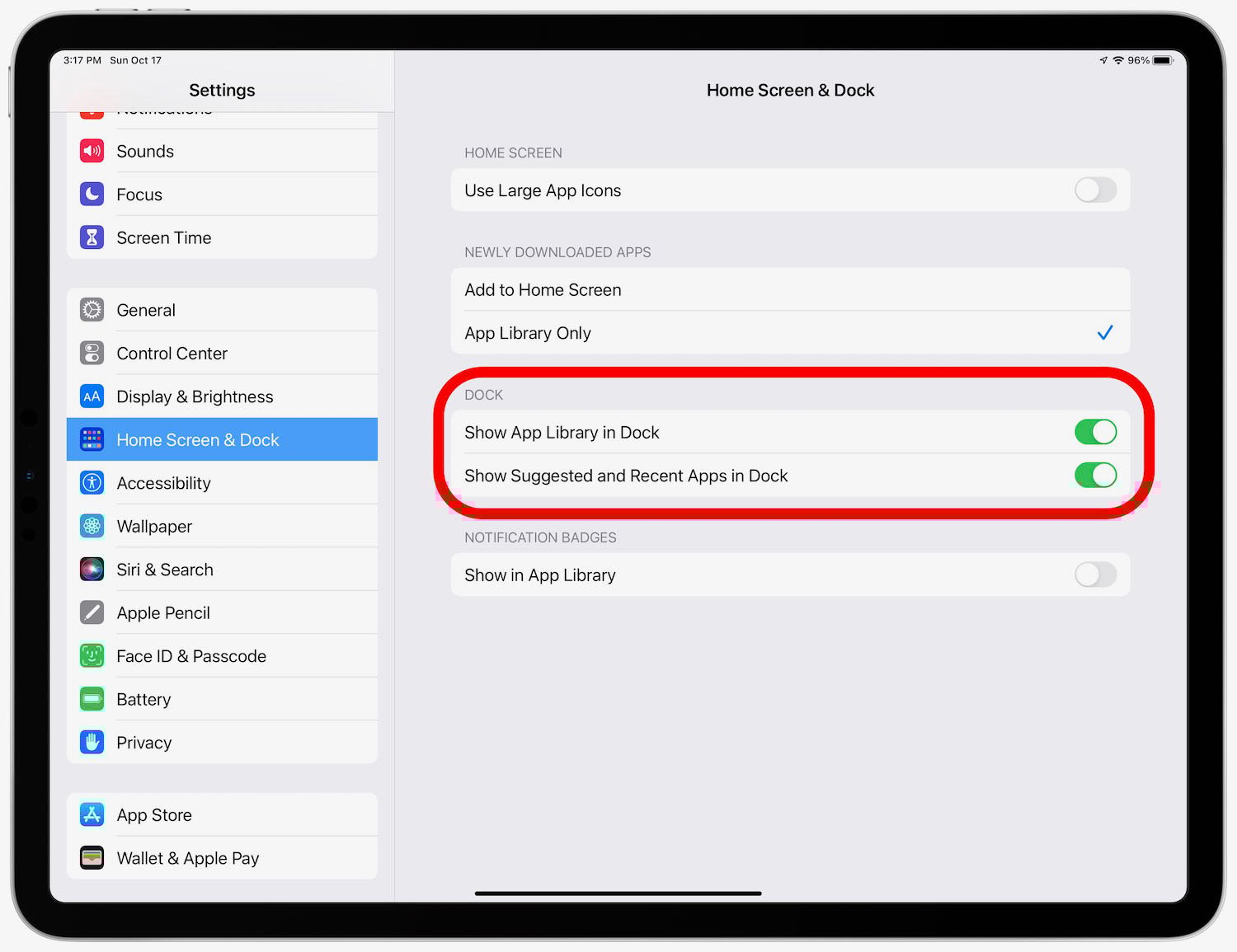
Second, you can devote more – and perhaps all — of that larger canvas on an iPad to widgets because the Dock on the iPad is considerably longer that the iPhone. The iPhone’s dock only has space for four apps. The iPad dock has space for up to 20 apps — although, depending upon your your setup, you may pick just 17 of those. In the Settings app, you can turn on the option to show up to three suggested and recent apps in the Dock, which leaves you room for 17 apps in the Dock that you select, plus three recent ones. But whether you pick all 20 or just 17 of the 20, the iPad dock unquestionably holds far more apps that the iPhone dock.
There’s actually room for one more thing in the Dock. Another option in the Settings app is to add one more space at the far right end for the App Library, which means 21 different slots in the Dock, if you turn that on.
The upshot of all of this is that I don’t need to place apps on my iPad’s first home screen. The 17 most important apps are in the Dock, the last three apps that I used other than those 17 are also in the Dock, and the App Library at the end of my Dock makes it easy to find other apps. With no need for apps on the first home screen, I get to devote all of that space to widgets.
Having only widgets on a home screen changes the home screen from an app launcher to a mission control, displaying the key information that I need for getting my work done and other valuable information. Indeed, a good widget is so useful at displaying information that you may not need to even launch the app to learn more. And everything is visible with just a quick glance.
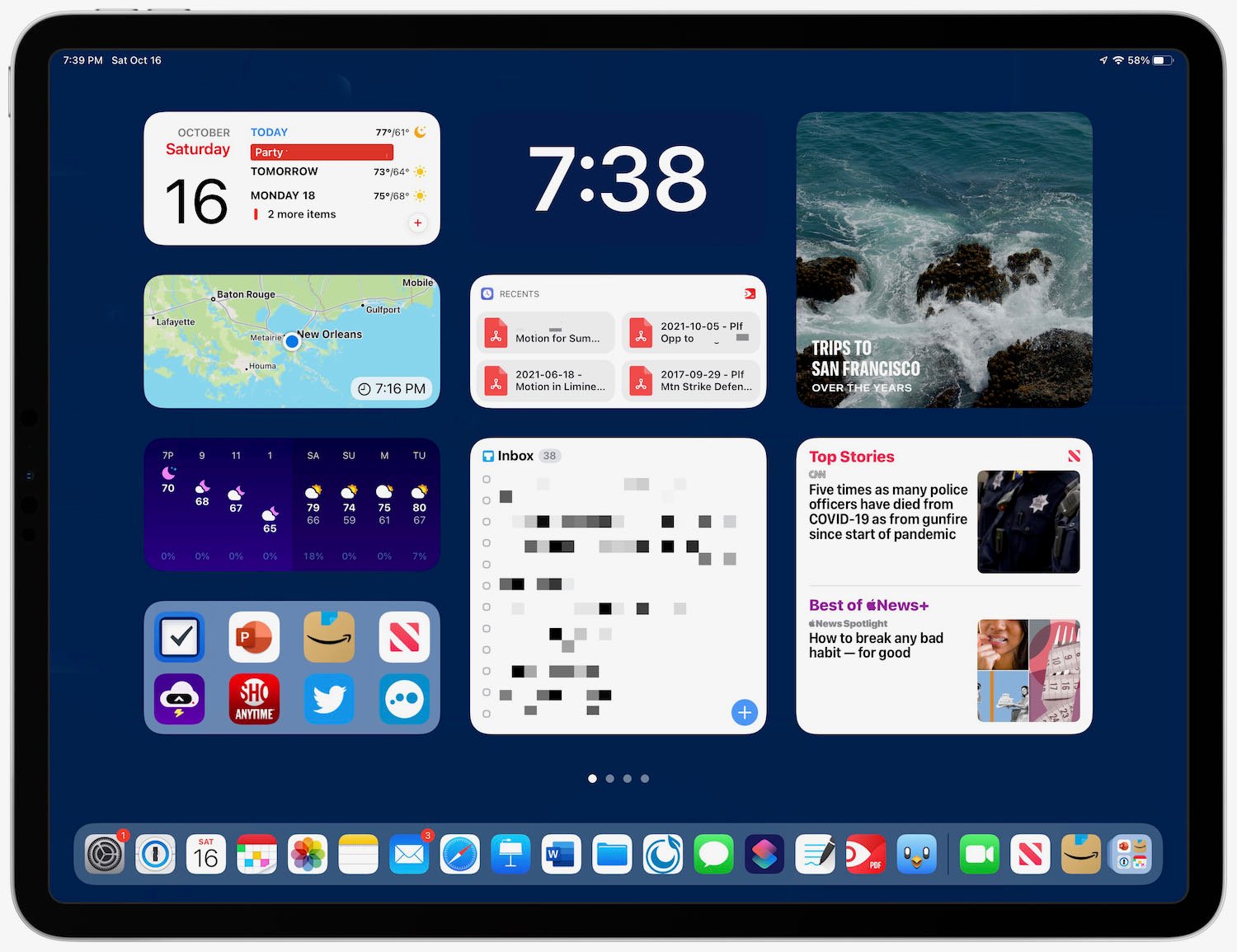
Here are the widgets that I currently find the most useful on my iPad.
I’m going to start with my center column because it is probably the most useful. At the top, I have the time displayed — using big, bold numbers that are obvious at a quick glance. The app that I’m using to display the time is Widgetsmith because it allows almost infinite customization. I’m using a medium size widget, and I’ve customized that widget to display only the time, using large white numbers on a blue background that matches the color of the iPad background. Thus, instead of looking like a rectangular widget, it looks like the time is being displayed directly on the iPad’s background.
Just below the time, I have a medium size widget from PDF Expert, the app that I use to work with PDF files, displaying my four most recent files. When I want to launch PDF Expert, there is a good chance that I’m going to want to look at one of those recent files, and by tapping one of those four buttons in the widget I can jump directly to that file. It’s a great shortcut.
At the bottom of the middle column I have the large widget from Things, the app that I use to keep track of my to do list. In the above image, I’ve pixelated the widget to redact confidential information. But on my iPad, it displays the top 12 items that I need to be working on. Thus, without even launching the Things app, I can see the most important items for me to be working on today. When I’m ready to mark an item as completed, I just tap on the widget to launch the Things app. As a result, I don’t even have the Things app on my Dock (unless it shows up as one of the three most recently-used apps) because the widget itself launches the app.
So in short, the middle column shows me what I need to be working on, gives me a link to documents that are often relevant to that work, and reminds me of how much time I have to complete that work because of the clock. It’s a column of productivity.
At the top of my left column I have a medium widget from Fantastical. The left side of the widget tells me the day and date. Yes, that information is also at the very top of my iPad, but it is in a small font size. The Fantastical app makes it much easier to see today’s date at a glance. The right side of the Fantastical widget displays the next two or three items on my calendar, reminding me of upcoming meetings.
The next two medium widgets in my left column are from CARROT Weather. One displays a radar so that I can quickly see rain in the area (a premium feature of the app that I get by paying for a subscription), and the one below it displays the hourly and daily forecast. if CARROT Weather had a single large widget that included all of that information, I would use that instead, but using two medium widgets also works fine and give me the weather that I find most useful.
At the bottom of my left column is the Siri Suggestion widget with eight app suggestions. If I want to launch an app and it isn’t in my Dock, I will often see it there. If not, I can swipe to my second home screen, which displays my top apps that were not placed in my Dock, or I can tap the App Library at the end of my Dock, or I can swipe down on the screen to search for an app. To be honest, though, I’m not sure if I will stick with the Siri Suggestion widget because I only use it occasionally. I previously had the Notes widget in that location, giving me quick access to my three most recent notes, and I may return to that.
The top half of my right column is the large Photos widget displaying For You photographs. This is one of my favorite widgets because it changes frequently throughout the day. I never know what I am going to see there, but it is often a picture that makes me smile. It reminds me of having a traditional framed photograph on my desk, but it is much better because the picture changes all of the time. If I tap the widget, it starts a short movie using the Memories feature in Photos so that I can see that photo and related ones. I have a large number of pictures in the Photos app, and the Memories feature in general, and this widget in particular, do a great job of resurfacing pictures. I love it.
The bottom half of my right column is the large Apple News widget set to Today, which means that it shows me two news headlines. I’m often too busy during the day at work to pay much attention to the news, but any big story of the day is going to be in the Apple News widget. Thus, just by glancing at my home screen, I have some sense of what is going on in the world, and I can tap on the headline if I want to read more. (As an Apple One subscriber, I get access to Apple News+, but even without a News+ subscription you can read much of the top news in the Apple News app.)
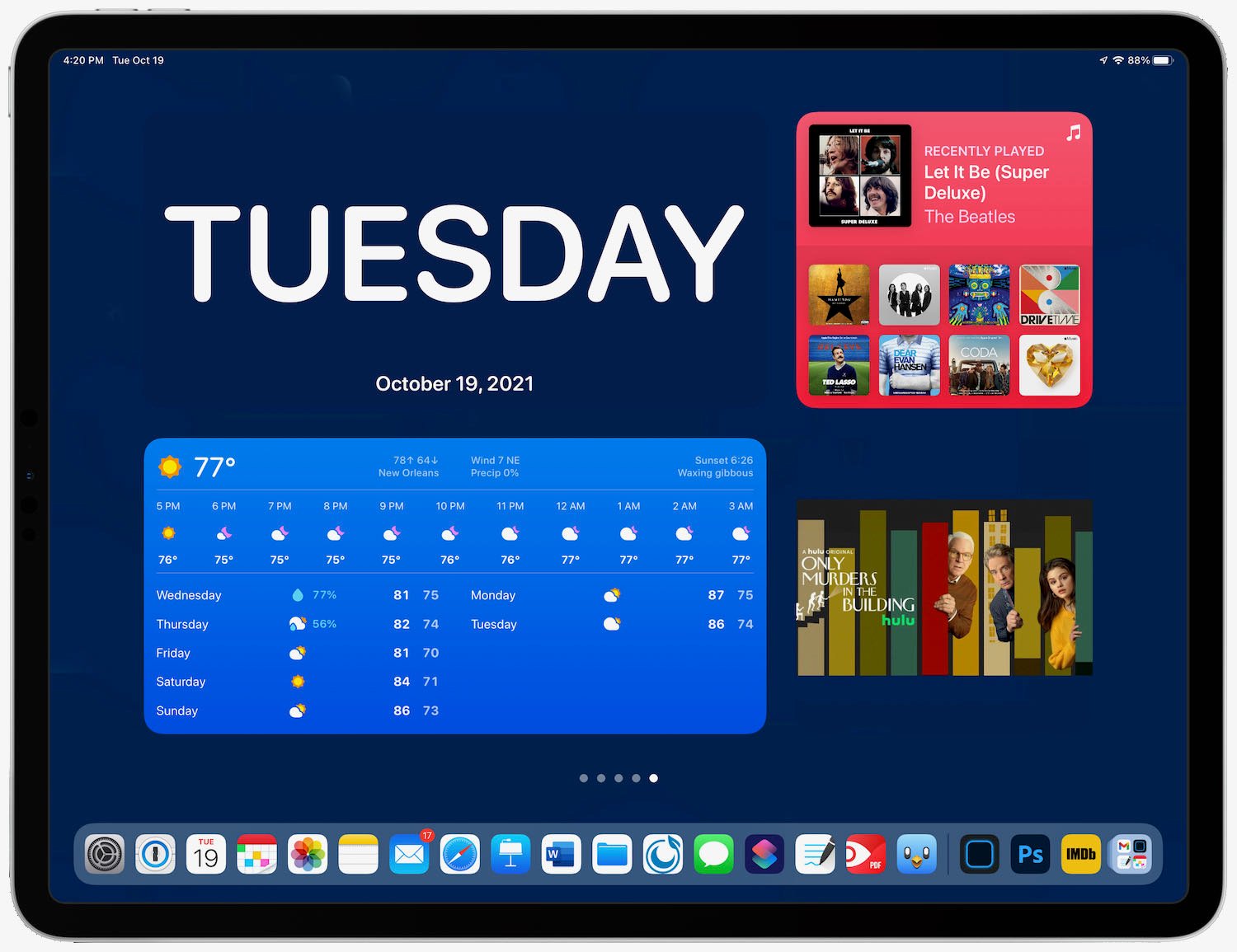
iPadOS 15 also supports a new XL size widget, the size of two large widgets. It is impressive that so much information can be displayed in this widget size. So far, I don’t consider any one widget valuable enough to occupy this much space on my first home screen, but I do have some of these on my subsequent home screens. To be honest, though, they are really just there for fun. You have to really love a widget to let it take up that much screen space.
As more apps release better widgets for the iPad, I may replace some of the widgets mentioned above with other widgets that work better for me. But at this point, I see no reason to ever go back to having app icons on my iPads’s first home screen. A screen with all widgets is just so better for me thanks to the additional information it displays. I encourage you to try it yourself so that you can see if you find it to be as much of an improvement as I do.
Yesterday, Apple introduced the new third generation model of the AirPods. Before discussing the new features, let’s take a quick look at how we got here.
A brief history of AirPods
Apple announced the first generation AirPods on September 7, 2016. They hit the market at the end of that year, and although supply of that $159 product was very limited at first, I loved them right away, as did many others. AirPods are one of my all-time favorite Apple products. At the office, I use them all the time for phone calls and video conferences. Out of the office, I use them all the time for music, podcasts, and videos. They weigh virtually nothing, and they work great.
A little more than two years later, Apple introduced the second generation AirPods with faster pairing and improved Siri support. And if you paid an additional $40, you could get a case that charges using wireless Qi charging. It was a nice upgrade, albeit an incremental one.
On October 28, 2019, Apple introduced the AirPods Pro. They added active noise cancellation, flexible silicone tips, and a force sensor button that you squeeze instead of tapping. They also introduced a new case design, making the AirPods Pro easily distinguishable from the second generation AirPods:
The AirPods Pro also supports spatial audio, a really nice technology that simulates surround sound. When music supports it, the sound is much richer. And spatial audio can make videos seem much more immersive. Some videos even support a directional version of spatial audio so that if you turn your head away from the screen, the audio seems to be coming from the screen — a neat effect that tricks you into forgetting that you are listening to audio from your AirPods Pro instead of from speakers that are built-in to the screen.
In late 2020, Apple introduced the AirPods Max, which are over-ear wireless headphones that cost $549. Although they have “AirPods” in the name, this has always seemed like a different product to me. I associate “AirPods” with small earphones, not large over-the-head headphones.
The new AirPods (3rd generation)
That brings us to yesterday. The new third generation AirPods occupy a middle ground between the second generation AirPods and the AirPods Pro.
The new AirPods look similar to the prior model, but the stem is shorter and they add a force sensor button.
The original AirPods design is fantastic, so the newest AirPods should feel quite good in your ears.
The new AirPods come in a case that looks similar to the AirPods Pro case, although it is not quite as wide — 2.14 inches wide versus the 2.39 inches AirPods Pro case.
This new case supports MagSafe wireless charging. Wireless charging is not a new feature — as noted above, it was added in early 2019 with the second generation AirPods and is also supported by the AirPods Pro. But the “MagSafe” part of this is new. What it means is that if you put the case on a MagSafe charger, not only will it charge (which is not new) but it will also attach magnetically to the charger so that you can be positive that there is a good connection and it is less likely to slide off of the charger by accident. This is a nice new feature that makes wireless charging even better. (Apple also updated the case on AirPods Pro yesterday to add support for MagSafe.)
The new AirPods don’t have noise-cancellation; you still need to get the AirPods Pro for that. But they do include many of the other audio improvements of the AirPods Pro including spatial audio. Also, like the AirPods Pro — and unlike the second generation AirPods — the newest AirPods are advertised as sweat and water resistant.
The new AirPods also provide an extra hour of battery life — up to six hours of listening and up to four hours of talking. And if they run low on power, you can charge them for just five minutes to get about an hour of battery life. The battery in the case can charge the AirPods four more times, so you get up to 30 hours of total listening time.
Another new feature that doesn’t even exist on the AirPods Pro is a new skin-detection sensor. Apple says that it does a better job of determining when the AirPods are no longer in your ear (which causes music to pause). Prior AirPods models and the AirPods Pro use an optical sensor, which can get confused and think that they are in your ear when they are instead in a dark pocket.
Pricing
Ever since AirPods were introduced in 2016, the price was $159 (although you could often find them on sale). But Apple also announced yesterday the they are going to continue to sell the second generation AirPods for only $129. That makes me think that those will eventually go on sale for under $100. It is now much cheaper to start using AirPods.
The new third generation AirPods cost $179, so they are $20 more than what AirPods used to cost. However, the case comes with wireless charging, a feature that used to cost extra.
AirPods Pro also remain available for $249, for those who want noise cancellation and/or the flexible tips that come in different sizes. Noise cancellation is a feature that I really like, but it is nice that you can get almost all of the other advantages of AirPods Pro for $80 less. And the new AirPods offer one very nice advantage over AirPods Pro: longer battery life (up to 6 hours instead of up to 4.5 hours).
Conclusion
The new AirPods seem like a great product. The support for spatial audio and the longer battery life make them a very nice improvement over the prior model. And the prior model sticks around at a lower price, making it easier for folks to justify purchasing the entry-level AirPods over other wireless earphones. The new AirPods even include some new features that have not (yet) shown up on the AirPods Pro.
You can pre-order the new AirPods now, and they go on sale next week.
Episode 23 of the In the News podcast is now available. Brett and I begin discussing the initial reviews of the Apple Watch Series 7. We then talk about using the FindMy app to locate an item that has been lost or stolen, discussing the Chicago man who located his stolen car thanks to the AirTag he had placed in it. Then we talk about Apple’s “Unleashed” announcement coming on Monday, using the Live Text feature in Photos, and using live video in a Keynote presentation.
Finally, in our In the Know segment, Brett shares a tip for putting a call in hold on the iPhone, and I share a tip for changing the text size in a specific app.
Today is the day that the new Apple Watch Series 7 goes on sale. And this week, the first set of reviews were released by folks who got early access to Apple’s newest product. If you are interested in learning more about the newest watch, the reviews that I found most interesting are listed below. Another news item from this past week is that Apple said that it will have a product announcement on Monday, October 18, 2021. My guess is that Apple will announce new Macs on Monday, and if I’m correct, then Apple won’t be announcing the type of product that I discuss on iPhone J.D. But who knows, maybe Apple will also announce new AirPods or some other product that works with an iPhone or iPad. We’ll see. And now, the rest of the news of note from the past week:
The fantastic Keynote app for the iPad recently added the ability to include live video in a Keynote presentation. Brett Burney, my co-host on the In the News podcast, created a great video for his Apps in Law website that shows exactly how this feature works (including how easy it is to use) and explains when you might want to take advantage of this feature.
Mobile attorney Carter Hale wrote a really good article in the Fall 2021 issue of the Alabama Defense Lawyers Association Journal with tips for using technology in the courtroom. Click here to download a PDF version of the magazine, and the article starts on page 10.
Speaking of David Sparks, he recently released a DEVONthink Field Guide and I’ve heard great things about it. I don’t use DEVONthink myself, but if you do, you should check it out. And even if you don’t, David has lots of other useful field guides that can help with topics such as going paperless, using Shortcuts, Keyboard Maestro, the Photos app, Fantastical, and more.
Dieter Bohn of The Verge consistently does a great job with his product reviews, especially the videos that are at the top of many of his review, and that remains true for his review of the Apple Watch Series 7.
The iPhone’s new Live Text feature makes it easy to take a picture of words and turn it into text. Ed Hardy of Cult of Mac shares a video showing that students can use Live Text to “steal” notes from other students in a classroom. The video does a good job of demonstrating how Live Text can capture text that is around you in everyday life.
Hardy also reviews the Kingston DataTraveler Max, a flash drive that stores up to 1 TB of data and uses USB-C with USB 3.2 Gen 2 to transfer data at up to 1,000MBps. You can use it with anything that has USB-C, like an iPad or a computer. It’s currently sold out on Amazon and many other stores, but this looks like an incredibly useful device if you need to move around a lot of data.
And finally, here is a useful video from Apple with 10 helpful Apple Watch tips. There were some in here that were new to me and/or that I had forgotten about.
I’m thrilled to welcome back LIT SOFTWARE as a sponsor of iPhone J.D. this month. LIT SUITE includes all of the apps that LIT SOFTWARE has been selling since 2010: TrialPad, TranscriptPad, DocReviewPad, and the newest app, ExhibitsPad. I have reviewed those apps numerous times over the years, most recently this past February when the apps received big updates when the LIT SUITE was announced. My guess is that you already know something about these apps, such as the fact that TrialPad makes it easy to present evidence to a judge, jury, arbitrator, or other audience, and that TranscriptPad is the best way to read and annotate deposition transcripts.
A quick note on that impeachment slide feature: I made great use of it a few months ago in a Zoom mediation. We were in the presentations portion of the beginning of the mediation when another attorney said something that I knew was inconsistent with a deposition transcript. I quickly found the impeachment testimony in the transcript in TranscriptPad, created an impeachment slide, and then exported it to my PowerPoint. When it was my time to speak and share my PowerPoint slides about 15 minutes later, there was a new, professional-looking slide in my deck that showed everyone that the representation that had just been just made about the witness testimony was incorrect. Without this feature, it would have been difficult or impossible to create any slide, let alone a slide that looked that good so quickly, especially while I continued to pay attention to the ongoing mediation proceedings. And the end result was that I had more credibility when I made my pitch about what the evidence in the case would really show and what the case was really worth, which helped to lead to a favorable settlement.
When you purchase a subscription to LIT SUITE, you get every update that LIT SOFTWARE releases. And just this year, there have already been a bunch of those updates. For example:
A brand new app was introduced: ExhibitsPad.
You can now share individual transcripts with another TranscriptPad user for collaboration or second pass review.
TrialPad and DocReviewPad now support Adobe PDF bookmarks when importing Adobe PDF files.
You can now save bookmarks in documents, and those bookmarks are shared from one app to another.
A new Speak Transcript feature reads your transcript to you.
You can now add bookmarks to a transcript in TranscriptPad.
The user interface was improved this year to make it even easier to view documents. Not only does everything look better, but you can do more. For example, the apps now have a document and folder count under the Document List to easily see how many folders or documents there are in a case, or in a section of a case.
The apps now wrap text to a second line for documents with long names or descriptions.
The apps have new keyboard shortcuts for power users who use their iPad with an external keyboard.
If you own an older, stand-alone version of one of more of the LIT SOFTWARE apps, those apps continue to work, but they don’t include any of these new features that were added this year. So that alone is a reason to upgrade to the subscription.
But that’s just the beginning. As I noted above, for over a decade, LIT SOFTWARE has continued to update its apps, and that track record shows you how committed the company is to frequent updates. So you know that more features are coming in the future, and the subscription is the way to get them all. Many features that are in development are still secret, but LIT SOFTWARE told me about a few things that are planned for the future and gave me permission to share them with you. Here are some things that they are working on right now:
The easiest and best video deposition editing available (currently in testing).
Multitasking support, which will allow you to run a LIT SUITE app side-by-side with Word or another app.
The new ability to drag and drop files as a way to import file. (LIT SOFTWARE tells me that there have been a huge number of requests for that one.)
LIT SOFTWARE apps on the Mac. These will be coming out as a public beta, exclusively for LIT SUITE users, this calendar quarter.
Finally, one of the things that I like about LIT SOFTWARE is that the folks behind it are incredibly responsive. When a customer sends an email, it isn’t answered by some bot or an inexperienced customer service representative. The folks at LIT SOFTWARE answer the emails, and they do a great job of pointing you in the right direction. They love what they do, and they love helping you do more with their apps.
Whether you are a longtime user of the prior, stand-alone versions of their apps or you are a new customer, I encourage you to give the LIT SUITE subscription a try. When you download any of the LIT SUITE apps, you get a 7-day free trial so that you can see what you think. LIT SUITE is an essential part of my law practice, and once you try it, you will see why.