Last week, for the Fourth of July on the 250th anniversary of the United States, an iPhone became part of history. America250—which is the bipartisan initiative, not the competing one Trump created called Freedom 250—sealed a time capsule and buried it in Philadelphia to be reopened in 250 years in 2276. The America250 website explains that an iPhone 17 Pro Max was included because it represents “the cutting edge of American innovation and technology in 2026.” I agree. I also agree with another interesting article I read this week on the topic of American inventions. In an article in the Wall Street Journal, Ben Cohen says that when you think about the all-time best inventions in America, you might think of the lightbulb and the iPhone, but one great invention often overlooked is the solid white line on the right side of the road. Commonly called the “fog line,” it was invented by John Dorr in the 1950s and is now used on every road because studies show it saves lives by helping drivers keep their cars in the proper location in a lane. I had never thought to compare the fog line to the iPhone, but I was aware of the invention’s history because it was critical to one of my very first cases. When I served as a student public defender through the criminal justice clinic at Georgetown Law, I defended a person who had been pulled over in Maryland while driving. The officer’s excuse for doing so was that my client’s car crossed the white line. I convinced the court that crossing a fog line is lawful; it serves only to guide drivers. That meant the officer lacked a legitimate reason to pull over my client, so everything the officer found in my client’s car after the stop was the fruit of the poisonous tree and inadmissible. That pre-trial victory led to the dismissal of the entire case against my client. Many decades later, I still spend a large part of my time on pretrial motions that can change the outcome of litigation. And now, the news of note from the past week:
- Public Service Announcement: this week’s episode of the In the News podcast will be recorded and released on Saturday, not today.
- Glenn Fleishman of Six Colors provides tips for hiding and deleting an iPhone app—and how to undo that if you make a mistake.
- The Amazon Prime Day sales are over, but the one deal that I took advantage of during the big sale—buying myself an Anker Prime Wireless Charging Station when this $150 item was being sold for under $100—is happening again. As I type this, it is only $99.74, the same price that I was excited to pay last month. This is my favorite 3-in-1 charger, useful both on a desk and for travel. (My review.) I’m using it right now as I type these words. If you want a small, high-quality, fantastic device that can charge an iPhone, Apple Watch, and AirPods, not to mention let you use StandBy mode on the iPhone, I encourage you to get one before the price goes up again.
- I’ve taken a number of flights over the last few weeks, and the Flighty app has been fantastic. Chance Miller of 9to5Mac reports on a new feature that makes this app even better: a Connection Assistant that provides step-by-step guidance on your connection, including estimated times for each step. Will 45 minutes be enough time to make your connection in Atlanta? Now, Flighty can answer that question.
- The bad guys are coming up with increasingly more effective ways to scam you. Fortunately, David Sparks of MacSparky notes that the scam detection built into Apple’s upcoming iOS 27 attempts to detect and warn you about a scam while the bad guy is actually trying to scam you.
- Juli Clover of MacRumors identifies the new features coming to CarPlay in iOS 27.
- Mahmoud Itani of Macworld provides tips for closing your Apple Watch activity rings every day.
- In a YouTube video, Stephen Robles shows off the new Schlage Sense Pro smart lock ($399 on Amazon), explaining why it may be the best smart lock on the market—albeit the most expensive. It is one of only two smart locks you can currently buy that work with Apple’s Ultra Wideband, so that means it can open your door right when you walk up to it, without you having to do anything else.
- If you install some useful smart home accessories in your house and then want to sell the home along with all of the Apple Home items, Ben Lovejoy of 9to5Mac notes that there is no easy way to do that. I’ve been living in the same home since long before the iPhone was invented, and I don’t plan to move anytime soon, so this isn’t something that I had thought about before, but I understand how it can be a problem for others.
- Sending a text message from one iPhone to another iPhone is always encrypted, but things get more complicated when you send text messages to non-iPhone devices. Max Eddy of Wirecutter explains how to keep these text messages private.
- The shows on Apple TV get better every year, and the streaming service is getting recognition for that. Juli Clover of MacRumors reports that Apple earned a record 87 Emmy nominations this year. The most nominations went to Pluribus, Margo’s Got Money Troubles, Widow’s Bay, Shrinking, and Slow Horses—and I agree that every one of those shows is excellent. Your Friends & Neighbors, which is also a great show, was nominated for Best Drama Series. And actor Billy Crudup of The Morning Show was nominated for Outstanding Supporting Actor in a Drama Series.
- Trying is a delightful series on Apple TV. As Marcus Mendes of 9to5Mac reports, Season 5 is now available.
- I don’t purchase many movies or TV shows from Apple, but I do own a few. For example, back in 2005, when I used an iPod that supported video, I purchased the first season of the show Lost. At the time, I had evacuated from New Orleans after Hurricane Katrina, and I enjoyed being able to watch that show on my portable, albeit small, screen. Chance Miller of 9to5Mac reports that just like Apple has been upgrading previously purchased movies to 4K quality at no additional charge for many years, this week Apple began upgrading TV shows that were purchased in HD quality to 4K. My Lost episodes remain in HD quality—I don’t think 4K versions have ever been created for that show—but other shows like Mad Men should now look better than ever.
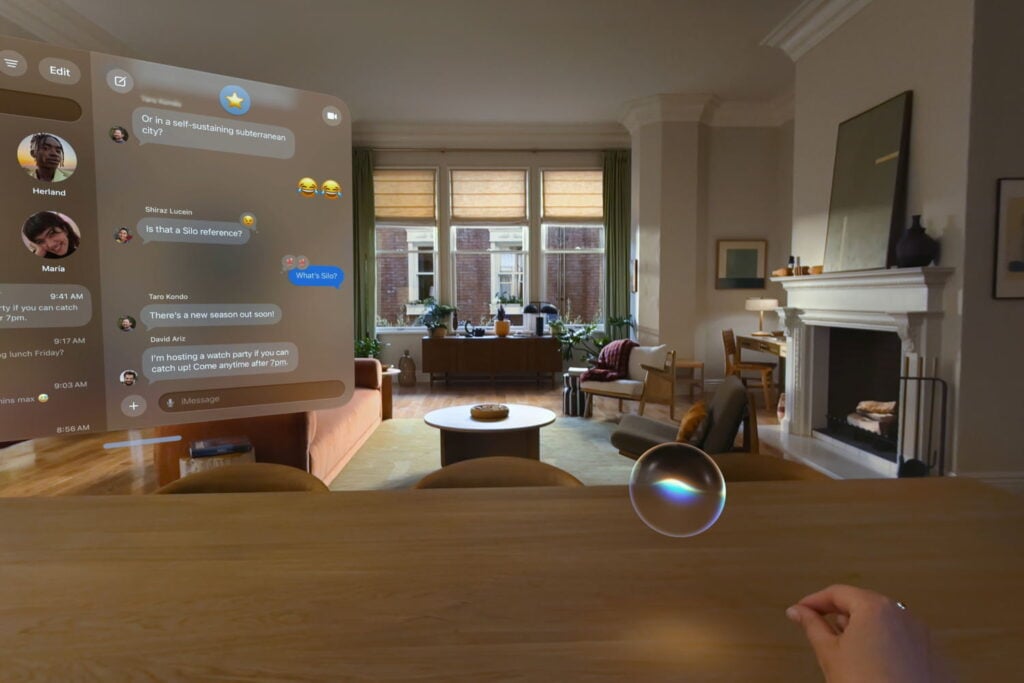
- One of the changes coming to visionOS 27 is the ability to turn any panorama photo into an environment. I saw a link to a post—the original is on X.com, but here is the same post on XCancel if you don’t use the former Twitter service—noting that this can be great for watching shows on the Vision Pro. For example, FSK Shots and Tech recommends in that post using a panorama photo from Silo as you watch the Apple TV show Silo—a great Sci Fi show that just started its newest season. I’ll have to try that.
- I will never own a Lamborghini, but now I can have one at my house—as long as I am wearing my Vision Pro. Marcus Mendes of 9to5Mac reports that Lamborghini’s new Vision Pro app lets you interact with full-size cars.
- And finally, what would Snoopy be without his iconic red doghouse? The newest Peanuts movie is coming to Apple TV soon. It is called Snoopy Presents: There’s No Place Like Home, Snoopy, and as this preview shows, it will tackle that important question: