Please click this link and donate—any amount!—to help kids beat cancer. Your donation will make a big difference for others and, as a bonus, will surely make you feel good about yourself.
September is Childhood Cancer Awareness Month. For the fifth year, iPhone J.D. is proud to join the community that is working with the Relay podcast network to raise money for St. Jude. You know this community. You are part of it, too. This is the community of people with enough interest in technology to read tech-related websites and listen to tech-related podcasts. Over the last few years, this community has come together to raise over $4.8 million for this life-saving work.
As St. Jude Children’s Research Hospital says: “Childhood cancer remains the leading cause of death by disease for children under the age of 14. When St. Jude opened in 1962, childhood cancer was largely considered incurable. Since then, St. Jude has helped push the overall survival rate from 20% to more than 80%, and we won’t stop until no child dies from cancer.” And as the late entertainer Danny Thomas (founder of St. Jude) famously said: “No child should die in the dawn of life.”
Donating is simple. I just did it. Simply go to the page, click the big green Donate Now! button, choose whether you want to select a Reward (that part is optional), then check out and pay.
Some rewards are directly related to St. Jude. For example, a donation of $50 or more can help provide art supplies for St. Jude patients, so they can explore their creativity and have fun. Two rewards are specific to the Relay network, and you can get things like stickers and a digital screensaver.
Additionally, I am offering a special, limited-edition reward for iPhone J.D. readers: high-quality microfiber cloths featuring the iPhone J.D. logo, which I have previously given away on rare occasions. If you donate at least $100, you may select this as your reward. These cloths are excellent for cleaning iPhone or iPad screens, and I personally use one daily for my Apple devices and to clean my eyeglasses. This is a limited-time offer, as I don’t have many left and the manufacturer is no longer in business—which is a shame, because the quality is excellent. I have two sizes, and while supplies last, you can choose either one: a Classic 9" x 9" that’s great for your desk, or a Nano 4" x 4" that is nice to keep in your pocket. (After you make your donation, I’ll send you an email to ask which size you want.)
Whether you donate $5 or $500, your donation will make a meaningful difference. A special thanks to those of you who contributed in the past and will contribute again this year!
We have a date! On September 9th, Apple will announce brand new iPhones. And in light of the fact that Apple released new Macs this week, it seems like it has some other big announcements coming on the 9th as well. We begin this week’s episode of the In the News podcast discussing what Apple just announced, what Apple likely has coming soon, the cheapest Apple product that you can purchase at an Apple Store, and a purchase I made that was definitely not for Apple’s cheapest product. We also talk about the last few days of Tim Cook serving as Apple’s CEO, ads in Apple Maps, using Apple Pay at Walmart, a fun photo app, CarPlay for babies, and more.
In our In the Know segment, Brett shares a tip for using the + button in iMessage, and I share a tip for downloading Apple Card monthly statements.
September 9th is often a big day for Apple announcements. In 2014, Apple introduced the very first Apple Watch. In 2015, Apple introduced the very first iPad Pro. In 2024 and 2025, Apple introduced new iPhone models on September 9th. And as iPhone J.D. readers have known for over two years and Apple confirmed this week, Apple will announce new iPhones on September 9, 2026. This year could be particularly memorable because, if the rumors are true, Apple will introduce not only a new iPhone Pro but also a new folding iPhone. As Zac Hall of 9to5Mac noted, Apple’s announcement features the outline of the Apple logo around the sun with the tagline Surprise and shine. At least, that is the tagline in the United States. Juli Clover of MacRumors noticed that the tagline differs in other countries: Un rayo de wow (a ray of wow) in Spain; L’alba di nuove sorprese (dawn of new surprises) in Italy; Un jour nouveau. Bientôt. (a new day, soon) in France, 耀目驚喜,亮起新一章 (a dazzling surprise) in Hong Kong, etc. Meanwhile, Tim Hardwick of MacRumors shares speculation from Mark Gurman of Bloomberg about what might be hiding in the logo for the Apple event. It is exciting that we are now less than two weeks away from Apple’s biggest day of the year. And now, the news of note from the past week:
Tim Cook’s last day as Apple’s CEO is Tuesday, September 1, 2026. Juli Clover of MacRumors reports that Apple had a retirement party for Tim Cook on August 23 at the Caffé Macs cafeteria on the Apple campus. OneRepublic (one of Cook’s favorite bands) performed, and there were tributes from people ranging from Steve Jobs’ wife Laurene Powell Jobs to Apple’s next CEO, John Ternus. A gold watch is a traditional retirement gift, and the Apple Watch was the first big new Apple product under Tim Cook, so maybe someone found one of those solid-gold versions of the original Apple Watch in the back of a closet to give to Cook.
Marcus Mendes of 9to5Mac shares a cute video featuring Tim Cook, John Ternus, and Pikachu on the Apple campus.
Alexandra Bruell of The Wall Street Journal reports that Apple is trying to strike deals with content publishers to pay them to use their existing news and information to improve Siri AI. Of course, other AI services traditionally scraped that kind of information without paying anything, so it is nice to see Apple open its wallet to make Siri AI as useful as possible for users.
Siri AI will be a substantial, very different new feature in iOS 27. Based on reports from beta users, it seems quite good, but because so much is new, there’s a lot to figure out. If you want to gain a solid understanding of Siri AI, I can recommend an e-book: Take Control of Siri AI and Apple Intelligence by Glenn Fleishman and Joe Kissell. The book is available now and will be updated when iOS 27 is available. I received a free review copy, and I read it this week. Fleishman and Kissell explain things well, and the book has a lot of helpful information. The cost is $14.99, and if you purchase a bundle for multiple books, you pay less per title.
Ads are now showing up in Apple Maps, at least for some people. (I’m not seeing them in my app yet.) Ryan Christoffel of 9to5Mac explains how they work.
As reported by Jason Snell of Six Colors, Apple announced new desktop Macs this week. The new Mac mini features an M6 or M5 Pro processor, and the new Mac Studio features an M5 Max or M5 Ultra processor. I’ve been waiting to upgrade the Mac mini at my house for a while now, and in light of this announcement, I think I’m going to get the Mac mini M5 Pro model. Apple is taking pre-orders now, and the new Macs will ship on September 22.
If you are interested in a new iPhone instead of a new Mac, Ryan Christoffel of 9to5Mac writes that the new chips used in the Mac mini, such as the M6, may provide some insight into the new chip (presumably, an A20 Pro) that Apple will use with the next iPhone (presumably, an iPhone 18 Pro). For example, the M6 chip is only 2 nanometers, which Apple says allows greater performance and power efficiency. We could see the same thing in an A20. (The iPhone 17 Pro uses a 3-nanometer A19 processor.)
Christoffel also speculates that Apple’s introduction of these Macs this week could mean that Apple has big announcements in store for September 9th. After all, these new Macs won’t ship until the end of next month anyway, so Apple certainly could have announced them on September 9th. By announcing them this week, Apple has saved some time on the 9th for other great announcements.
If you want a brand new Apple product that is available today instead of next month, Andrew O’Hara of AppleInsider reviews Apple’s new Apple Polishing Cloth and compares it to all of Apple’s prior versions. At only $9.00, it costs half as much as the product it replaces, making it a rare Apple product that costs less now than it did a year ago. Good thing that Apple doesn’t need to put RAM in its polishing cloth.
Ed Hardy of Cult of Mac reports that Walmart is—finally—going to start accepting Apple Pay.
There are two different door smart locks that use UWB—a cool technology that lets your door sense when you are approaching the door from the outside of your house (but not from the inside) so it can unlock for you automatically. Jason Snell of Six Colors reviews the Schlage Sense Pro ($338.74 on Amazon) and compares it to the Aqara UWB Smart Lock ($269.99 on Amazon).
John Gruber of Daring Fireball reviews a delightful app called BitCam. If you ever used the original Macintosh or just want to feel like you did, this fun app is worth checking out.
If your car has both CarPlay and a baby seat, would you like to see what your baby is doing on your CarPlay screen? This week, I learned that there are products that let you do exactly that. The Ottocast Cabin Care Wireless CarPlay Adapter ($109.99 on Amazon) is one such product, and Nicole Kinning of Wired reviewed it a few months ago. The LAMTTO RC38 Baby Monitor Camera is a similar product, and here is a YouTube review by How-to and Reviews that shows how it works. My kids are now in college, but if something like this had been available 15 years ago, I would have been very interested.
The first season of Dark Matter on Apple TV was excellent, and Marcus Mendes of 9to5Mac reports that the first episode of Season 2 is now available. This is a fantastic Sci-Fi show, and I look forward to watching the new episode tonight.
And finally, here is a fun video Apple released this week to announce the new Mac mini. It uses a Claymation animation style, and after you watch the video below, watch this behind-the-scenes video on Instagram that shows how it was made. Painstakingly. One frame at a time. With a lot of clay.
The topic of this week’s very special episode of the podcast is “Our Favorite Things,” and I suspect that this will be a favorite episode for many of you. Brett Burney and I devote this episode to the iPhone/iPad accessories and apps that we love the most, the ones that we use all the time and love to recommend. There are some old favorites in here as well as a few more obscure ones that you may not know about. Check out the show notes for links to everything that we described.
Creating reminders in Apple’s Reminders app is easy: just tell Siri, something like “Hey Siri, remind me at 5pm on Tuesday to pick up my dry cleaning” or “Hey Siri, remind me to buy more milk.” But the Reminders app is not the best at actually reminding you. If you dismiss a notification by accident, it doesn’t return. And if a task has no date, the Reminders app will never bug you about it. The Reminders app also has limited options for postponing a reminder. Marco Arment, creator of other useful apps such as the Overcast app for playing podcasts, created a new app called Unforgetful. As he explains in this blog post, the app provides better reminders for the Reminders app. I’ve been trying out the app for this past week, and I really like it. I typically see the notifications on my Apple Watch, and it is nice to have clear options that I tap, such as done, remind me in an hour, remind me in four hours, etc. The cost is $20 a year, but you can try it free for a full month, which is more than enough time to decide if it is for you. If you use your iPhone to create reminders, you should check this one out. And now, the news of note from the past week.
News is fairly light this week (other than an apparent leak from Apple, discussed next), so instead of recording a typical podcast, Burney and I are sharing our favorite accessories and apps in this week’s episode of the In the News podcast. There is something for everyone in this one, so look out for it later today.
Juli Clover of MacRumors shares a video that appears to be from Apple showing AirPods that seem to have a camera. If real—and this one certainly looks like it could be—Apple could announce these new AirPods in just a few weeks. However, a follow-up article from Clover reports that, according to Mark Gurman of Bloomberg, Apple won’t announce them until 2027. Clover also writes that references in beta software could indicate several other unreleased products. I think it is safe to say—and you can quote me on this—that Apple has plans to release new products. Of some kind. At some point.
New York attorney Alexander Vasilescu reached out to me this week to say that he wrote a new app for the iPad and Mac called Case Linker. It takes a legal brief, then finds your exhibits, citations, and authorities, and then creates hyperlinks in the brief to the sources. I don’t have much experience adding hyperlinks to my briefs, but I know they can be useful in certain situations. For example, when appellate briefs are filed in the U.S. Fifth Circuit, the clerk’s office adds hyperlinks to the record and case citations to make it easier for judges and their law clerks to review the briefs. If this is an app that interests you, check it out here.
Ryan Christoffel of 9to5Mac reports that Apple released iOS 26.6.1 this week to fix some bugs.
All of the exercise videos on Apple’s Fitness+ service are prerecorded. Will Apple also offer live classes? I saw several reports linking to a job listing on Apple’s website stating that Apple is looking to hire someone to join the Fitness+ team “with a strong foundation in live or live-to-tape multi-camera production.” That doesn’t necessarily mean that Apple itself wants to do live production, but you never know.
I recently discussed the federal prosecution against a person who wiped his smartphone when border patrol agents tried to search it. Anna Stolley Persky of ABA Journal wrote a good article on the topic.
Ryan Christoffel of 9to5Mac reports that North Carolina will soon add support for storing a driver’s license in the Apple Wallet app. A similar report from Chance Miller at 9to5Mac says that other states that appear to be working to add support include Kentucky, Oklahoma, Utah, Virginia, Connecticut, and Mississippi.
Slow Horses is an excellent show on Apple TV. Rajat Saini of The Mac Observer reports that Season 6 debuts on September 16, 2016.
And finally, whether you have never seen Slow Horses and want to get a sense of the show, or you are a big fan, I think that you will enjoy this short video in which the star, Gary Oldman, talks about what it is like to be a spy in this unique show:
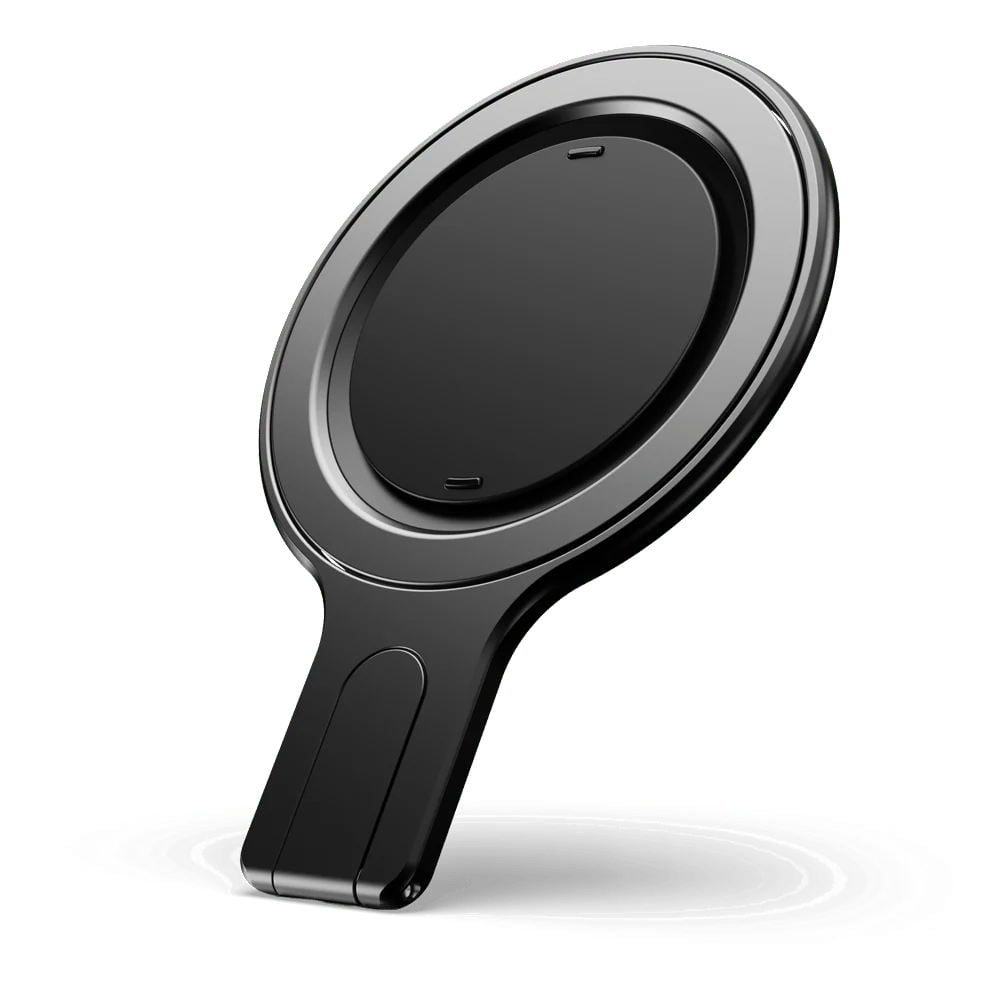
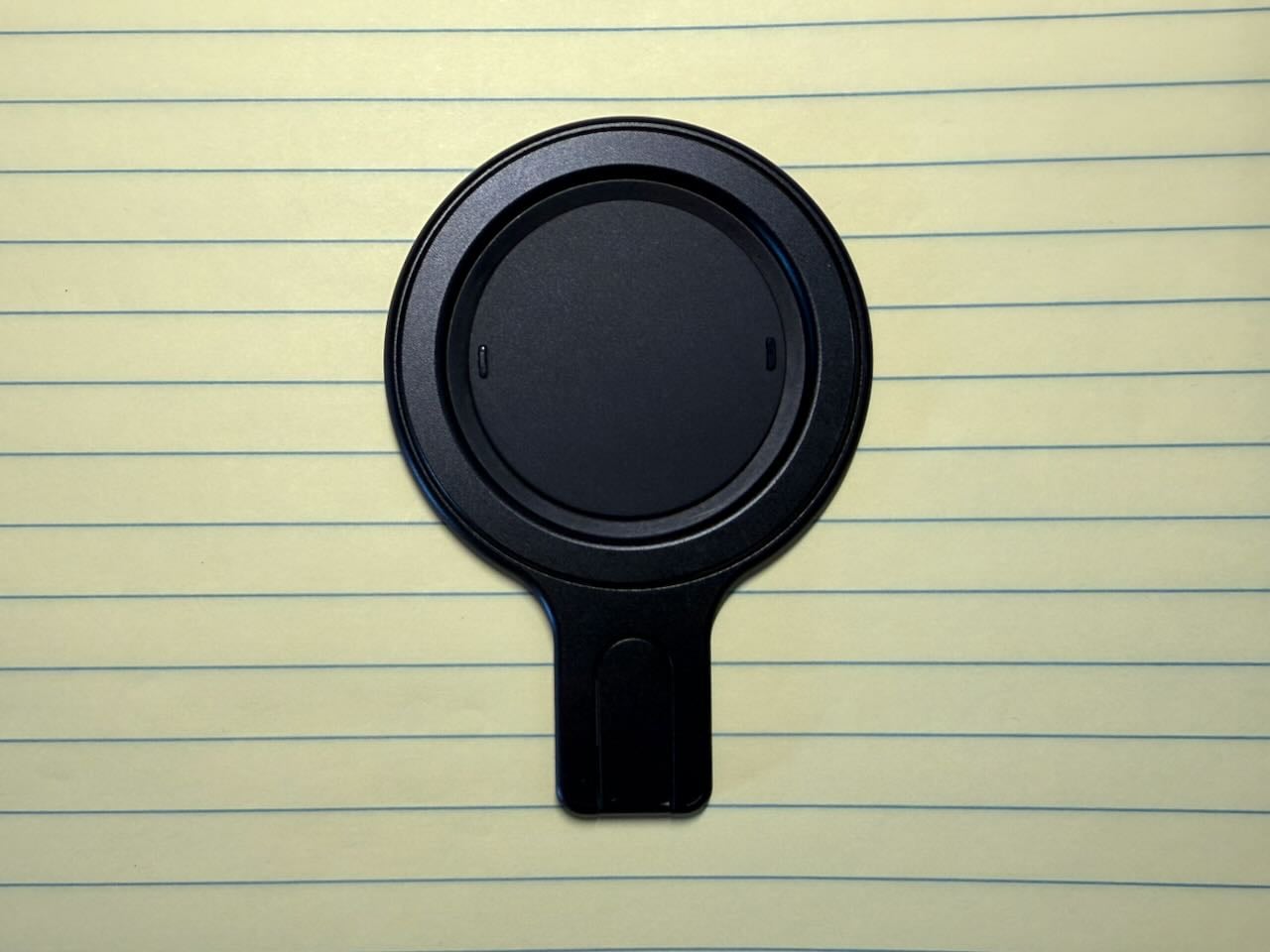
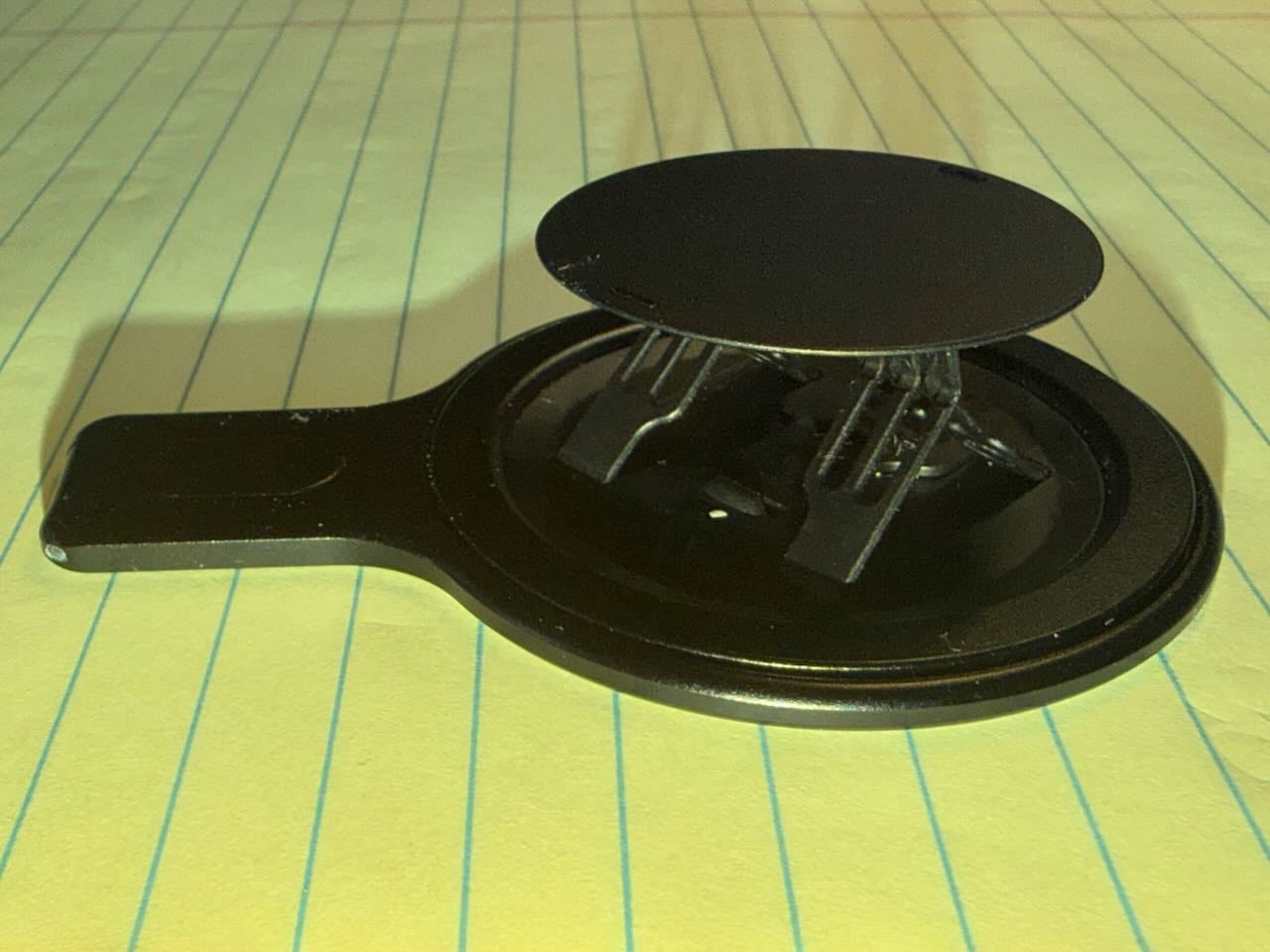
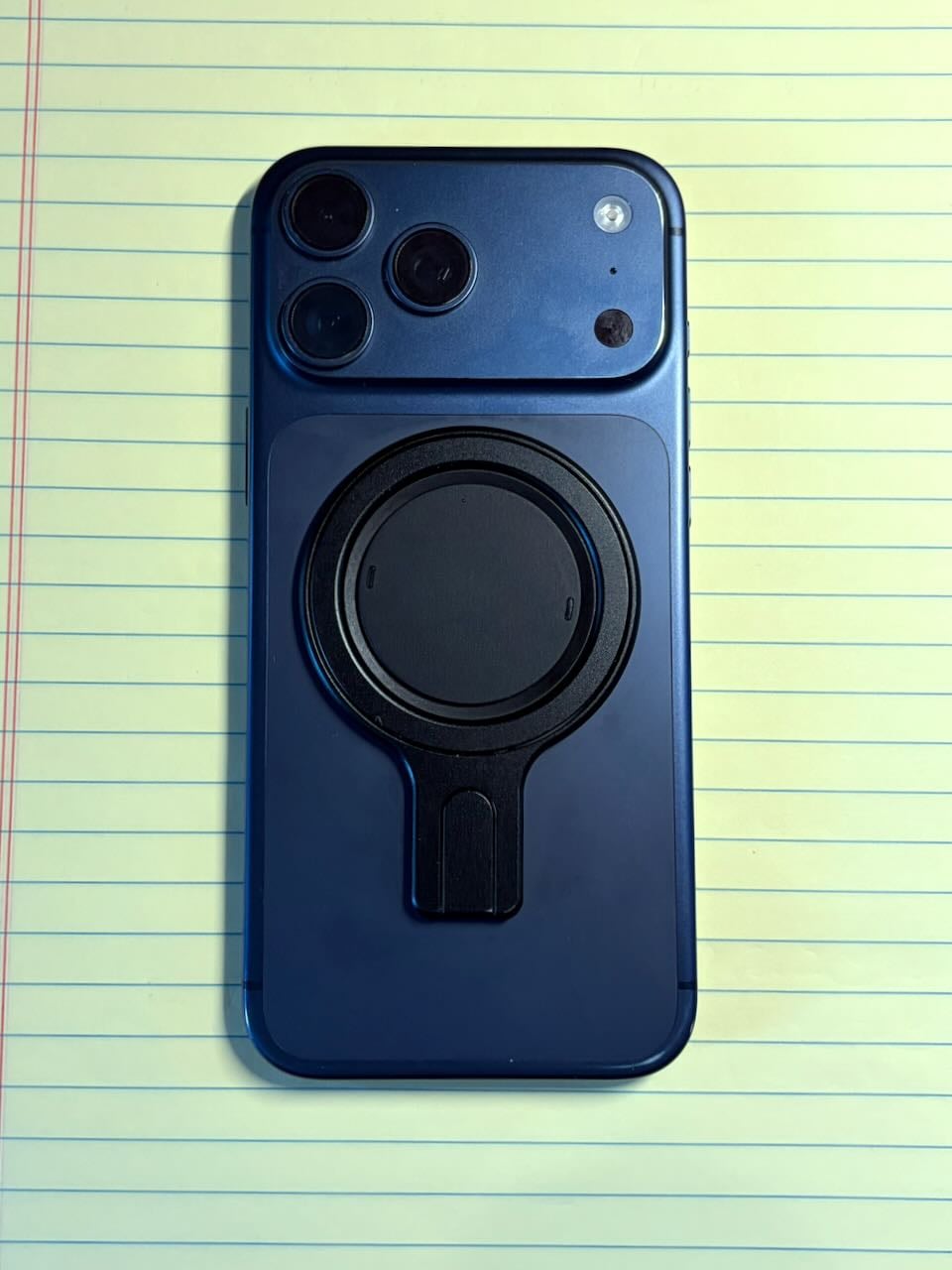
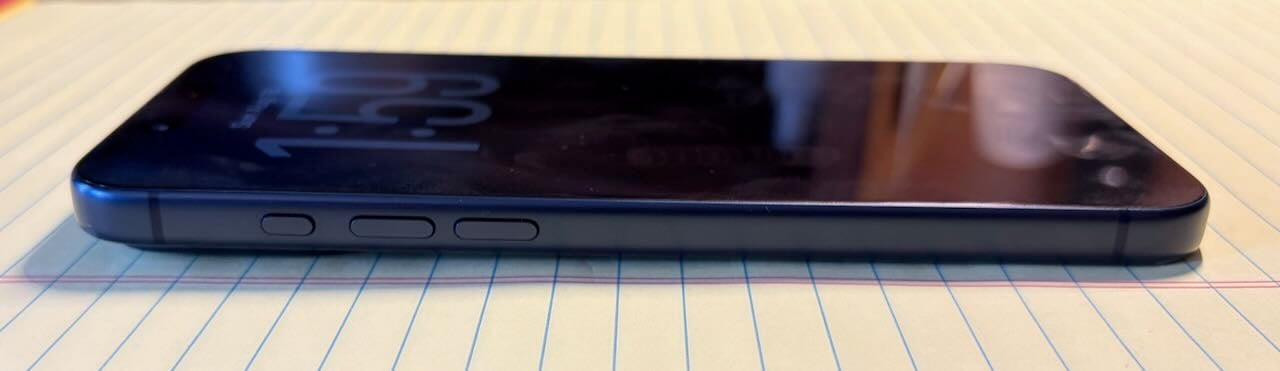
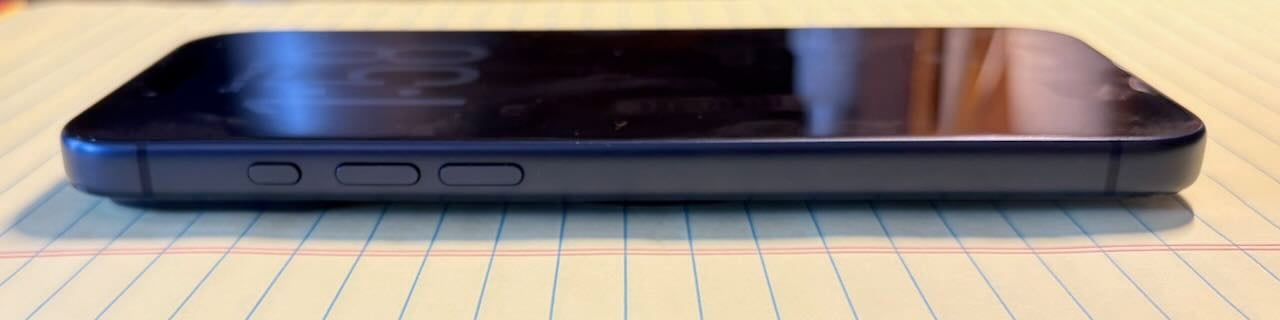
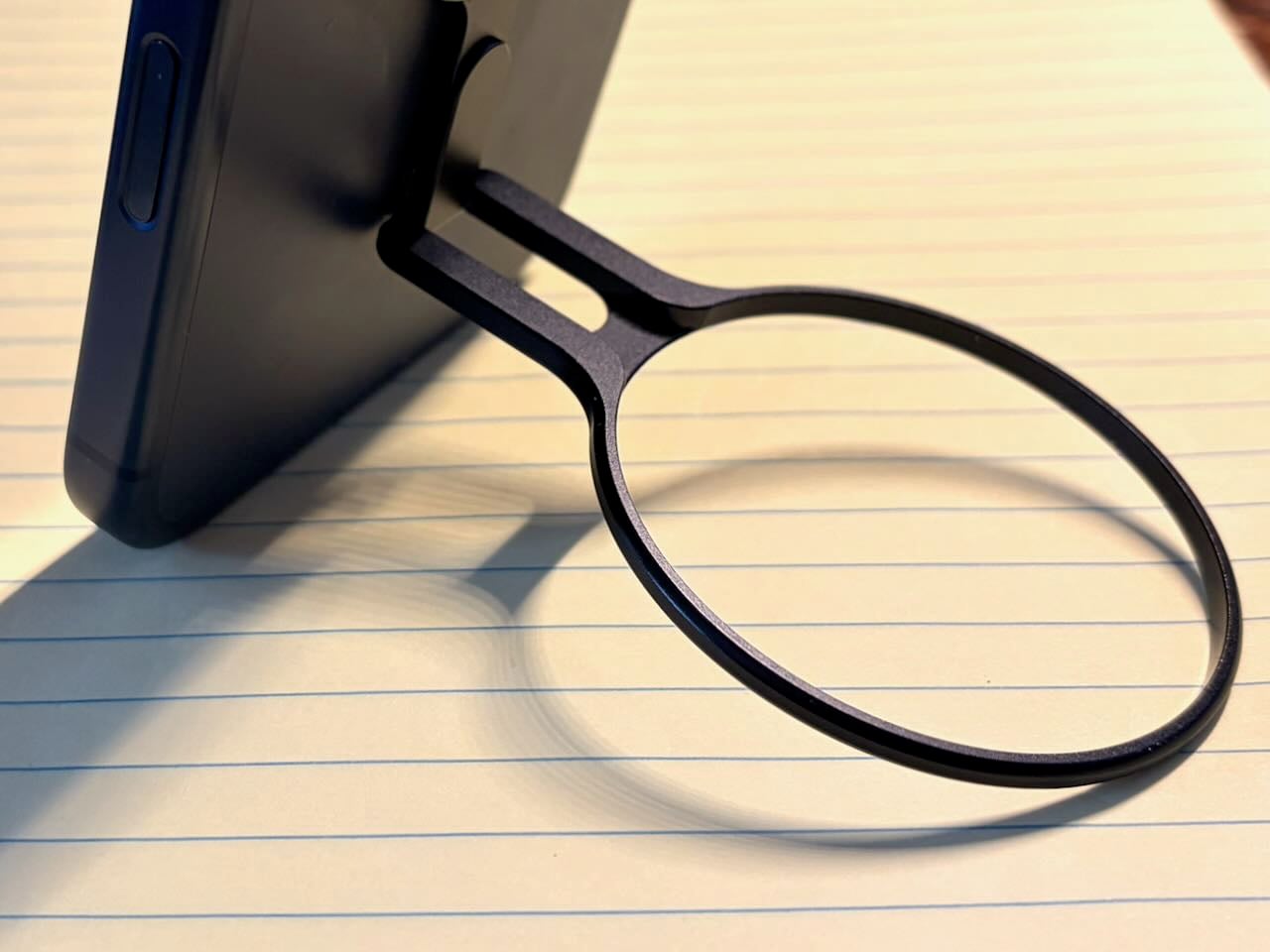
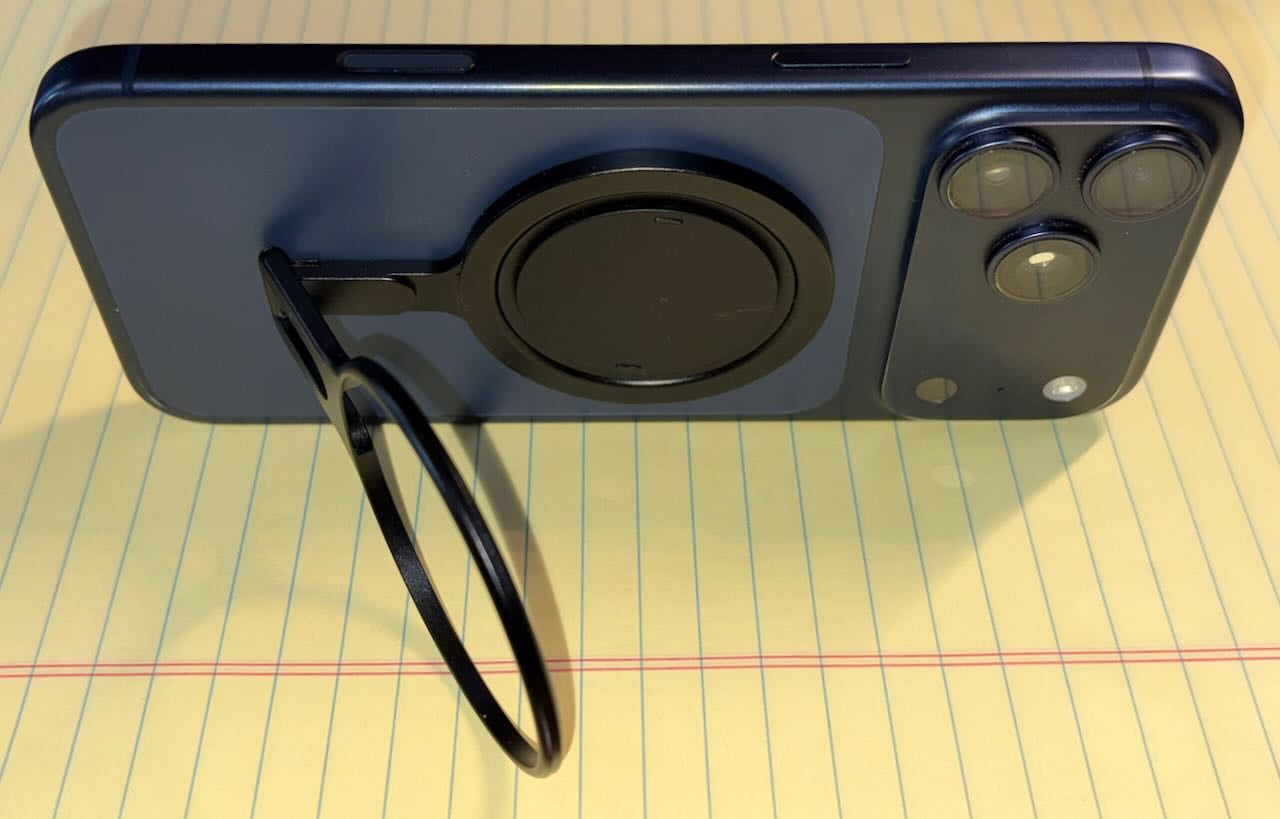
It is always delightful to try a product and realize it is much better than you expected. That’s been my experience over the last few weeks as I have tried the Snap Grip Stand, a new $40 product from ohsnap! This small device attaches magnetically to the back of an iPhone and provides a grip so you can hold your iPhone more easily with one hand. PopSockets invented this category in 2014, and ohsnap! has been making these types of devices since 2019. But even if—like me—you have never wanted to use this type of device regularly, the Snap Grip Stand is different because it’s incredibly well engineered and useful. It is so thin that it adds no bulk or noticeable weight to your iPhone. Yet it is so strong that the MagSafe connection stays secure. It is easy to hold, with two different ways to hold it. It also contains a clever stand. You can use it while charging your iPhone via MagSafe, and it is also very easy to remove. As a result, I find myself keeping this product on my iPhone almost all the time. When I want to use any of its features, it’s right there. When I don’t, I barely notice that it is there.
The grip
The primary use of a product like this is to make it easy to hold an iPhone with one hand. The grip on this device works very well.
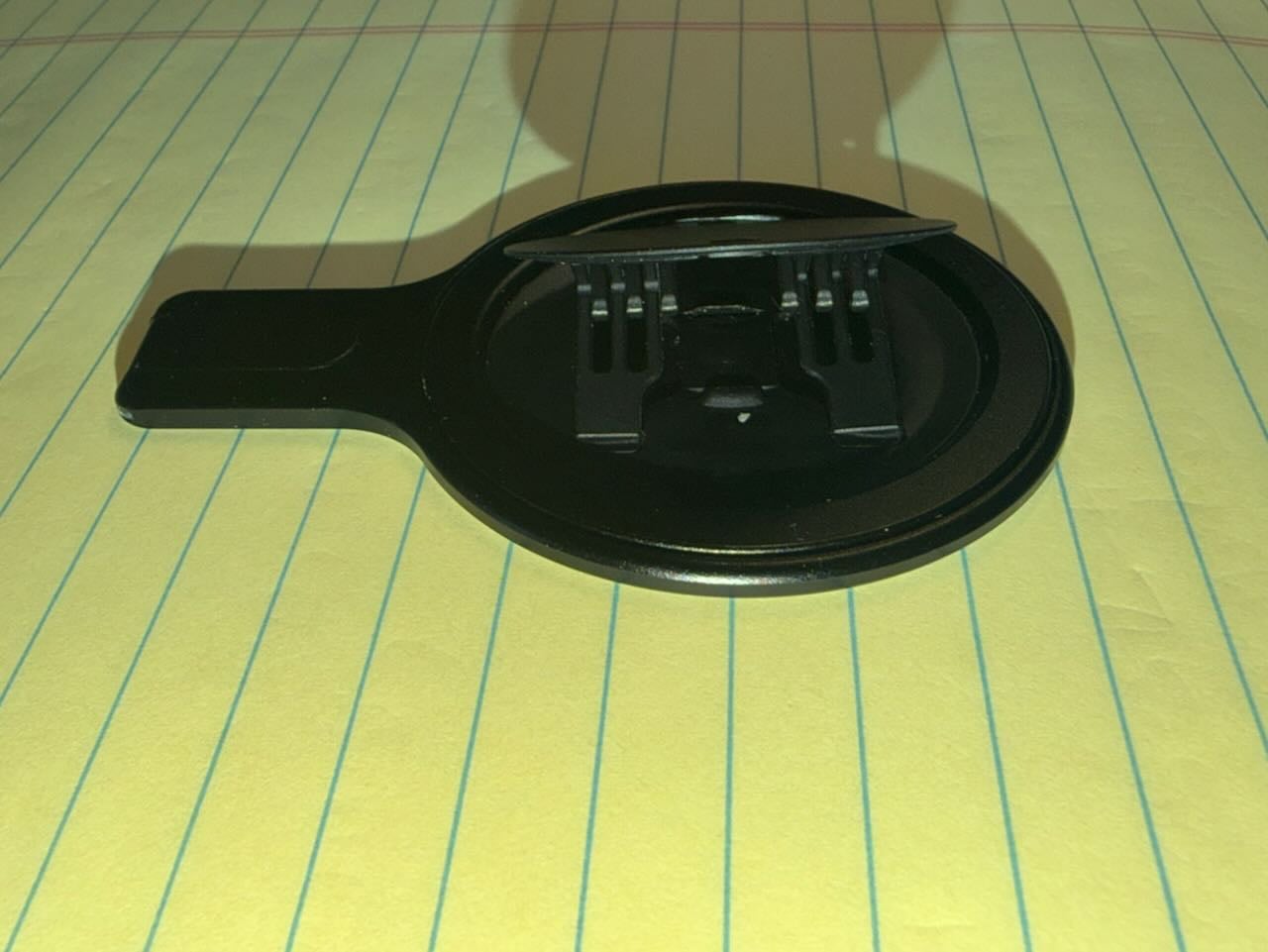
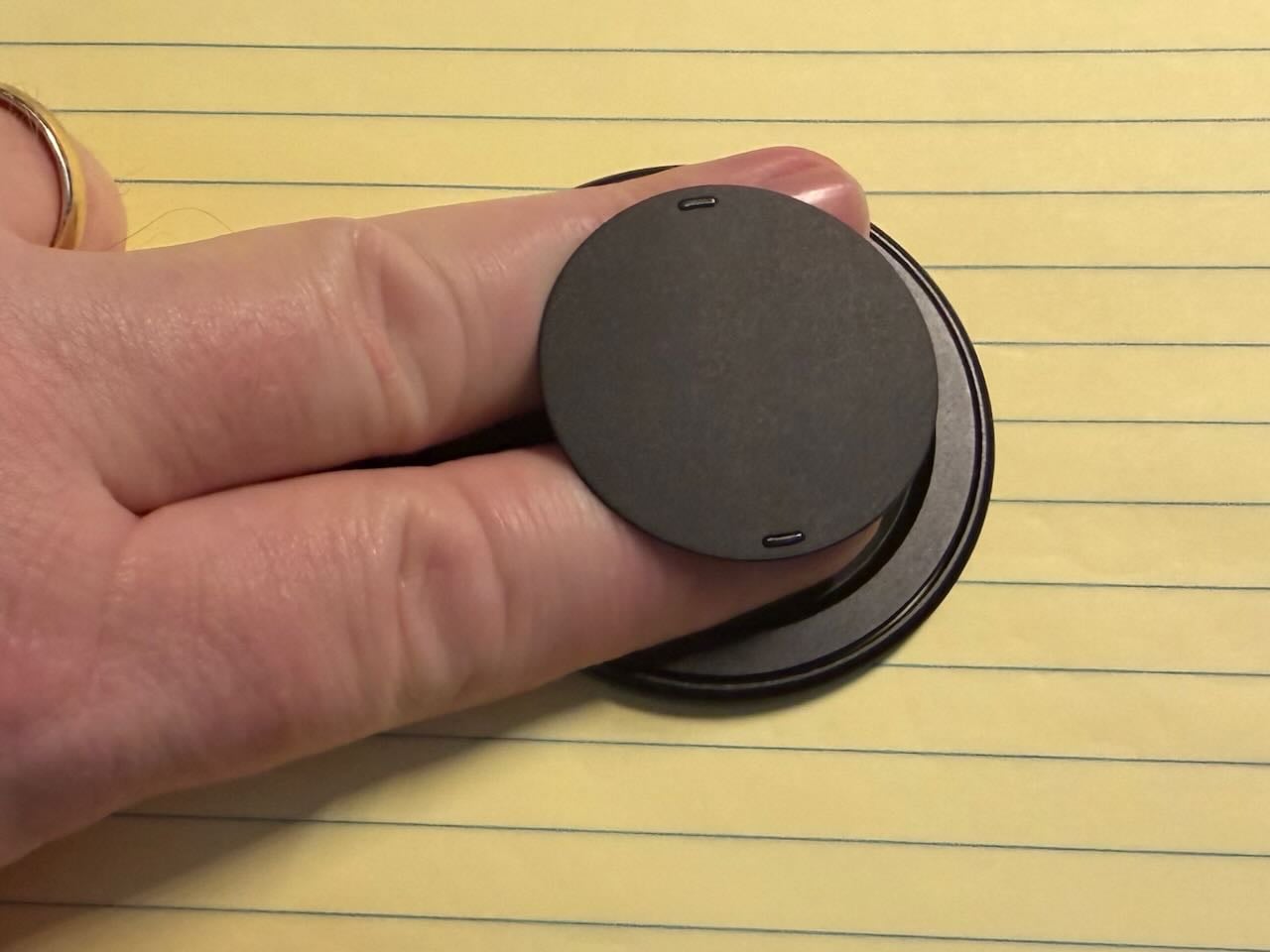
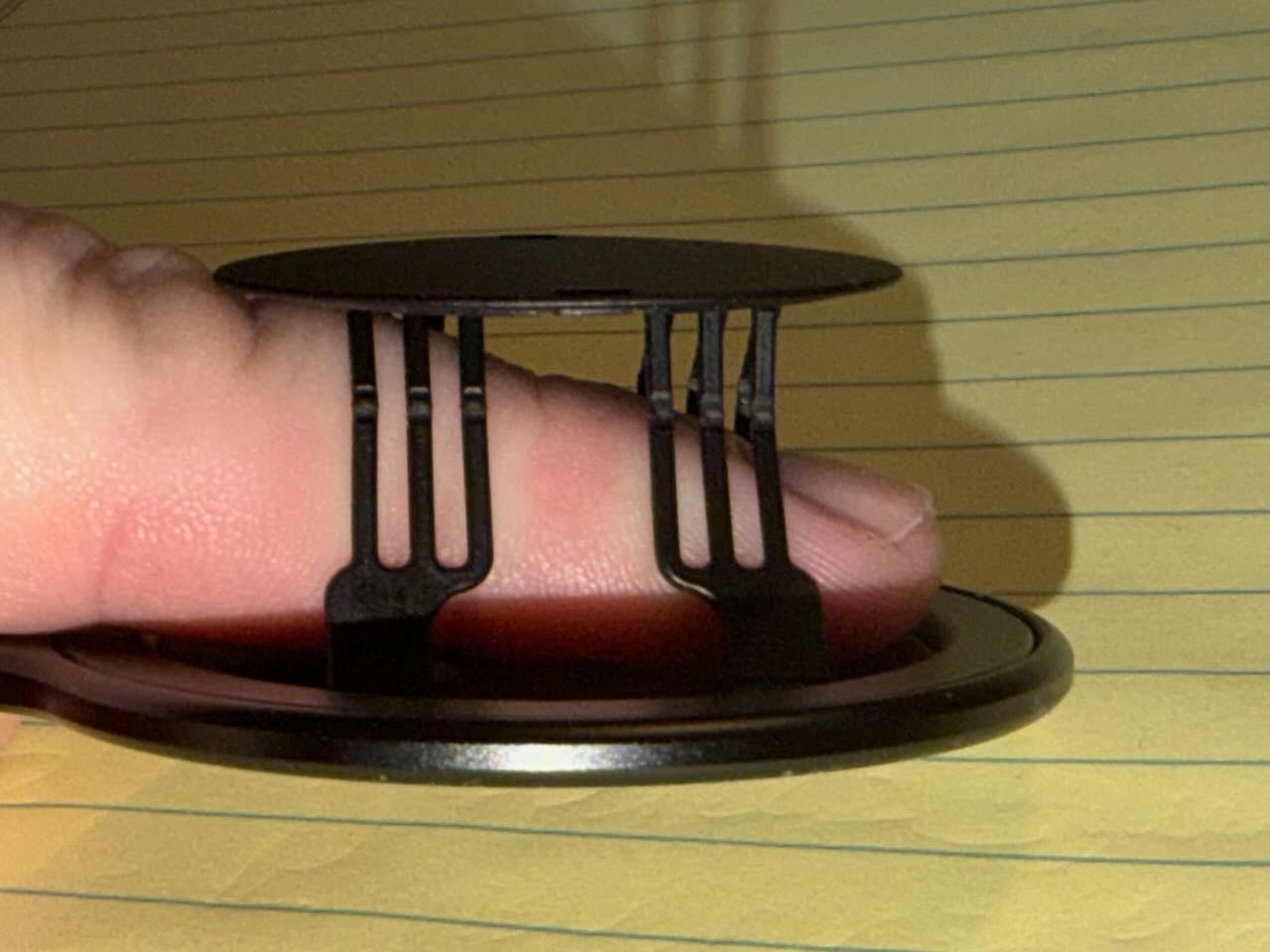
Lightly press one of the two small raised areas on the ring, and a series of very thin plastic strips in a diagonal design makes the circle pop out. This gives you two different ways to hold the grip.
First, you can place two fingers around the grip, which I suspect is the traditional way to use a device like this.
Second, you can slide a finger between the thin plastic strips. I prefer this second method, although I use both methods frequently. It is nice that you have a choice.
The device spins, so once you decide which method you want to use, you can place your iPhone in the perfect orientation.
Although the thin plastic strips are comfortable, they are also very durable. This is a design ohsnap! has used for many years in its products, and it is an engineering feat.
Thanks to the grip, I now find it much easier to hold an iPhone. Sometimes I hold the iPhone and use it with a single hand. Other times, I appreciate having my iPhone more secure in my left hand while I interact with it using the fingers on my right hand. If I don’t feel like using the grip at all, I just snap it back into place.
A thin design that improves the back of the iPhone
One of the most impressive things about this product is how incredibly thin it is. It sits nearly flush with the back of the iPhone. That means that when you are not using it, you barely notice that it is there. This is exactly why I have never been a fan of other products in this category. I don’t want something that adds obnoxious bulk to my iPhone. This product does not. I don’t know how they designed this product to be so thin while also working so well, but kudos to ohsnap! for doing so.
In fact, this product actually improves the back of the iPhone. I use an iPhone 17 Pro Max, and like many modern iPhones, it has a raised plateau at the top of the back to house the cameras. That means that when I place my iPhone on a table, the side with the cameras is slightly higher than the other side. But the Snap Grip Stand is the perfect width, so it makes the iPhone flatter and more stable when it sits on its back. It is such an improvemet that it sometimes makes me wonder if Apple itself should have created something like this to eliminate table wobble.
The stand
If that was all that this product did, I would like it. But wait; there’s more. You can also extend this device to turn it into a kickstand. This can be useful for watching videos on it, using FaceTime, etc.
This isn’t a feature that I use every day, but I do use it once or twice a week, and it is nice to have.
MagSafe
Perhaps the best part of this device is its MagSafe compatibility. It uses the MagSafe magnets to securely attach to the back of the iPhone. It is a very strong connection. I have never felt like the magnetic connection would fail in a way that would make the iPhone drop out of my hand. Yet it is also very easy to remove the device whenever you want.
Additionally, this is pass-through MagSafe. That means you can keep the Snap Grip Stand on the back of your iPhone and still attach it to a stand, such as the Anker Prime Wireless Charging Station (my review). This means that while I am in my office and not using my iPhone, I can still attach my iPhone to a MagSafe stand and take advantage of Stand By mode. This is fantastic.
Moreover, you don’t need to remove the Snap Grip Stand to charge an iPhone with MagSafe. The charge passes right through this product. However, it doesn’t charge nearly as well. First, it takes longer to charge the iPhone. Second, sometimes it stops charging completely. For example, when I keep the Snap Grip Stand on the back of my iPhone and charge it at night using the Twelve South HiRise 3 Deluxe (my review) that is on my nightstand, sometimes I will wake up in the morning with my iPhone 100% charged, and other times, it is not. Am I bumping into my nightstand at night and making the MagSafe connection slightly less secure? I don’t know.
If your goal in using MagSafe is to prop your iPhone on a stand and use Stand By mode, it works great. If your goal is to charge your iPhone as fast as possible, remove the Snap Grip Stand. In fact, if your goal is to charge an iPhone as fast as possible, you shouldn’t use MagSafe at all; plugging in a USB-C cable is faster.
Fidget Spinner
I’ll share one other thing I’ve noticed during the last few weeks. I often find myself just playing with the Snap Grip Stand as a way to keep my hands occupied, the same thing that one might do with a traditional fidget spinner. Sometimes I do so when it is attached to my iPhone. Other times, I remove the Snap Grip Stand and just fidget with it in my hands. If you are the type of person who appreciates having something to fidget with—and I guess that applies to me—it’s nice to have the Snap Grip Stand around.
Price
The MSRP is $49.99. It is not sold on Amazon, but if you buy it directly from ohsnap!, it is currently on sale for $39.99 for one or $71.98 for two. This device was sent to me for this review at no cost to me, but I think it is definitely worth $40.
Conclusion
The best thing that I can say about any product is that I want to keep using it even after I finish reviewing it. That is definitely true for the Snap Grip Stand. It adds lots of great features to my iPhone, and because of its clever design, it has no real downsides. Even if you have never felt compelled to try a PopSockets-type device, I recommend you consider this one. It is excellent.
We are less than a month out from Apple’s September product announcements, so Brett and I start this week’s episode by talking about what could be announced. A foldable iPhone seems likely, and people are saying it will be called the iPhone Ultra. An iPhone 18 Pro and 18 Pro Max seem likely, but perhaps not an iPhone 18. New Apple Watch models? A new device for the home, like a HomePod with a screen or security cameras? There are lots of possibilities. We also discuss the upcoming changes to Apple’s Wallet app, which is becoming even more useful. We also talk about bands that can spruce up your Apple Watch.
In our In the Vision segment, we discuss immersive Friday Night Baseball.
In our In the Show segment, we discuss Ted Lasso.
In our In the Know segment, Brett shares a fun sight with a new puzzle each day called Poople.io, and I discuss tapping your fingers to display seconds on the Apple Watch and get other useful information.
Horace Dediu of Asymco wrote this week that one of the biggest innovations of the Apple Watch was user-replaceable watch bands. Do you ever change the band on your Apple Watch to dress it up (or down)? In a Wirecutter article, Haley Perry of the New York Times recommends five elegant Apple Watch bands that cost less than $350. Most of the ones on her are geared toward women, but not all. When I dress up and/or go to work, I virtually always wear the same Milanese Loop band that I’ve been using for over a decade (my review). I’m still a fan because it looks nice and is very comfortable. But when I get home after work and on weekends, I typically switch to a Braided Loop (my review) or a Solo Loop (my review), and I have both of those styles in multiple colors. There are rumors that the 2026 version of the Apple Watch, which may be introduced next month, will be a more significant upgrade, but I hope that it maintains compatibility with the bands that have been available since 2015. Of course, there may be times when an Apple Watch is not appropriate, regardless of the band, which is why I’m curious about speculation that Apple might also introduce a device with many of the features of the Apple Watch but without a screen. Victoria Song of The Verge discusses wearable devices that lack a screen and why they are becoming popular. And now, the news of note from the past week:
I think one of the best things Apple can do to encourage people to purchase an Apple Vision Pro or future devices that use visionOS is to let people experience live, highly desirable, immersive content. Let people experience front-row seats at a Taylor Swift concert, and Apple won’t be able to keep the devices in stock. Apple has been experimenting with this. Earlier this year, you could watch live NBA games on the Apple Vision Pro. As I wrote at the time, it was an incredible experience, but unfortunately, you could only watch the games live if you were in Spectrum’s Los Angeles market. This week, Apple announced that four of the Friday Night Baseball games that Apple airs for Apple TV subscribers will be available in immersive video. The first game is on August 28, and it should be a great one: Boston Red Sox at New York Yankees. Those teams have loyal fans, and the teams are traditional rivals. For the three Fridays after that, you can watch the Los Angeles Angels at Pittsburgh Pirates, the San Diego Padres at San Francisco Giants, and the San Francisco Giants at Los Angeles Dodgers. I’m very curious to see what Apple does in light of what they learned from the basketball games, especially considering that these baseball games will be shown on Apple’s own Apple TV network. I can’t wait to check it out, and I guess I need to buy me some peanuts and Cracker Jack.
When Apple announces the 2026 iPhone models—as noted last week, I predict that will take place on September 9—Apple is widely expected to introduce a foldable iPhone. As Hartley Charlton of MacRumors reports, Mark Gurman of Bloomberg says that “everyone” inside Apple refers to this device as the “iPhone Ultra.”
Stevie Bonifield of The Verge predicts that Apple will introduce the iPhone 18 Pro next month but will wait until early 2027 to introduce the iPhone 18, iPhone 18e, and a new iPhone Air. I can see some logic to this speculation given the worldwide shortage of RAM. It could also convince some people to pay more for the Pro model rather than wait for the cheaper non-Pro model.
In an article about FileVault on the Mac, Glenn Fleishman of Six Colors discusses how Apple handles end-to-end encryption on its devices.
Hartley Charlton notes that anyone with a subscription to Apple TV can now watch 19 classic movies: 21 Jump Street, Arrival, The Aviator, A Beautiful Mind, The Bourne Identity, Charlie’s Angels, E.T., Forgetting Sarah Marshall, Gone Girl, I, Robot, Looper, The Martian, Mission Impossible: Ghost Protocol, The Proposal, The Rookie, The Sixth Sense, Titanic, Zodiac, and Zoolander.
Katie Campione of Deadline reports that the Season 4 premiere of Ted Lasso was the biggest ever for Apple TV.
Armando Tinoco of Deadline reports that it appears Apple has agreed to Seasons 4, 5, and 6 of Ted Lasso, and notes that recent comments by Apple VP Eddy Cue seem to be consistent with that.
And finally, I like this video that Apple created to welcome back Ted Lasso in which Ted appears to show up in multiple popular Apple TV shows:
We are now just one month away from 9/9, the date when I predict Apple will debut the 2026 version of the iPhone, and Brett and I start this week’s episode of the podcast by discussing why I predicted that date for this year, as well as my predictions for the next few years. We also discuss trading in an old iPhone to get a new iPhone, the Apple Newton in the 1990s, CarPlay on a boat, scrubbing through a podcast in CarPlay, and more. We also discuss my recent post analyzing whether using the 1Password Travel Mode feature could violate federal law, a post that generated a lot of feedback this week. Unfortunately, none of you seem to have better answers than I do.
In our In the Vision segment, we discuss surgeons using an Apple Vision Pro.
In our In the Show segment, we discuss Ted Lasso. Neither Brett nor I had seen the first episode of Season 4 when we recorded the podcast, but we both watched it Friday night, and we both loved it! It is great to see that Ted Lasso is back and as funny as ever.
In our In the Know segment, Brett shares a useful tip for saving photos in a shared album in the Photos app, and I explain how to highlight text in yellow using Apple’s Mail app for the iPhone or iPad.
Are you ready for a new iPhone? Two years ago, I predicted that Apple would announce the 2026 iPhone on Wednesday, September 9, 2026. My prediction was based on Apple’s pattern for selecting the date for iPhone announcements since 2013. This week, Andrew Orr of AppleInsider reported that, based on an internal memo seen by Bloomberg, Apple is giving its U.S. retail employees the opportunity to enter a lottery to come to Cupertino, California, to assist with the next iPhone announcement event, and Bloomberg believes that this event will take place on September 9th. I’ve had my calendar marked on September 9, 2026, for a while now, and you may want to do the same. If you want to plan even further ahead, I’d earmark Wednesday, September 8, 2027, and Tuesday, September 12, 2028. And now, the news of note from the past week:
If you purchase a new iPhone after the announcement on September 9th, you may want to trade in your current model to reduce the overall price. William Gallagher of AppleInsider noticed that Apple has just increased what it is willing to pay you if you trade in a device. For example, Apple is now offering you an additional $70 (up to $630) if you trade in an iPhone 16 Pro.
Marcus Mendes of 9to5Mac reports that, according to Counterpoint Research, an all-time high of 29% of the smartphone market is comprised of smartphones that cost $600 or more. And of that premium smartphone market, Counterpoint Research believes that 65% of it is the iPhone.
Long before the iPhone, Apple sold the Newton. William Gallagher of AppleInsider wrote about the Newton’s history in a post that he wrote a while back but I saw linked to this week. It’s a good read.
Juli Clover of MacRumors reports that SpaceX is planning to create its own cellular service to compete with Verizon, AT&T, and T-Mobile. Instead of cell towers, the company will use base stations paired with Starlink dishes. Interesting.
I was surprised to see this article from John Gruber of Daring Fireball, based on a report from James Hibberd of The Hollywood Reporter, that BMW is showing an ad for the new Spider-Man movie on car dashboards. That is the last thing I would want to see, and it is an example of why I trust Apple’s CarPlay more than I trust car manufacturers. That said, it was just a week ago that I was talking about how Apple has been slowly increasing ads on its platform (such as the upcoming ads coming to Apple’s Maps app), so maybe Apple would consider doing this, too. Although I hope not.
What if you are listening to a podcast in CarPlay and you want to jump ahead or back? Ryan Christoffel of 9to5Mac reports that, in iOS 27, you will be able to drag the playhead forward or backward to scrub through the podcast—a feature long supported on other platforms.
A study reported in AJO International (a companion title to The American Journal of Ophthalmology) found that when surgeons wore an Apple Vision Pro while performing eye surgery, they were able to perform the surgeries 19% faster. Additionally, the surgeons preferred performing surgery with these devices because they made surgery more comfortable, as they could maintain a more neutral head and neck posture. If I were having an eye operation, I would definitely want my surgeon to be more comfortable and for the surgery to take less time.
The first episode of the new season of Ted Lasso is now available on Apple TV. I haven’t watched it yet—my wife and I are saving it for tonight—but Jason Snell of Six Colors has seen the first half of Season 4 and says that “each episode made me laugh out loud, a lot.” It looks like new episodes are released every Wednesday.
In other Ted Lasso news, although I haven’t watched Season 4 yet, I did do an Apple Fitness+ workout this week in which all of the instructors were dressed up like members of the team in Ted Lasso, and many of the songs were related to the show. It was fun.
And finally, I loved the Apple TV show Margo’s Got Money Troubles, and this video showcases the incredible actors in that show. I don’t recommend this video if you haven’t watched the show yet because it contains spoilers. But if you have watched the show, this video is fun, and it reminds me how much I enjoyed the series: